
How to perform a domain change in a migrated PrestaShop installation
In the following manual we will learn how to perform the domain change in a manually cloned/migrated PrestaShop installation. Subsequently, we will provide you with all the modifications you would need to make so that your PrestaShop site works with the new URL.
By default, your cloned/migrated PrestaShop will remain connected to the original DB and will continue to use the original domain URL. For your Cloned PrestaShop to load its content correctly with the new domain name, it will be necessary to:
-
- Modify the 'parameters.php' and '.htaccess' files.
-
- Replace the old PrestaShop URLs with the new URL in the DB.
This guide was created for PrestaShop version 1.7. It is not applicable to lower versions.
Locate DB
- First, we will need to know which is the cloned/migrated DB within the hosting. You can find this by accessing the Hosting Dashboard ---> (side menu) service management --> databases --> verifying the DB name and user.
Review 'parameters.php' file.
-
Subsequently, we will review the 'parameters.php' file by accessing the Hosting Dashboard --> (side menu) Service management --> File manager --> '/datos/web/app/config/parameters.php' and, finally, by clicking on Edit file:
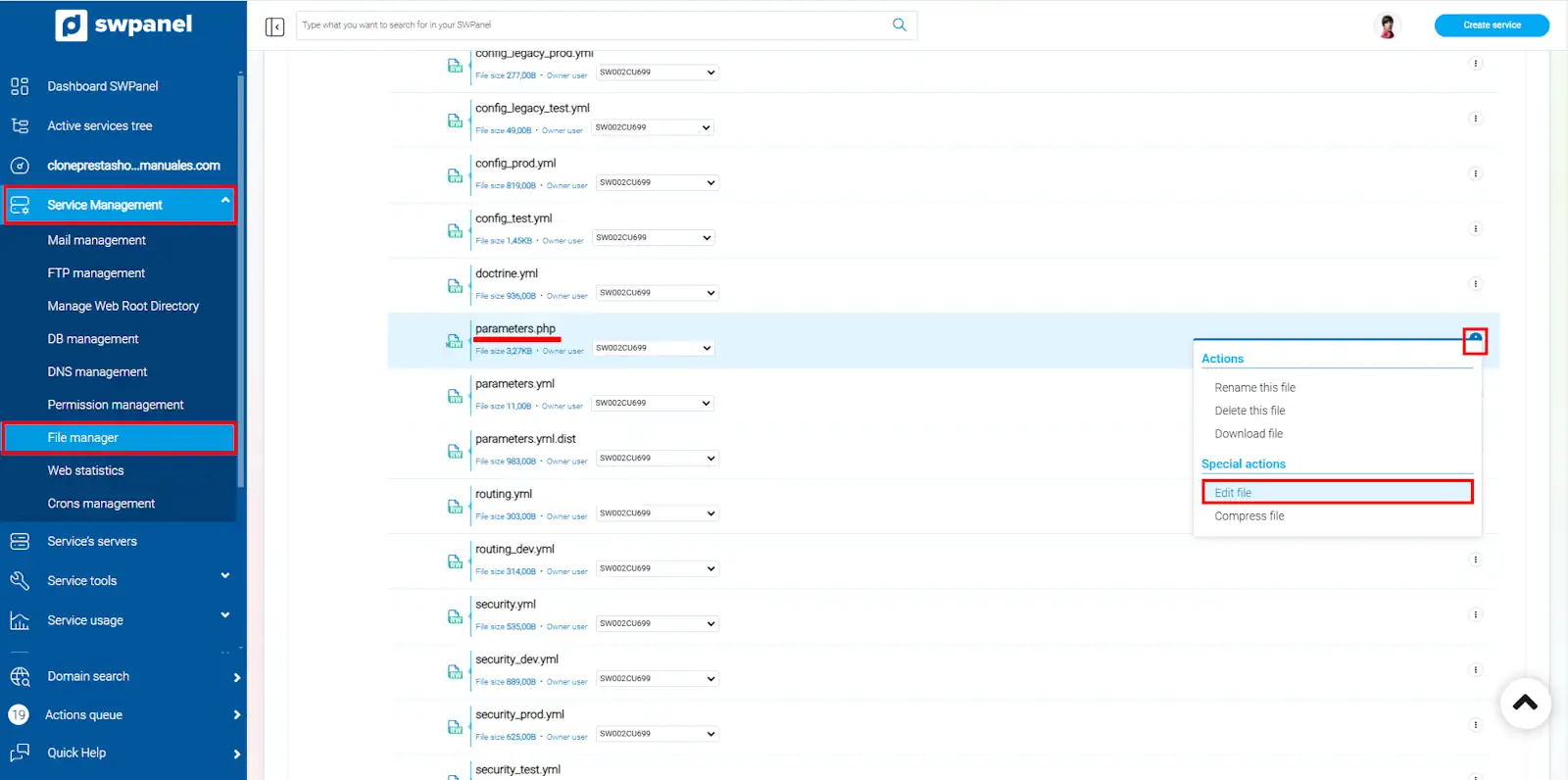
info_capture The screenshot is for guidance purposes. It was taken on version 2025.00.0017 dated 01/01/2025. It may differ from what the current version of SWPanel shows.
-
We will review the parameters:
- 'database_name'
- 'database_user'
danger In the event that the hosting DB name or user verified previously do not match those in the 'parameters.php' file, we must modify the file, replacing the names.
Modify '.htaccess' file
-
We will modify the '.htaccess' file by accessing the Hosting Dashboard --> (side menu) Service management --> File manager --> '/datos/web/'.htaccess' and, finally, by clicking on Edit file:
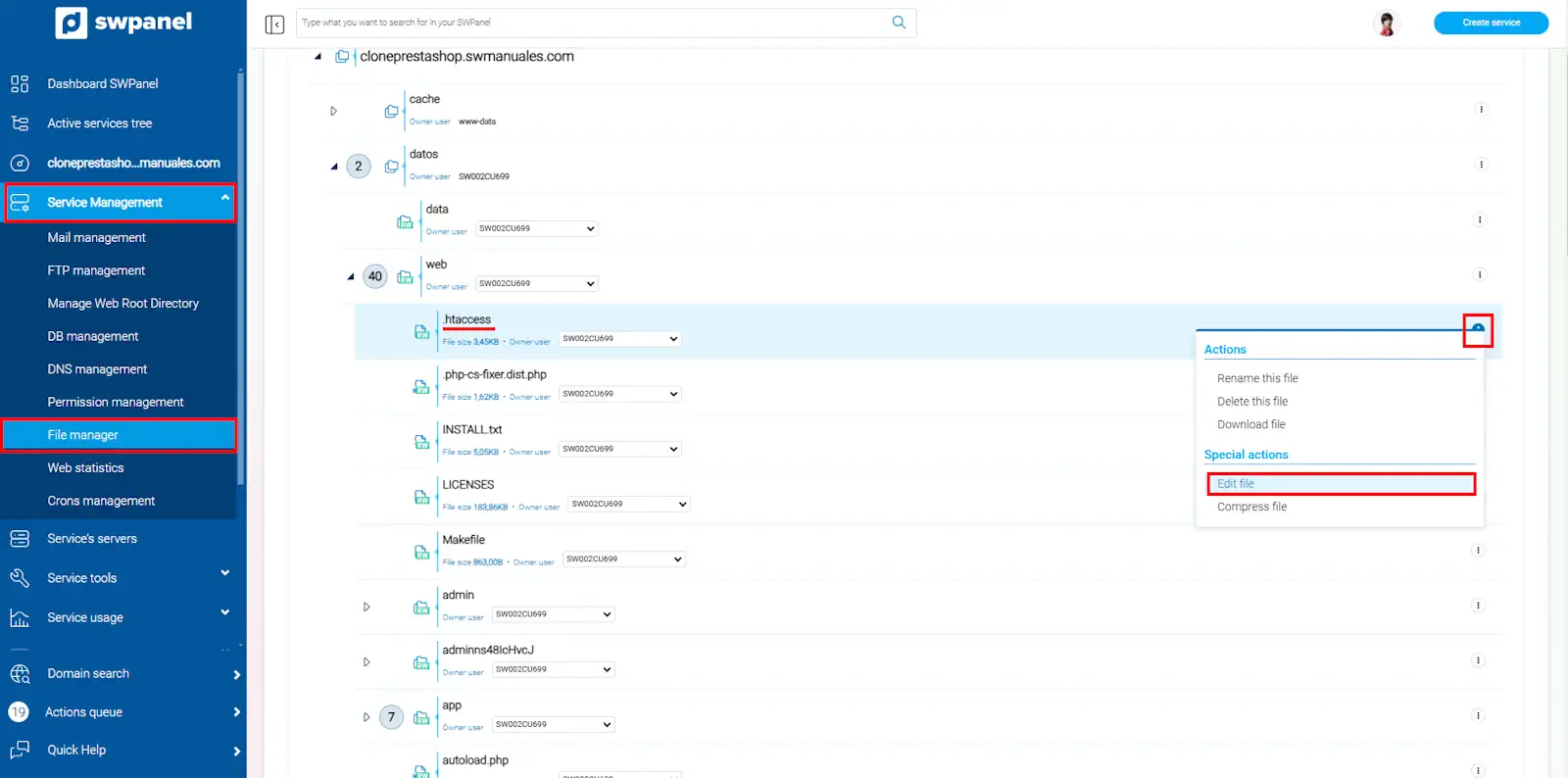
info_capture The screenshot is for guidance purposes. It was taken on version 2025.00.0017 dated 01/01/2025. It may differ from what the current version of SWPanel shows.
-
We will modify all entries of the old URL, replacing them with the new URL.
Modify DB
- You can access the DB via the phpMyAdmin URL of your domain or the web server.
Access via domain URL:
- http://{tudominio}.com/phpmyadmin/
Access via web server URL:
https://{IPServidorWeb}/phpmyadmin/
You can find the web server IP associated with your hosting by accessing the Hosting Dashboard --> (side menu) Service servers --> Web Server IP
-
Once inside the DB, you must modify the 'xx_configuration' and 'xx_shop_url' tables.
-
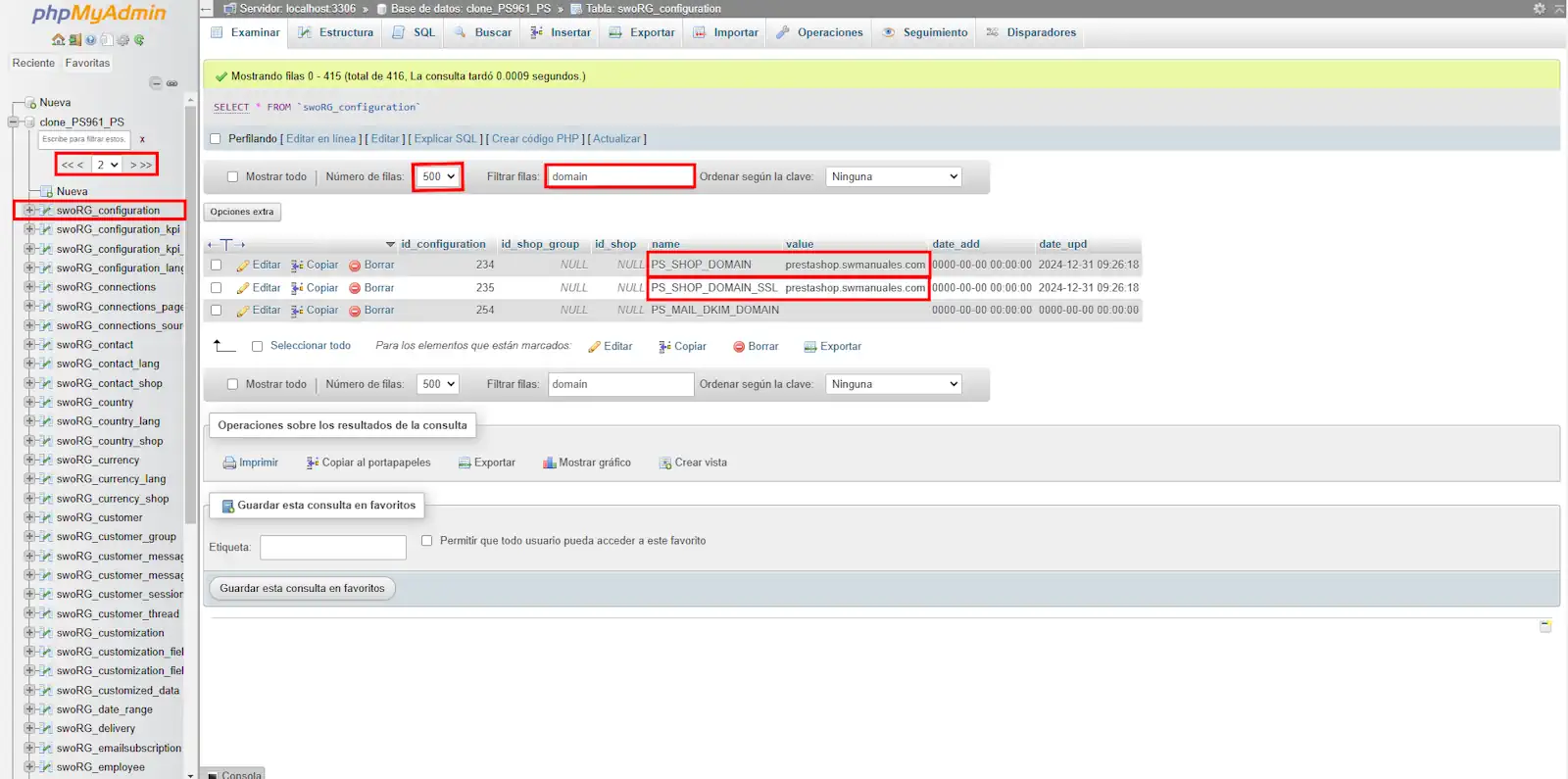
You can locate the 'xx_configuration' table by expanding the tables in the side menu and navigating through the pages. Once located, you must modify the parameters:
- XX_SHOP_DOMAIN
- XX_SHOP_DOMAIN_SSL
Replacing the old URL with the new URL.
TIP- Once inside the 'xx_configuration' table, you can locate the 'XX_SHOP_DOMAIN' and 'XX_SHOP_DOMAIN_SSL' variables more easily by changing the number of rows to '500' and typing 'domain' in the search box.
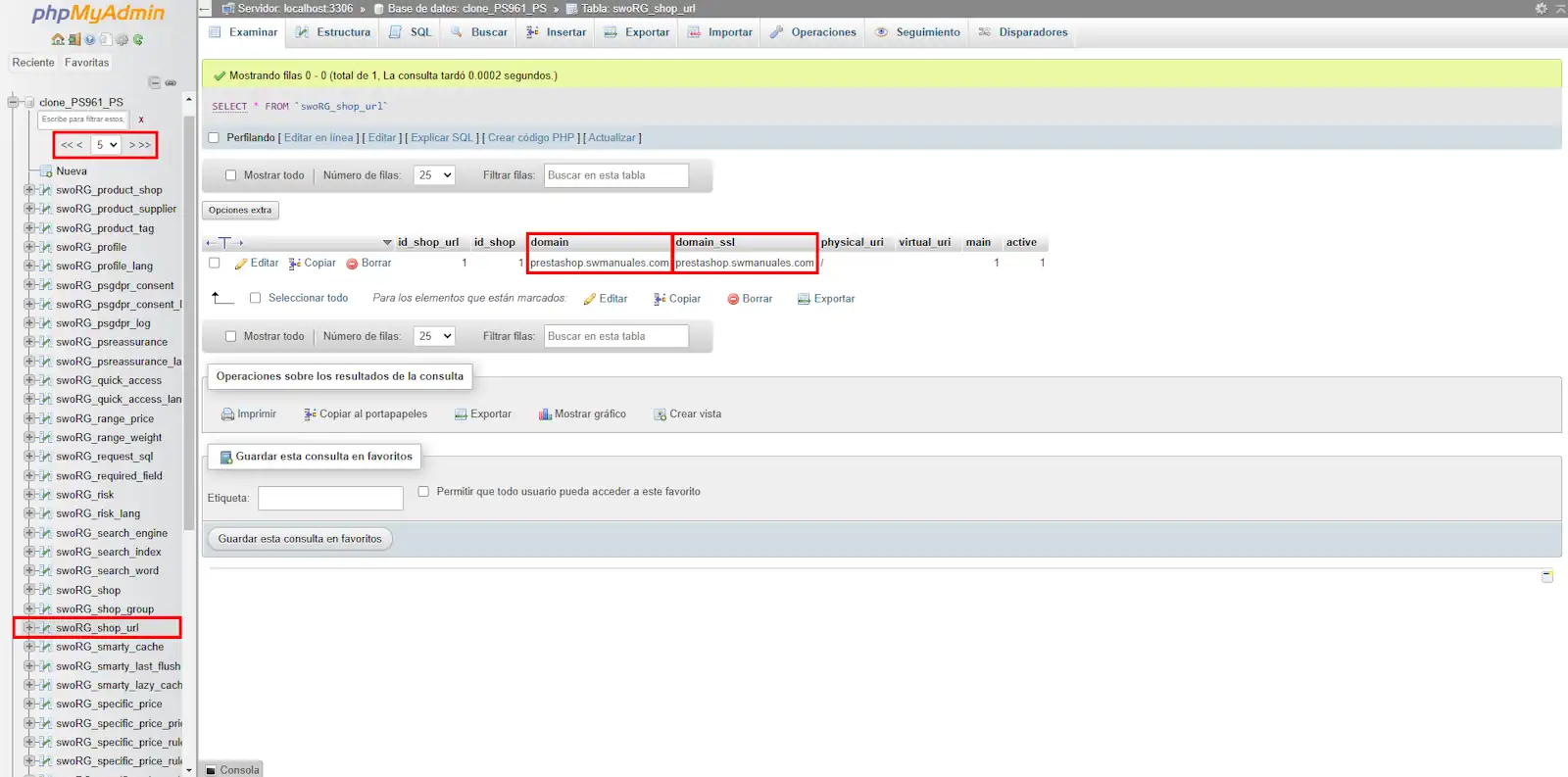
- Modification of the 'xx_shop_url' table. You can find it by expanding the tables in the side menu and navigating through the pages. Once located, you must modify the parameters:
- 'domain'
- 'domain_ssl'
Replacing the old URL with the new URL.
Website Access
- Subsequently, the DB and internal PrestaShop configuration should respond to the new URL. You can verify this by accessing your website from the URL:
- http://{tudominio}.com
In the event that the domain DNS records have not propagated, you will not have normal access to the website; you can check the propagation status of your domain at the following URL:
- https://www.whatsmydns.net/#A/{tudomino.com}
To check your website, you can modify the hosts file of your computer, manually pointing the domain to the hosting. We attach the following manual which explains the process in detail:
Manual: Modify 'hosts' file in Windows, Mac and Linux.
Subsequently, you will be able to access your website via your domain URL as you normally would.
Activate Debug mode
In case there are problems or any type of inconvenience, we recommend activating debug mode manually.
You can activate debug mode by accessing the Hosting Dashboard--> (side menu) Service management --> File manager --> /datos/web/config/defines.inc.php and changing 'false' to 'true' in the following line:
define('_PS_MODE_DEV_', false);
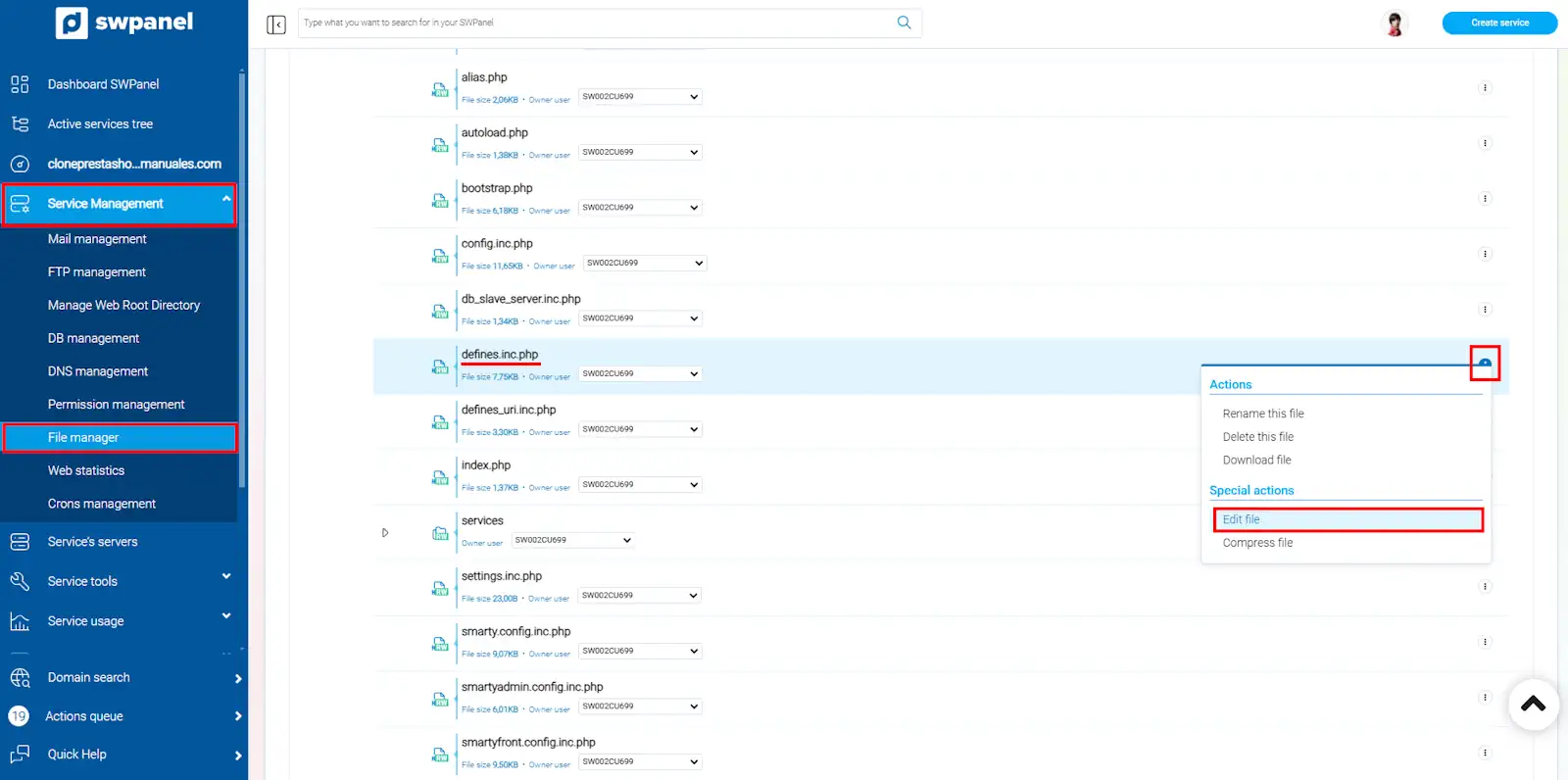
info_capture The screenshot is for guidance purposes. It was taken on version 2025.00.0017 dated 01/01/2025. It may differ from what the current version of SWPanel shows.
success Ready! Now your Prestashop is correctly configured with the new URL.