
On this page 1 sections
In this manual, we will access SSL certificate management, as well as see all the management possibilities available.
Access to SSL certificate management
From the main SWPanel Dashboard, we click on 'Domains and SSL' > 'SSL Certificate Portfolio':
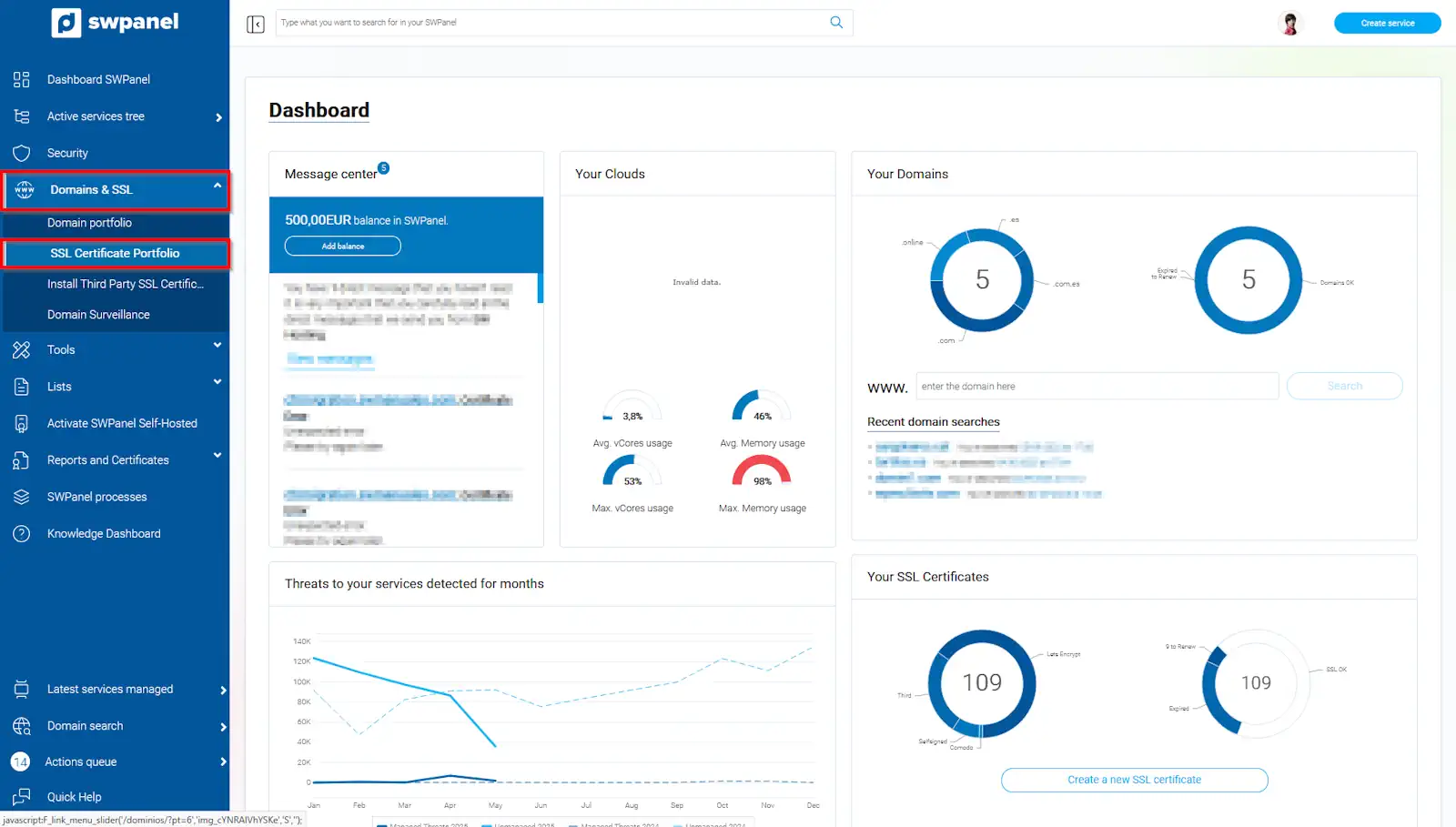
The screenshot is for guidance purposes. It was taken using version 2025.004.0001 dated 11/05/2025. It may differ from what the current version of SWPanel shows.
We will access the SSL certificates panel, where we can see all installed certificates:
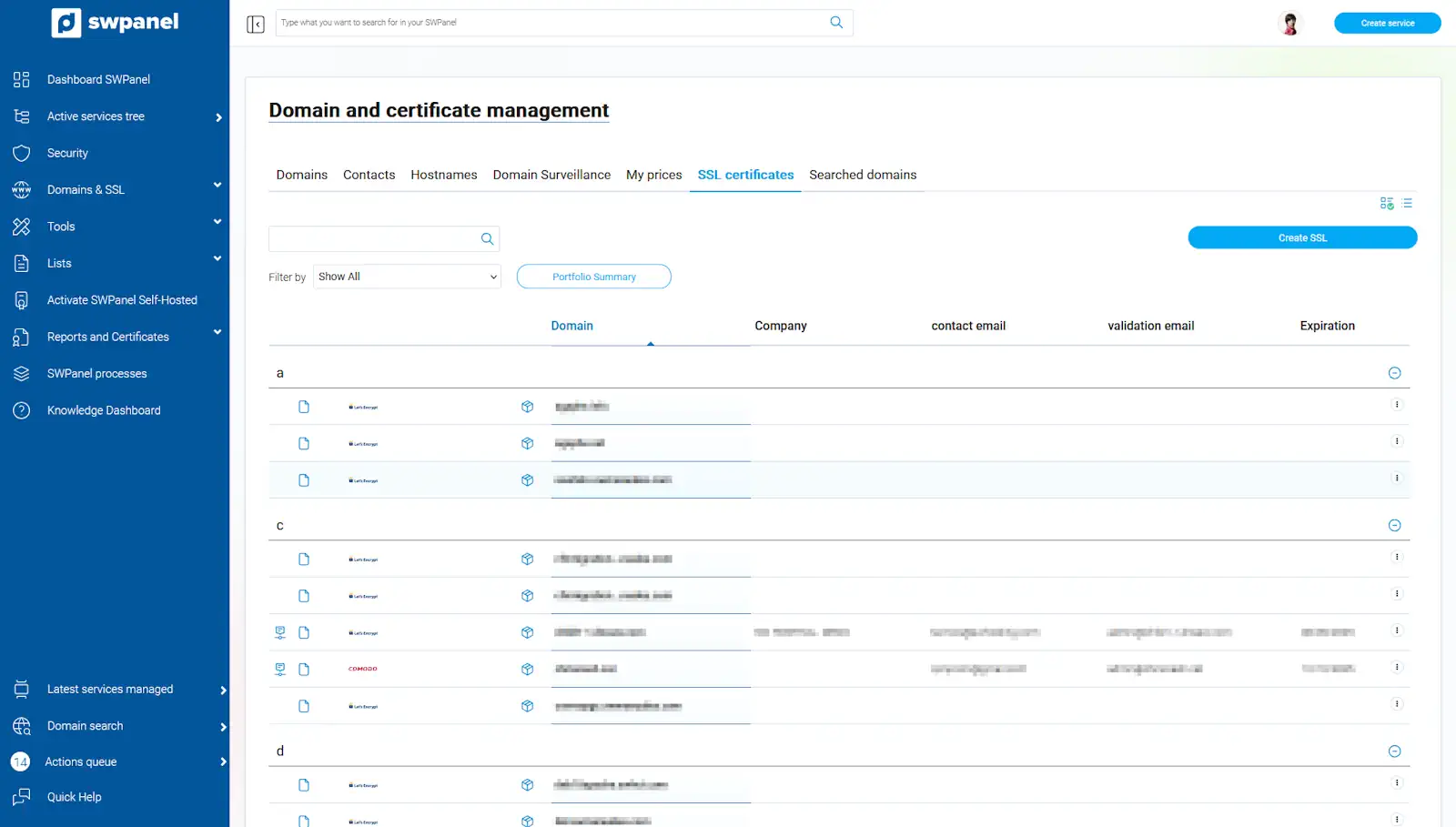
The screenshot is for guidance purposes. It was taken using version 2025.004.0001 dated 11/05/2025. It may differ from what the current version of SWPanel shows.
From this section, we can purchase a new SSL certificate by clicking on 'Create SSL' or perform various actions on already acquired certificates by clicking on the dropdown menu to the right of each one.
For more information about SSL certificates and how to create one with SWPanel, you can consult our manual Manual: SSL Certificates.
Continue with these manuals
- SSL Certificates SSL Certificates · updated on 17 Nov 2026
- Automatically redirect to secure connection 'https' SSL Certificates · updated on 17 Nov 2026
- How to install a Let's Encrypt SSL certificate with SWPanel SSL Certificates · updated on 17 Nov 2026
- Install SSL certificate purchased via SWPanel SSL Certificates · updated on 17 Nov 2026