
Process management of my Cloud server
Resource Monitoring and Management on a Cloud Server with SWPanel
1. Introduction
The performance of a Cloud server is key to serving your Hosting content, ensuring its stability, and optimizing its operation. The detection of irregularities is fundamental to avoid impacts on its performance. In this manual, we will show you how to view and manage the resources of your Cloud server using SWPanel.
2. Monitoring System Processes
In the main Dashboard of your SWPanel account, use the search bar to locate your Cloud server. Once located, click on its name.
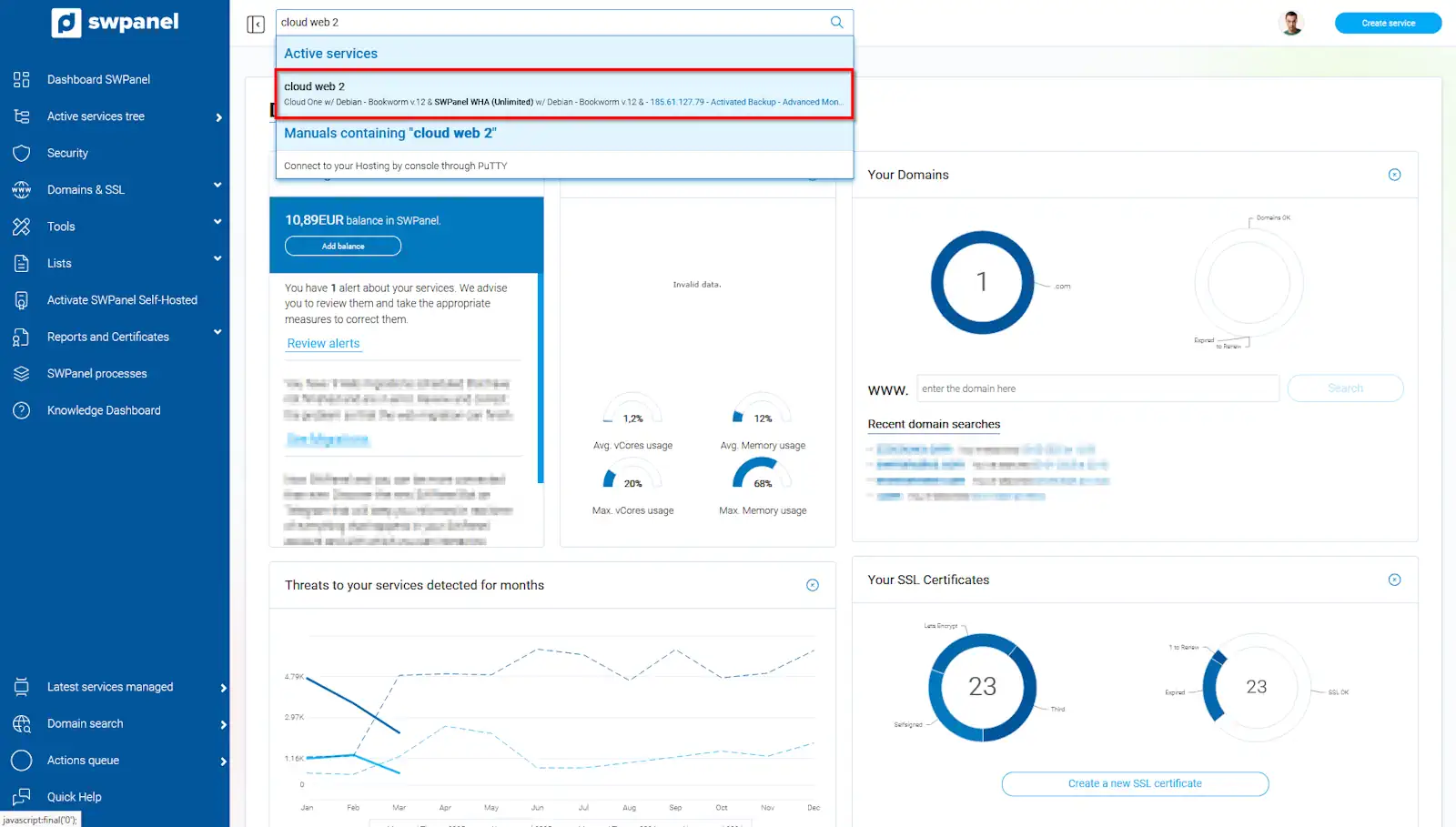
info_capture The screenshot is for guidance purposes. It was taken using version 2025.02.0002 dated 14/03/2025. It may differ from what the current version of SWPanel shows.
Next, go to Service usage → System processes.
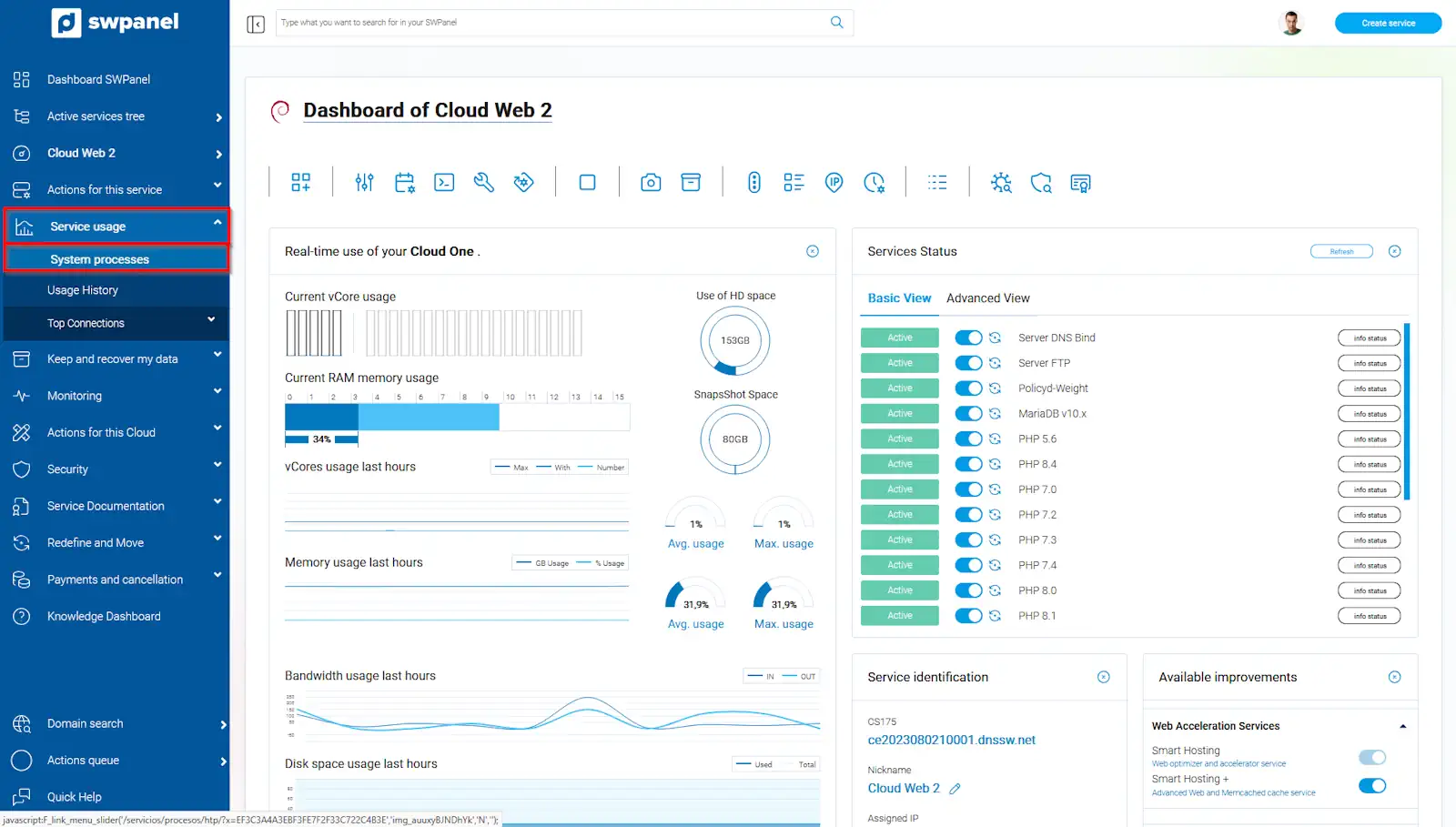
info_capture The screenshot is for guidance purposes. It was taken using version 2025.02.0002 dated 14/03/2025. It may differ from what the current version of SWPanel shows.
In this section, you can consult two options: System resources and System processes of your Cloud server.
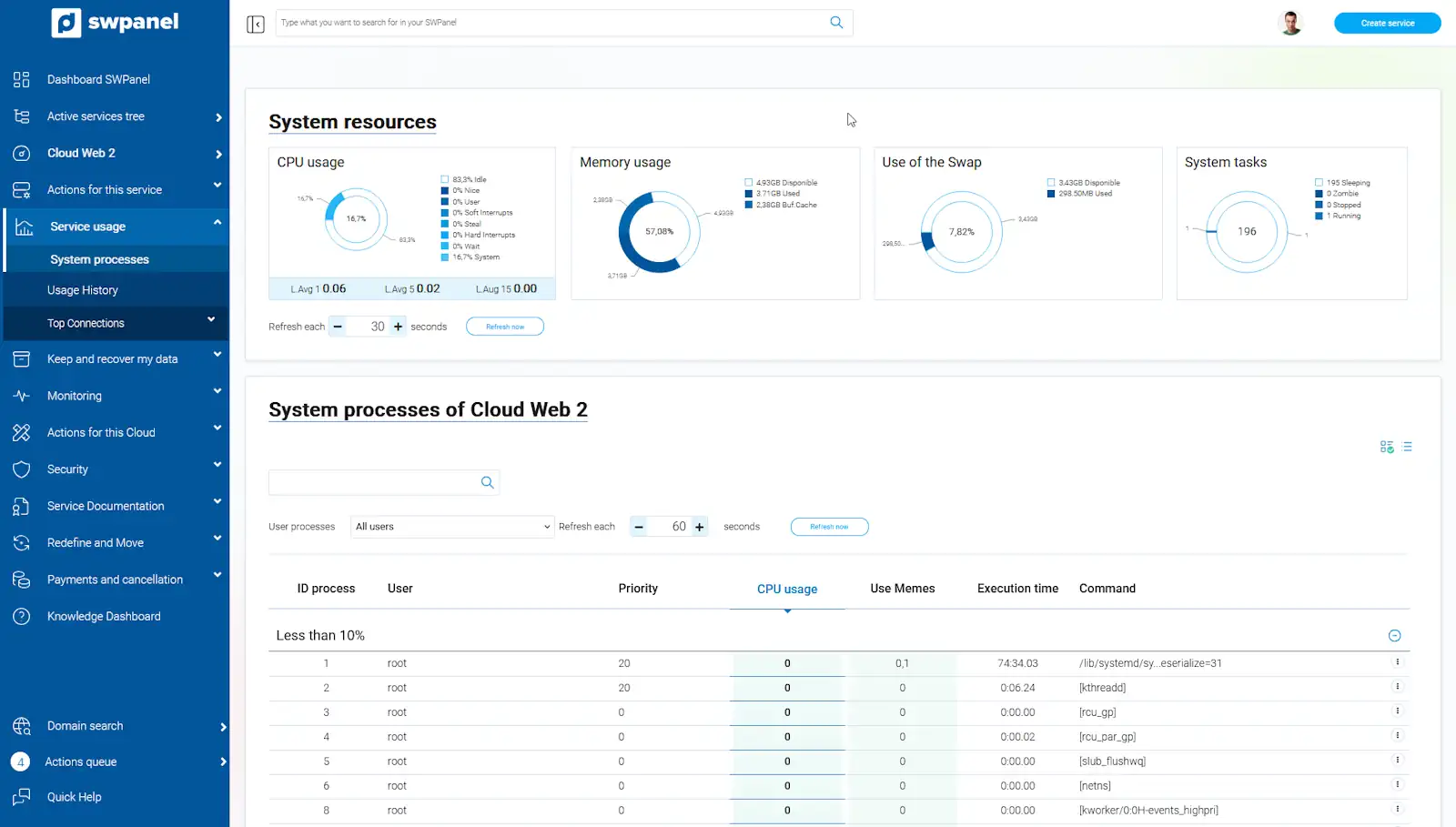
info_capture The screenshot is for guidance purposes. It was taken using version 2025.02.0002 dated 14/03/2025. It may differ from what the current version of SWPanel shows.
2.1. System Resources
It allows you to see the use of CPU, RAM memory, SWAP, and system tasks of your server. By default, it updates every 30 seconds, but you can modify this time according to your needs. You also have the Refresh now button to update the data manually.
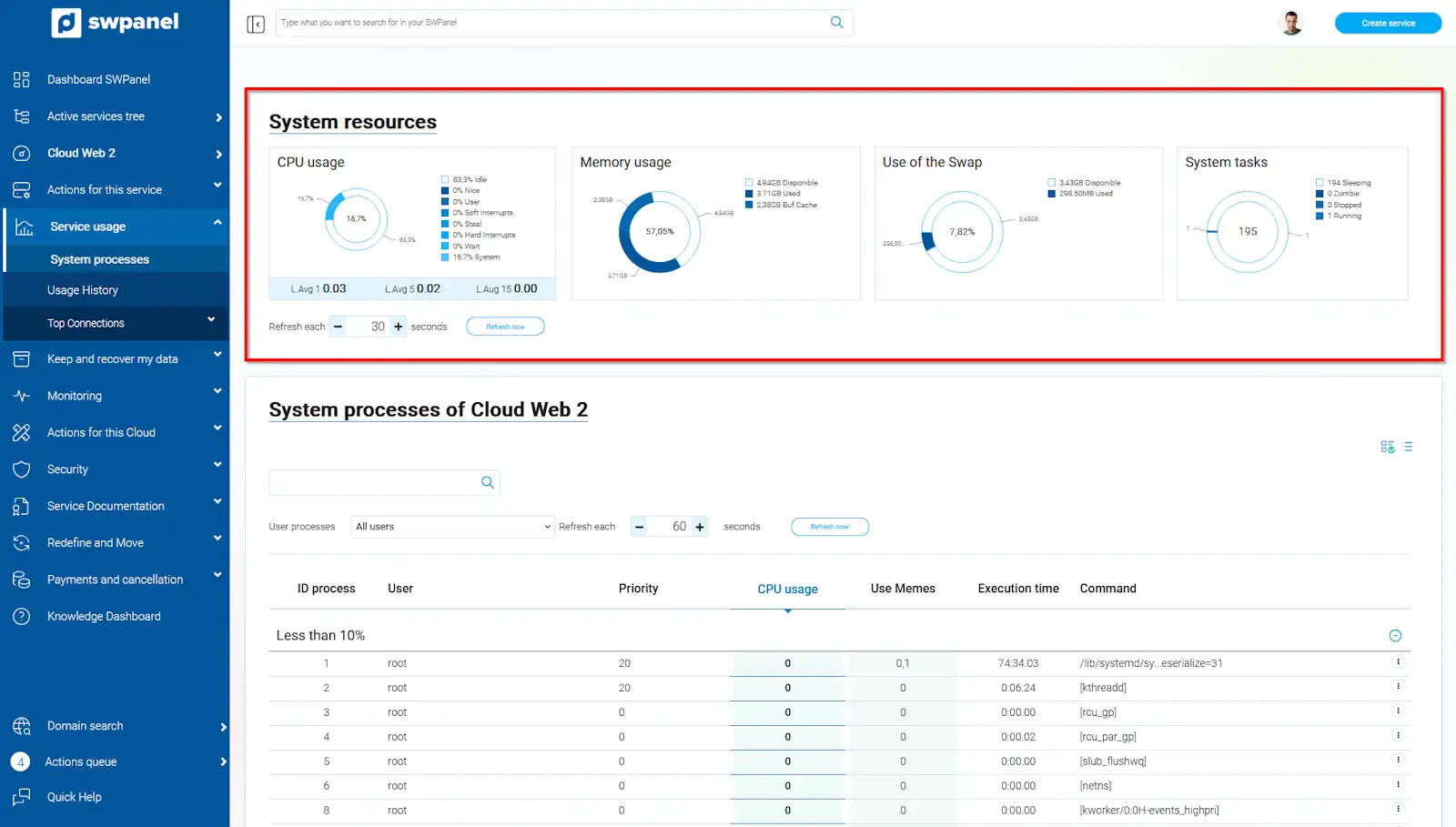
info_capture The screenshot is for guidance purposes. It was taken using version 2025.02.0002 dated 14/03/2025. It may differ from what the current version of SWPanel shows.
2.2. Cloud System Processes
This option allows you to see the programs currently running, which perform essential tasks on the server, such as the Apache web service, the database engine, or the Kernel.
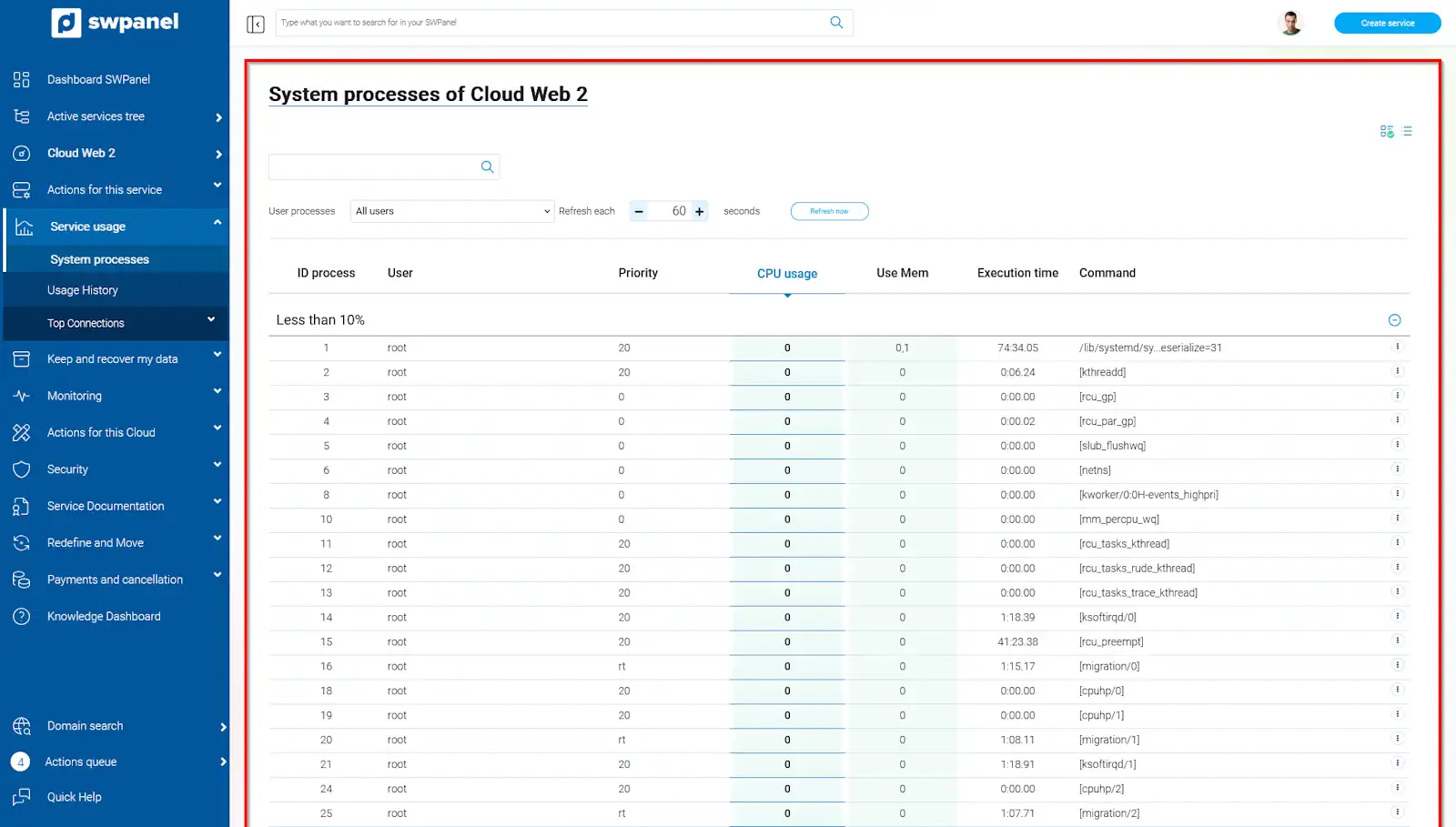
info_capture The screenshot is for guidance purposes. It was taken using version 2025.02.0002 dated 14/03/2025. It may differ from what the current version of SWPanel shows.
You can filter the processes by owner user to monitor the CPU and RAM usage of a particular user, such as the user bd.
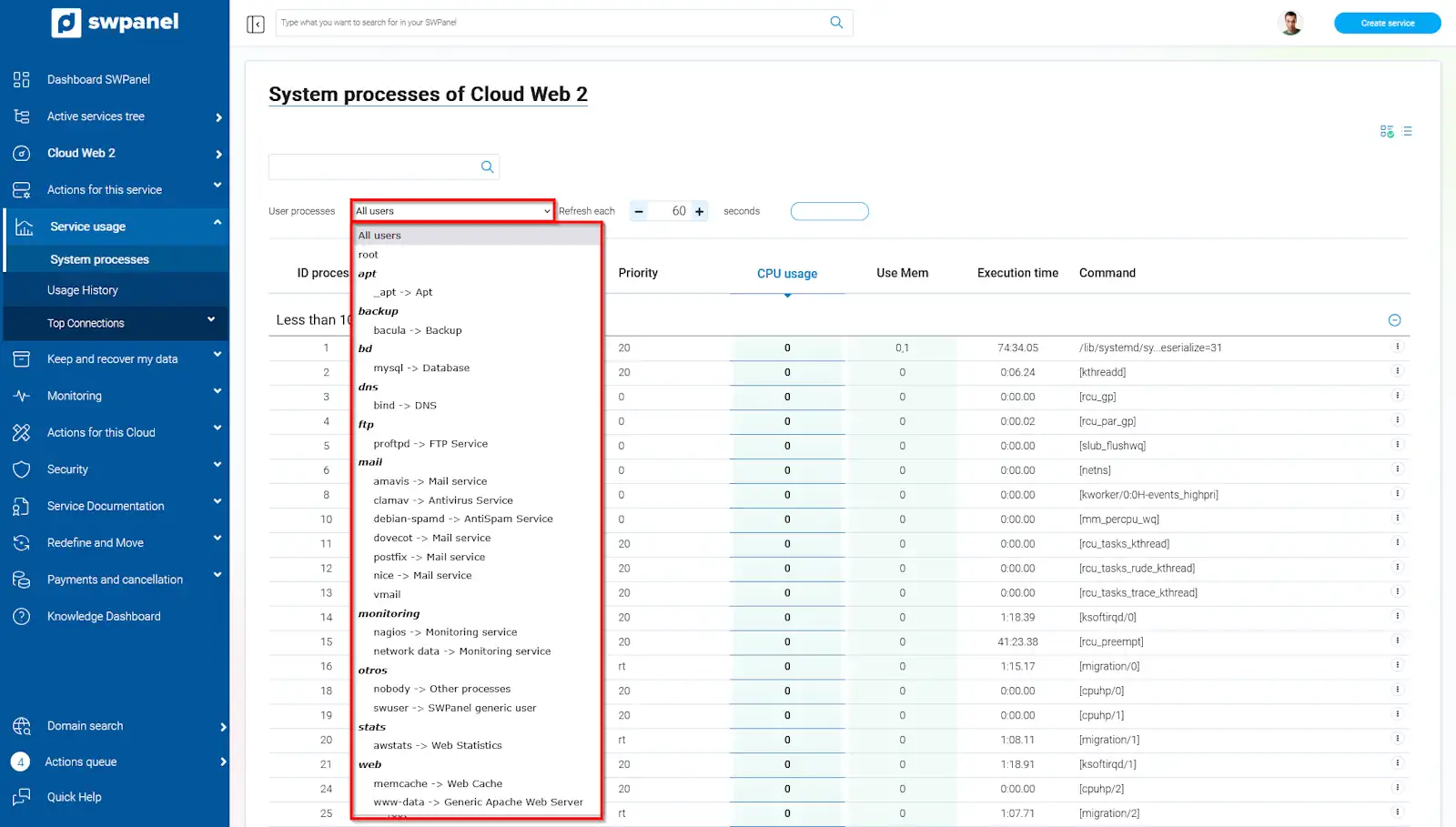
info_capture The screenshot is for guidance purposes. It was taken using version 2025.02.0002 dated 14/03/2025. It may differ from what the current version of SWPanel shows.
If you hover the cursor over the [...] menu to the right of each process, you can view process details or kill the process.
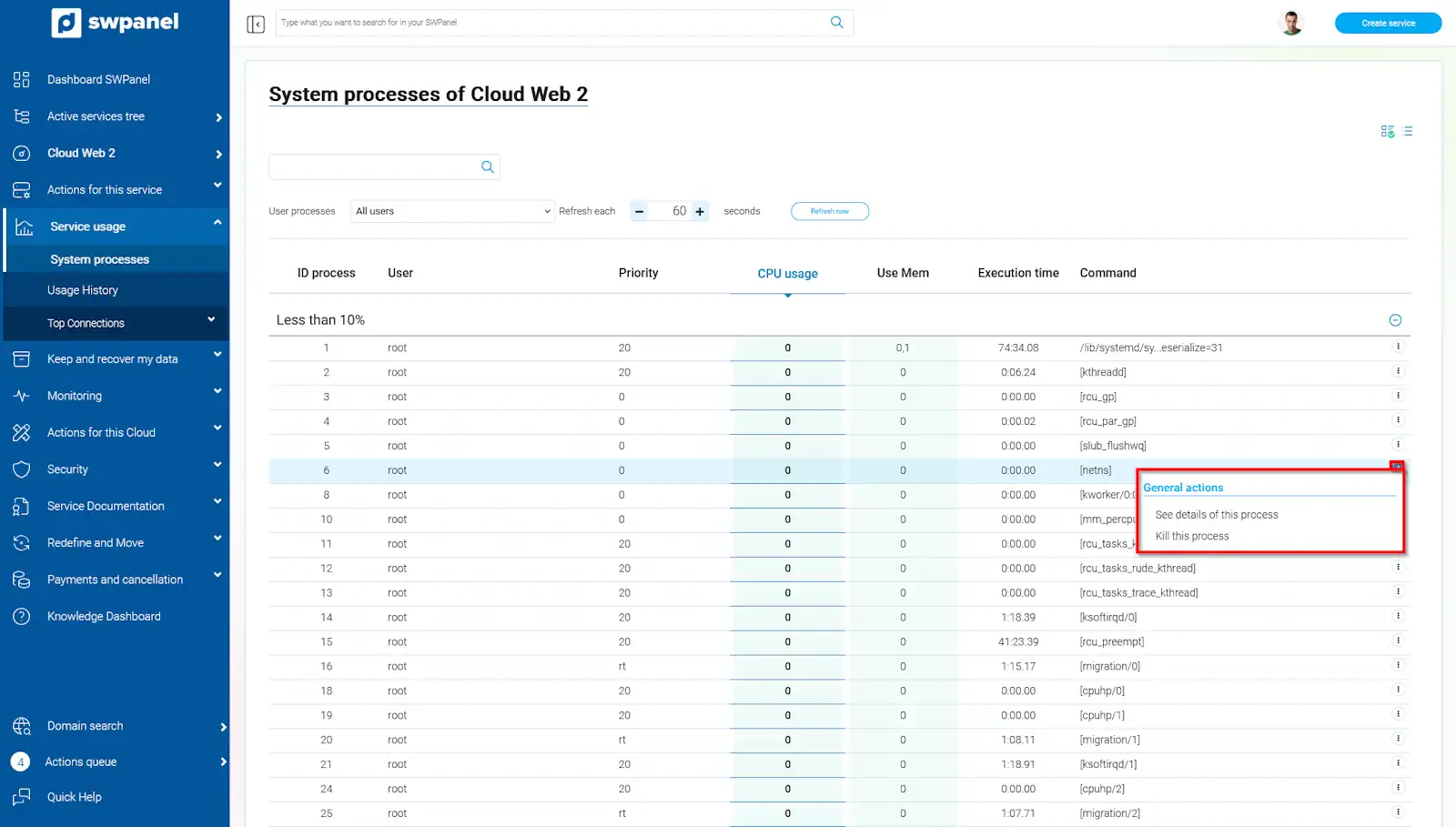
info_capture The screenshot is for guidance purposes. It was taken using version 2025.02.0002 dated 14/03/2025. It may differ from what the current version of SWPanel shows.
3. Process Management Options
3.1. View Process Details
You can consult information such as process user, execution time, and PID.
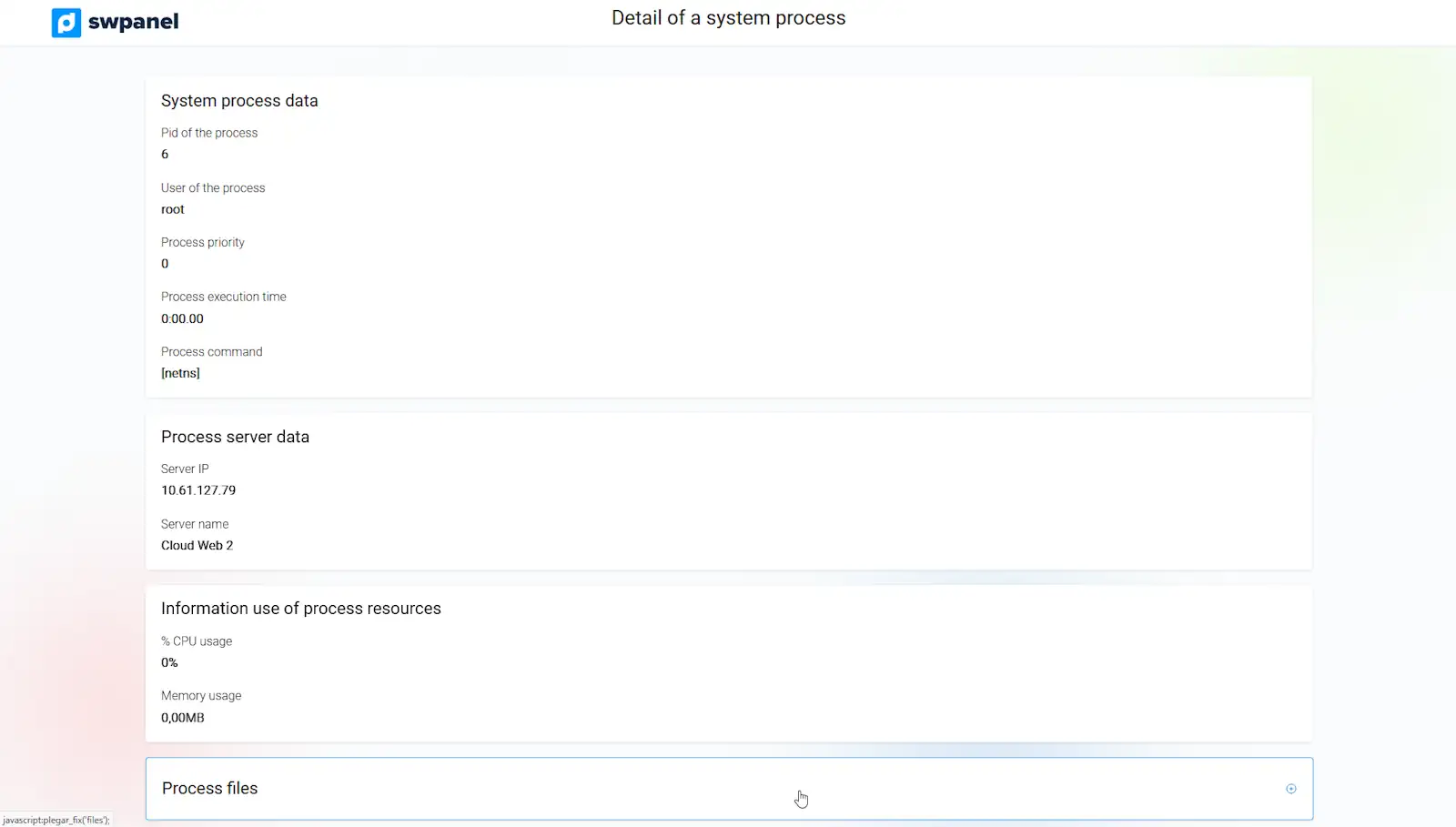
info_capture The screenshot is for guidance purposes. It was taken using version 2025.02.0002 dated 14/03/2025. It may differ from what the current version of SWPanel shows.
3.2. Kill a Process (KILL)
This action terminates the execution of the selected process. A red Kill button will appear to the left of the process to be removed. You can click on it or deactivate it from General actions.
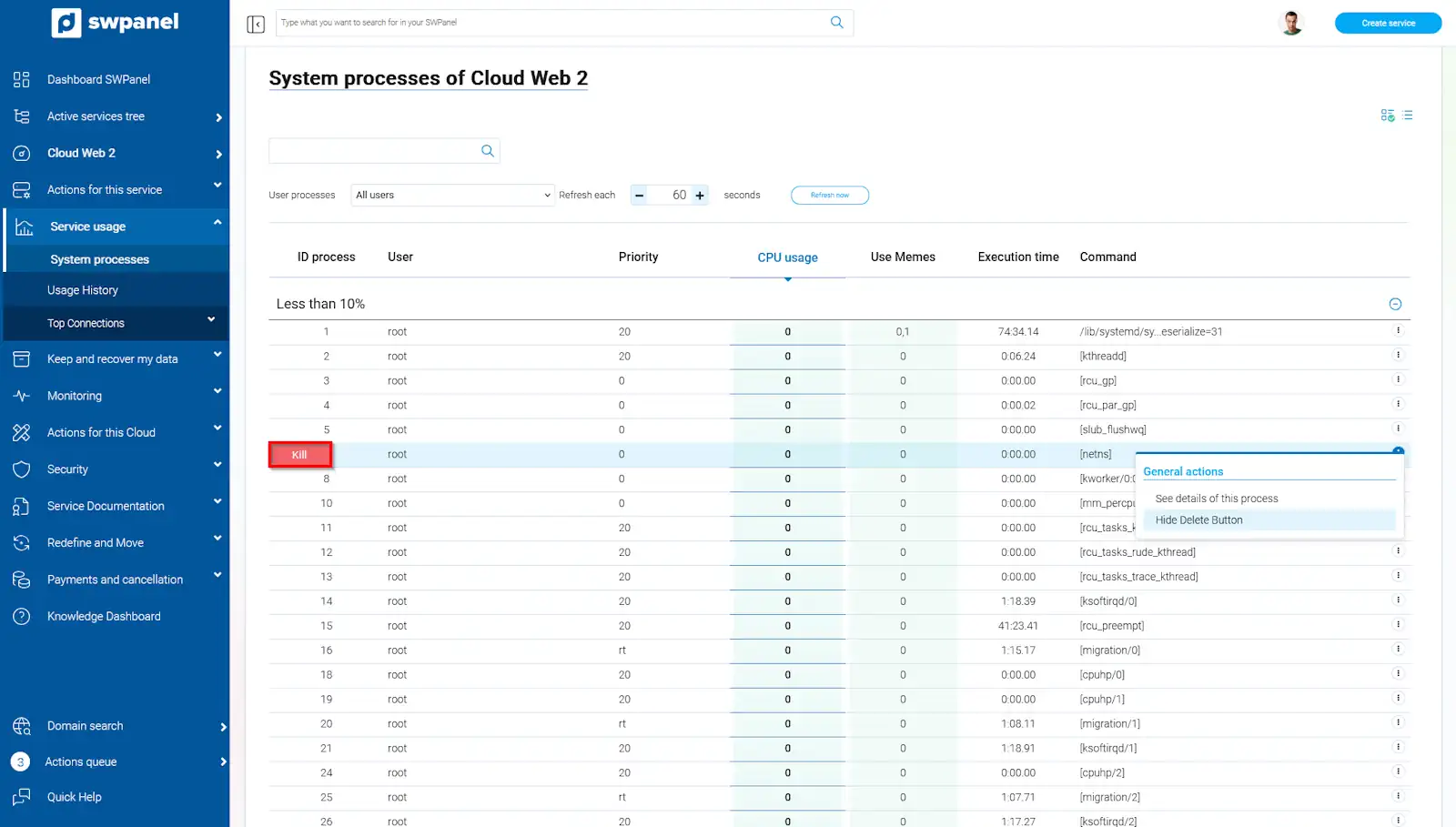
info_capture The screenshot is for guidance purposes. It was taken using version 2025.02.0002 dated 14/03/2025. It may differ from what the current version of SWPanel shows.
Before proceeding, SWPanel will show a notification with details of the process to be removed. To confirm, click Yes, delete.
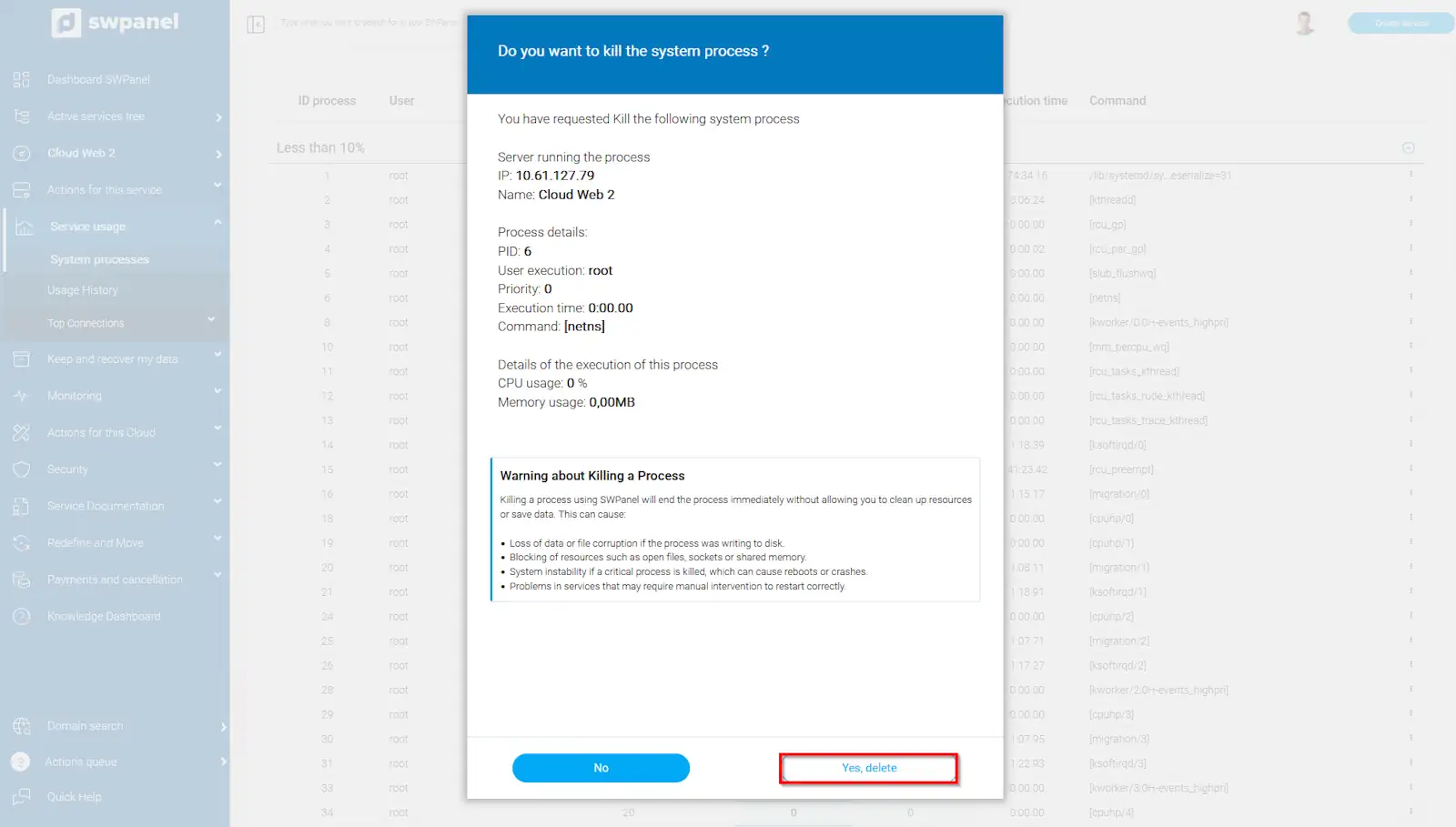
info_capture The screenshot is for guidance purposes. It was taken using version 2025.02.0002 dated 14/03/2025. It may differ from what the current version of SWPanel shows.
danger Warning: Killing a process interrupts its operation, which may affect services or users that depend on it.