
Restore a backup in my Hosting
Backup Restoration in Shared Hosting
1. Introduction
In this manual, the process for restoring a backup in a Shared Hosting service within SWPanel is explained. All Hosting modalities include automatic backups with a 15-day retention period, allowing files and databases to be recovered in case of accidental loss or modification.
What will you learn in this manual?
- How to access the backup section in SWPanel.
- How to select a restoration date.
- How to choose the files or directories to restore.
- How to start the restoration process and monitor its status.
2. Accessing backup management
To begin the process, access the dashboard of your Hosting service in SWPanel. Follow these steps:
- Access SWPanel and use the top search bar to enter the name of the hosting.
- Select the Hosting service from the list of results.
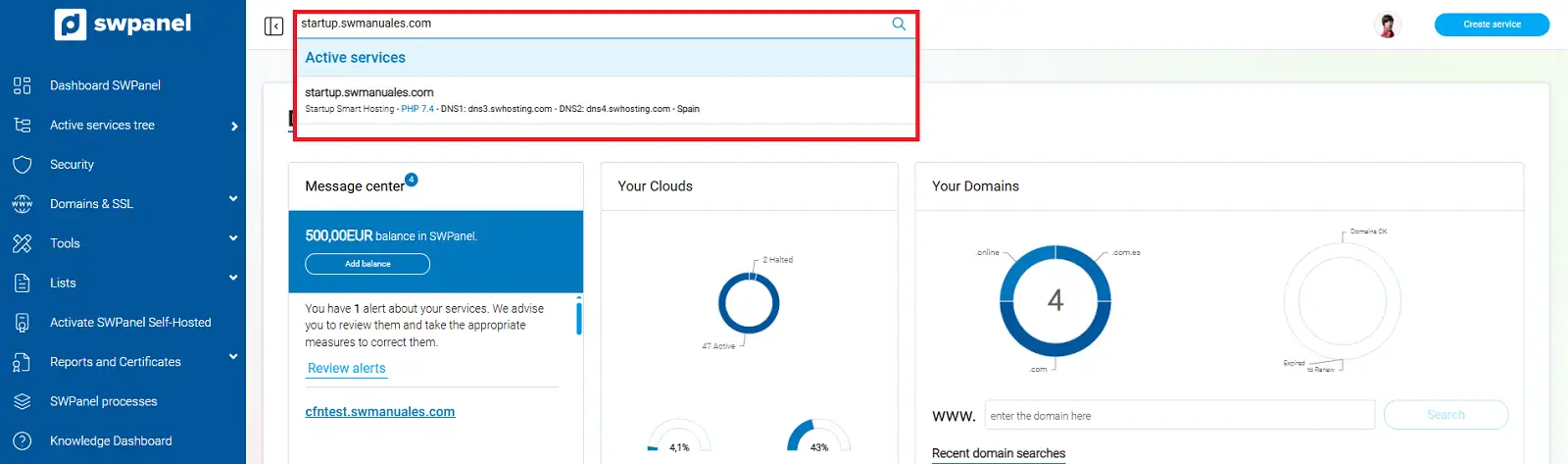
info_capture The screenshot is for illustrative purposes. It was taken in version 2025.02.0002 on 03/15/2025. It may differ from what is shown in the current version of SWPanel.
3. Navigating to backup management
- In the side menu, go to:
- Keep and recover my data
- Backups
- Backup Management
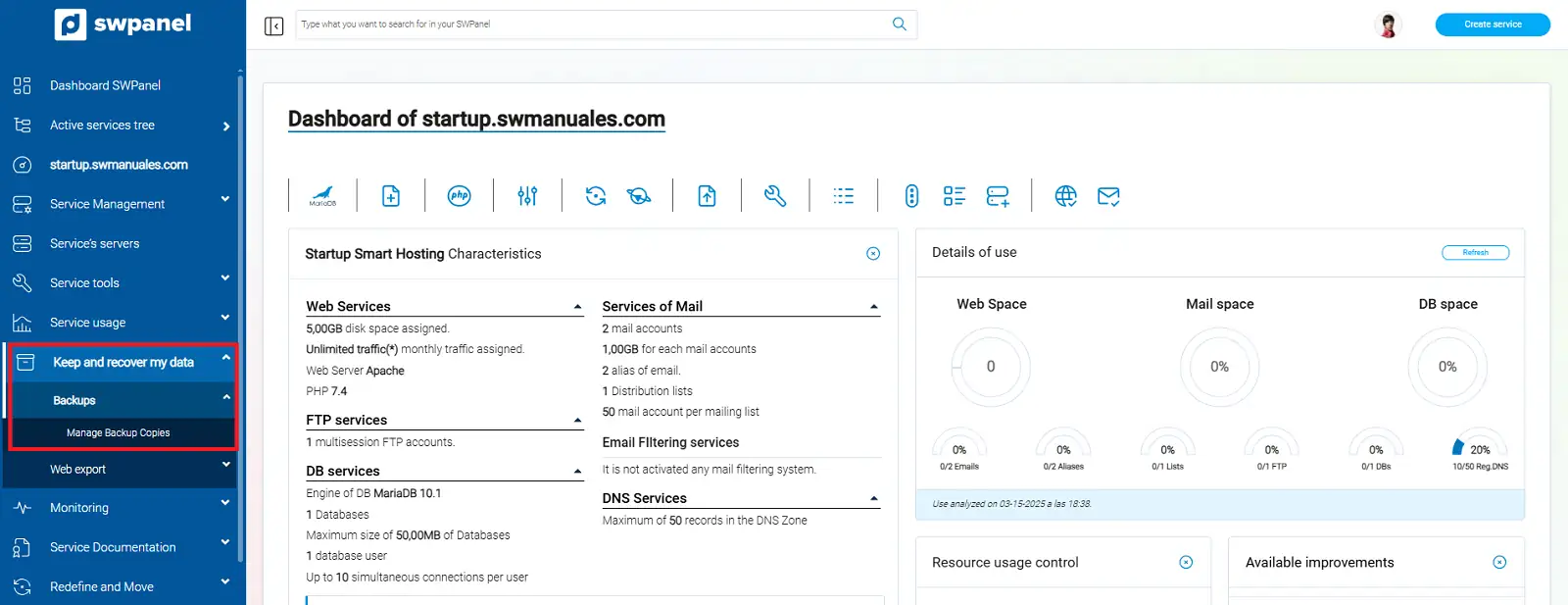
info_capture The screenshot is for illustrative purposes. It was taken in version 2025.02.0002 on 03/15/2025. It may differ from what is shown in the current version of SWPanel.
4. Selecting the backup to restore
- Within the Information tab, click on Restore Backup.
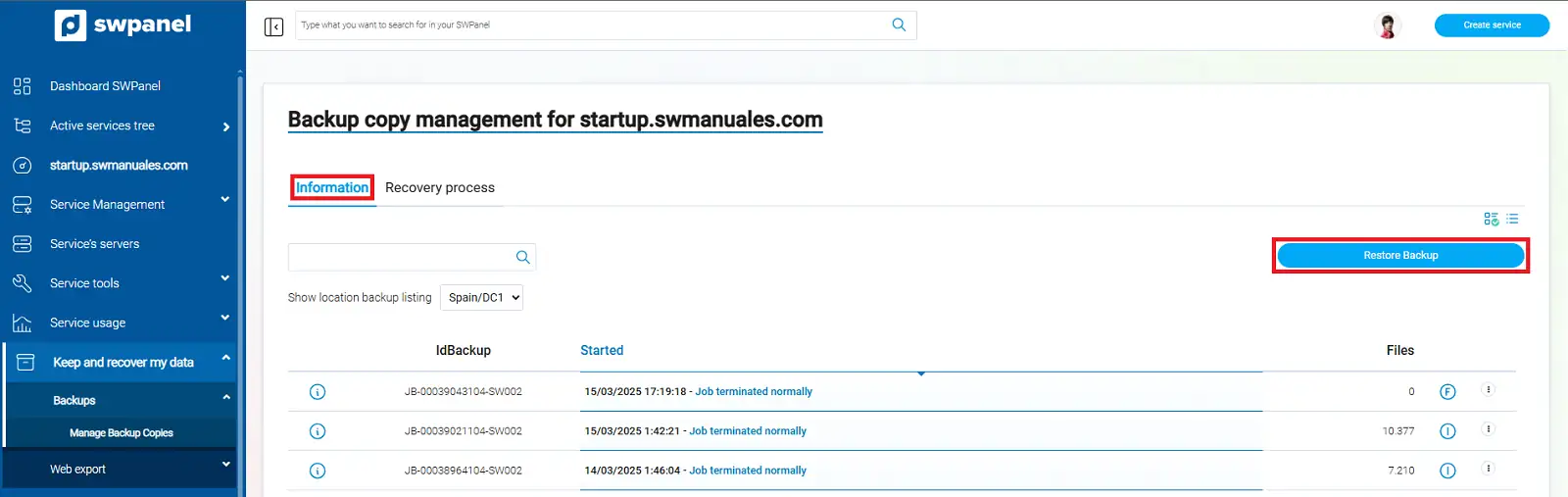
info_capture The screenshot is for illustrative purposes. It was taken in version 2025.02.0002 on 03/15/2025. It may differ from what is shown in the current version of SWPanel.
- Select the date of the backup you wish to restore.
- Mark the specific directories and/or files you wish to recover.
- Press Next.
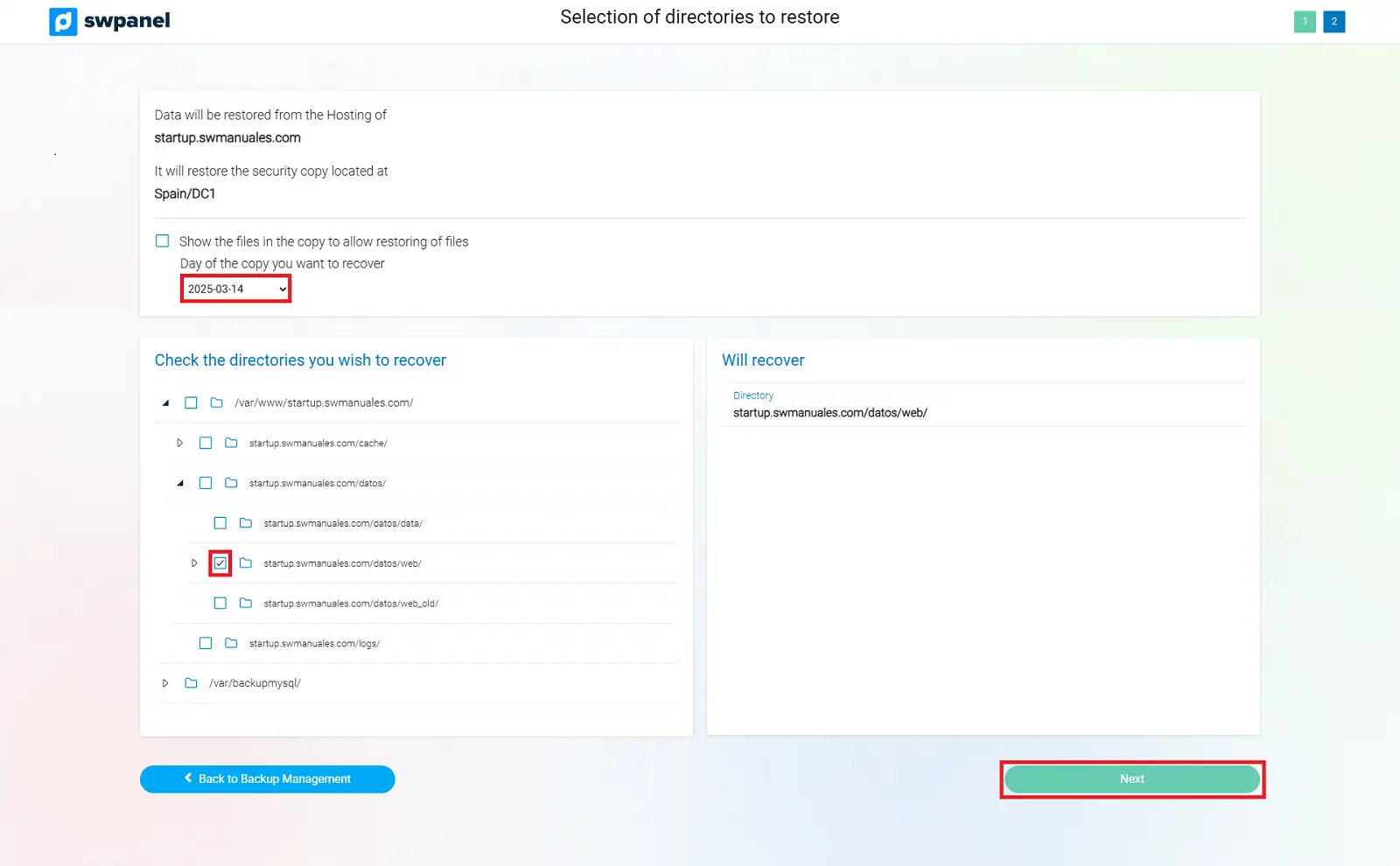
info_capture The screenshot is for illustrative purposes. It was taken in version 2025.02.0002 on 03/15/2025. It may differ from what is shown in the current version of SWPanel.
5. Confirming and executing the restoration
- Confirm overwrite: In shared hosting, restoration overwrites existing files. Ensure that this action is appropriate for your case.
- Click on Start Restoration.
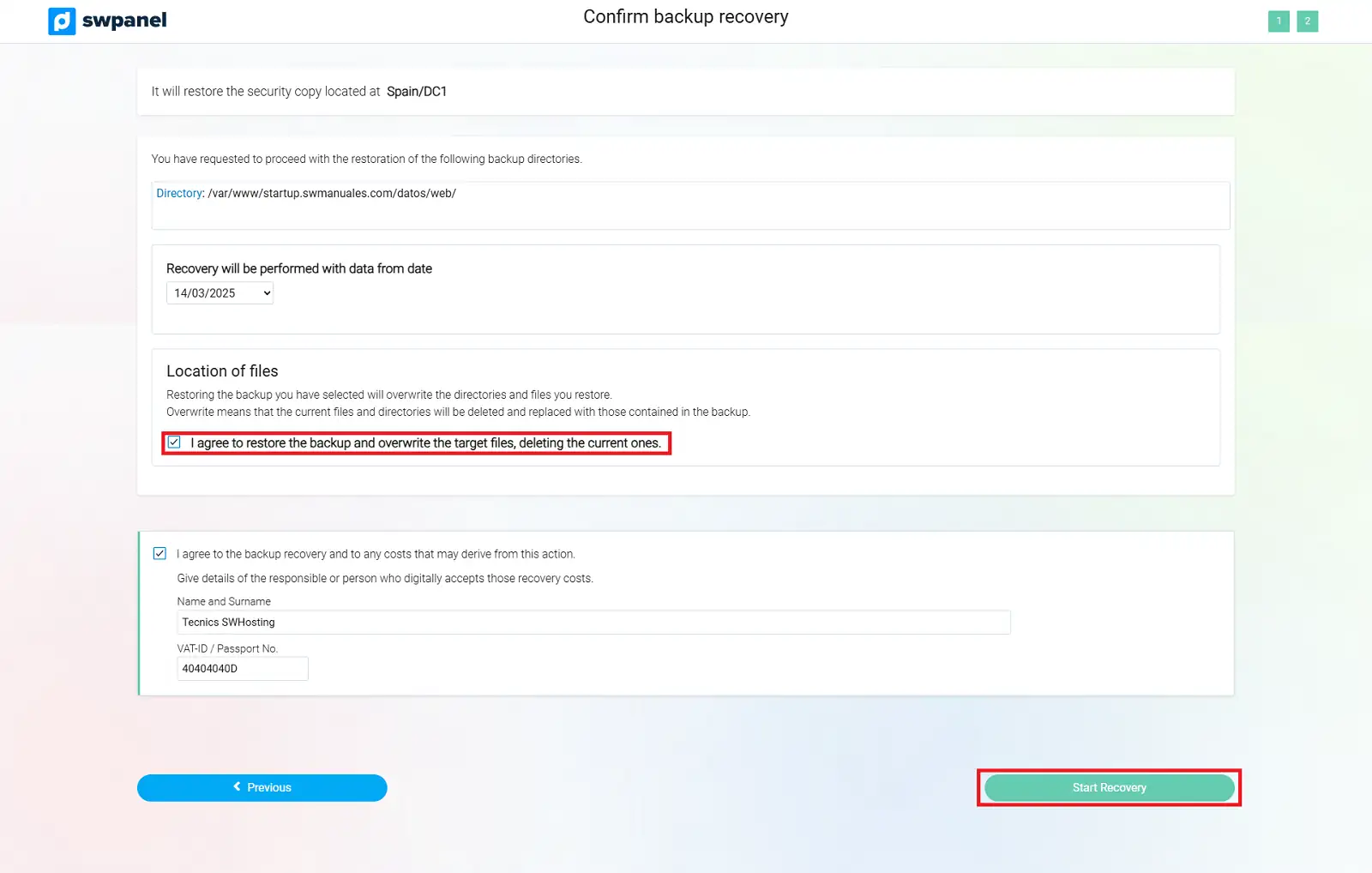
info_capture The screenshot is for illustrative purposes. It was taken in version 2025.02.0002 on 03/15/2025. It may differ from what is shown in the current version of SWPanel.
6. Monitoring the restoration status
Once the process has started, a new window will open where you can view the restoration status.
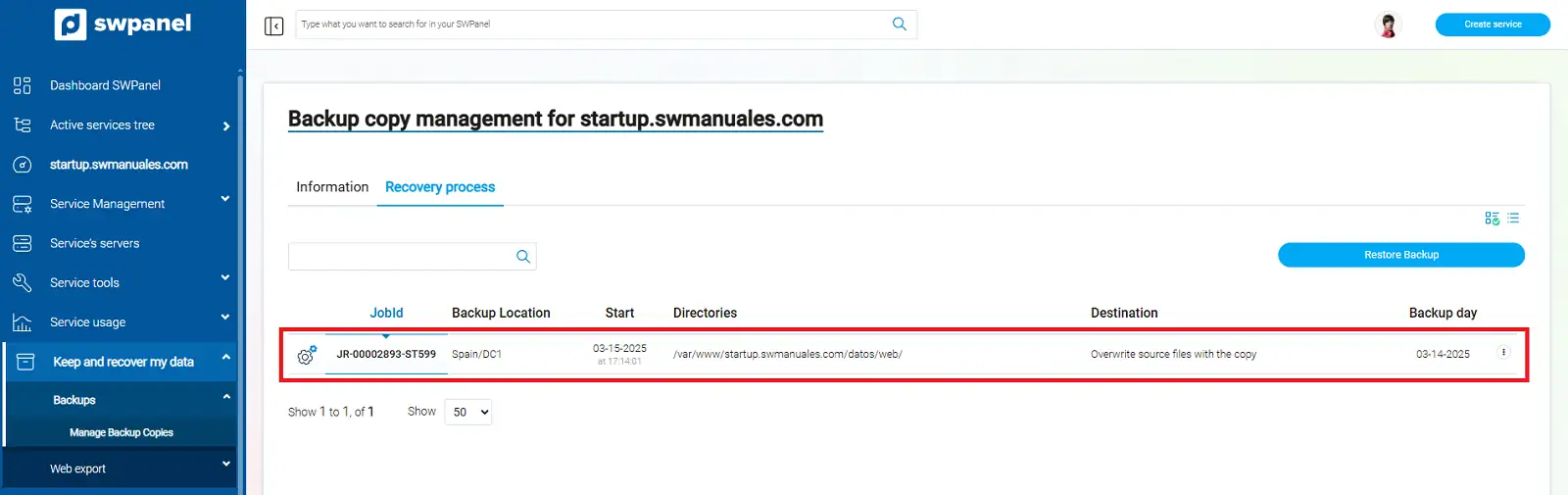
info_capture The screenshot is for illustrative purposes. It was taken in version 2025.02.0002 on 03/15/2025. It may differ from what is shown in the current version of SWPanel.
7. Glossary
| Term | Definition |
|---|---|
| Shared Hosting | Web hosting service where multiple sites share the same server resources. |
| SWPanel | SW Hosting service management platform for hosting and domains. |
| Backup | Backup of stored data for recovery in case of loss. |
| Restoration | Process of recovering files or databases from a backup. |
| Overwriting | Action of replacing existing files with restored versions from a backup. |