
SWPanel migration tool
1. Introduction
In this guide, you will learn how to migrate your services from another hosting provider to your SWPanel.
The latest version of SWPanel incorporates tools that facilitate the transfer of content from external providers. Thanks to these features, you will be able to transfer your website, databases, and email accounts more easily, reducing time and errors during the migration.
What will you learn in this manual?
By the end of this manual, you will know how to:
- Access the migration tool within SWPanel.
- Choose the type of migration that best suits your needs.
- Securely synchronize your web files, databases, and email accounts.
- Verify that the migration has been completed correctly and without errors.
2. Accessing the Migration Tool
To start the migration process, you must first access the main Dashboard of SWPanel. Follow these steps:
- Click on the SWPanel logo (or your custom logo) located in the upper left corner of the screen.
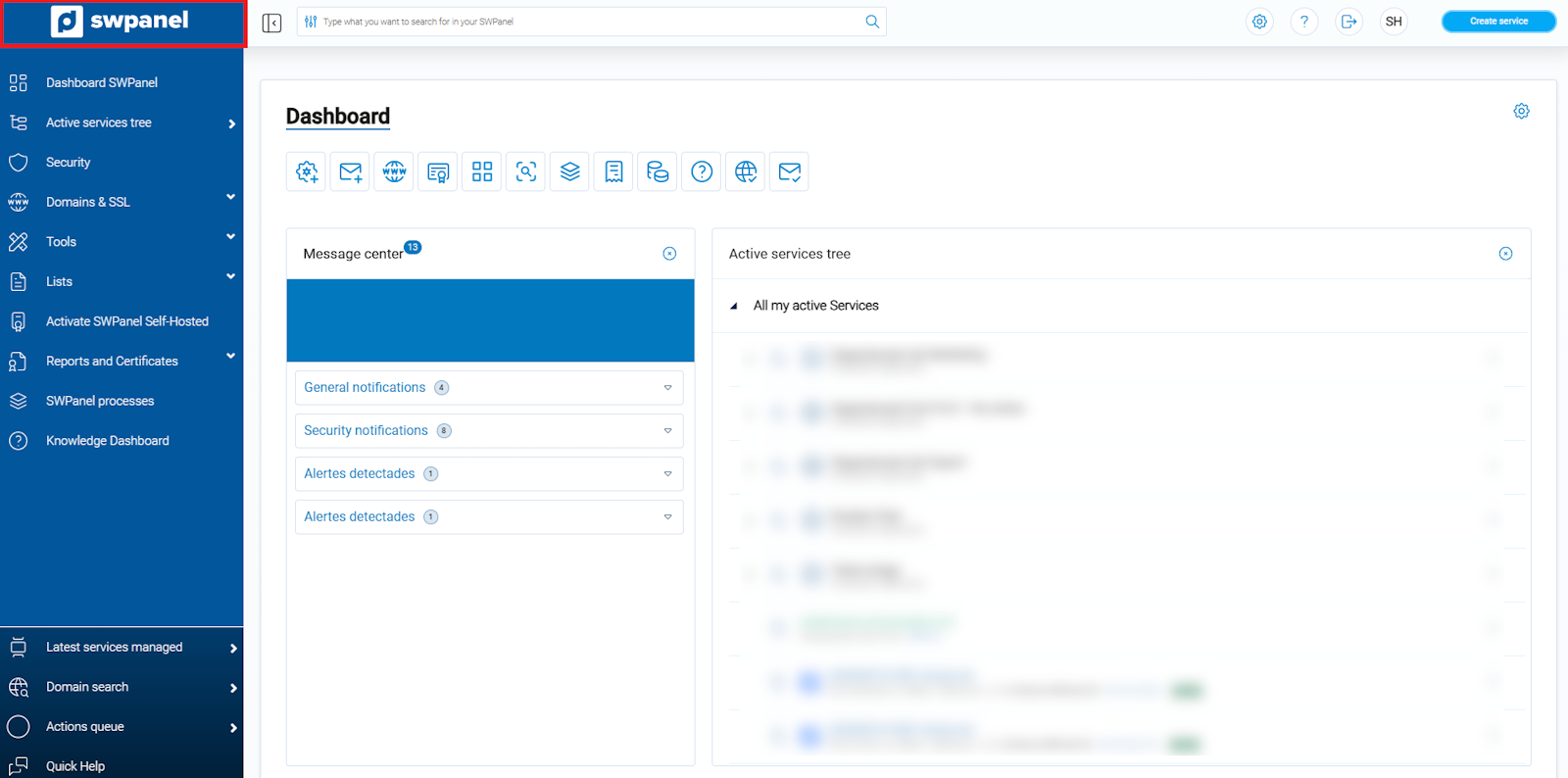
info_capture ℹ️ Note: The screenshot is for guidance purposes, taken from version 2026.000.0030 dated 03/14/2026. It may differ from the current version of SWPanel.
- In the left side menu, navigate to:
- Tools
- For migrating Webs
- Migrate a Web now
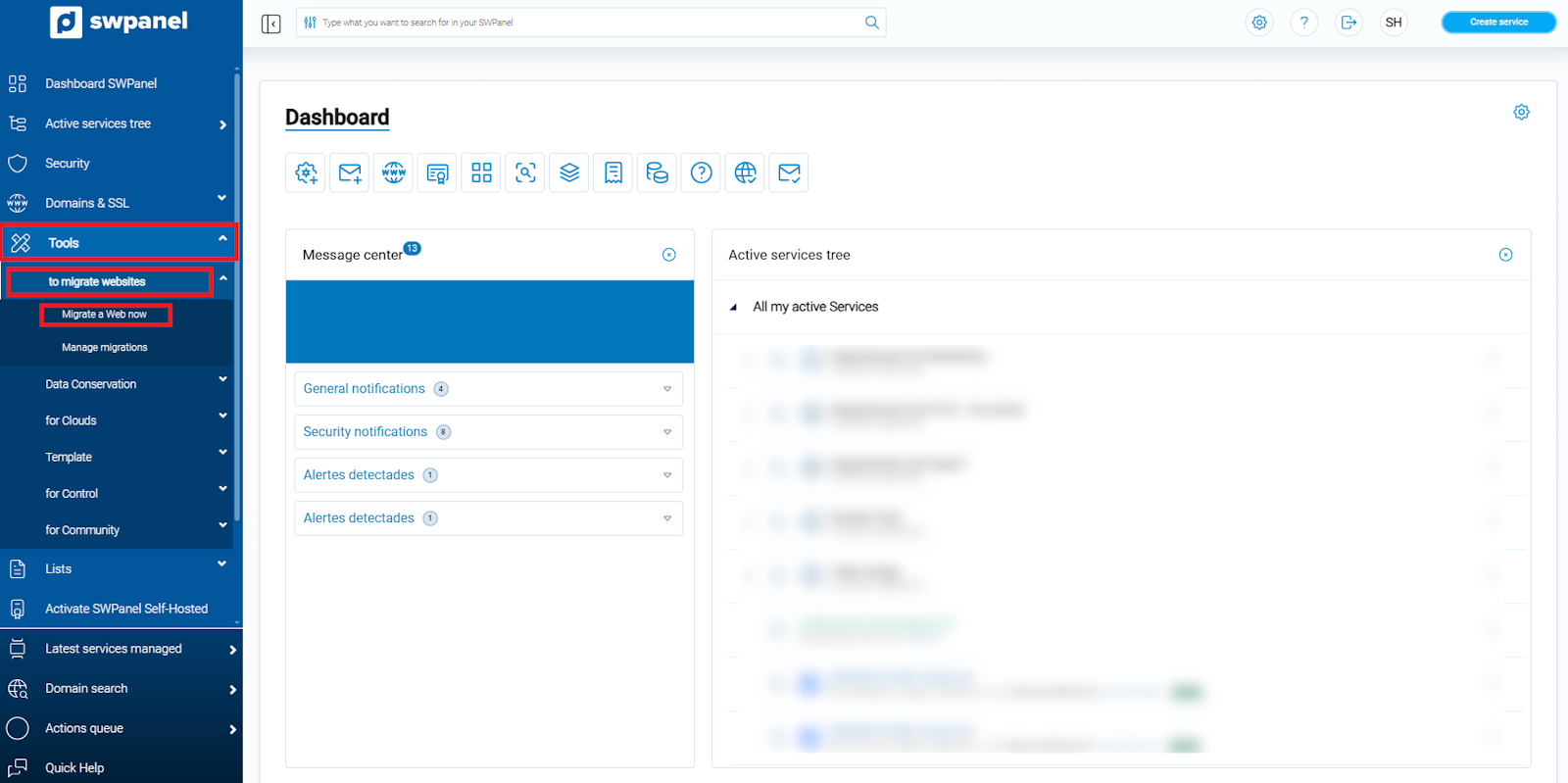
info_capture ℹ️ Note: The screenshot is for guidance purposes, taken from version 2026.000.0030 dated 03/14/2026. It may differ from the current version of SWPanel.
3. Starting the Migration Wizard
The migration wizard will guide you step-by-step through the entire process.
- The first step consists of selecting the migration source, that is, where you want to move your website from.
- For this example, we will choose the option Any control panel.
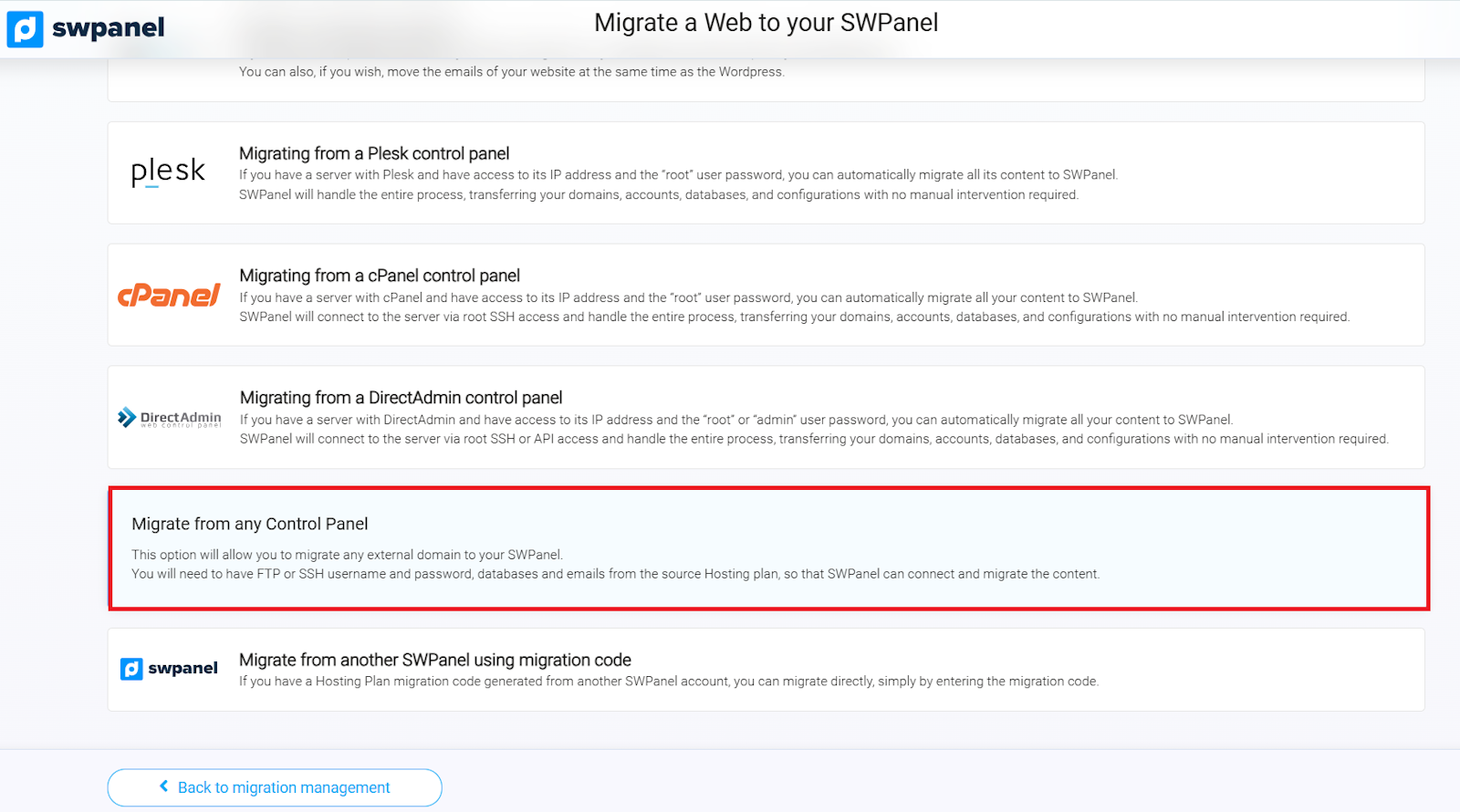
info_capture ℹ️ Note: The screenshot is for guidance purposes, taken from version 2026.000.0030 dated 03/14/2026. It may differ from the current version of SWPanel.
Next, select the migration destination:
- A new Hosting service
- An already existing Hosting service (option used in this manual)
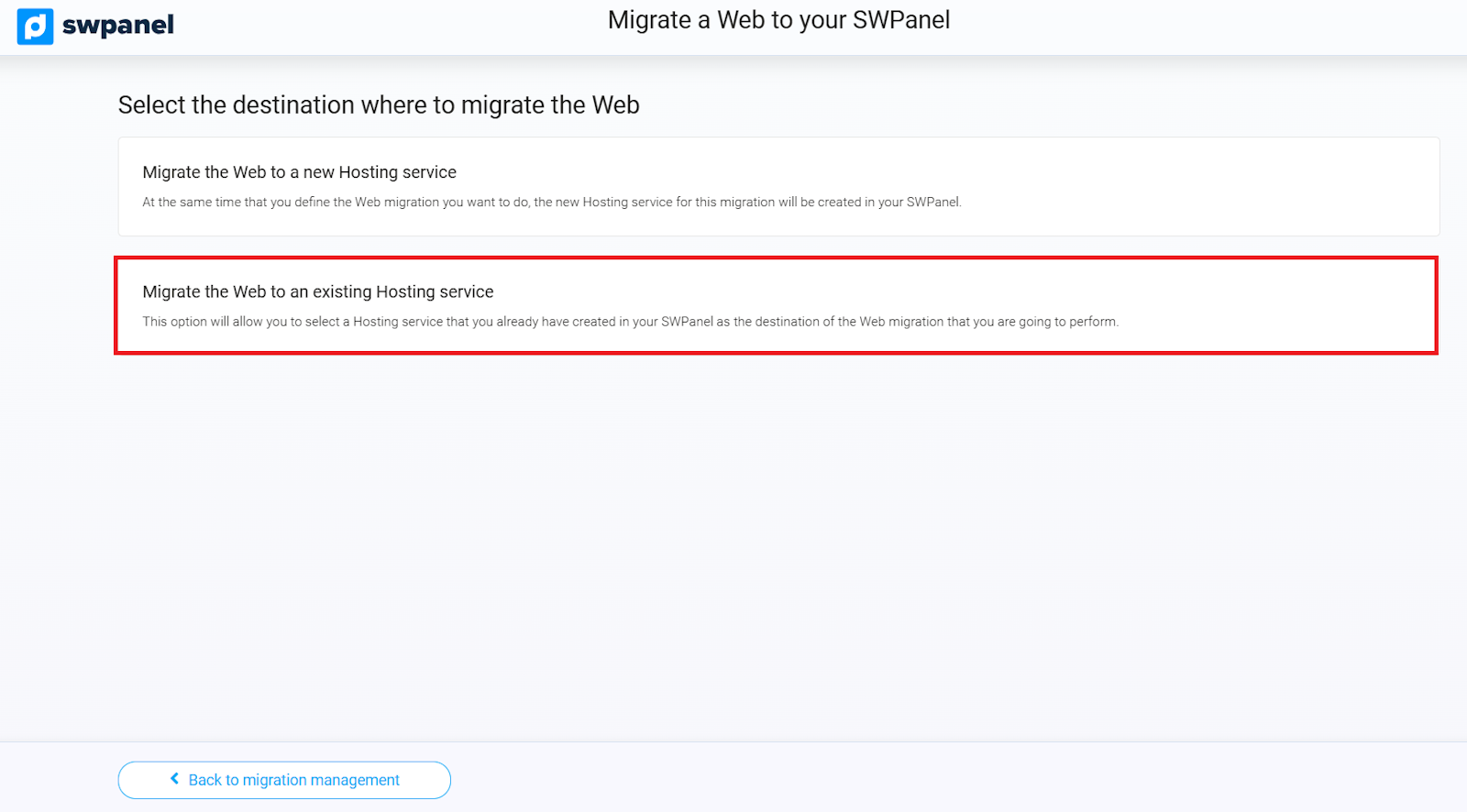
info_capture ℹ️ Note: The screenshot is for guidance purposes, taken from version 2026.000.0030 dated 03/14/2026. It may differ from the current version of SWPanel.
To learn how to create a Hosting service, refer to the following manuals:
4. Migrating to an Existing Hosting Service.
- Select the option Migrate the Web to an already existing Hosting service.
- In the drop-down menu, choose the hosting service where you wish to perform the migration.
⚠ Important: For the migration to complete successfully, the hosting service must be empty. This means that it must not contain WordPress, Prestashop, Moodle, databases, FTP accounts, or created email accounts.
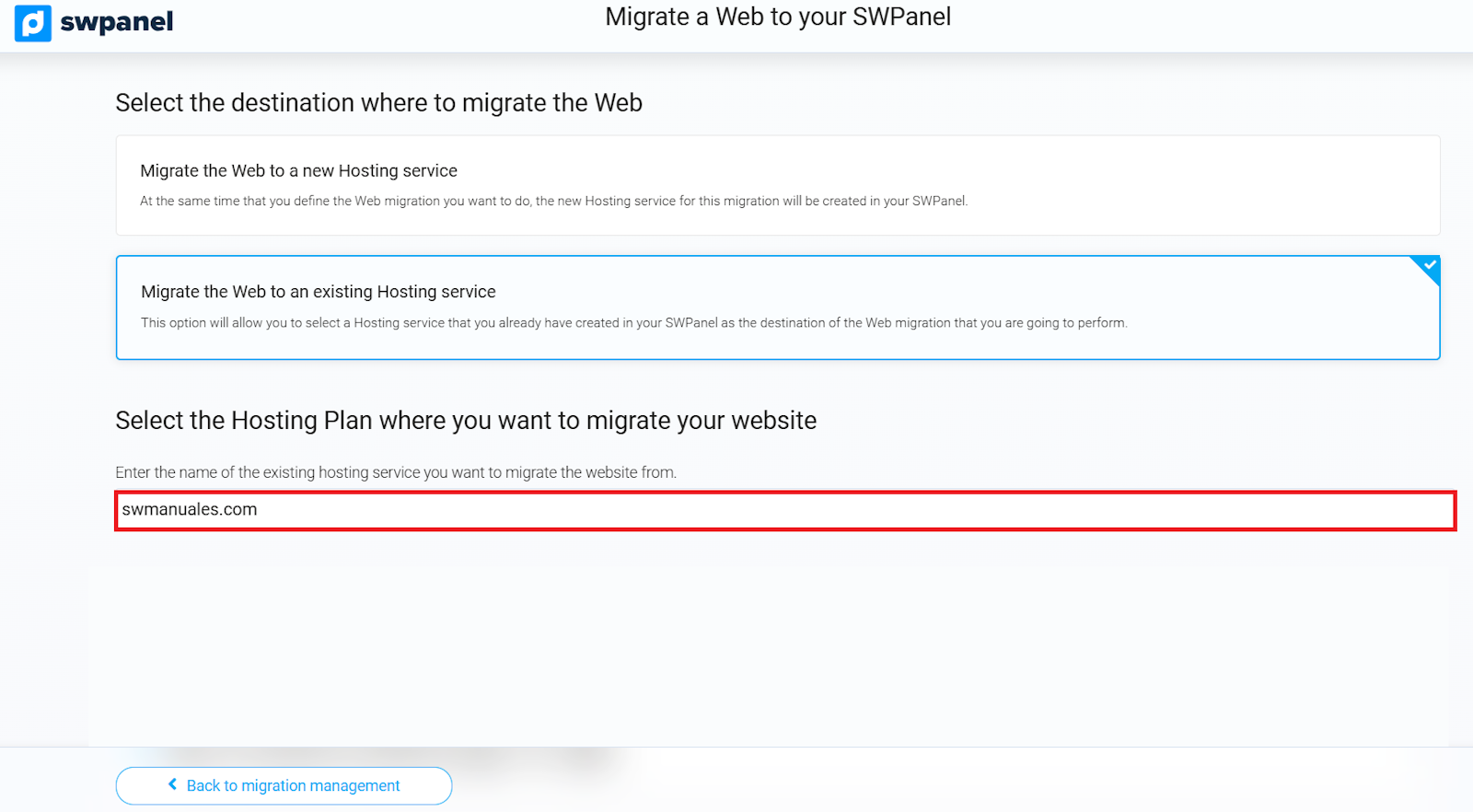
info_capture ℹ️ Note: The screenshot is for guidance purposes, taken from version 2026.000.0030 dated 03/14/2026. It may differ from the current version of SWPanel.
5. Synchronizing Web Content
- Select which content you wish to migrate and the transfer method.
- Using FTP or SSH is recommended for faster and more secure synchronization.
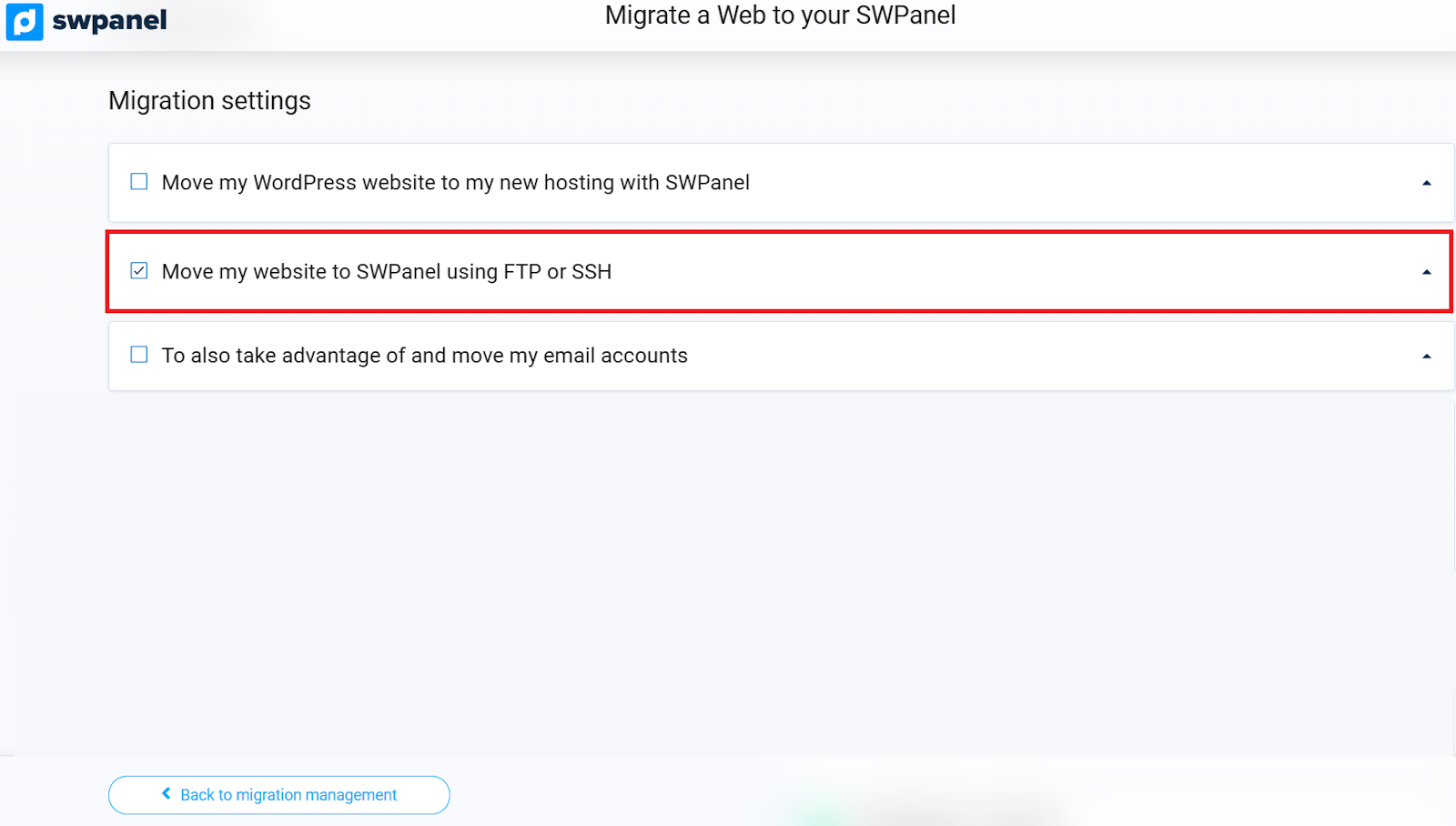
info_capture ℹ️ Note: The screenshot is for guidance purposes, taken from version 2026.000.0030 dated 03/14/2026. It may differ from the current version of SWPanel.
- Activate the option Synchronize Web content.
-
- Enter the connection details and select the transfer method: FTP or SSH.
- If there is no website to migrate, leave this option unchecked.
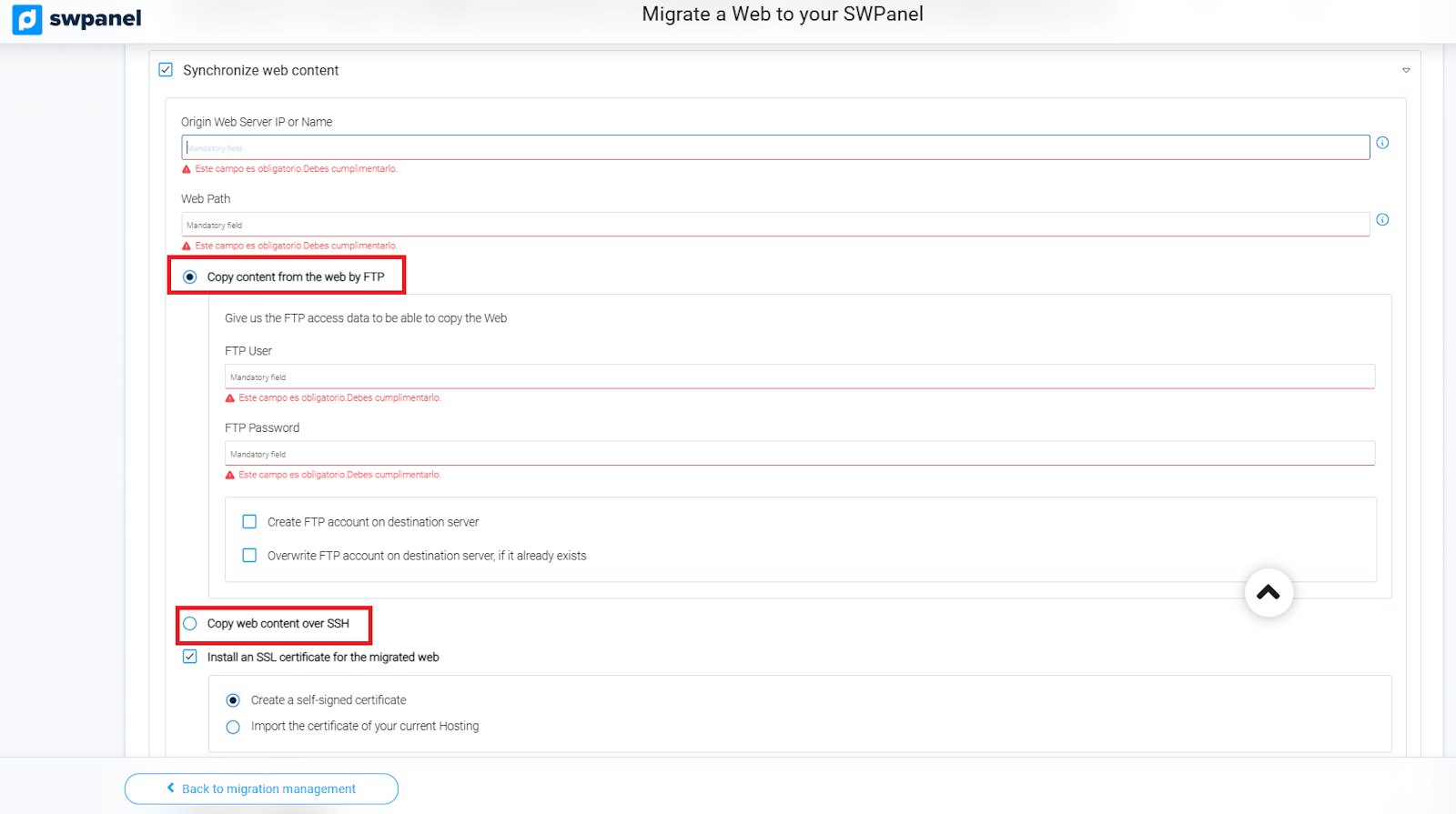
info_capture ℹ️ Note: The screenshot is for guidance purposes, taken from version 2026.000.0030 dated 03/14/2026. It may differ from the current version of SWPanel.
Necessary connection details
To correctly synchronize your website, you will need to provide the following information:
- Source server IP: The IP address where your site is located with the current provider.
- Web Path: The exact directory where the web is hosted on the source server.
⚠ Important: The directory path may vary depending on the provider's control panel:
- cPanel →
/public_html- Plesk →
/httpdocs- If your FTP connection already points directly to the web directory, simply enter the path
/
Migration via FTP or SSH
Migration via FTP
To migrate your site using FTP, you will need:
- FTP User
- FTP Password
- Activate the option Create FTP account on the destination server (or overwrite it if it already exists).
Migration via SSH
To migrate your site using SSH, you will need:
- SSH User
- SSH Password
- SSH connection port
6. Installing an SSL Certificate
There are two ways to install an SSL certificate in your hosting service:
- Self-signed: Automatically generated by SWPanel.
- Imported from another provider: Requires the CRT, CA, and KEY files of the certificate.
In this example, we have configured the migration via FTP and opted to import the certificate from another hosting provider. The final configuration would be as follows:
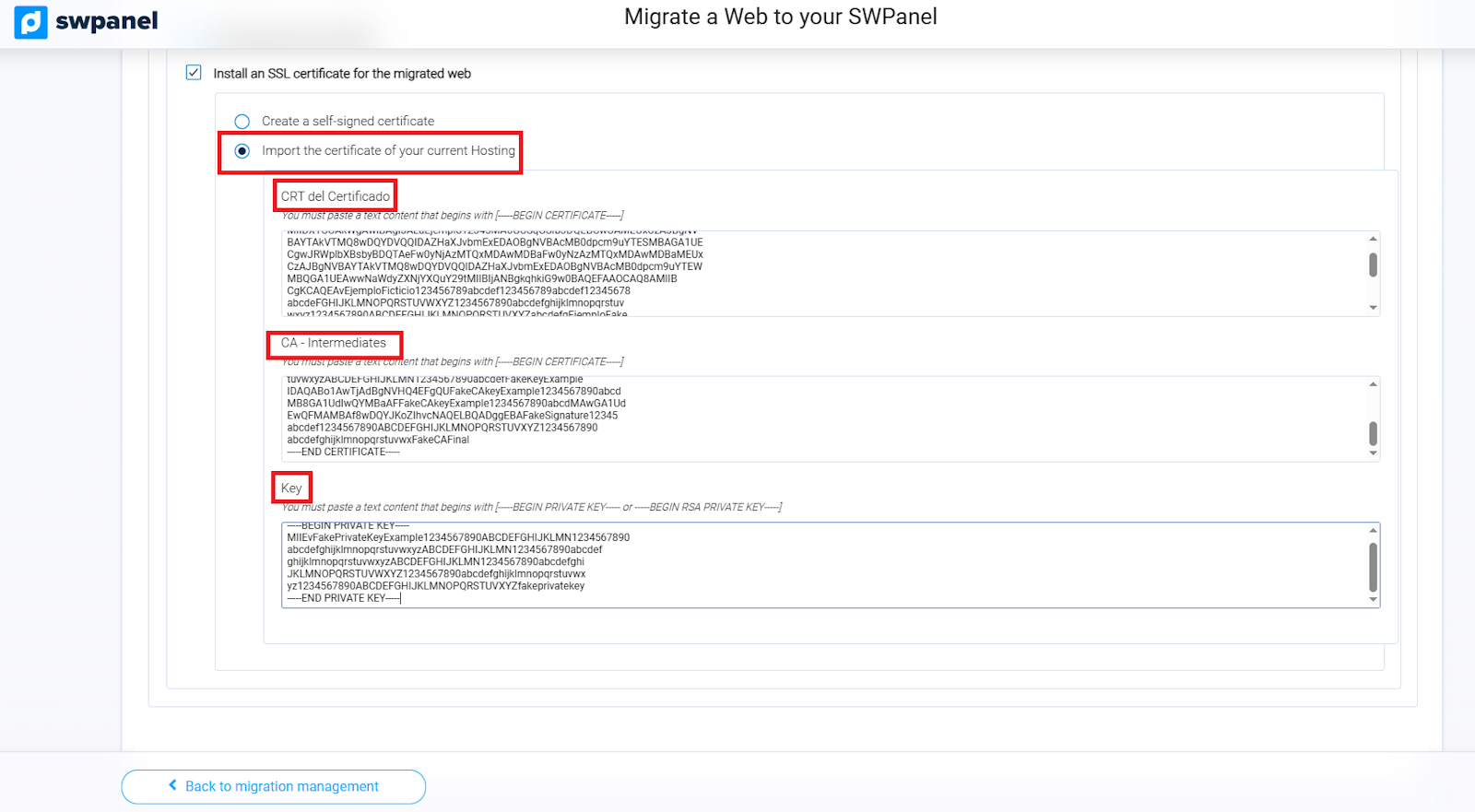
info_capture ℹ️ Note: The screenshot is for guidance purposes, taken from version 2026.000.0030 dated 03/14/2026. It may differ from the current version of SWPanel.
7. Synchronizing Databases
- Activate the option Synchronize Databases.
- Enter the necessary details for the connection:
- Source database server IP: The IP address assigned to your database server at the current provider. You can verify this from your provider's administration panel.
- Database name.
- Database username and password.
⚠ Important: Ensure that all these details exactly match those of your source database. Any error may prevent the migration from completing correctly.
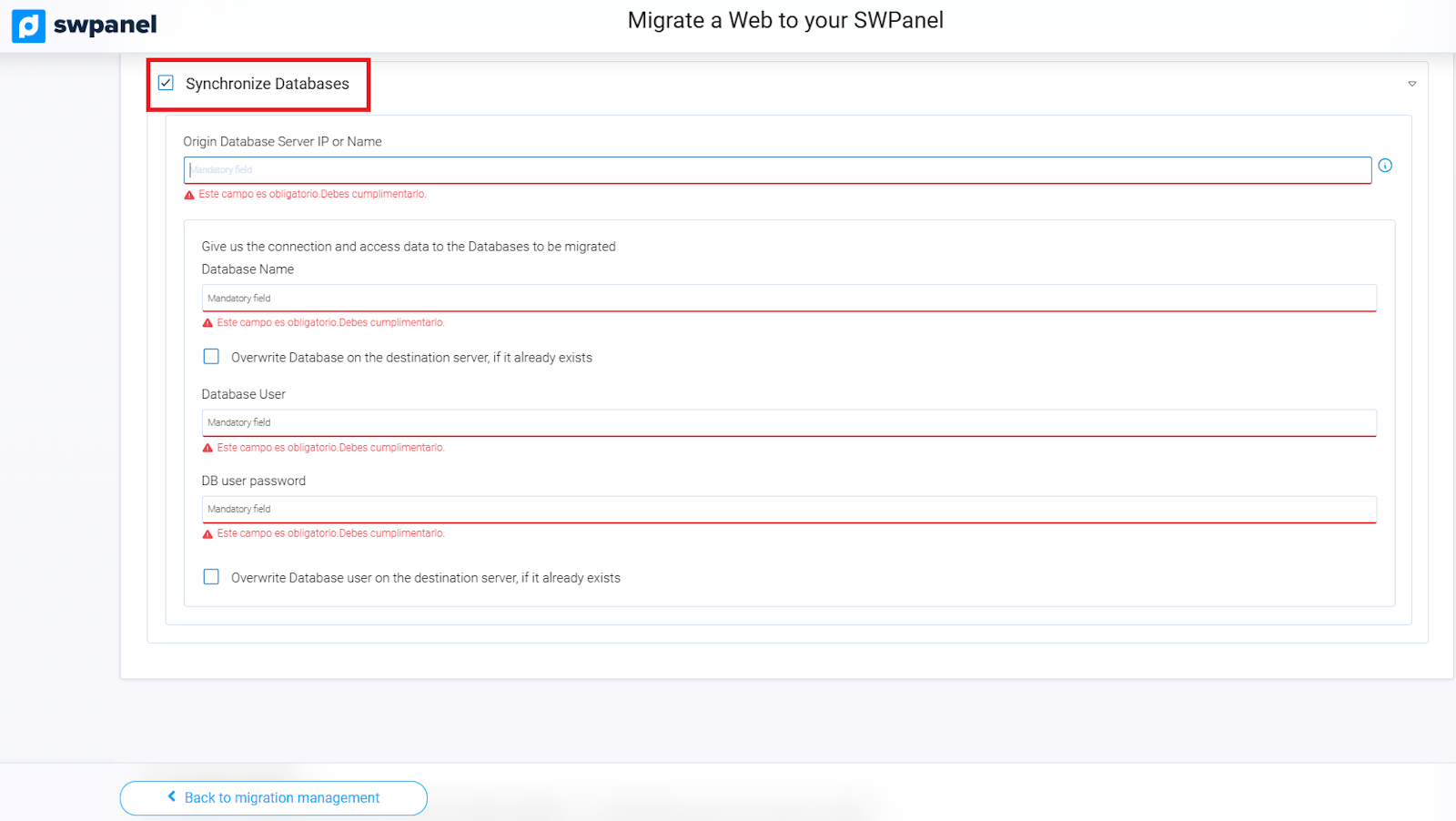
info_capture ℹ️ Note: The screenshot is for guidance purposes, taken from version 2026.000.0030 dated 03/14/2026. It may differ from the current version of SWPanel.
⚠ Important: To synchronize the database, remote access must be enabled.
- Make sure to open port 3306 for IP 81.25.112.90 (our server in charge of the migration process).
- If it is not possible to open this port, uncheck the synchronization option and perform the database migration through manual import, using tools such as PHPMyAdmin, HeidiSQL, or similar.
To verify that the port is enabled, refer to the following manuals:
8. Synchronizing Email Accounts
If you want to migrate your email accounts, activate the option Take advantage and also move my email accounts and enter the corresponding details:
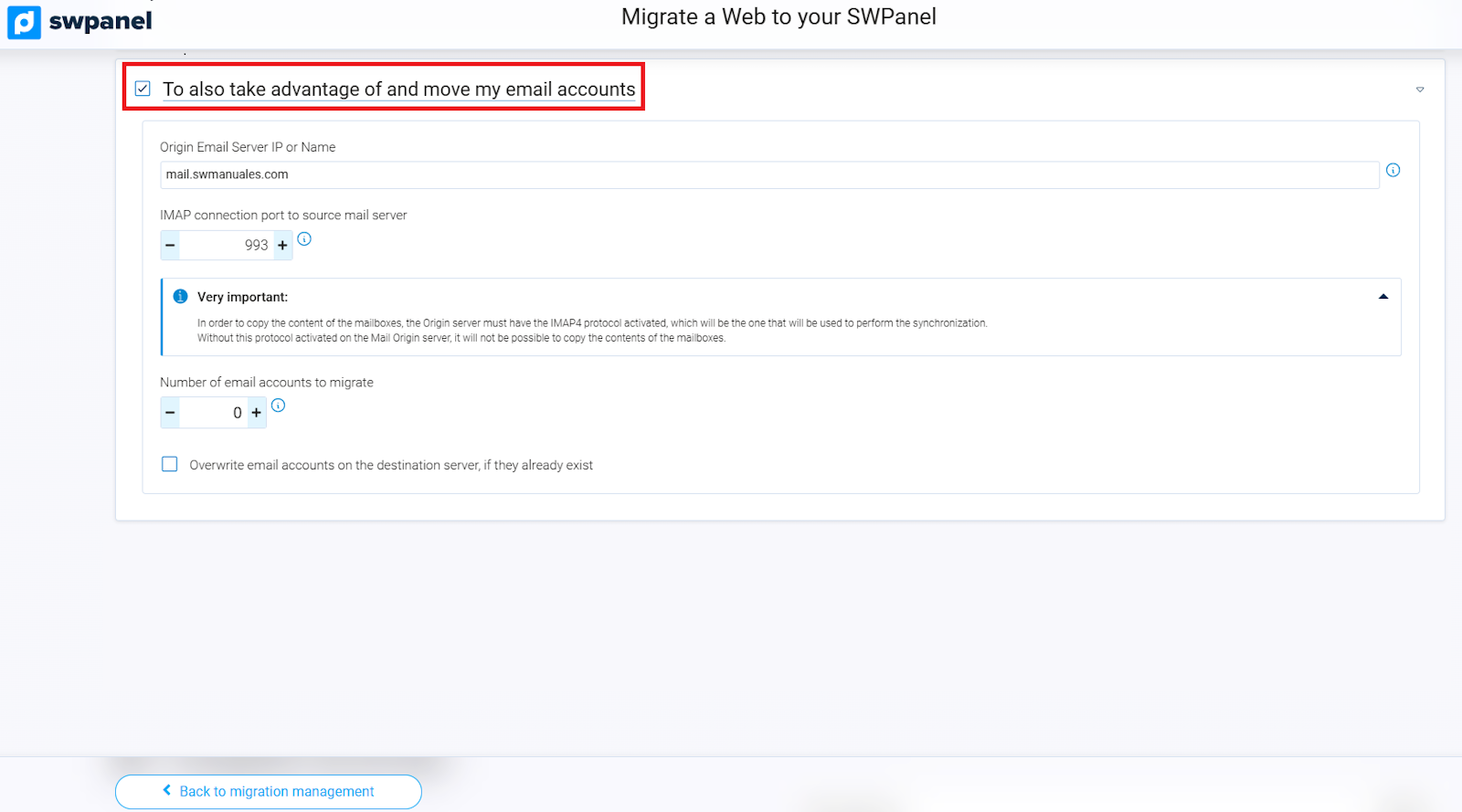
info_capture ℹ️ Note: The screenshot is for guidance purposes, taken from version 2026.000.0030 dated 03/14/2026. It may differ from the current version of SWPanel.
Details necessary to migrate email accounts
To correctly synchronize your email accounts, you must provide:
- Source mail server IP
- IMAP Port (default: 993)
- Number of accounts to migrate
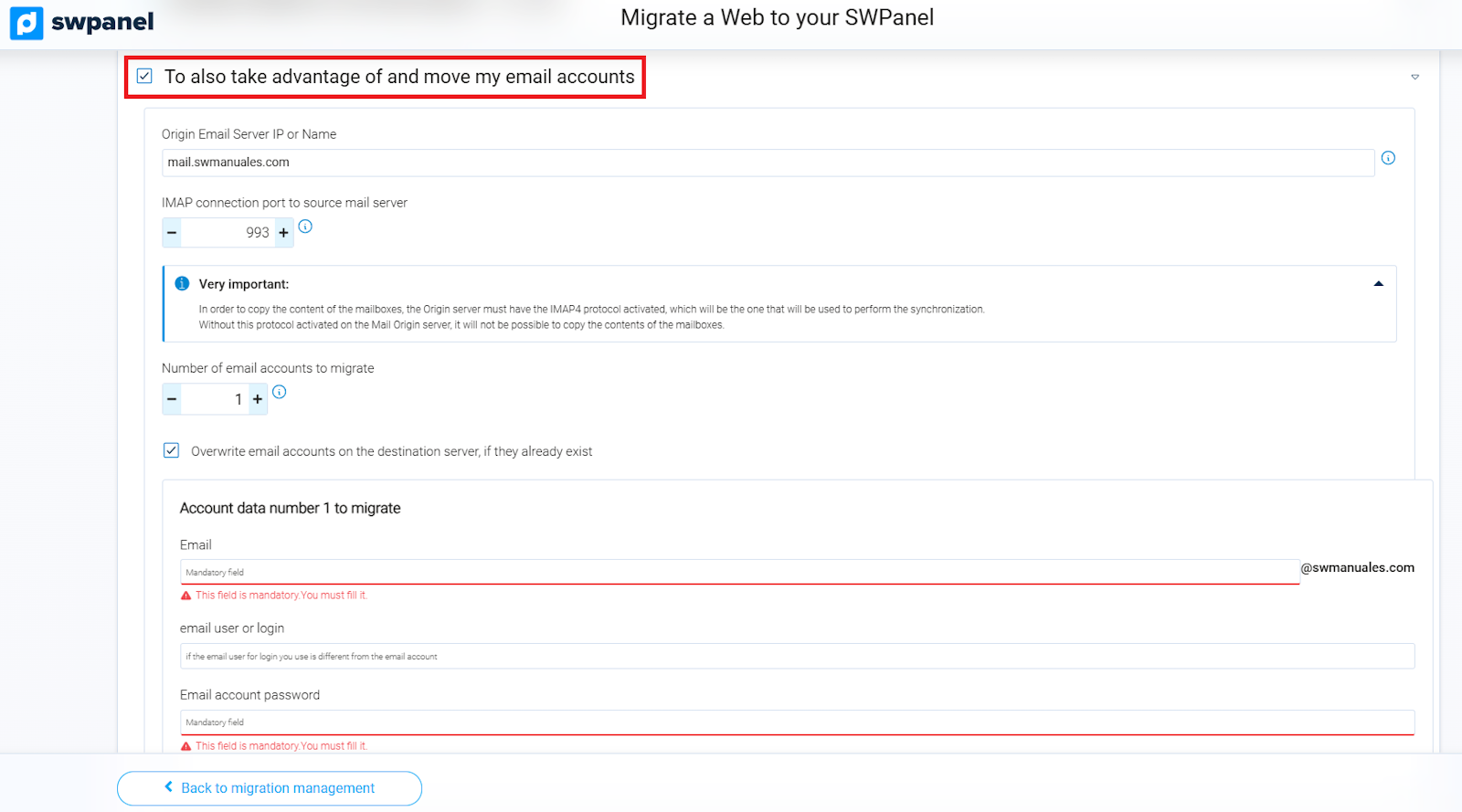
info_capture ℹ️ Note: The screenshot is for guidance purposes, taken from version 2026.000.0030 dated 03/14/2026. It may differ from the current version of SWPanel.
Configuration of each email account
For each account you wish to migrate, provide the following information:
- Account name: Only indicate the name of the account; it is not necessary to add
@domain, as it will be completed automatically. - Email user (login): This field will be filled in automatically. Just verify that it is correct.
- Password: Enter the password corresponding to the account.
If you wish, you can indicate an email account to be notified upon completion of the migration:
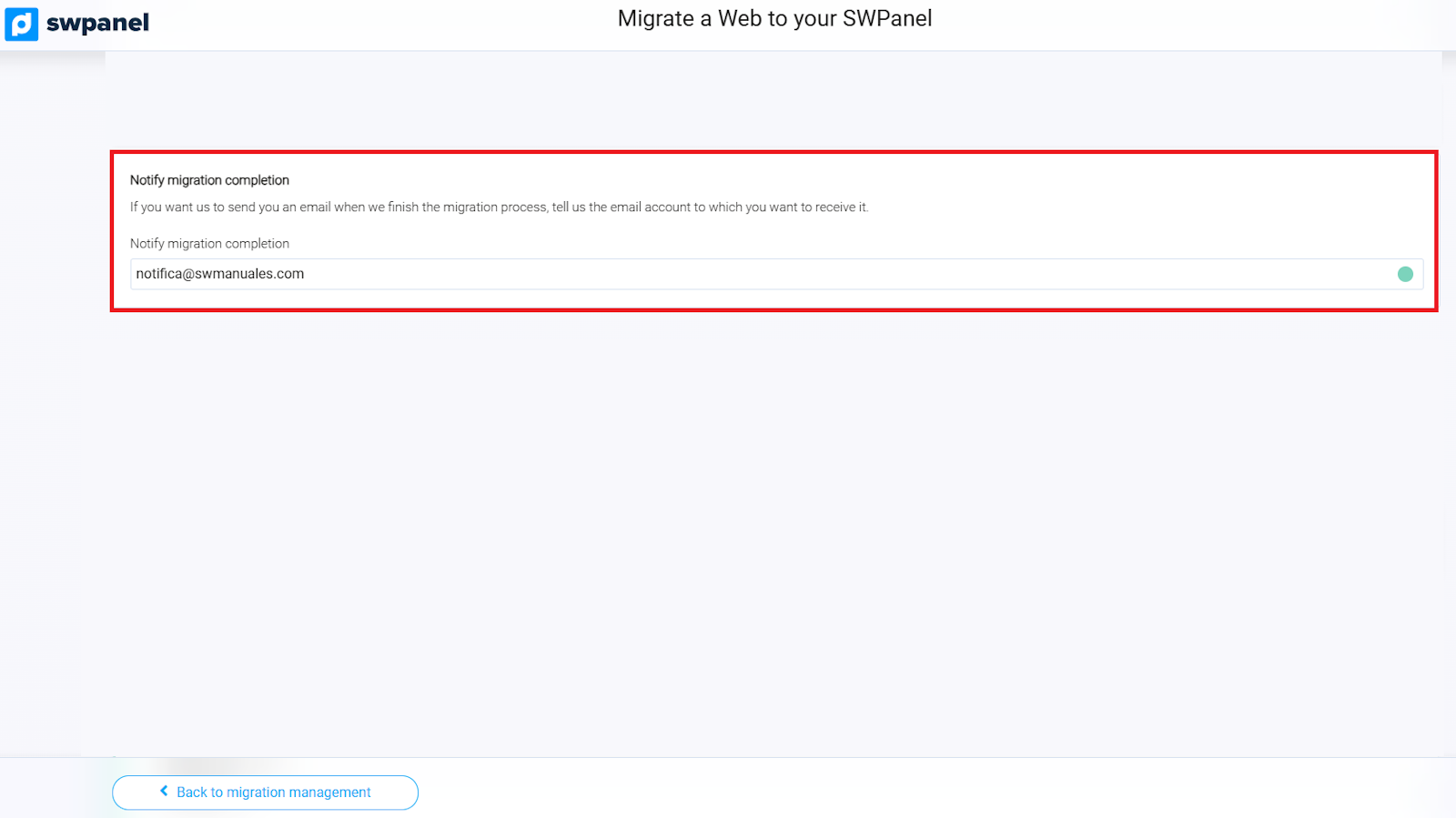
info_capture ℹ️ Note: The screenshot is for guidance purposes, taken from version 2026.000.0030 dated 03/14/2026. It may differ from the current version of SWPanel.
9. Finalizing the Migration
- Verify that all entered data is correct.
- Accept the contract and the terms of service.
- Click on Accept and create to start the migration.
ℹ️ Important: The migration has no cost; the Total service cost field will appear as 0€.
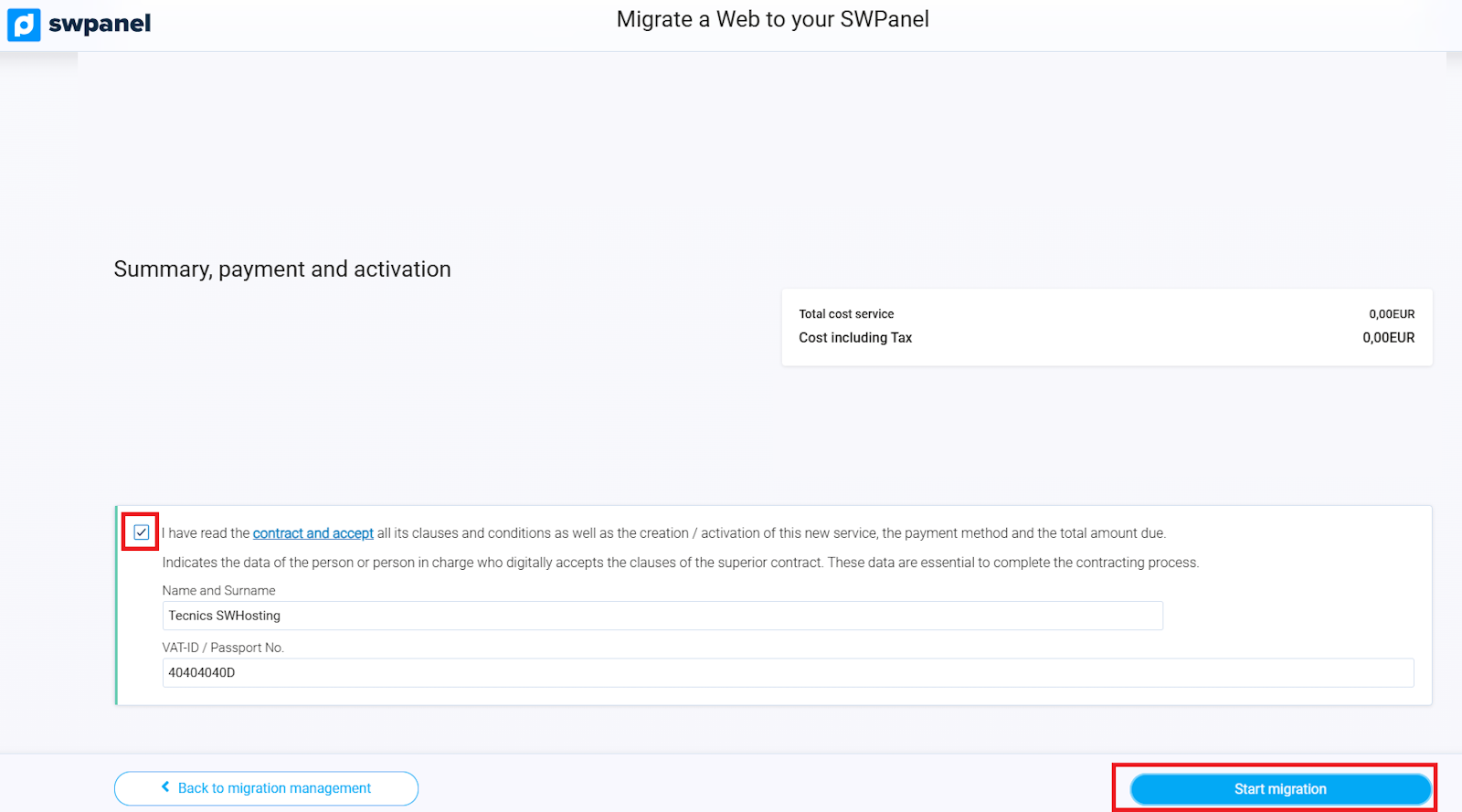
info_capture ℹ️ Note: The screenshot is for guidance purposes, taken from version 2026.000.0030 dated 03/14/2026. It may differ from the current version of SWPanel.
⚠ Important: Do not close the screen during the preparation of the migration. Once started, the process will run in the background and you will be automatically redirected to SWPanel.
Upon finishing the migration, verify that your website is working correctly by temporarily modifying your Hosts file: Manual: Modify 'hosts' file in Windows, Mac and Linux
10. Glossary
| Term | Definition |
|---|---|
| SWPanel | Hosting and domain management platform from SW Hosting. |
| FTP | File transfer protocol used to move data between servers. |
| SSH | Secure protocol that allows remote access and management of servers. |
| SSL Certificate | Allows encrypting the connection between the server and website visitors, guaranteeing security. |
| IMAP | Protocol that allows accessing and managing email directly on the remote server. |