
Web Verification Guide to be performed, applicable to the process of changing servers in a Hosting Template
In this manual, we will see the checks that must be performed before and after making a server change in a Hosting template to ensure that everything continues to function correctly.
Pre-server change checks
Before starting the redefinition, we will ensure that all Hosting services are functioning correctly. In this way, if any problem is detected after making the server change, it will be easier to resolve.
1. Verify that the website points correctly to your Cloud
The first check to perform will be to verify that the server displaying the website is the one assigned in SWPanel.
info If your web server is not located in SW Hosting, you should also verify that the propagated DNS zone data is correct.
Occasionally, different servers are used to display the web, email and database, so you should verify that your website is served by your Web server.
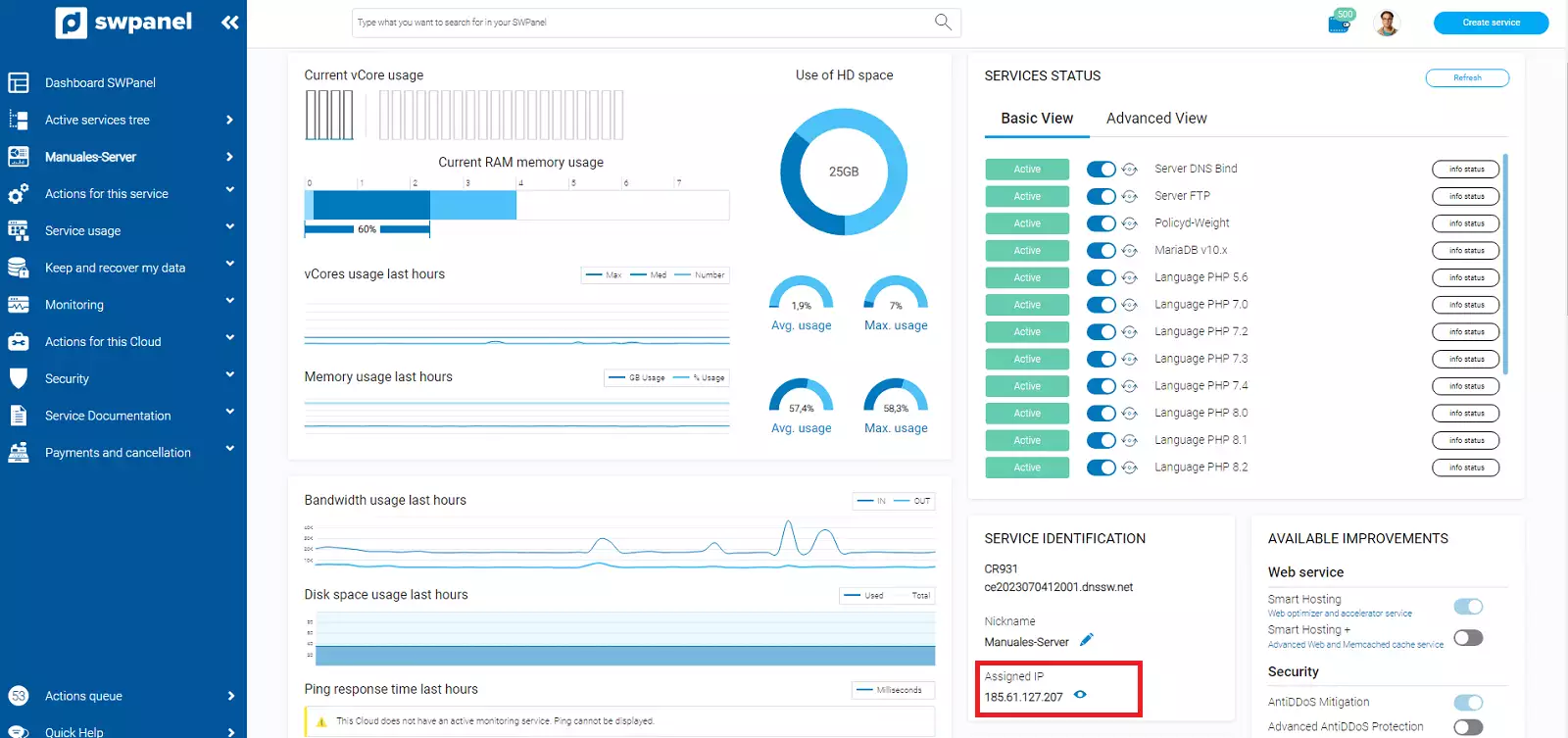
First, we will need to know the IP address of the Web server. To do this, access your server dashboard and, in the "Service Identification" section, you can find the IP address assigned to the server:
Using a DNS record lookup tool, such as WhatsMyDNS, verify that the A record of your domain points to the IP of your server:
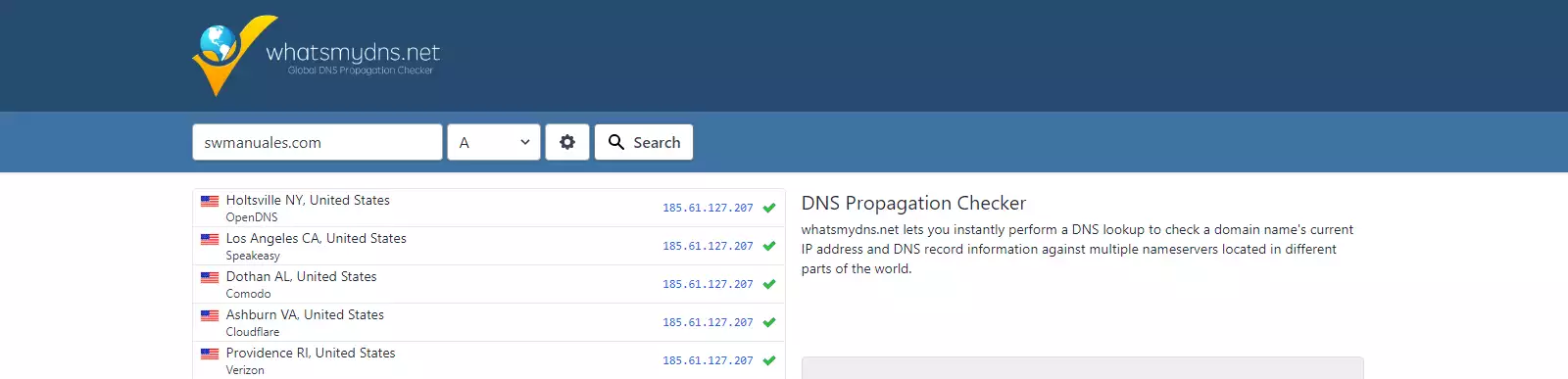
info In case the propagated information is not correct, the website should not load when searched in a browser. To resolve this, modify the A record of the DNS zone with the correct IP of your Web server: Manual: Manage DNS records
2. Verify that the website loads correctly
As a second check, you should verify if your website responds correctly to requests made by users. In this way, we will ensure that before performing the server change, the website works correctly and we do not carry over a problem from one server to another.
If the website stops responding after the server change, we will know for certain that it was responding correctly before the process.
info To resolve possible problems with your website, you can see the section "Post-server change checks"
Also check the navigation through the different pages of your site.
info You can perform a web functionality test to detect possible errors [Manual: How to test the operation of your Hosting website in SWPanel]
3. Check email functionality
In the event of wanting to make a change to the email server, it is recommended to verify that it can send and receive email properly before starting.
It is recommended to perform this step from the email client you habitually use, with your domain's email account, and from the Webmail.
To access Webmail you can use mail.yourdomain.com/webmail
info You can perform an email functionality test to detect possible errors [Manual: How to test the email functionality of your Hosting in SWPanel]
4. Review the licenses of the destination servers
Clouds with SWPanel have three types of usage licenses: D5, D25 and Unlimited Hostings. You must verify that the number of services associated with the template to be modified is compatible with the license of the destination server. Otherwise, you will need to expand the license to be able to host them.
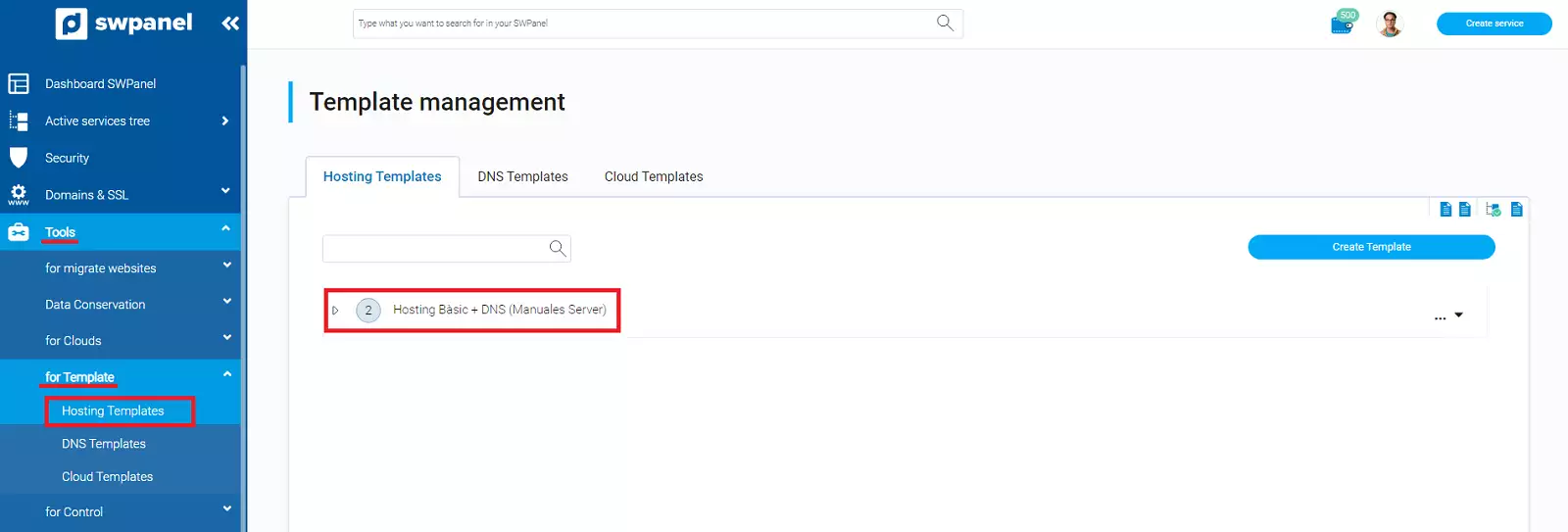
To do this, we will check the number of services assigned to the template:
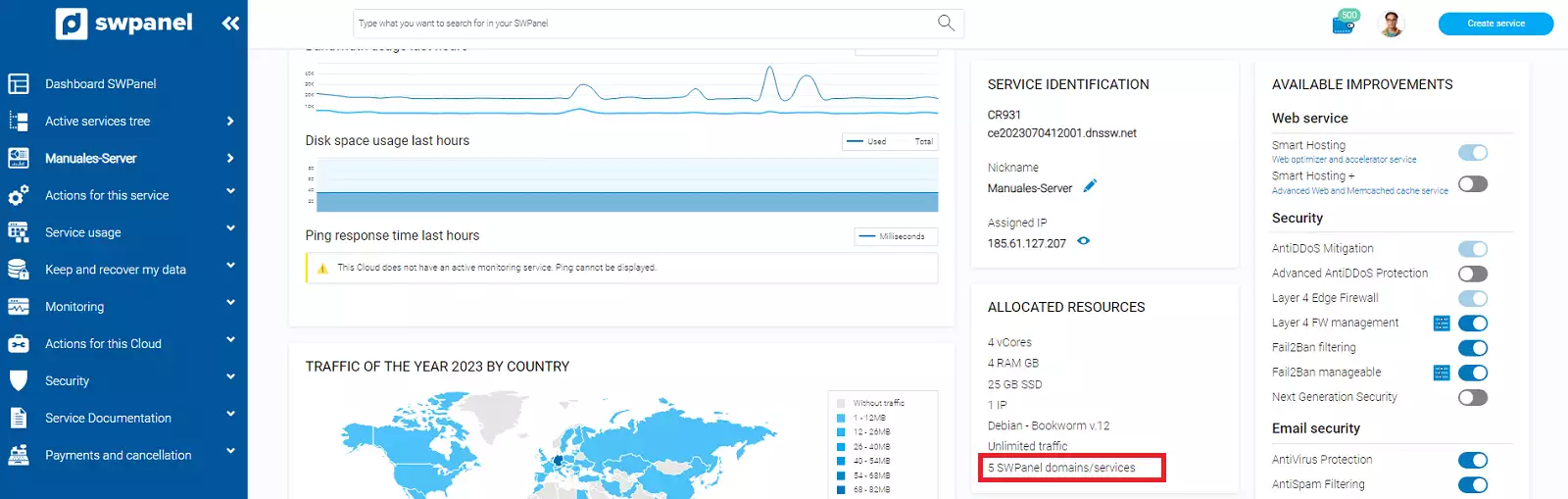
To check the server license, access your Cloud server dashboard and, in the "Assigned Resources" section, you can find the license assigned to the server:
info To expand your cloud server license, you can follow manual Manual: Increase and decrease resources of my Cloud
5. Verify that the destination server has sufficient space to host the services
As we are going to move content between servers, it is recommended to review the total amount of data to be moved and ensure that the destination server has sufficient space to host them.
To view the space occupied by a Hosting service, you can do so from the Hosting service dashboard -> Service usage -> Resource usage:
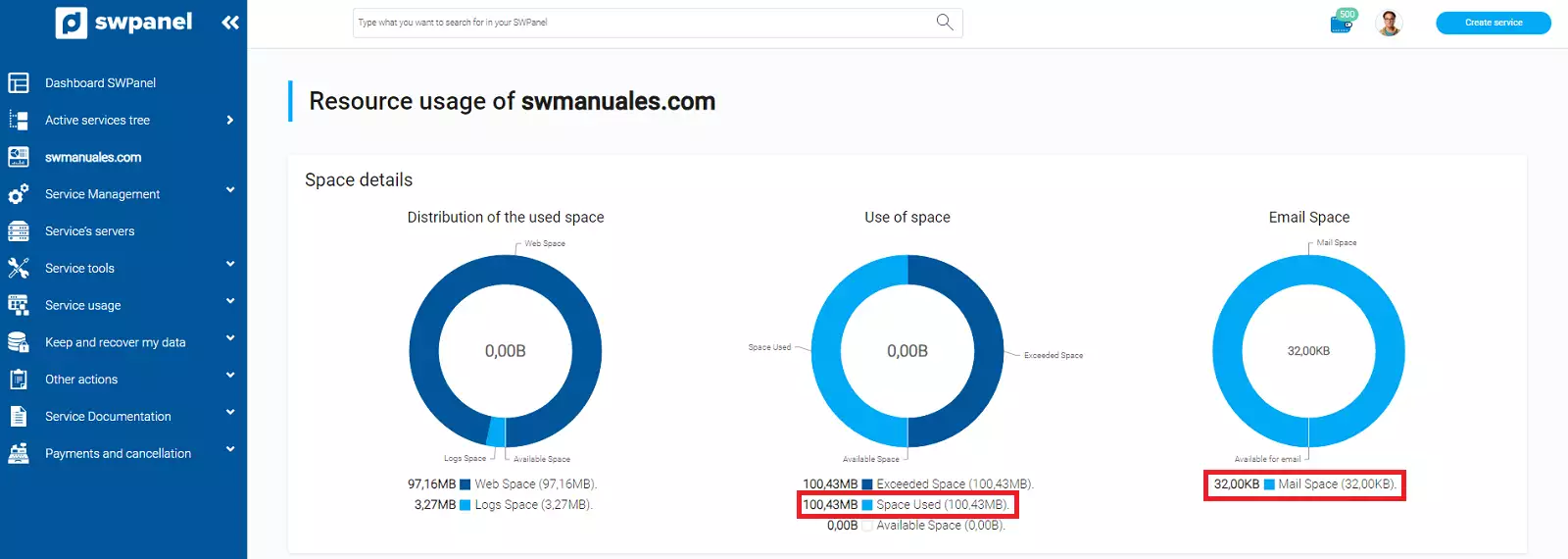
To see the available space on a Cloud server, you must access its dashboard and check the "HD space usage" graph:
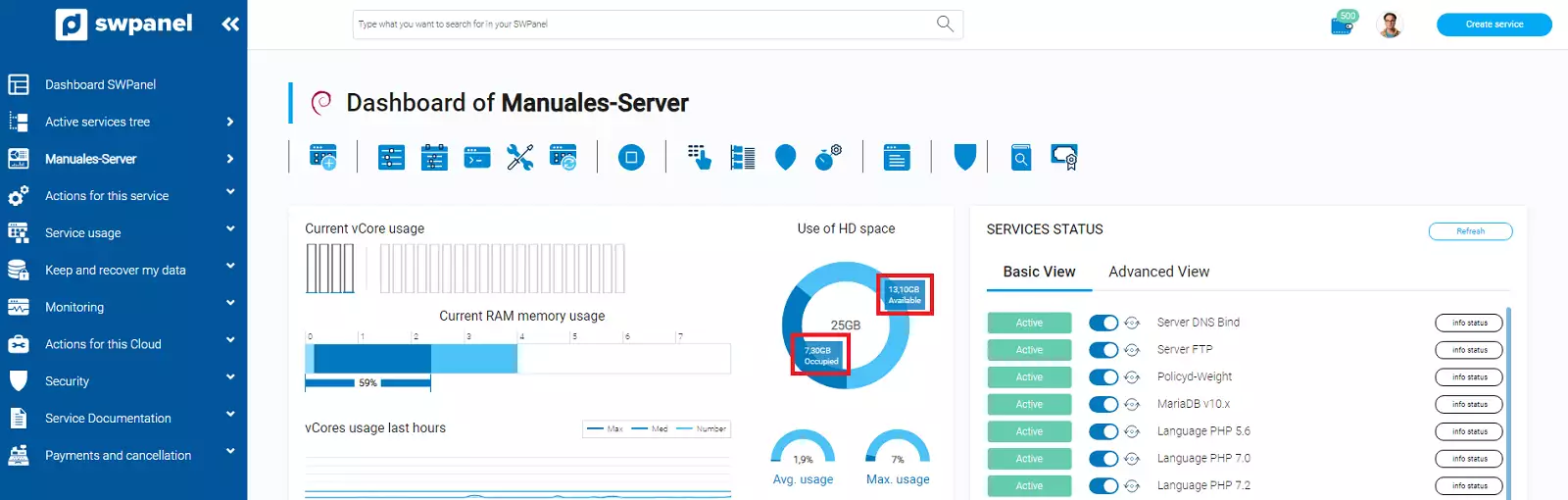
info To increase the disk space assigned to the server, you can follow manual Manual: Increase and decrease resources of my Cloud
Post-server change checks
Once the server change process is finished, we will perform another series of checks to ensure that everything continues to function correctly.
1. Verify that the website loads correctly
As a first check, we will verify that the website loads correctly. At this point, different scenarios may arise, especially if the server we changed was the Web server. We will comment on the most common cases:
1.1 When loading the web page, the browser shows a DNS error - "DNS_PROBE_FINISHED_NXDOMAIN" or "Not Found" error:
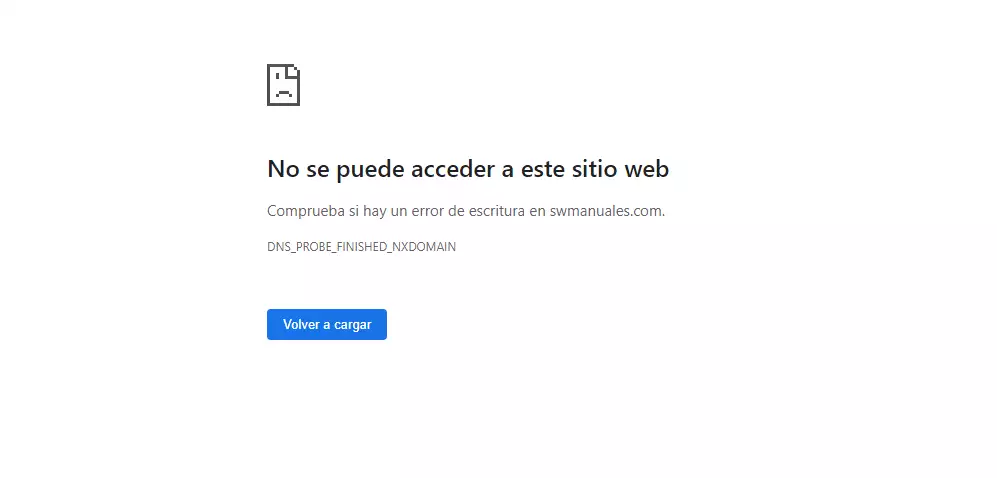
In this case, since we have moved the website from one server to another, we will have to verify that the A record of the DNS Zone is updated to the new server.
To do this, we will access the dashboard of our Hosting service and, from the side menu, we will go to the "Service Servers" section to see the IP address assigned to the Web server:
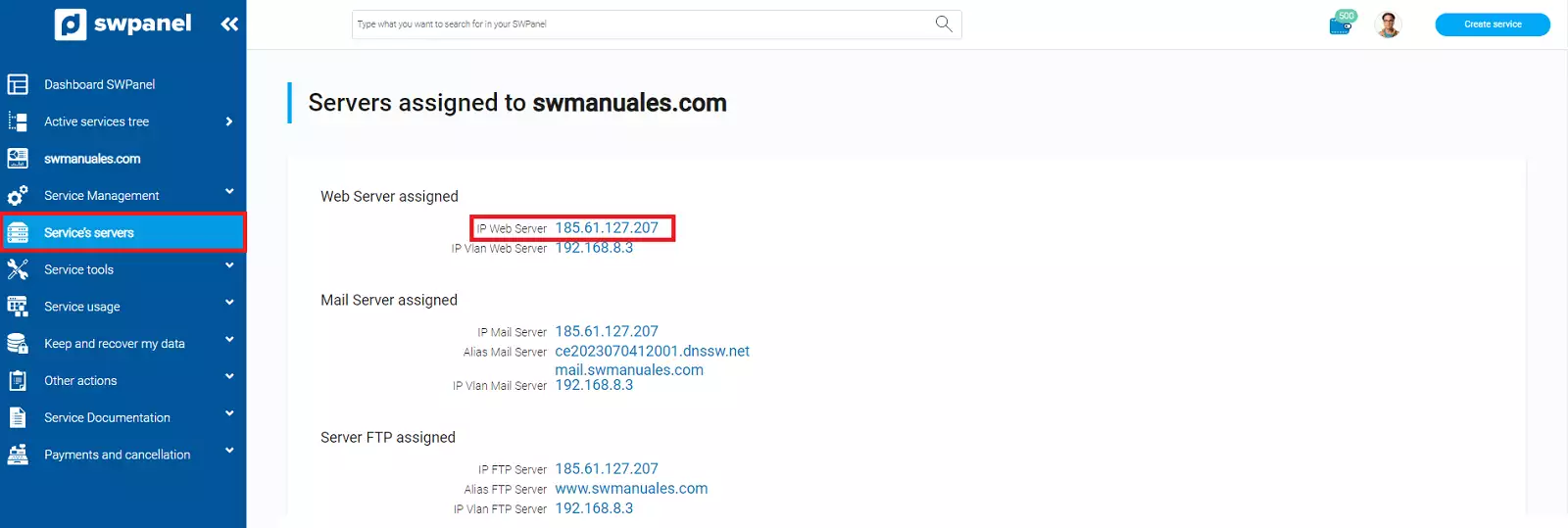
Subsequently, from "Service management" -> "DNS management", we will verify that the IP configured in the A record is the same as the one we saw in the previous section:
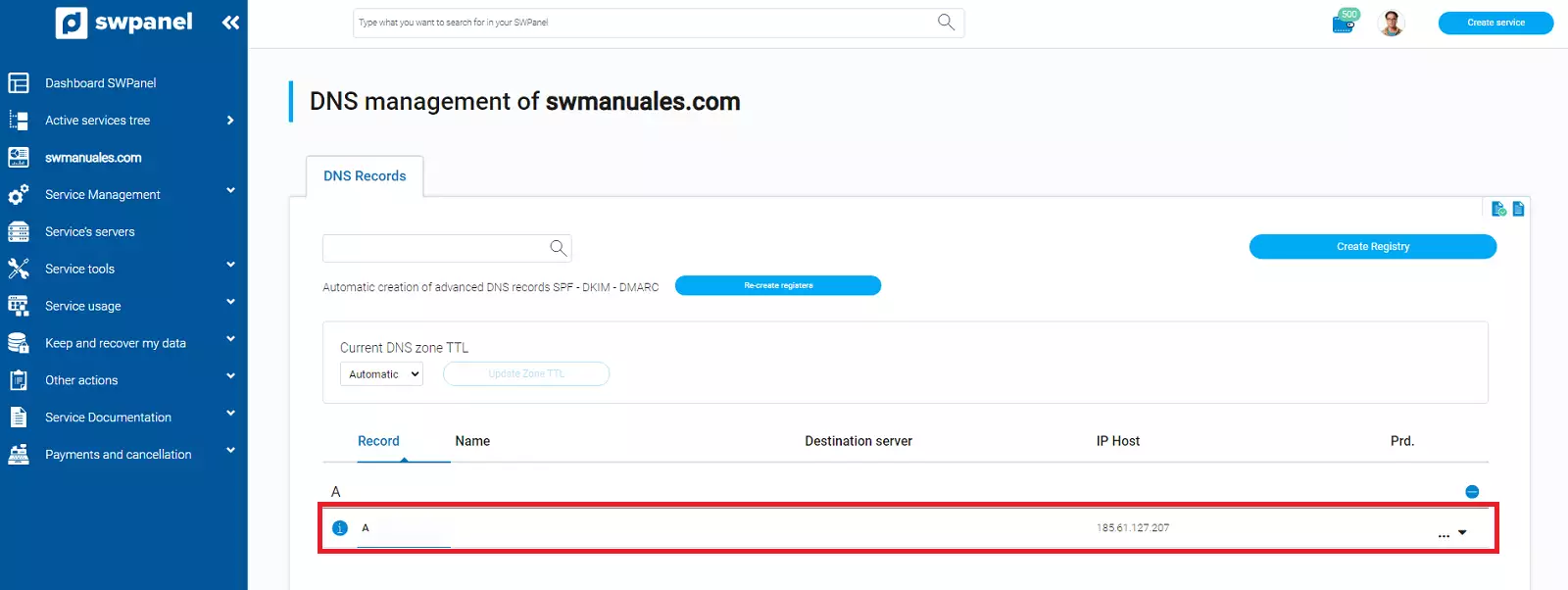
If the previous checks are correct, it must be taken into account that changes in DNS Zones can take between 24 and 48 h to propagate to the rest of the DNS servers in the world.
info To check the propagation status, we can use DNS record lookup tools such as WhatsMyDNS
1.2. When loading the web page, a Database connection error is shown
In the event of experiencing connection problems with the database, review point "2. Review the connection string to the Database server" where we will see how to review the Database server configuration in WordPress, Moodle and PrestaShop.

1.3. The page does not load via HTTPS
In the event of seeing that the page has stopped loading via HTTPS, review point 4. Review of SSL and TLS certificates.
info You can perform a web functionality test to detect possible errors [Manual: How to test the operation of your Hosting website in SWPanel]
2. Review the connection string to the Database server
In the event of changing the Web server or the Database server, it will be necessary to verify that the data configured to make the connection to the Database server matches once the server has been changed.
First of all, we must know the IP address of the database server assigned to the service.
To do this, from the Hosting service dashboard, we will click on "Service Servers" in the blue side menu. In the "Assigned DB Server" section, we can see the IP address of the Database server:
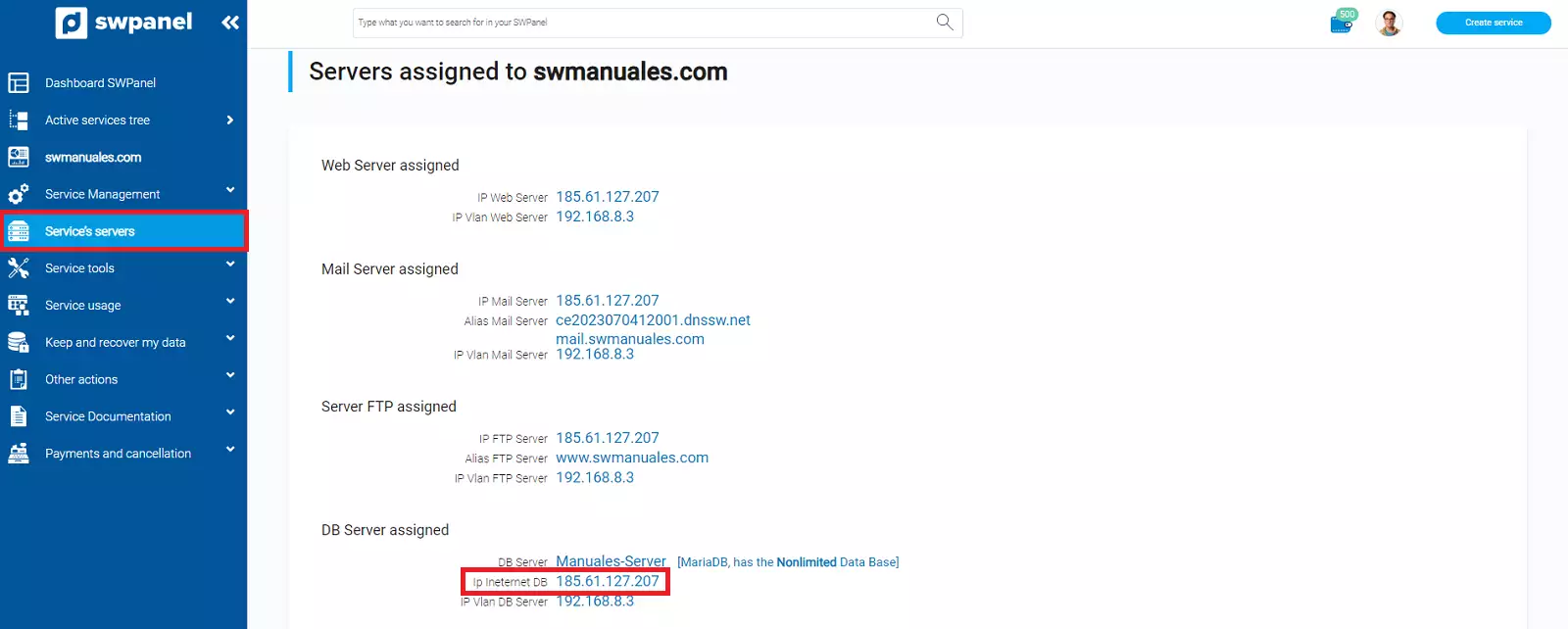
2.1. Review of the connection string in WordPress
To review and modify the connection string in a WordPress site, we will access the dashboard of our Hosting service and click on the File Manager icon:

We will go to the datos/web/ directory and edit the wp-config.php file. In the following section, we must modify the value of "Database hostname" with the IP address of the assigned server.
// ** Database settings - You can get this info from your web host ** //
/** The name of the database for WordPress */
define( 'DB_NAME', '*****' );

/** Database username */
define( 'DB_USER', '*****' );

/** Database password */
define( 'DB_PASSWORD', '******' );

/** Database hostname */
define( 'DB_HOST', '185.61.127.207' );
2.2. Review of the connection string in Moodle
To review and modify the connection string in a Moodle site, we will access the dashboard of our Hosting service and click on the icon to access the File Manager:
We will go to the datos/web/ directory and edit the config.php file. We must modify the value of "dbhost" with the IP address of the assigned server.
$CFG->dbhost = '185.61.127.207'; // eg 'localhost' or 'db.isp.com' or IP
2.3. Review of the connection string in PrestaShop
To review and modify the connection string in a PrestaShop site, we will access the dashboard of our Hosting service and click on the icon to access the File Manager:
We will go to the datos/web/app/config/ directory and edit the parameters.php file. We must modify the value of "database_host" with the IP address of the assigned server.
'database_host' => '185.61.127.207',
3. Sending and receiving email
Both from the email client you habitually use, with your domain's email account, and from the Webmail, we will test sending and receiving email from a mailbox external to the domain.
To access Webmail you can use mail.yourdomain.com/webmail
At this point, if the server we changed was the Email server, we may find that the email client cannot connect to the server.
First of all, as the email server associated with the domain has been changed, we will verify that both the MX record and the CNAME 'mail' have been updated.
To do this, we will access the dashboard of our Hosting service and in the side menu we will click on "Service servers". In the "Assigned Email Server" section, we can find the name of the email server assigned to the service:
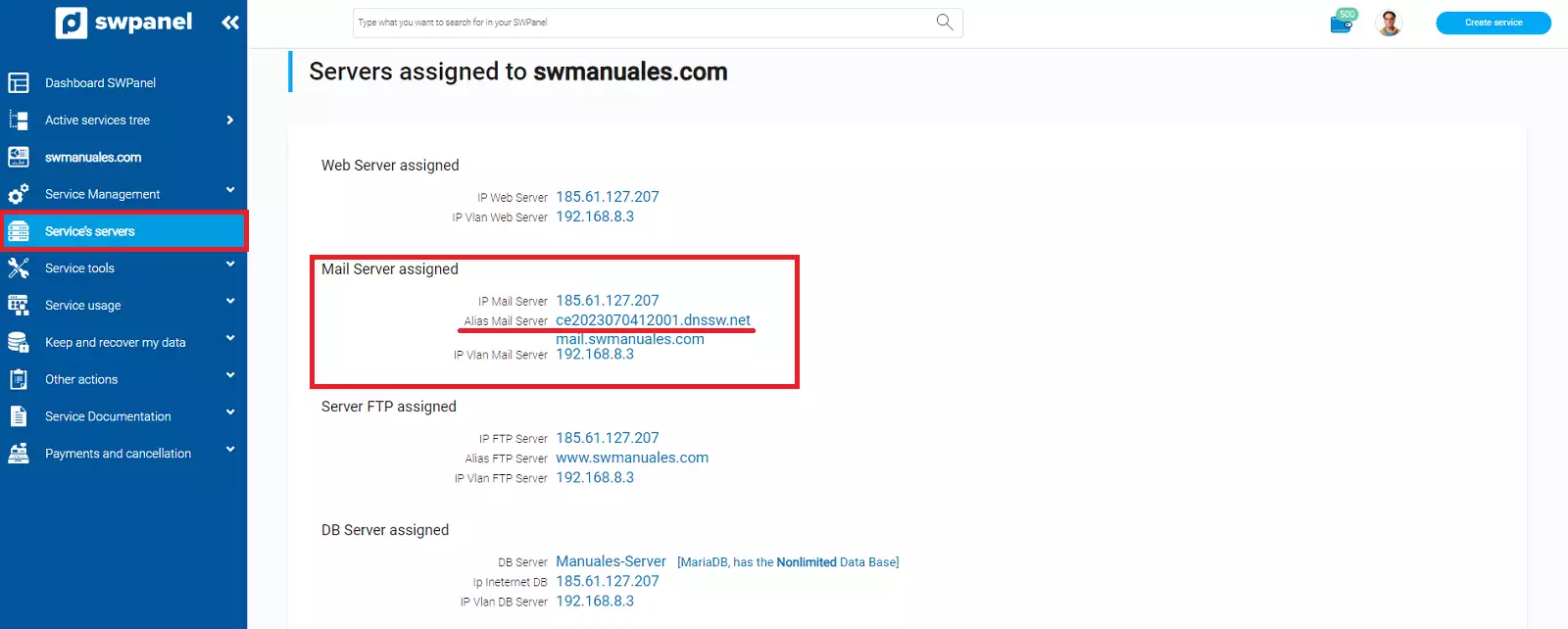
Subsequently, from "Service management" -> "DNS management", we will verify that both the CNAME mail record and the MX record are pointing to the assigned server:
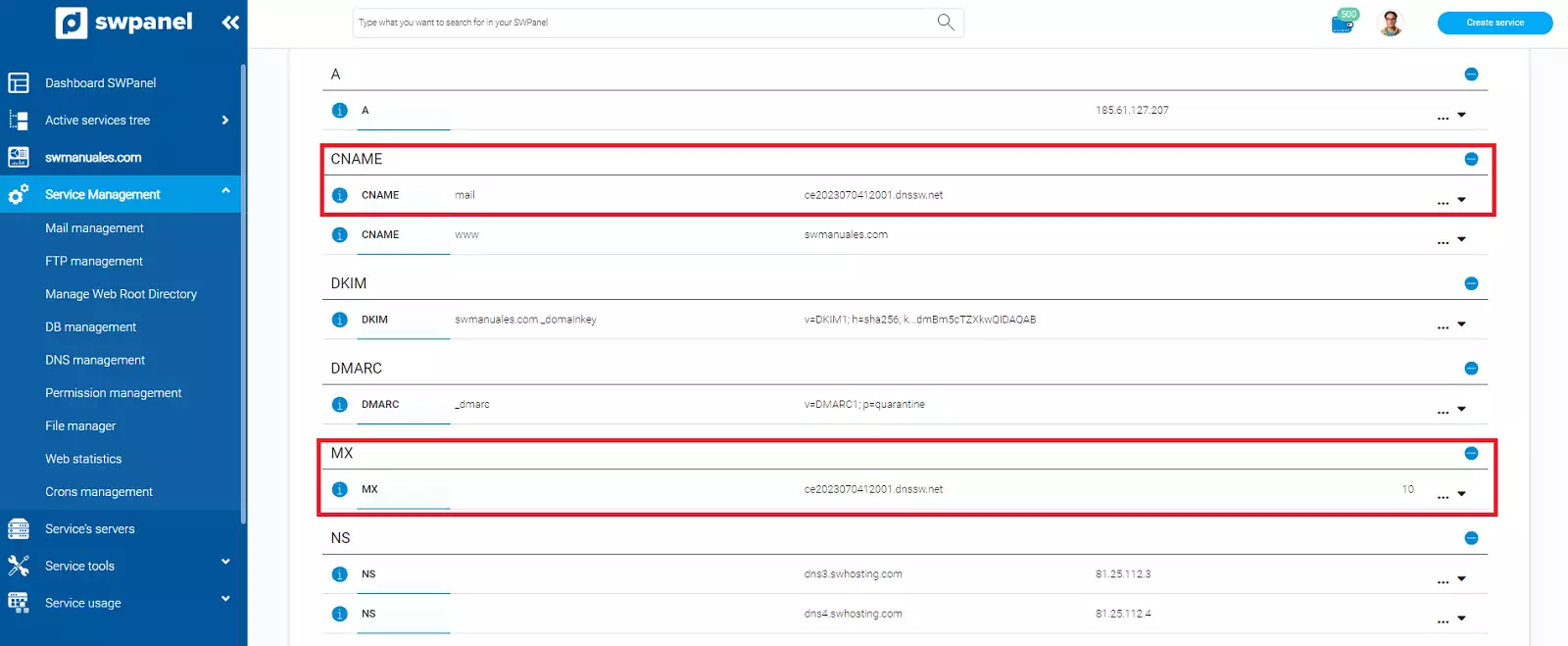
If the previous checks are correct, it must be taken into account that changes in DNS Zones can take between 24 and 48 h to propagate to the rest of the DNS servers in the world.
info To check the propagation status, we can use DNS record lookup tools such as WhatsMyDNS
As a second check, if your email client is configured to connect to the server via secure ports, but the Hosting service does not have a TLS certificate, it is likely that the client cannot connect to the server.
If this is the case, you can review the section "4. Review of SSL and TLS certificates".
info You can perform an email functionality test to detect possible errors [Manual: How to test the email functionality of your Hosting in SWPanel]
4. Review of SSL and TLS certificates
In the event that SSL and TLS certificates have not been installed in your Hosting service, once the server change is made, your website will not load securely via HTTPS and you will not be able to connect in an encrypted way to the email server.
To verify that both certificates are installed, you must access the dashboard of your Hosting service. In the "Security and SSL" part, you can verify that both the certificate for the web (SSL) and the certificate for the email (TLS) are correctly installed:
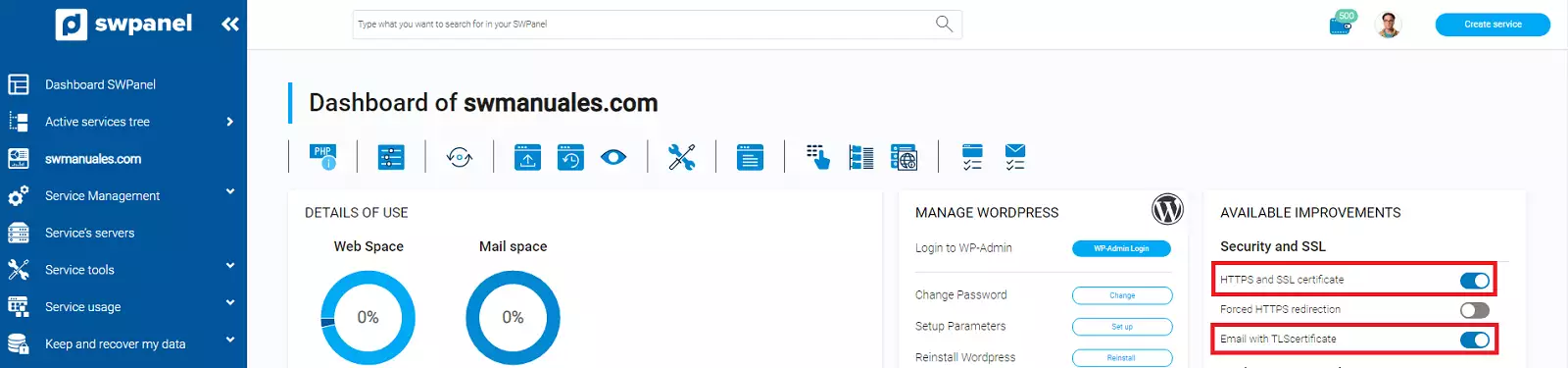
Otherwise, if they are not installed, you can do so by following the following manuals: