
Adjust Wordpress parameters
In the following manual, we will show you all the functionalities and options configurable in your WordPress installed via SWPanel.
It is important to mention that all these functionalities and options shown below will only work on WordPress installations performed via SWPanel; for this, you can consult our manual: Manual: How to install Wordpress on your hosting.
info ??WordPress installations performed via FTP migrations, plugins, or other methods are not compatible with the WordPress management functionalities provided by SWPanel.
Manage Wordpress in SWPanel
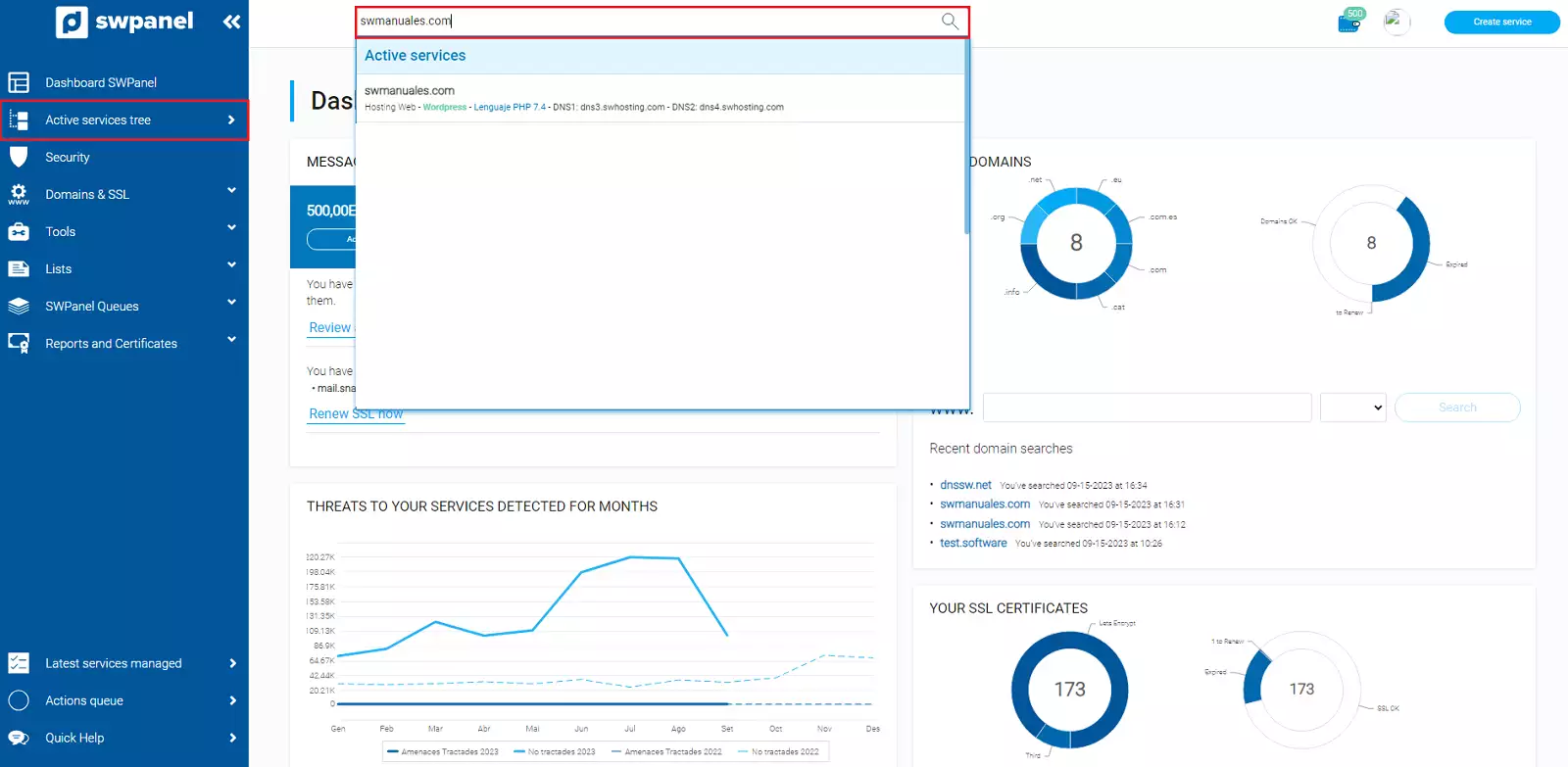
Access SWPanel and go to the Dashboard of your Hosting service, using the service search or from the Active services tree (side menu)
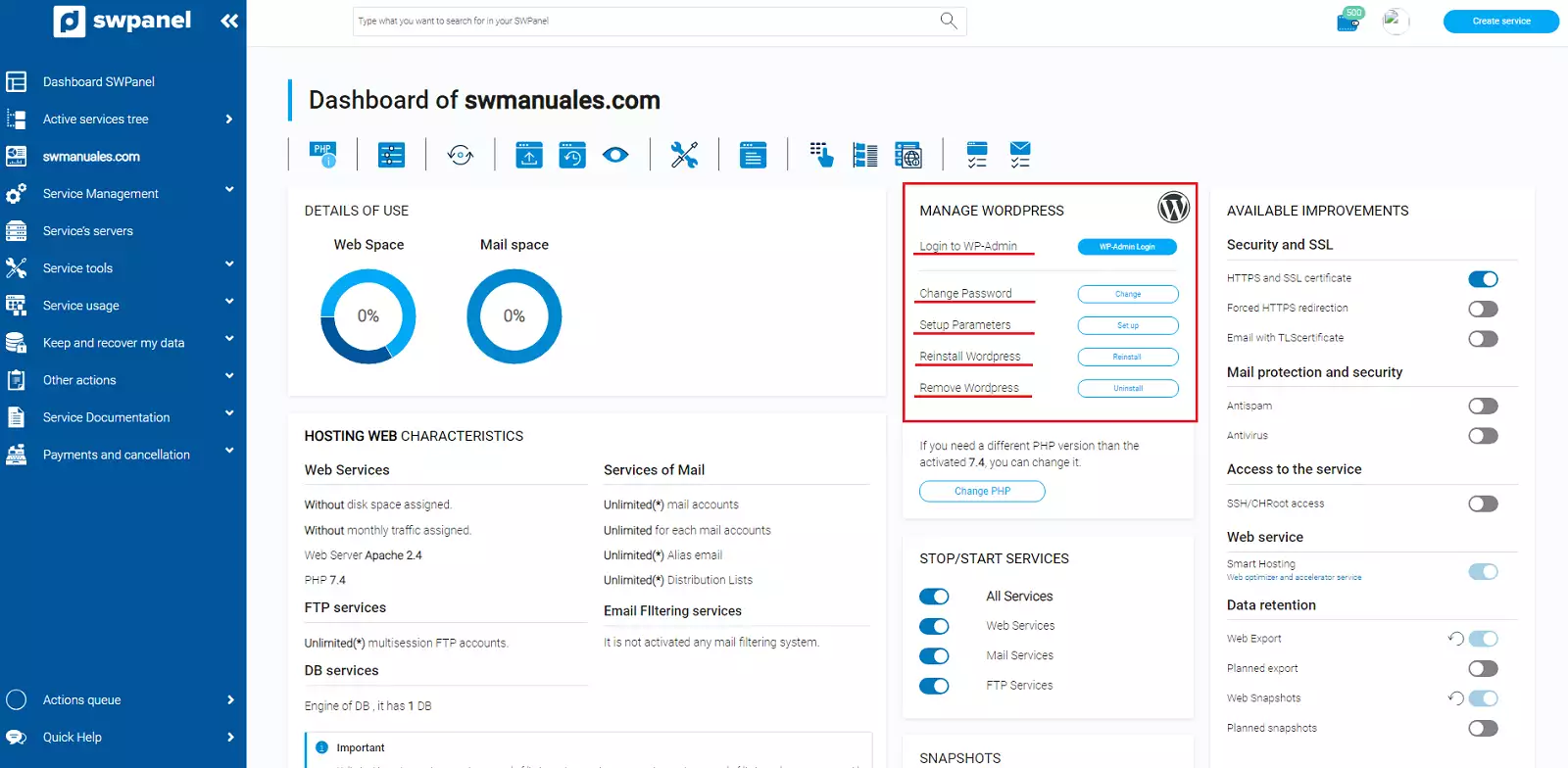
Next, go to the MANAGE WORDPRESS section, where you will find the following options:
-
Access WP-Admin: Access the administrator area of your WordPress automatically with the administrator user.
-
Change Password: Change the administrator user's password to a new one assigned to you.
info This can be useful if you have forgotten the password to access the administration area of your WordPress and you need to gain access.
- Reinstall Wordpress: Perform a fresh reinstallation of WordPress.
danger ??Please keep in mind that all files on your website and the database linked to WordPress will be deleted. Therefore, it is recommended that you make a backup of the data in case you need it in the future.
- Delete Wordpress: Perform a complete uninstallation of WordPress from the hosting.
danger ??Please keep in mind that all files on your website and the database linked to WordPress will be deleted. Therefore, it is recommended that you make a backup of the data in case you need it in the future.
- Adjust Parameters: contains several WordPress configuration options, which are as follows:
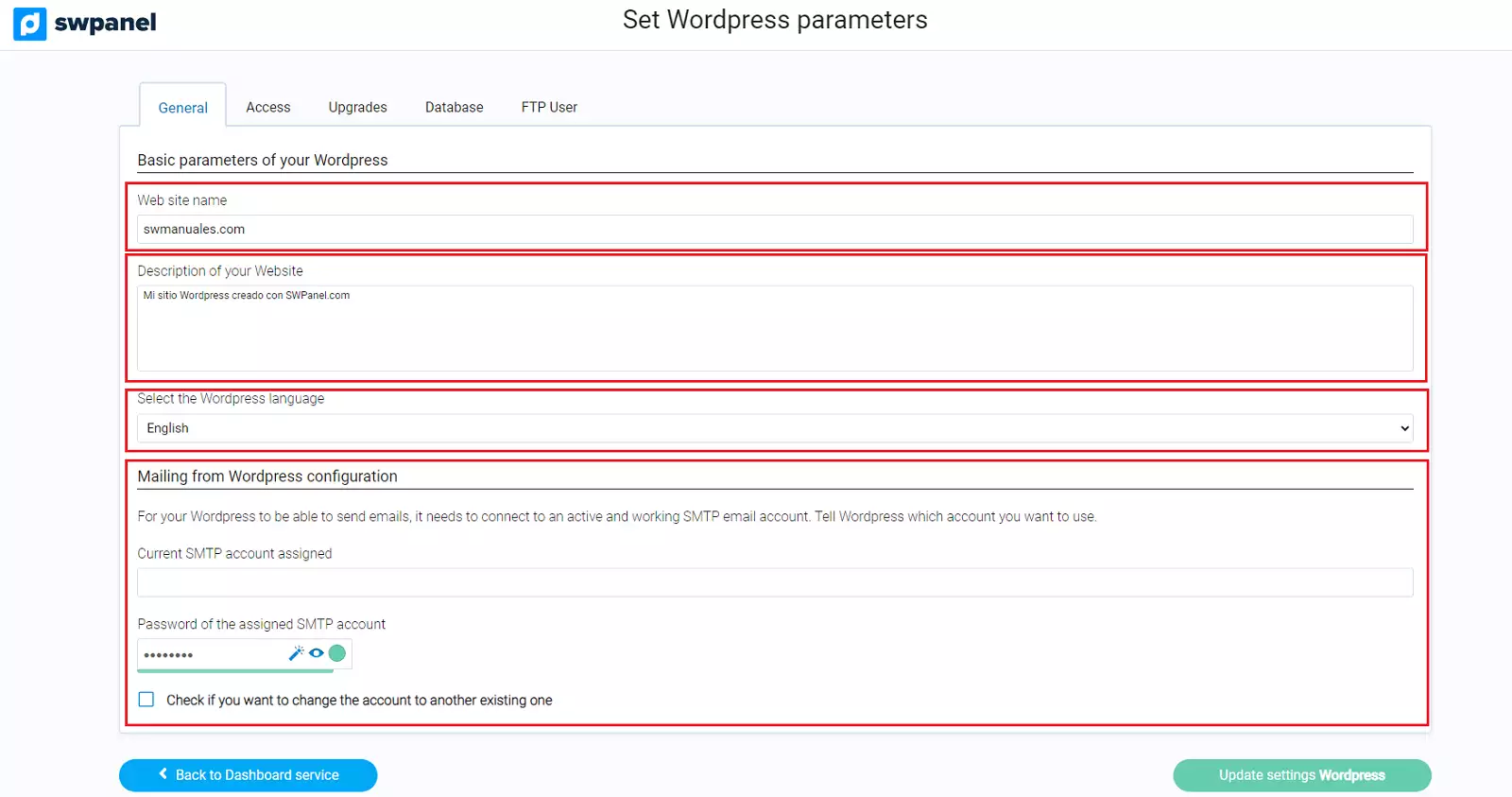
Adjust parameters > General:
-
Website Name: Determines the name of the website; this name is displayed in the browser tab or other parts of the site.
-
Website Description: You can write a short description of the website; this is displayed in the browser tab or other parts of the site.
-
Select WordPress language: You can change the language of your WordPress administration area.
-
Email sending configuration from Wordpress: Email sending via SMTP will be configured automatically, using the email account created when WordPress was installed.
For the security and integrity of WordPress, the assigned email account can only be edited from this section. It is also possible to select another existing email account on your hosting from which emails will be sent; you can do this by checking the option "Check if you want to change the account to another existing one".
Adjust parameters > Access:
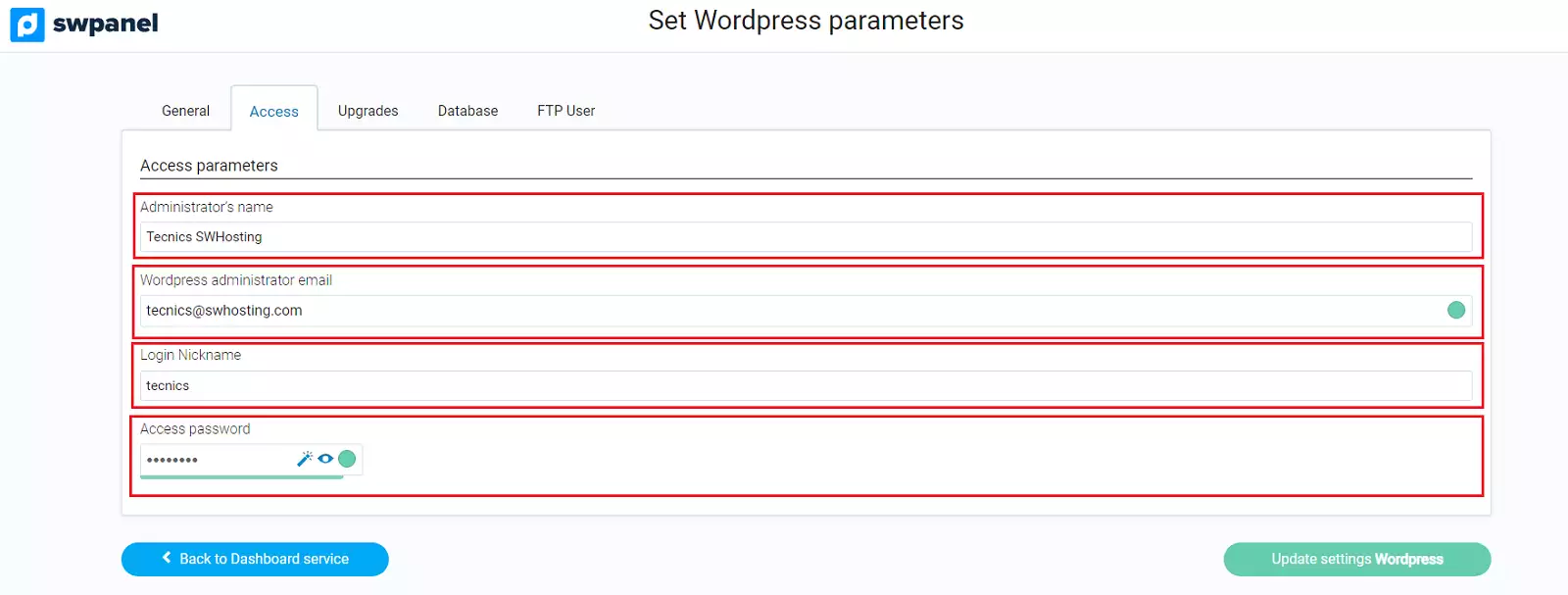
- Administrator name: Determines the administrator username within the WordPress administration area.
- WordPress administrator email: Determines the email of the WordPress administrator user; you can access the WordPress administration area using this email.
- Access nickname: Determines the administrator's username; you can access the WordPress administration area using this nickname.
- Access password: You can modify the administrator user's password.
Adjust parameters > Updates:
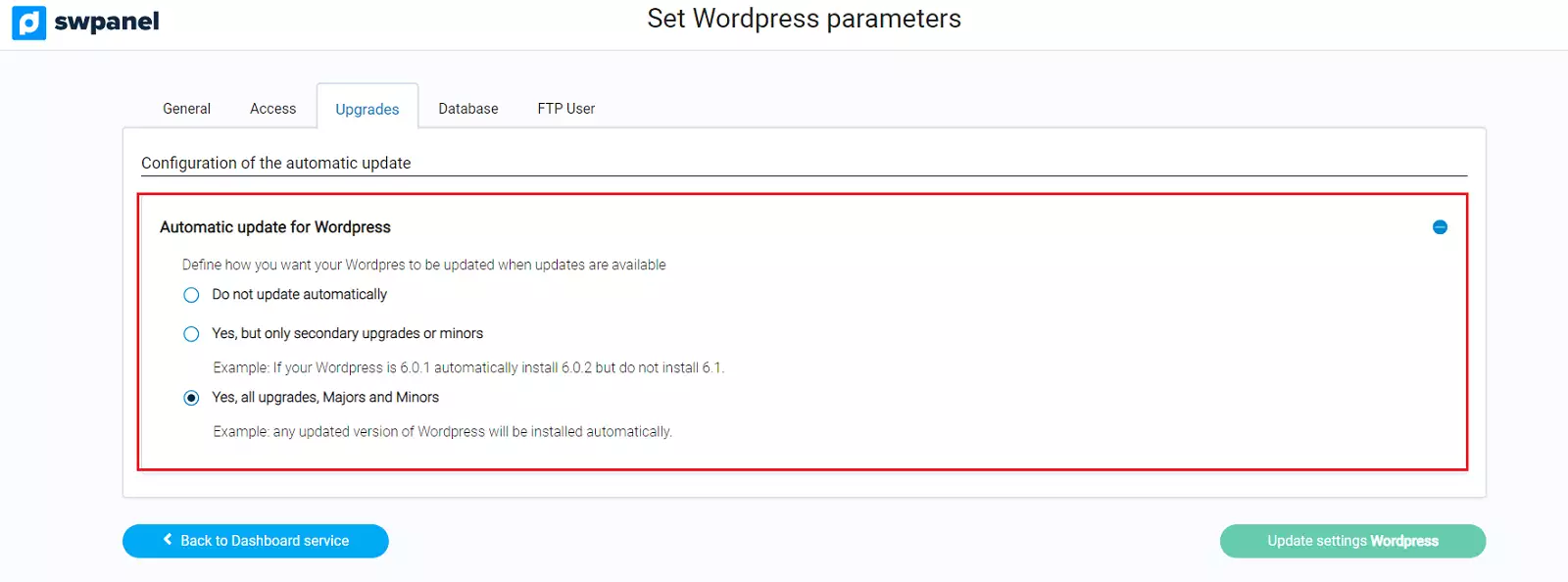
- Automatic update for Wordpress: You can choose whether you want to update WordPress automatically and the type of updates you want installed.
info Only the WordPress version will be updated; installed plugins are not updated.
Adjust parameters > Database:
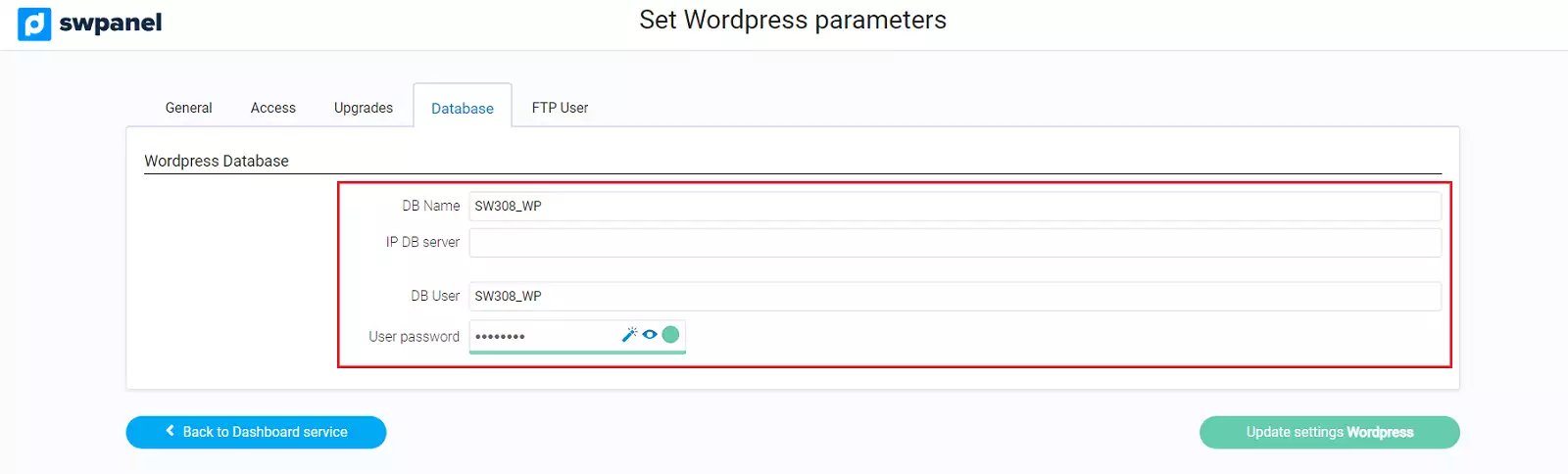
- DB Name: Displays the name of the database assigned to WordPress; for the security and integrity of WordPress, this data is not manageable.
- DB server IP: Displays the IP of the server where the database assigned to WordPress is hosted; this data is not manageable.
- DB User: Displays the username of the database assigned to WordPress; for the security and integrity of WordPress, this data is not manageable.
- User password: You can modify the password for the "DB User".
info These details are necessary when accessing the WordPress DB.
Adjust parameters > FTP User:
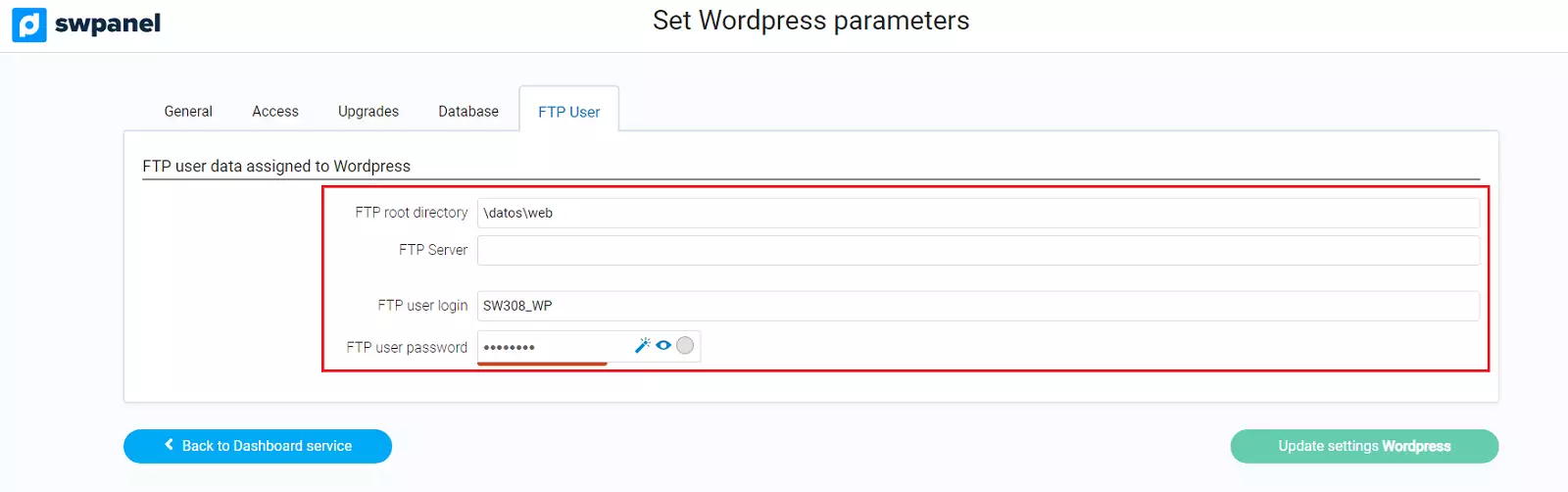
- FTP root directory: Displays the FTP directory where the website data is hosted.
- FTP Server: Displays the IP of the FTP server.
- FTP user login: Username of the account you will use to access the FTP server; this name cannot be modified.
- FTP user password: You can modify the password for the "FTP User".
info These details are necessary when accessing the WordPress FTP.
Done! Now you know all the features and configuration options of your WordPress installed via SWPanel!