
How to install Wordpress on your hosting
This manual aims to guide the user step-by-step through the Automatic WordPress Installation process from the SWPanel control panel, allowing for a functional website in a matter of minutes and without the need for complex manual installations.
What is needed to follow this manual?
- An active hosting service managed via SWPanel.
- Access to the SWPanel panel with administrator permissions.
- An active email account to associate with the WordPress site administration.
1. Automatic WordPress Installation from SWPanel
Step 1: Access SWPanel and select your hosting service
First, access SWPanel with your credentials and go to the Dashboard (main control panel) of the hosting service where you want to install WordPress.
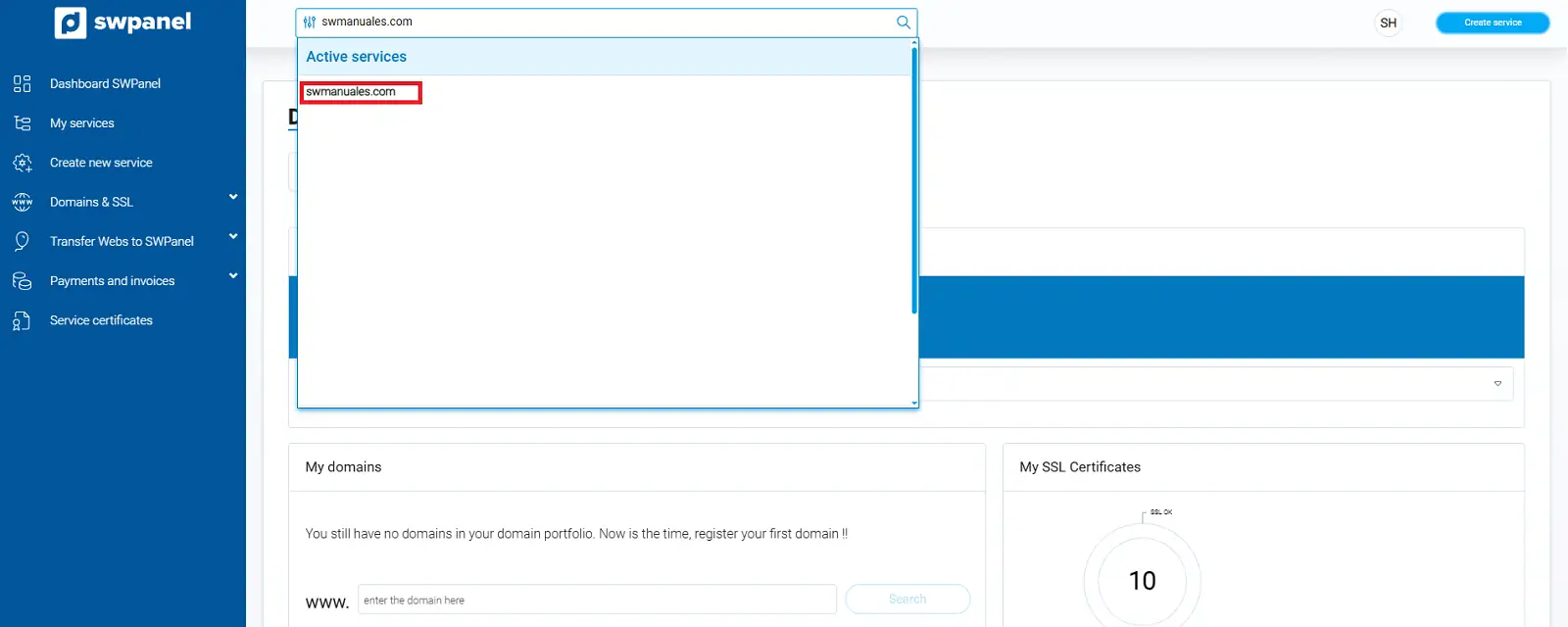
info_capture The screenshot is for guidance purposes. It was taken using version 2026.000.0001 dated 13/01/2026. It may differ from what the current version of SWPanel shows.
Tip: Use the search bar located at the top of the panel to quickly locate the hosting service you wish to manage.
Step 2: Activate CMS application management
Once inside the service dashboard, access the CMS Application Management section and activate the WordPress option.
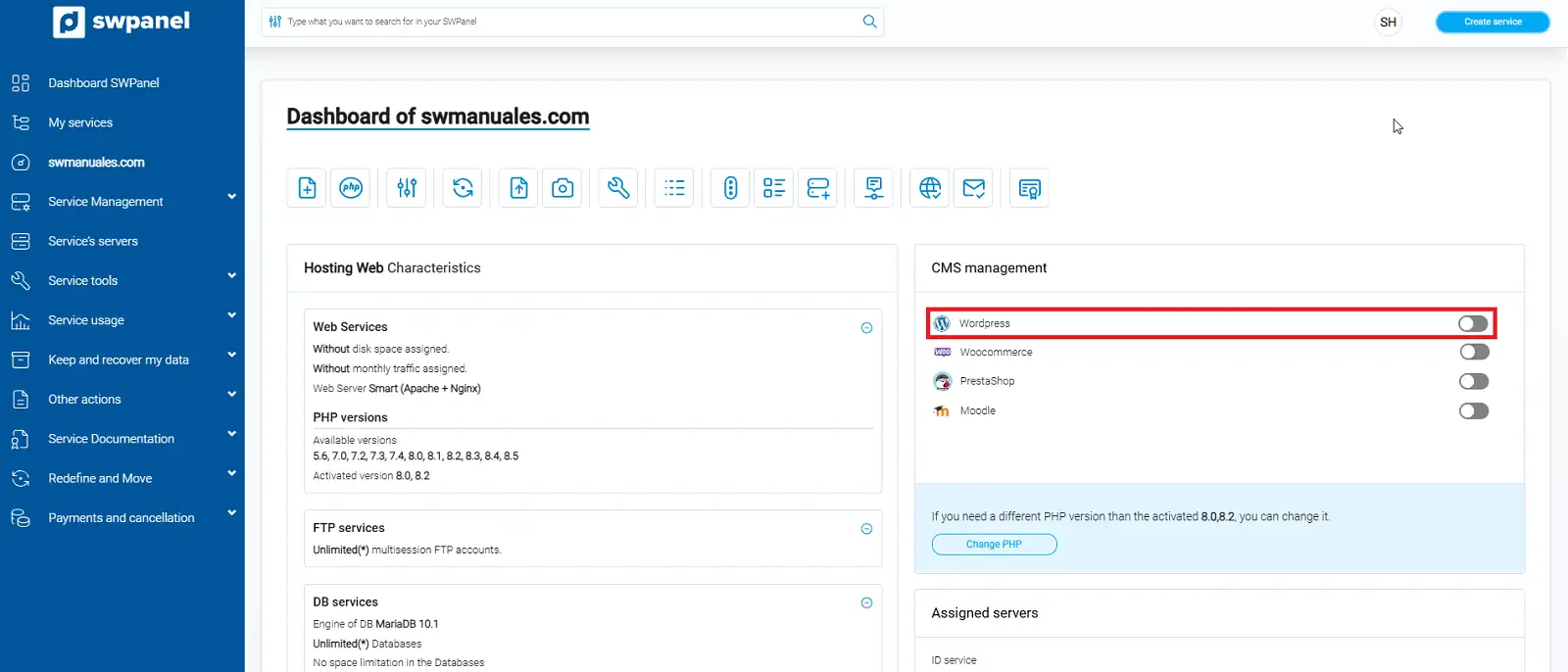
info_capture The screenshot is for guidance purposes. It was taken using version 2026.000.0001 dated 13/01/2026. It may differ from what the current version of SWPanel shows.
Important: Only one CMS application can be active per service. If another application is already active, you must deactivate it first.
Step 3: Pre-installation configuration
Once WordPress is activated, a form with different fields to configure will appear. These options allow you to customize your installation before starting the automatic process:
a. Basic WordPress parameters
- Site Name: This will be the main title of your page.
- Description: This will appear in the browser tab and in the site metadata.
- Language: Select the language in which you want the WordPress administration panel to operate.
b. Access parameters
- Administrator Name: Full name of the person responsible for the site.
- Administrator Email: Email address associated with the administrator, used for notifications and access recovery.
- Username/Nickname: Username to log into WordPress.
- Password: Secure password for the aforementioned user.
c. Email sending configuration
WordPress will send emails from your site (for example, for password recovery or notifications). Sending is configured automatically via SMTP. You can choose:
- An existing email account.
- Create a new email account during this process.
d. Automatic updates
You can decide if you want WordPress to update automatically. There are three main options:
- No automatic updates.
- Minor updates only.
- All updates (including security and functional updates).
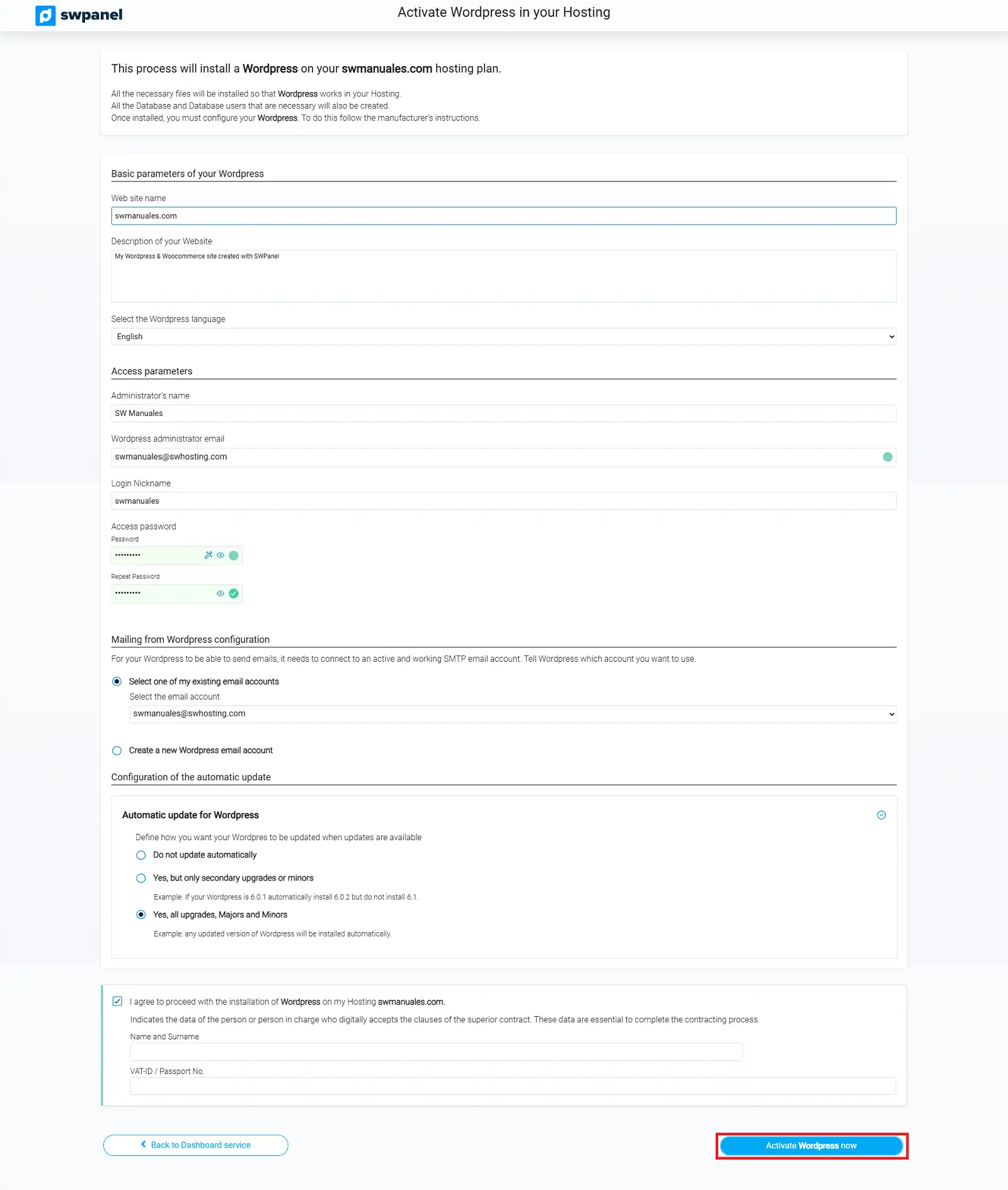
info_capture The screenshot is for guidance purposes. It was taken using version 2026.000.0001 dated 13/01/2026. It may differ from what the current version of SWPanel shows.
Step 4: Activate WordPress
Once all configuration fields are completed, click the "Activate WordPress now" button. This will start the automatic installation process.
In a matter of minutes, WordPress will be completely installed and functional. Additionally, you will receive an email with the following data:
- Site URL.
- Administration panel URL.
- Username and access password.
2. WordPress Management from SWPanel
Once WordPress has been correctly installed, the Manage CMS section will change its name to Manage WordPress.
From this new section, you can perform multiple actions on your WordPress installation directly from SWPanel:
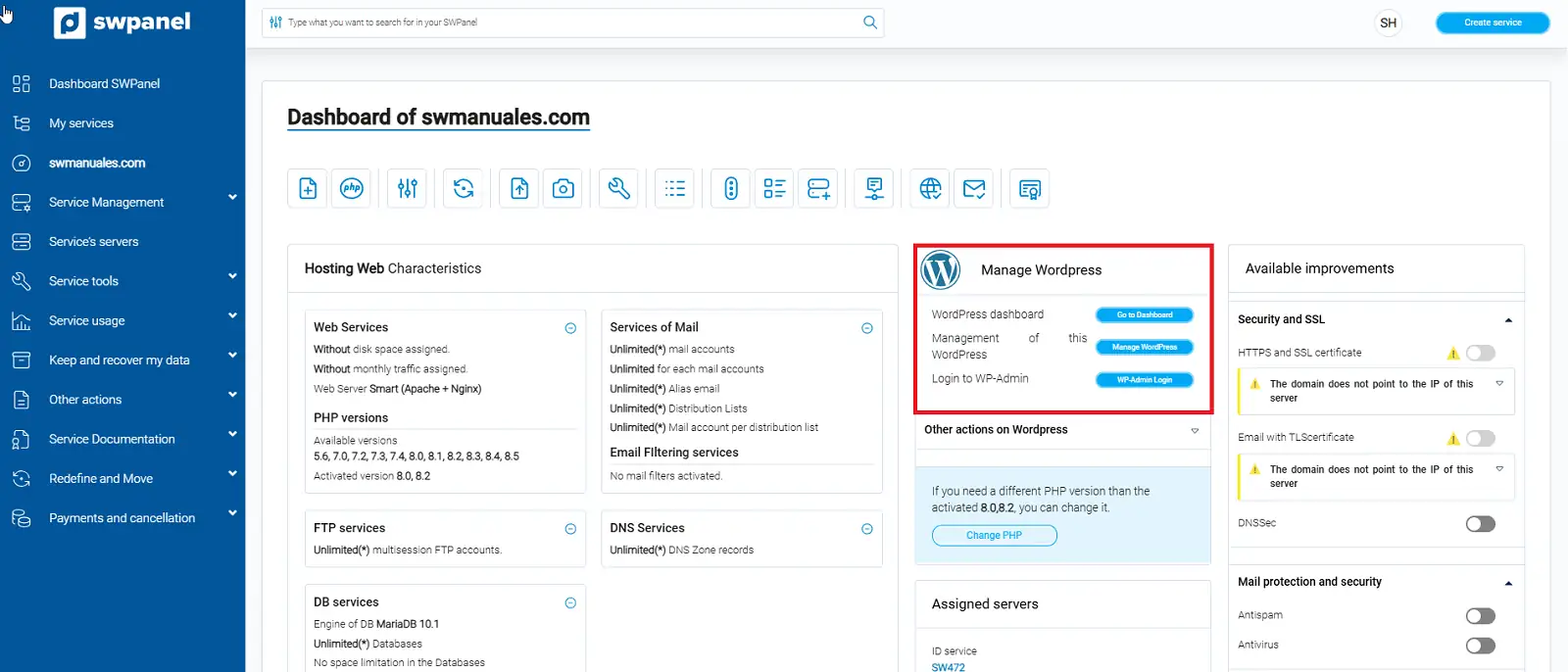
info_capture The screenshot is for guidance purposes. It was taken using version 2026.000.0001 dated 13/01/2026. It may differ from what the current version of SWPanel shows.
Available functionalities include:
- Direct access to the WordPress administration panel.
- View or change configuration parameters.
- Consult logs or activity records.
- Verify CMS status and available updates.
Note: SWPanel does not provide direct technical support for WordPress. To resolve specific issues related to its operation, you should consult the official WordPress documentation or contact their support service.