
How to create custom Nameservers with your domain
How to create alternative custom Nameservers with Glue Records in SWPanel
1. Introduction and manual summary
This manual will guide you step by step through the creation of alternative custom Nameservers using your domain from SWPanel, making use of the so-called Glue Records. The process is necessary if you want to use your own DNS servers (for example, ns1.yourdomain.com, ns2.yourdomain.com) instead of the default DNS such as dns3.swhosting.com or dns4.swhosting.com.
What are Glue Records?
Glue Records (or host records) are special DNS records required when the nameserver is within the same domain that it must resolve. They serve to avoid resolution loops by directly associating a subdomain such as ns1.yourdomain.com with a specific IP address.
Prerequisites
To be able to perform this configuration:
-
Your domain must be managed within SWPanel.
Manual: How to transfer a domain from SWPanel Manual: How to register a domain from SWPanel
-
The domain must be associated with a hosting service, or at least a service that provides a functional DNS zone.
Manual: How to create a Hosting plan for a domain registered in your SWPanel
2. Create the A records in the DNS zone
2.1 Access the hosting service
From the top search bar in SWPanel, locate the hosting service associated with your domain:
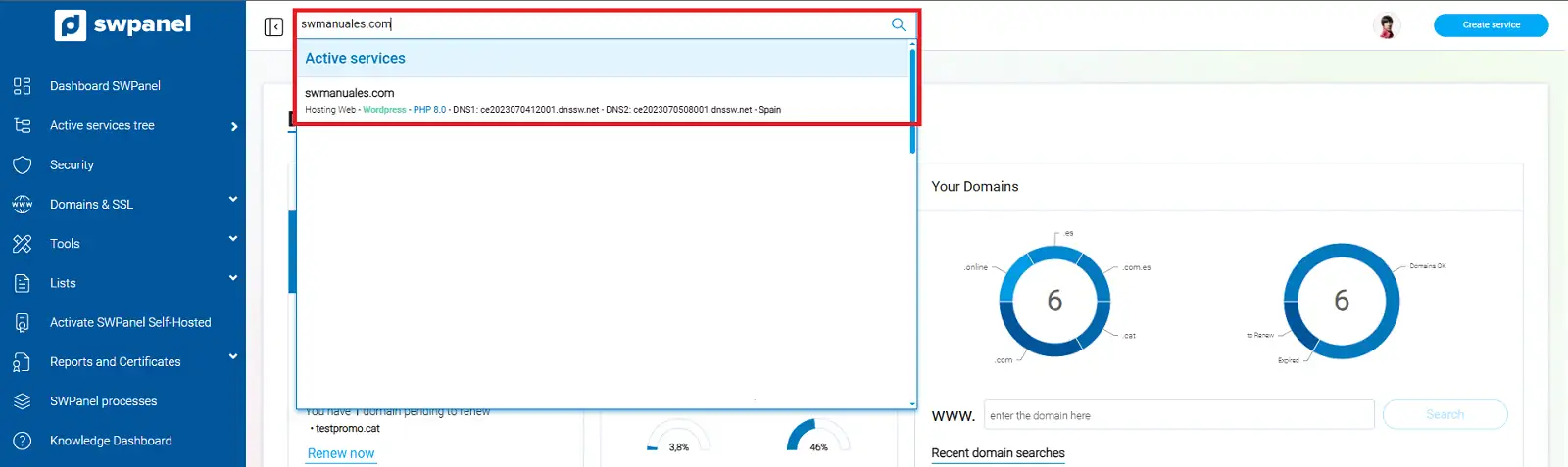
info_capture The screenshot is for guidance purposes. It was taken from version 2026.001.0057 dated 20/05/2026. It may differ from what the current version of SWPanel shows.
2.2 Create the A records
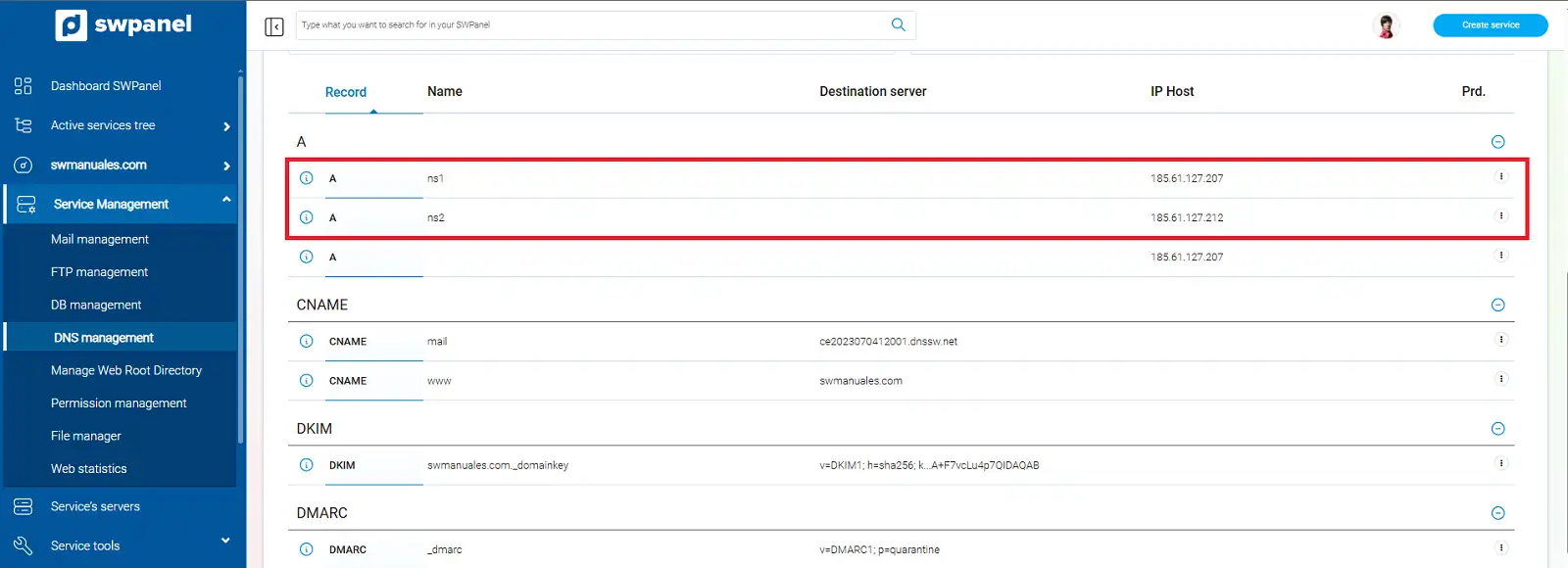
Access the left side menu and select DNS Management. Then, create two DNS records of type A.
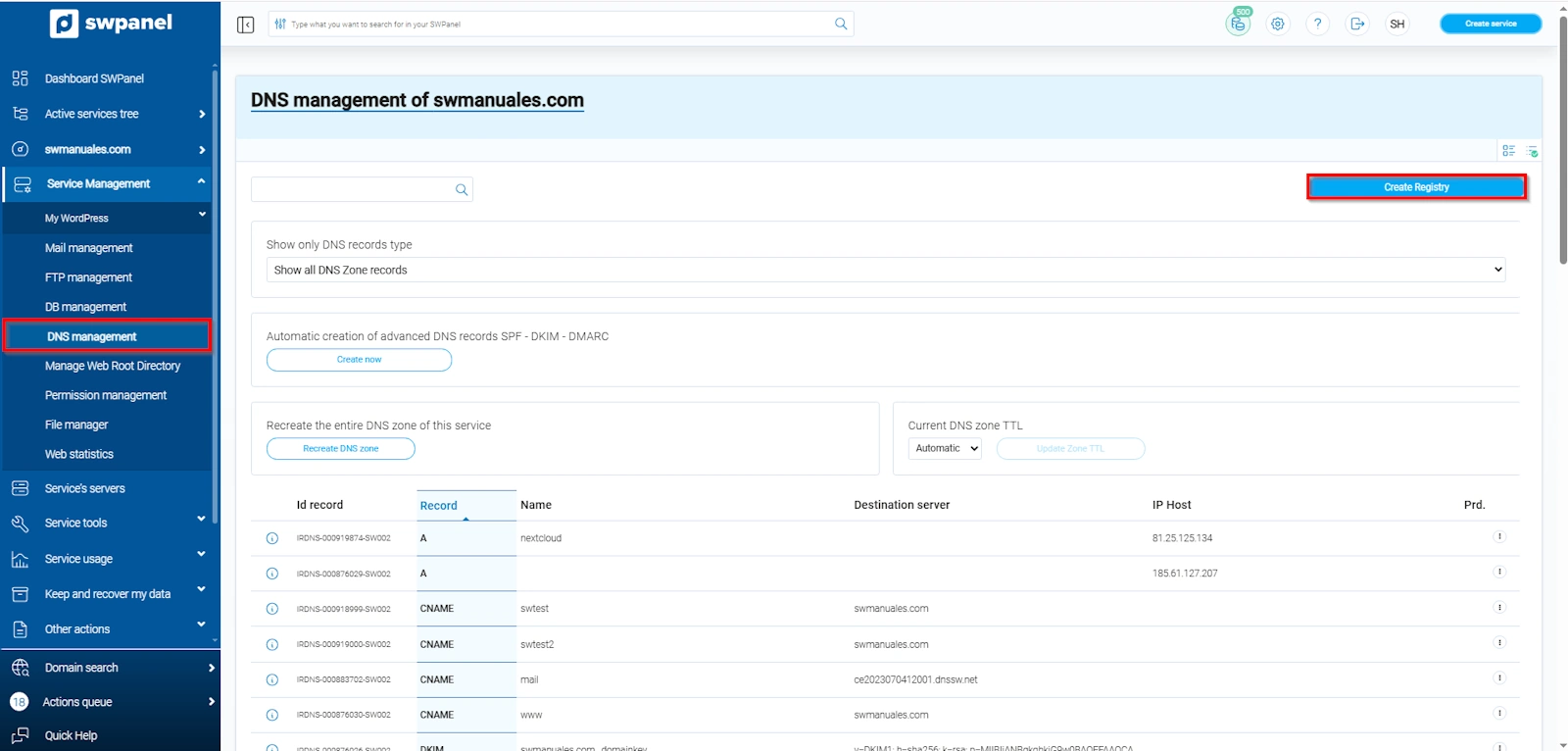
info_capture The screenshot is for guidance purposes. It was taken from version 2026.001.0057 dated 20/05/2026. It may differ from what the current version of SWPanel shows.
Configure the records as follows:
- Record type: A
- Host name: ns1 (or the desired name)
- Host IP: IP address of the primary DNS server
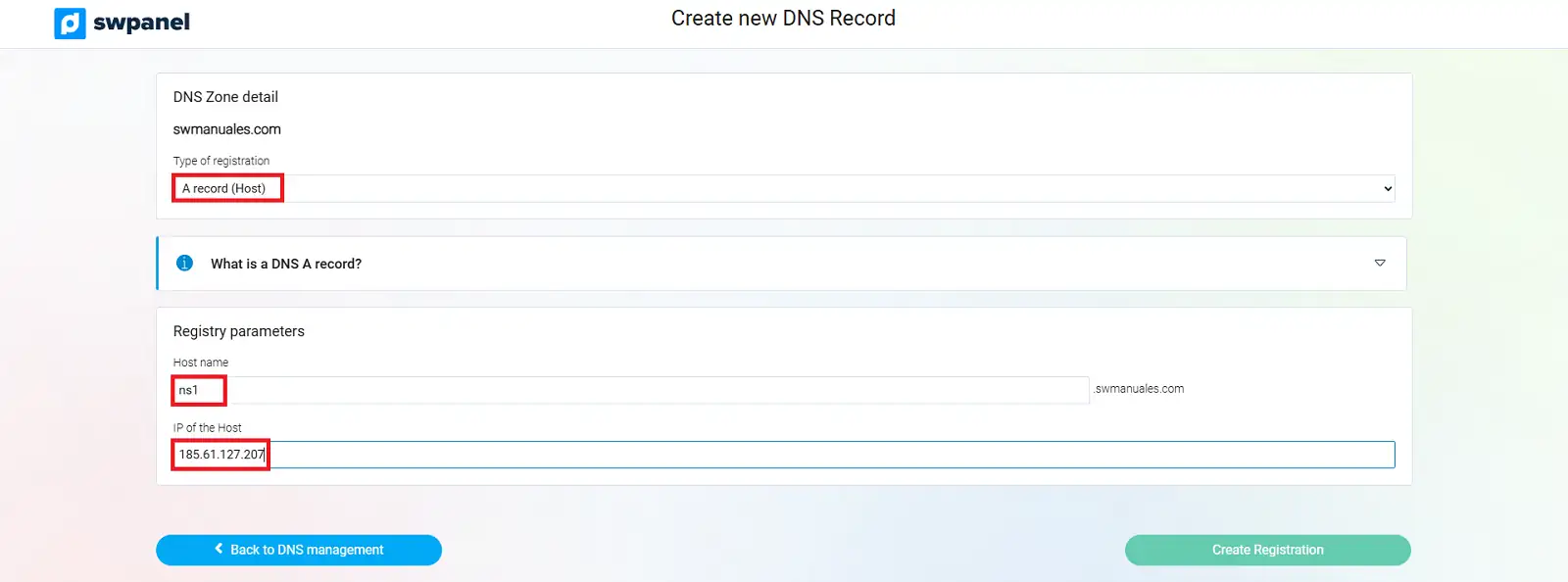
info_capture The screenshot is for guidance purposes. It was taken from version 2026.001.0057 dated 20/05/2026. It may differ from what the current version of SWPanel shows.
Repeat the process for the second record, pointing to the IP of the secondary DNS server.
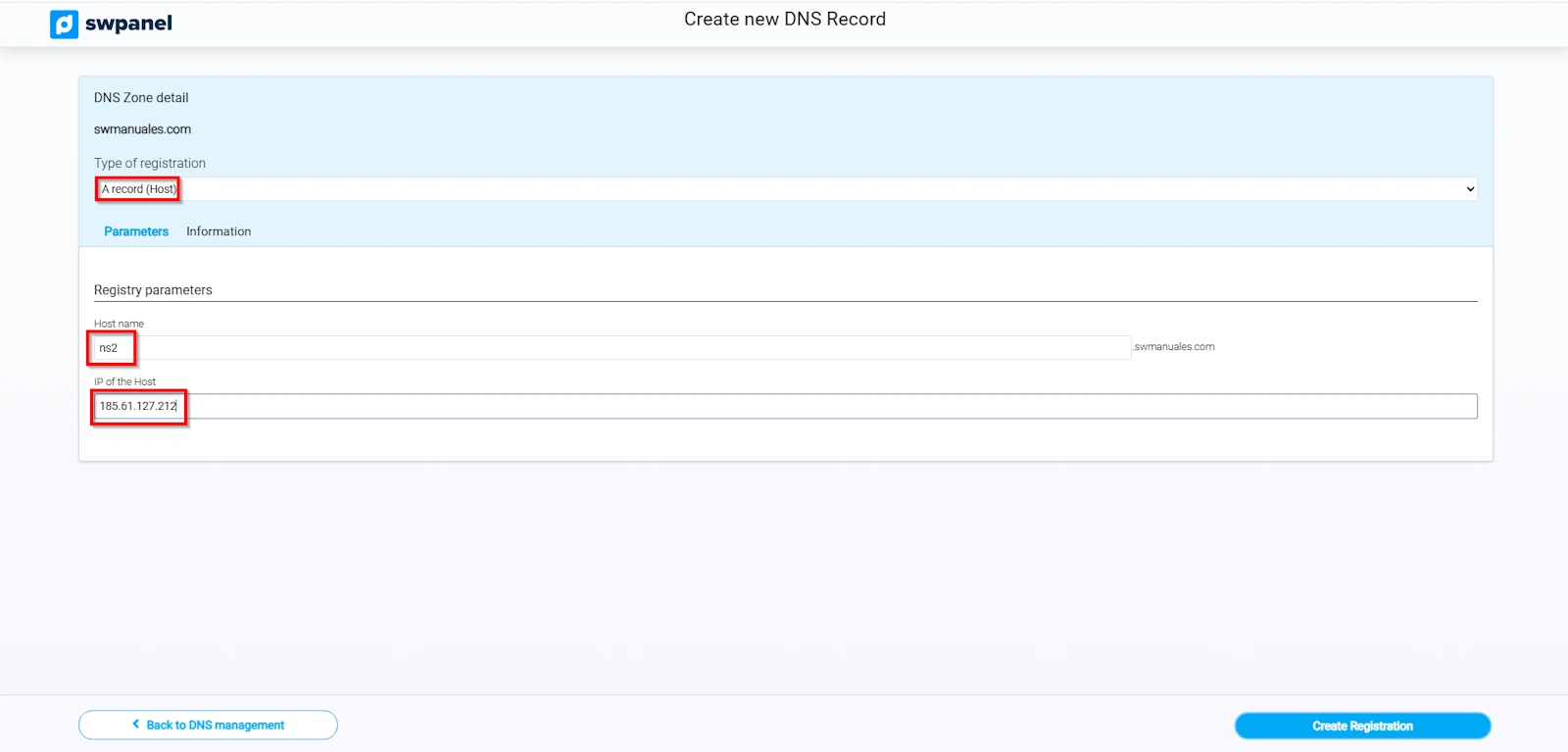
info_capture The screenshot is for guidance purposes. It was taken from version 2026.001.0057 dated 20/05/2026. It may differ from what the current version of SWPanel shows.
2.3 Wait for initial propagation
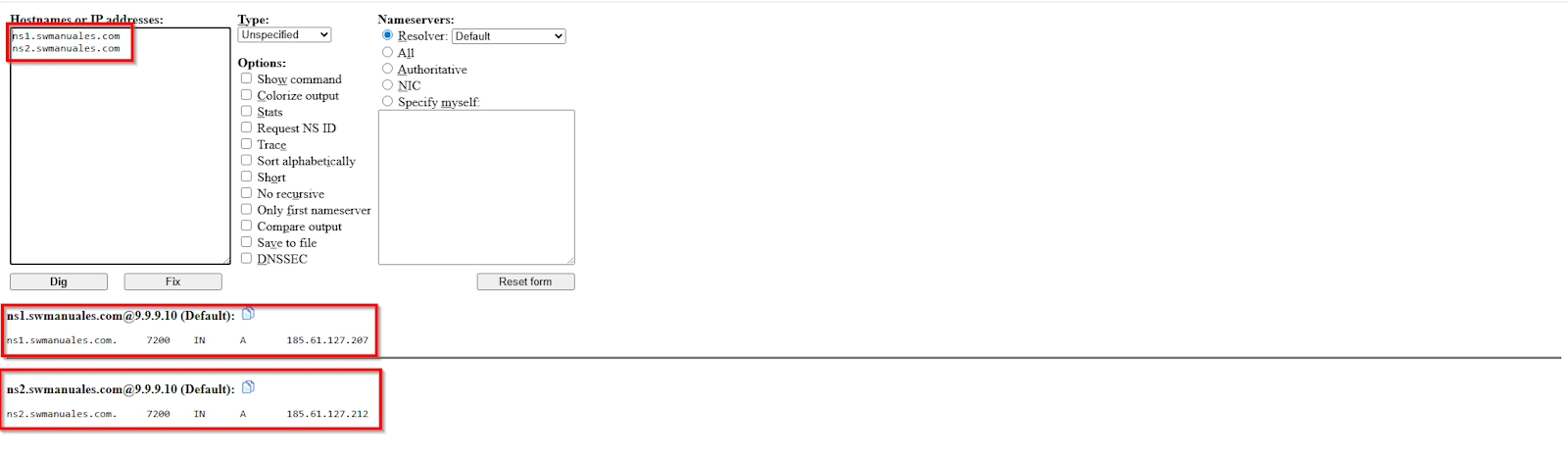
Once the records are created, you must wait for them to propagate globally.
info_capture The screenshot is for guidance purposes. It was taken from version 2026.001.0057 dated 20/05/2026. It may differ from what the current version of SWPanel shows.
You can check the propagation using tools such as Dig Web Interface or What's My DNS.
info_capture The screenshot is for guidance purposes. It was taken from version 2026.001.0057 dated 20/05/2026. It may differ from what the current version of SWPanel shows.
3. Create the custom Hostnames
3.1 Access the Hostnames section
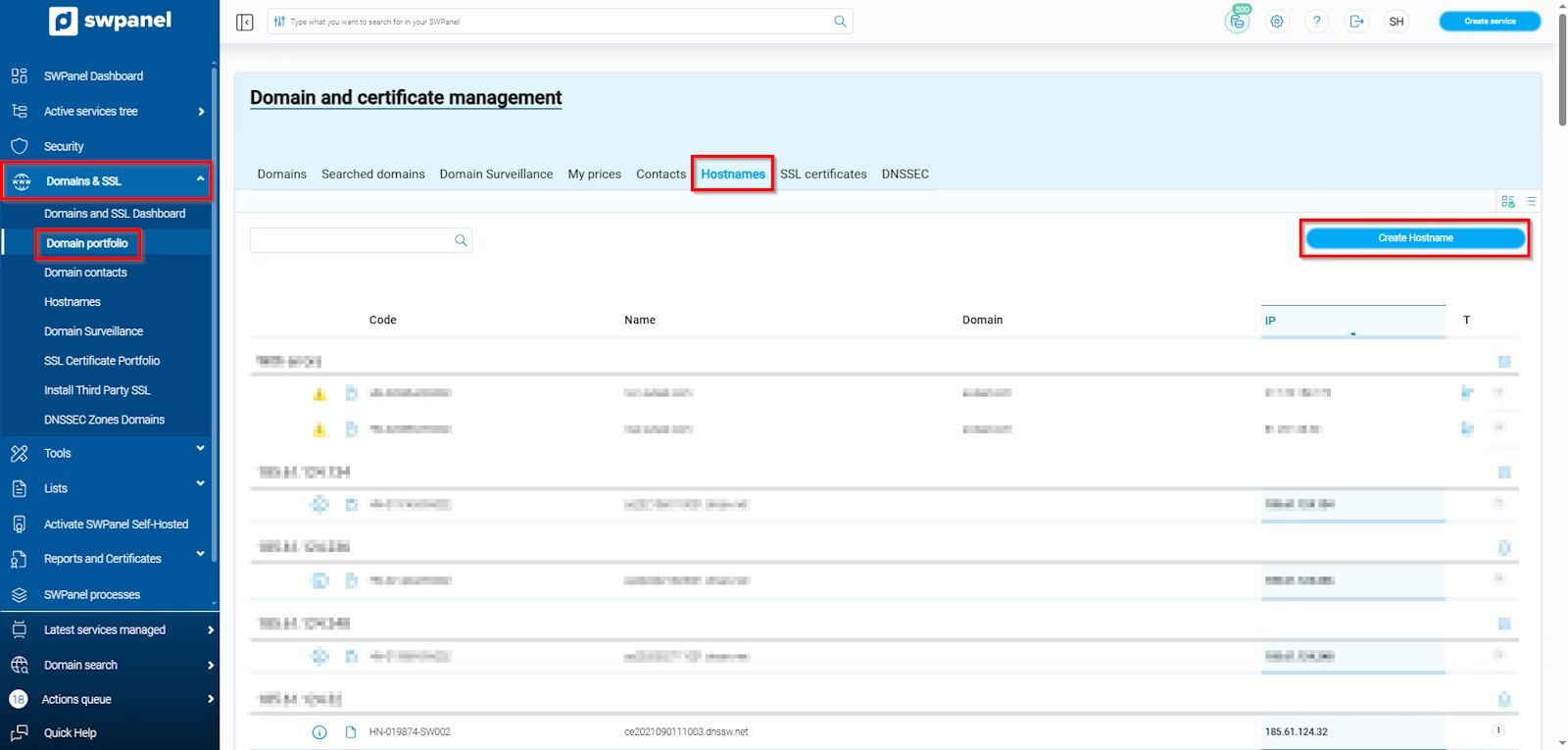
From the Main Dashboard of SWPanel:
- Go to Domains and SSL > Domain Portfolio > Hostnames
info_capture The screenshot is for guidance purposes. It was taken from version 2026.001.0057 dated 20/05/2026. It may differ from what the current version of SWPanel shows.
3.2 Create the Hostnames
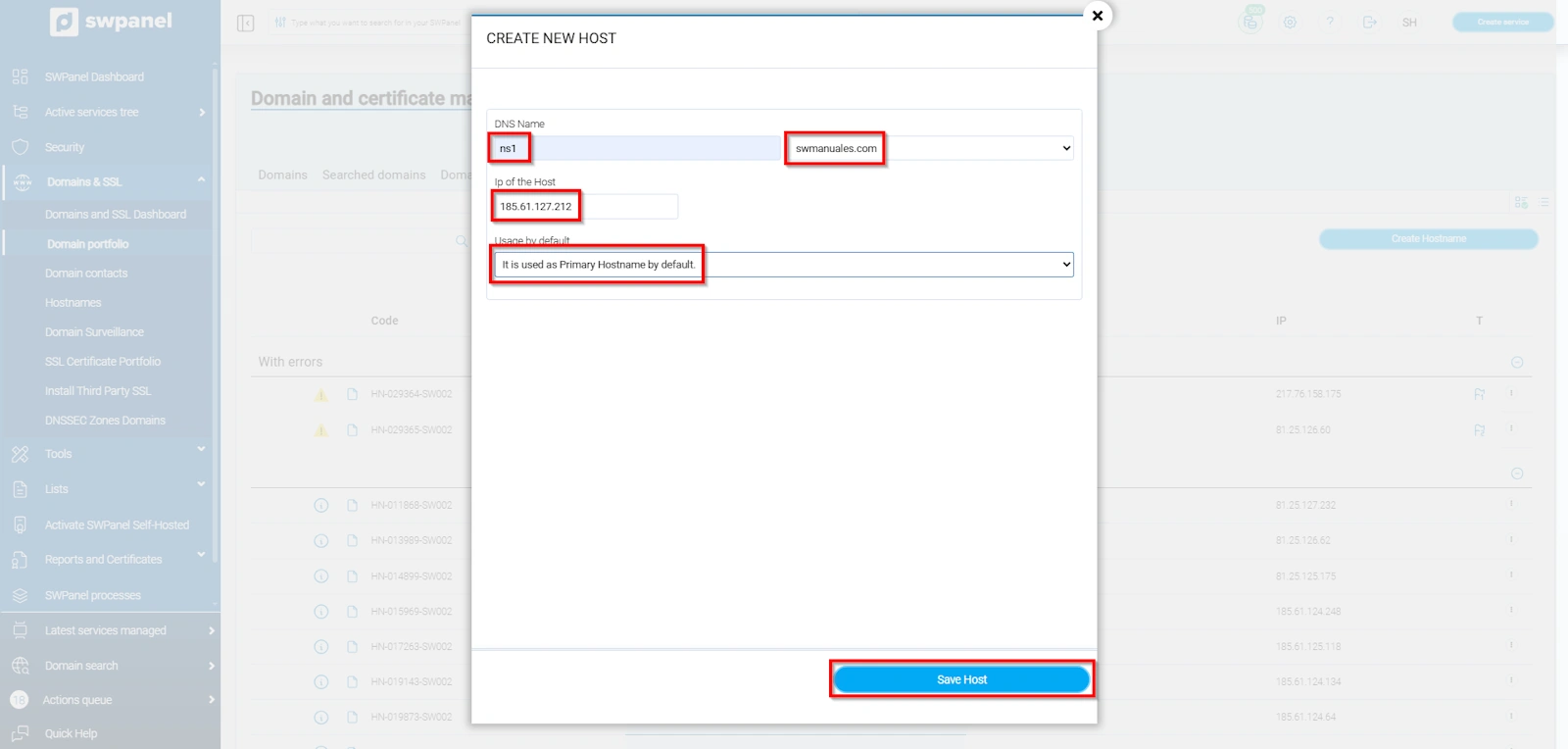
Click on Create Hostnames and enter the following information:
- DNS Name: subdomain.domain.extension (For example, ns1.swmanuales.com)
- Host IP: IP address of the server; in this case, it would correspond to 81.25.112.3
- Use by default: select whether it will be the primary or secondary
info_capture The screenshot is for guidance purposes. It was taken from version 2026.001.0057 dated 20/05/2026. It may differ from what the current version of SWPanel shows.
Repeat for ns2.swmanuales.com.
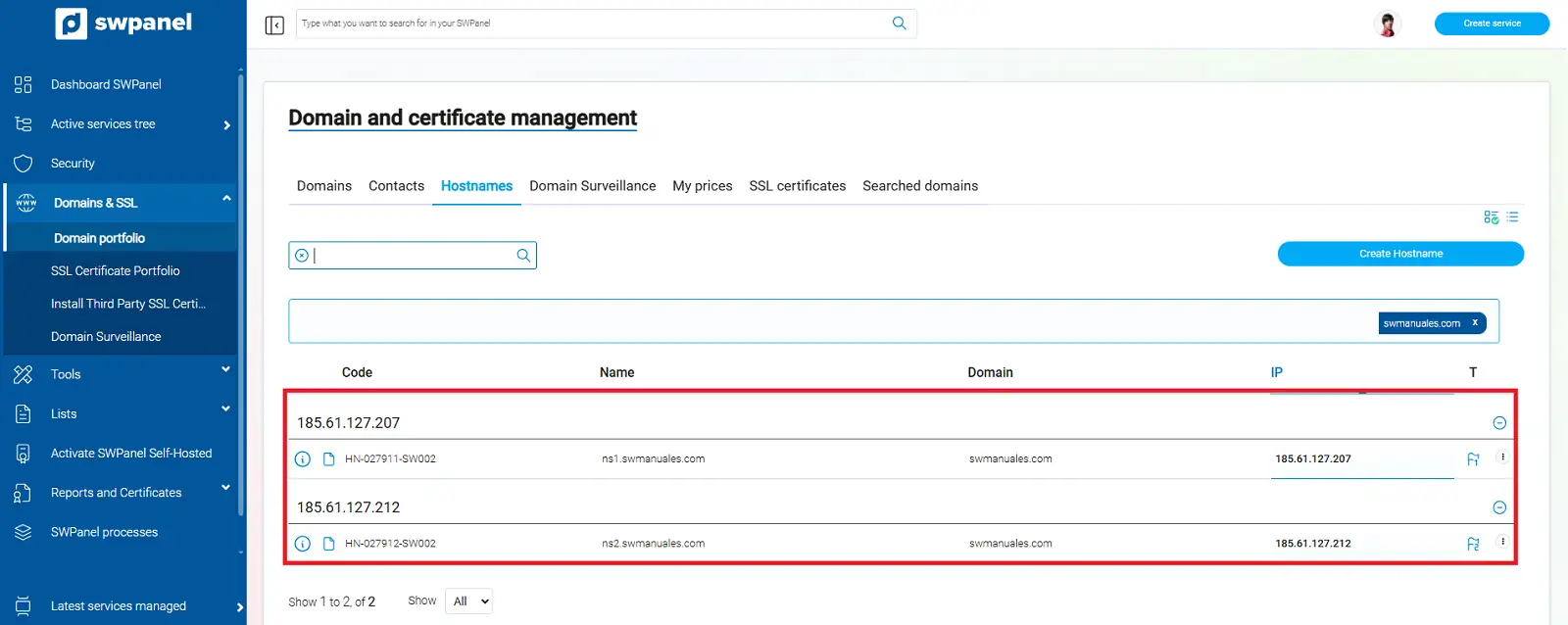
info_capture The screenshot is for guidance purposes. It was taken from version 2026.001.0057 dated 20/05/2026. It may differ from what the current version of SWPanel shows.
danger Remember: hostnames must exactly match the A records created in the previous step.
4. Modify the NS records in the DNS zone
4.1 Access DNS Management
From the service Dashboard, access DNS Management.
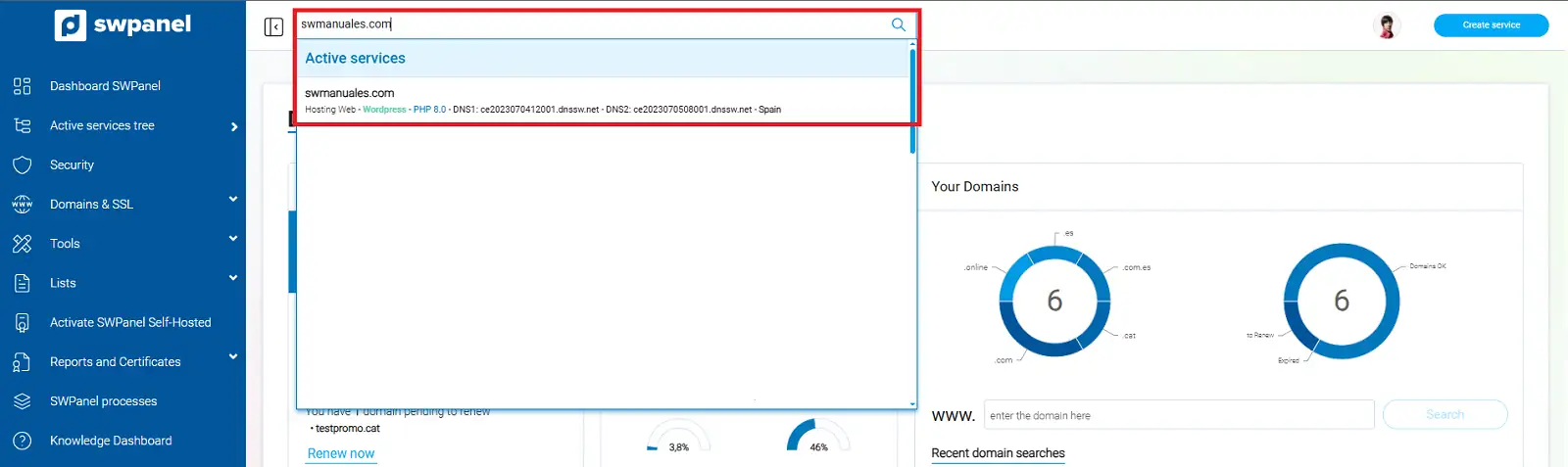
info_capture The screenshot is for guidance purposes. It was taken from version 2026.001.0057 dated 20/05/2026. It may differ from what the current version of SWPanel shows.
Locate the current NS records:
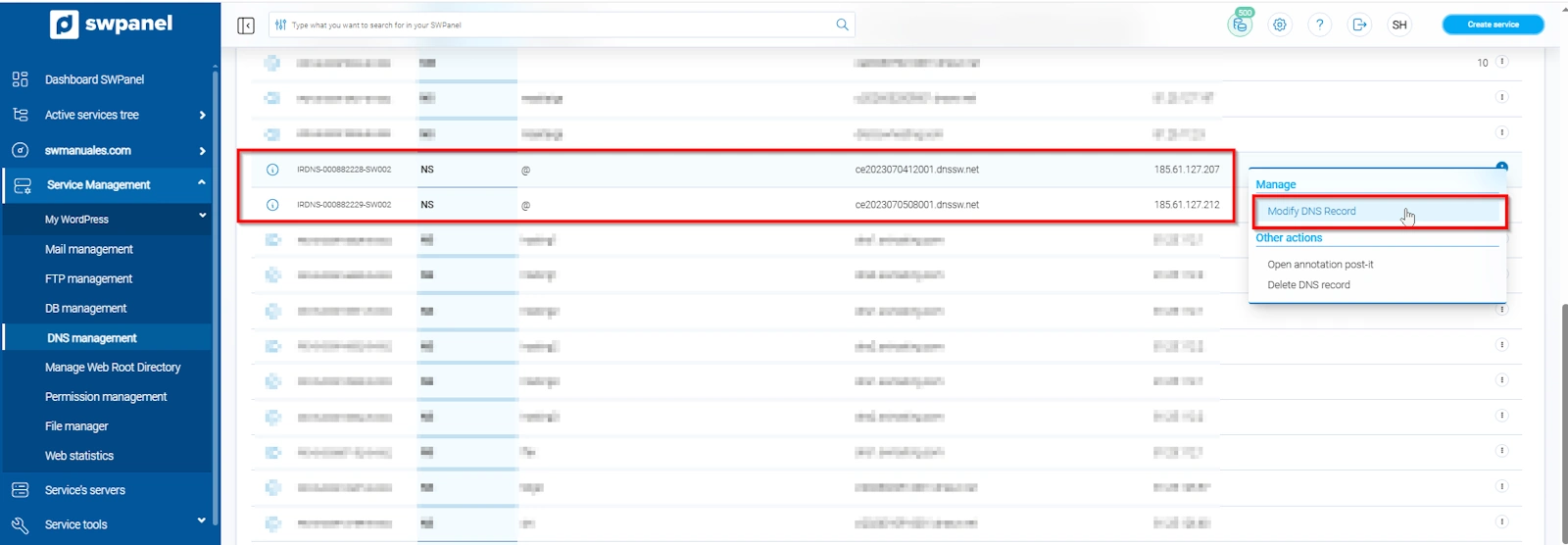
info_capture The screenshot is for guidance purposes. It was taken from version 2026.001.0057 dated 20/05/2026. It may differ from what the current version of SWPanel shows.
4.2 Modify the NS records
Click on the right side menu ("...") and select Modify DNS Record.
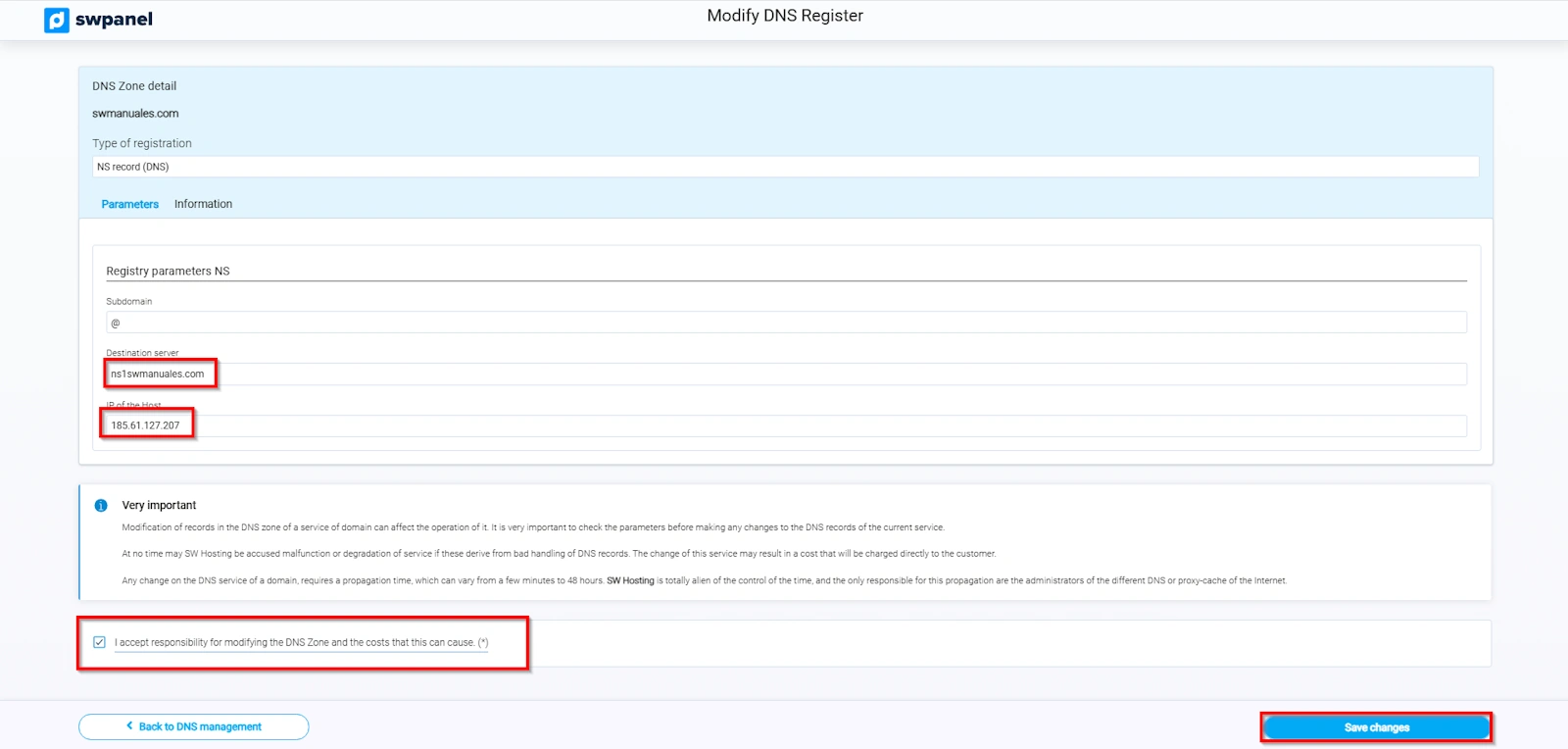
info_capture The screenshot is for guidance purposes. It was taken from version 2026.001.0057 dated 20/05/2026. It may differ from what the current version of SWPanel shows.
- Subdomain: leave it blank if it is for the root domain.
- Destination server: ns1.swmanuales.com
- Host IP: IP assigned to the Hostname
danger You must accept responsibility before saving the changes.
4.3 Application and propagation
Changes are applied in minutes, but global propagation can take several hours.
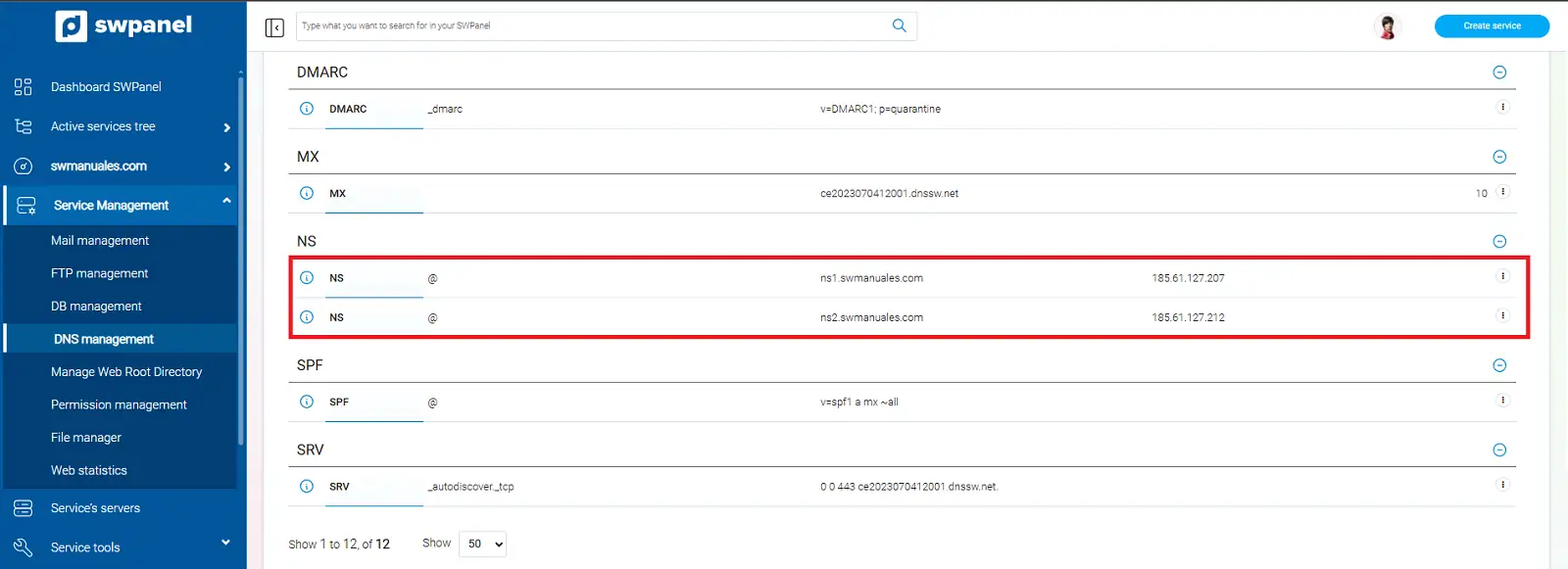
info_capture The screenshot is for guidance purposes. It was taken from version 2026.001.0057 dated 20/05/2026. It may differ from what the current version of SWPanel shows.
You can use What's My DNS to monitor the status.
5. Change the domain Nameservers
5.1 Go to Domain Portfolio
From the SWPanel Dashboard, access:
Domains and SSL > Domain Portfolio
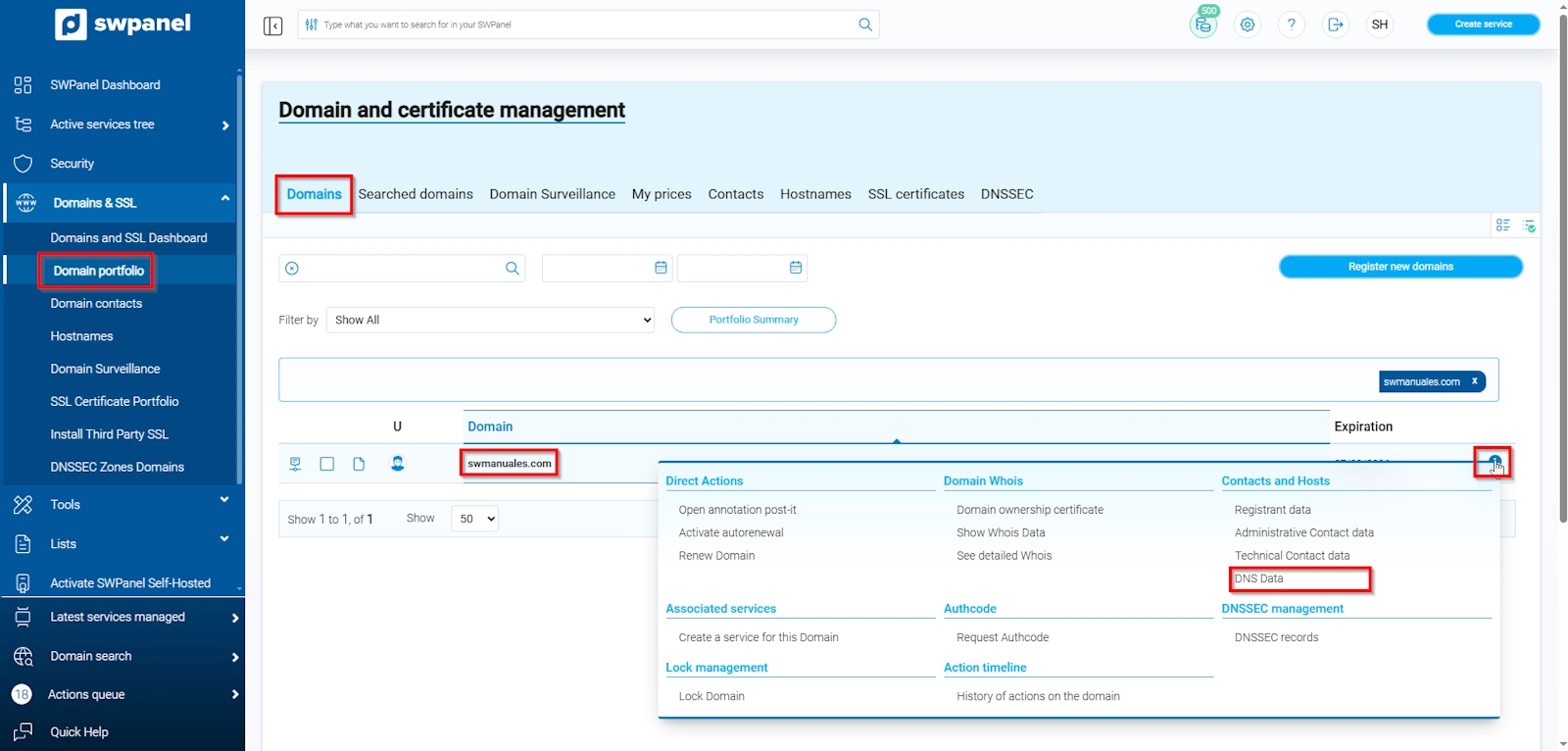
info_capture The screenshot is for guidance purposes. It was taken from version 2026.001.0057 dated 20/05/2026. It may differ from what the current version of SWPanel shows.
Open the side menu ("...") and select DNS Data.
5.2 Change the DNS
In the new window, define the new name servers:
- DNS1: ns1.swmanuales.com
- DNS2: ns2.swmanuales.com
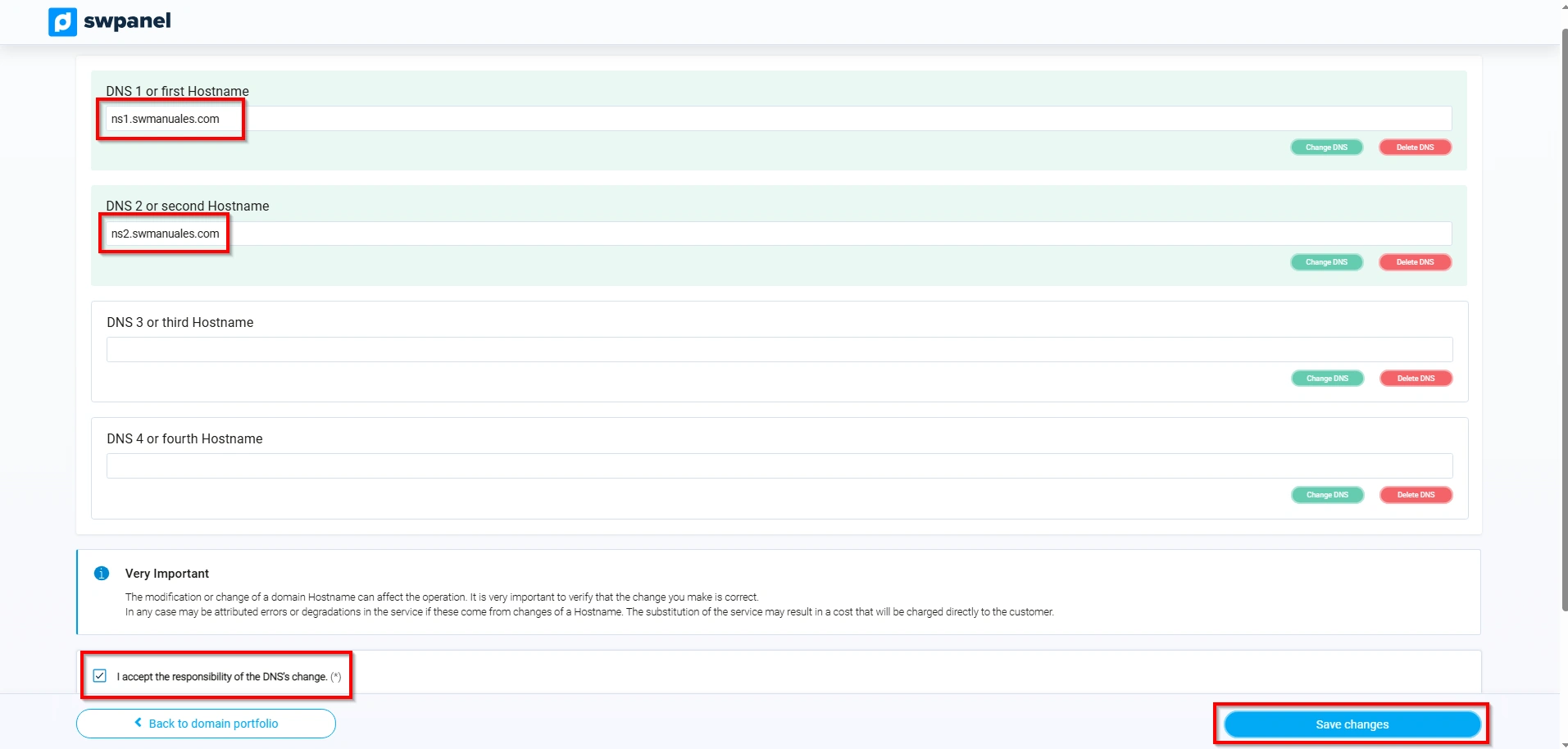
info_capture The screenshot is for guidance purposes. It was taken from version 2026.001.0057 dated 20/05/2026. It may differ from what the current version of SWPanel shows.
Keep in mind that in DNS1 and DNS2 you must specify the same names as the previously modified domain NameServers. Those NameServers were modified in step 4.
To make this modification, simply click on Change DNS, then type the desired value and press Enter.
Confirm the changes and accept responsibility before saving.