How can I disable Plugins in WordPress
1. How to disable a plugin using the WordPress control panel
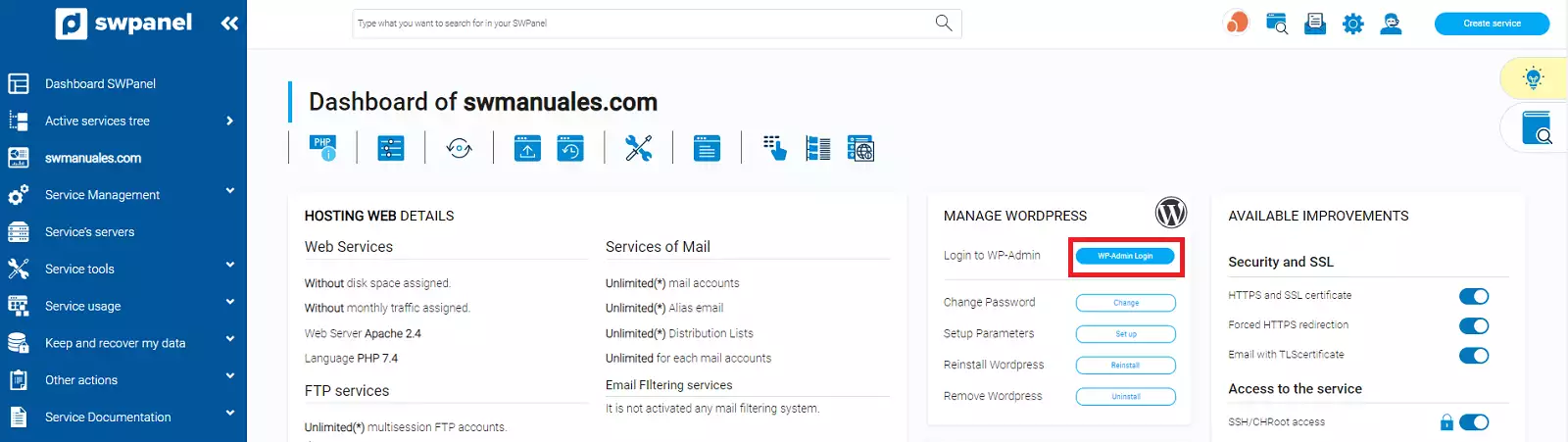
Access the WordPress control panel; you can do this automatically from the dashboard of your SWPanel service:

Access it via the Login WP Admin button:
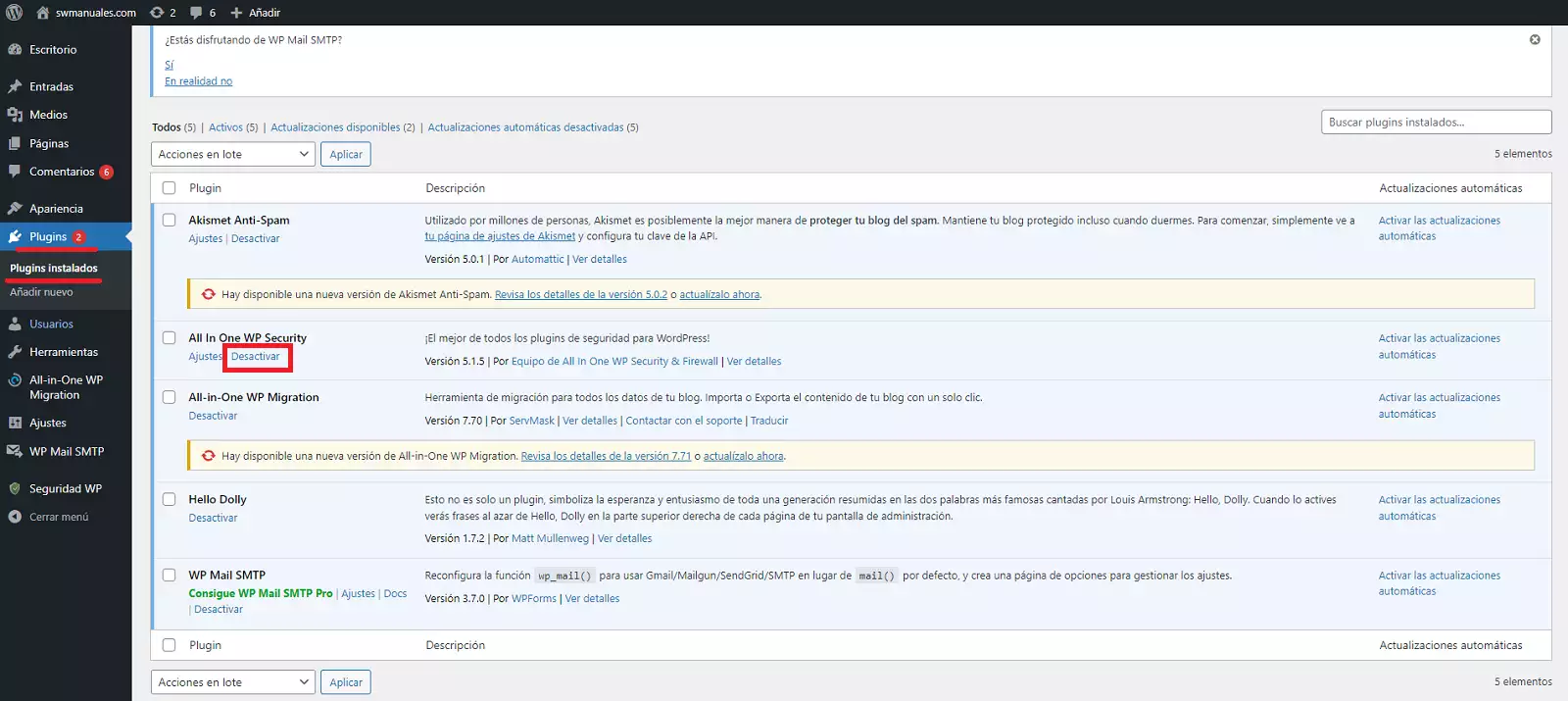
Subsequently, access the list of installed plugins and click the Deactivate button for the plugin you wish to disable:
2. How to disable a plugin using the SWPanel File Manager
Access your SWPanel file manager. If you have never accessed it, you can follow manual Manual: File management.
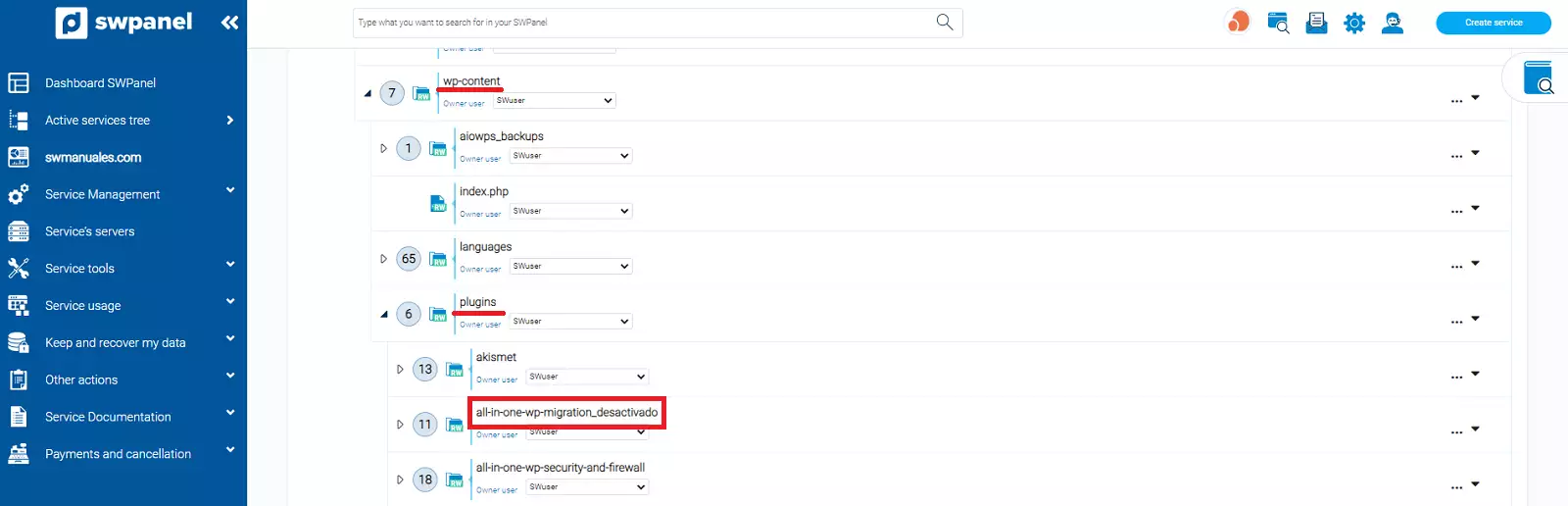
You must access the datos/web/wp-content/plugins/ folder and locate the folder of the plugin you want to deactivate.
Then, rename the plugin folder, for example plugin-name_disabled:
3. How to disable all plugins using the SWPanel File Manager
Access your SWPanel file manager. If you have never accessed it, you can follow manual Manual: File management.
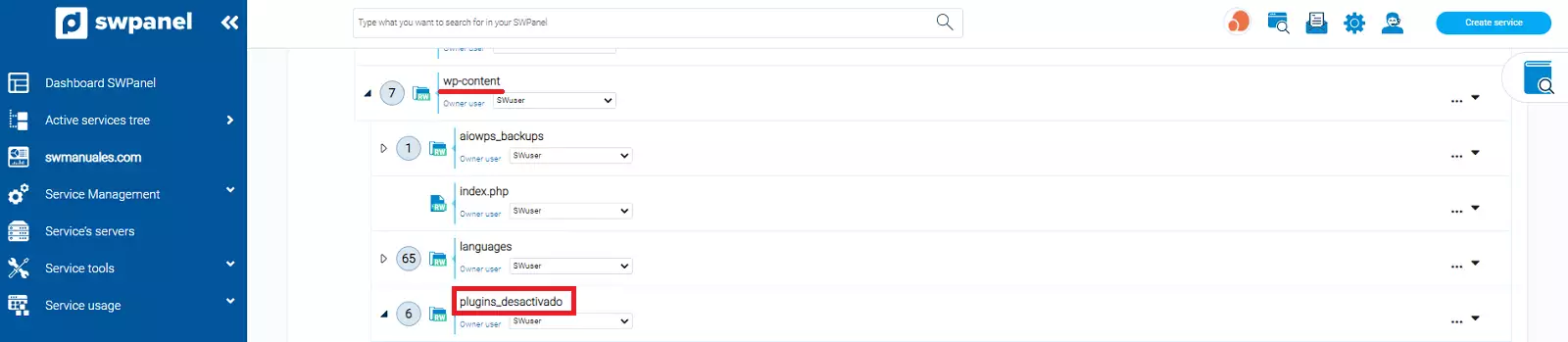
You must access the datos/web/wp-content/ folder. Then, rename the plugins folder, for example plugins_disabled:
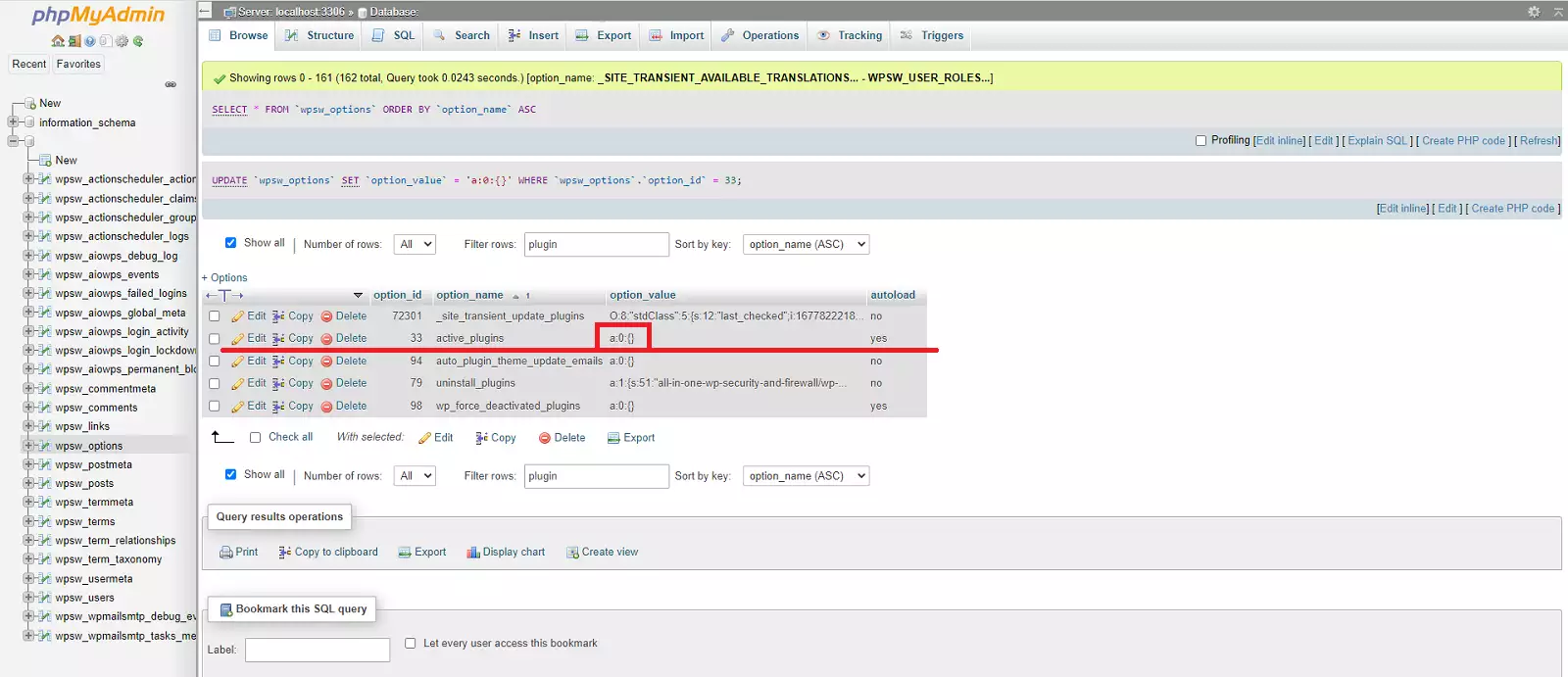
4. How to disable all plugins using phpMyAdmin
By following these steps, you will be able to disable all plugins installed in your WordPress. (They will not be uninstalled).
To reactivate them, you must do so from the WordPress plugin manager by clicking Activate.
Before making any changes to a database, it is recommended to perform a backup of it to avoid potentially losing the website in case of modifying a parameter by mistake.
You can access the database via phpMyAdmin tudominio.com/phpmyadmin
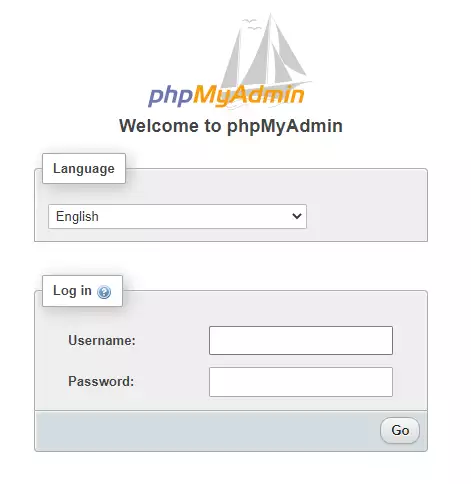
Once in phpMyAdmin, you must click, from the side menu, on the database table named “wpsw_options”.
Check the “Show All” box and filter by the name “plugin”. A table row named “active_plugins” should appear:
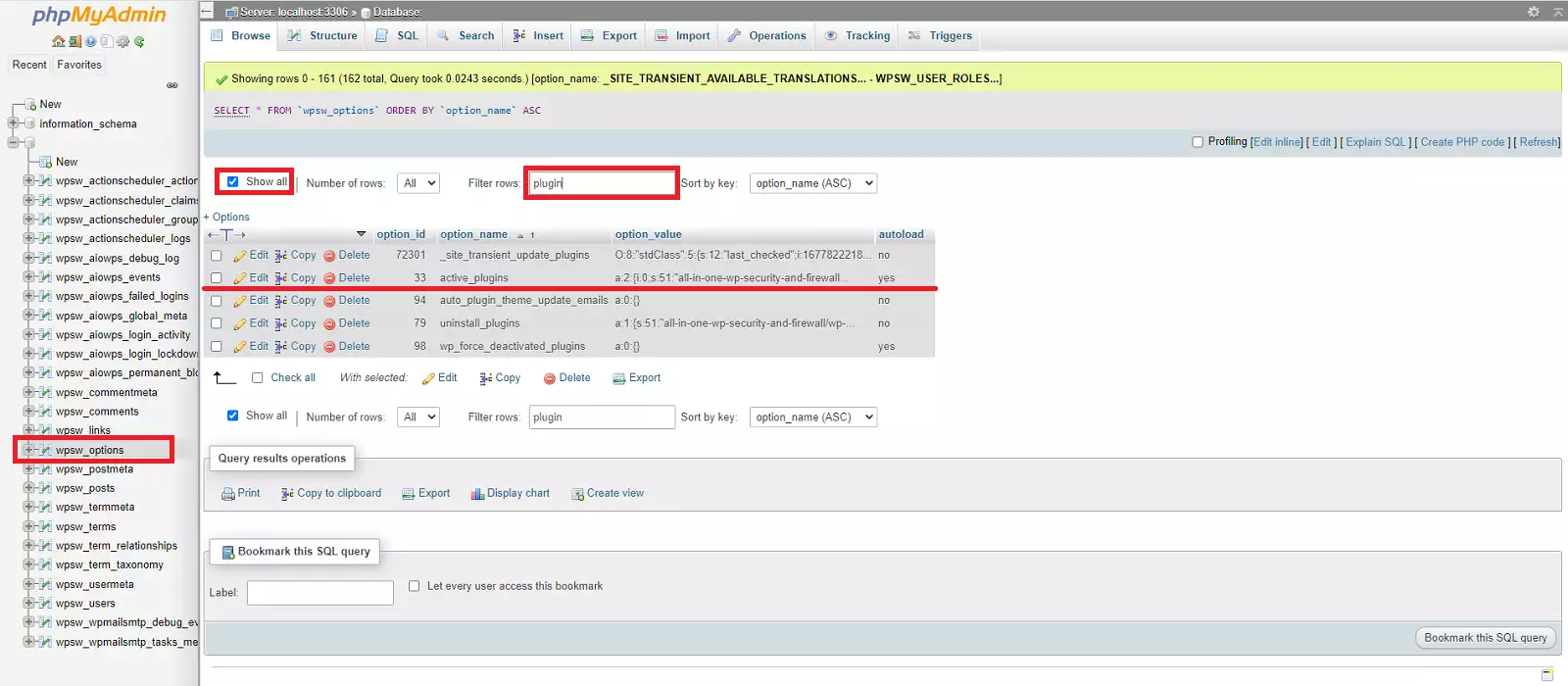
We will modify the value of the “option_value” column to the following value: