Configure email accounts from my Hosting in Outlook
Microsoft Outlook is one of the most widely used email clients in professional and personal environments for managing corporate or custom email accounts.
info The configuration shown in this manual requires the installation of a TLS security certificate for your Hosting's email service.
Manual: How to Activate TLS for my email via SWPanel.
Necessary data for the configuration
Before configuring the account in Outlook, make sure you have the following data:
- Incoming mail server:
mail.dominio.com- IMAP Port: 993
- POP3 Port: 995
- Outgoing mail server:
mail.dominio.com- SMTP Port: 465
- Account credentials:
- Email address
- Access password
- Security protocol: SSL/TLS
info You can check your account's connection data in SWPanel here: Manual: How to view the connection details of my email account
info For security reasons (ISO 27001, LOPD, and GDPR), SWPanel does not store or provide email account passwords.
Configurar una cuenta por primera vez en Outlook
1. Start of configuration
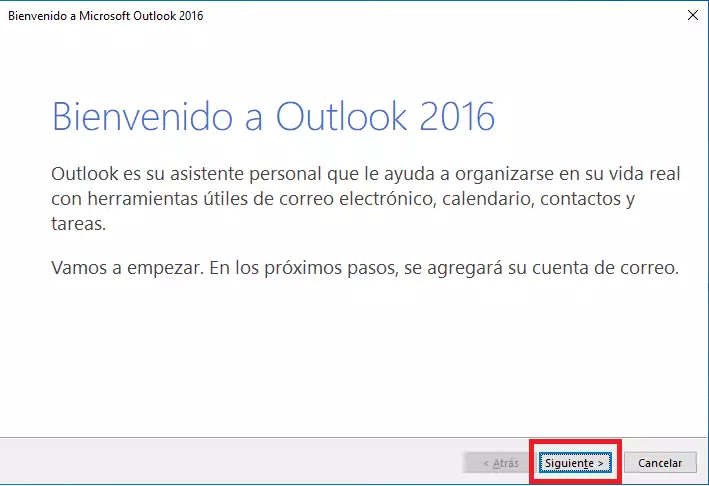
When opening Outlook for the first time, the welcome screen will appear. Click Next.
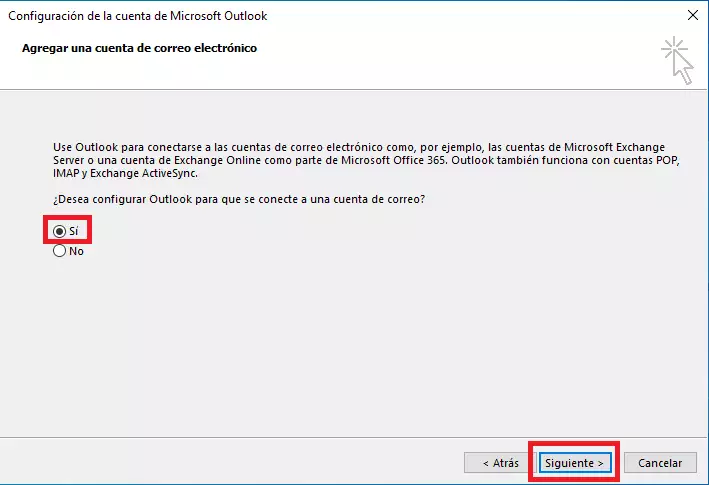
Next, select the option to configure an email account and press Next.
2. Account configuration
Enter the following data:
- Name (can be any identifier)
- Email address
- Password

3. Automatic configuration
Outlook will attempt to configure the account automatically. If the process is successful, a confirmation message will appear.
By default, the account will be configured as IMAP.
Check the “Change account settings” option and press Next if you wish to review or modify the parameters.

4. Manual server configuration
On this screen you can define:
- Account type: IMAP or POP3
- Incoming and outgoing server
- Username and password
Then, access “More settings…”:

Outgoing server
Enable SMTP server authentication.

Advanced parameters
Configure the ports and security:
- IMAP: 993
- POP3: 995
- SMTP: 465
- Encryption: SSL/TLS

Press OK.
5. Completion
Click Finish. Outlook will perform a connection test to verify the configuration.


If everything is correct, press Close.
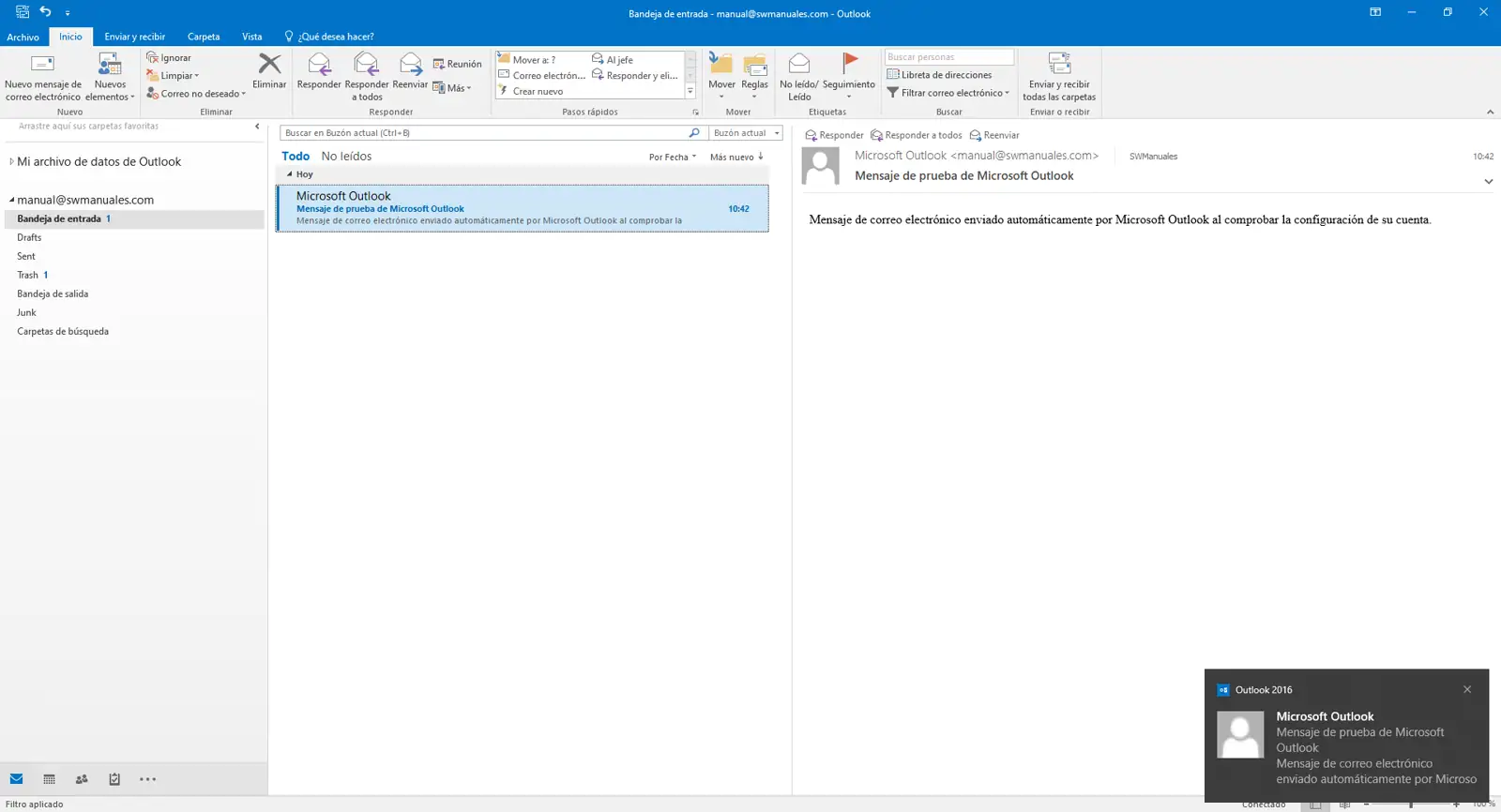
Finally, you will see the configured account in Outlook:
Añadir una cuenta adicional en Outlook
If you already have an account configured and wish to add another one:
1. Access configuration
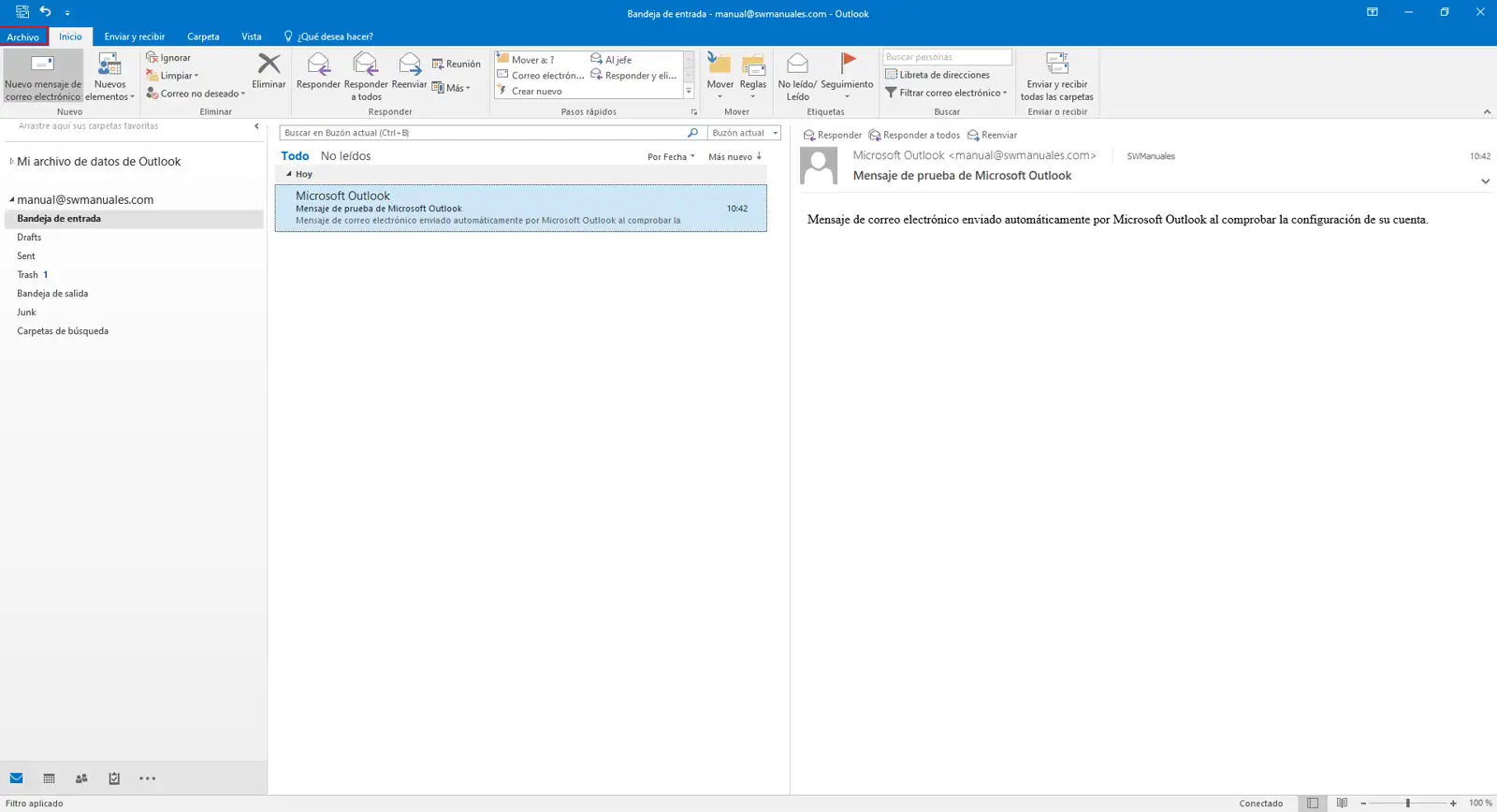
Go to the File tab in the top left.
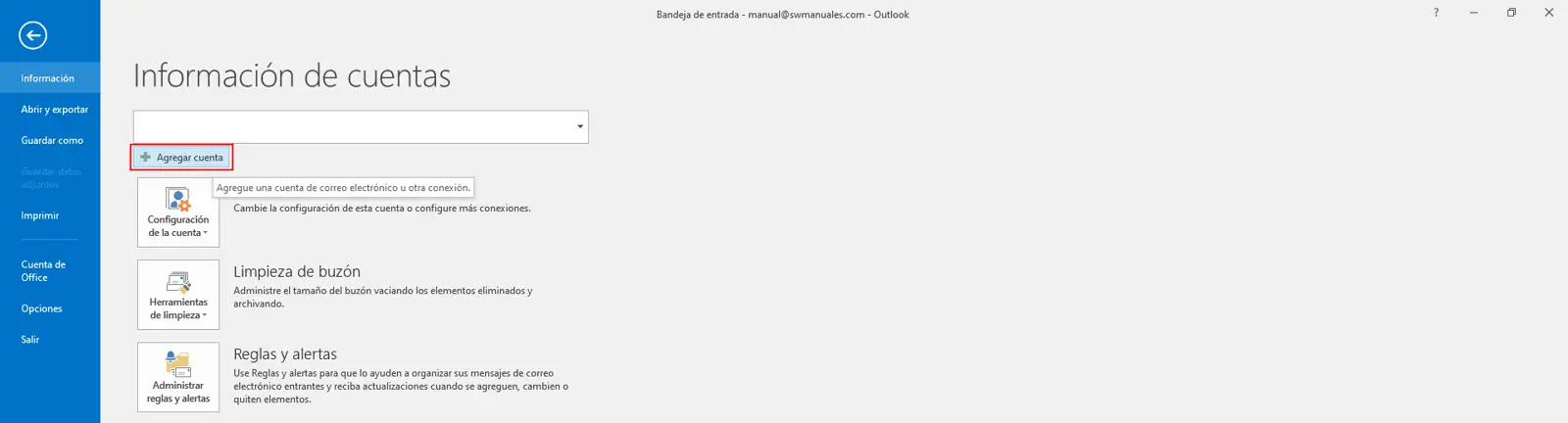
Click on Add Account.
2. Enter data
Fill in the fields:
- Name
- Email address
- Password
Press Next.

3. Manual configuration
Repeat the server configuration steps:
- Account type (IMAP or POP3)
- Incoming/outgoing servers
- Ports and SSL/TLS security



4. Completion
Press Finish and wait for the connection test.


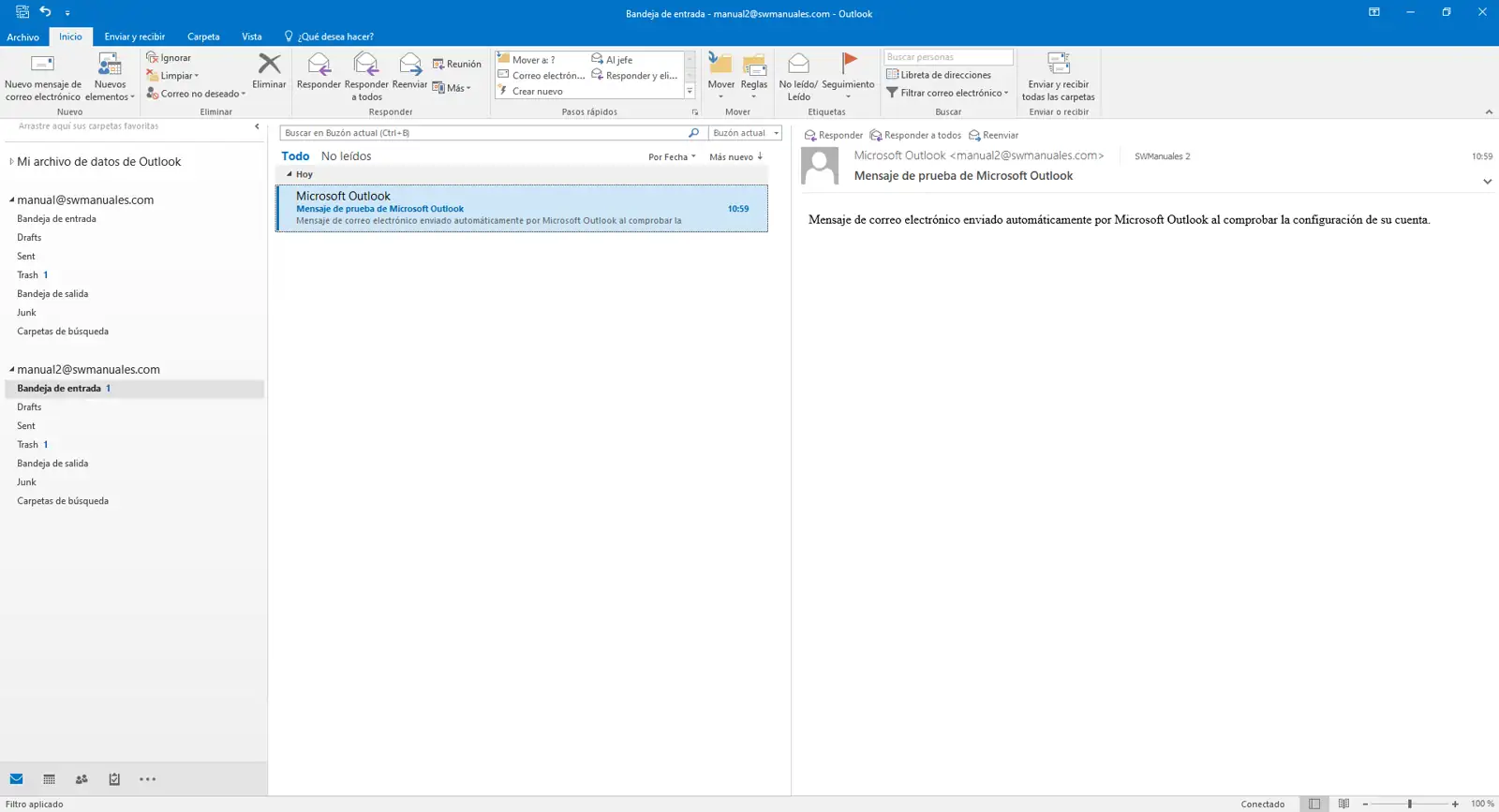
If everything is correct, the new account will appear in Outlook: