
How to activate backups for my Cloud server with SWPanel
1. The purpose of backups
Having a defined backup plan will help you in various situations, such as if there are changes to your website that, due to a programming error, make it slower. Or, if your website has been compromised by "hackers" and they have modified the code, or an unsuccessful update of your CMS (Content Management System)... In cases like these, you will be able to quickly restore your website and not affect your positioning or reputation on the internet.
SW Hosting's backup service will allow you to create copies of your hosting data on SWHosting's backup servers, enabling the restoration of its content if necessary. Additionally, you have the possibility of performing simultaneous and distributed copies across different data centers, so that you have copies on several different servers, providing you with redundancy both when backing up your data and high availability when recovering it.
2. Activating backups for your Cloud server in an SWHosting Data Center
2.1 Locating your Cloud server
In the main Dashboard of your SWPanel account, use the search bar to locate your Cloud server. Once located, click on the name of your Cloud server.
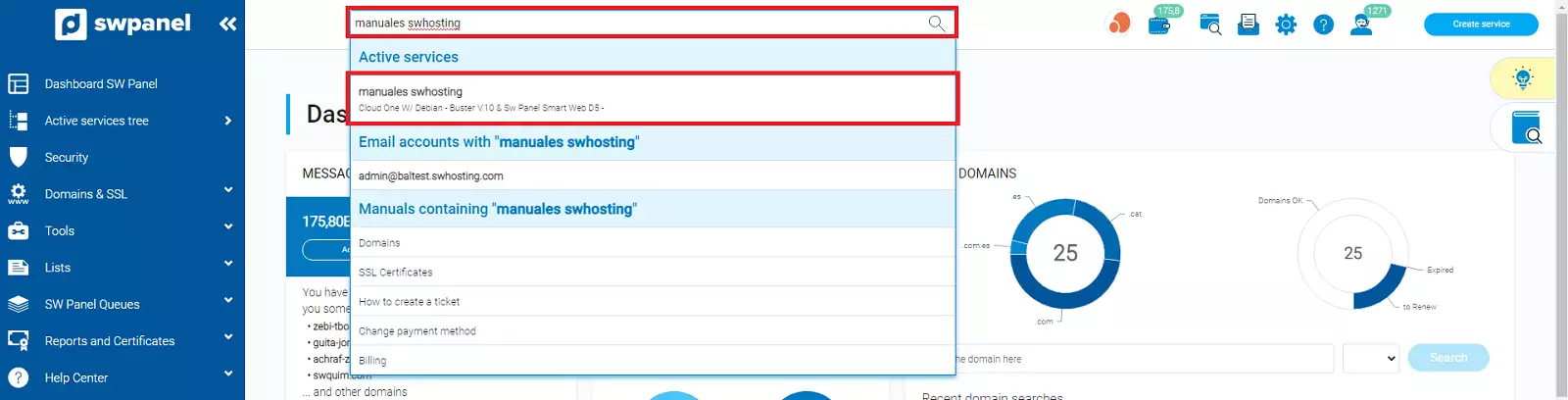
info You can use the service search bar located at the top of your SWPanel Dashboard to quickly locate and access the Cloud server or its hosting services.
2.2 Activating the backup
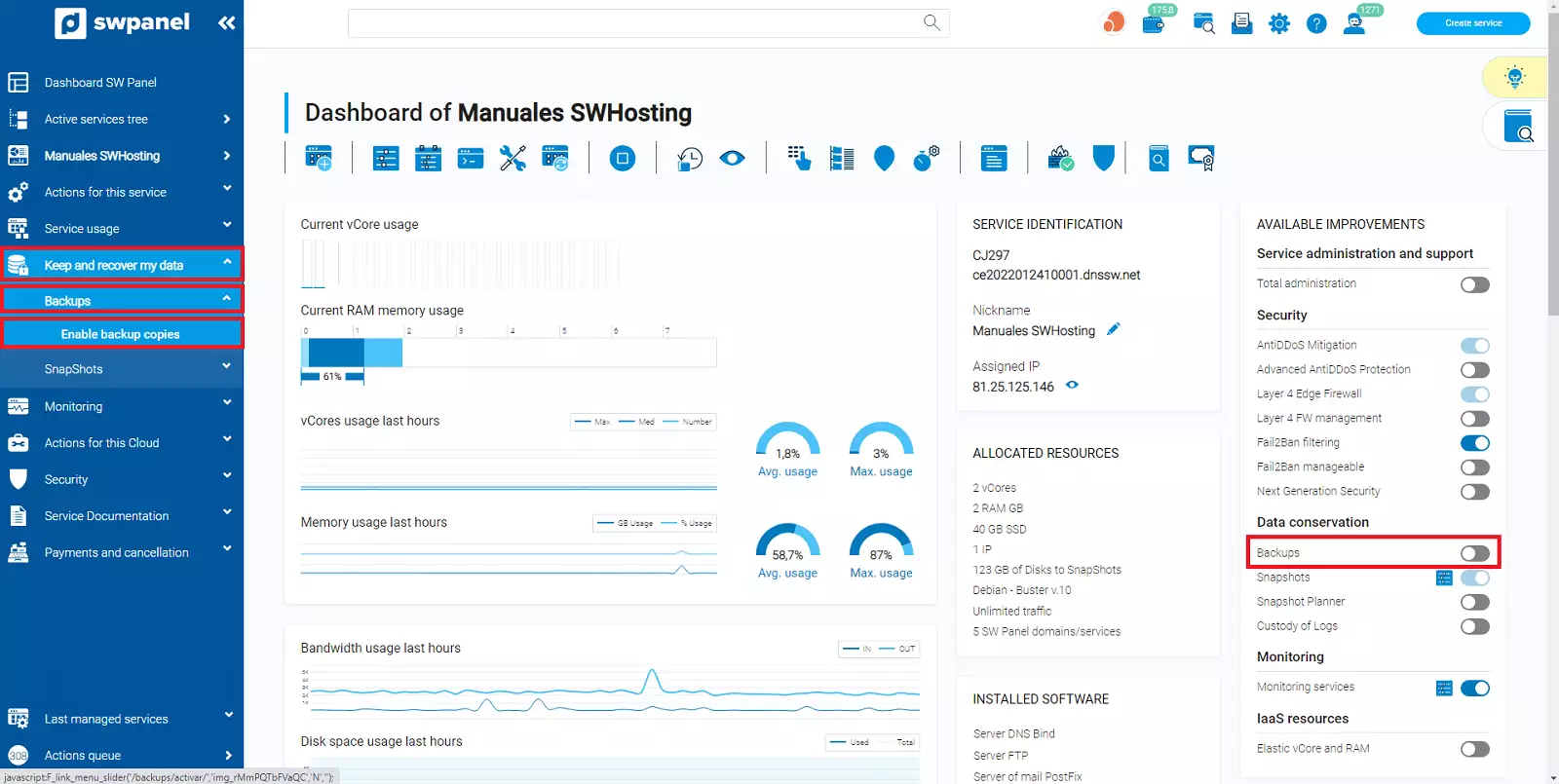
In your Cloud server Dashboard, go to the left side menu and click on Keep and recover my data -> Backups -> Activate Backup. You can also activate backups from the Available improvements block by activating the Backups button:
2.3 Data location
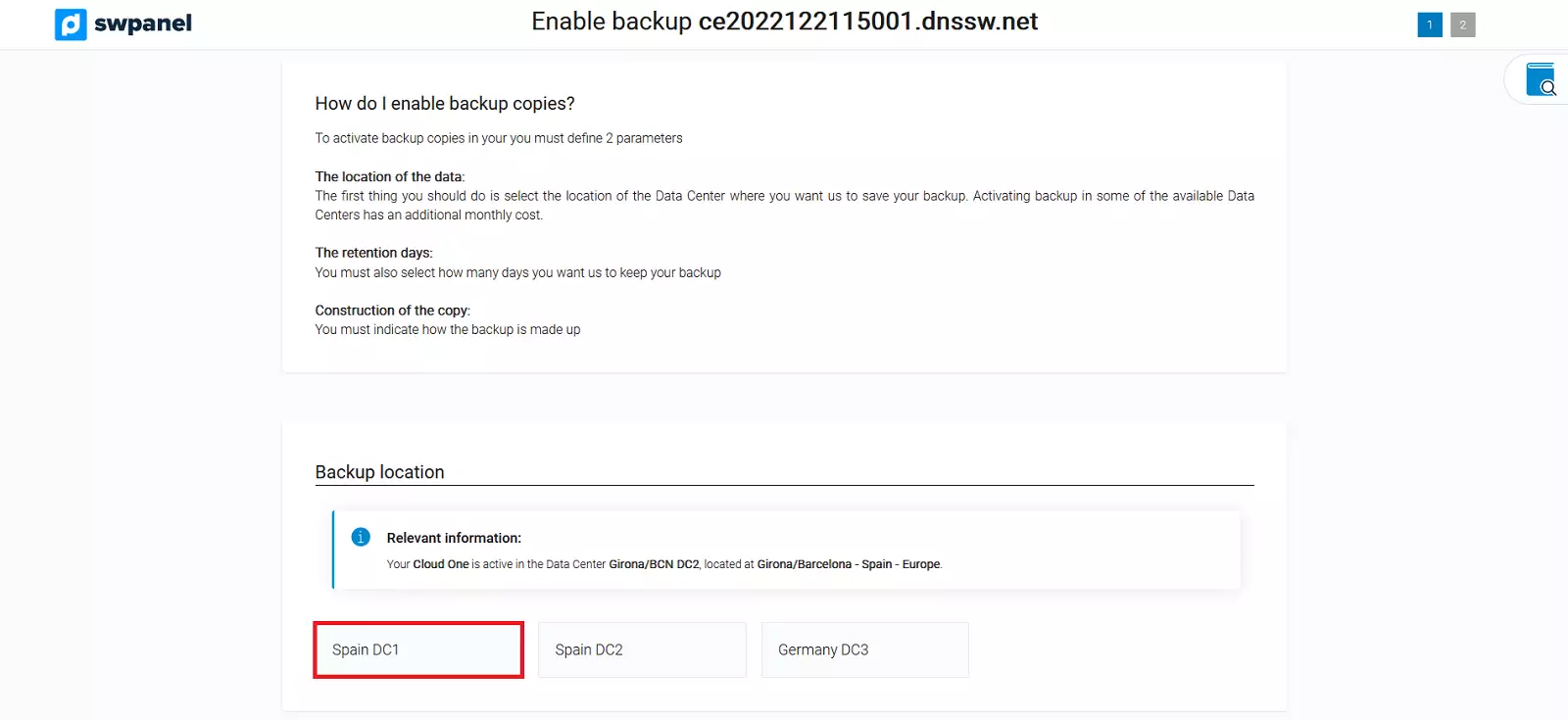
You can choose in which of our different data centers you want the backups of your Cloud server to be performed.
info Once you have fully configured the backup in one Data Center, you can configure your backups to also be performed simultaneously in other available SWHosting data centers.
2.4 Retention days
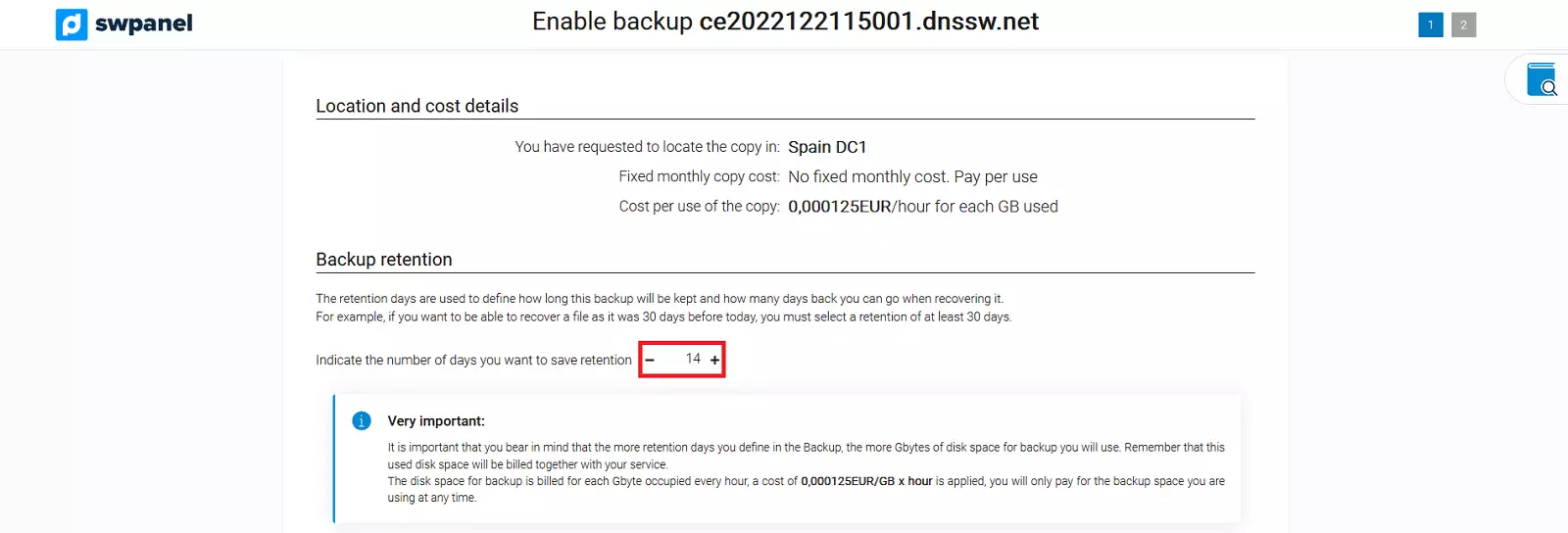
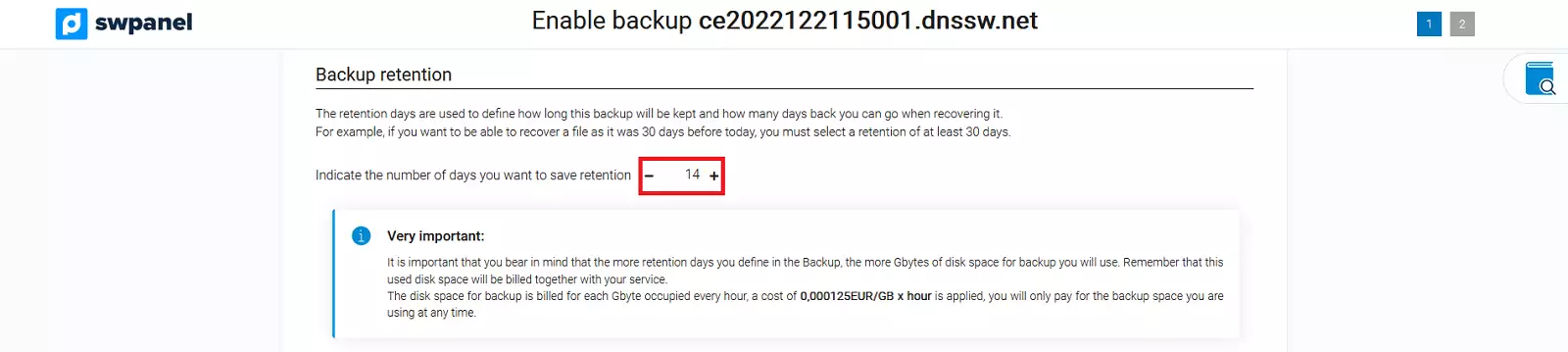
You can choose how long this backup will be kept and how many days prior to the current date you can specify when recovering it.
info The minimum retention period is 7 days and the maximum retention period is 364 days.
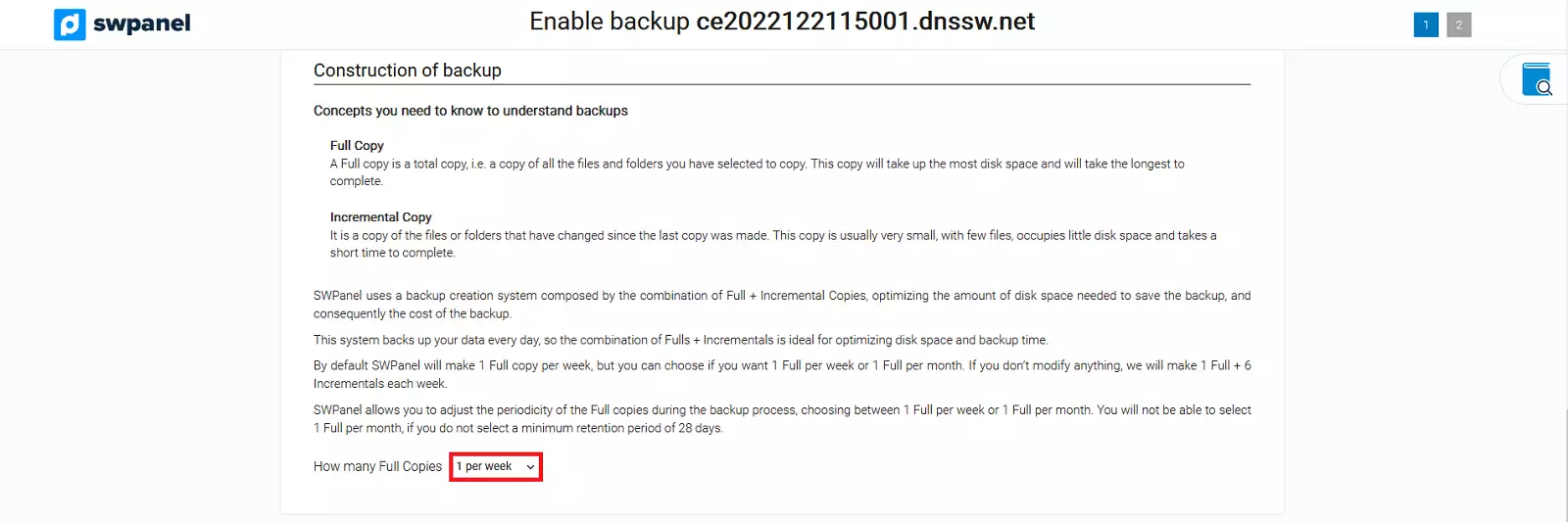
2.5 Backup construction
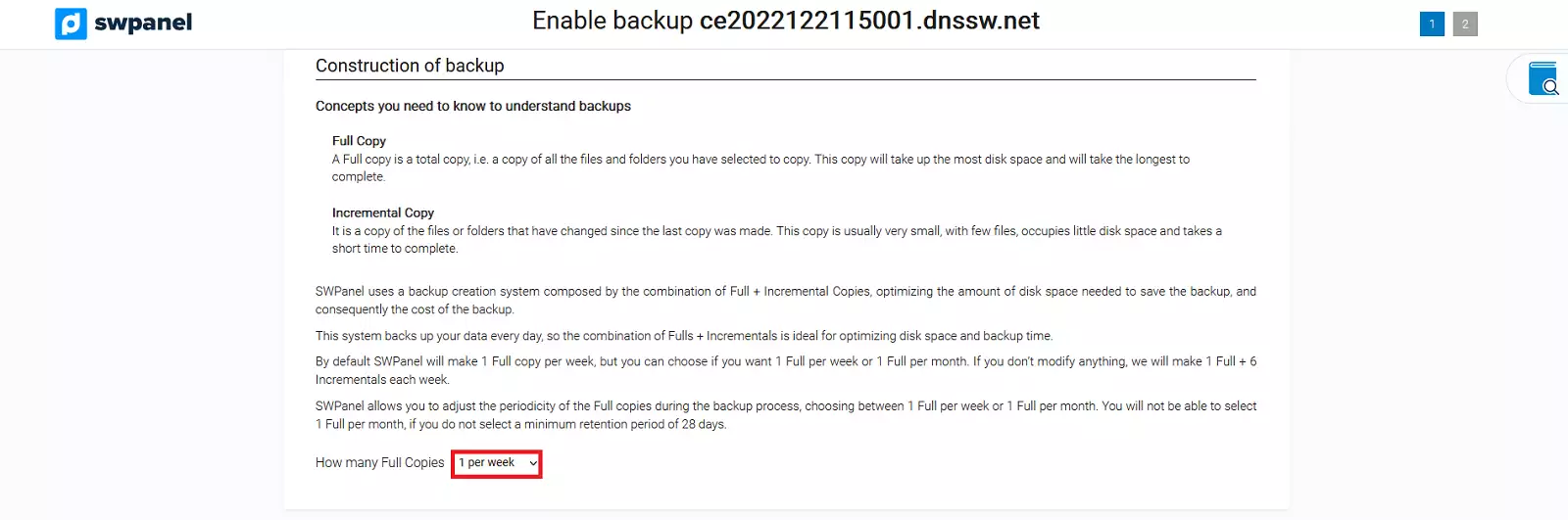
You can choose between 1 Full backup per week or 1 Full backup per month.
info You will not be able to select 1 full per month if you do not select a minimum retention of 28 days.
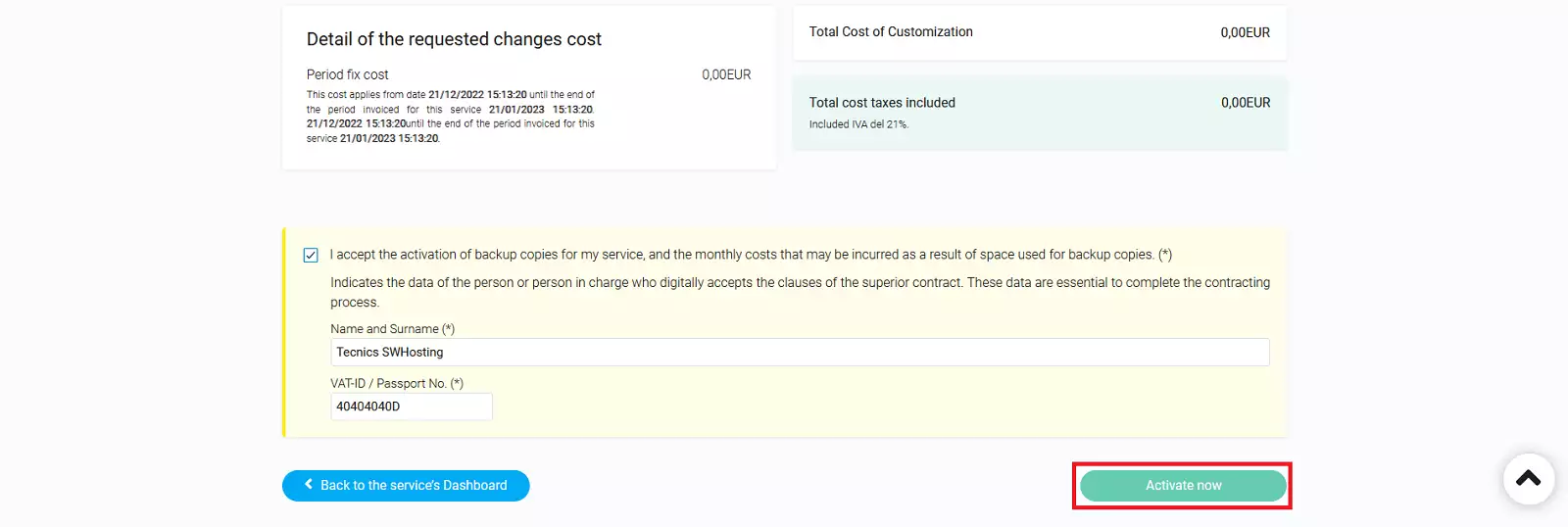
2.6 Accept backup activation on your Cloud server
To finalize the Backup activation, you must accept the changes by clicking the "Activate now" button.
2.7 Defining the backup
You can define two methods when selecting the content to be copied: either by defining that backups are performed for each hosting, or by defining the backups by specifying the directories of your server that you wish to copy.
-
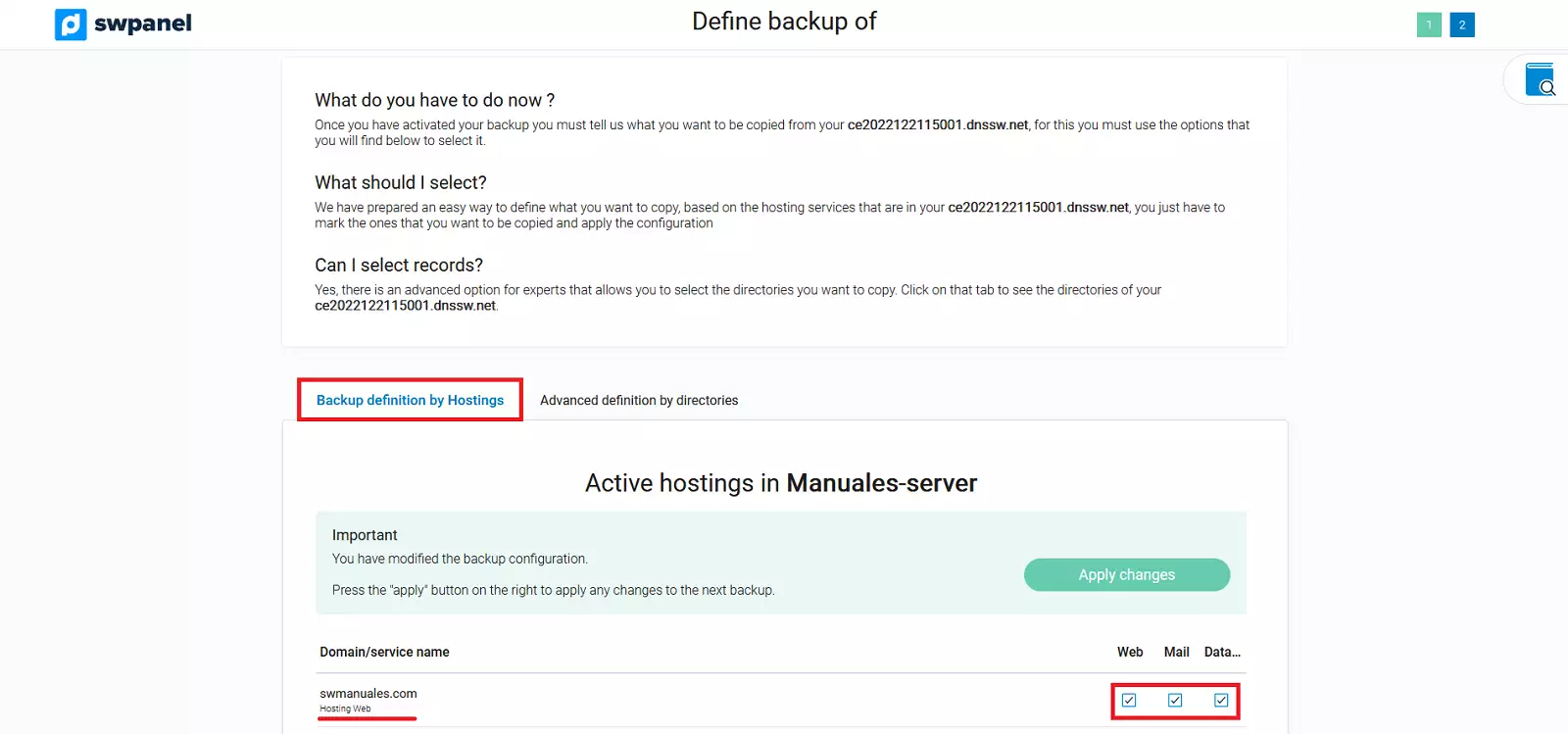
2.7.1 Backup Definition by Hostings
Below, you can define if you want the backup to be performed selectively for each of the Hostings hosted on your server and also the type of content to copy for each hosting (Web / Email / Database). To finalize the configuration, you must click the “Apply changes” button.
-
2.7.2 Advanced definition by directories
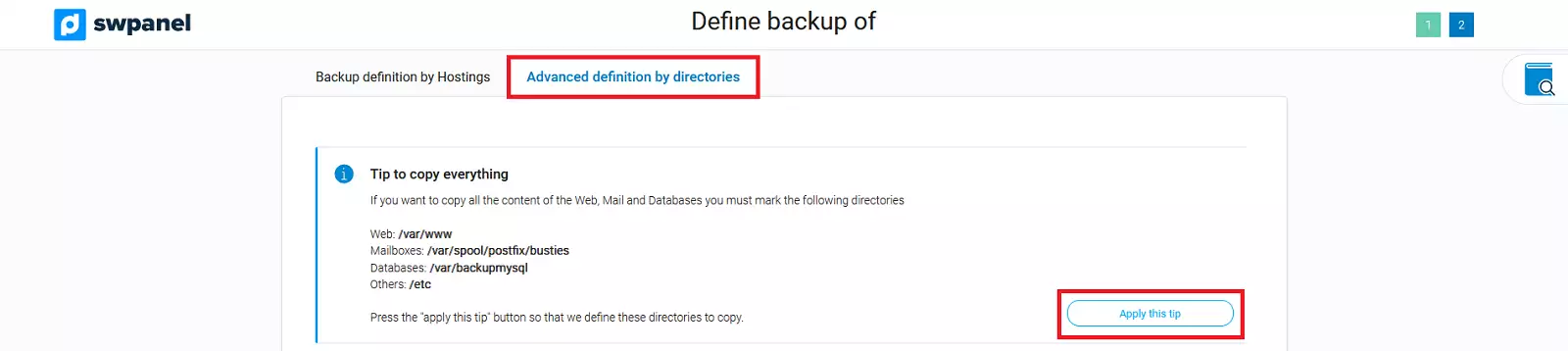
The Backup definition by directories allows you to specify which folders on your server you want to include or exclude from your server's backups.
info If you want to copy all the Web content of your server, you must choose the directory /var/www, to copy all email you must choose /var/spool/postfix/busties, and for databases /var/backupmysql. It is also possible to copy all server configuration files by choosing the directory /etc.
You can apply the recommended configuration of directories to copy by clicking the "Apply this tip" button.
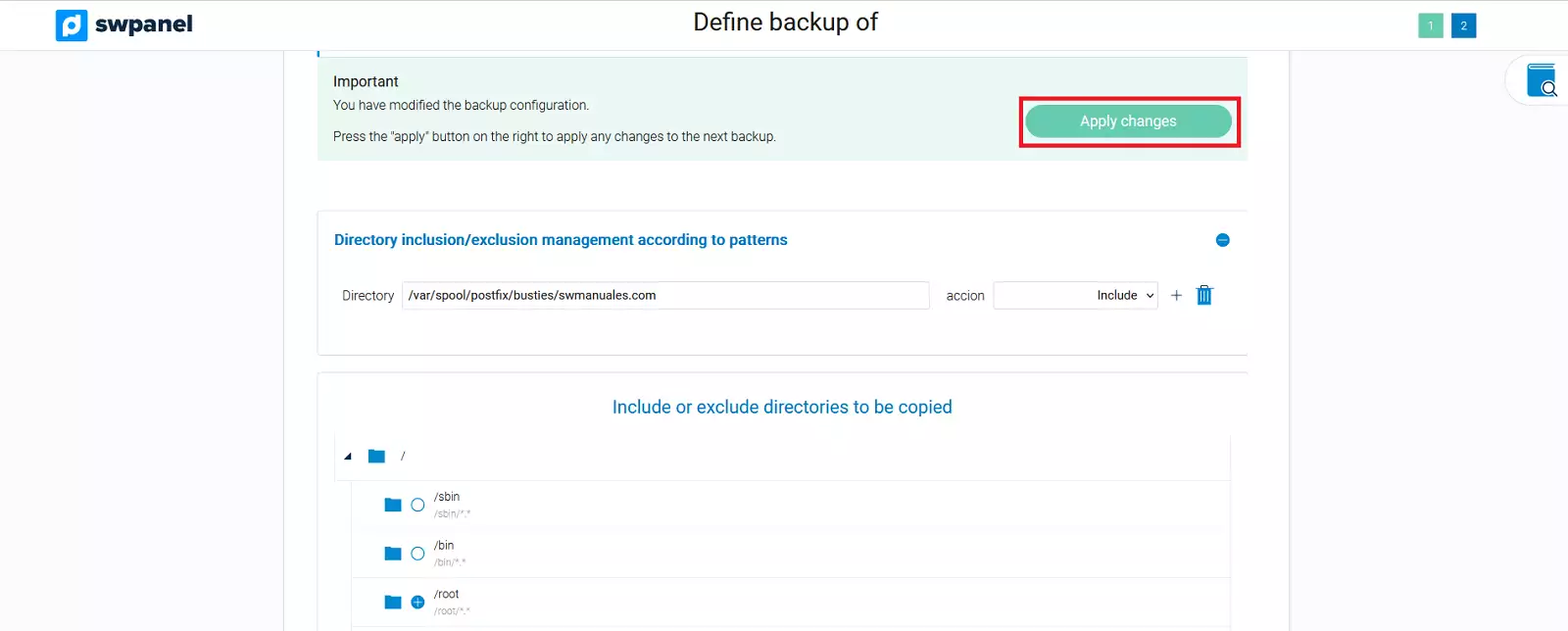
Additionally, you can also manually specify the directory path you wish to include/exclude from your backup.

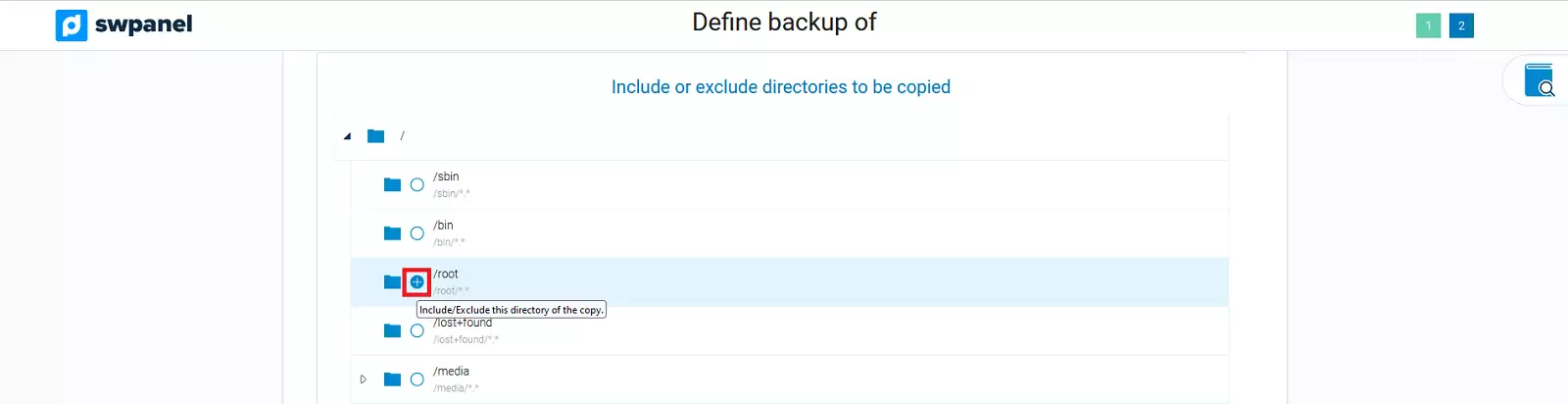
And mark in the directory tree of your Cloud server those that you wish to include/exclude from your backup.
To finalize the configuration, you must click the “Apply changes” button.
3. Activating redundant backups for your Cloud server in another SW Hosting Data Center
Once the backup is configured in one of the SWHosting data centers, you can activate the backup of the same data in another of the available SWHosting data centers. In this way, your backups can be performed redundantly on different Backup servers, which will provide you with greater availability and resilience regarding the loss or integrity of the data hosted on your Cloud server.
3.1 Access to the Backup Dashboard of your Cloud server
The backup Dashboard will show you the locations of the currently active backups, their configuration parameters regarding retention and backup construction, as well as the possibility of deactivating the backup by location.
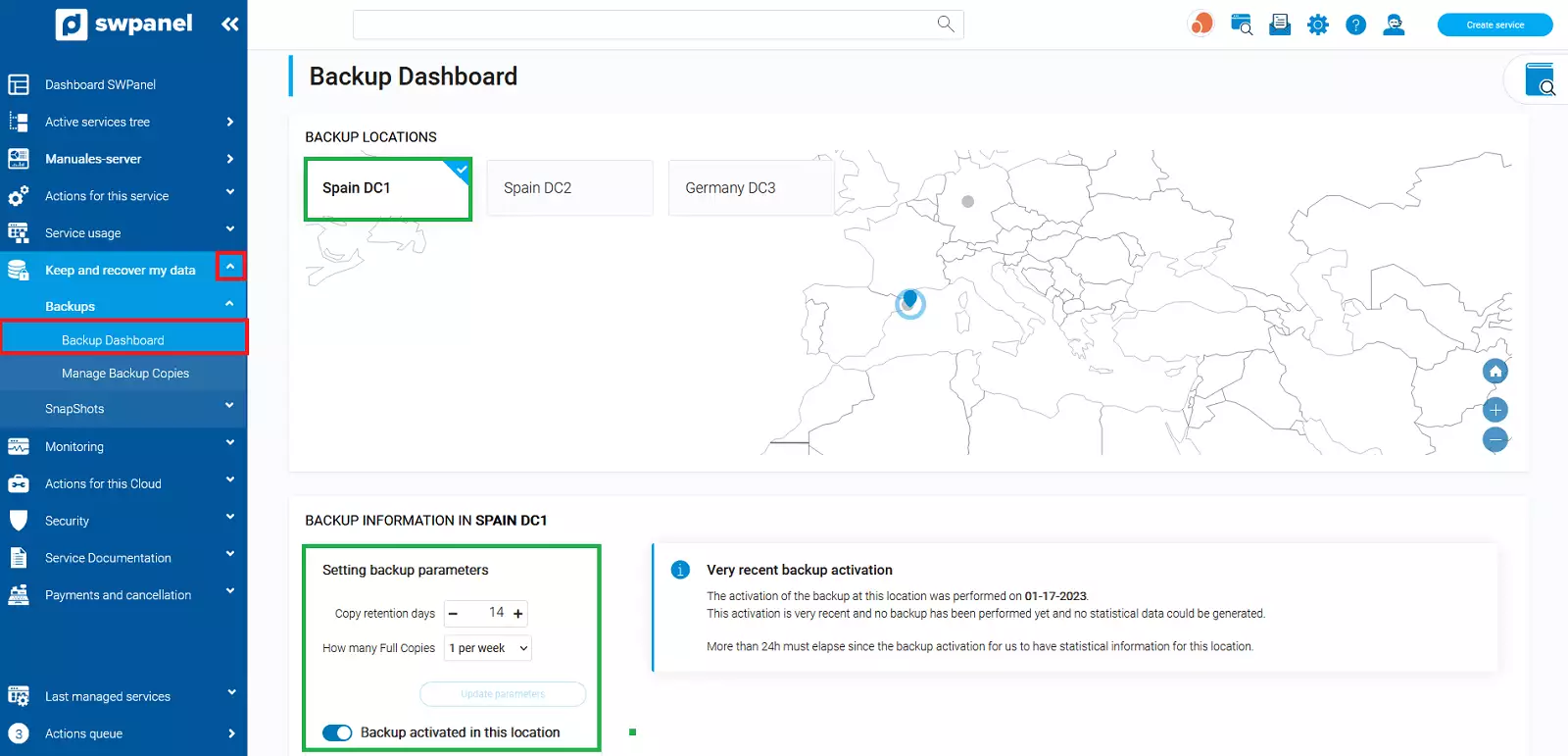
3.2 Activating redundant Backup in a second SWHosting data center
In the backup Dashboard, in addition to viewing the backup already configured in one location, you can also click on the button corresponding to another different location to thus perform two redundant backups, each located in an SWHosting data center.
info The data that will be copied in the backup process in this second data center will be exactly the same as those initially configured in the backup definition by hostings or in the advanced definition by directories of the first backup location. This ensures the integrity of the data copied in each of the daily backups performed in the different data centers.
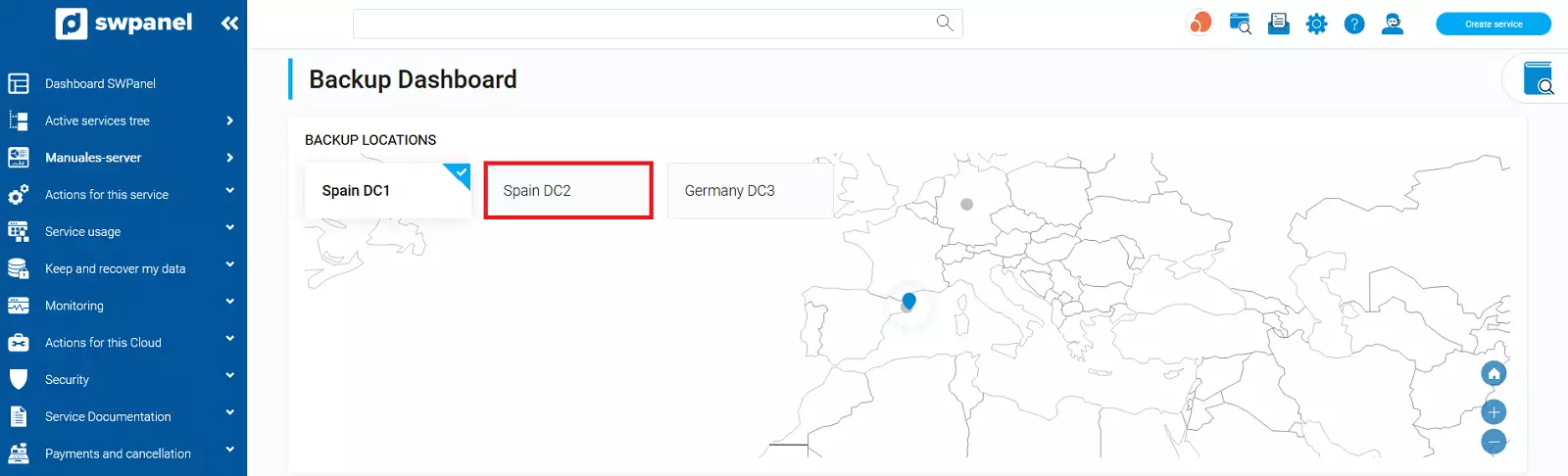
3.3 Retention days for the backup located in a second data center
info In each of the data center locations where your backup will be performed, you can define the same data retention period or a different period.
3.4 Backup construction for the backup located in a second data center
info In each of the data center locations where your backup will be performed, you can define how many full backups you wish to perform per week or per month.
3.5 Accept backup activation on your Cloud server in a second data center
To finalize the Backup activation, you must accept the changes by clicking the "Activate now" button.
