
How to install SWPanel on your Server - SWPanel Self-Hosted
SWPanel is a control panel designed for the administration of web hosting servers. It is distributed under a proprietary license and is especially optimized for Linux Debian servers.
This panel offers an intuitive and dynamic web interface, which allows for centralized management of:
- Websites and content management systems (CMS)
- Email accounts
- Databases
- MariaDB
- FTP access
- DNS records
The interface is accessible via the web at https://go.swpanel.com and is available in a SaaS model.
Administration in SWPanel is organized through different levels of access and privileges, each with specific permissions configured via custom access profiles, adapted to the functions of each user. The main levels are:
- Administrator: Full control of the panel and services.
- User: Limited access according to assigned permissions.
- Up to 10 levels of depth and nesting: Allows for the structuring of complex user and role hierarchies.
- RHA Client: Access to specific contracted services.
- Access by services: Allows assigning permissions to specific resources, such as:
- Hosting Plans
- Servers
- Other contracted services
- Email User: Exclusive management of their mailbox and email configuration.
- VPN User: Limited access to private network functionalities.
Main Features of SWPanel
-
Centralized management: Allows managing all server resources from a single simplified panel, optimizing time and efficiency.
-
Automation: Facilitates recurring tasks, such as the installation of content management systems (WordPress, Joomla), SSL certificate management, and the creation of email accounts.
-
Monitoring and alerts: Provides real-time supervision of security, availability, and performance of services, with automatic notifications in the event of any incident.
-
Advanced security: Includes its own firewall, protection against DDoS attacks, efficient backup management, and advanced access controls to guarantee data protection.
-
Multi-user and reseller support: Ideal for agencies, developers, and hosting providers who require multiple access levels and differentiated user management.
-
Detailed reporting and statistics: Generates comprehensive reports on performance, resource usage, traffic, and consumption, facilitating more informed decision-making.
After learning what SWPanel is and its potential, the next step is to install an operational version on your server. This manual will guide you step by step so that you complete the installation securely and efficiently.
There are two main methods to install the Self-Hosted version of SWPanel:
-
Manual installation from the server console
This method is recommended for advanced users or experienced system administrators, as it requires executing commands directly from the server terminal. -
Assisted or automatic installation from the web
Available at https://go.swpanel.com, this option is the simplest and most convenient. You only need:- The IP address of your server
- The password for the 'root' user
By entering these details on the installation page, the process will be carried out automatically, without the need to execute commands manually.
Below, step-by-step instructions on how to install SWPanel on your server using both available methods will be detailed.
Manual Installation of SWPanel
Step 1: Prepare the System
System updates and the installation of SWPanel must be performed with the root user.
Note on commands:
- Commands starting with
$must be executed as a user without privileges.- Commands starting with
#must be executed as the root user.
To access as root from a user without privileges, execute:
$ sudo su -
⚠️ Important: This command grants access to the root user and loads their full environment, which is necessary for the installation of SWPanel.
Before linking the license and proceeding with the installation, ensure you meet the following requirements and prior checks:
-
Active server and Internet connection:
Execute the following command to check connectivity:$ ping -c 4 google.comIf you receive a response, the server is active and connected to the Internet.
-
Port 3203 available:
Before installing SWPanel, port 3203 will appear closed, as the service is not yet running. The important thing is that the port is free so that SWPanel can use it.To verify this, execute:
# ss -tulnp | grep 3203- If nothing appears, the port is free and ready for use.
- If a service appears, identify its PID and stop the process before continuing:
# kill PID_DEL_PROCESO -
Network with NAT (if applicable):
If the server is behind a NAT, ensure you forward port 3203 to the server. -
Firewall and security:
No security system should block SWPanel requests; the IPs making these requests are 81.25.112.X.
Step 2: Install SWPanel
To install SWPanel, access the command line of your Linux server and execute the following command to download and run the installation script:
# wget -qO - https://deployment.swpanel.com/install.sh | bash
When executing the script, a warning will appear on the screen. You must type yes and press Enter to continue.
⚠️ If you do not type
yes, the process will be canceled and no changes will be made to your server.
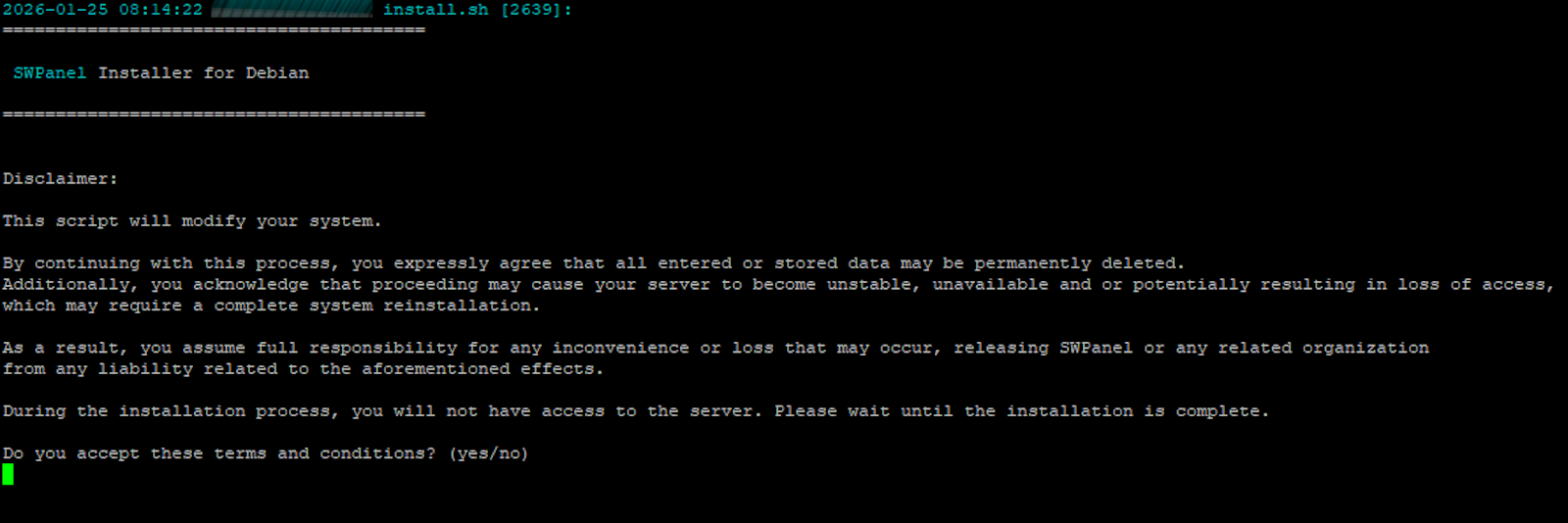
After confirming, the system will temporarily end your session and block access to the server to allow the installation of SWPanel. Once the process is finished, the system will unlock automatically.
⚠️ During installation, if you attempt to access the server, you will receive a message indicating that the process is underway. After a 10-second countdown, you will be able to view the installation logs.
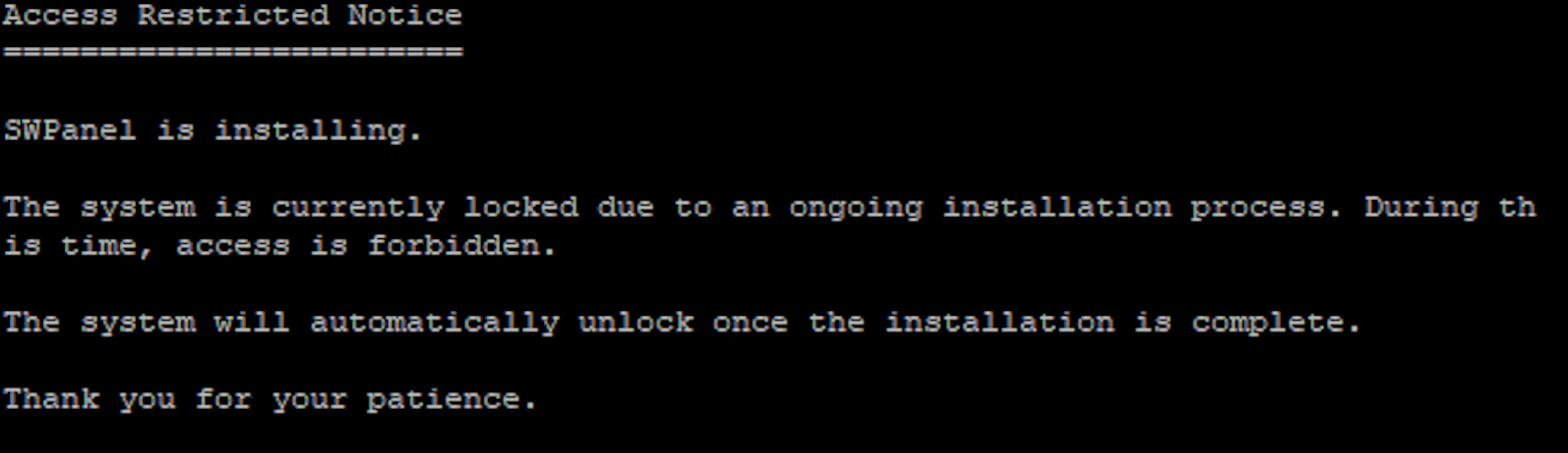
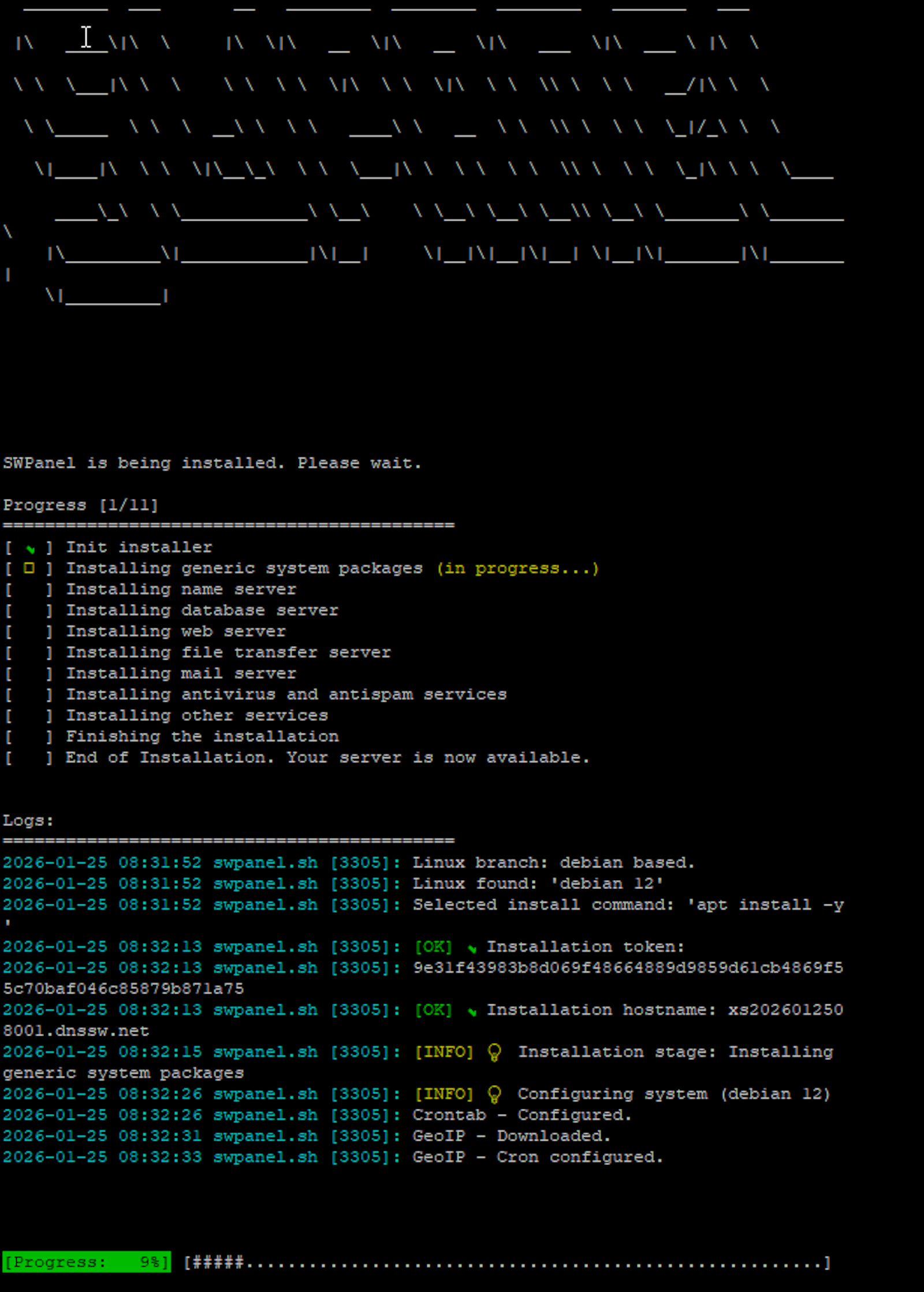
Once the installation is complete, the server will restart automatically. Upon reconnecting to the console, you will see the following message:
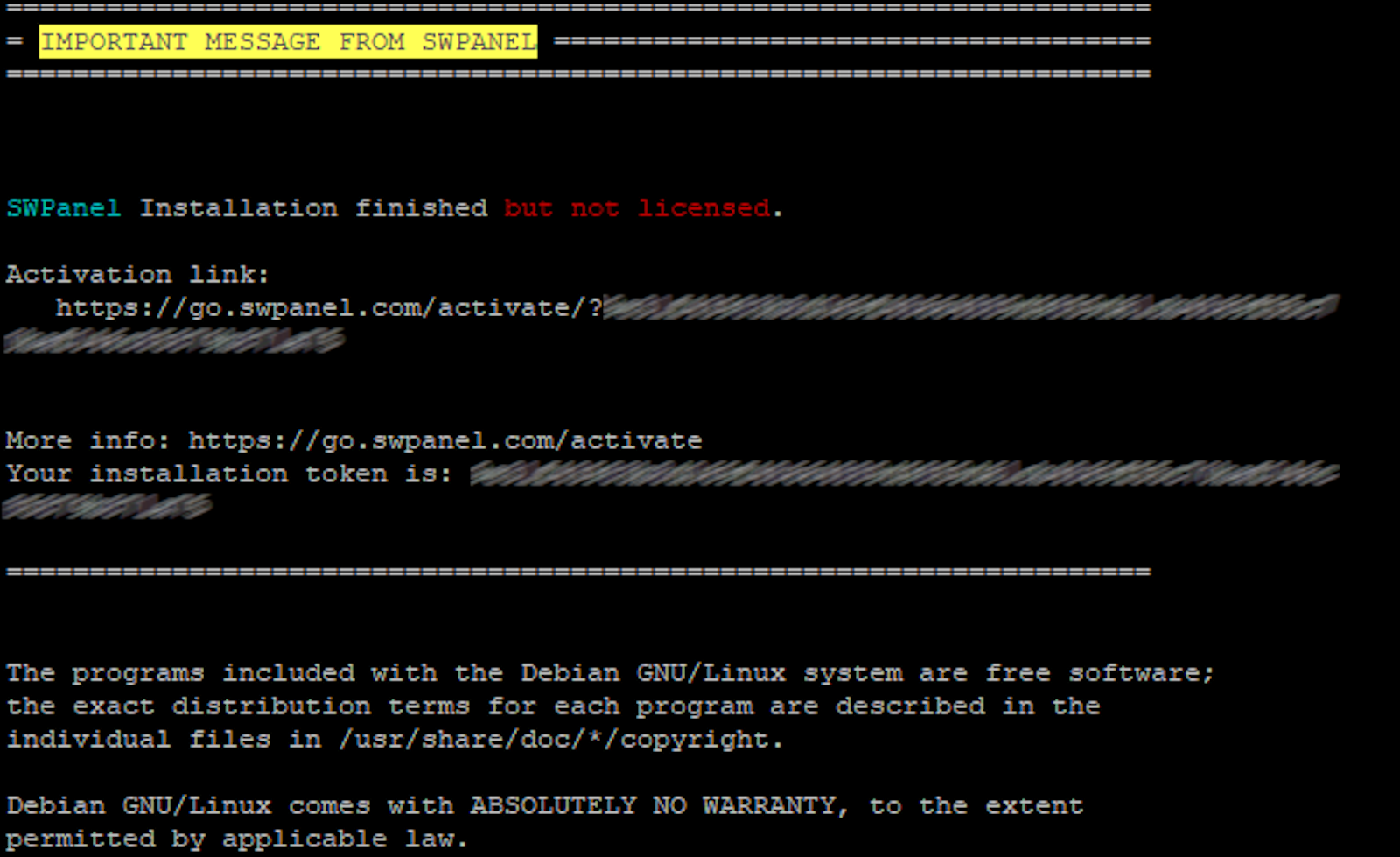
At this point, the installation of SWPanel will be finished, and your installation token will be generated.
🔑 Important: Save this token, as it will be necessary for the next configuration step.
Once the installation is complete, it is necessary to start the license activation process so that your server functions correctly with SWPanel.
Step 1: Create an SWPanel user account
If you already have an account, you can skip directly to Step 2.
To use SWPanel, it is essential to have an active user account.
- If you do not have an account yet, you must create one before continuing.
- For more details on how to register, consult the following manual:
📃 Manual: How to register in SWPanel
Step 2: Activate your Installation Token
Once you have a user account, access the system through the following link: https://go.swpanel.com/activate/
Log in with your SWPanel user account. Once inside, you will access the SWPanel Self-Hosted license activation section.
Selection of installation mode
SWPanel offers three installation options. In this case, you must select:
- 'I already have my Token ID, I want to activate SWPanel'
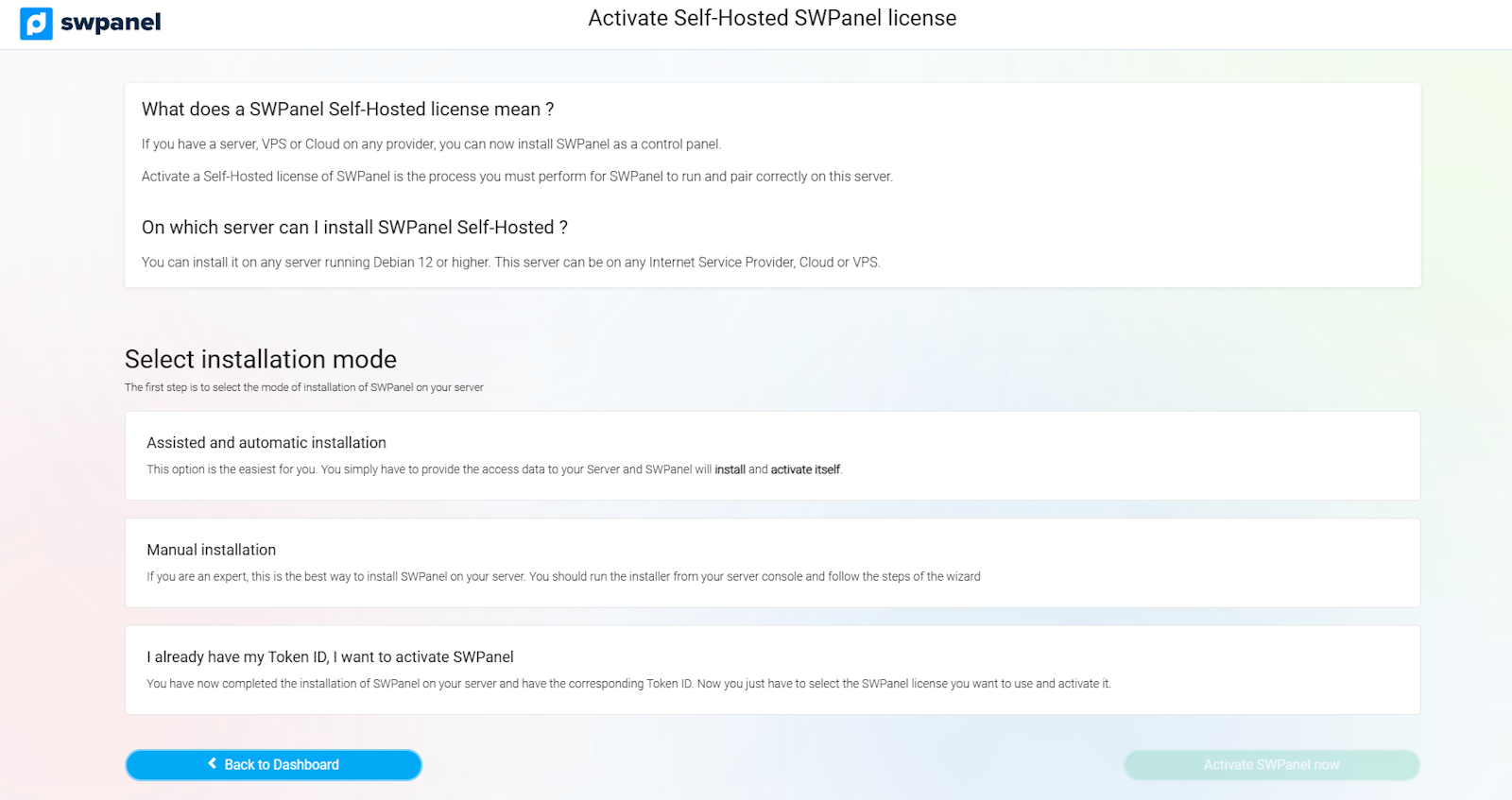
info_capture ℹ️ Note: The screenshot is for guidance, taken from version 2026.000.0001 dated 01/26/2026. It may differ from the current version of SWPanel.
Token Activation
- Enter your Installation Token (Token ID) in the corresponding field.
- Click on 'Verify Token ID' to confirm its validity.
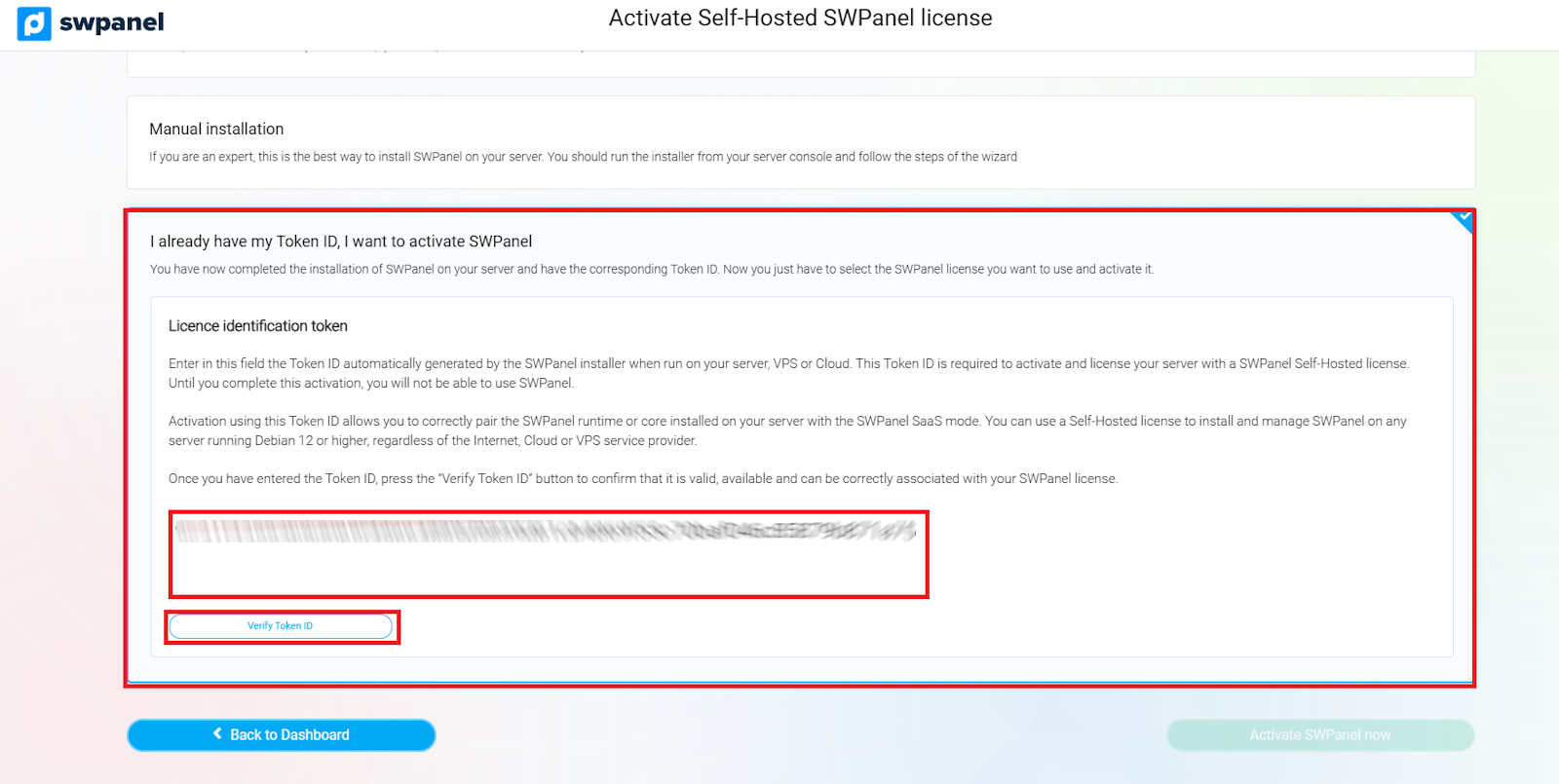
info_capture ℹ️ Note: The screenshot is for guidance, taken from version 2026.000.0001 dated 01/26/2026. It may differ from the current version of SWPanel.
Step 3: License your Server with SWPanel
In this step, you must select the type of license you want to use on your server. SWPanel offers two main options:
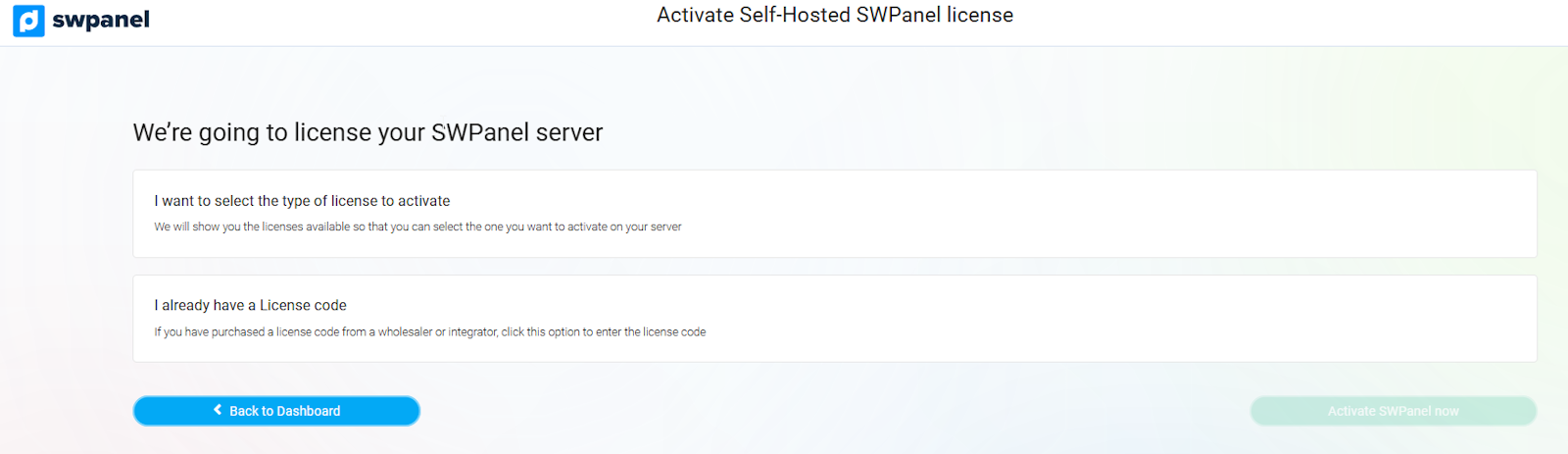
info_capture ℹ️ Note: The screenshot is for guidance, taken from version 2026.000.0001 dated 01/26/2026. It may differ from the current version of SWPanel.
1. Select the type of license to activate
The system will allow you to choose the license model most suitable for your needs.
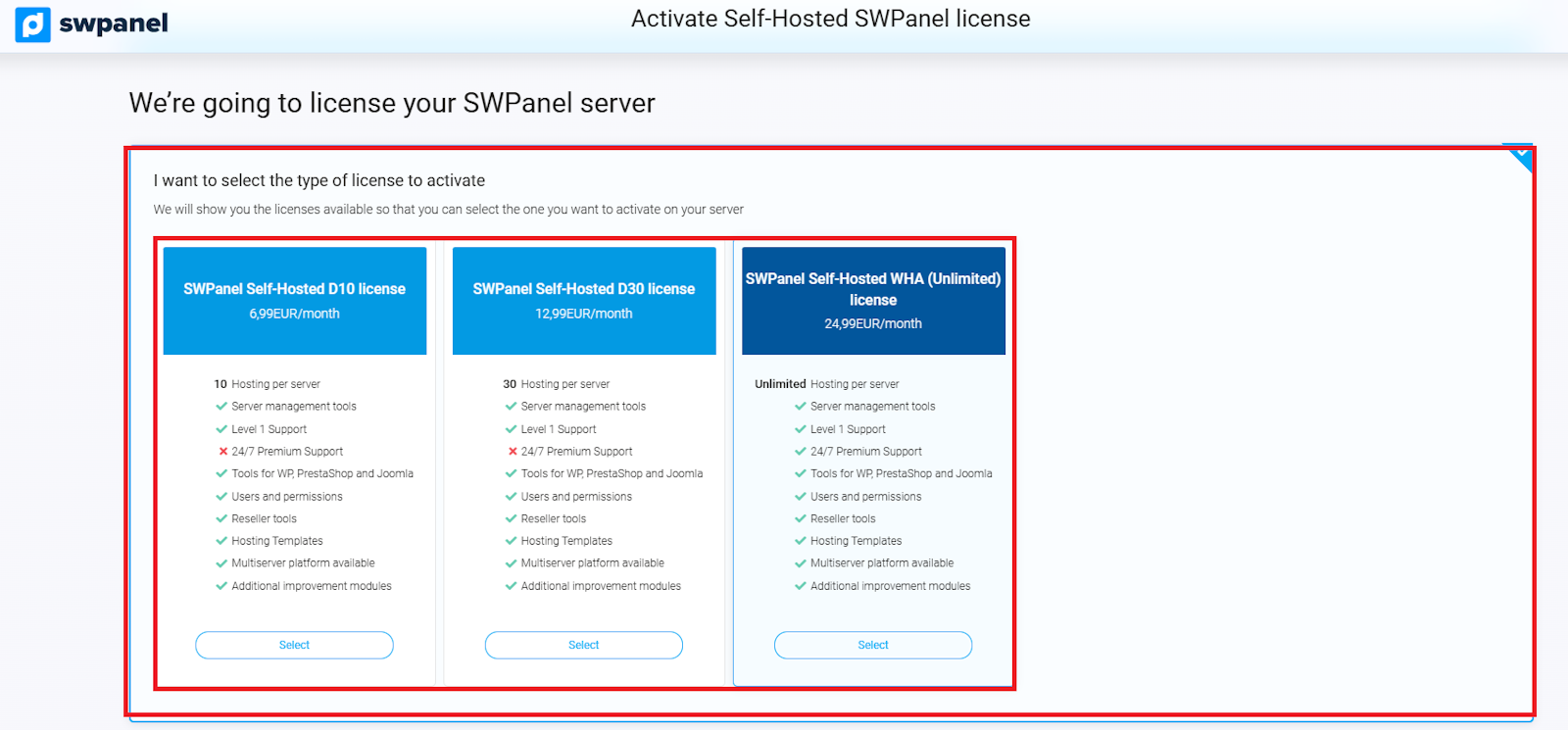
info_capture ℹ️ Note: The screenshot is for guidance, taken from version 2026.000.0001 dated 01/26/2026. It may differ from the current version of SWPanel.
2. I already have a license code
If you have already acquired an SWPanel license through a wholesaler or integrator, select this option and enter your license code.
Once the code is entered, click on 'Verify license code' to confirm its validity and proceed with the activation on your server.
Step 4: License Activation and Payment
In this final step, you must pay the amount for the license you selected and accept the SWPanel contract and/or usage agreement.
Once these steps are completed, finalize the process and start the activation by clicking the button:
- 'Activate SWPanel now'
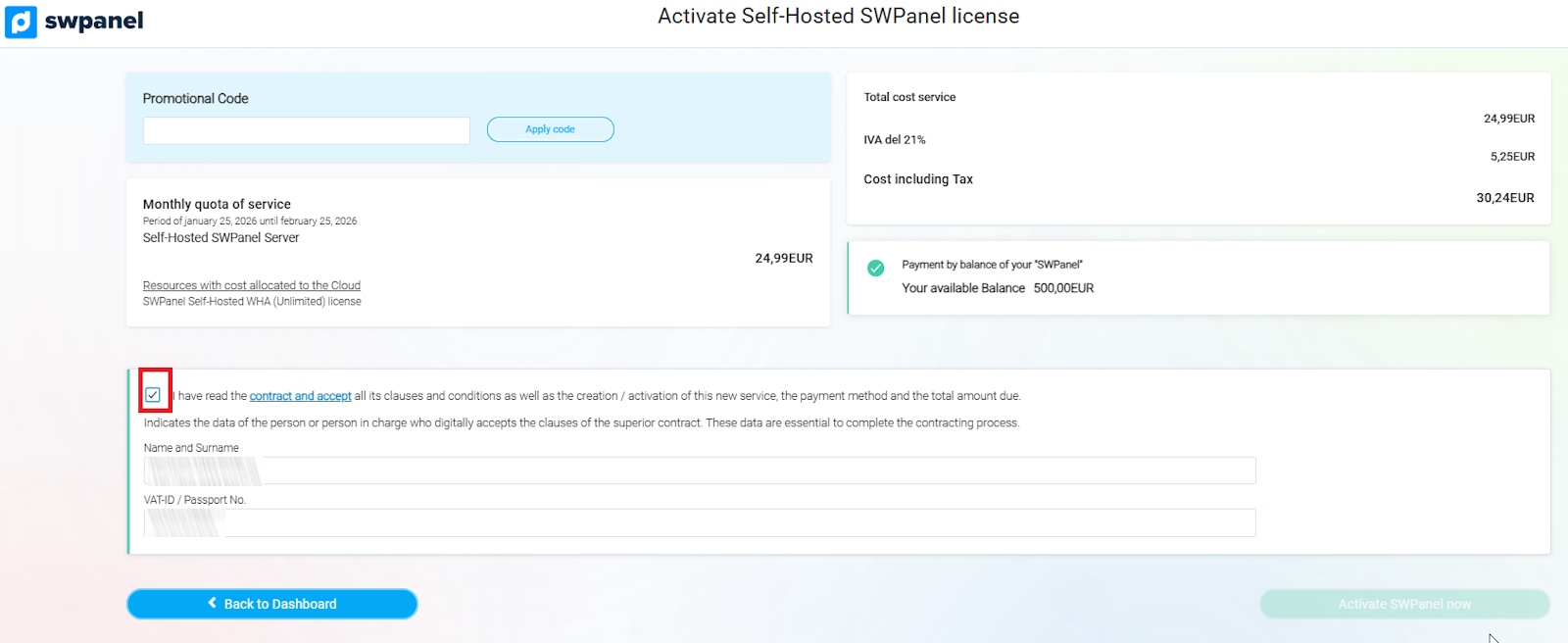
info_capture ℹ️ Note: The screenshot is for guidance, taken from version 2026.000.0001 dated 01/26/2026. It may differ from the current version of SWPanel. ✅ After this step, your server will be fully licensed and ready to use SWPanel Self-Hosted.
Assisted or Automatic Installation of SWPanel
This method is the simplest way to install SWPanel on your server.
⚠️ Before starting, you must have an active SWPanel user account.
Consult the following manual to create your account: 📃 Manual: How to register in SWPanel
Once your user account is created and active, you can start the automatic and remote installation process on your server, without the need to execute commands manually.
Step 1: Access SWPanel
Enter the activation panel through the following link: https://go.swpanel.com/activate/
Once inside the Dashboard (main panel), go to the blue side menu and click on:
- Activate SWPanel Self-Hosted
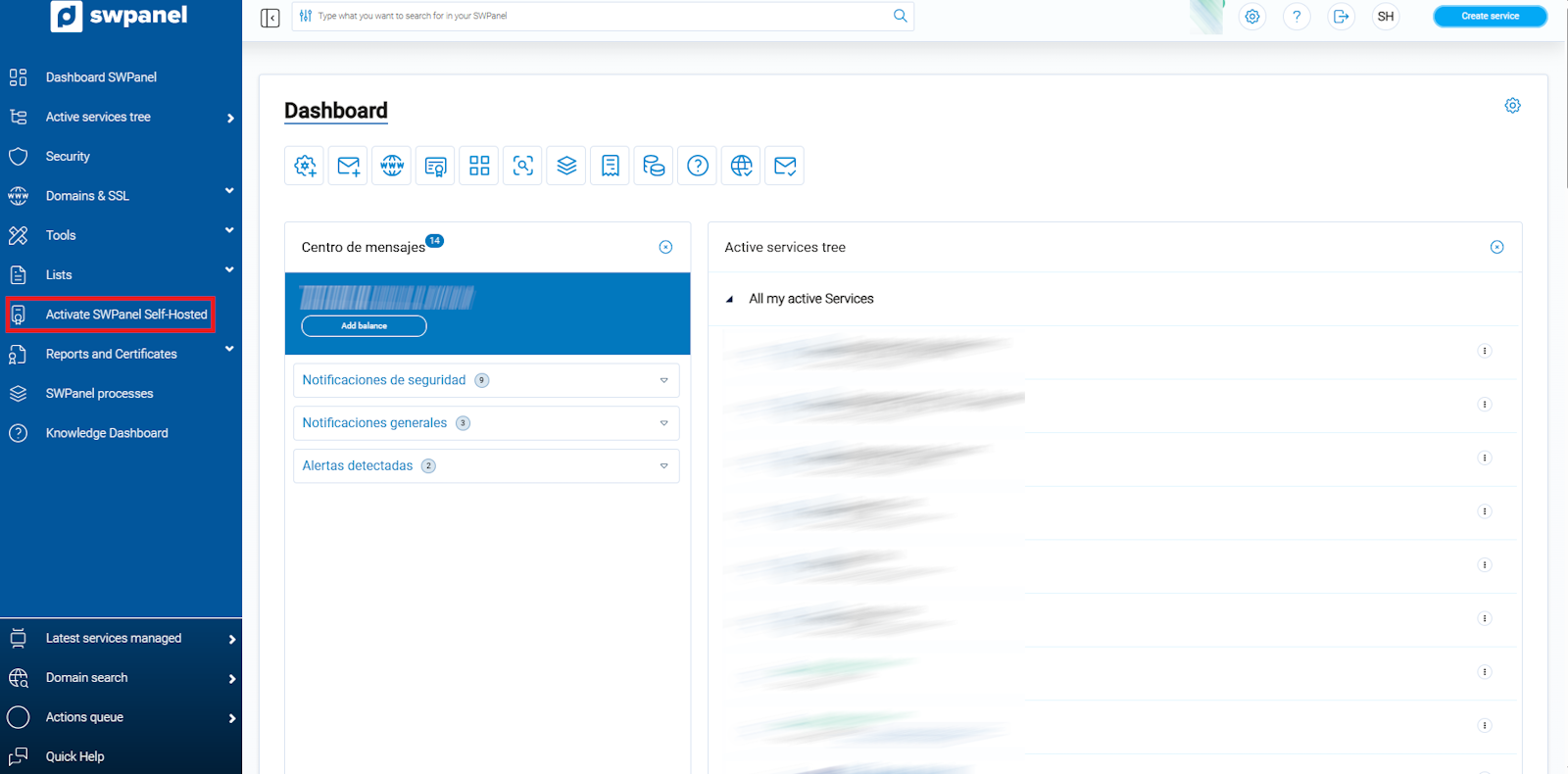
info_capture ℹ️ Note: The screenshot is for guidance, taken from version 2026.000.0001 dated 01/26/2026. It may differ from the current version of SWPanel.
Step 2: Selection of the SWPanel Self-Hosted Installation Mode
After accessing the activation section, three available methods to install SWPanel will be shown:
info_capture ℹ️ Note: The screenshot is for guidance, taken from version 2026.000.0001 dated 01/26/2026. It may differ from the current version of SWPanel.
Select the option that corresponds to your case:
- For users who already have a Token ID, choose 'I already have my Token ID, I want to activate SWPanel'.
- For new installations or tests, there are guided or automatic activation options that the system will indicate.
Step 3: Assisted and Automatic Installation
This method is recommended for users without advanced technical knowledge, as it automates the entire installation process.
Prerequisites
Before starting, ensure you have:
- The public IP address of the server.
- The SSH port (usually 22 by default).
- The root user password.
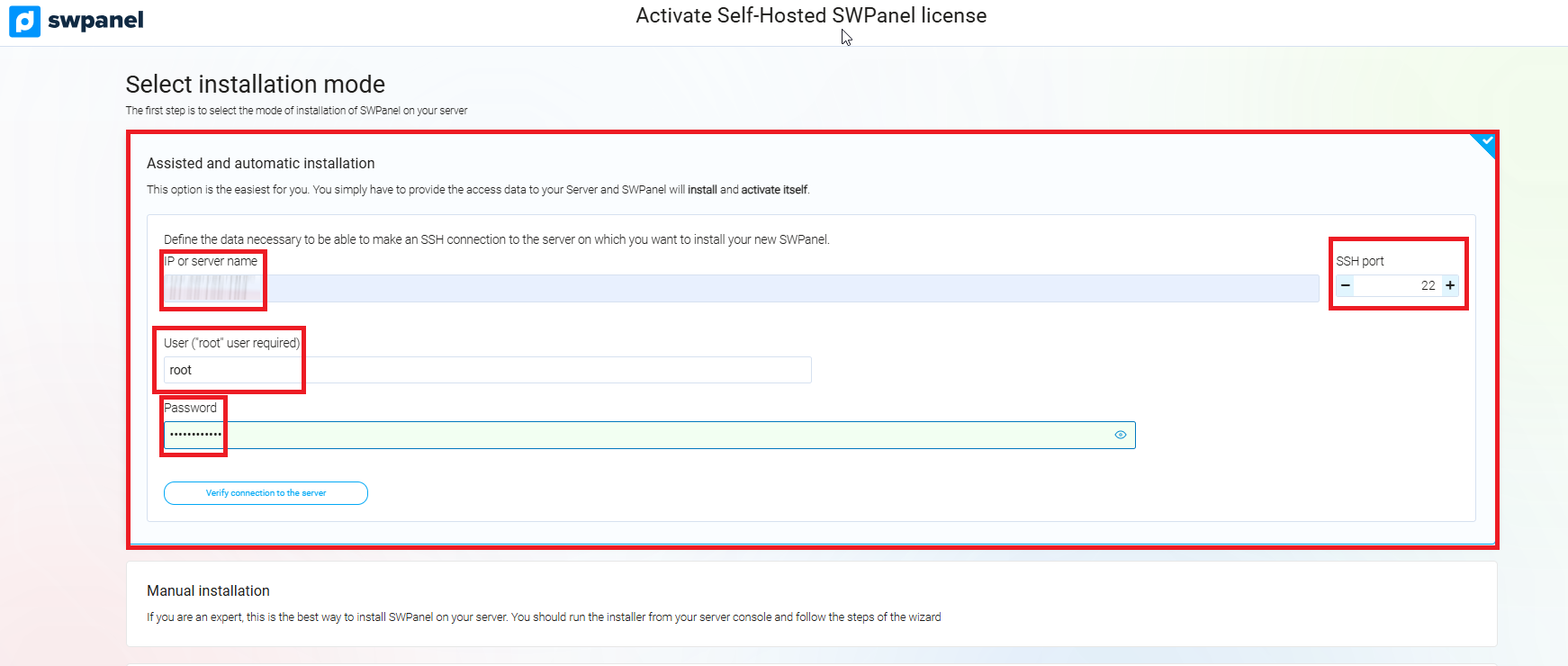
info_capture ℹ️ Note: The screenshot is for guidance, taken from version 2026.000.0001 dated 01/26/2026. It may differ from the current version of SWPanel.
Installation steps
- Enter the server IP, the SSH port, and the root user password.
- Click on 'Verify connection to server' to check that the panel can communicate correctly with the server.
- Accept the liability notice by checking the corresponding box:
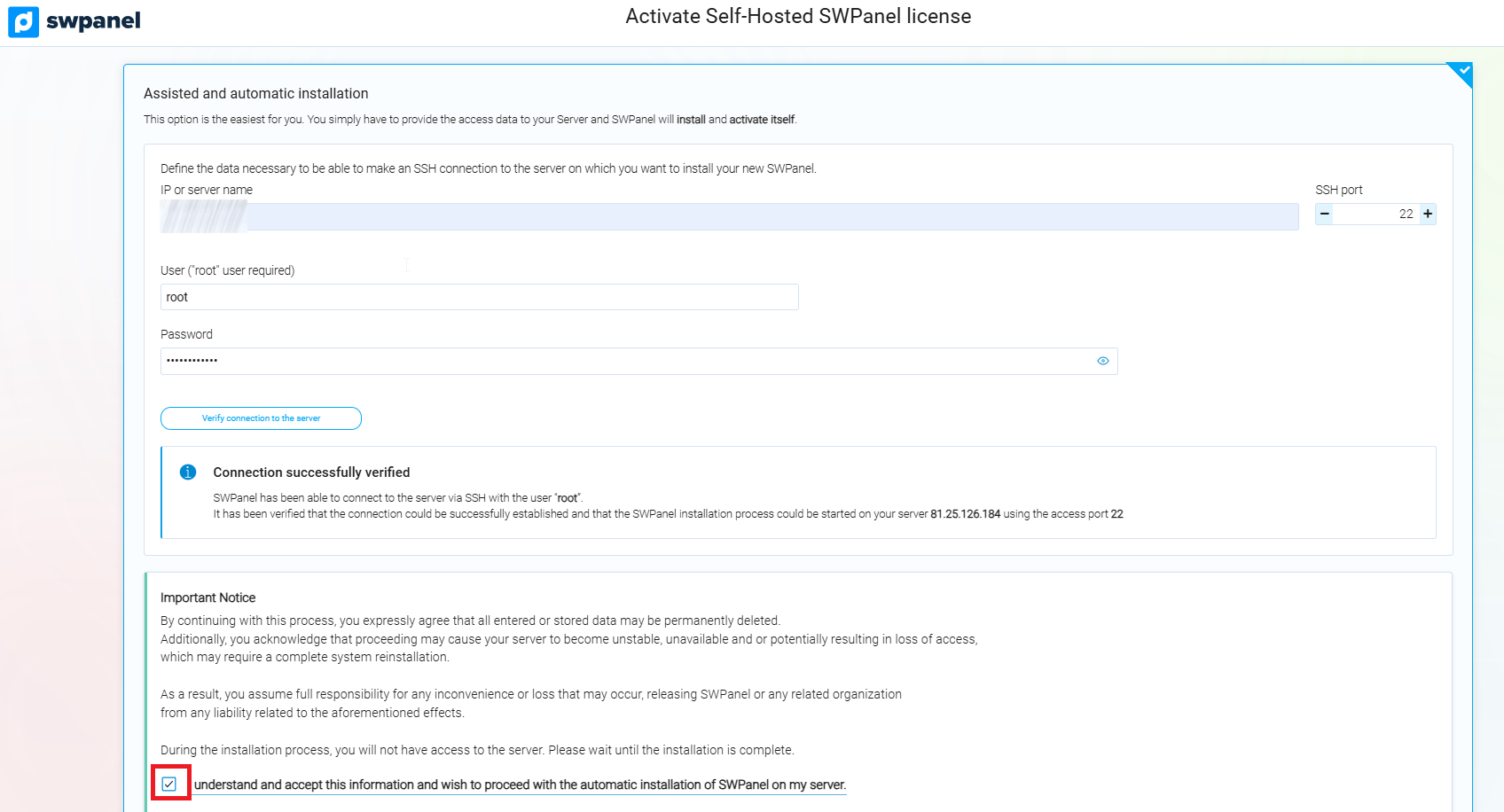
info_capture ℹ️ Note: The screenshot is for guidance, taken from version 2026.000.0001 dated 01/26/2026. It may differ from the current version of SWPanel.
- Once the connection is verified and the liability clause is accepted, SWPanel will start the installation automatically, without the need for additional intervention by the user.
Step 4: Selection of License Type
In this step, you must choose the type of license you wish to use on your server. SWPanel offers two main options:
info_capture ℹ️ Note: The screenshot is for guidance, taken from version 2026.000.0001 dated 01/26/2026. It may differ from the current version of SWPanel.
1. Select the type of license to activate
The system will allow you to choose the license model most suitable for your needs.
info_capture ℹ️ Note: The screenshot is for guidance, taken from version 2026.000.0001 dated 01/26/2026. It may differ from the current version of SWPanel.
2. I already have a license code
If you have acquired an SWPanel license through a wholesaler or integrator, select this option and enter your license code.
Then, click on 'Verify license code' to confirm its validity and proceed with the activation on your server.
Step 5: License Activation and Payment
In this final step, you must pay the amount for the license you selected and accept the SWPanel contract and/or usage agreement.
Once these steps are completed, finalize the process and start the activation by clicking the button:
- 'Activate SWPanel now'
info_capture ℹ️ Note: The screenshot is for guidance, taken from version 2026.000.0001 dated 01/26/2026. It may differ from the current version of SWPanel.
✅ After completing this step, your server will be fully licensed and ready to use SWPanel Self-Hosted.