Roundcube (Webmail)
Roundcube is the Webmail access that we include for free with all email services.
Thanks to Roundcube, you can access your email account from anywhere without the need to install or configure email clients. You will only need a web browser (Google Chrome, Mozilla Firefox...) and internet access.
How to access Roundcube?
You can access the Webmail via your domain, host, or Cloud IP:
https://mail.tudominio.com/webmail/
https://ce2020123456789.dnssw.net/webmail/
https://81.25.123.123/webmail/
If you have a Hosting plan or are unaware of any of the above details, you will find the access address in SWPanel. To do this, access the Dashboard of your service:
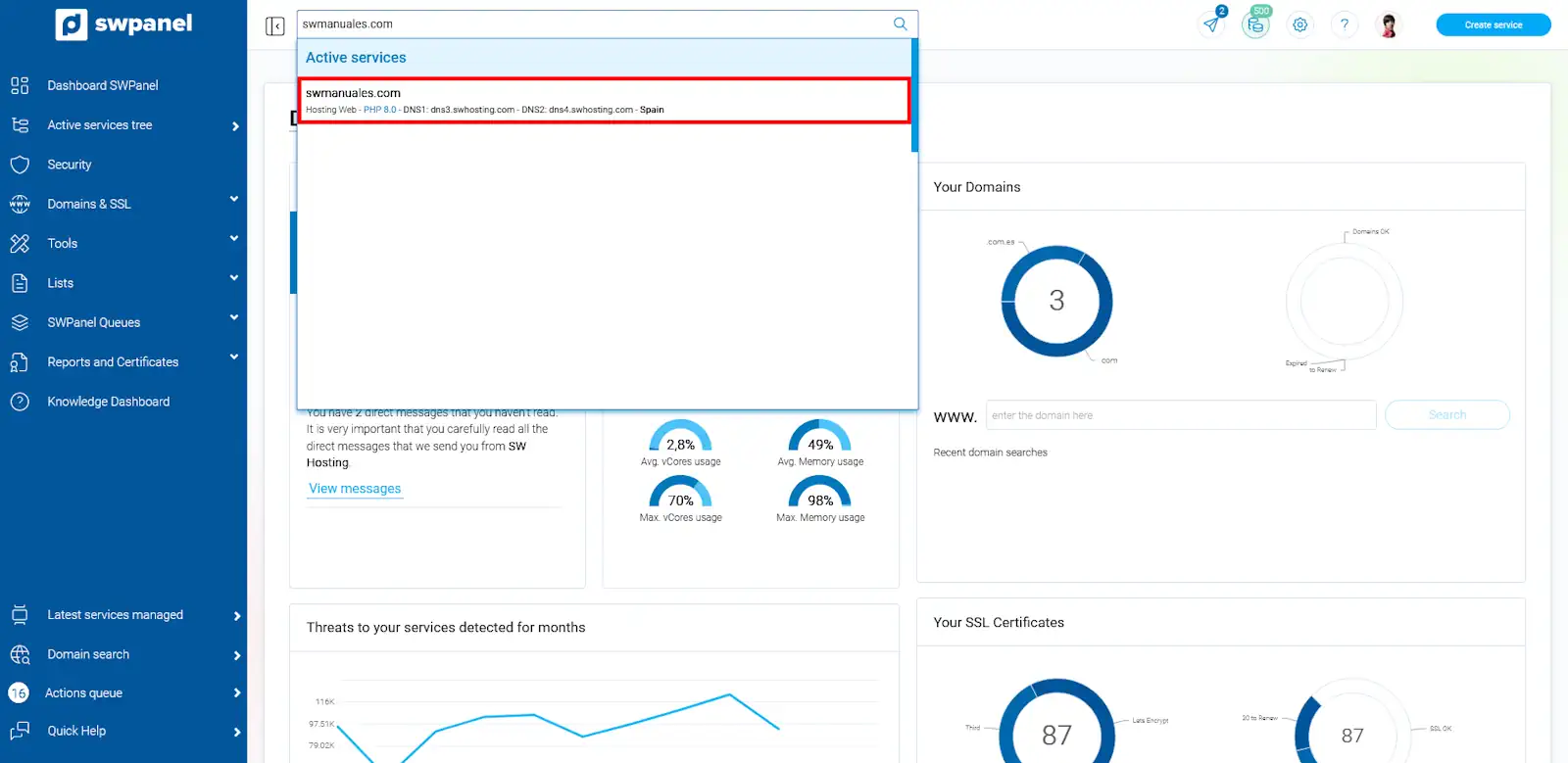
💡 Use the search engine at the top to quickly locate your service.
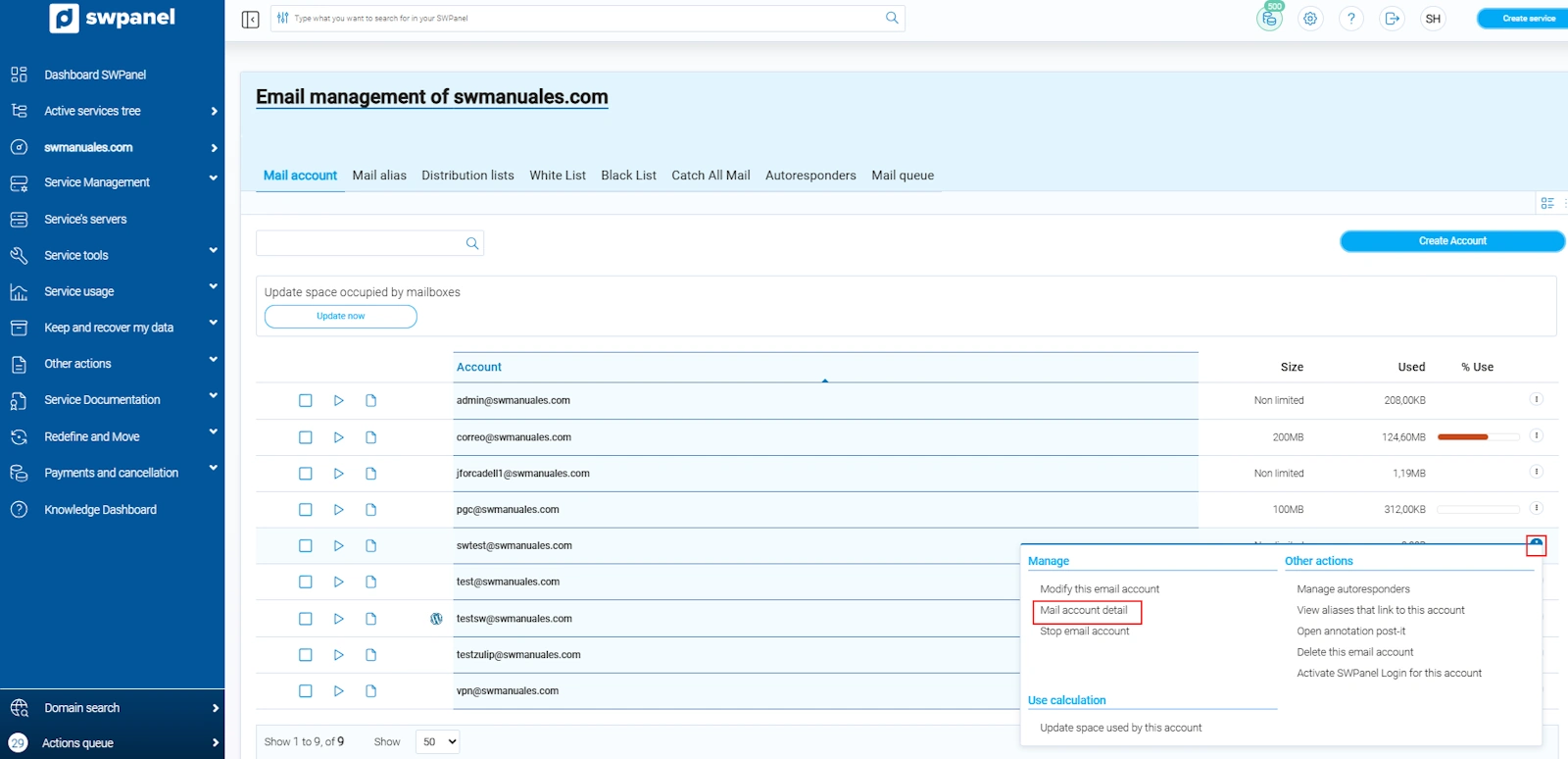
In the Dashboard, select Service Management -> Email Management (left menu):
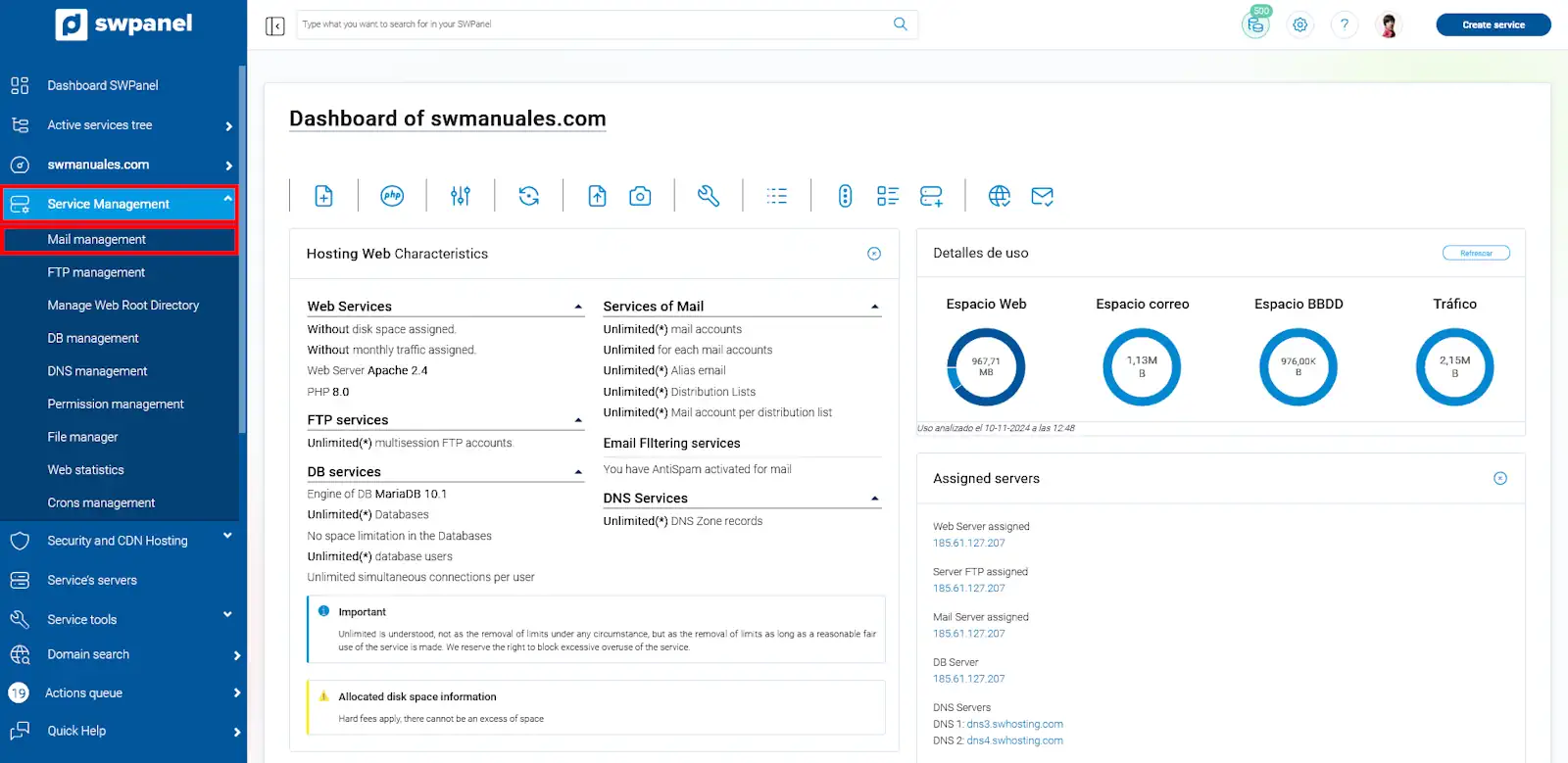
The email accounts registered in the current service are listed. Please note that the Webmail address is the same for all email accounts of the same domain.
In the email account list, access the Manage menu (right side) and click on Email account details.
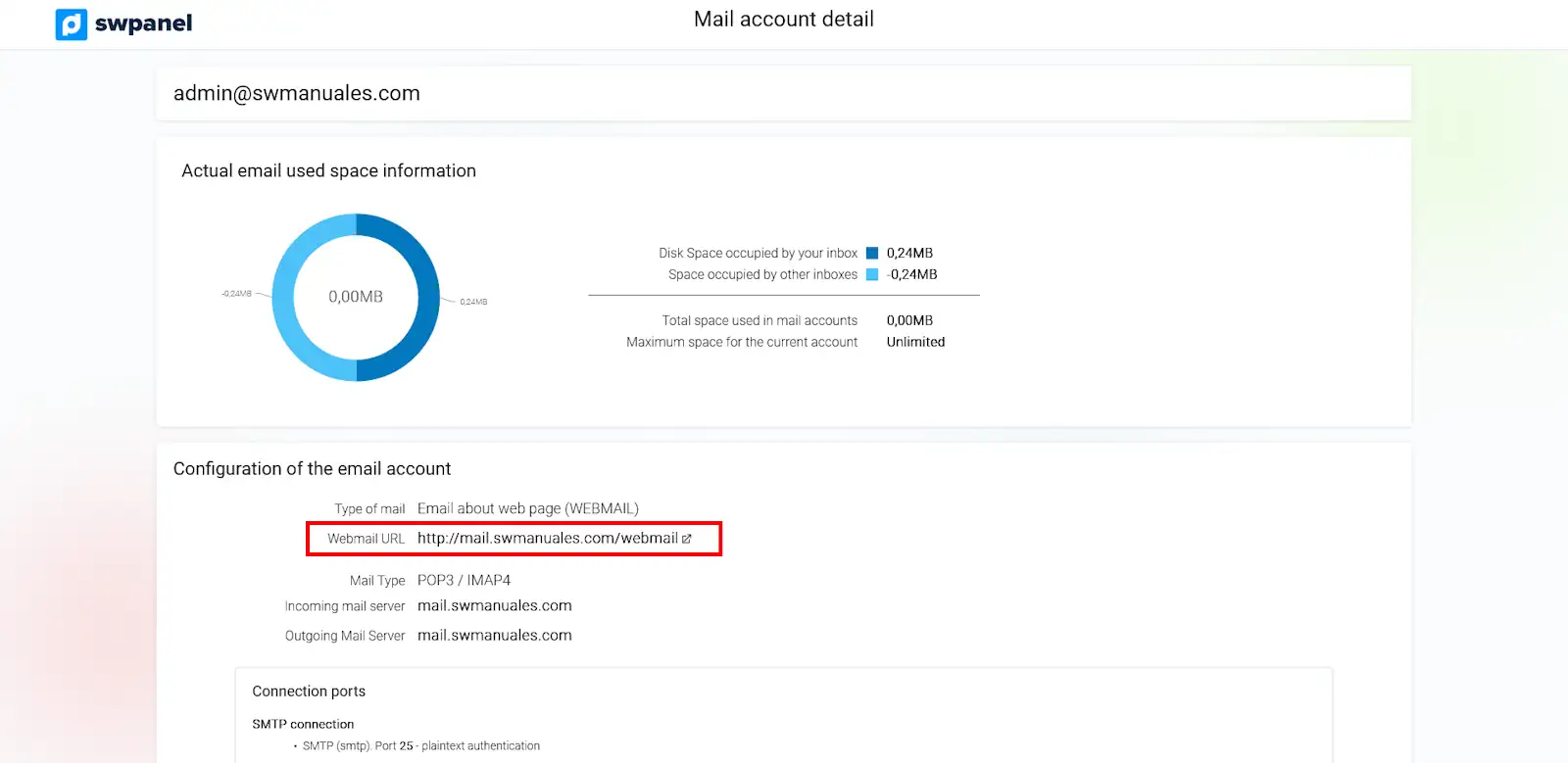
You will see the Webmail access address on the screen, as well as other useful parameters to configure the account in email clients (such as Outlook, Thunderbird...):
Click on the URL and you will access Roundcube:
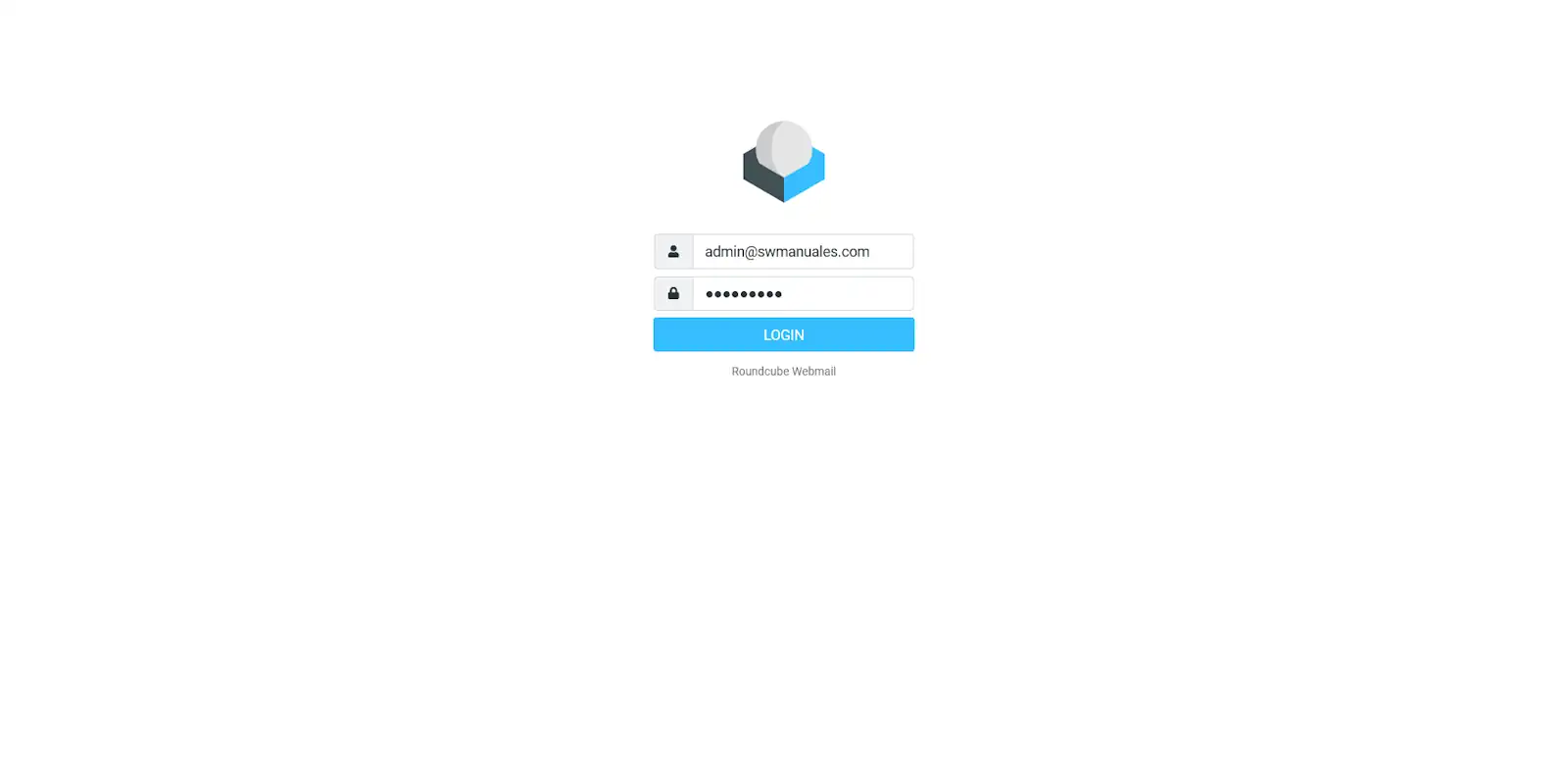
Enter your email address and password to log in. You will go directly to the inbox:
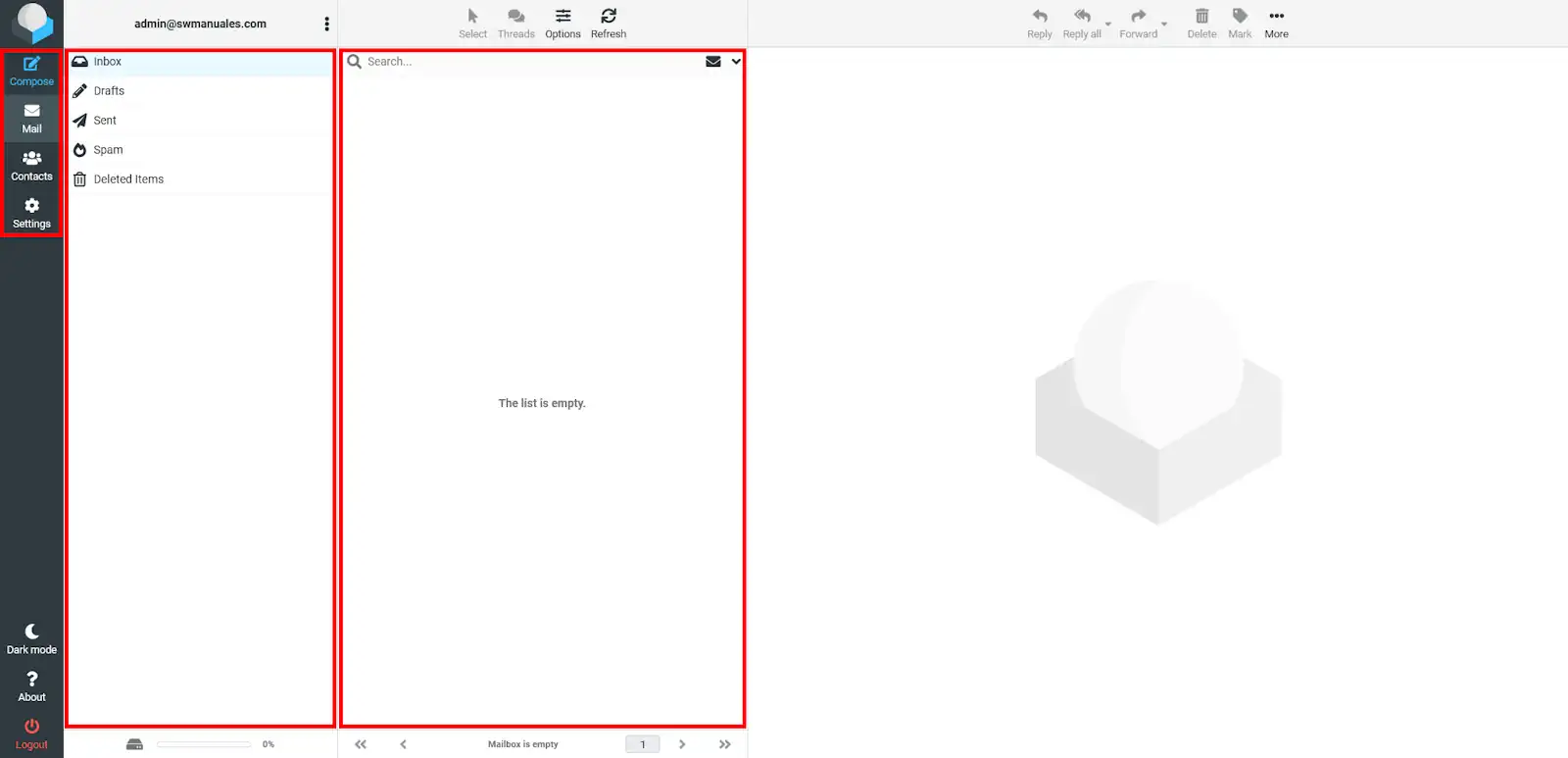
New messages will appear here automatically. You can also click on Refresh to manually reload the inbox.
On the left side, you will find the button bar. In the middle, you will see your email folders: Inbox, Drafts, Sent, SPAM, and Trash. On the right side, the email messages contained in the folder you are currently in are listed.
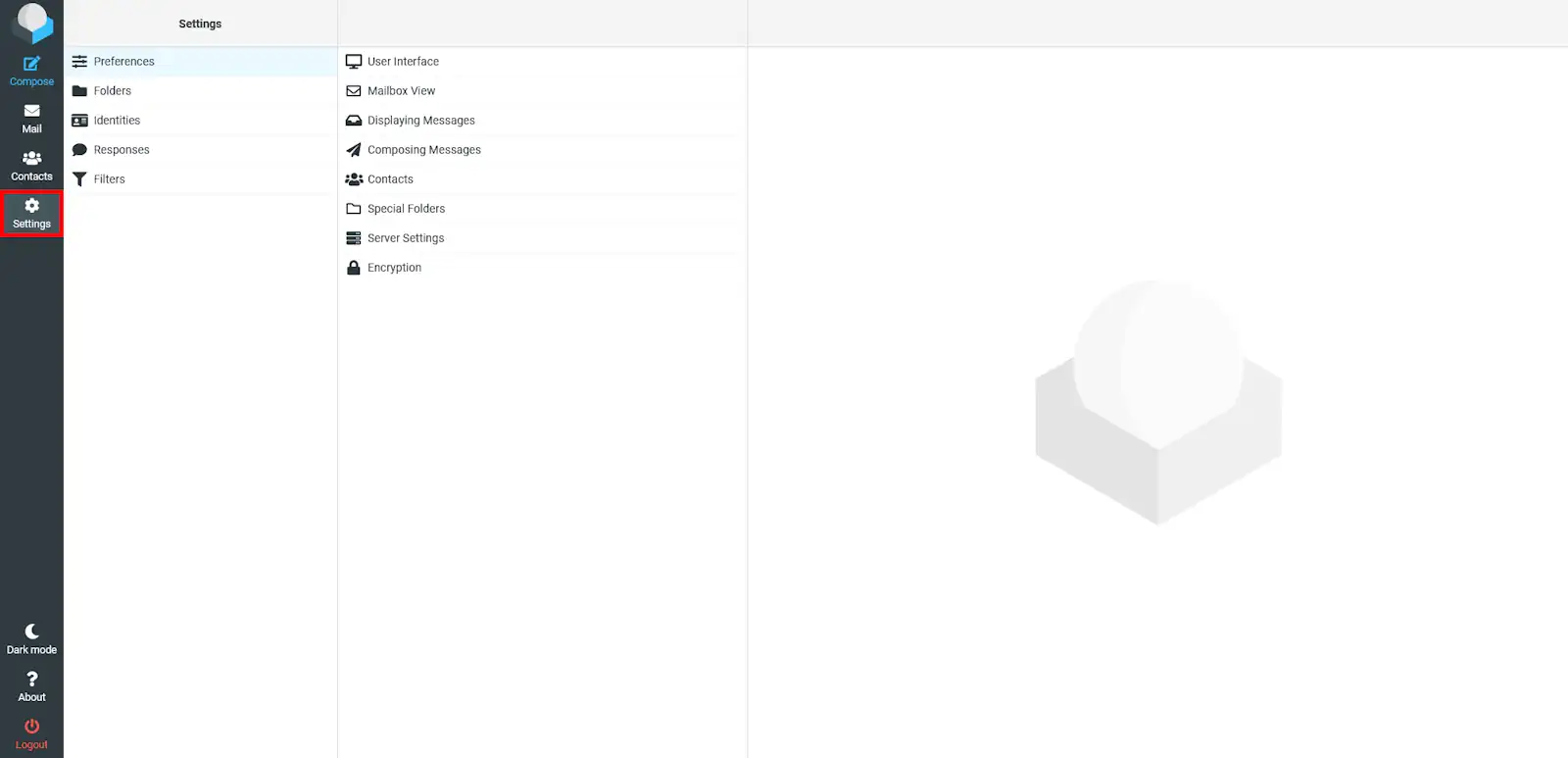
You can customize and modify Roundcube parameters from the Settings section (left side menu):
Send email
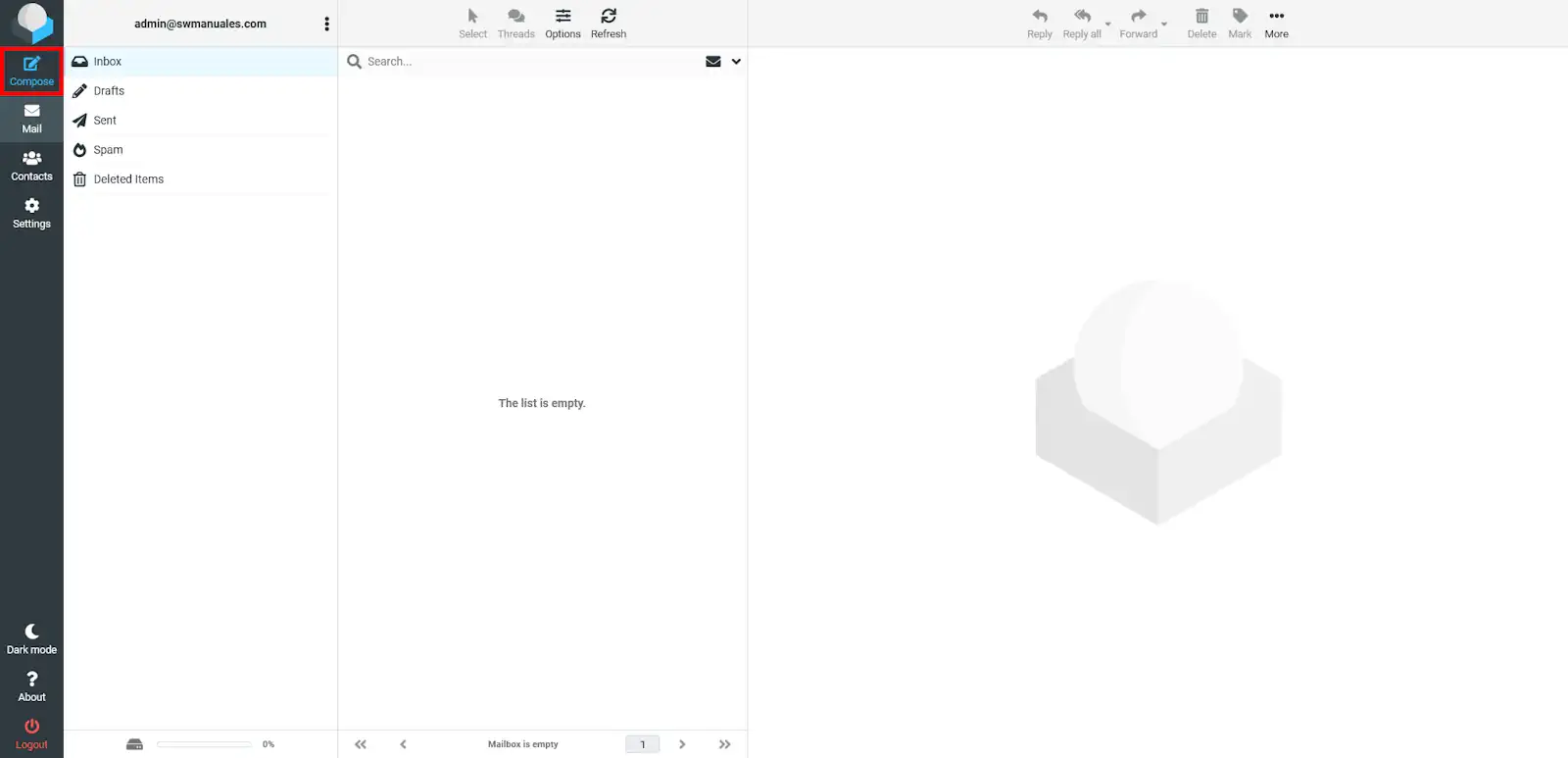
To draft a new message, click on Compose:
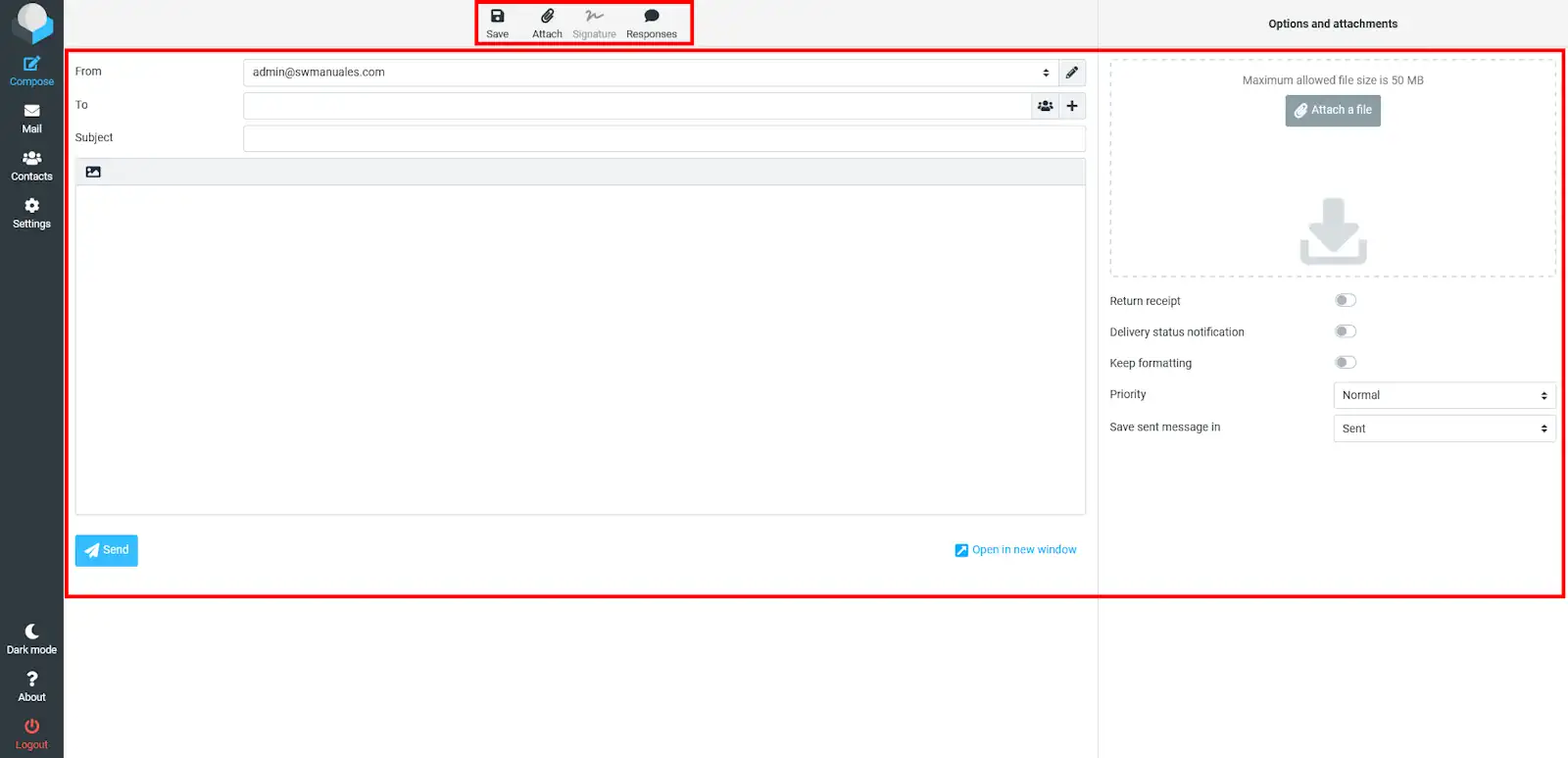
Email Composition (right panel)
- Recipient: Enter the recipient addresses. You can enter several addresses separated by commas. You can also add them from the Contacts left panel.
- +: If you click the '+' button to the right of the recipient, the following options will open:
- Add Cc: Addresses to send a copy to.
- Add Bcc: Addresses to send a blind copy to. Other recipients will not see those included in this field.
- Add Reply-to: Normally, replies are directed to the sender of the message. If you include an address in this field, the reply will be directed to this address.
- Add Follow-to: Normally, when a recipient clicks "Reply all", the response is directed to the sender and each of the recipients. If you include an address in this field, the "Reply all" option will be directed to this address.
- Subject and Message body: Here you can provide the content for the email message.
- Attach a file: By clicking here you can send several attachments with a limit of 5 MB per file. To add more, click on "+".
Button bar (top panel)
- Save: Save in drafts, you can finish later.
- Attach: By clicking here you can send several attachments with a limit of 5 MB per file. To add more files, click on "+".
- Signature: Insert signature. Customizable from Settings (left side menu) > Identities > Select your address > Signature.
- Replies: Insert a previously archived reply. You can create and edit replies from this option.
Read email
From the Inbox folder (in the Mail section), double-click the message you want to read and it will load on the screen:
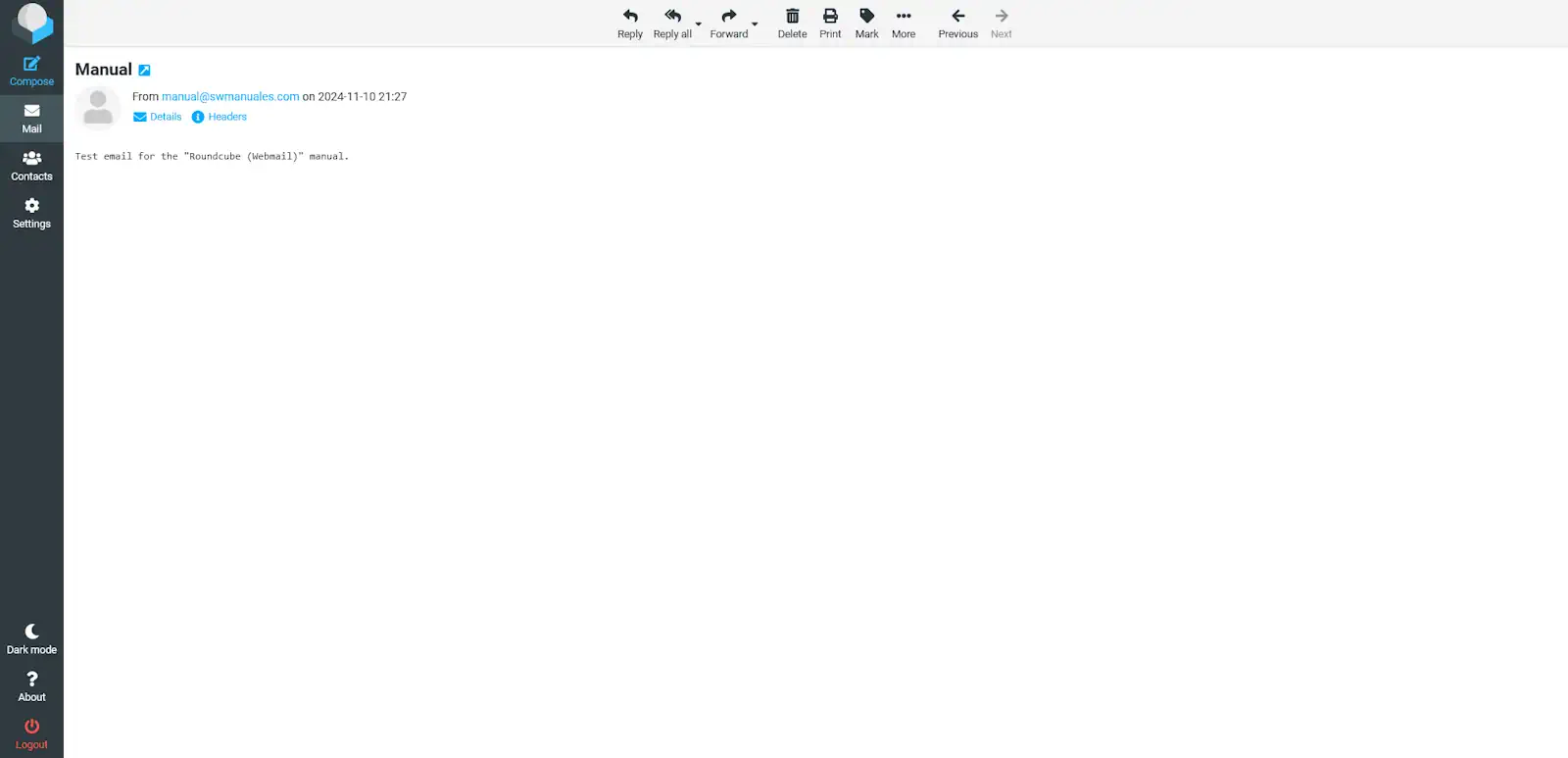
To move between messages, click the previous "<" and next ">" arrows.
You have the following options in the top panel:
- Reply: Reply to the sender of the current message.
- Reply all: Reply to the sender and other recipients of the current message.
- Forward: Send the received message to another address, without including the current recipients.
- Forward as attachment: Clicking the arrow "⯆" reveals this option. Forward the message on screen as an attachment to another address.
- Delete: Move the current message to the Trash.
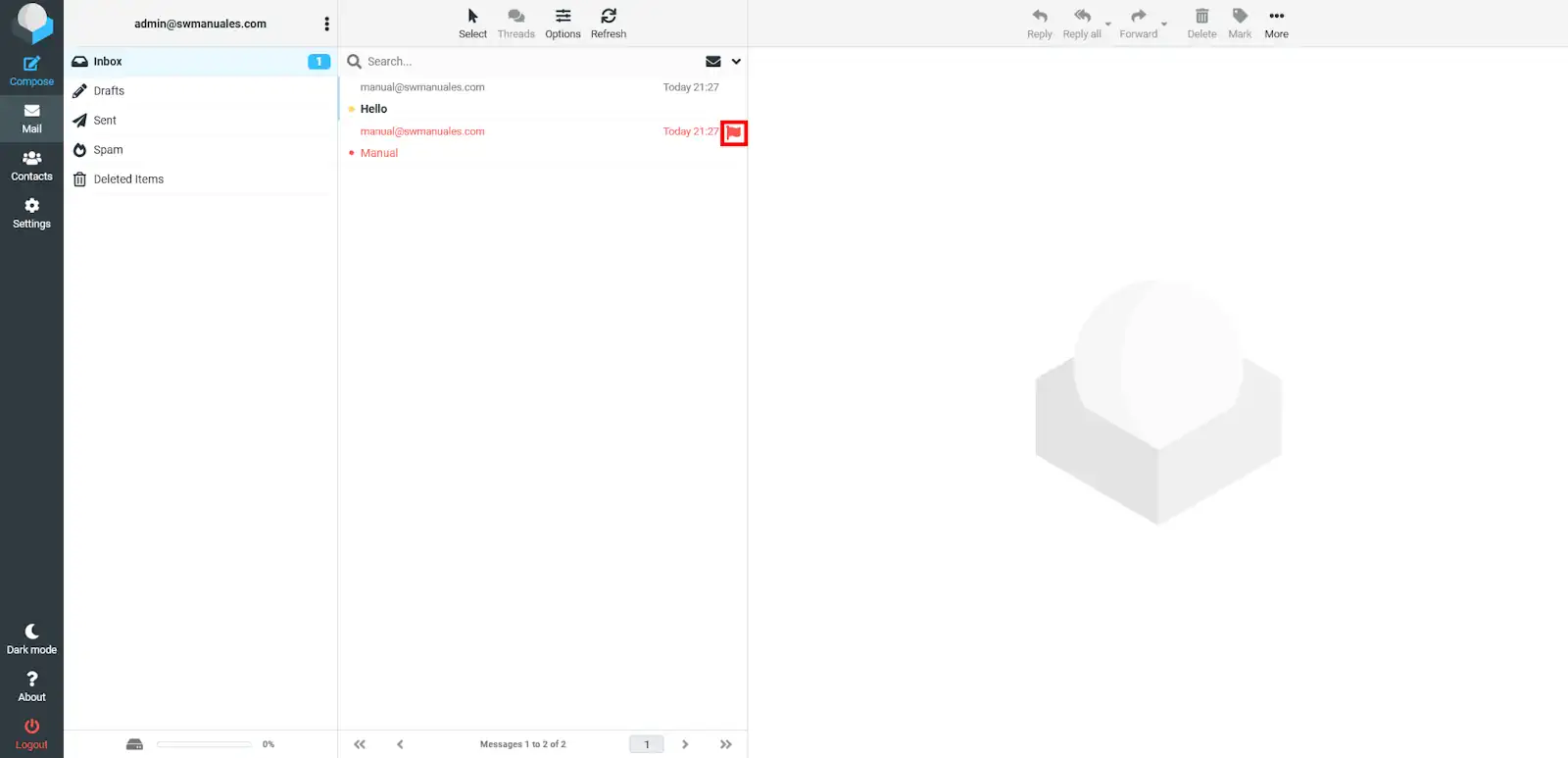
- Mark: Mark as unread or highlight. Highlighted messages appear as you can see below:
Move and Delete email
Access the folder where the message is located and click on it to select it:
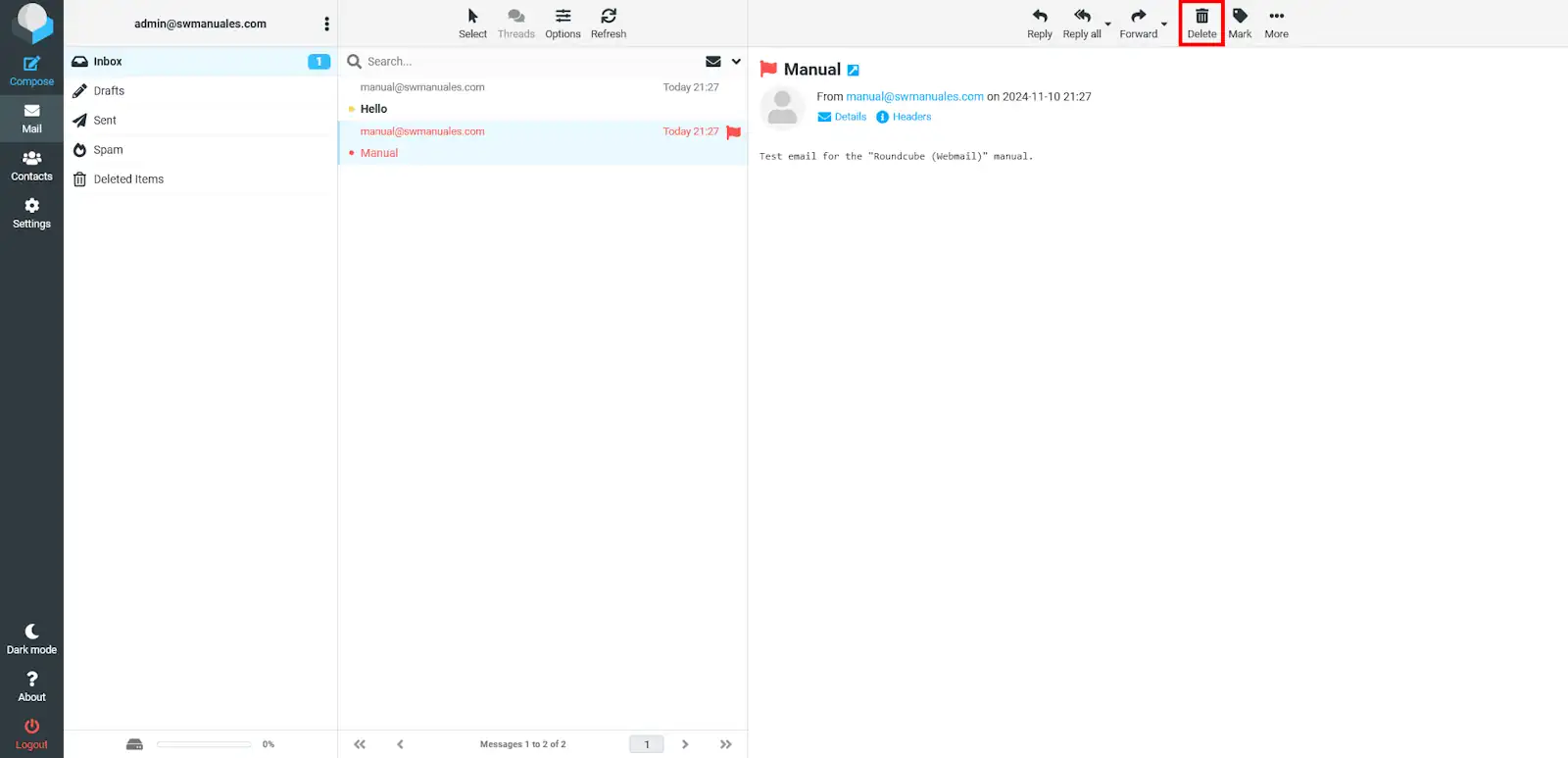
💡 To select several messages, hold down the Ctrl key and click on the messages. If you hold down the Shift key, several messages will be selected at once.
To delete the message, click Delete and it will be moved to the Trash. To move the message, click More > Move to... and select the destination folder. Or simply drag the message to the folder where you want it saved.
⚠️ Remember to periodically review and empty the Trash and SPAM folders to avoid consuming more space than desired.
Subscribe and unsubscribe folders
Subscribing folders serves to create the same folder on the mail server, that is, a folder in the "cloud" in which we can archive emails and view them from any email client configured as IMAP, such as Outlook, Thunderbird...
To subscribe folders, we will access RoundCube webmail and go to the settings tab.
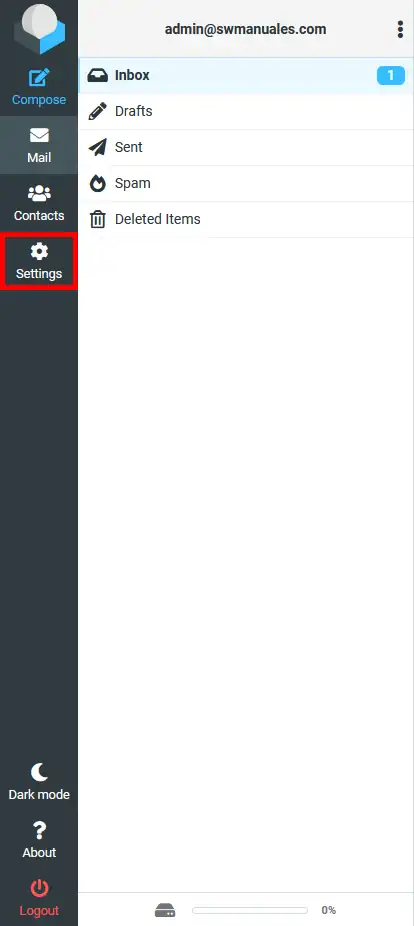
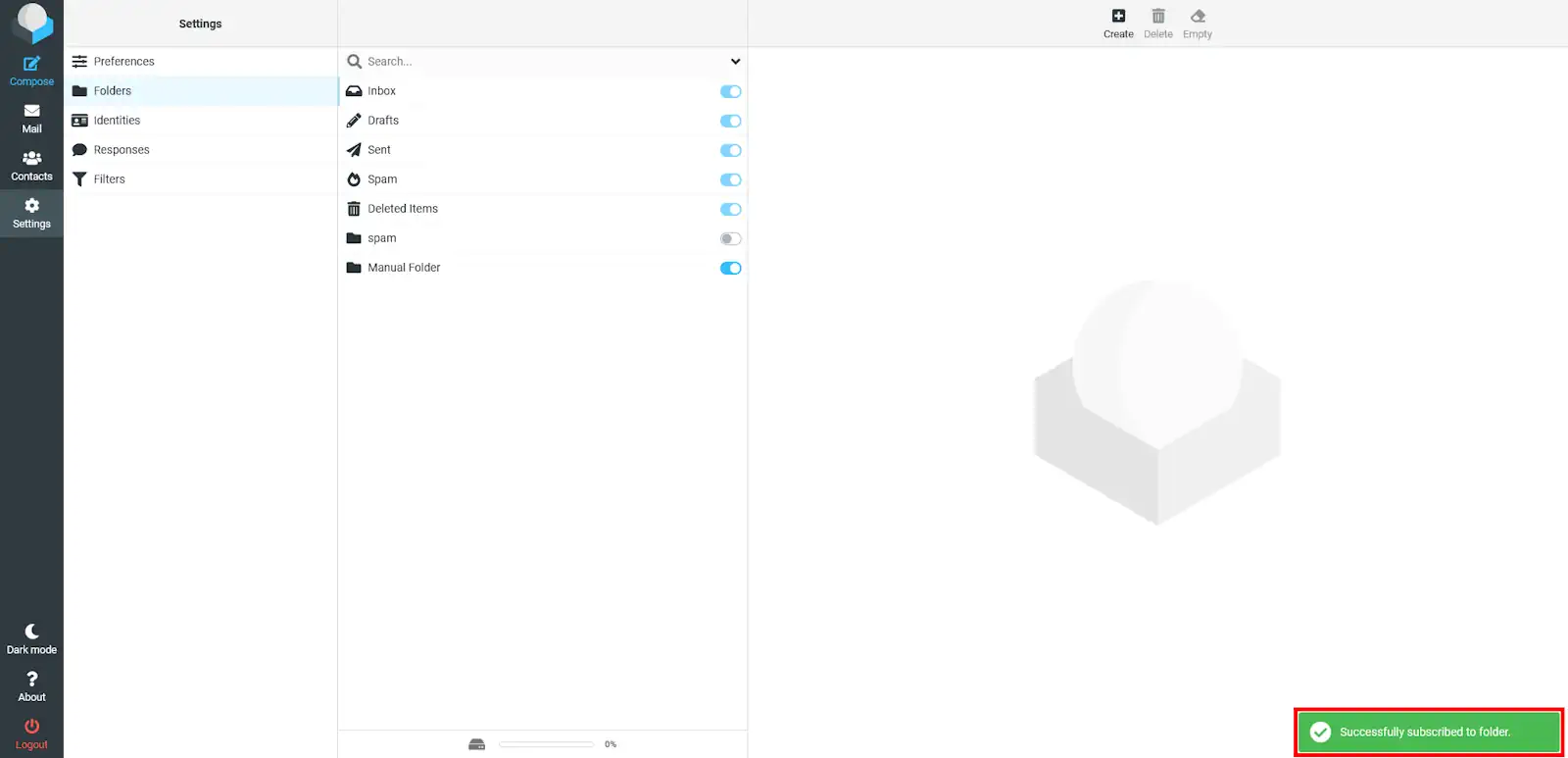
We will select "Folders" and click on the folder we want to subscribe to.
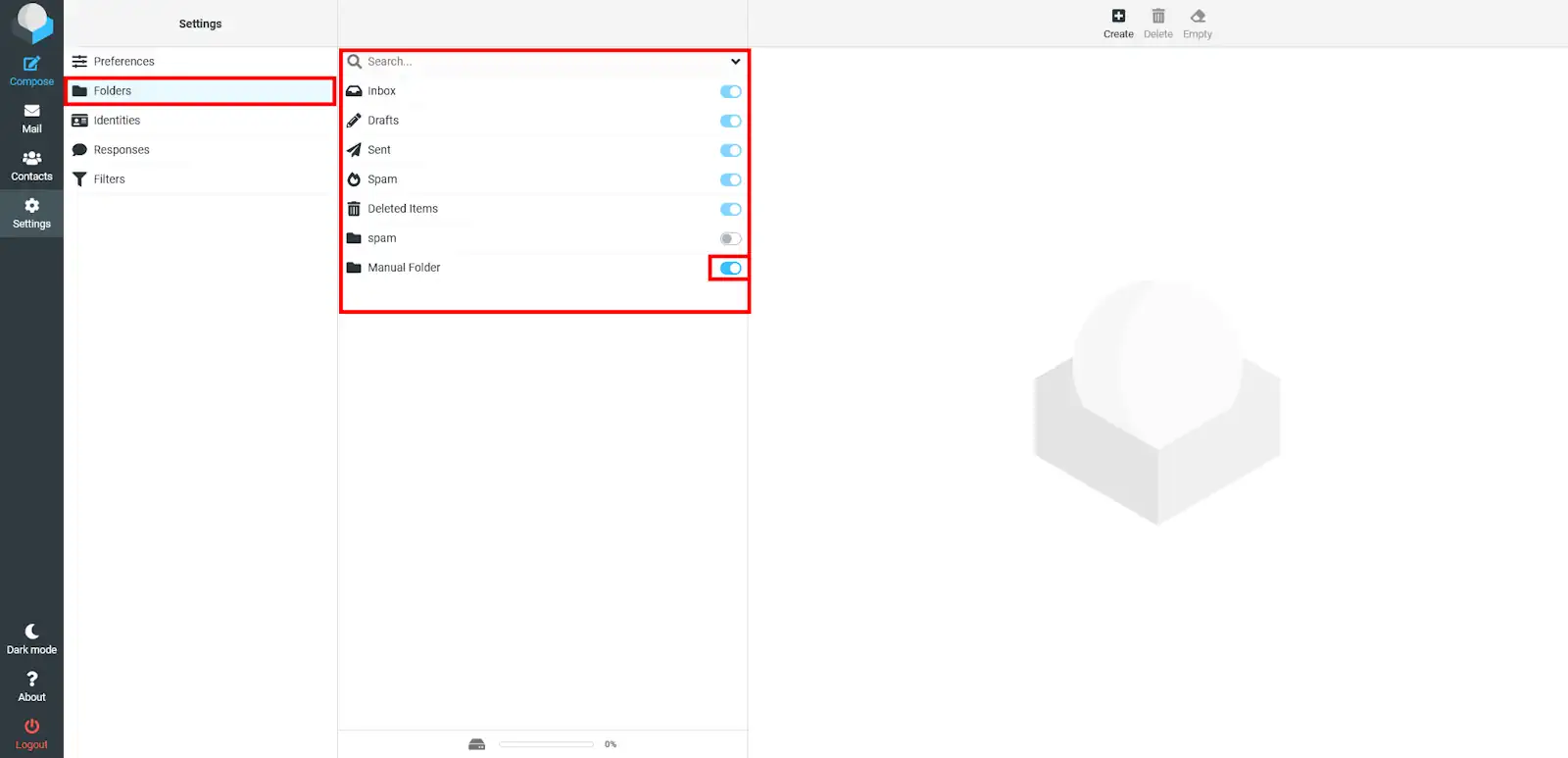
Once the folder is selected, it will be subscribed automatically. Displaying the message on the screen:
To unsubscribe a folder, you must uncheck the box that was previously checked; a message will appear at the bottom right confirming it has been unsubscribed.
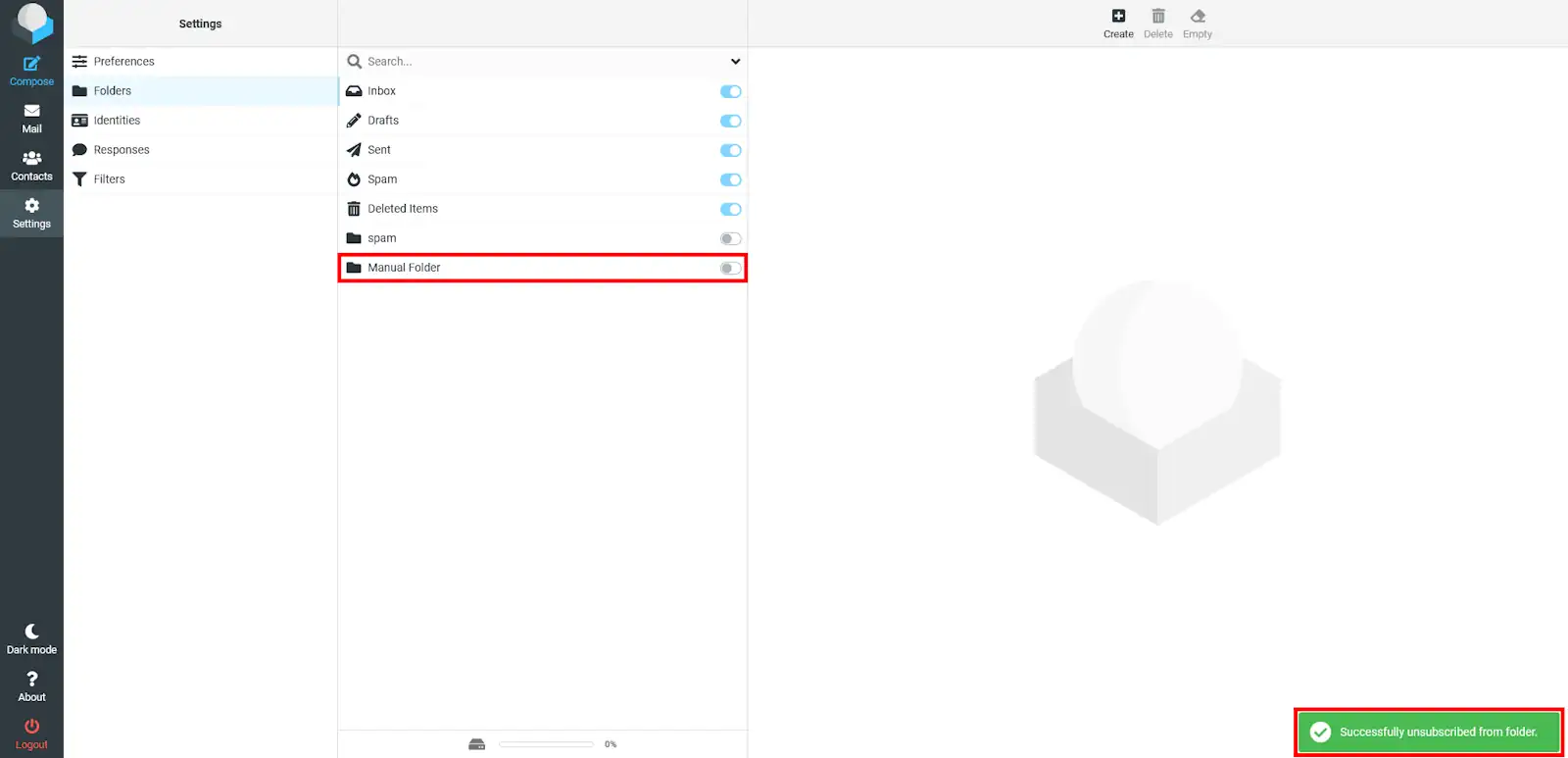
⚠️ Remember that the "Inbox", "Drafts", "Sent", "SPAM", and "Trash" folders cannot be unsubscribed as they are special folders.
As can be seen in the following images, the folder that was originally in the "Roundcube" mail client can now also be seen in the "Thunderbird" mail client.
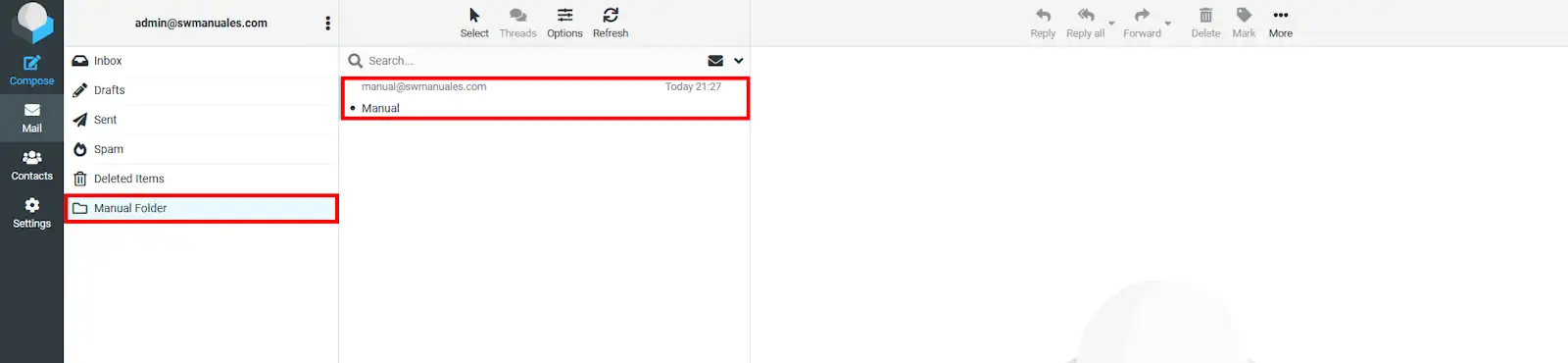
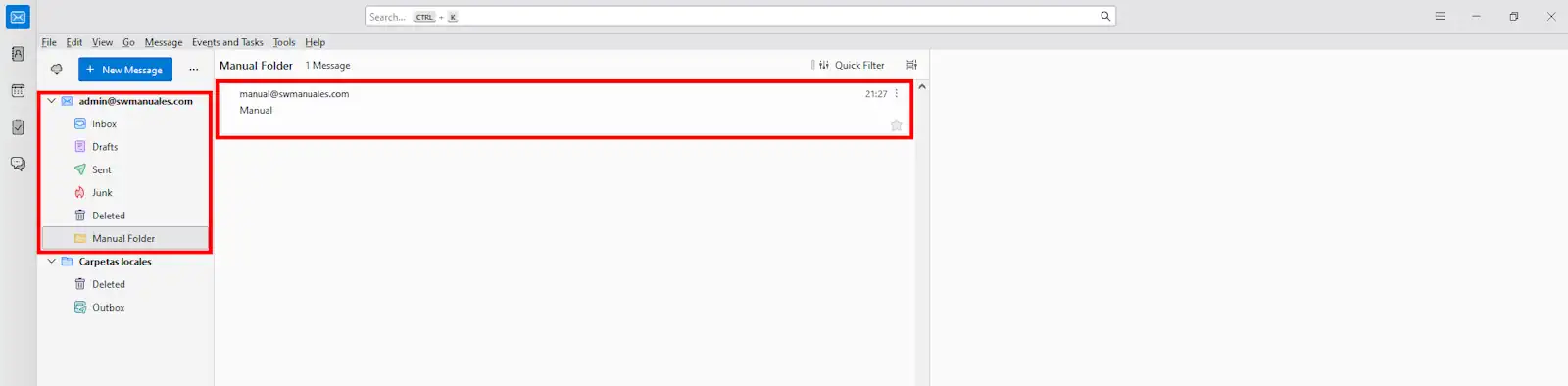
⚠️ Remember that for synchronization to be activated, you must access with the same email accounts and that special folders such as the inbox, drafts, sent, spam, and trash are already subscribed by default.
Search for an email
To search for an email, you must go to the search bar located at the top.
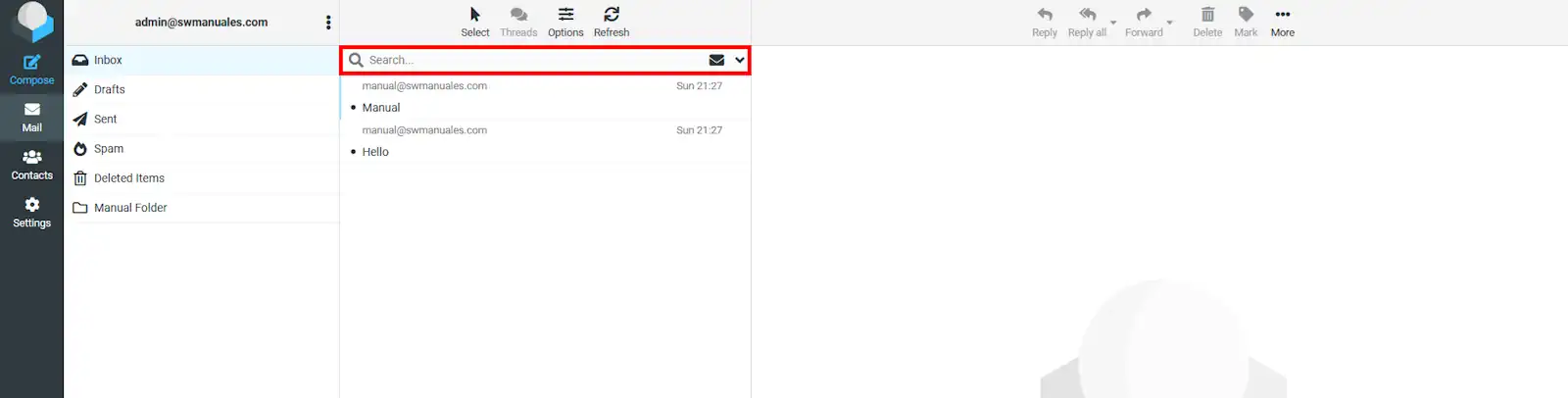
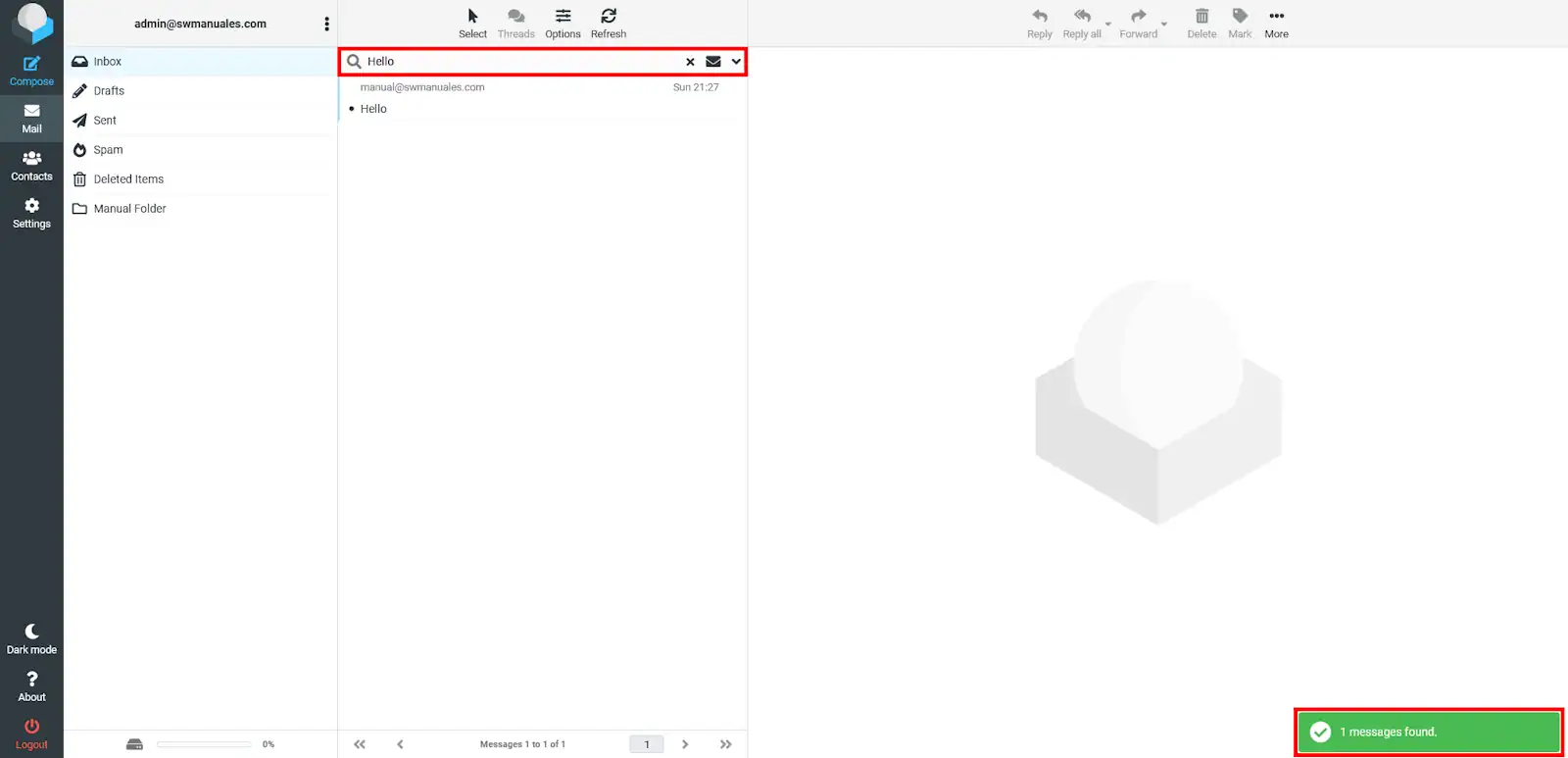
Then, you must type the email you want to search for and press the enter key; a message will appear at the bottom right with the number of messages found.
Create, delete and empty folders
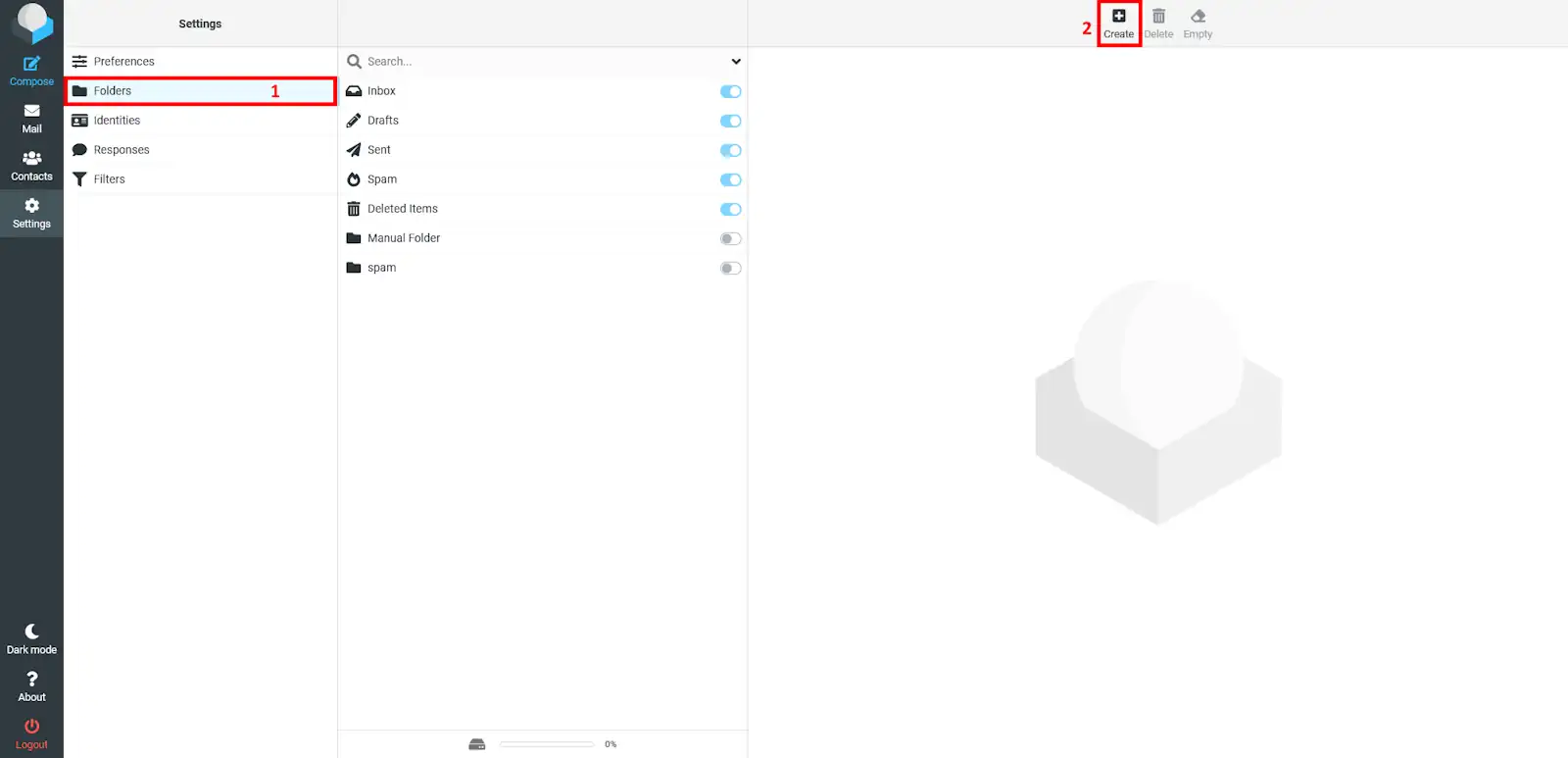
To create folders, we will access RoundCube webmail and go to the settings tab.
Then, you must go to the "Folders" section, where you can see all your folders. To create one, simply click on the button located on the right side of the page, which has the "+" symbol.
Subsequently, a new menu will appear, where you must enter the folder name, the root directory, and the list view mode.
💡 The root directory is the directory in which the new folder you want to create is located. The list view mode is simply a presentation mode.
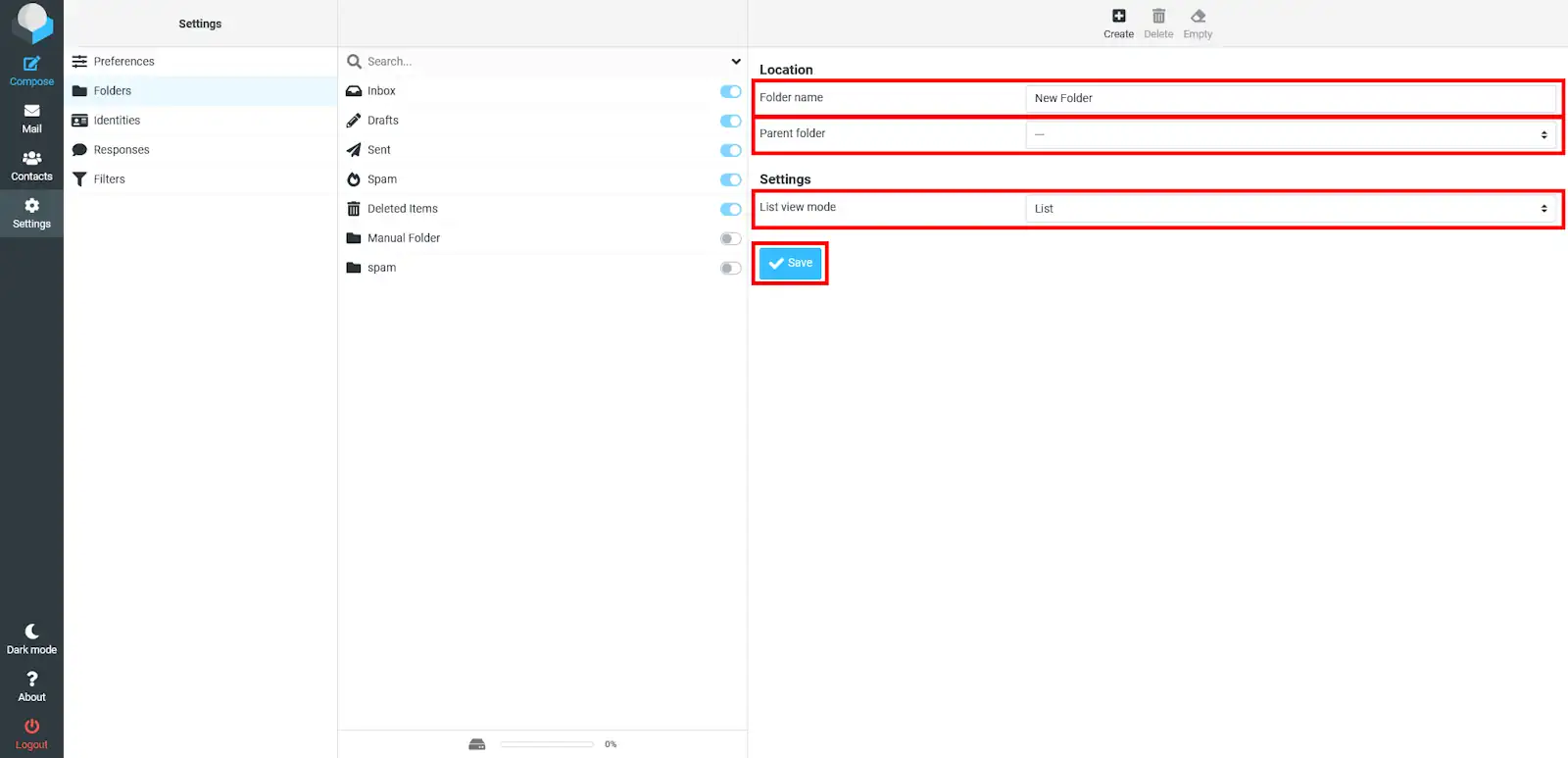
⚠️ Remember to click the "Save" button.
To delete a folder, you must enter the settings tab.
Then, you must go to the "Folders" section, where you can see all the folders you have created. To delete one, simply select the folder you wish to delete and click on the button on the right side of the page, which has a trash can symbol.
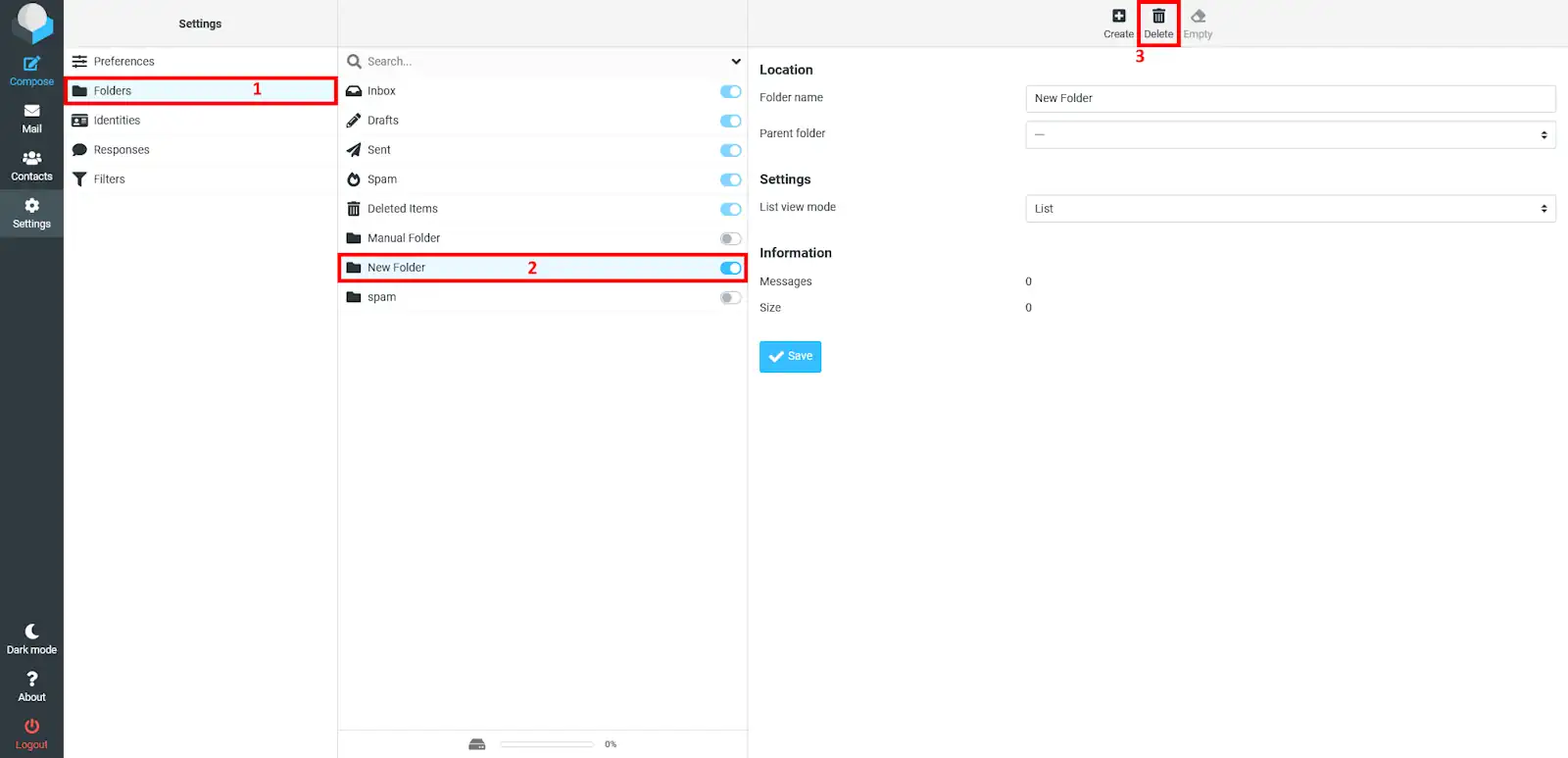
Finally, you will be asked if you really want to delete the selected folder. If so, click on Delete.