How to delete an e-mail account ?
Access SWPanel and go to the Dashboard of the service where the email account is located, using the search engine located at the top of the page.
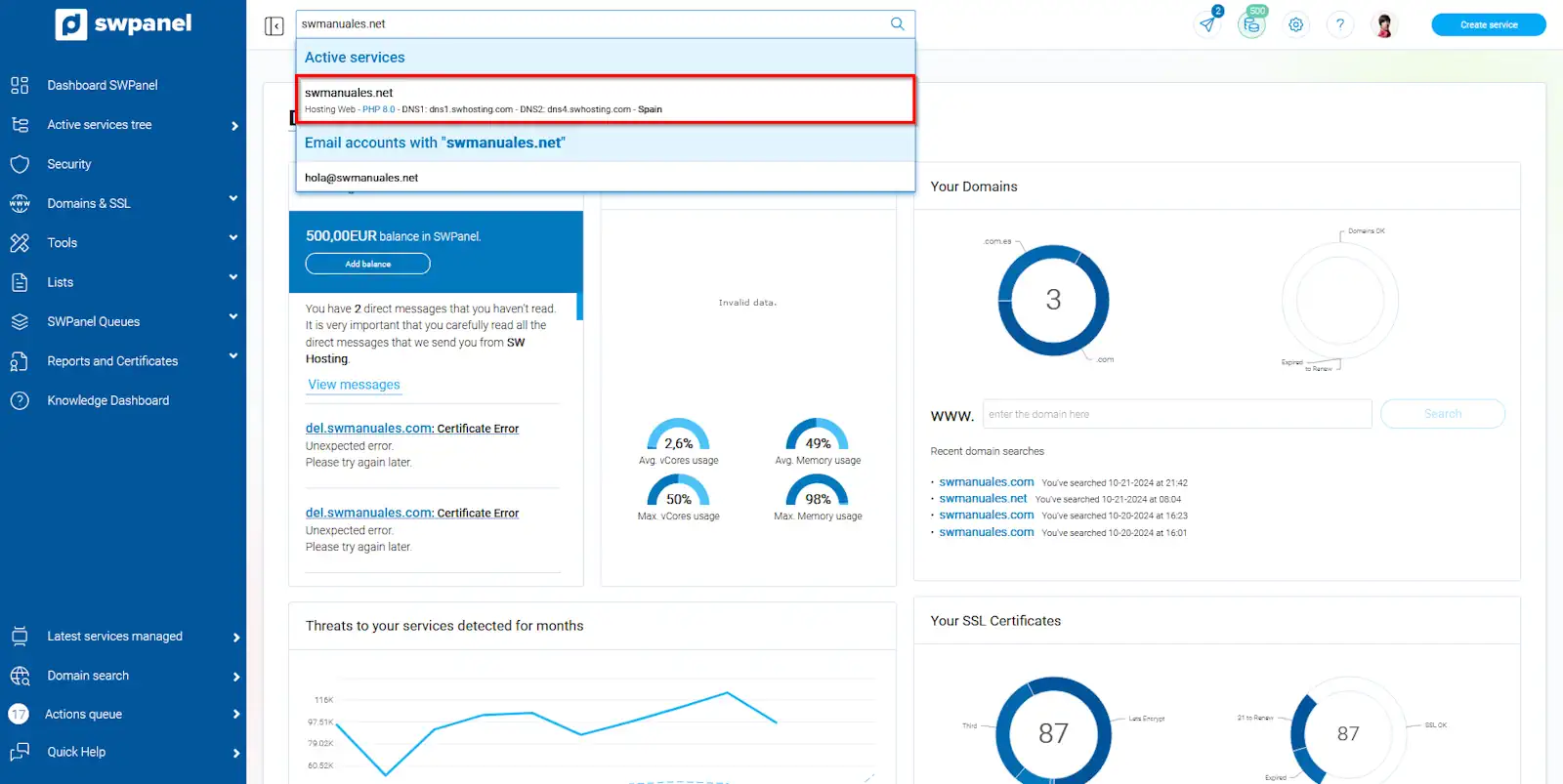
info_capture The screenshot is for guidance only. It was taken on version 2024.07.0134 with date 06/11/2024. It may differ from what the current version of SWPanel displays.
Once in the Dashboard of the service, you must go to Service Management → Mail Management from the blue side menu.
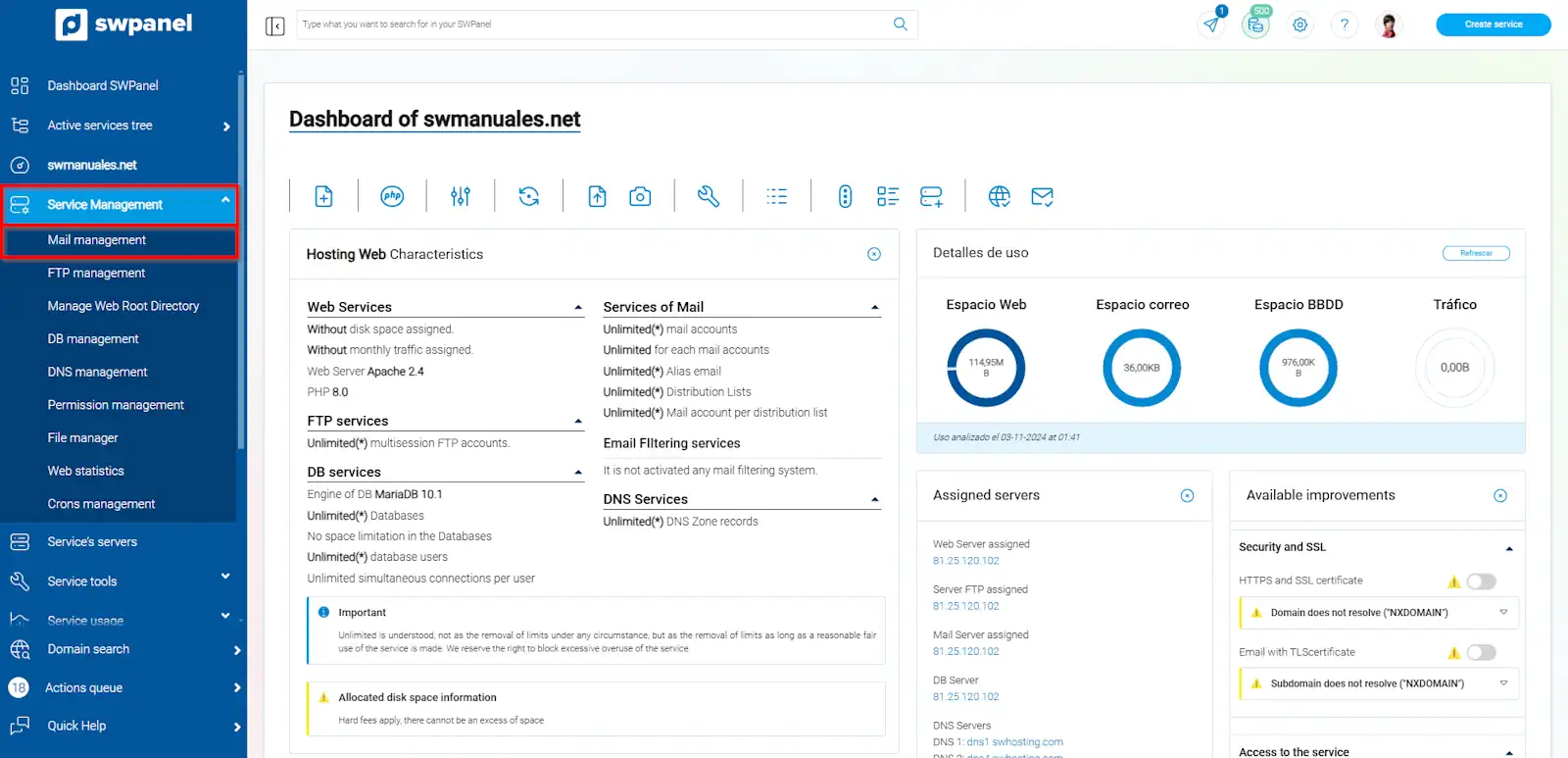
info_capture The screenshot is for guidance only. It was taken on version 2024.07.0134 with date 06/11/2024. It may differ from what the current version of SWPanel displays.
Locate the email account and from the [...] menu click on "Delete this email account".
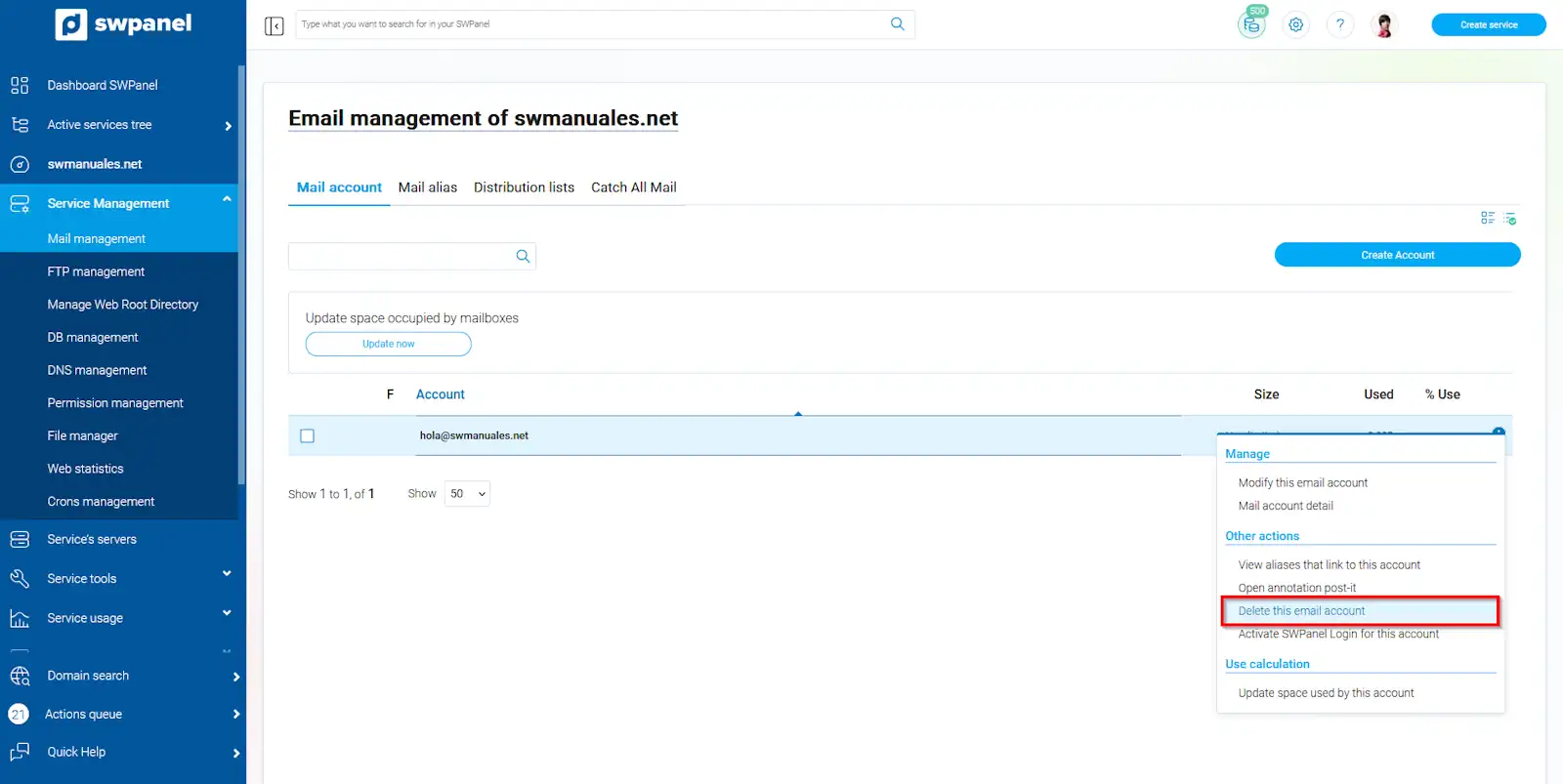
info_capture The screenshot is for guidance only. It was taken on version 2024.07.0134 with date 06/11/2024. It may differ from what the current version of SWPanel displays.
You must confirm the deletion of your email account by clicking on the red "Delete" button
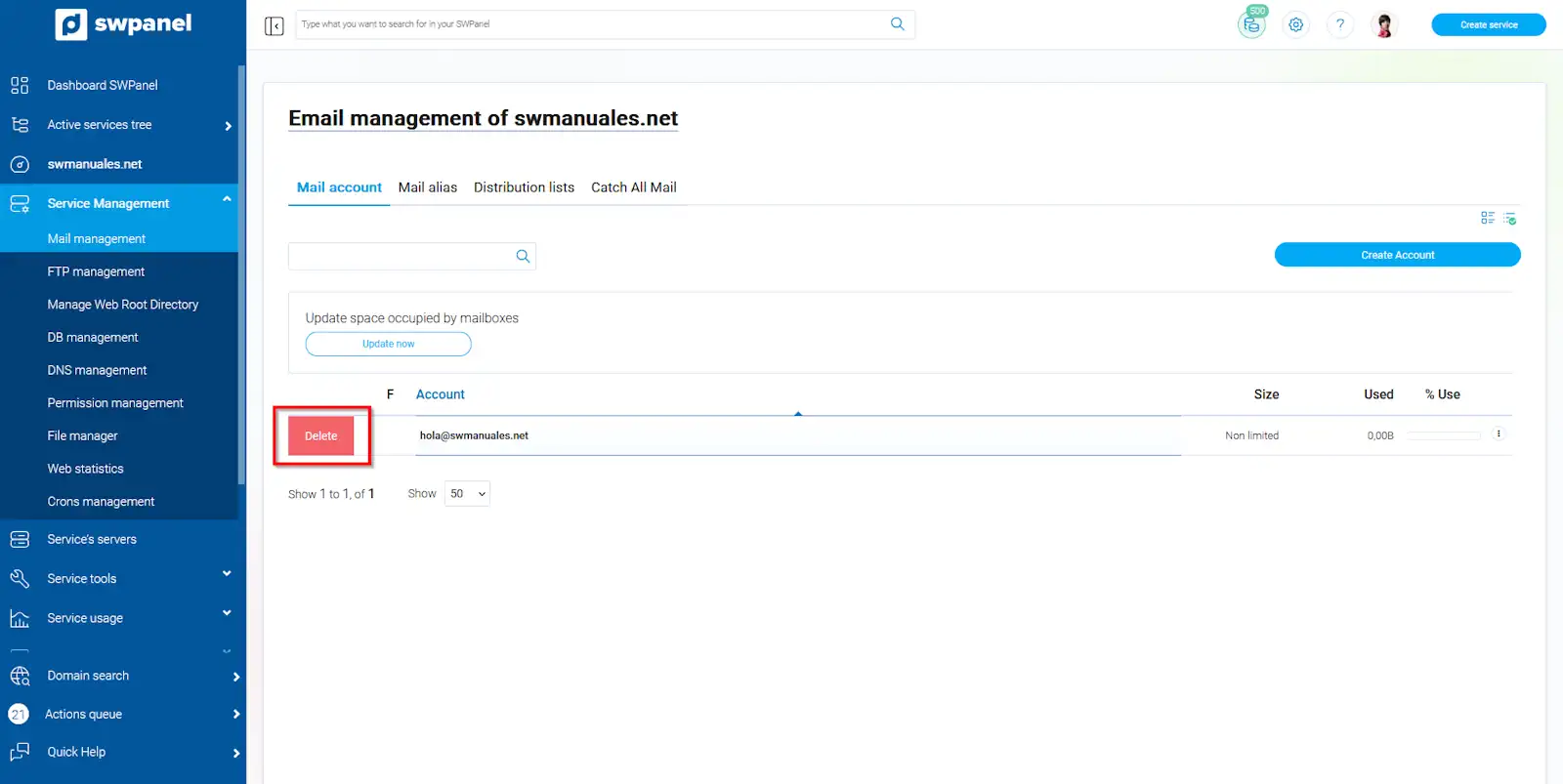
info_capture The screenshot is for guidance only. It was taken on version 2024.07.0134 with date 06/11/2024. It may differ from what the current version of SWPanel displays.
Finally, accept the deletion of your email account, by clicking on the "Yes, delete" button.
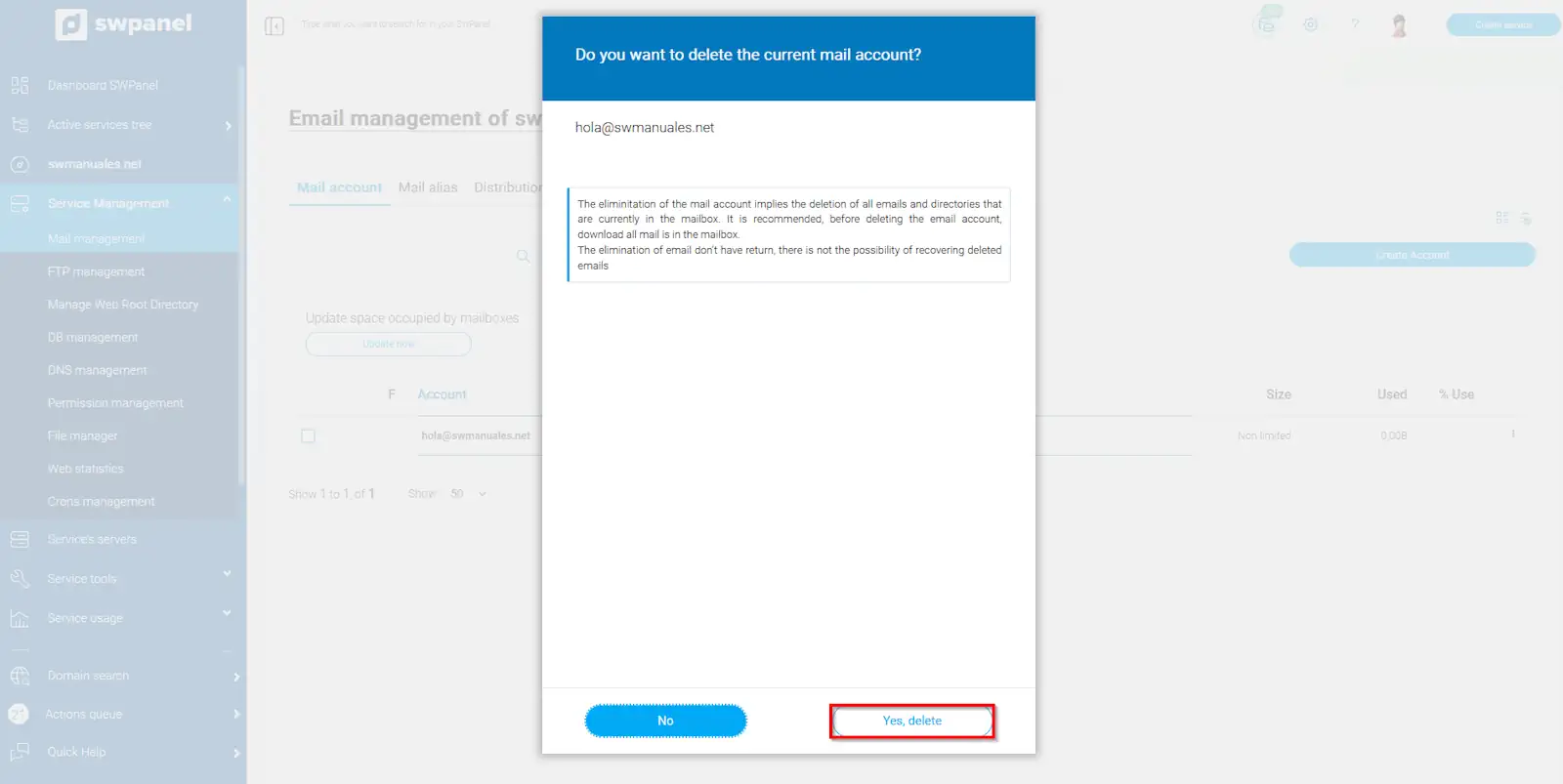
info_capture The screenshot is for guidance only. It was taken on version 2024.07.0134 with date 06/11/2024. It may differ from what the current version of SWPanel displays.