Increase and reduce my Cloud resources
In this guide, we’ll explain how to increase and/or decrease your Cloud server’s resources.
Log in to your SWPanel using your username and password.
First, locate the Cloud whose resources you want to modify. You can do this from the “Active Services Tree” section or by using the SWPanel search bar:
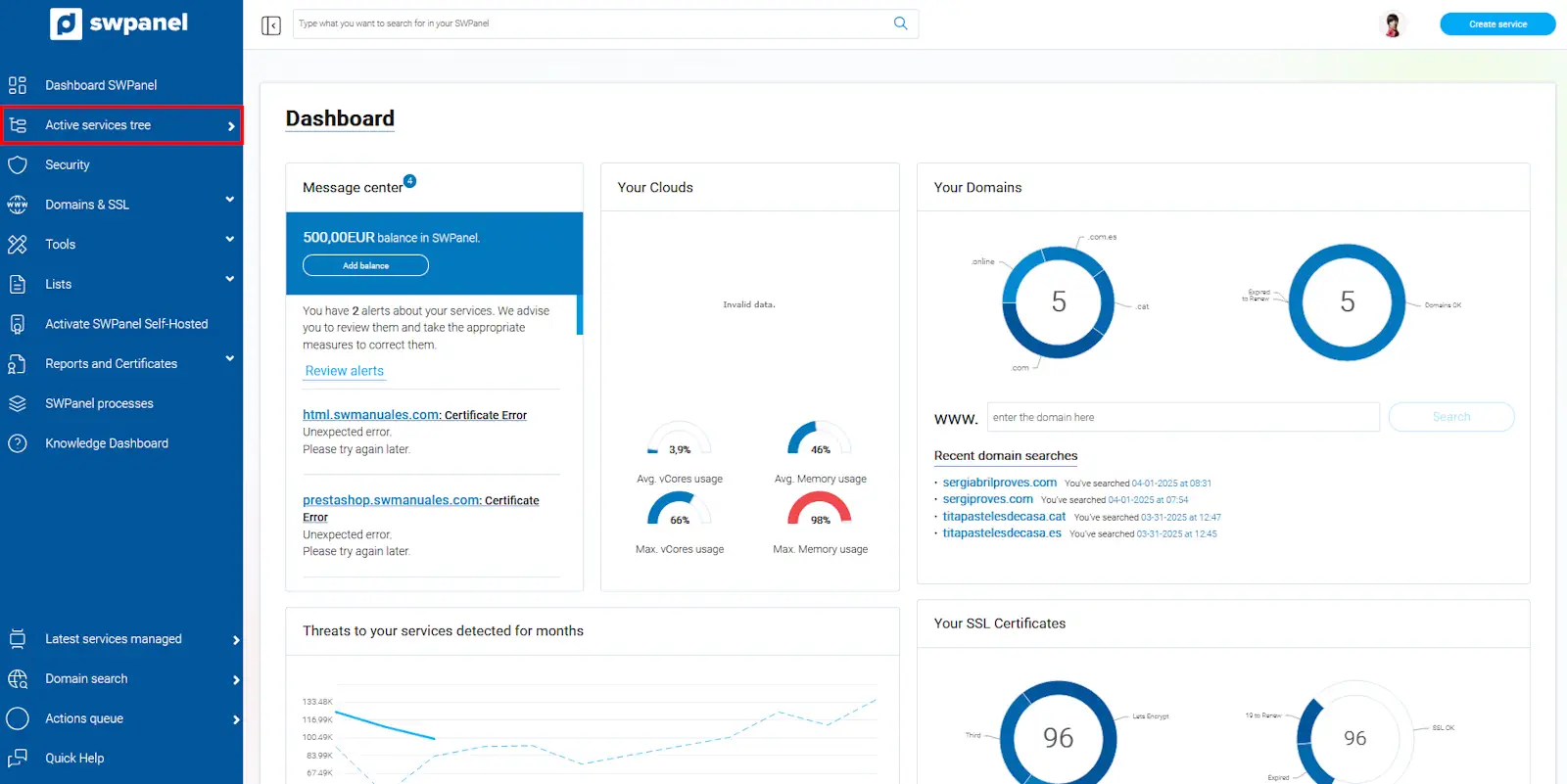
info_capture The screenshot is for illustrative purposes only. It was taken from version 2026.001.0057 dated 05/17/2026. It may differ from what the current version of SWPanel displays.
Once inside the Cloud server, you will find a toolbar with all the actions available for the service.
You must click on the first icon in the “Resources” section. From here, you can customize your Cloud resources. As you will see, there are many options, which we will explain one by one:
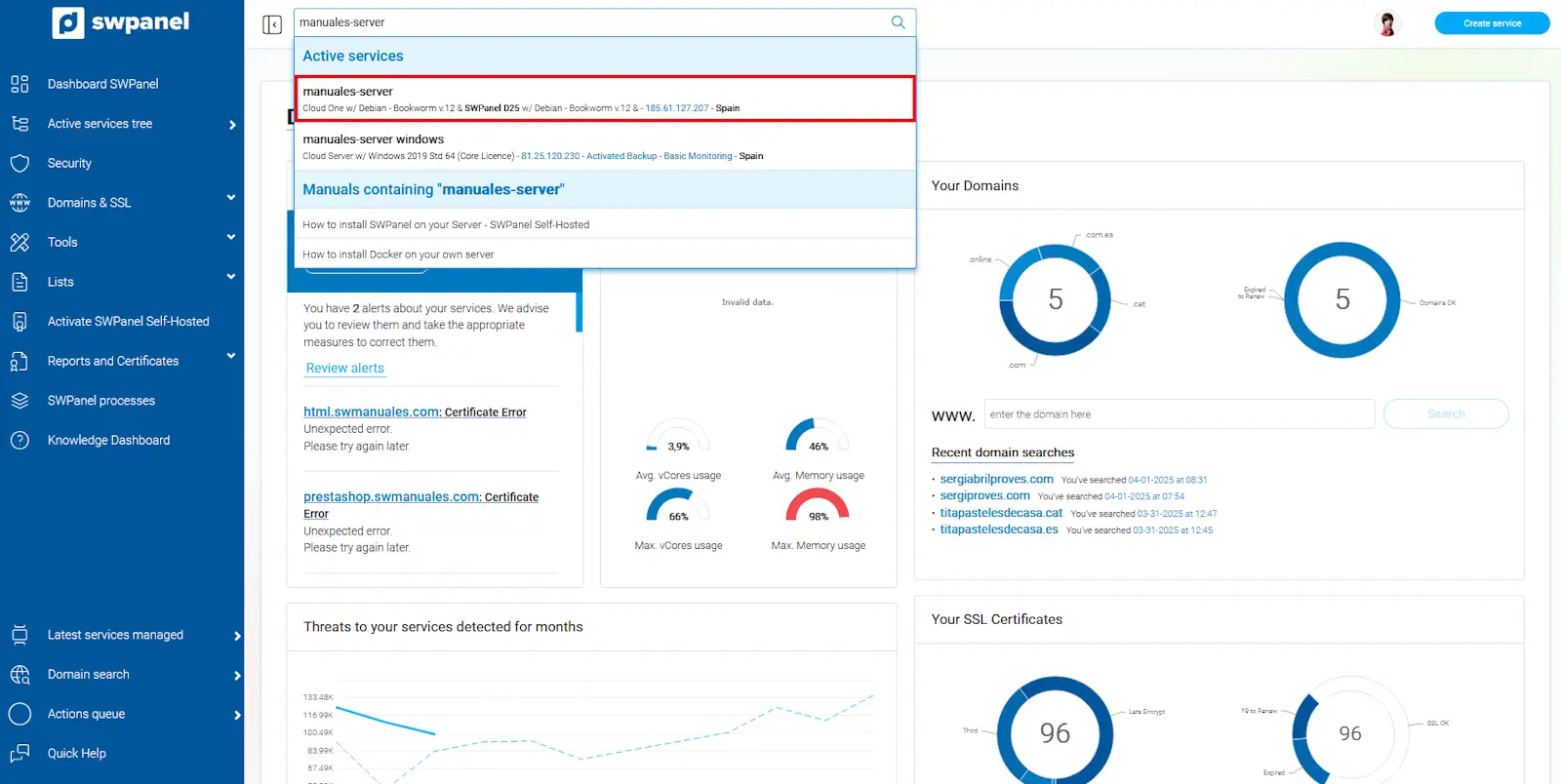
info_capture The screenshot is for illustrative purposes only. It was taken from version 2026.001.0057 dated 05/17/2026. It may differ from what the current version of SWPanel displays.
Customize service resources
From this section, you can:
- Increase hard drive capacity.
- Add new public IPs to your server.
Important: It is not possible to reduce the size of a disk that is already in use, as this could cause data loss and system errors.
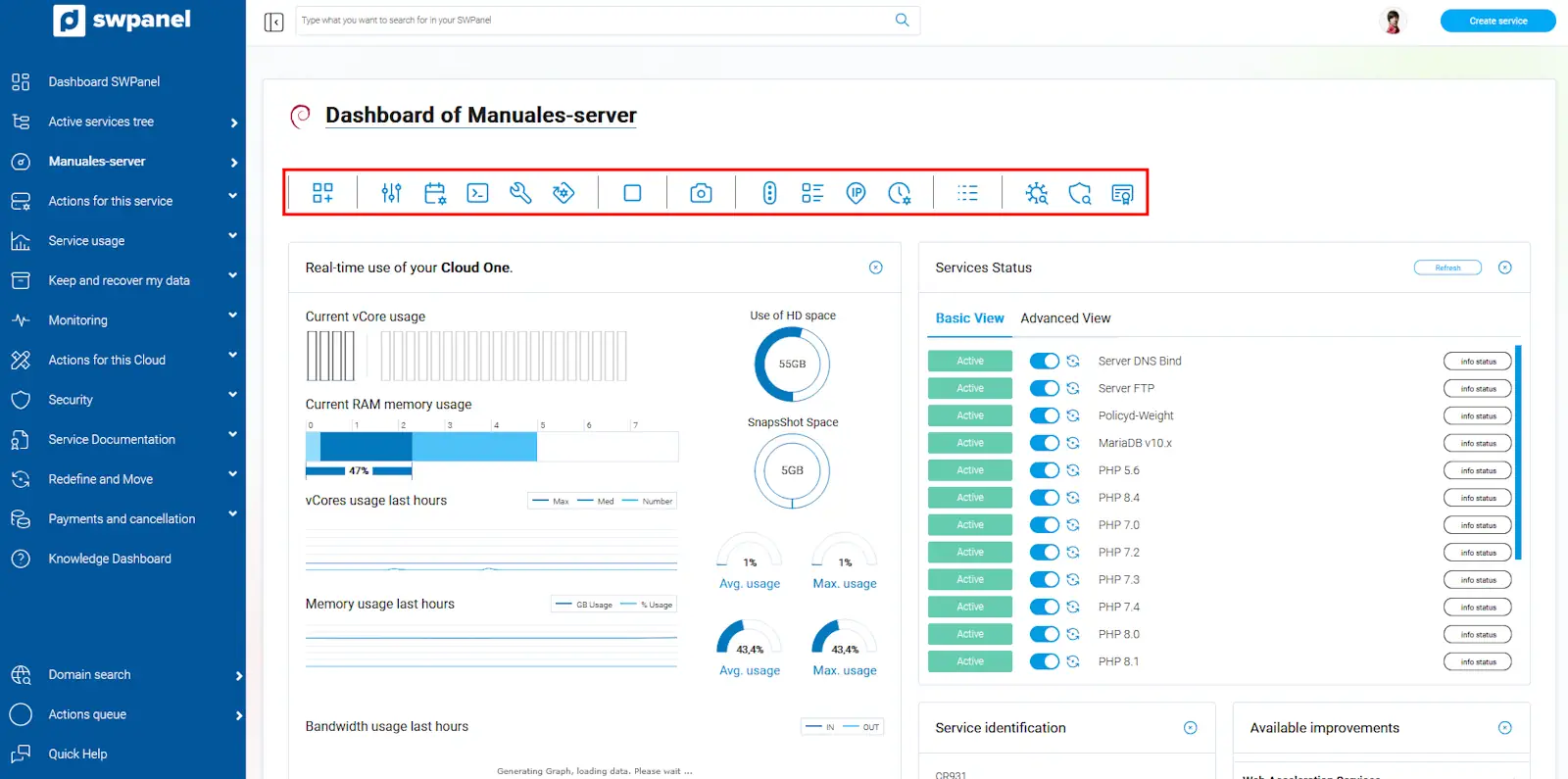
info_capture The screenshot is for illustrative purposes only. It was taken from version 2026.001.0057 dated 05/17/2026. It may differ from what is shown in the current version of SWPanel.
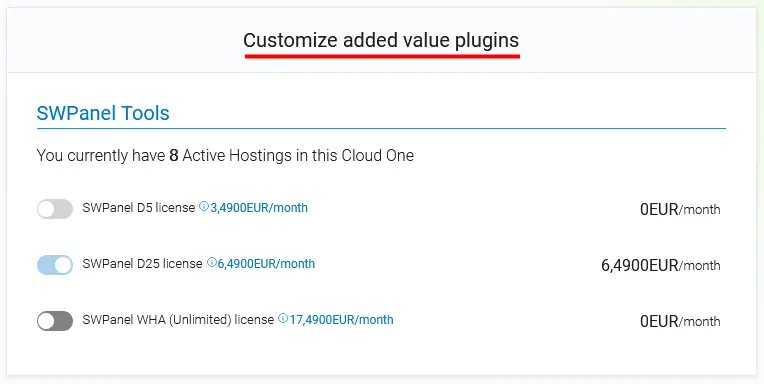
Customize Value-Added Add-ons
In this section, you can manage and modify the additional services and domains associated with the Cloud.

info_capture The screenshot is for illustrative purposes only. It was taken from version 2026.001.0057 dated 05/17/2026. It may differ from what is shown in the current version of SWPanel.
Customize the installed software or services
Here you can configure various services related to:
- Remote access.
- DNS servers.
- Web and FTP services.
- Databases.
- Email services.
info_capture The screenshot is for illustrative purposes only. It was taken from version 2026.001.0057 dated 05/17/2026. It may differ from what is shown in the current version of SWPanel.
Connection and Traffic, Management and Control
From this section, you can configure options related to:
- Unlimited server traffic.
- Storage space allocated for Snapshots.
info_capture The screenshot is for illustrative purposes only. It was taken from version 2026.001.0057 dated 05/17/2026. It may differ from what is shown in the current version of SWPanel.