Use of your Hosting resources in SWPanel
To view the resources used by your Hosting, first go to the Dashboard of the same.
To do this, search for the name from the search bar:
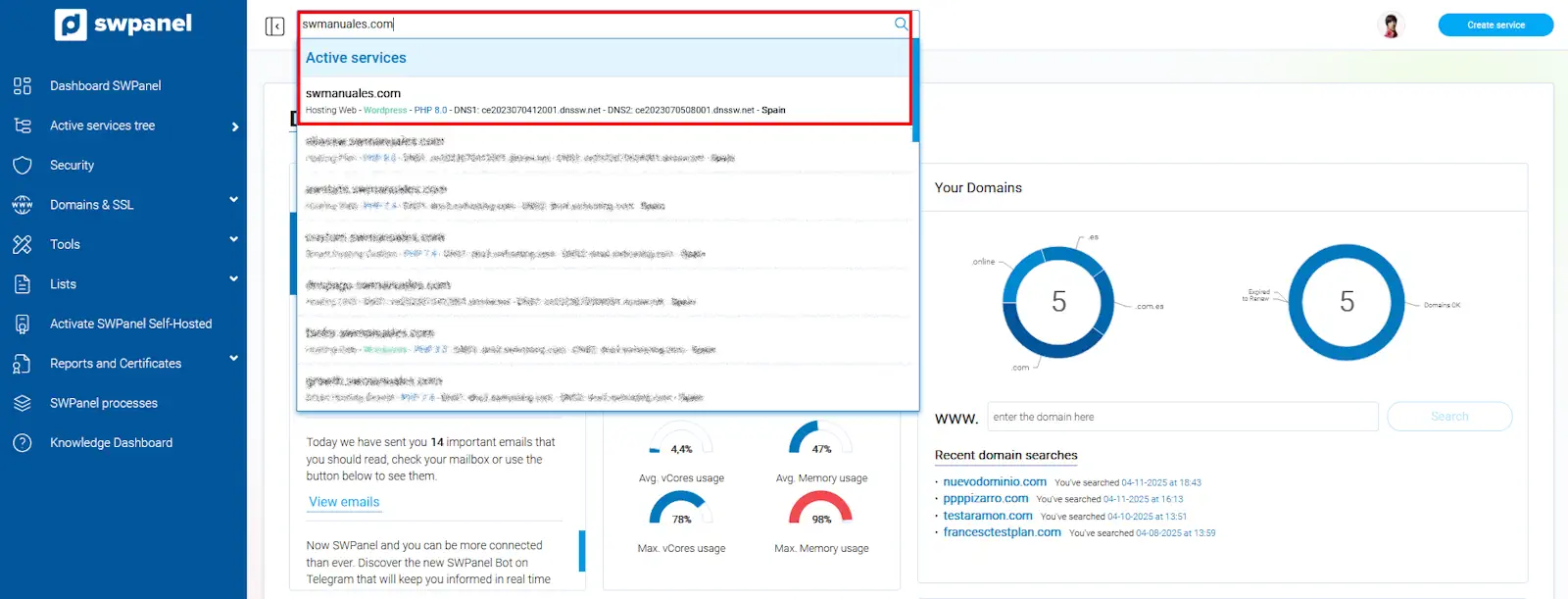
info_capture The screenshot is for guidance only. It was taken on version 2025.003.0007 dated 15/04/2025. It may differ from what the current version of SWPanel displays.
Once inside the Dashboard, go to the left side menu and click on "Service usage" --> "Resource usage":
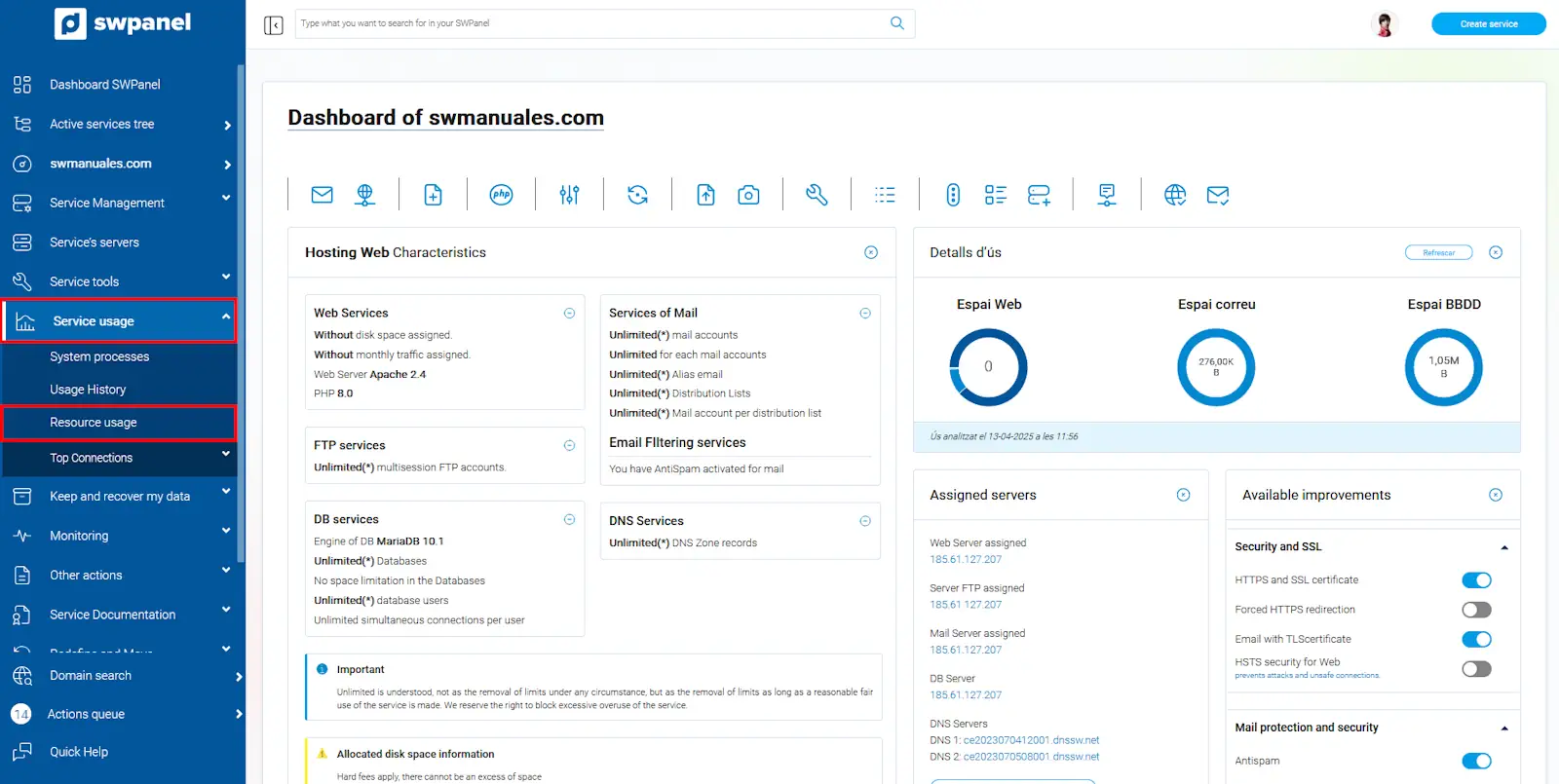
info_capture The screenshot is for guidance only. It was taken on version 2025.003.0007 dated 15/04/2025. It may differ from what the current version of SWPanel displays.
Resource usage
As soon as you open the Resource usage option, you will have different sections to visualise the consumption of resources:
1.Space detail: Shows the space occupied by the web, logs and email accounts. Also the total space occupied and available in the Hosting:
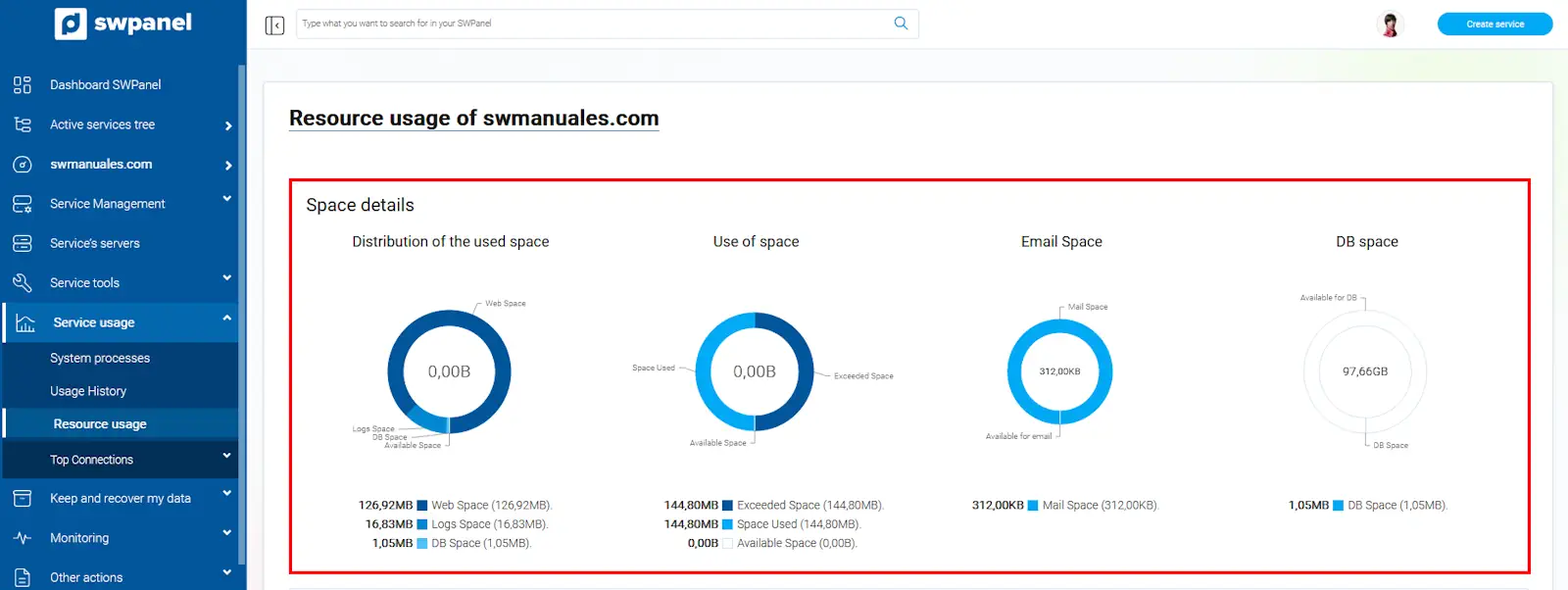
info_capture The screenshot is for guidance only. It was taken on version 2025.003.0007 dated 15/04/2025. It may differ from what the current version of SWPanel displays.
2.E-mail, FTP and Database usage data:
Displays the number of active accounts and limit, regarding email accounts, email aliases, email lists, FTP accounts and Hosting databases:
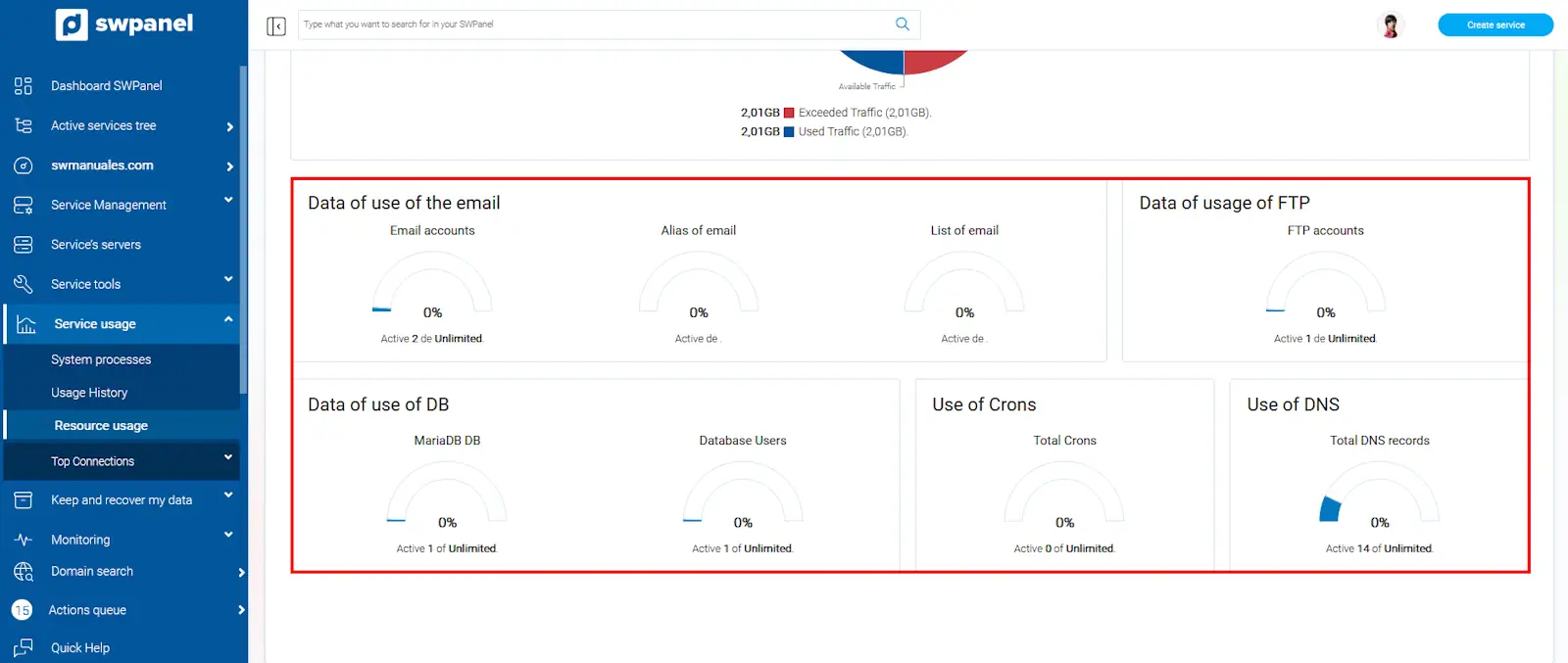
info_capture The screenshot is for guidance only. It was taken on version 2025.003.0007 dated 15/04/2025. It may differ from what the current version of SWPanel displays.
3.Traffic usage: This section is only available if hosting is hosted on a private server.
It shows the web traffic generated by the Hosting:
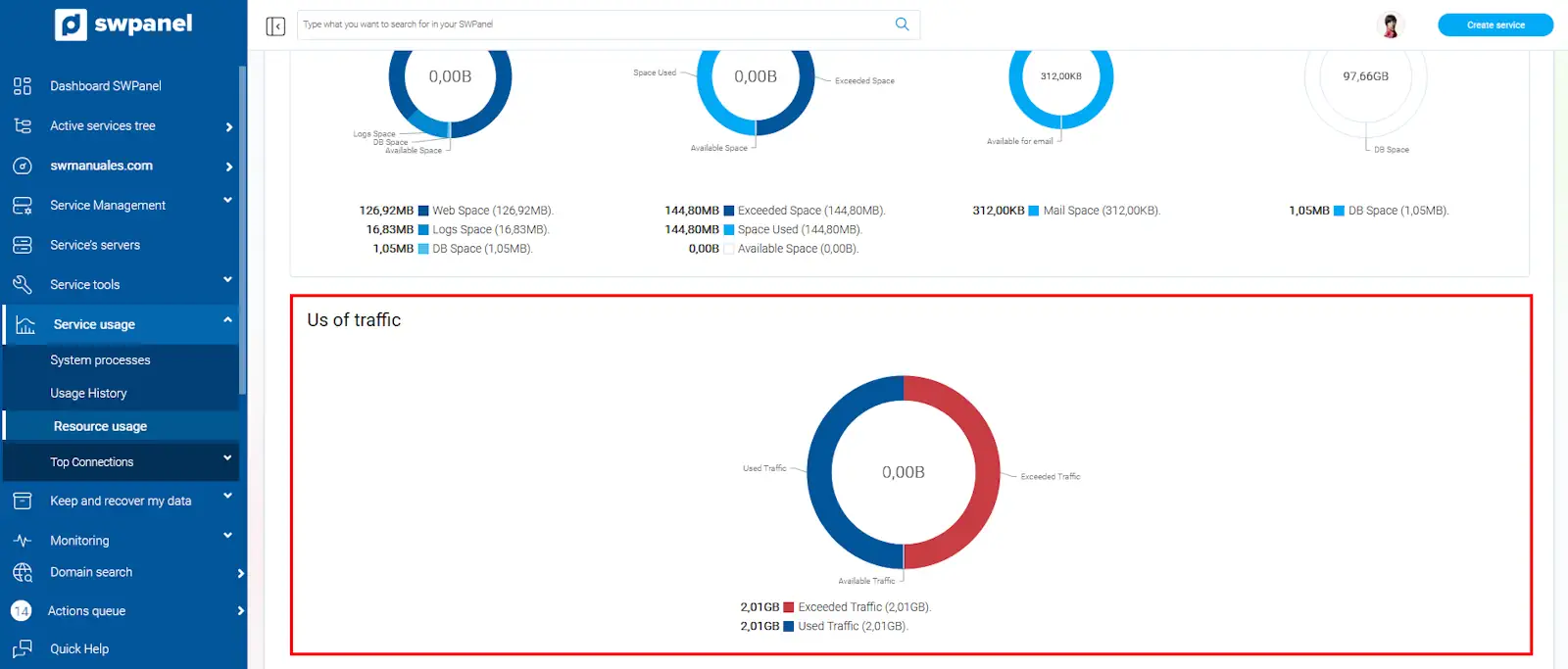
info_capture The screenshot is for guidance only. It was taken on version 2025.003.0007 dated 15/04/2025. It may differ from what the current version of SWPanel displays.