
On this page 2 sections
Create new DB user
To create a new database access user, you can do so by following these instructions:
First, access the dashboard of the service where you want to create the database user:
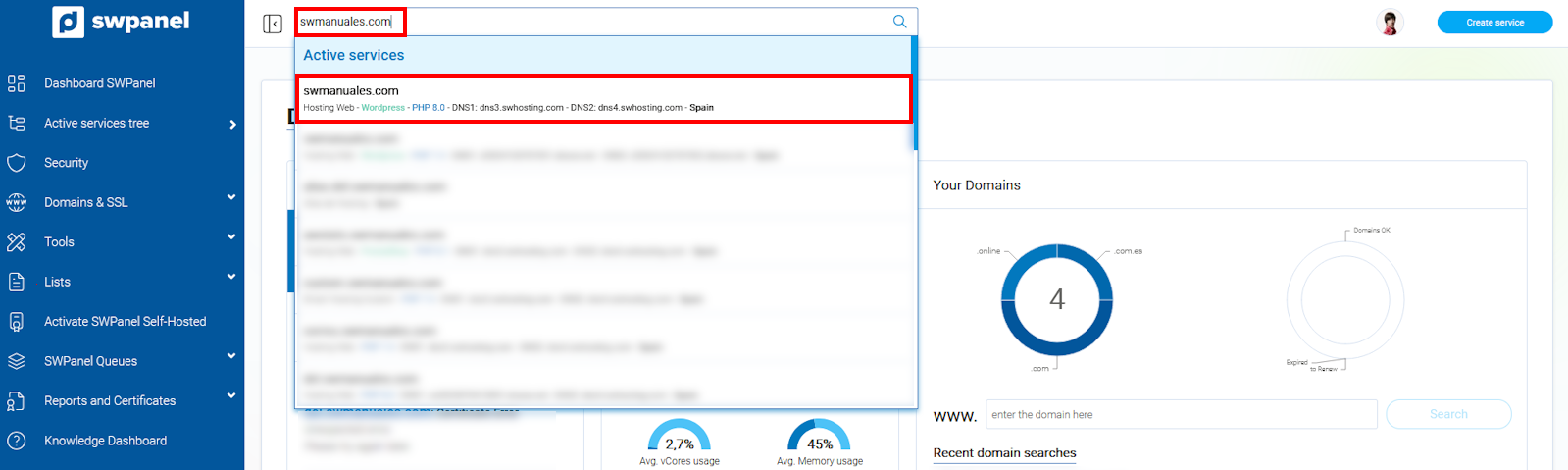
The screenshot is for guidance purposes. It was taken using version 2025.00.0017 dated 12/22/2024. It may differ from what is shown in the current version of SWPanel.
Then, go to Service Management and Database Management in the side blue menu.
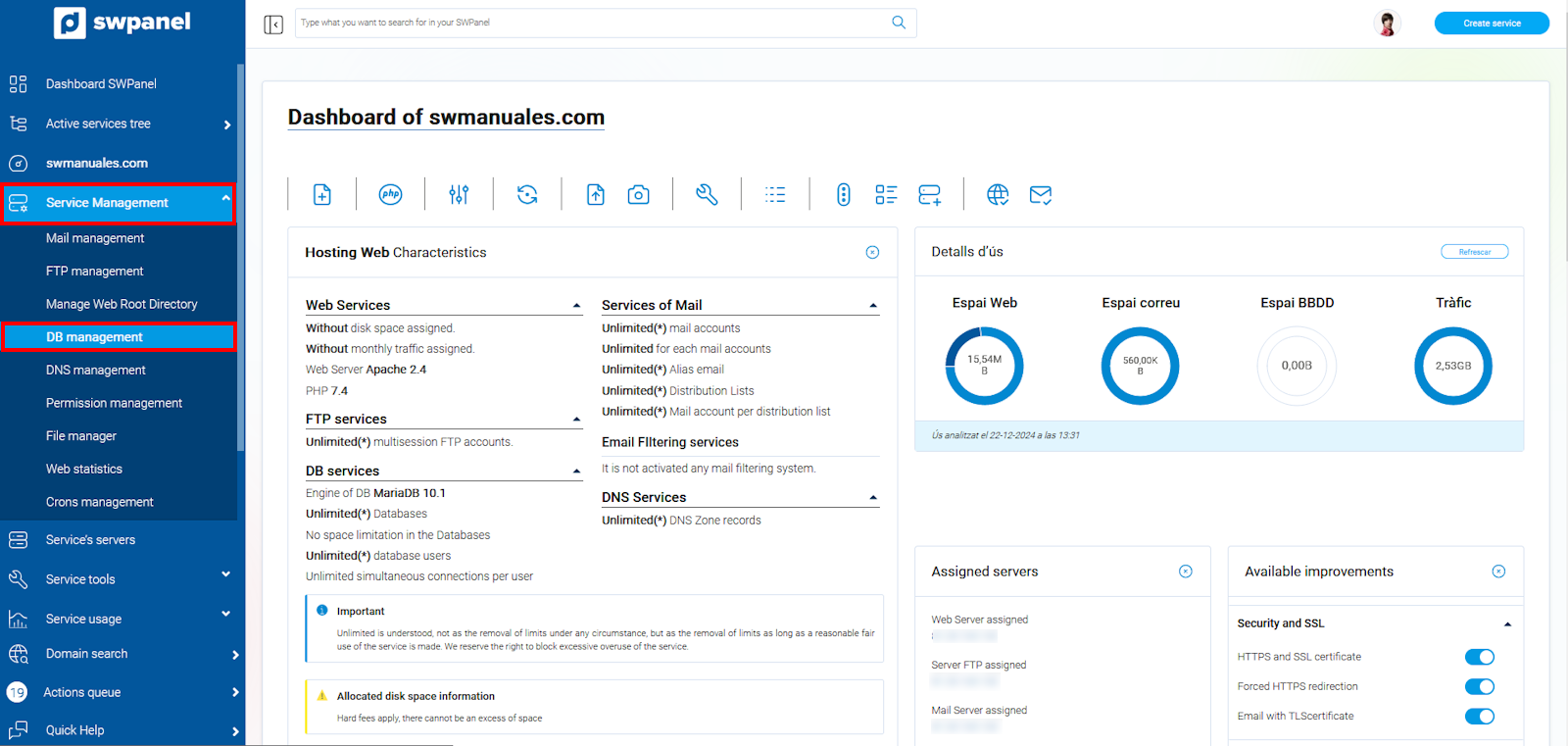
The screenshot is for guidance purposes. It was taken using version 2025.00.0017 dated 12/22/2024. It may differ from what is shown in the current version of SWPanel.
Once here, select the DB Users tab and then click on Create new DB user.
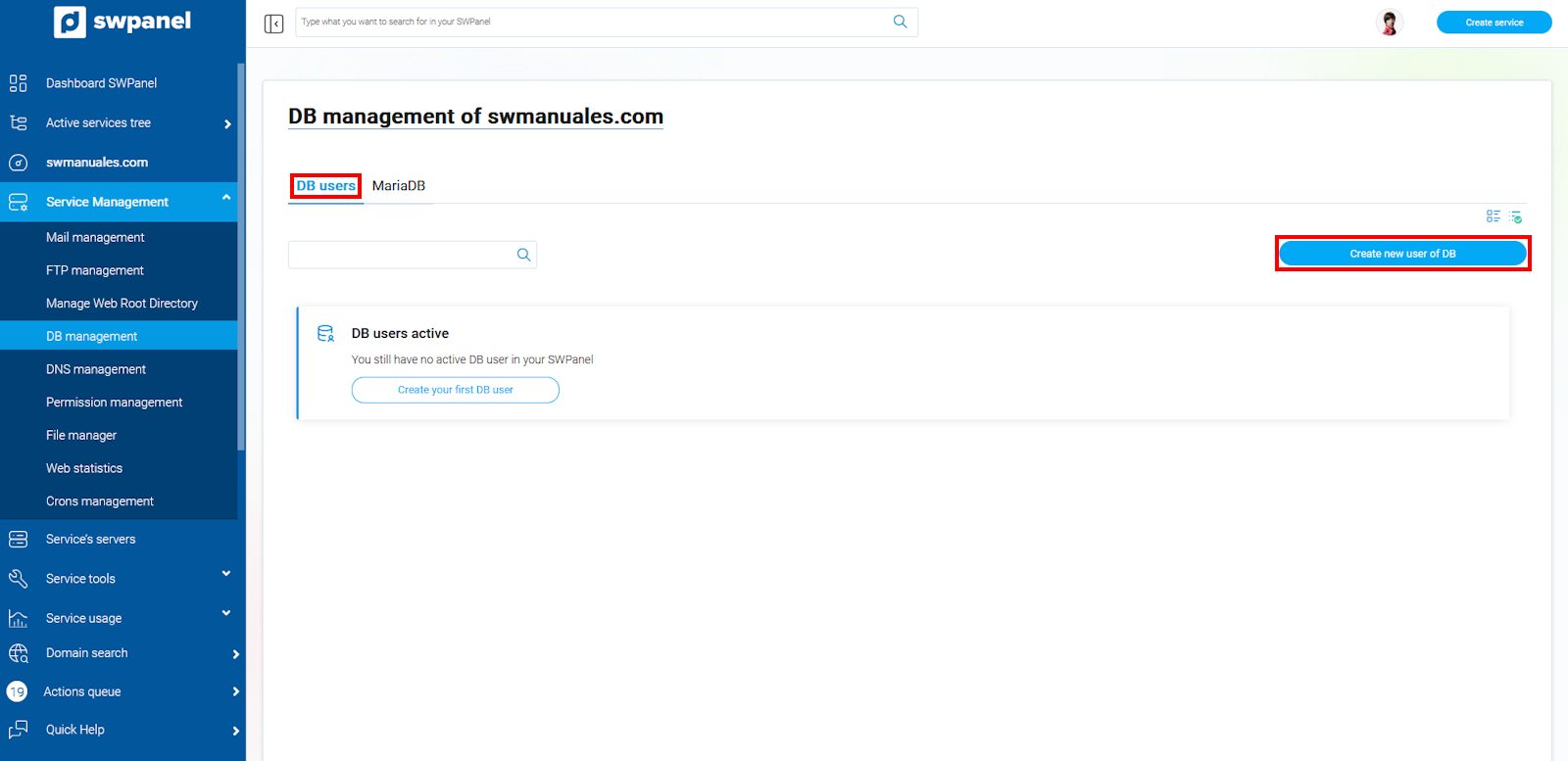
The screenshot is for guidance purposes. It was taken using version 2025.00.0017 dated 12/22/2024. It may differ from what is shown in the current version of SWPanel.
Enter the new user's details and their password.
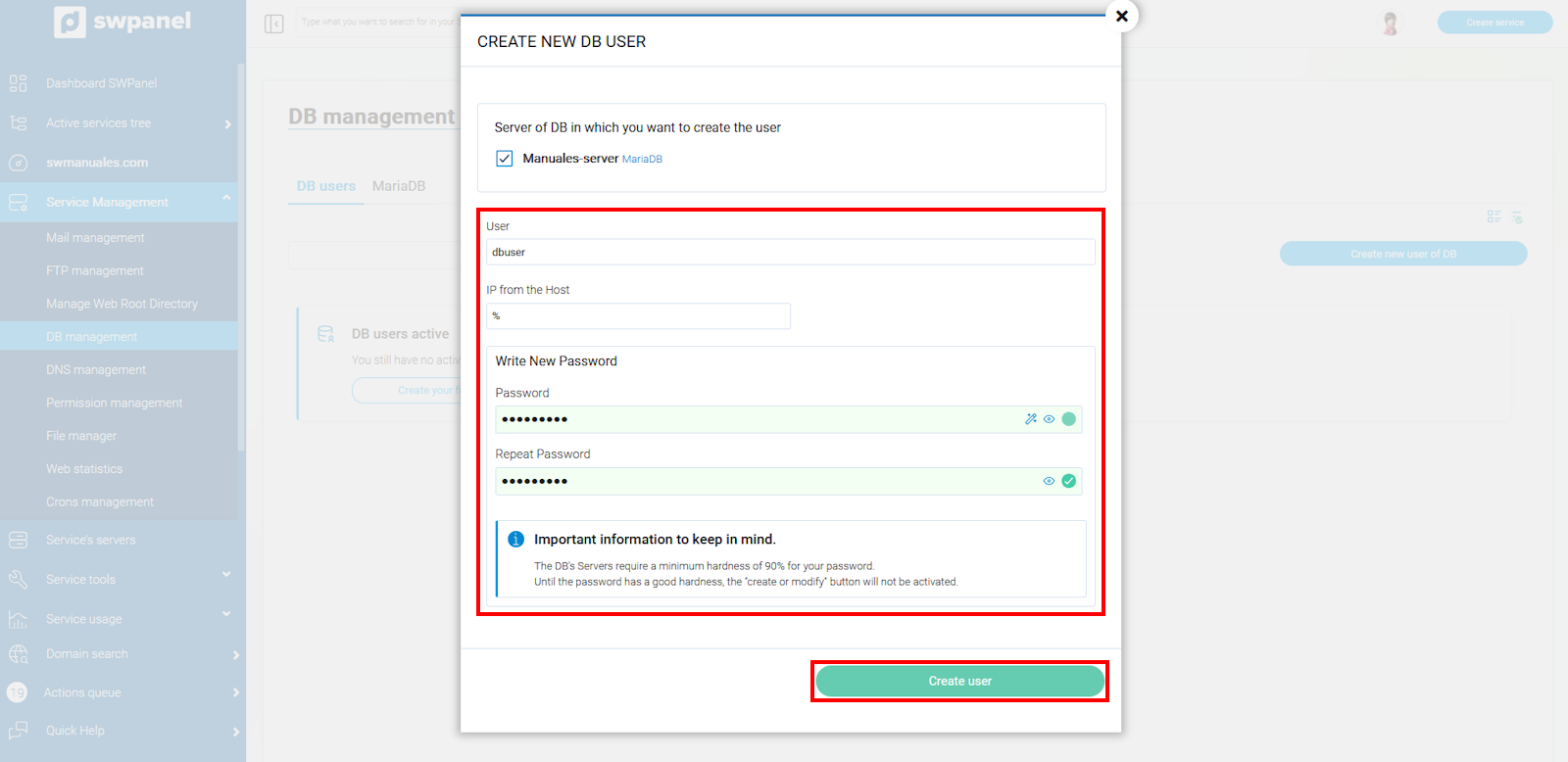
The screenshot is for guidance purposes. It was taken using version 2025.00.0017 dated 12/22/2024. It may differ from what is shown in the current version of SWPanel.
As we can see in the image, the new Database user has now been created successfully.
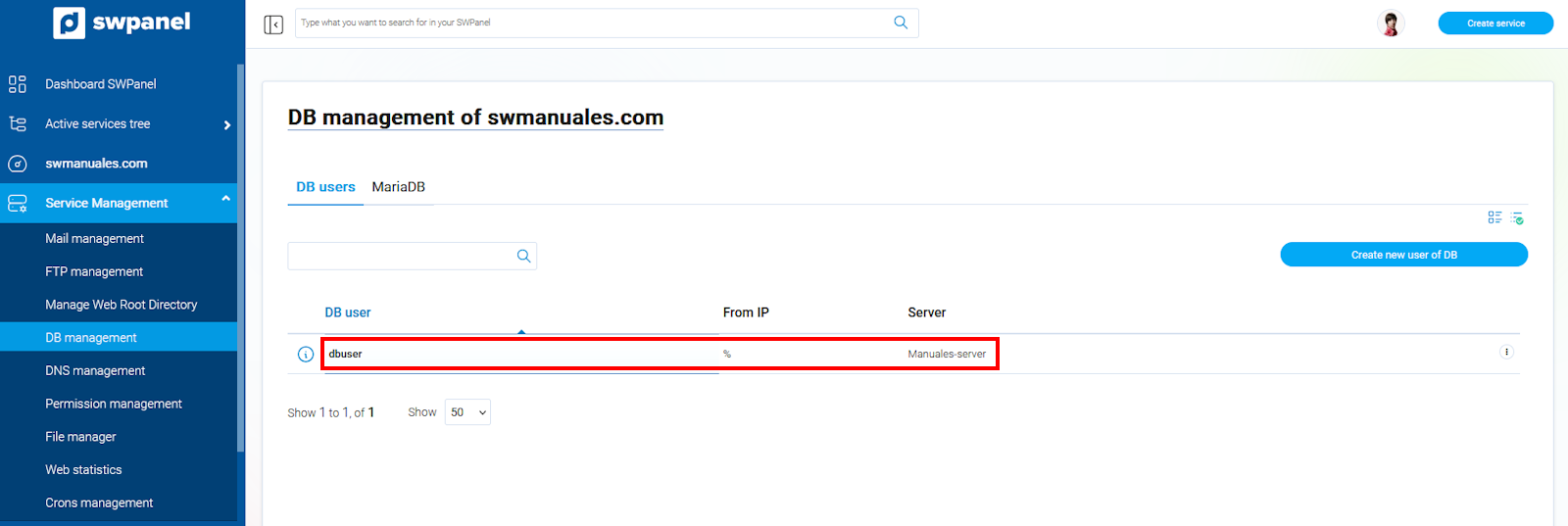
The screenshot is for guidance purposes. It was taken using version 2025.00.0017 dated 12/22/2024. It may differ from what is shown in the current version of SWPanel.
Manage User permissions on the DB
If you want to define the permissions this user will have on the Database, go back to Database Management and this time select the MariaDB tab.
Locate the Database you wish to modify, click the three side dots, and select Modify MariaDB DB.
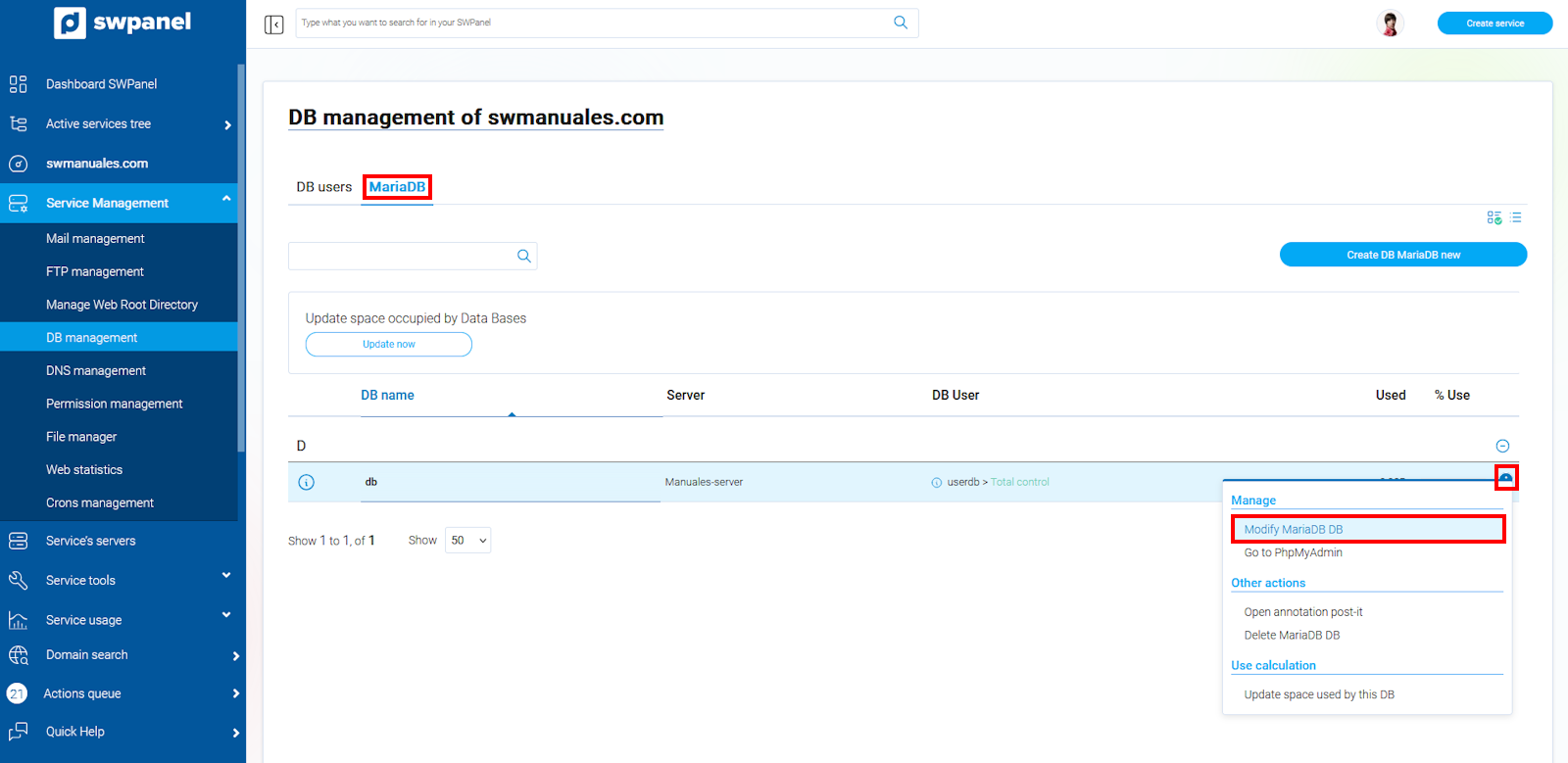
The screenshot is for guidance purposes. It was taken using version 2025.00.0017 dated 12/22/2024. It may differ from what is shown in the current version of SWPanel.
We also have a PhpMyAdmin access button in the menu.
Here you will find the users created for the Database, and you can define the permissions for the DB.
There are three permission profiles: No control, Read, or Full Control.
1. No control: has no permissions, neither read nor write
2. Read: only has read permissions
3. Full Control: has full control, read and write permission
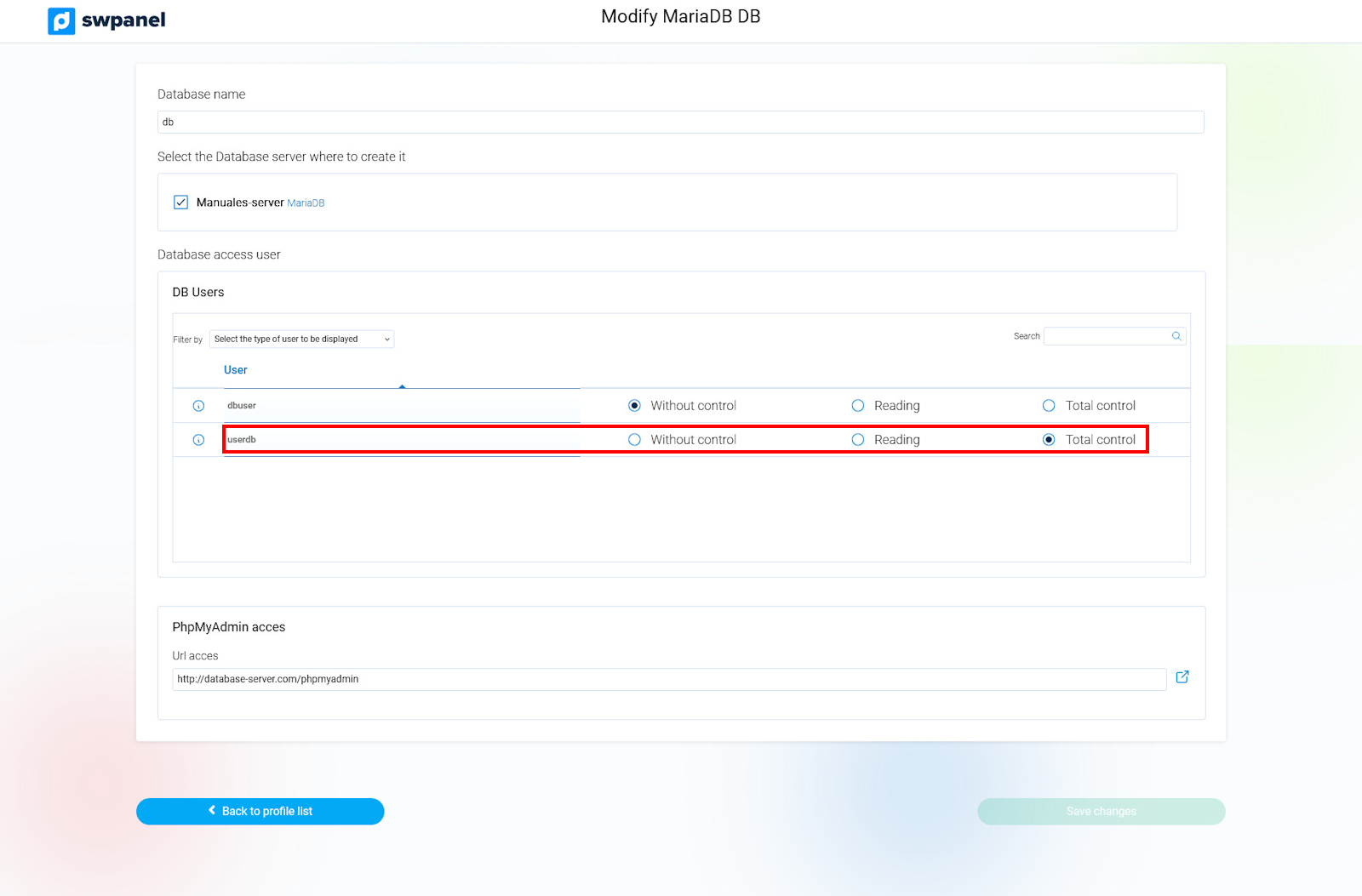
The screenshot is for guidance purposes. It was taken using version 2025.00.0017 dated 12/22/2024. It may differ from what is shown in the current version of SWPanel.
Once the permissions have been configured, you must save the changes for them to take effect by clicking on Save changes.
Continue with these manuals
- How to create a MySQL or MariaDB database Database · updated on 13 Nov 2026
- How to access phpMyAdmin from the SWPanel Database · updated on 13 Nov 2026
- Error establishing a database connection in WordPress Database · updated on 13 Nov 2026
- How to import and export DBs with phpMyAdmin Database · updated on 13 Nov 2026