
Security autopilot
What SWPanel does on its own, every night
It blocks whoever attacks via SSH, matches the protection of new services, applies safe CMS and code fixes and those from the Security Bulletin according to your criteria. What could affect your website, it asks you about. And every week it tells you what it has done.
- Paid per service
- Configured from SWPanel
- Cancels at the end of the paid period
- 16 Settings in six groups, with search
- 5 Things it does on its own every night, without you logging in
- 3 Ways to apply the Bulletin without asking, asking or notifying
- 1 Report per week on the day you choose
What it does every night
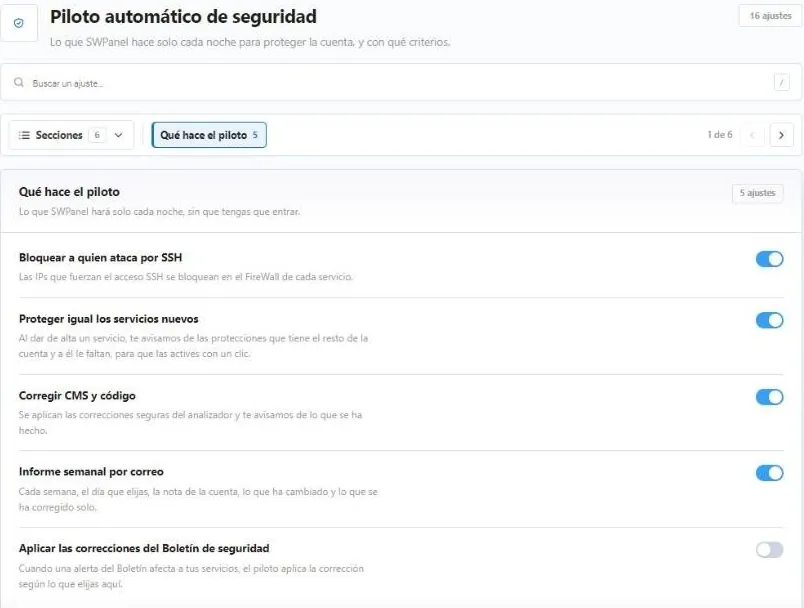
Five tasks, each with its own switch
You turn on the ones you want. Each has its criteria in the account preferences.
Block whoever attacks via SSH
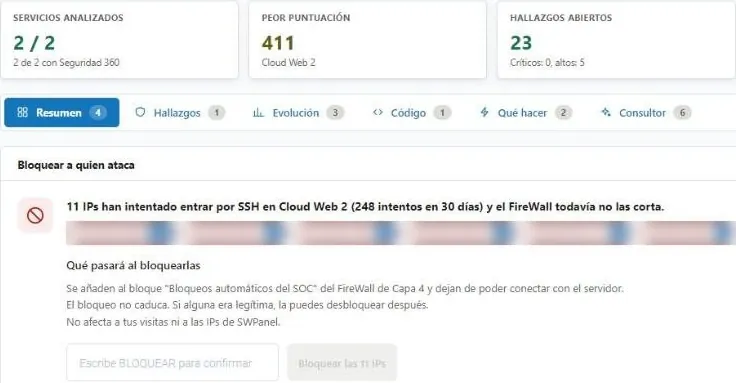
IPs that brute-force SSH access are blocked in each service's FireWall.
Protect new services equally
When you add a service, it tells you which protections the rest of the account has that it lacks, so you can enable them with one click.
Fix CMS and code
It applies the analyzer's safe fixes and tells you what it has done.
Weekly report by email
On the day you choose: the account score, what has changed and what was fixed on its own.
Apply the Bulletin's fixes
When an alert affects your services, it applies the fix according to what you choose.
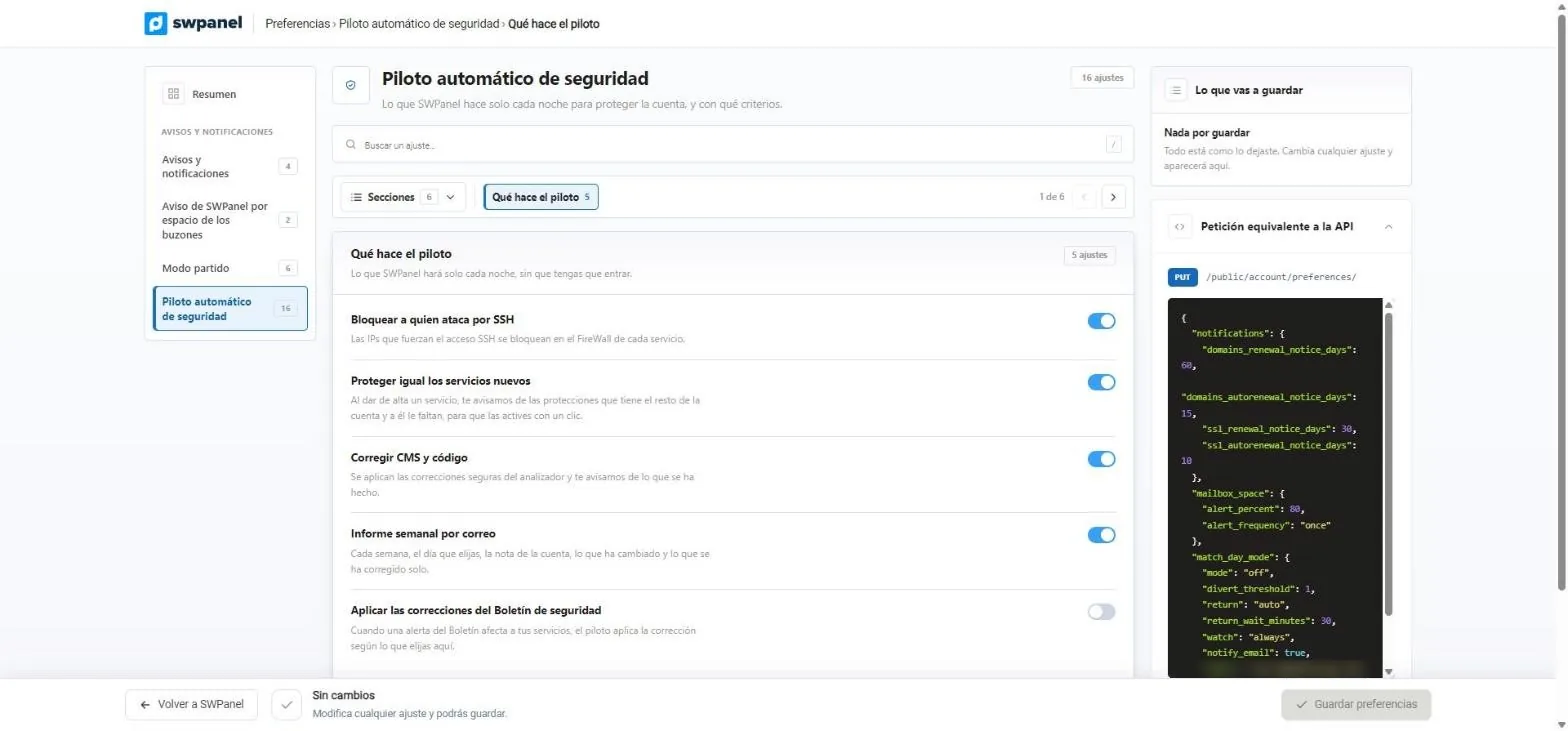
- Block whoever attacks via SSH.
- Protect new services equally.
- Fix CMS and code.
- Weekly report by email.
- Apply the Bulletin's fixes.
- 16 settings in six groups.
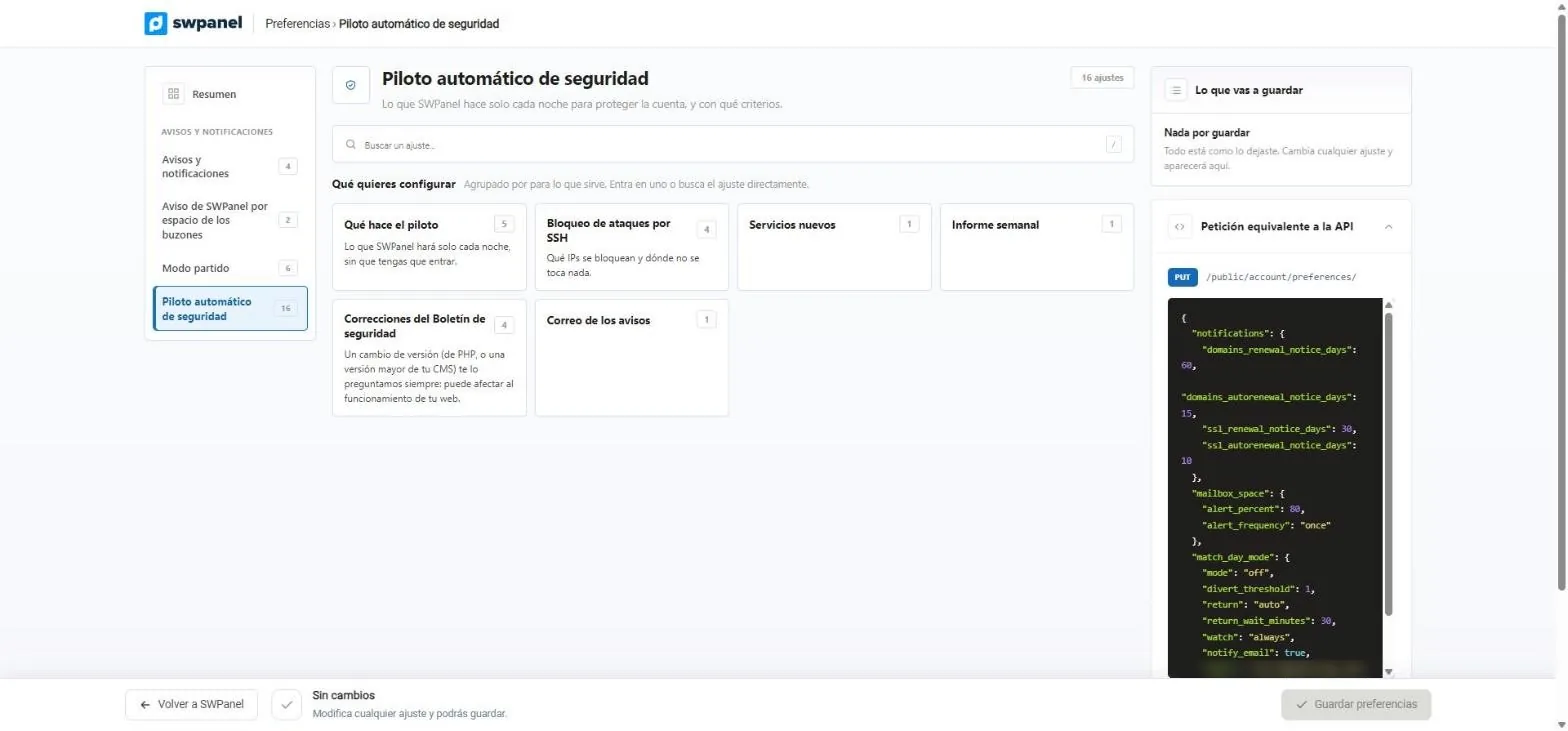
- What the autopilot does: what it will do on its own every night.
- SSH attack blocking.
- A version change is always asked about first.
- What you're about to save, before saving it.
- The equivalent API request.
Automatic fixes
The safe stuff, on its own. The delicate stuff, it asks you
The autopilot doesn't gamble with your website: it applies what doesn't change how it works and consults you on what does.
Fixes it on its own
And tells you what it did.
- The CMS and code analyzer's safe fixes
- Those from the Security Bulletin, if you choose “Apply without asking” and they reach the severity you set
- Blocking IPs that attack via SSH
- On servers managed by SWPanel, the team applies the patches: “Fixed by systems”
Asks you first
Because it can affect how your website works.
- A PHP version change
- A major version of your CMS
- Patches that restart the server, unless you allow them
- Bulletin fixes, if you choose “Ask me first”: if you don't answer in time, they aren't applied
On the dashboard
Fix with one click, with the autopilot beside it
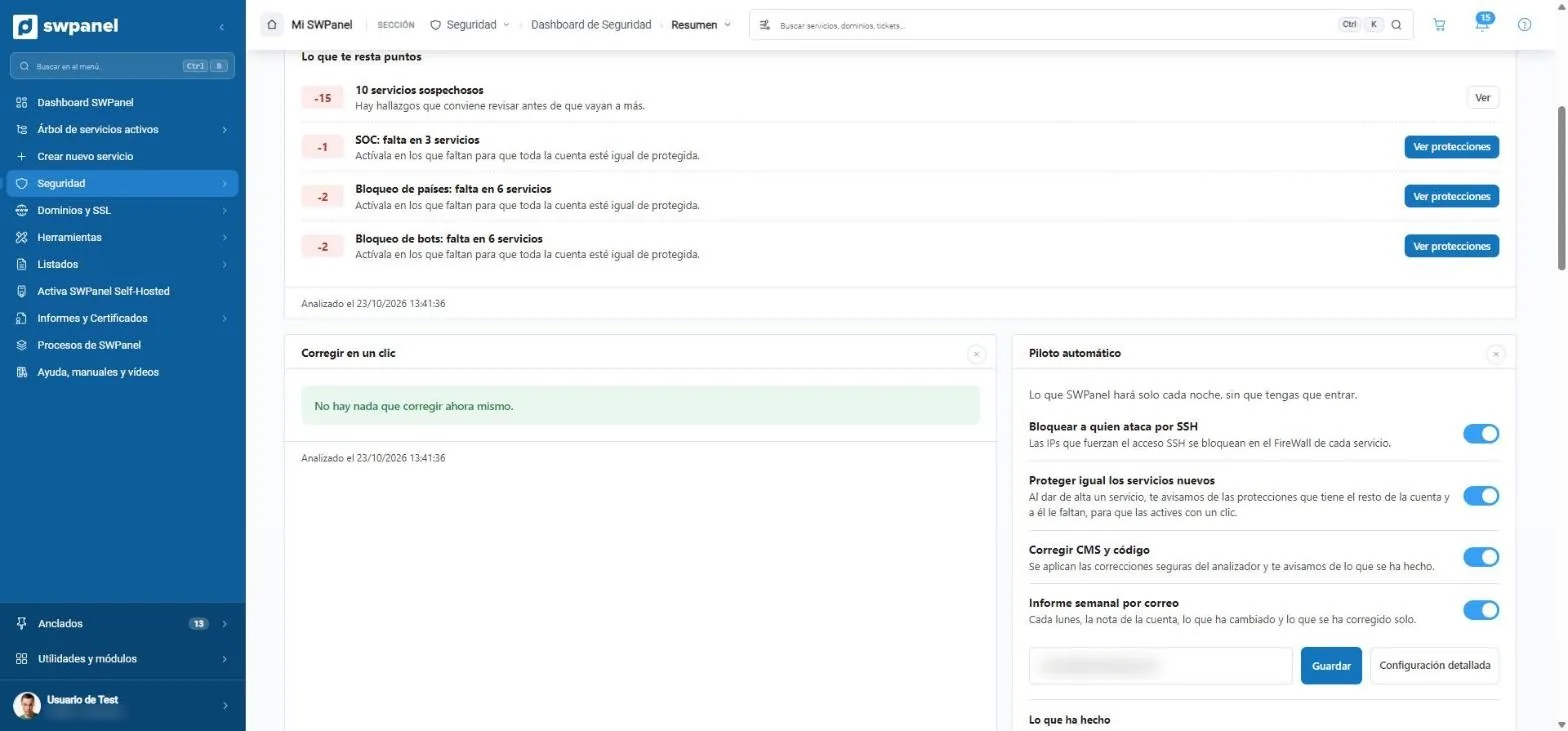
The security dashboard brings together what can be fixed right now, with a button, and the autopilot with its switches. If there's nothing to fix, it tells you.
- Fix with one click
- The autopilot, on or off from the dashboard
- Detailed configuration in preferences
- Fix with one click: what can be fixed right now.
- The autopilot, on the dashboard.
- Fix CMS and code, on.
- Detailed configuration.
Security bulletin
The Bulletin's fixes, your way
When a Bulletin alert affects your services, the autopilot applies the fix according to what you choose.
- Apply without asking It applies itself and notifies you.
- Ask me first It waits for your answer for the number of days you set.
- Only notify me It tells you and you do it.
- Minimum severity Below it, it only notifies you.
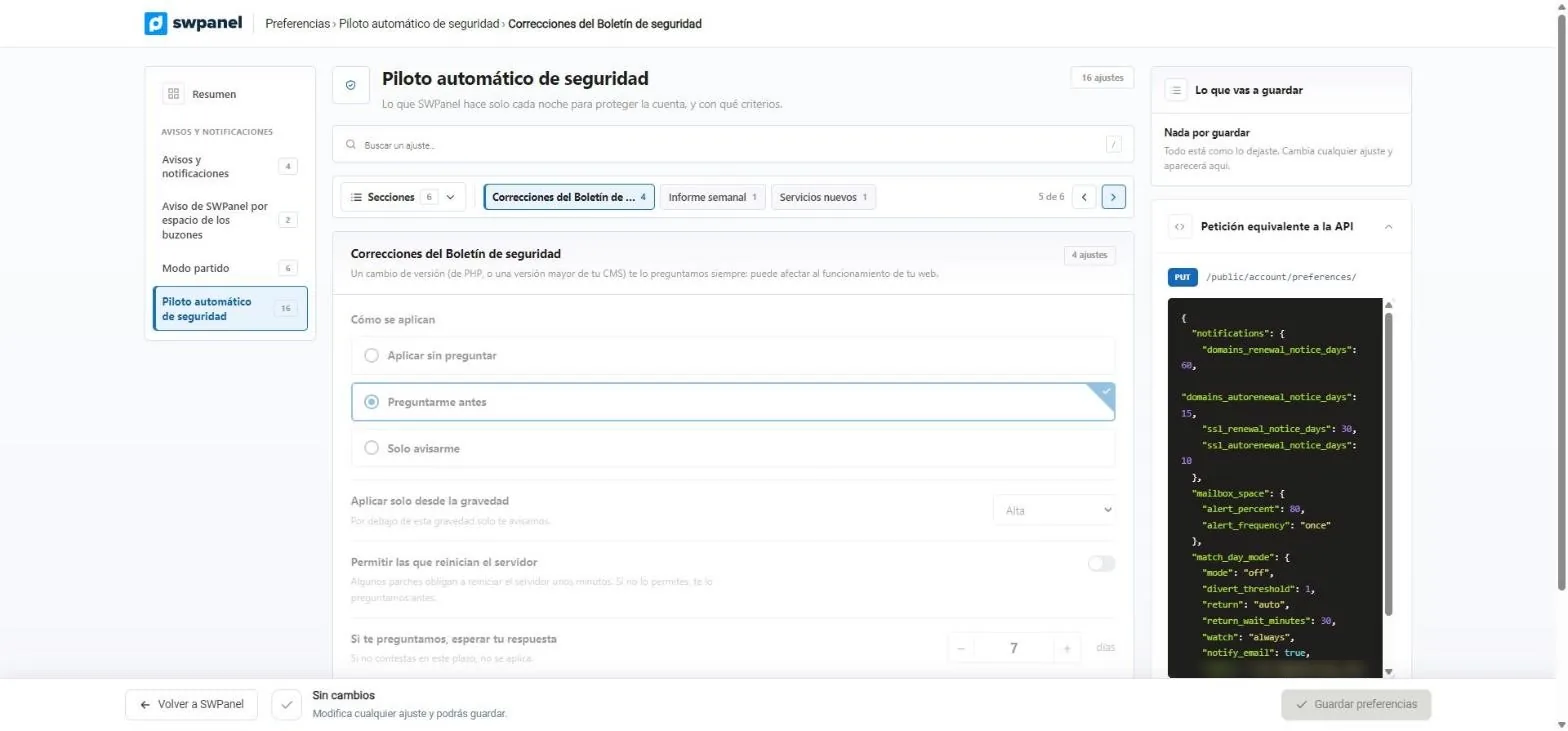
- Apply without asking.
- Ask me first.
- Only notify me.
- Only from the severity you choose.
- Those that restart the server, only if you allow them.
- If it asks you, how many days it waits for your answer.
SSH attacks
Whoever forces the door, out
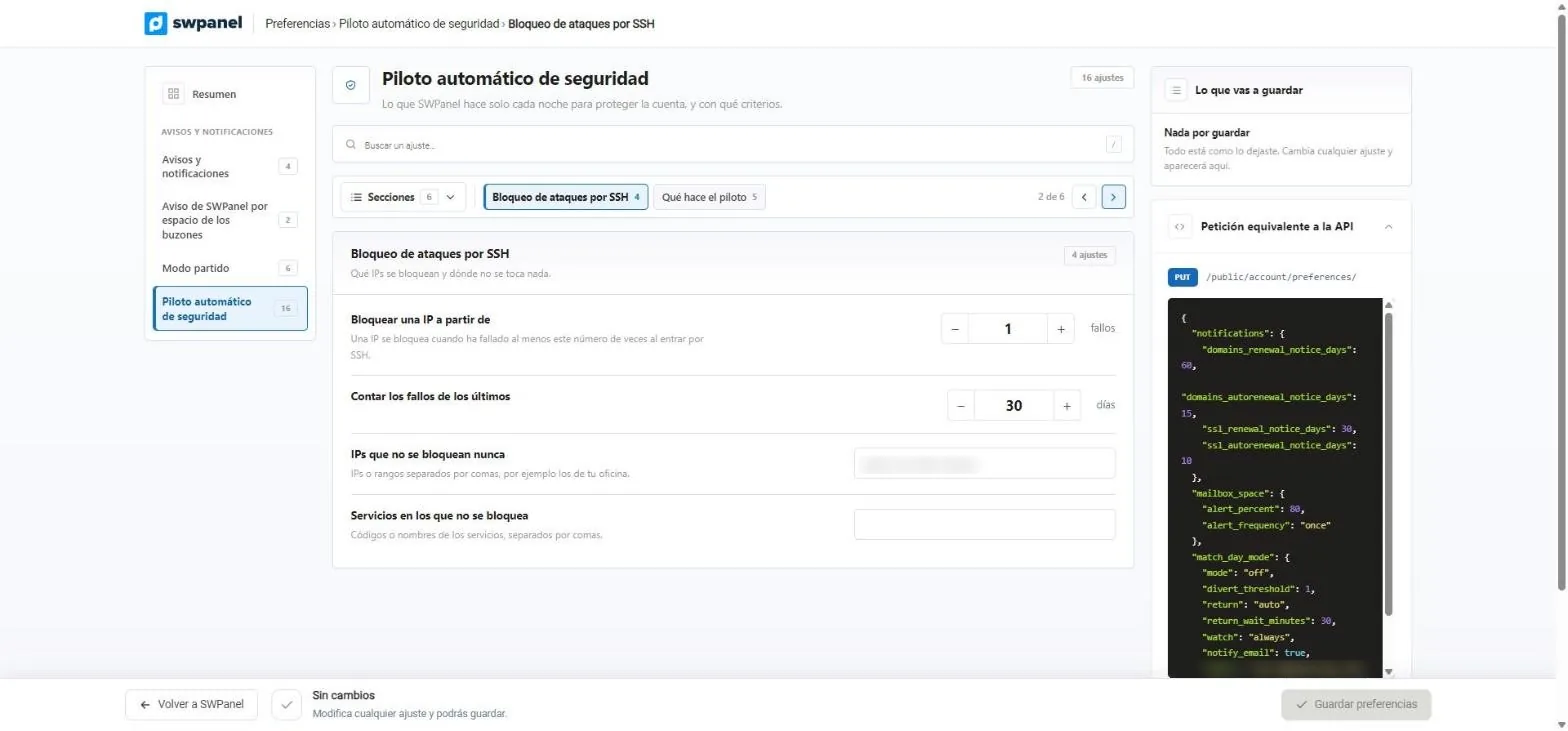
IPs that fail when trying to log in via SSH are blocked in each service's FireWall, with your exceptions.
SSH attack blocking
Your criteria, in four settings
After how many failures an IP is blocked, over how many days they're counted, which IPs are never blocked and in which services nothing is touched.
- Block after the number of failures you set
- Count failures from the last few days
- IPs or ranges that are never blocked
- Services where nothing is blocked
- Block an IP after the number of failures you set.
- Count the failures from the last few days.
- IPs that are never blocked, like those of your office.
- Services where nothing is blocked.
What it has done
Every action, logged
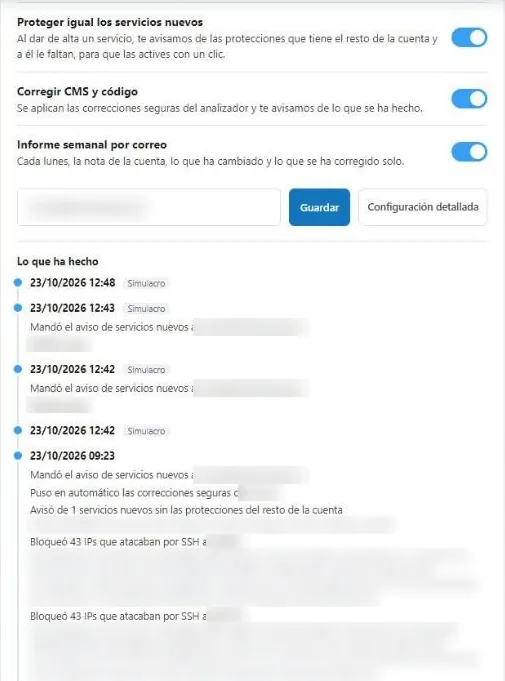
In the security dashboard, the autopilot writes down what it has done and when. Every week the summary arrives by email.
Autopilot history
What it did while you slept
The IPs it blocked in each service, the safe fixes it applied automatically, the notices about new unprotected services and the emails it sent.
- With date and time
- Service by service
- The weekly report, on the day you choose
Your account score
The whole account, in one number
The security dashboard scores the account and tells you what lowers it, with a button for each thing.
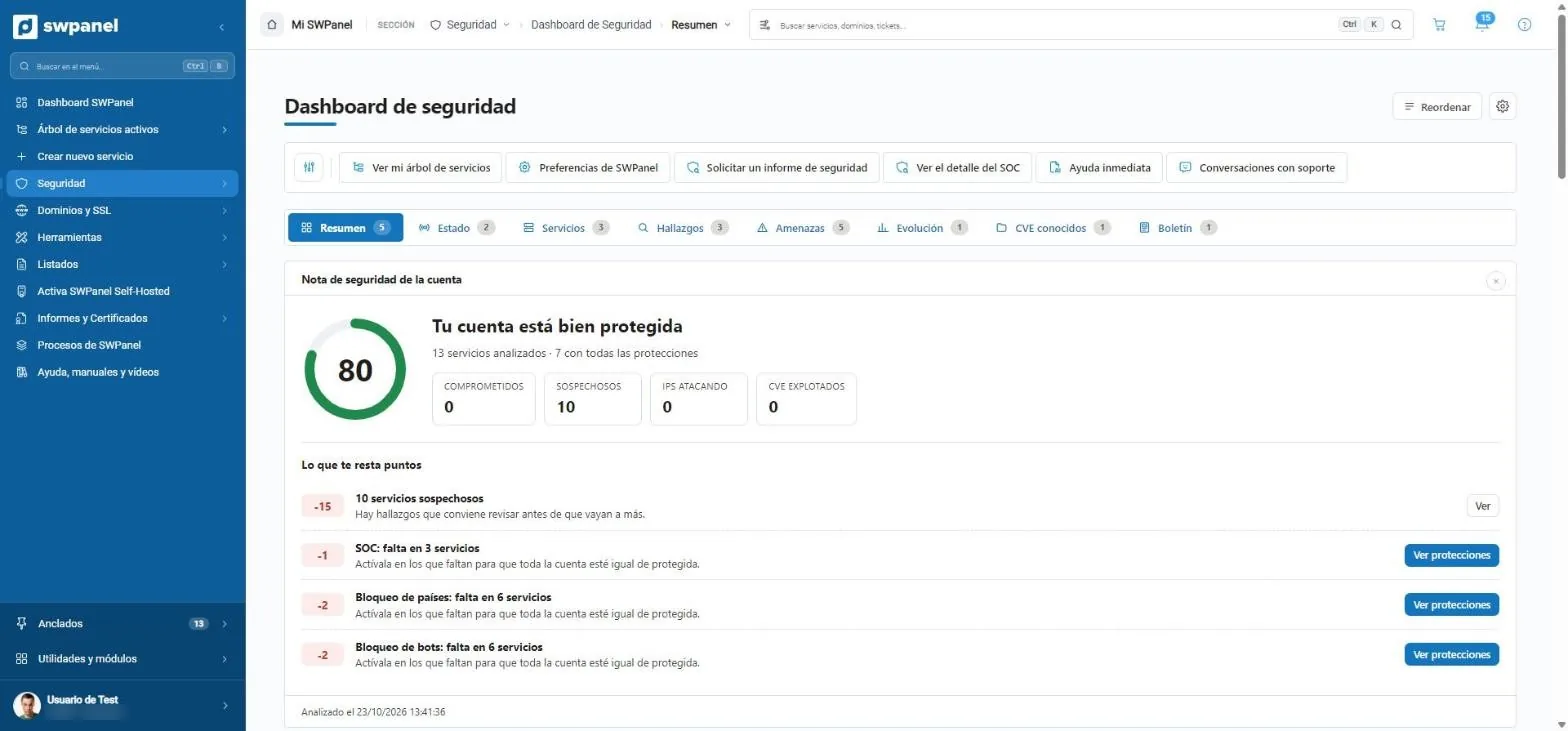
- The account's security score, from 0 to 100.
- Compromised, suspicious, attacking IPs and exploited CVEs.
- What lowers your score, with the reason why.
- See protections: enable them where they're missing.
- Status, services, findings, threats, trends, CVEs and Bulletin, in tabs.
/public/account/preferences/
The whole autopilot, also from the REST API: the screen shows you the equivalent request.
Frequently asked questions
Questions about the autopilot
Protect your services with Security 360
Add Security 360 to each hosting (€9.75) or Cloud and server (€119.95) you want to protect.