
Screenshot tour
SWPanel 2027, screen by screen
Forty real, annotated SWPanel screenshots. No mockups or staging: it's what you'll see when you log in. We used a test account and only blurred IPs and machine names.
- October 2026 screenshots
- SWPanel 2027 in pre-production
Index
Nine areas of SWPanel
Jump to the one that interests you or go through them in order.
-
Your account
5 screens · What you see when you log in
-
Domains and SSL
1 screen · The portfolio, no surprises
-
Servers and Cloud
5 screens · The whole fleet and each machine
-
Buying and migrating
3 screens · Getting started shouldn't be hard
-
Security 360
13 screens · Each layer, with its own screen
-
SEO
3 screens · From diagnosis to task
-
Artificial intelligence
2 screens · Ask your SWPanel
-
Customers
3 screens · Win and retain
-
Business and automation
5 screens · For those who live off hosting
What you see when you log in
Your account
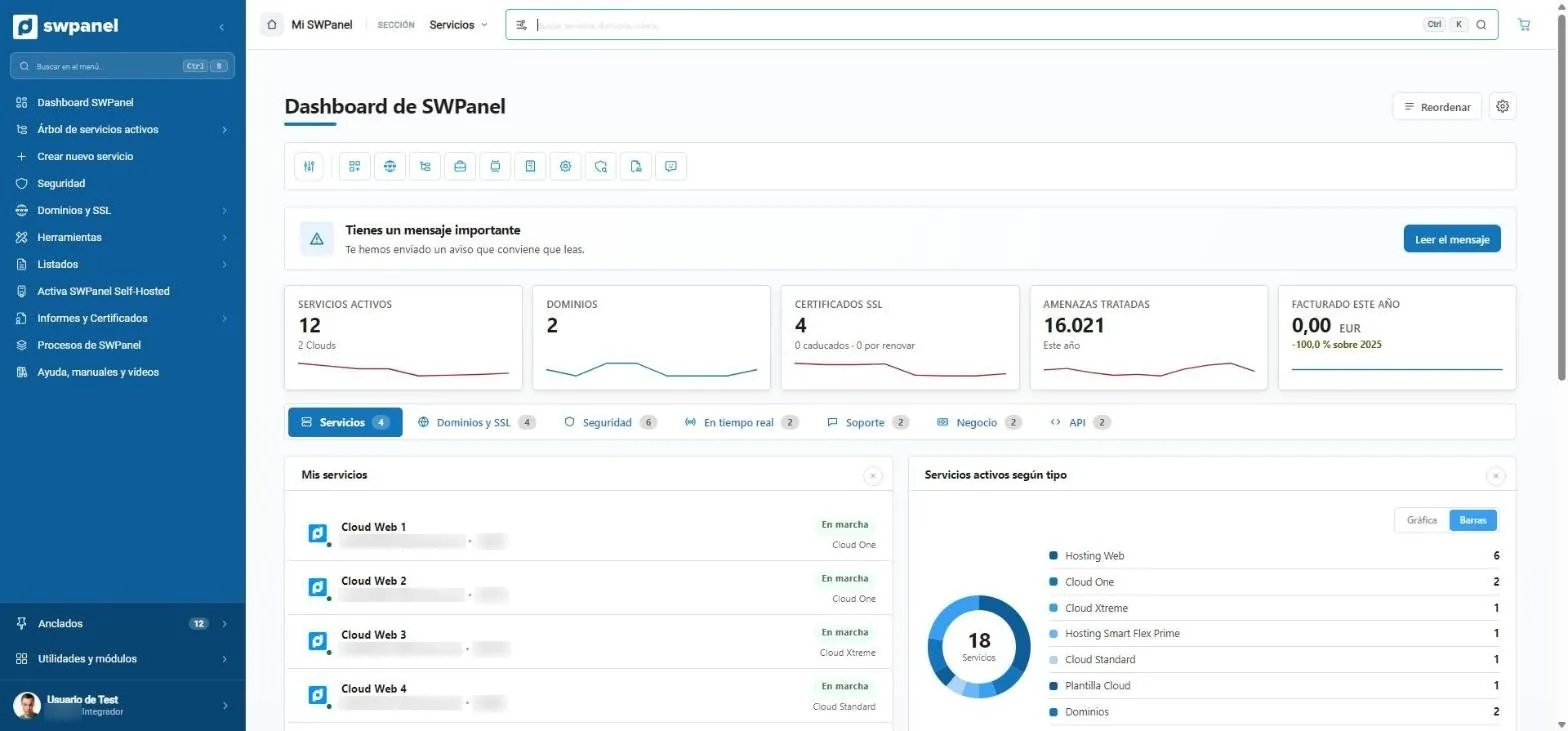
Dashboard
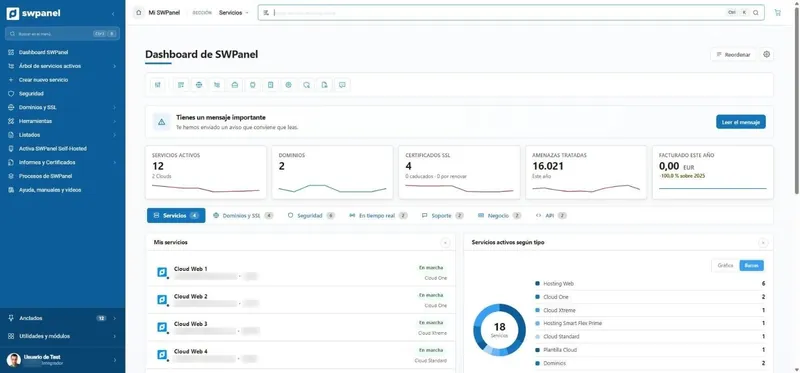
The whole account on one screen
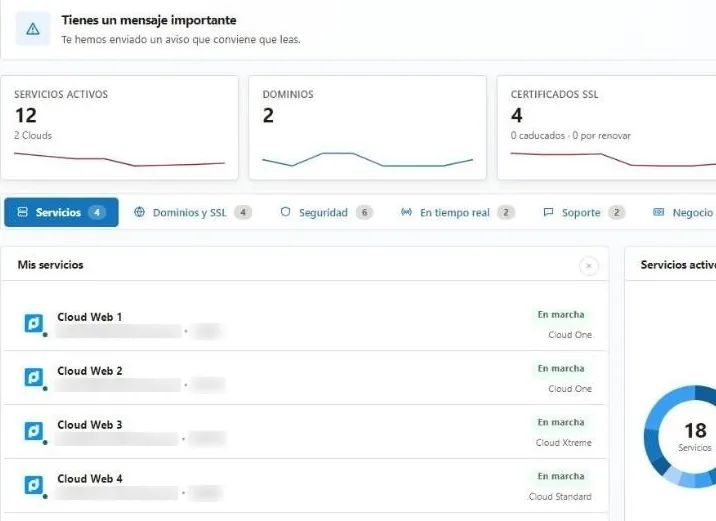
What matters at the top, the year's figures below and a tab per topic. You reorder and hide blocks: everyone leaves their dashboard the way that works for them.
- Services, domains, SSL, threats and billing
- Services, domains, security, real time, support, business and API
- What matters, on top: a message worth reading.
- Services, domains, SSL, threats handled and billing for the year.
- Tabs by topic: services, domains, security, real time, support, business and API.
- Your services by type.
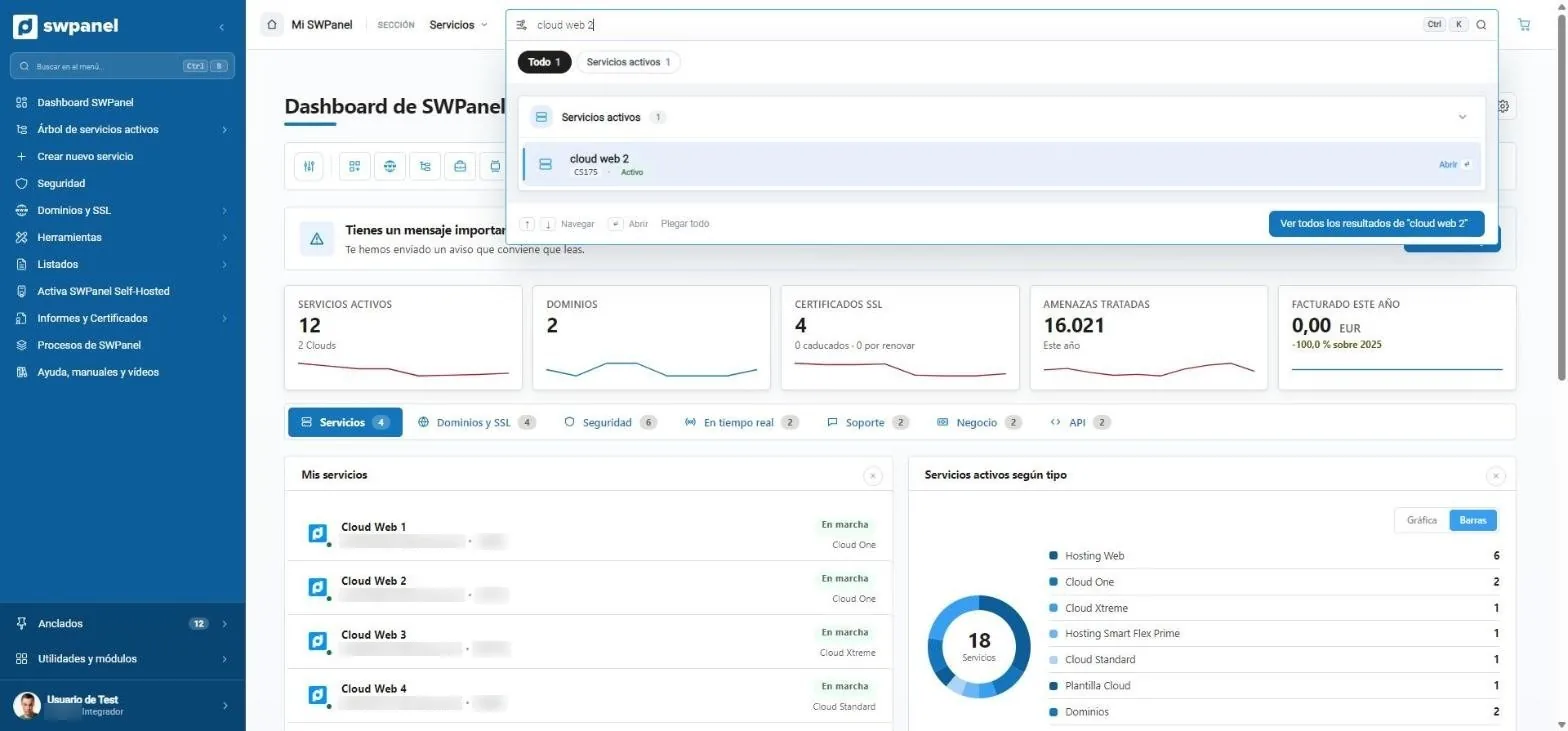
Search
Ctrl + K and type
Services, domains, tickets or invoices from any screen. Enter and you're in.
- Results grouped by type
- Keyboard navigation
- Ctrl + K from any screen.
- Grouped results: services, domains, tickets, invoices...
- All results on one page, with filters.
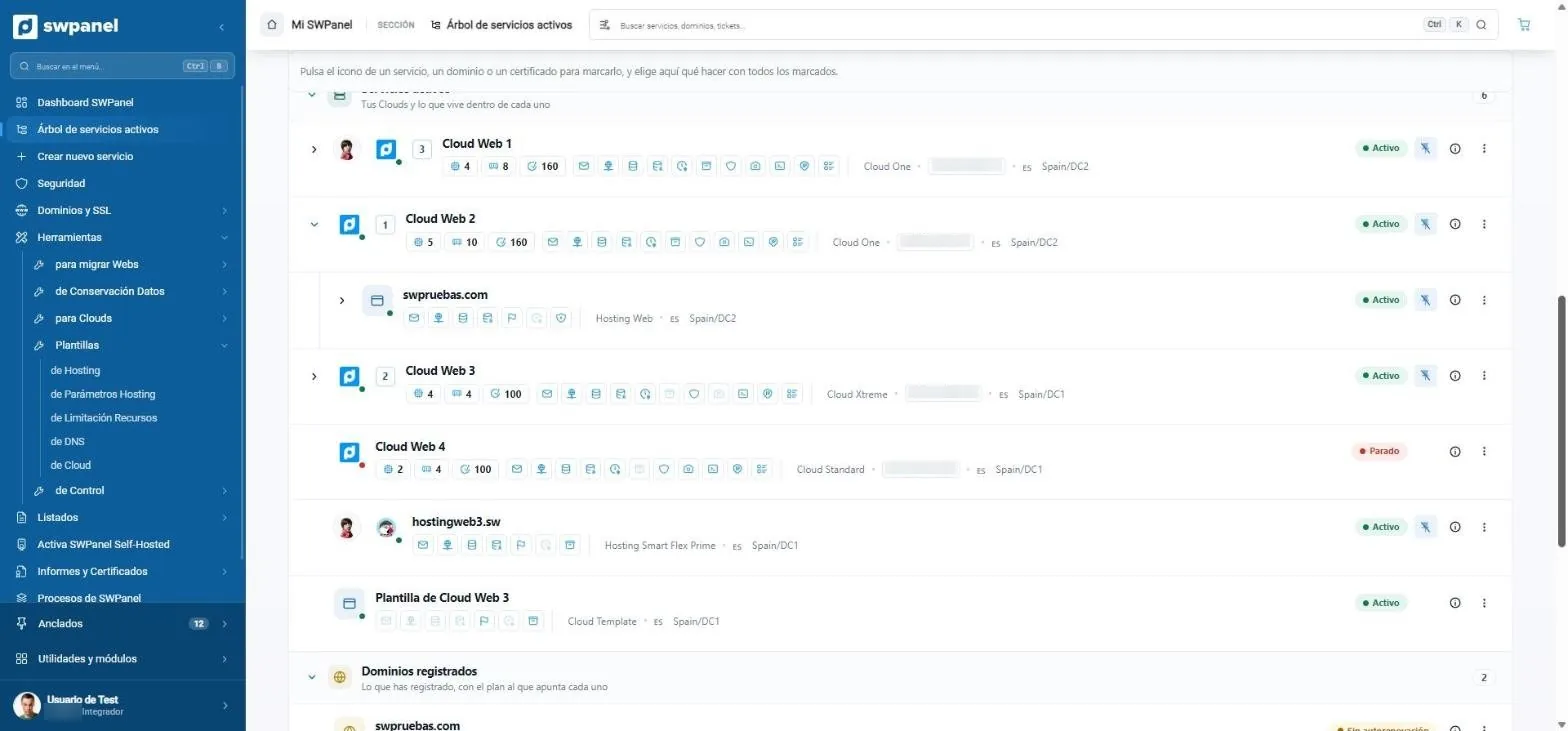
Service tree
What lives inside what
Each Cloud with what it hosts, each service with its pieces and status, and domains with the plan they point to. You select several and act on all at once.
- Websites, mailboxes, SSL, databases and backups of each service
- Bulk actions
- Each service with its parts: websites, mailboxes, SSL, databases, backups, monitoring...
- What lives inside each Cloud, nested.
- Active or stopped, without opening anything.
- Registered domains and which plan each one points to.
Service map
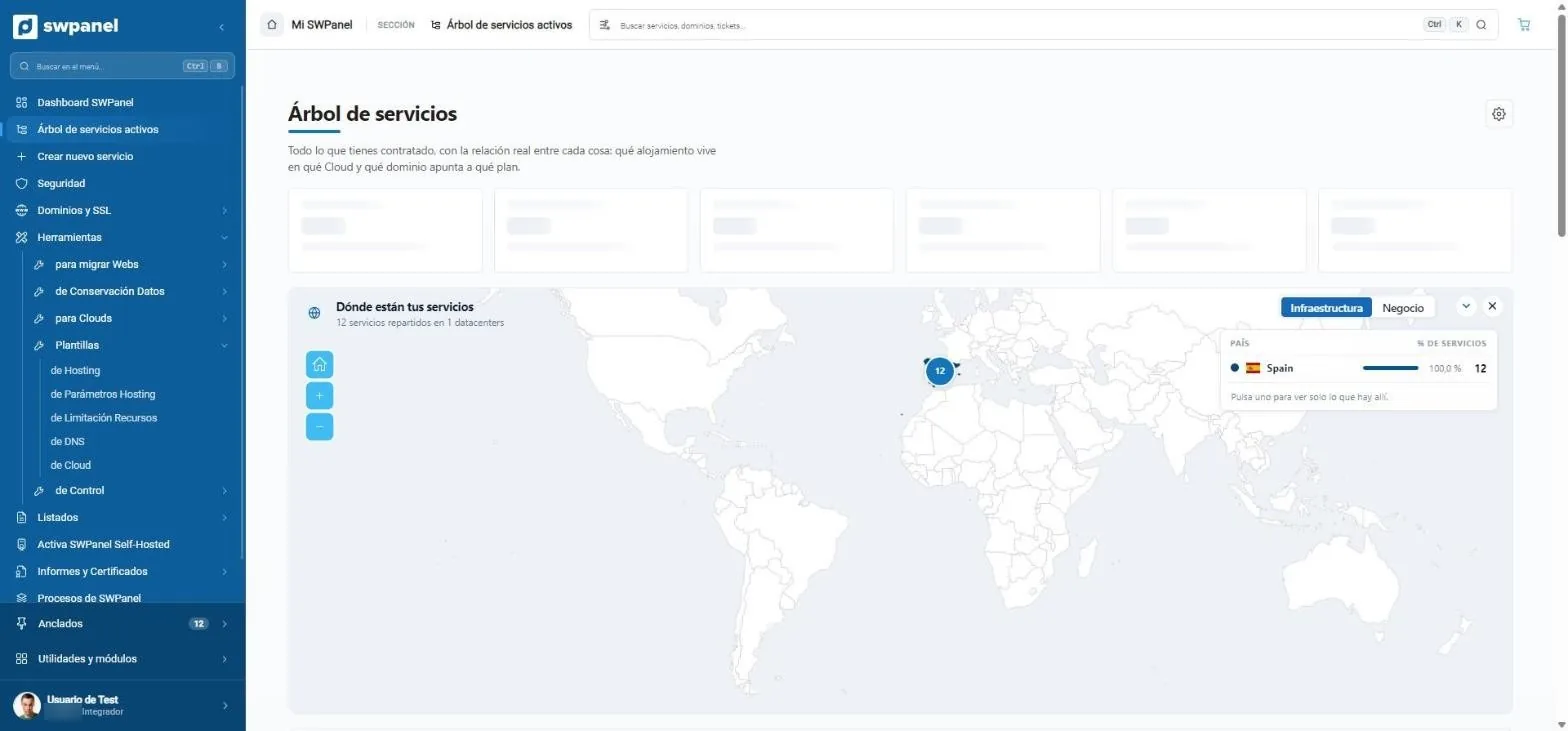
Where everything is
Your services on the map, by country and data center. In business view, the map tells something else: where your customers are.
- Infrastructure or business
- Where your services are, by country and data center.
- Infrastructure or business: changes what the map shows.
Modules
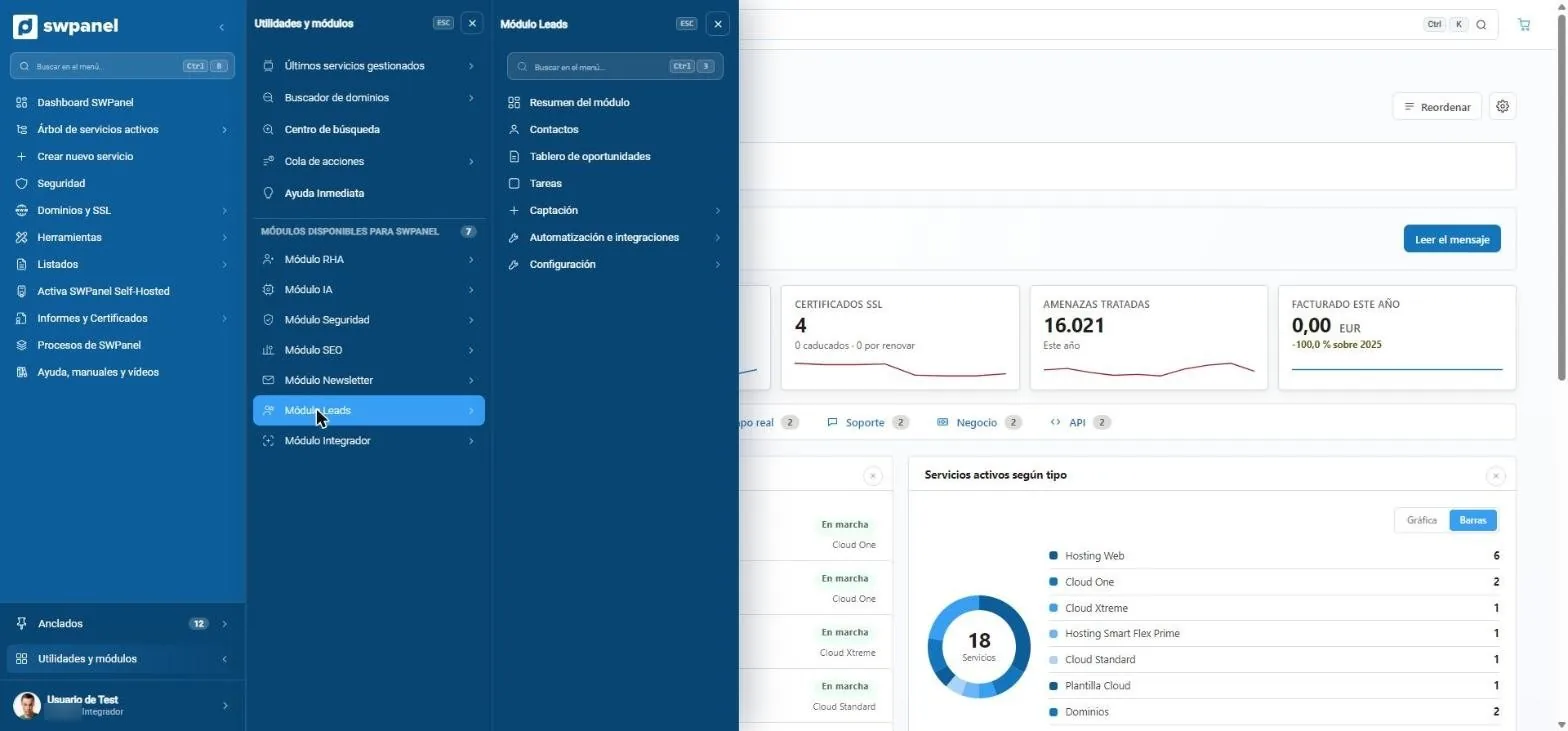
Seven modules, one menu
RHA, AI, Security, SEO, Newsletter, Leads and Integrator. Each with its own menu, and Instant Help, search and action queue always at hand.
- Search inside the menu with Ctrl + B
- Instant help, search and action queue, always at hand.
- The seven modules: RHA, AI, Security, SEO, Newsletter, Leads and Integrator.
- Each module, with its menu.
The portfolio, no surprises
Domains and SSL
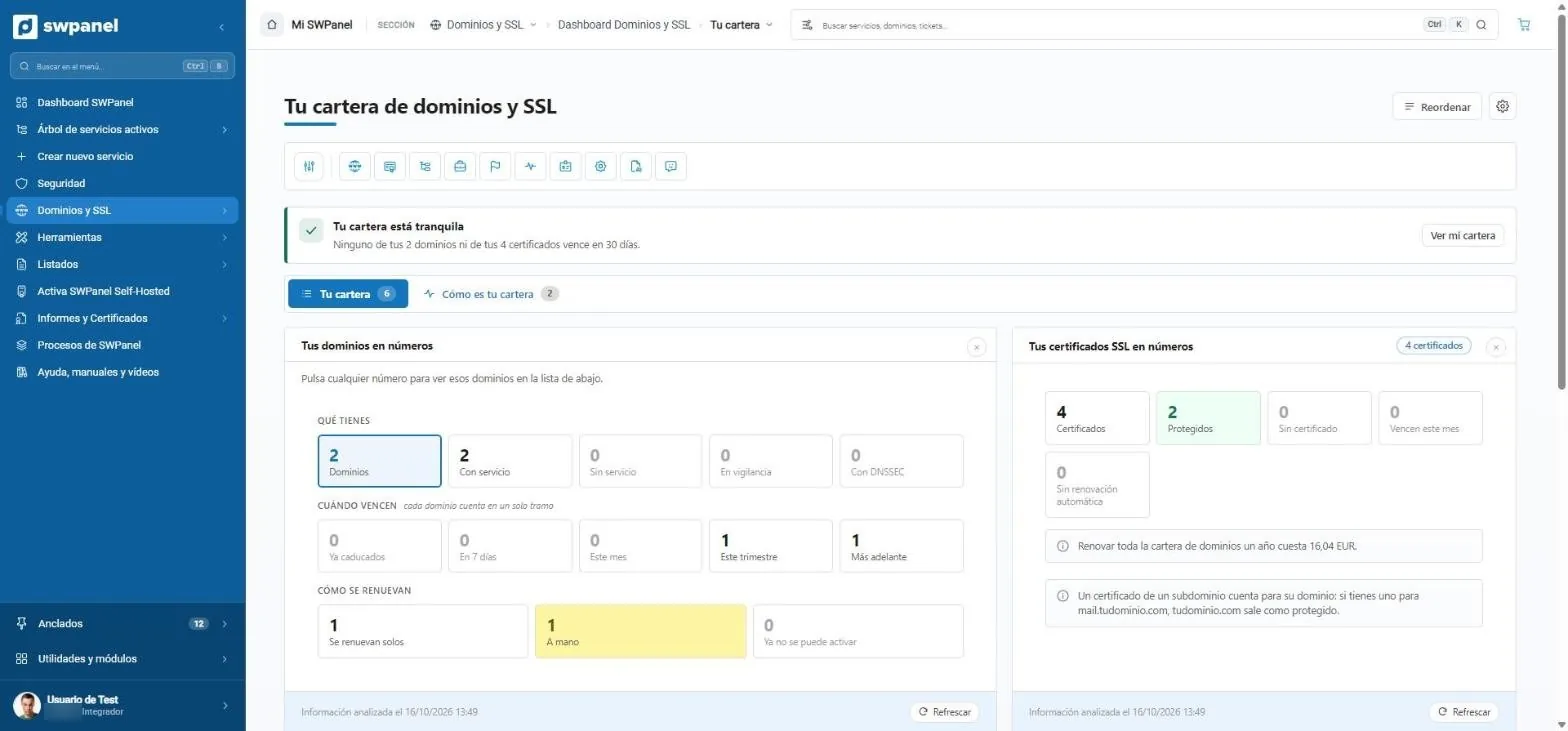
Your portfolio
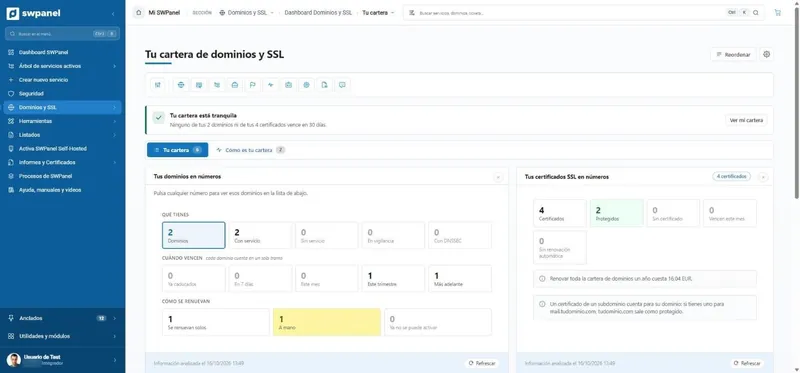
What you have, when it expires and how it renews
A sentence that summarizes the portfolio and three rows of numbers that filter the list: what you have, when each thing expires and whether it renews itself or manually. Next to it, the SSL certificates.
- What it costs to renew the whole portfolio for a year
- Domain monitoring and DNSSEC
- A one-line summary: nothing expires in 30 days.
- What you have, when it expires and how it renews. Each number filters the list.
- SSL certificates in numbers.
- What it costs to renew the whole portfolio for a year.
The whole fleet and each machine
Servers and Cloud
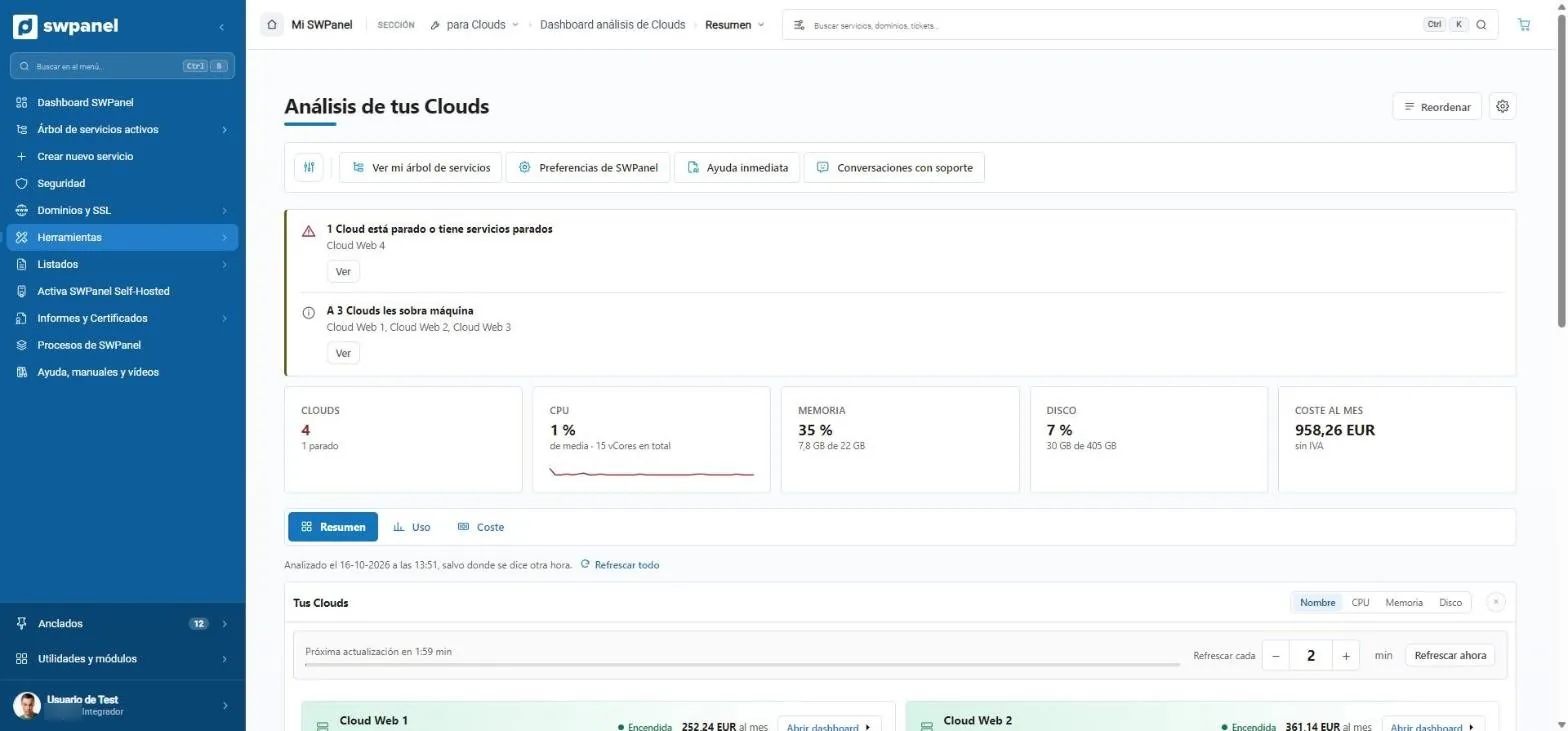
Analysis of your Clouds
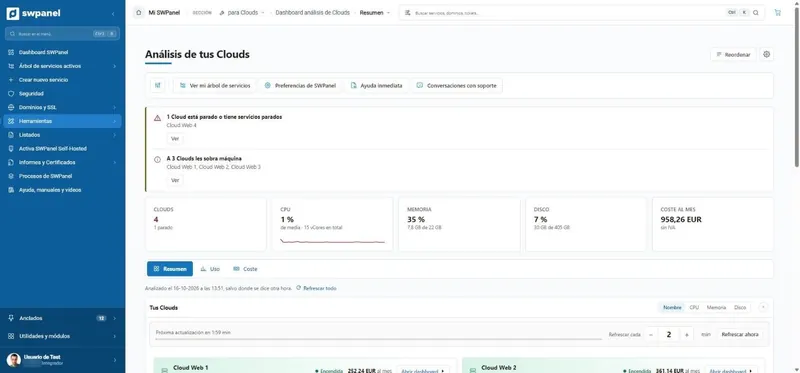
Where to look first
Warnings that matter (a stopped Cloud, oversized machines), CPU, memory and disk of all of them and what they cost per month.
- Scheduled scaling
- Automatic refresh
- Notices that matter: one stopped Cloud and three with more machine than they need.
- CPU, memory and disk of all your Clouds.
- What they cost per month, excluding VAT.
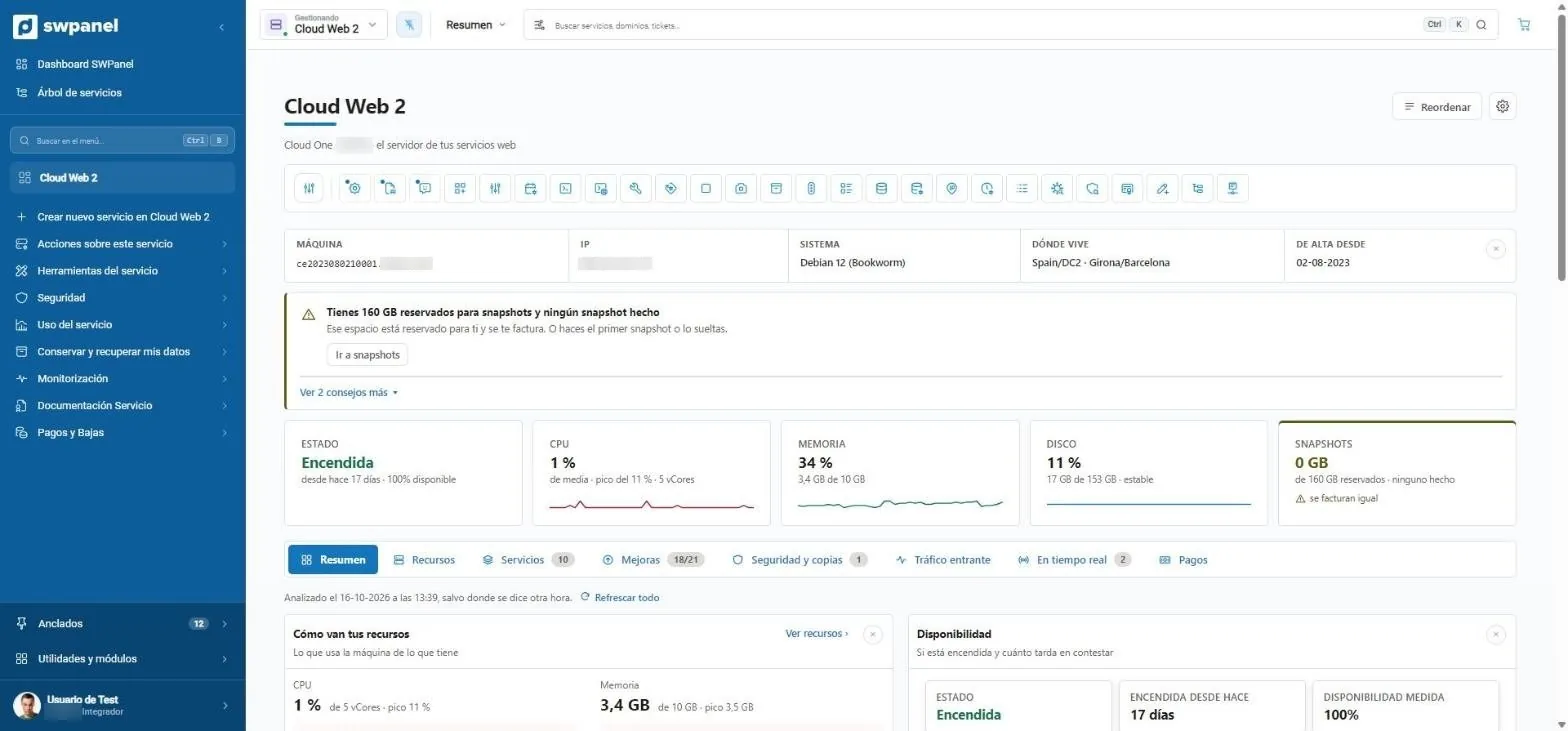
A Cloud from the inside
Machine, status and warnings with action
System, data center and sign-up date, the warnings worth attending to and the machine's figures. Below, eight tabs: resources, services, upgrades, security and backups, traffic, real time and payments.
- More than 25 shortcuts to service tools
- Machine, system and where it lives.
- Warnings with action.
- Status, CPU, memory, disk and snapshots.
- One tab per topic.
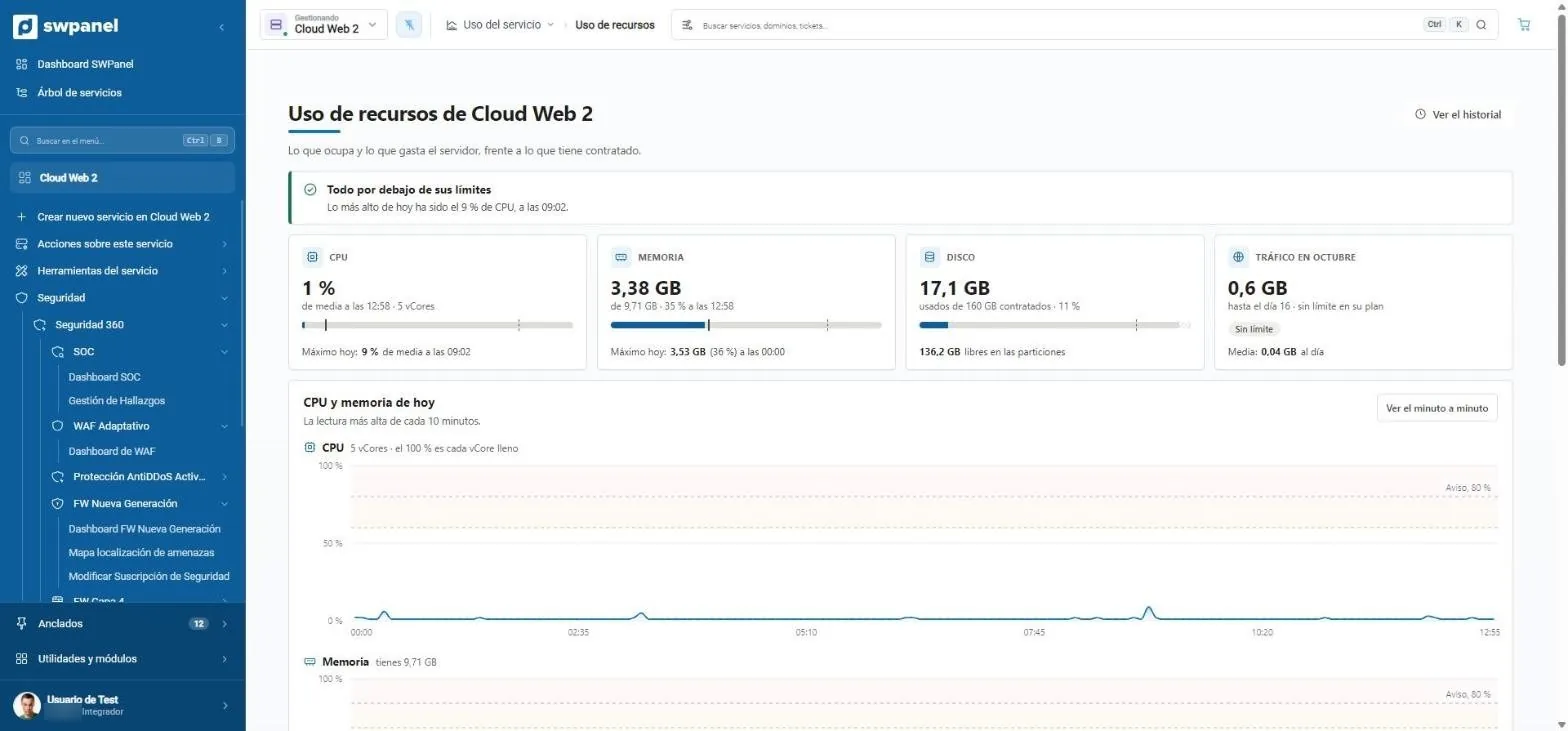
Resource usage
What it uses versus what's contracted
CPU, memory, disk and traffic with a sentence that summarizes it and the minute-by-minute chart.
- Warning lines
- Historic
- Everything below its limits, said in one sentence.
- CPU, memory, disk and traffic against what you've purchased.
- Minute by minute, with the warning lines.
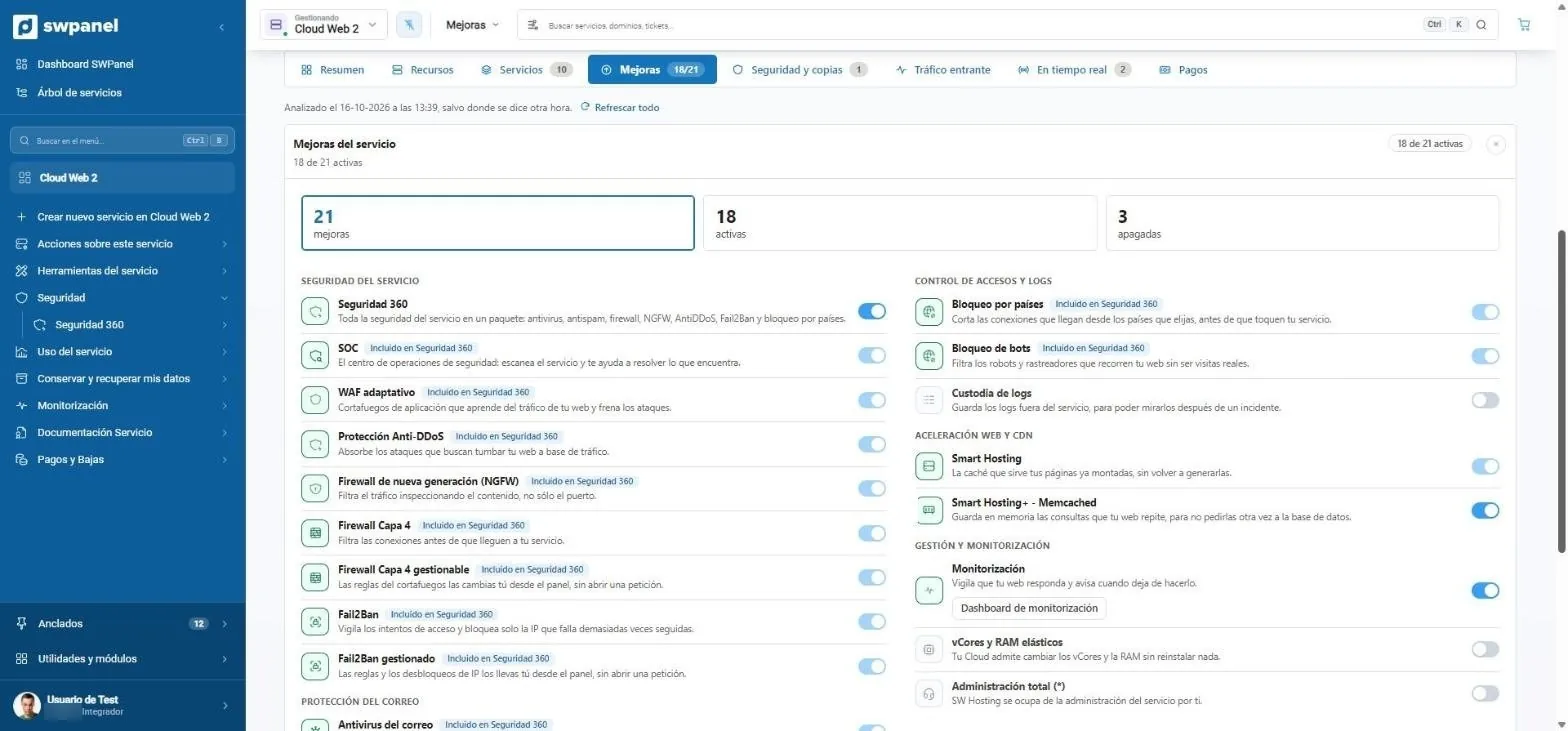
Improvements
What you can enable, with a switch
Security, email, web acceleration, CDN and monitoring. What Security 360 includes appears checked.
- 21 upgrades on this Cloud
- 21 upgrades: 18 active and 3 off.
- What Security 360 includes, checked.
- Enabled with a switch.
- Web acceleration, CDN and monitoring in the same list.
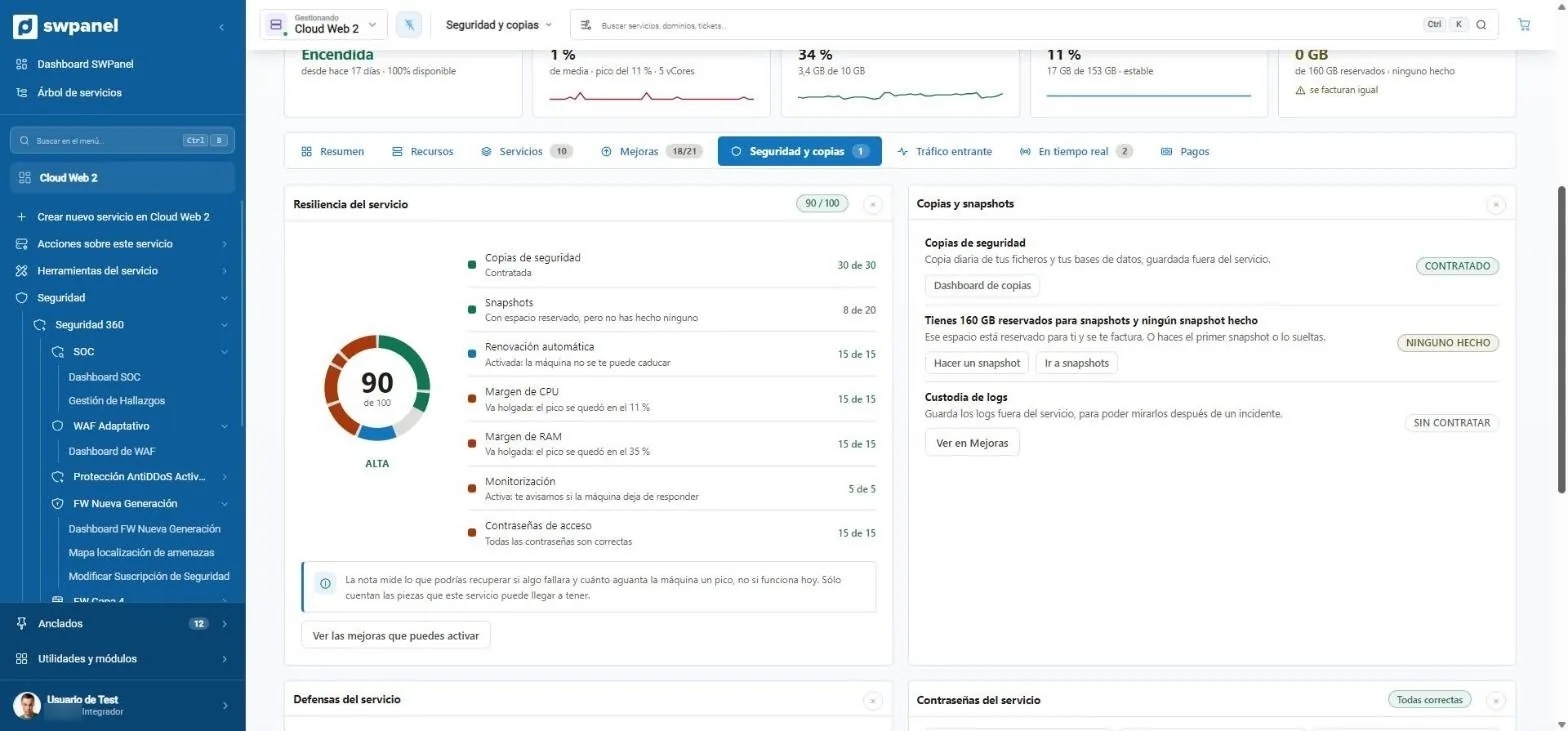
Resilience
If something failed, what would you recover?
A score from 0 to 100 that adds up backups, snapshots, renewal, CPU and RAM headroom, monitoring and passwords. With the upgrades that raise it, one click away.
- Backups and snapshots with their status
- Resilience score out of 100: what you could recover if something failed.
- What adds and what subtracts: backups, snapshots, renewal, CPU and RAM headroom, monitoring and passwords.
- Backups and snapshots with what you've ordered, what's missing and the button to do it.
- The improvements that raise the score, one click away.
Getting started shouldn't be hard
Buying and migrating
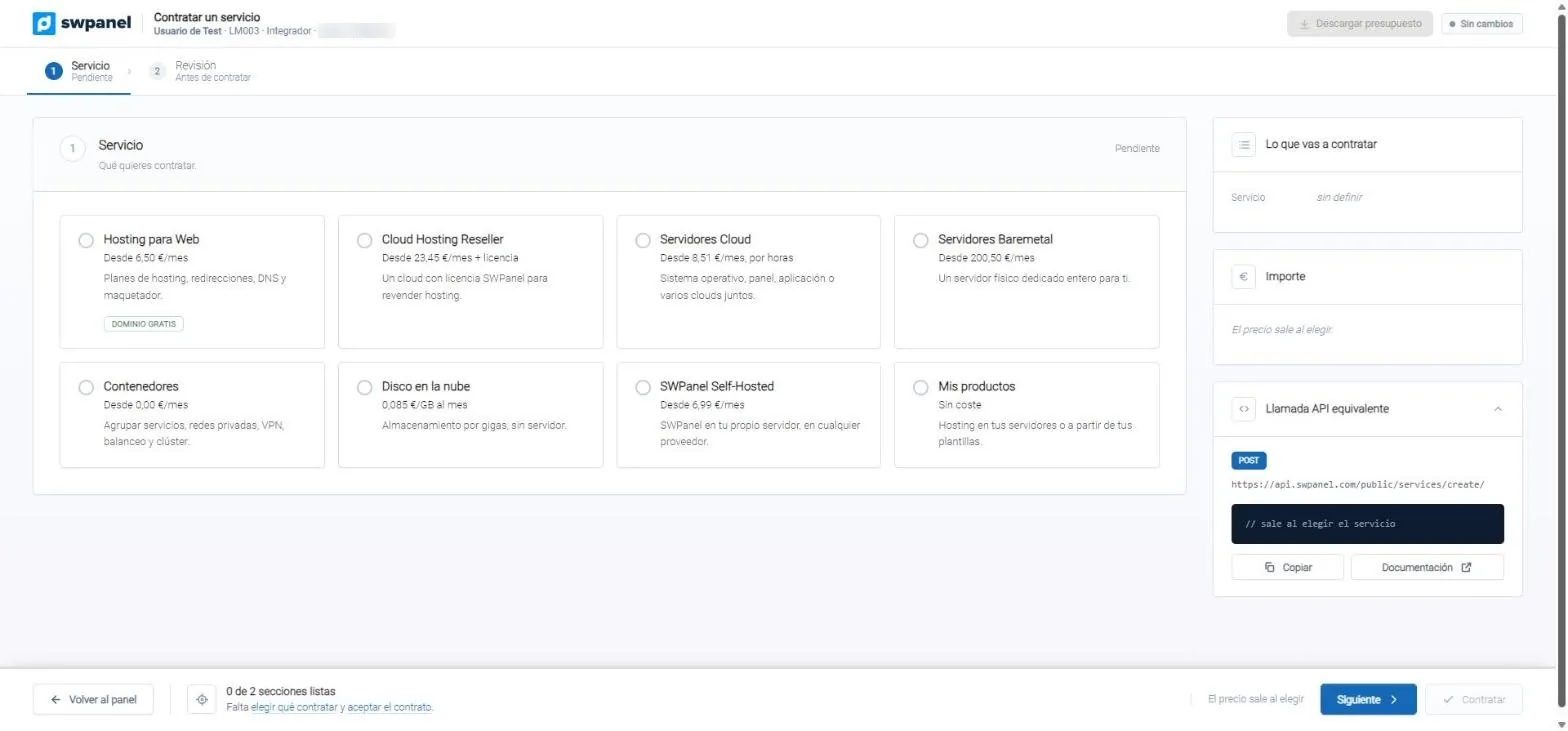
Buy a service
What you need, without endless catalogs
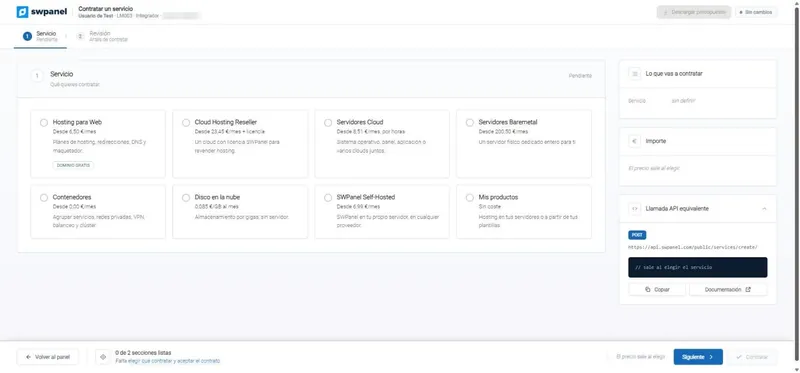
Eight service types explained in one line. The wizard asks only what's needed and what you're about to buy is always in view.
- Hosting, Reseller, Cloud, Baremetal, containers, disk, Self-Hosted and your products
- Eight types of service, explained in one line.
- What you'll purchase, always in view.
- The equivalent API call, which writes itself as you choose.
- What's left to finish.
Its API call
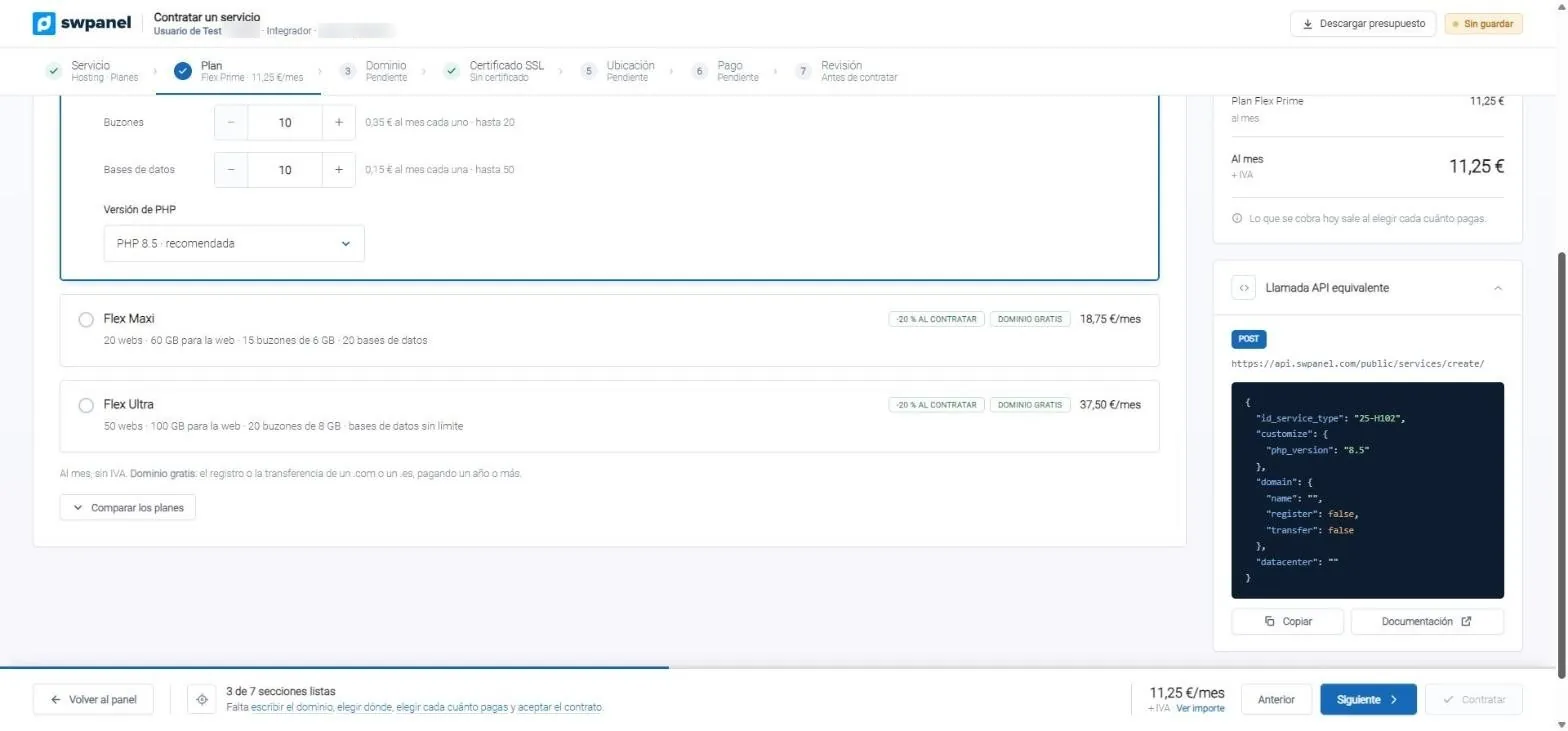
While you choose, the JSON is written
Every decision in the wizard updates the equivalent API call. You copy and automate the same thing from your code.
- Endpoint, method and body
- Link to the documentation
- Seven steps, with completed ones in green.
- The plans with what each one includes.
- The exact JSON to do the same from your code.
Migrate a website
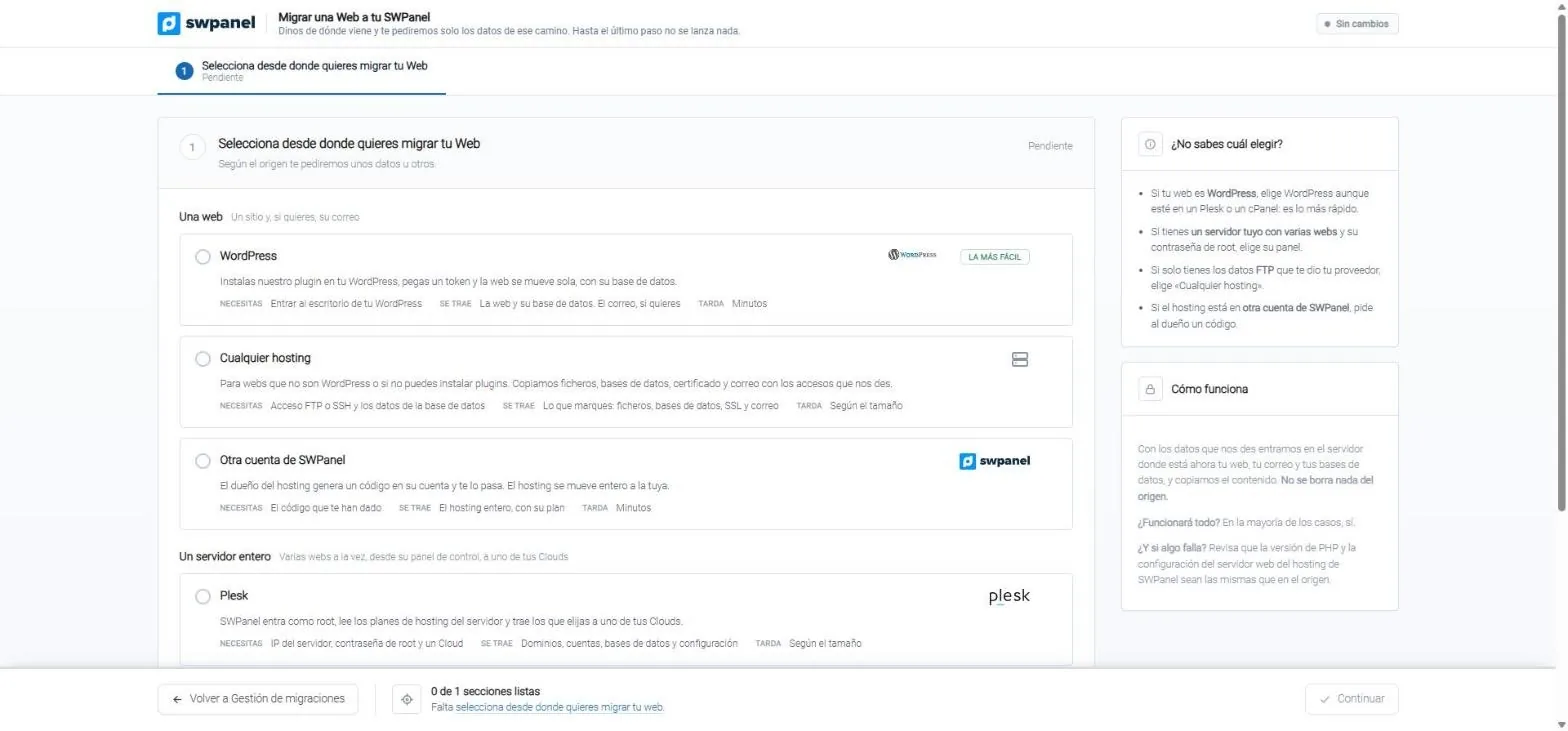
From WordPress, Plesk, cPanel or DirectAdmin
You choose the source and SWPanel asks only for that path's details. With root access to a cPanel or Plesk server, it migrates domains, accounts, databases and configuration with no manual intervention.
- Also from any hosting via FTP or SSH
- Or from another SWPanel with a migration code
- Two groups: a single website or a whole server, with Plesk, cPanel or DirectAdmin.
- Before choosing: what you need, what comes across and how long it takes.
- Not sure which to choose? Four hints to pick the right path.
Each layer, with its own screen
Security 360
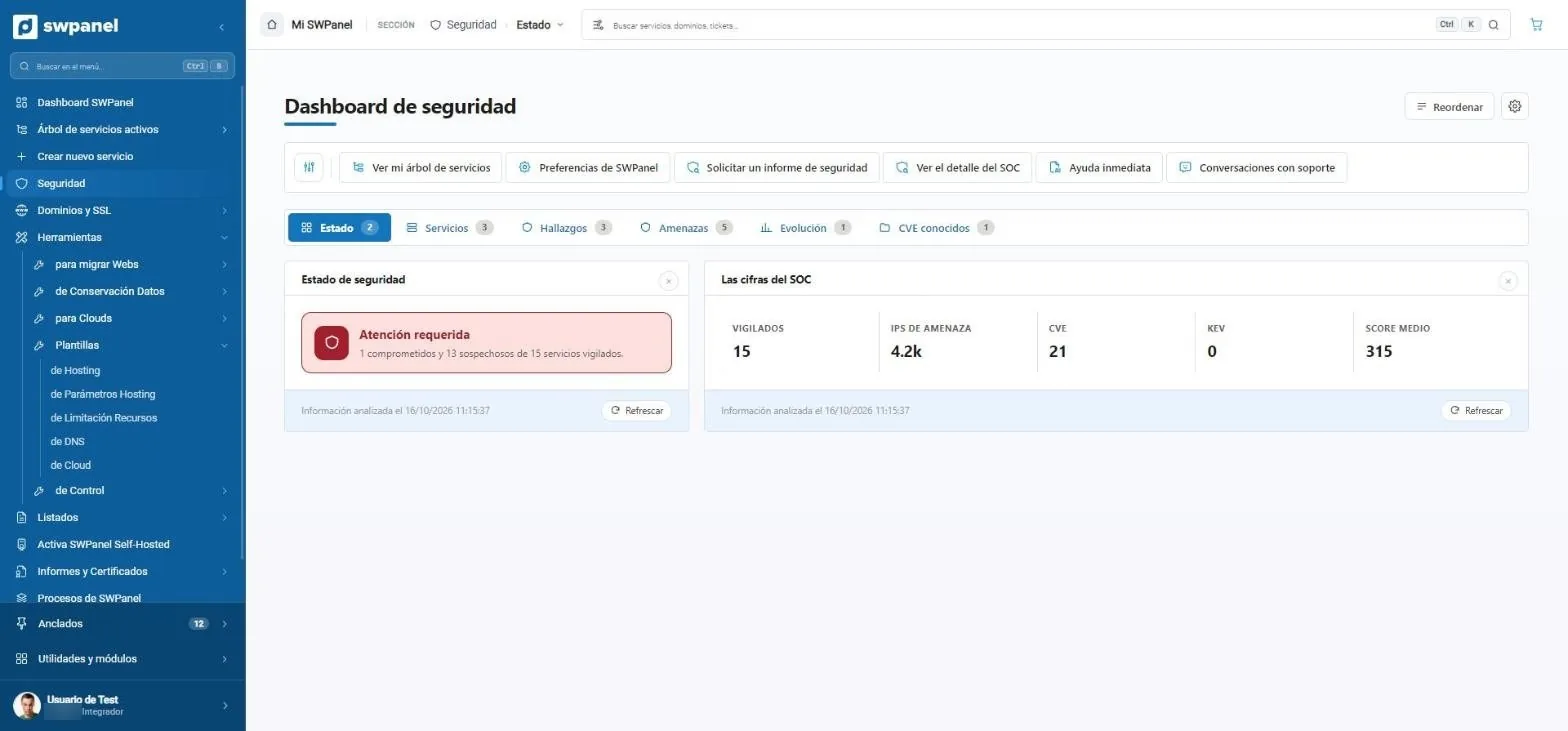
Security dashboard
The whole account on one card
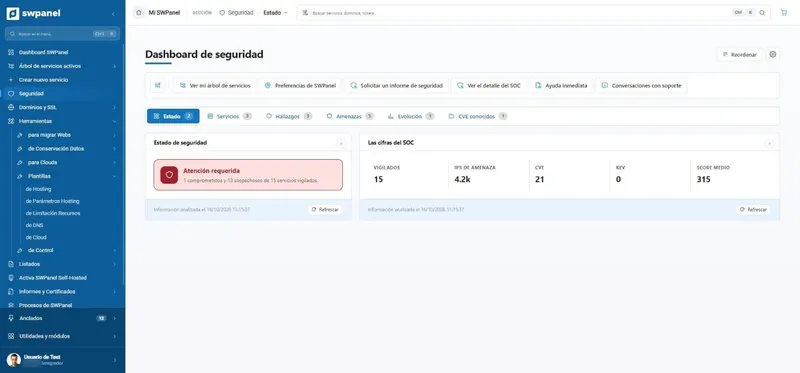
Monitored services, threat IPs, CVEs and average score, with the warning in red if something needs attention.
- Attention required: 1 compromised service and 13 suspicious out of 15.
- The SOC figures: monitored services, threat IPs, CVEs, KEV and average score.
- Status, services, findings, threats, trends and CVEs.
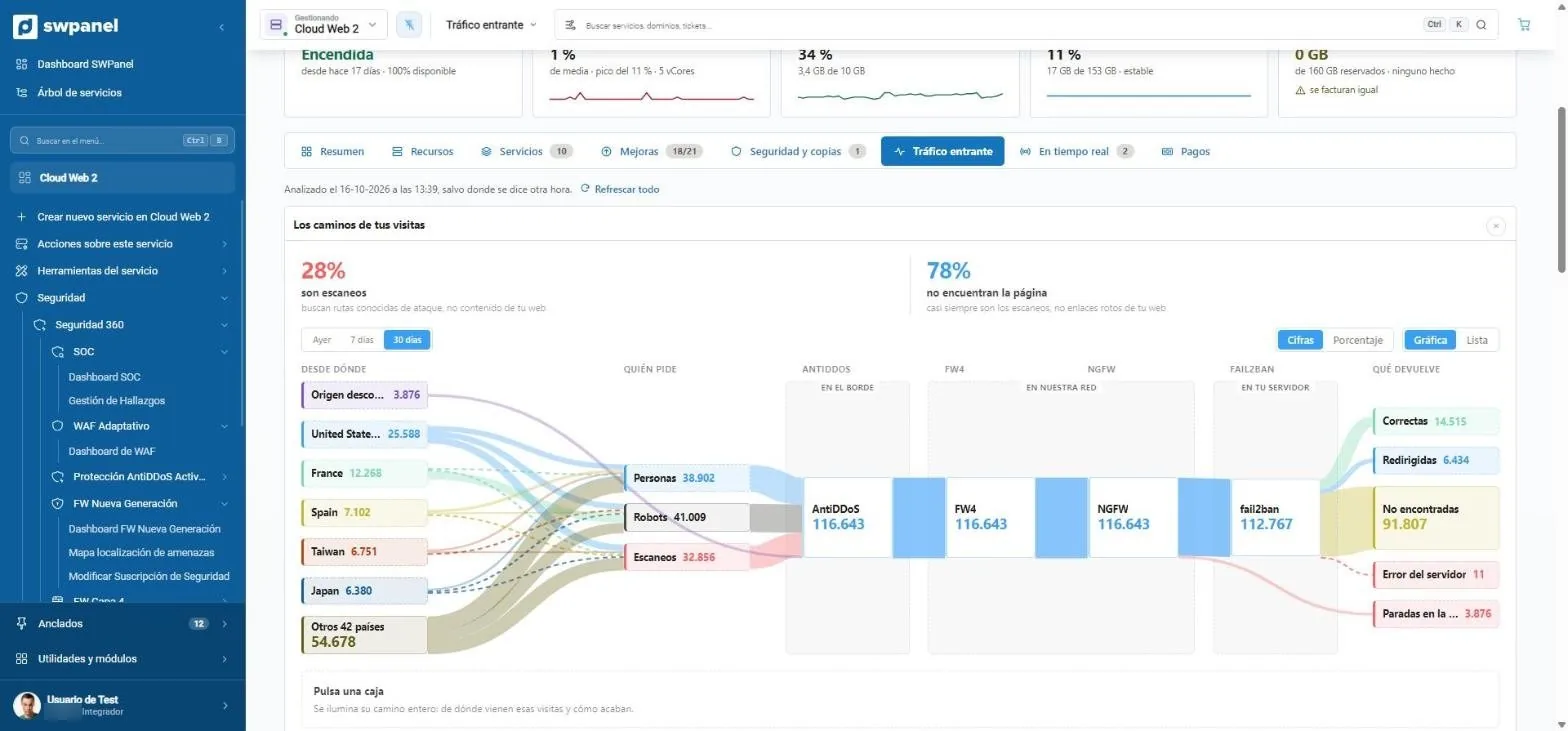
Incoming traffic
Every request, layer by layer
Which country it comes from, whether it's a person, bot or scanner, which layers it passes through and how it ends.
- Yesterday, 7 or 30 days
- Figures or percentages
- How much is scanning. Here, 28 % of traffic looks for known attack paths, not your content.
- Which countries visits come from, sorted by volume.
- Who's asking: people, robots or scanners. Each group with its own color.
- The layers each request goes through: AntiDDoS at the edge, FW4 and NGFW in our network and Fail2Ban on your server.
- How each visit ends: successful, redirected, not found, error or stopped at a layer.
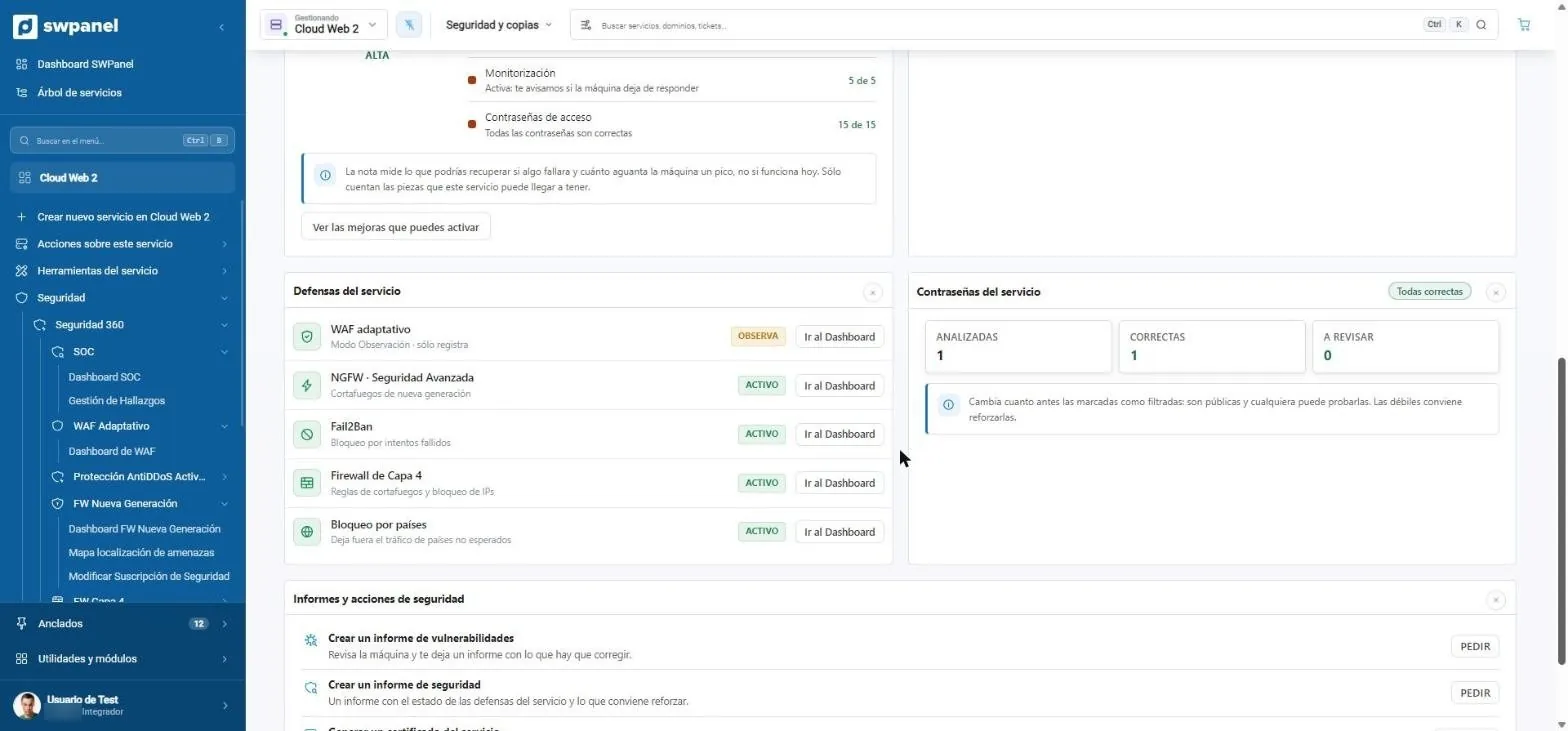
Service defenses
Each layer with its status
WAF, NGFW, Fail2Ban, layer 4 and countries, with their status and one click to their dashboard.
- Each defense with its status. The WAF is in observation: it logs without blocking while it learns.
- One click to the dashboard of each layer.
- Service passwords checked against public leaks.
- Security and vulnerability reports on demand.
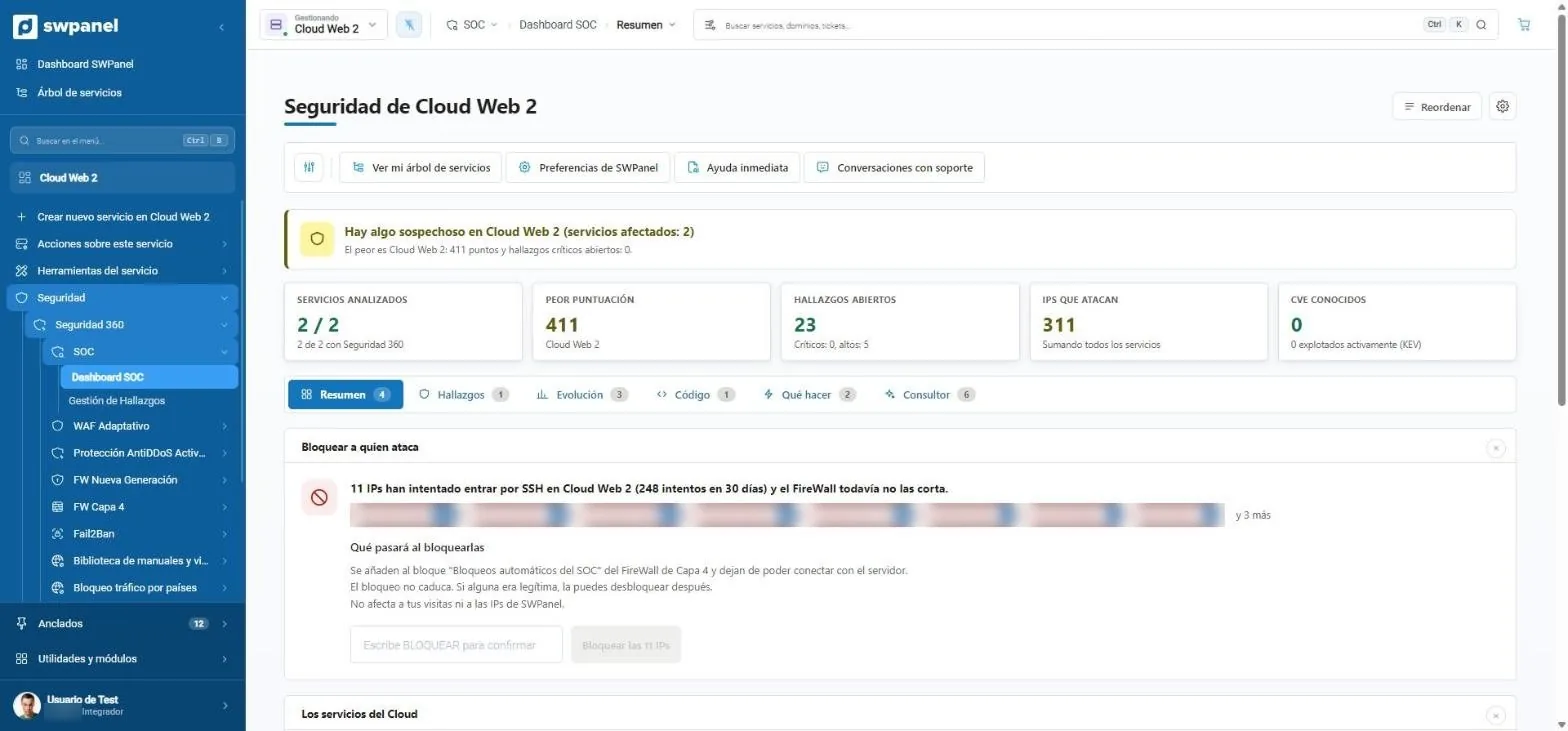
SOC
Five figures and a proposal
The status in one sentence, the figures that matter and the proposal to block whoever attacks, with written confirmation.
- A notice that summarizes the status: in order, suspicious or compromised.
- Five figures: services analyzed, worst score, findings, attacking IPs and CVEs.
- Six tabs: summary, findings, trends, code, what to do and consultant.
- Block whoever attacks: 11 IPs try to get in via SSH and the SOC proposes cutting them off.
- To act you type BLOCK. Nothing is applied by an absent-minded click.
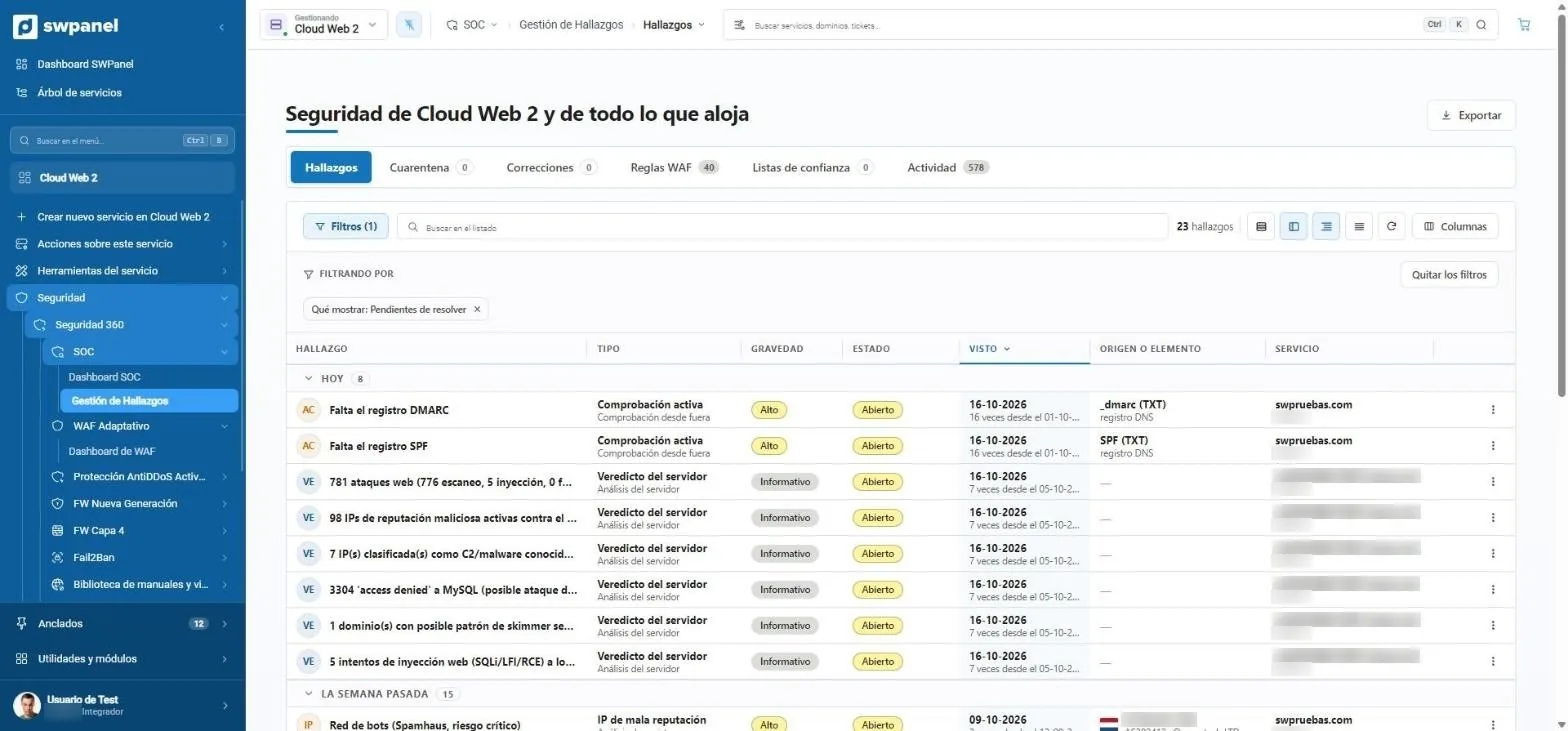
Findings
Each problem and where it is
Severity, status and origin of each finding, grouped by when they appeared.
- Findings, quarantine, fixes, WAF rules, trust lists and activity.
- Filters that are remembered. Here, only what's pending.
- Severity and status of each finding.
- Where the problem is: a DNS record, an IP or a service.
- Grouped by when they appeared: today, last week...
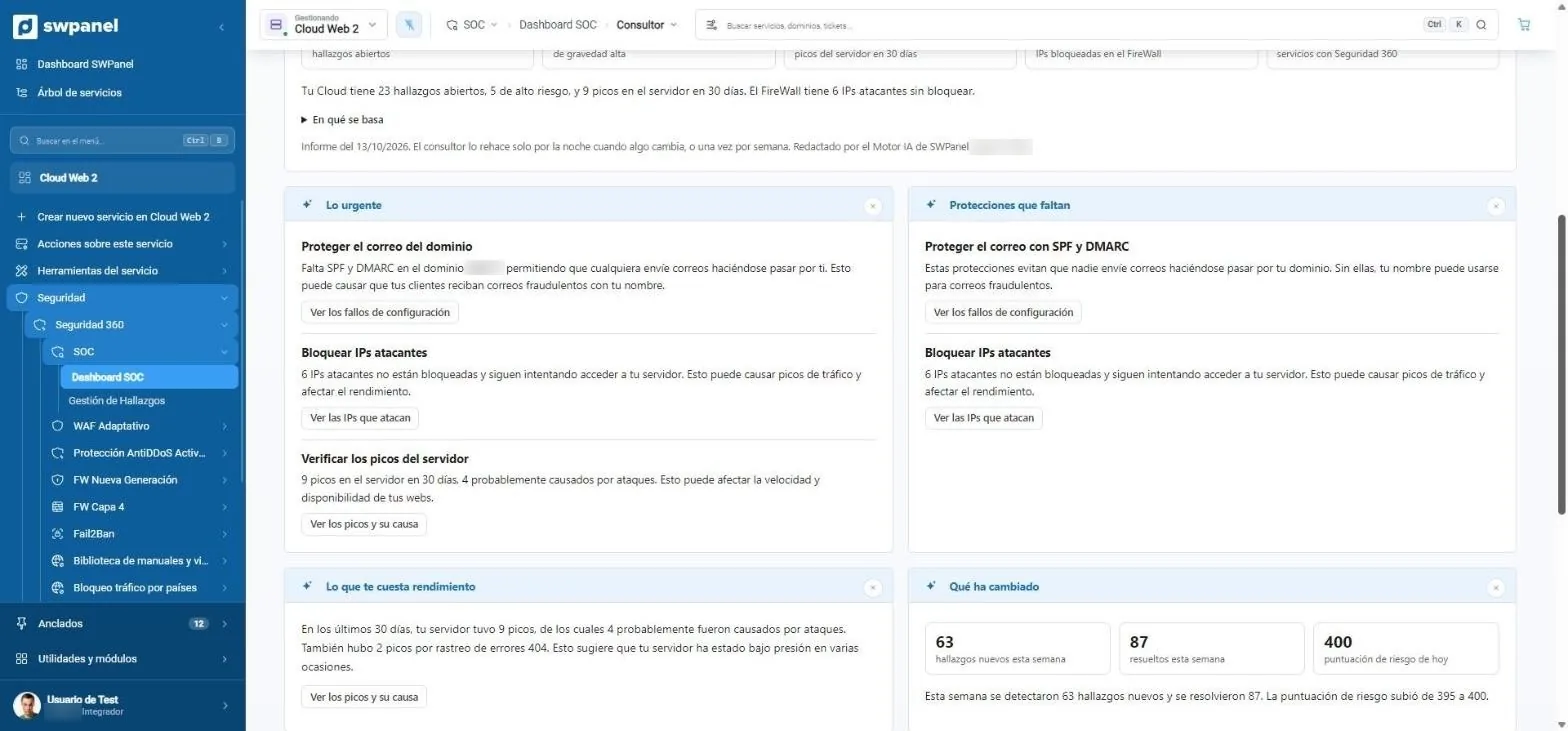
AI consultant
The urgent, what's missing and what it costs
The nightly report in blocks you can read in two minutes, with a button per point.
- What's urgent: what's happening, why it matters and what happens if it isn't fixed.
- Missing protections in your services.
- Each item with its button to go straight to fixing it.
- What costs you performance: server spikes caused by attacks.
- What has changed since the last report.
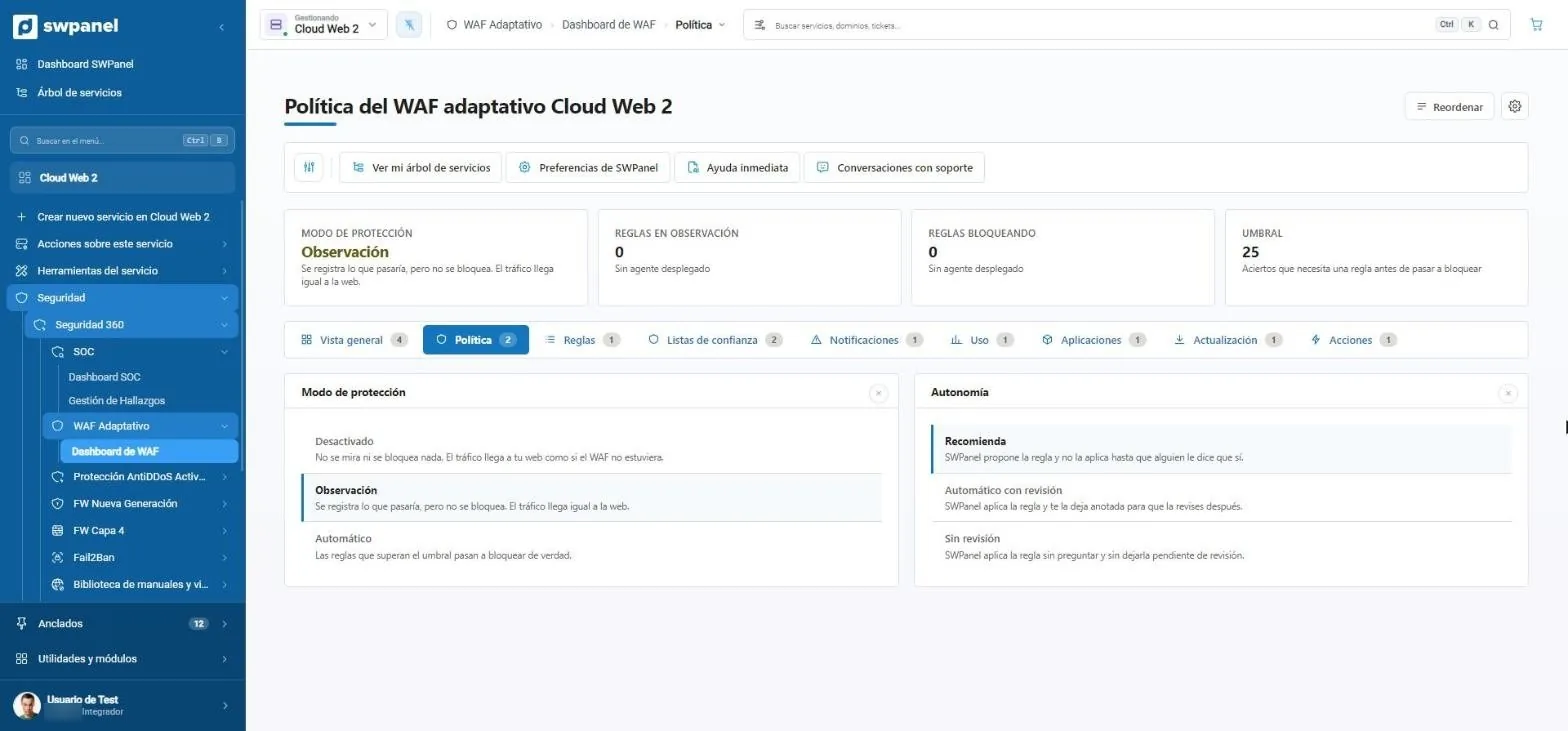
Adaptive WAF
You decide how much it decides
Three modes and three levels of autonomy, with the threshold a rule needs to block.
- Protection mode: here, in observation.
- Threshold: the hits a rule needs before blocking.
- Three modes: off, observation or automatic.
- Three levels of autonomy: only recommends, applies with review or applies without review.
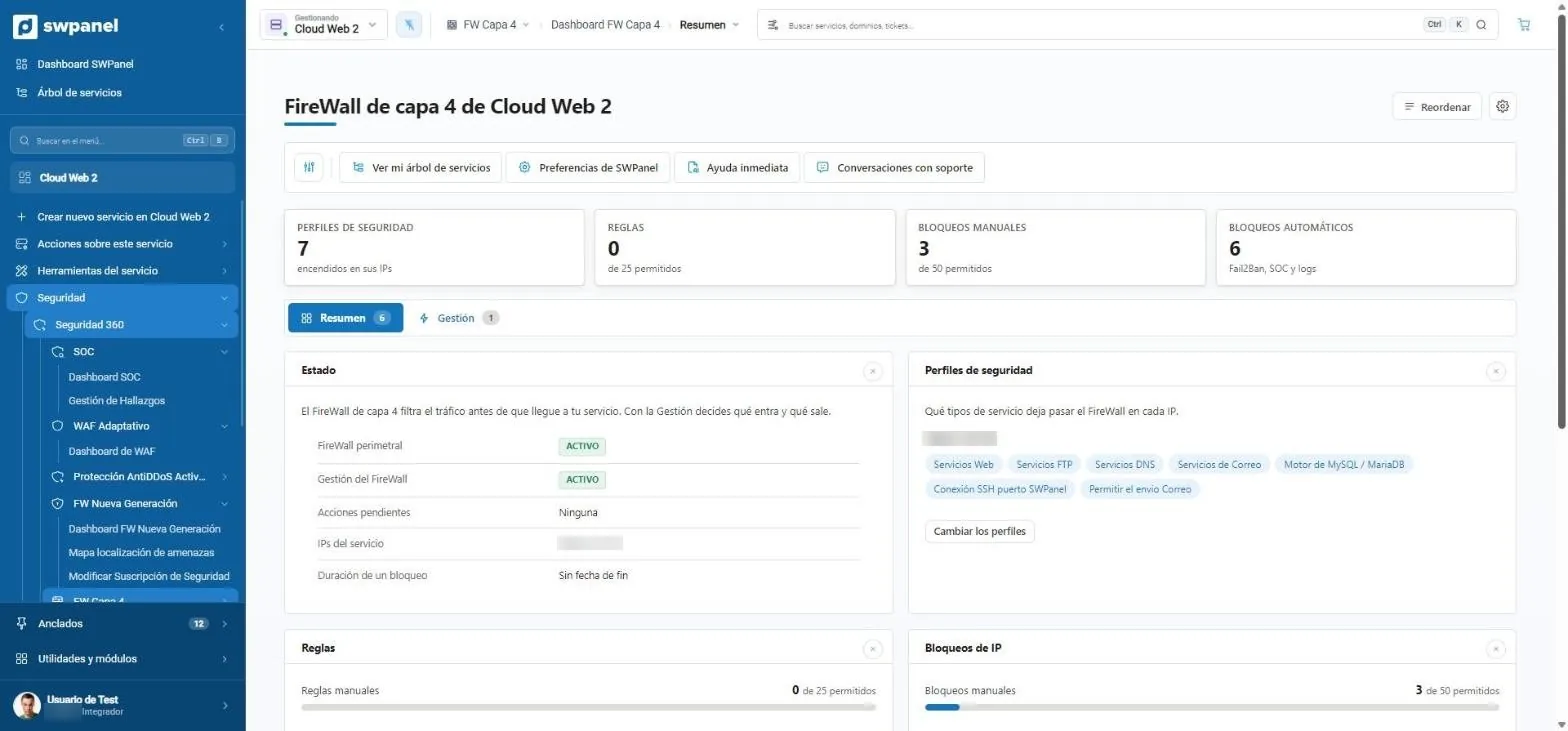
Layer 4 firewall
What comes in and goes out, per IP
Profiles per service, rules and manual and automatic blocks.
- Profiles, rules and IP blocks, in three tabs.
- Perimeter firewall status, pending actions and block duration.
- What it lets through on each IP: web, FTP, DNS, email, MySQL, SSH...
- Blocks that come from outside: Fail2Ban's blacklist and the ones you confirm from the SOC.
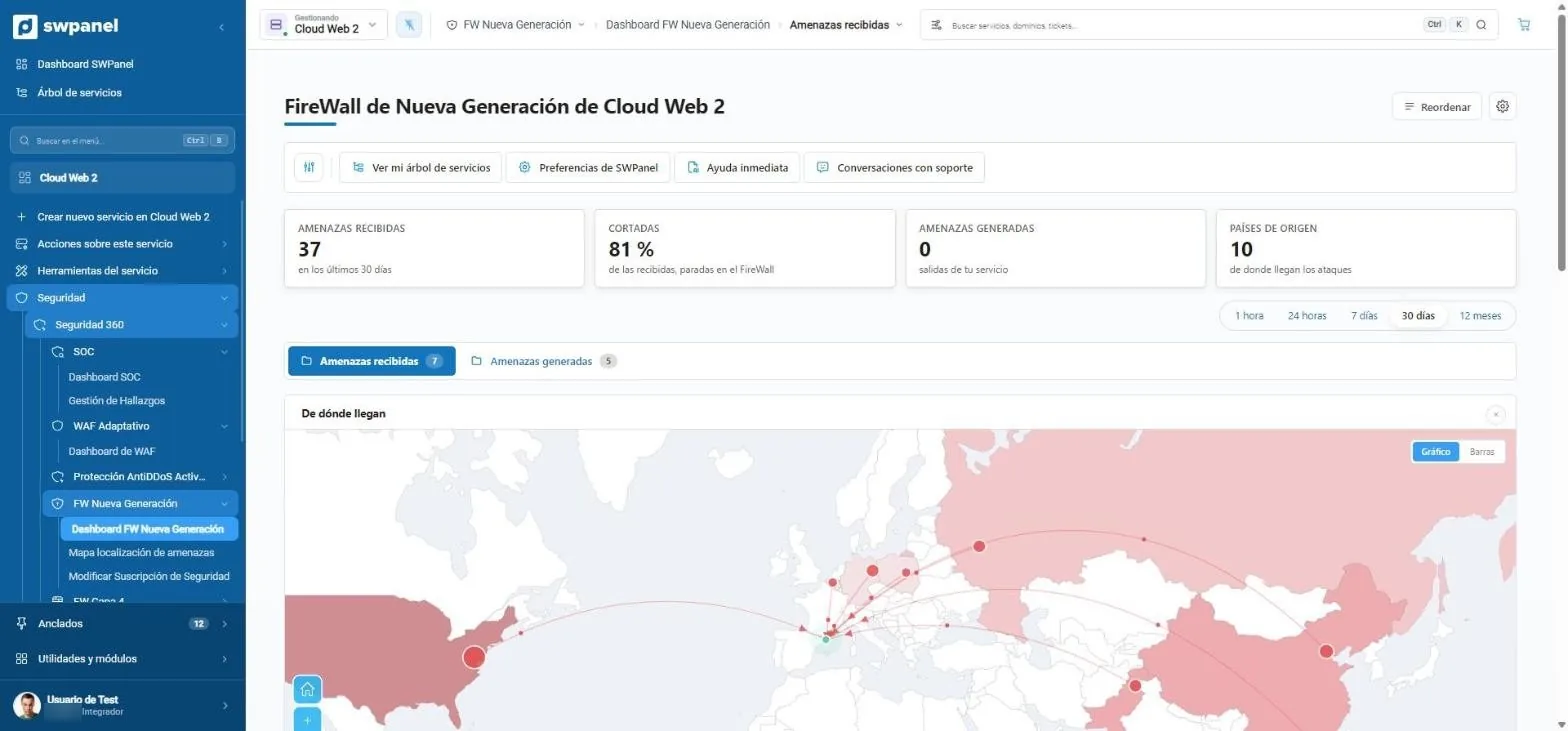
Next-generation firewall
Threats received and cut off
How many, how many cut off and from where.
- 37 threats in 30 days; 81 % of those detected, with a block action.
- Period: from one hour to one year, or custom.
- Where they come from: each IP's country, on the map.
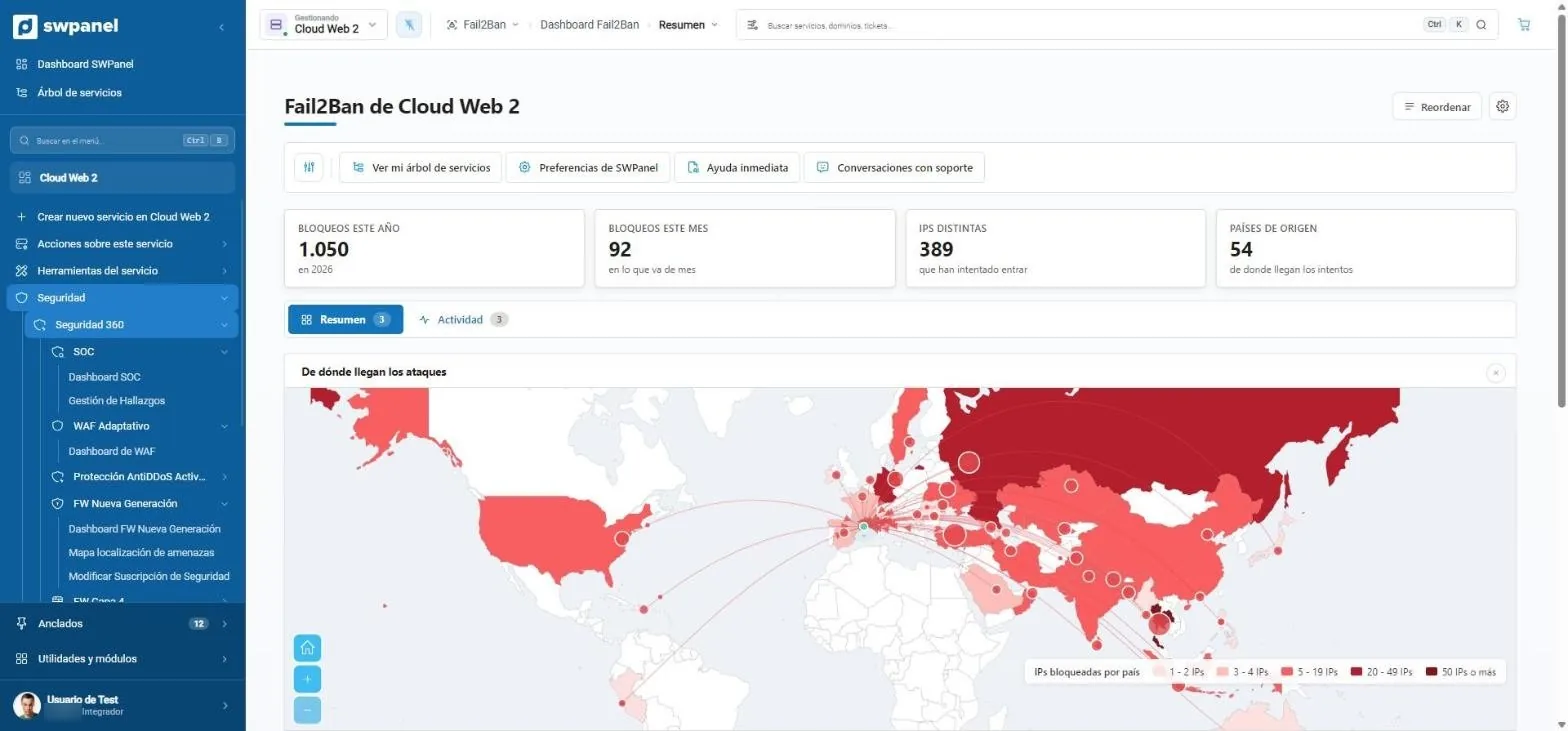
Fail2Ban
Failed attempts, on the map
Blocks of the year, distinct IPs and countries.
- 1,050 blocks this year, 389 distinct IPs and 54 countries.
- The attack map by number of blocked IPs.
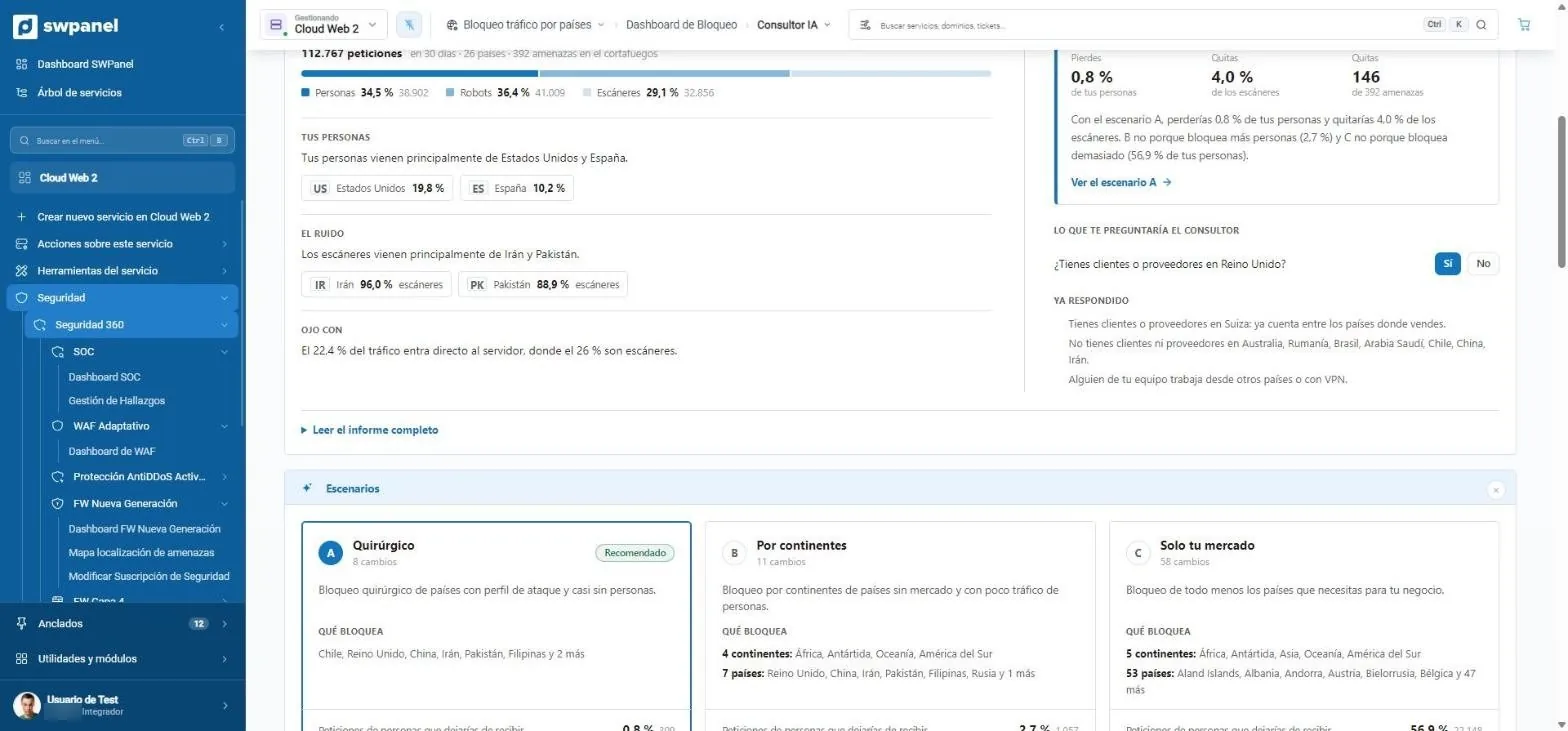
Country blocking
Three scenarios with their cost
The consultant proposes and asks you what it doesn't know before you decide.
- It asks what it can't know: do you have customers or suppliers in the United Kingdom?
- It remembers what you already answered and takes it into account.
- Scenario A, surgical: only countries with an attack profile.
- Scenario B, by continent.
- Scenario C, only your market.
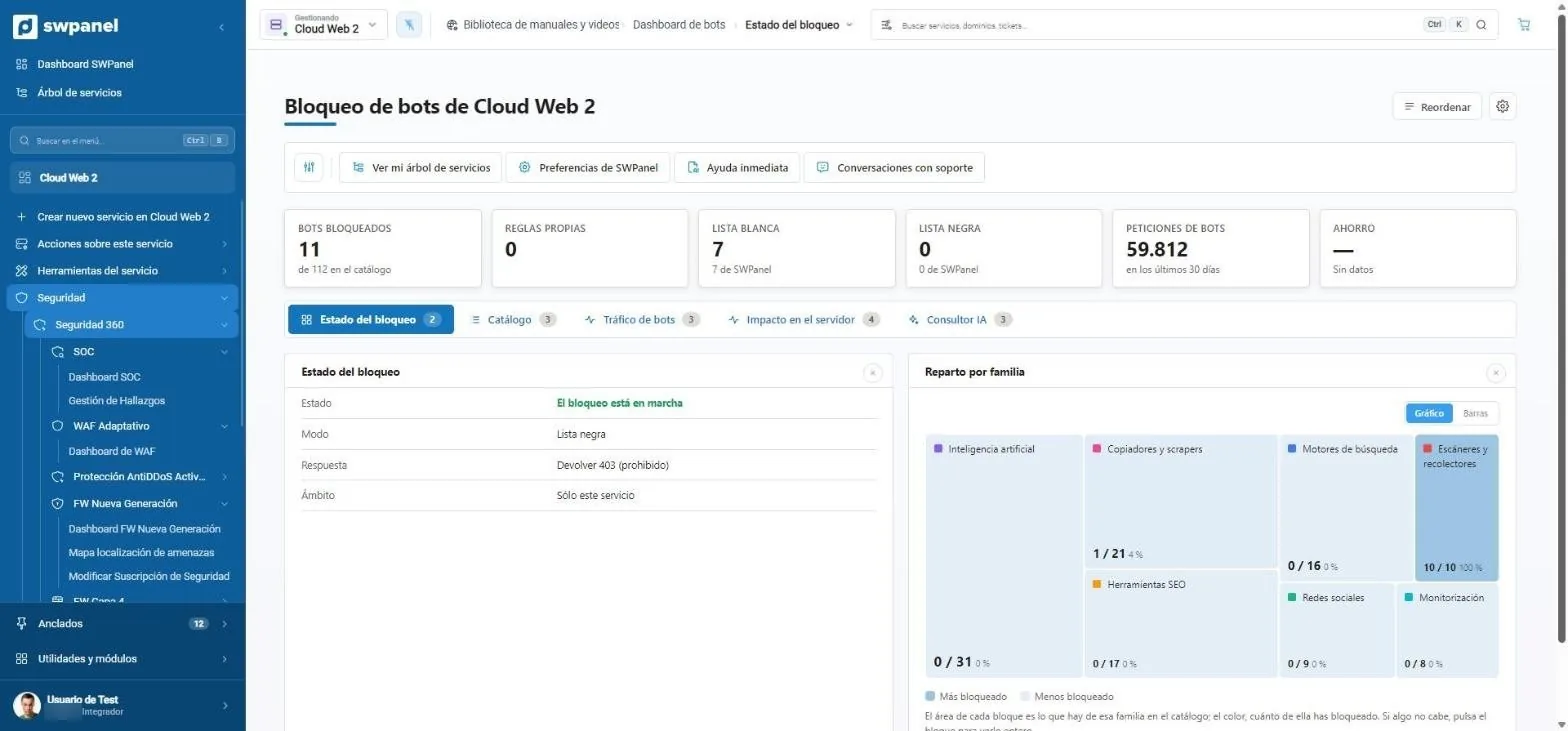
Bot blocking
112 bots, by family
What you have blocked from each family and the bot requests of 30 days.
- 11 bots blocked out of 112 in the catalog.
- 59,812 bot requests in 30 days.
- Status, catalog, traffic, server impact and AI consultant.
- Mode and response: blacklist and 403 error for blocked ones.
- Breakdown by family: AI, copiers, search engines, scanners, SEO, social networks and monitoring.
Known CVEs
Vulnerabilities of what you have installed
Each CVE with its component and the affected service.
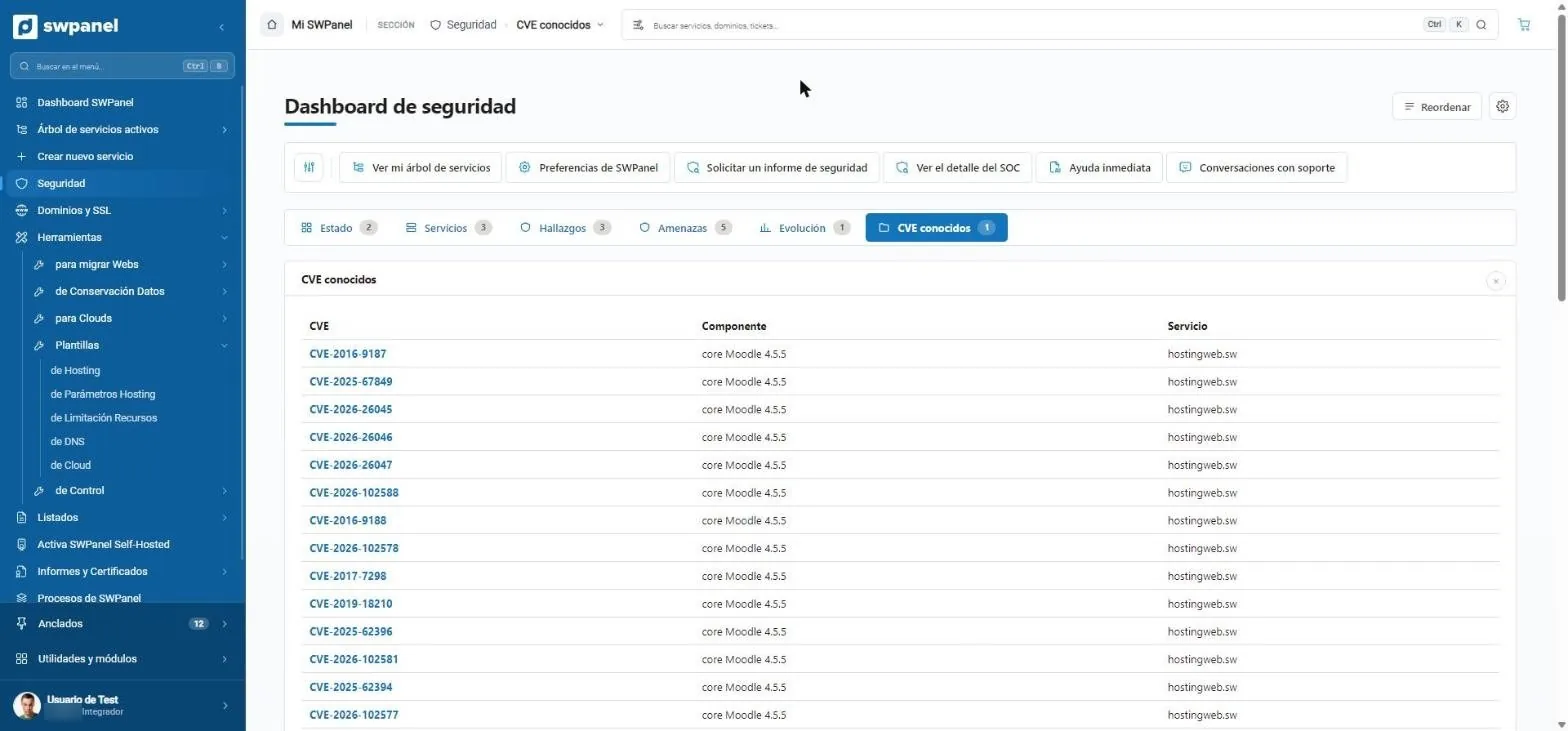
- Each known CVE, with the affected component and service.
- The exact component: here, a specific Moodle version.
From diagnosis to task
SEO
SEO dashboard
Where to start
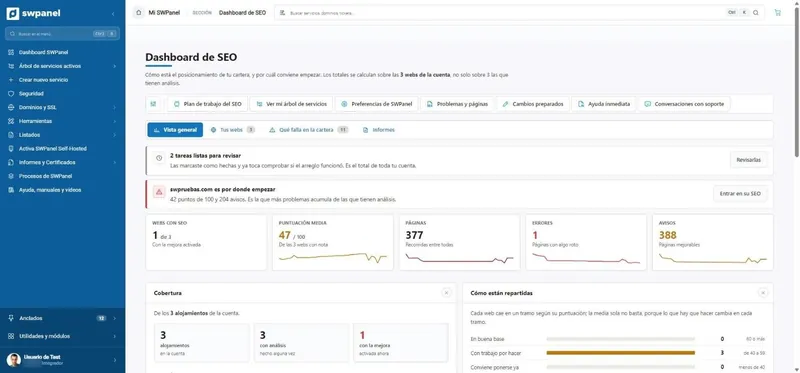
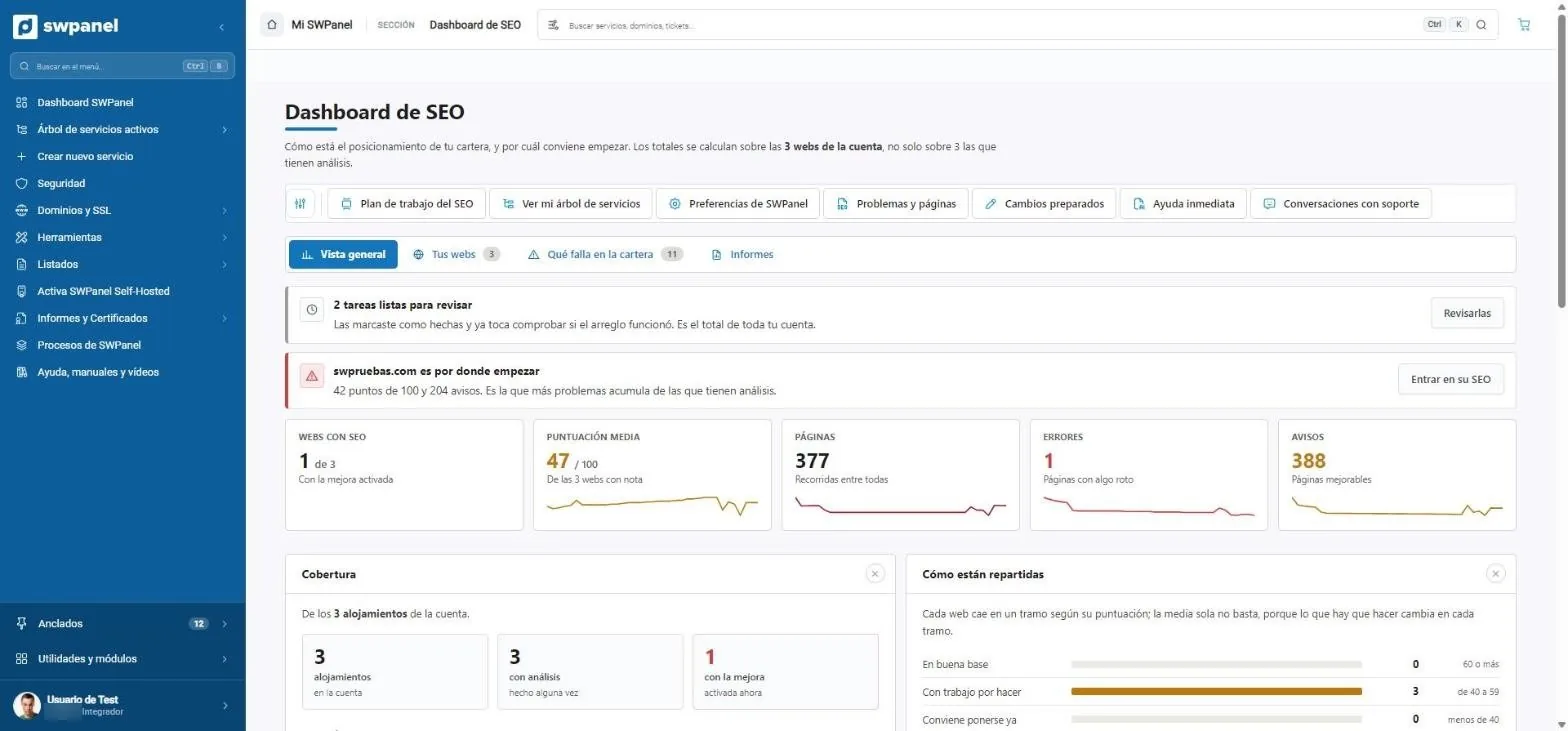
The website with the most problems, the tasks to check and the portfolio figures.
- Tasks ready to review: you marked the fix and it's time to check whether it worked.
- Where to start: the website with the most problems.
- Websites with SEO, average score, pages, errors and warnings.
- Work plan, problems, prepared changes and Instant help.
- How your websites are distributed by score.
What's failing in the portfolio
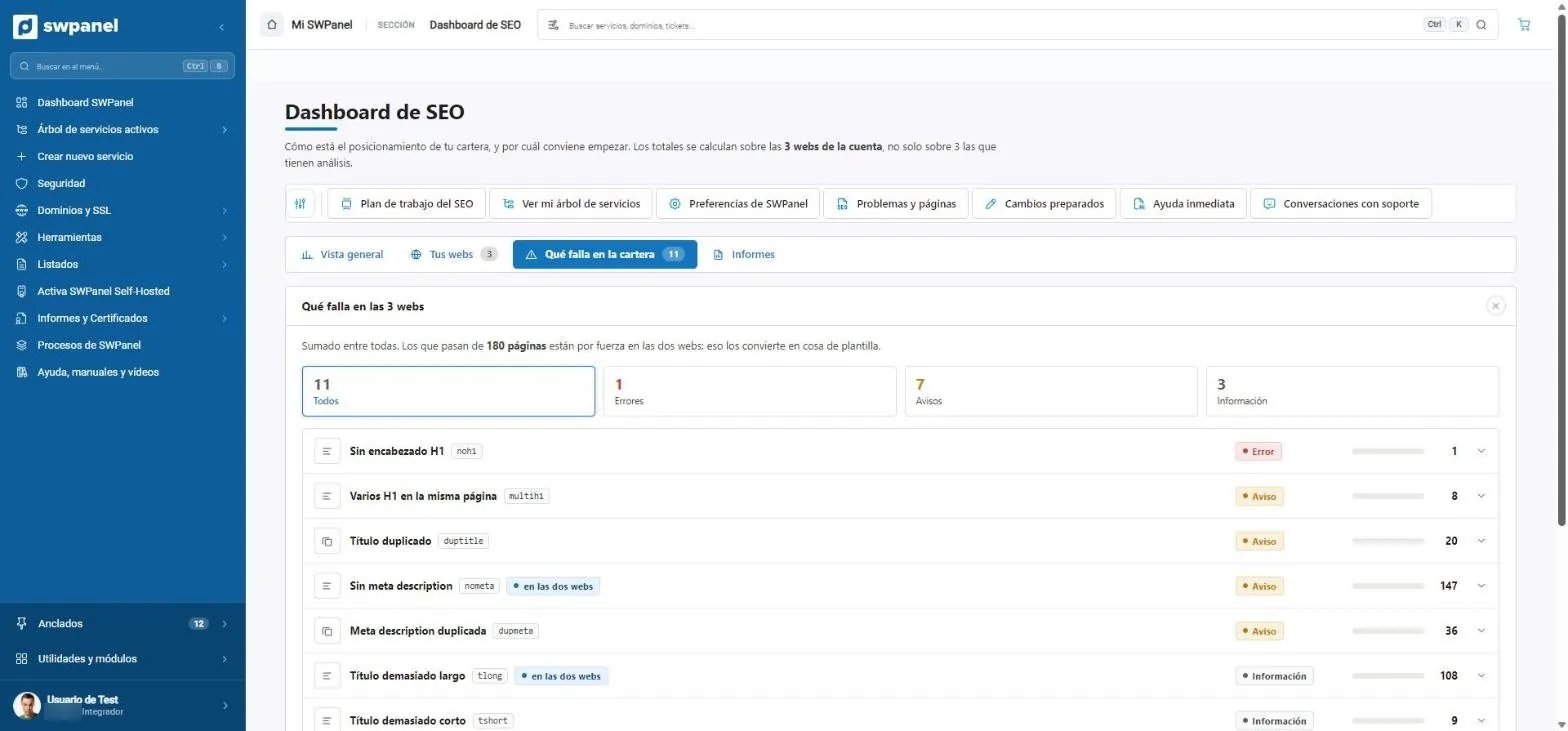
Problems totaled across all your websites
With how many pages have them and whether it's a template issue.
- What's failing across the whole portfolio: errors, warnings and information.
- Each problem with its code and whether it repeats across several websites (a template issue).
- How many pages have it.
Work plan
Tasks in consultant language
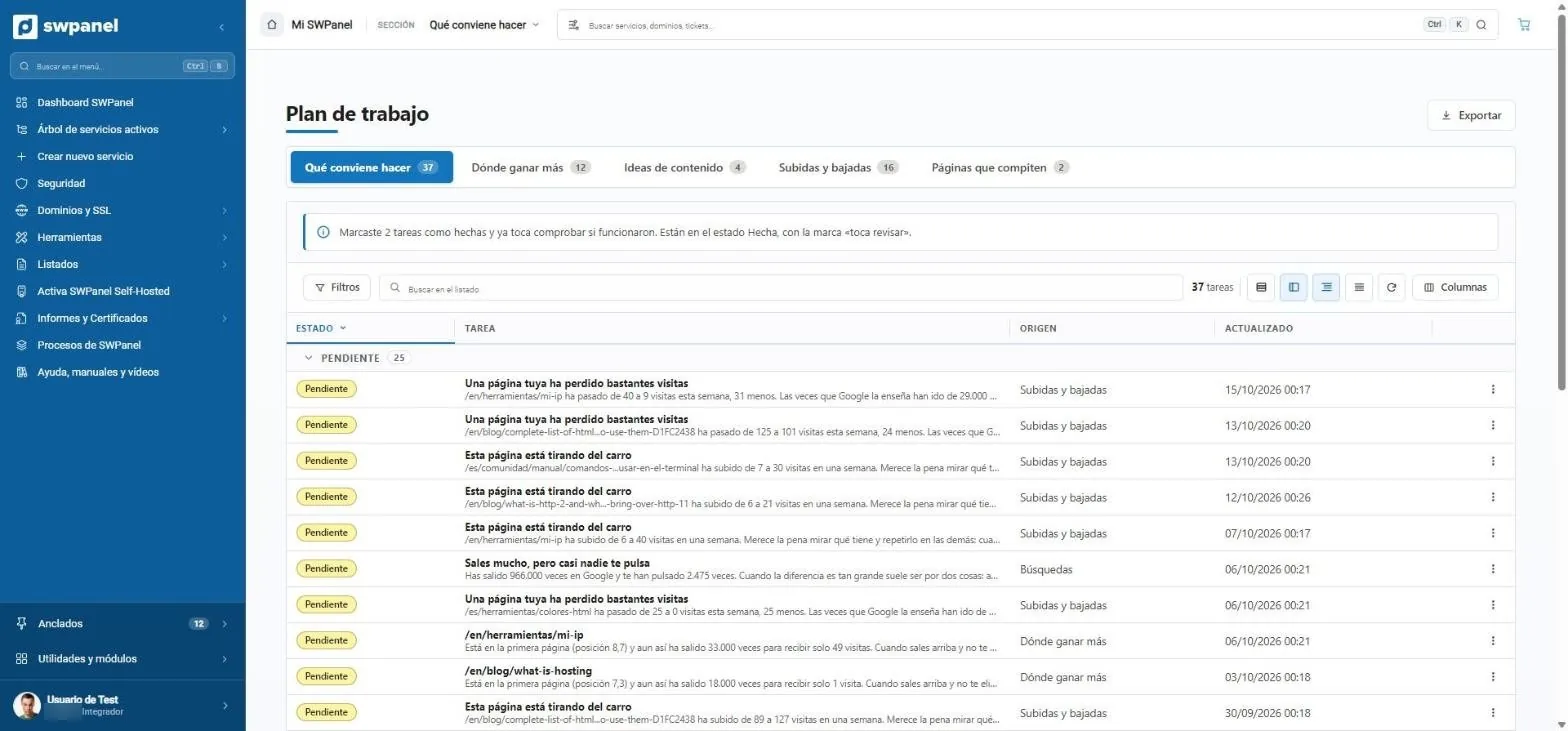
Each task with its number and its origin, and the follow-up of what you marked as done.
- What to do, where to gain the most, content ideas, rises and drops and competing pages.
- Follow-up: what you marked as done comes back to be checked.
- Tasks in plain language: “one of your pages has lost quite a few visits”.
- “You show up a lot, but almost nobody clicks you”: 966,000 impressions and 2,475 clicks.
- Where each task comes from.
Ask your SWPanel
Artificial intelligence
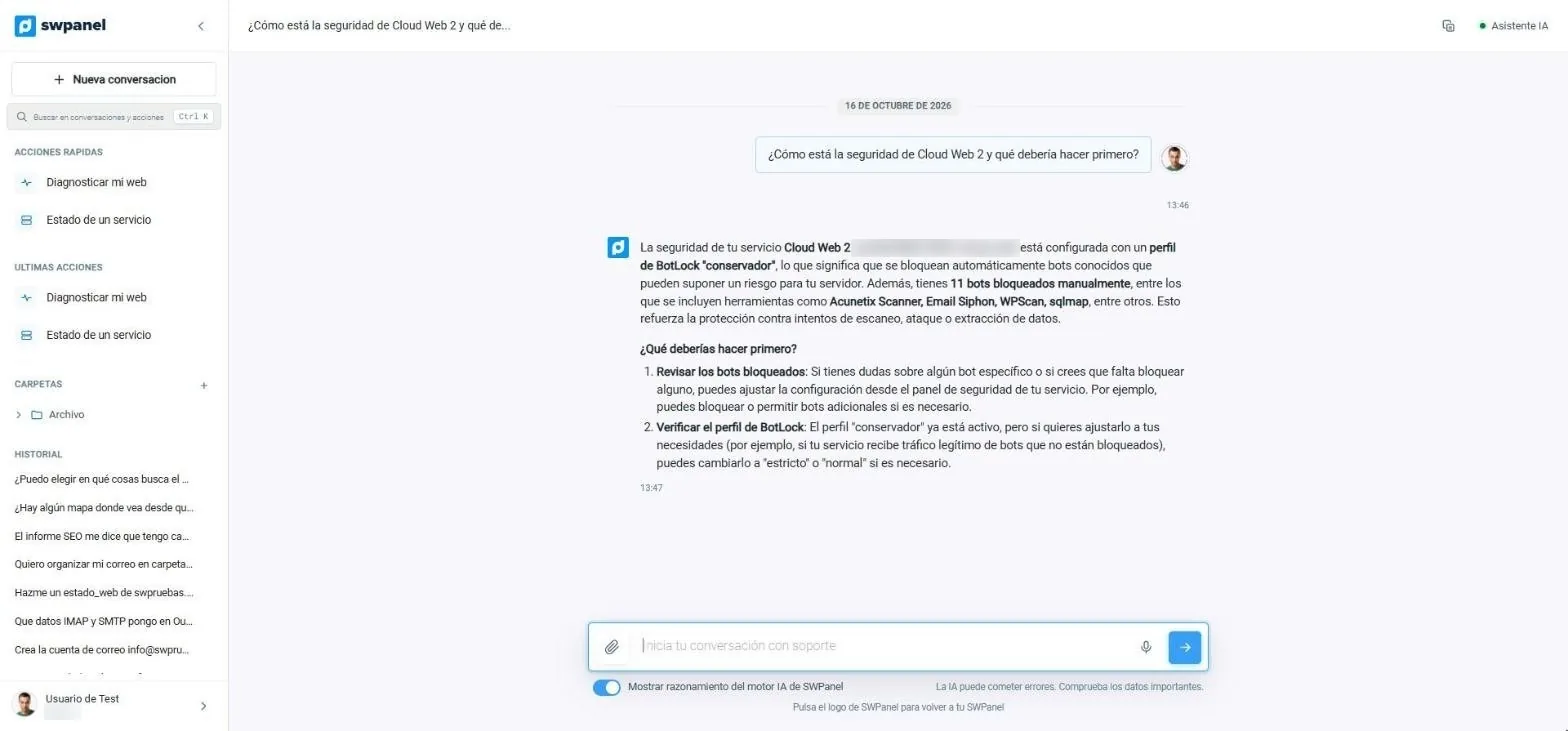
Instant help
Answers with your data
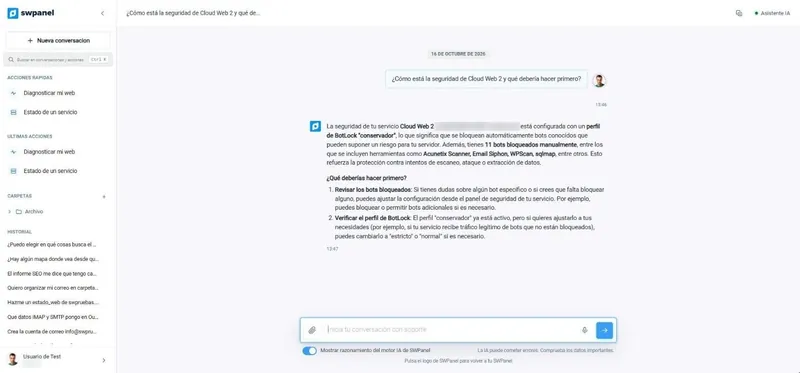
A question about a Cloud and an answer that talks about its real configuration, with what to do first.
- Visible reasoning
- History and rating
- The side menu: quick actions, latest actions, folders and conversation history.
- The question, in your own words.
- The answer uses your service's real data: blocking profile and blocked bots.
- What to do first, in steps.
- You can see the reasoning of the SWPanel AI engine.
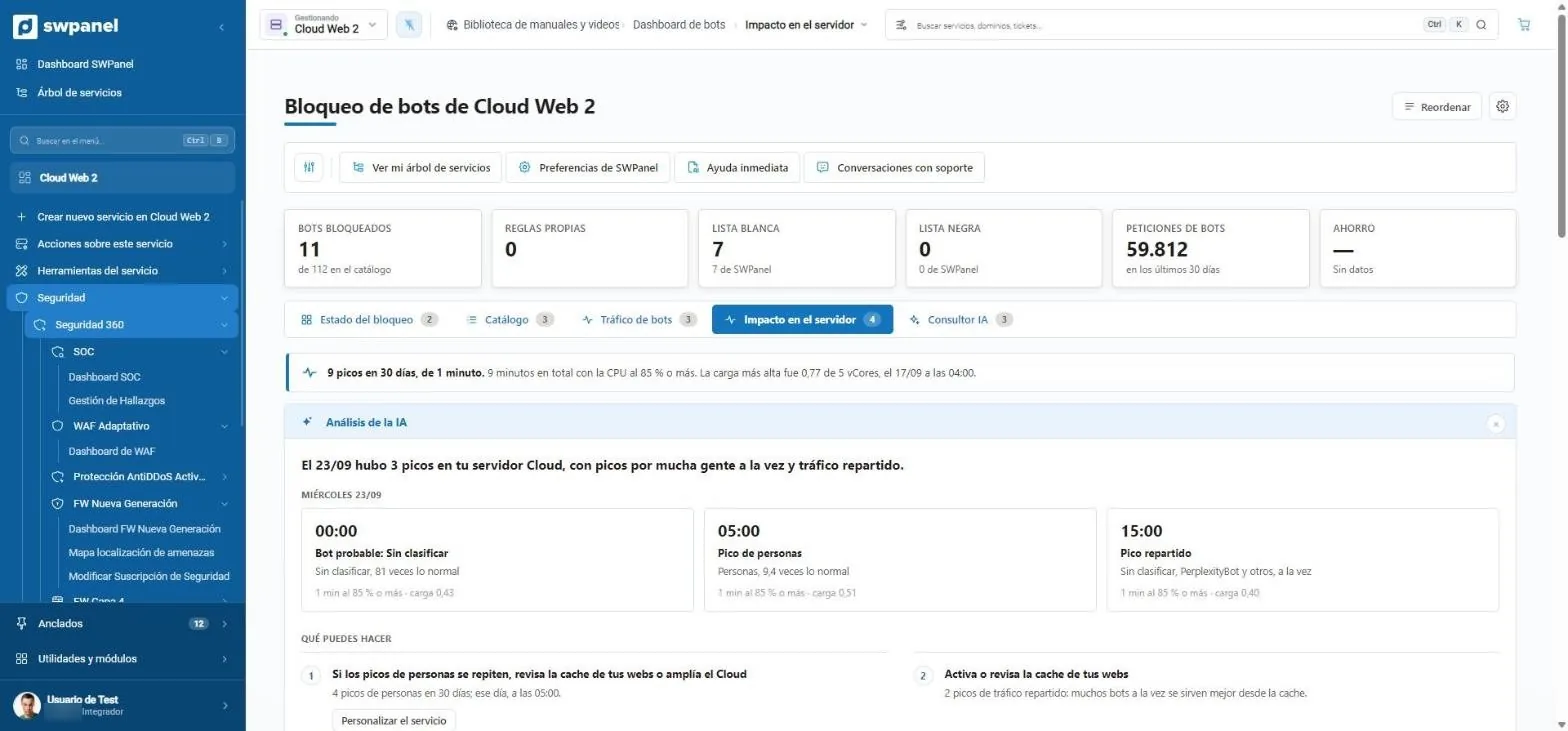
Spike diagnosis
Why the CPU spiked
The AI cross-references each spike with the traffic at that moment and proposes what to do.
- 9 spikes in 30 days and how long they lasted.
- The AI explains each spike: time, probable cause and load.
- What you can do, with the button to do it.
Win and retain
Customers
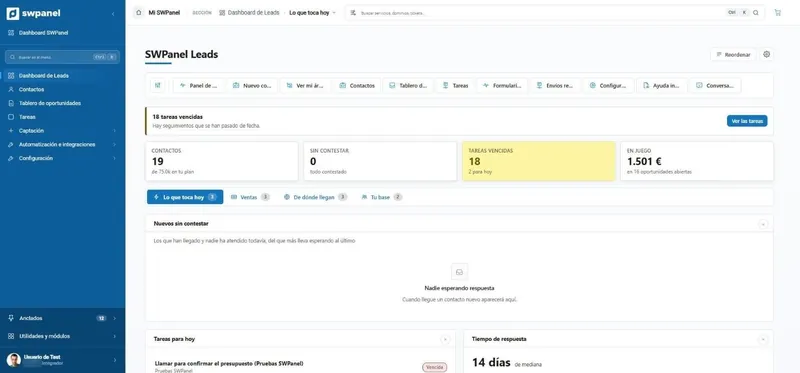
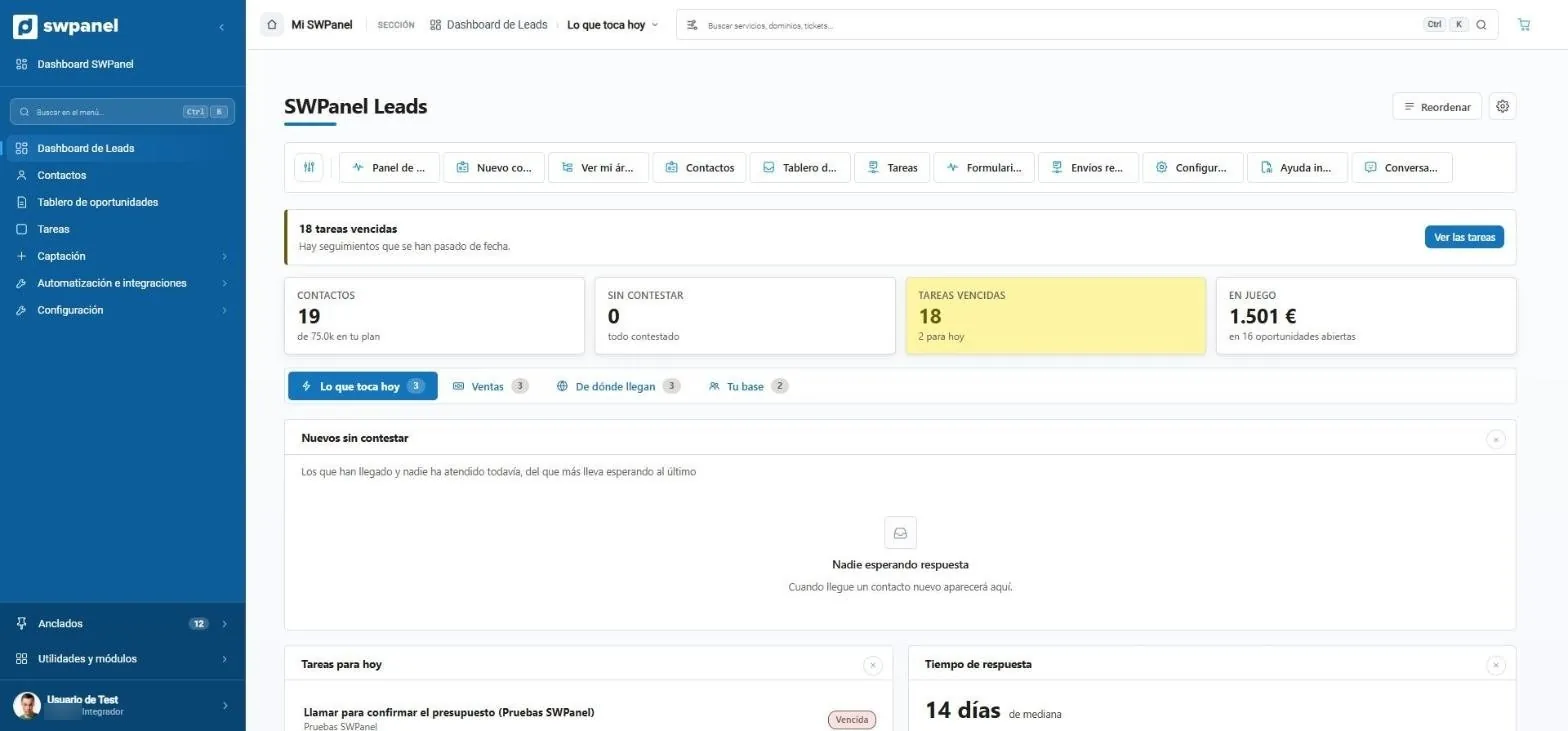
Leads
Today's to-do
Unanswered contacts, overdue tasks and what is at stake.
- The urgent, at the top: 18 overdue tasks and a button to see them.
- Contacts, unanswered, overdue tasks and what is at stake.
- Today's to-do, sales, where they come from and your base.
- New unanswered ones, from the one waiting longest to the last. Here, none.
- Tasks for today and response time.
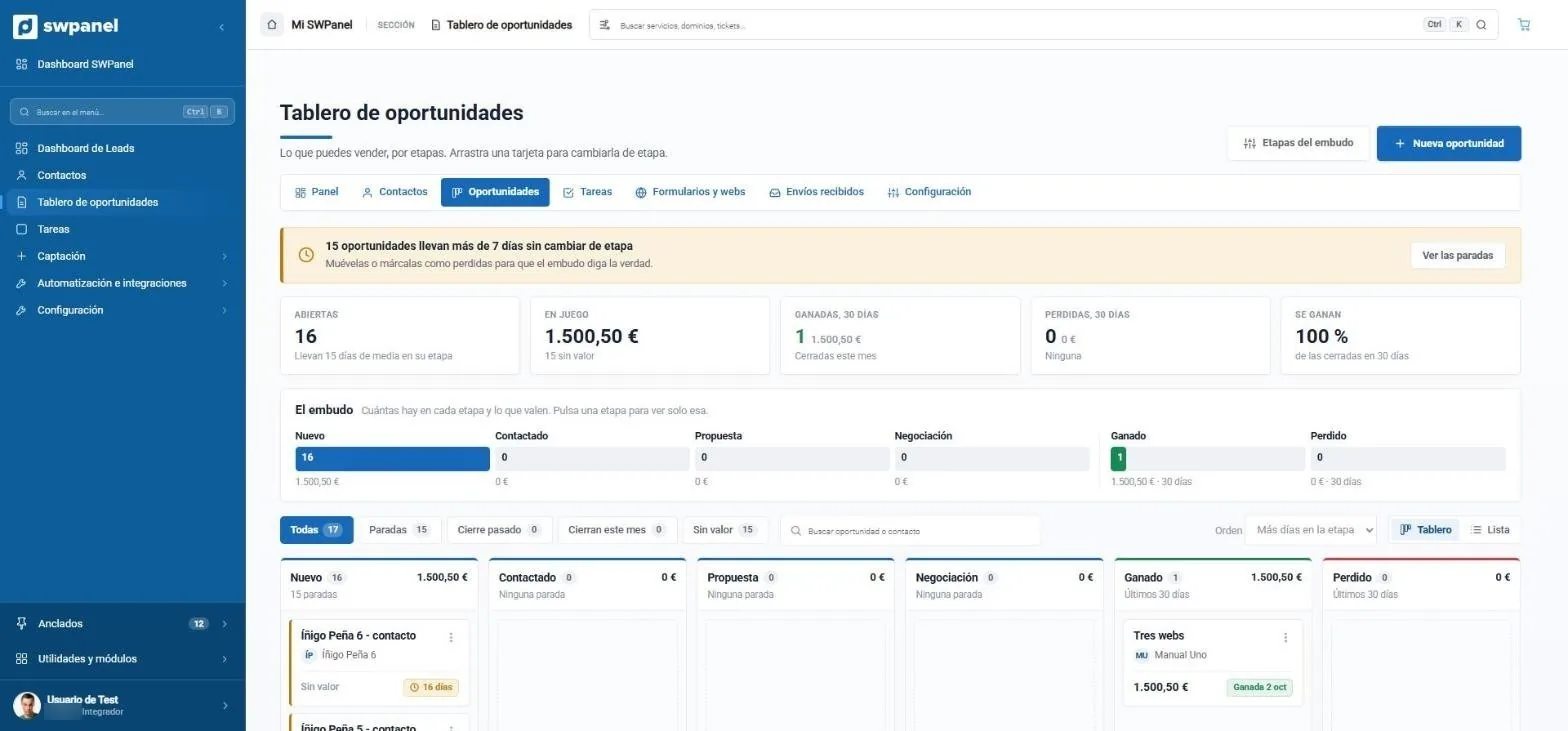
Opportunities board
The funnel, by dragging
Six editable stages, amounts and days in each stage.
- What has stalled: 15 opportunities have been more than 7 days without changing stage.
- Open, in play, won and lost in 30 days and what share is won.
- The funnel at a glance: how many there are in each stage and what they're worth. Click one to see only that one.
- Funnel stages you can edit.
- New opportunity in one click.
- How long each one has been in its stage. Drag the card to change it.
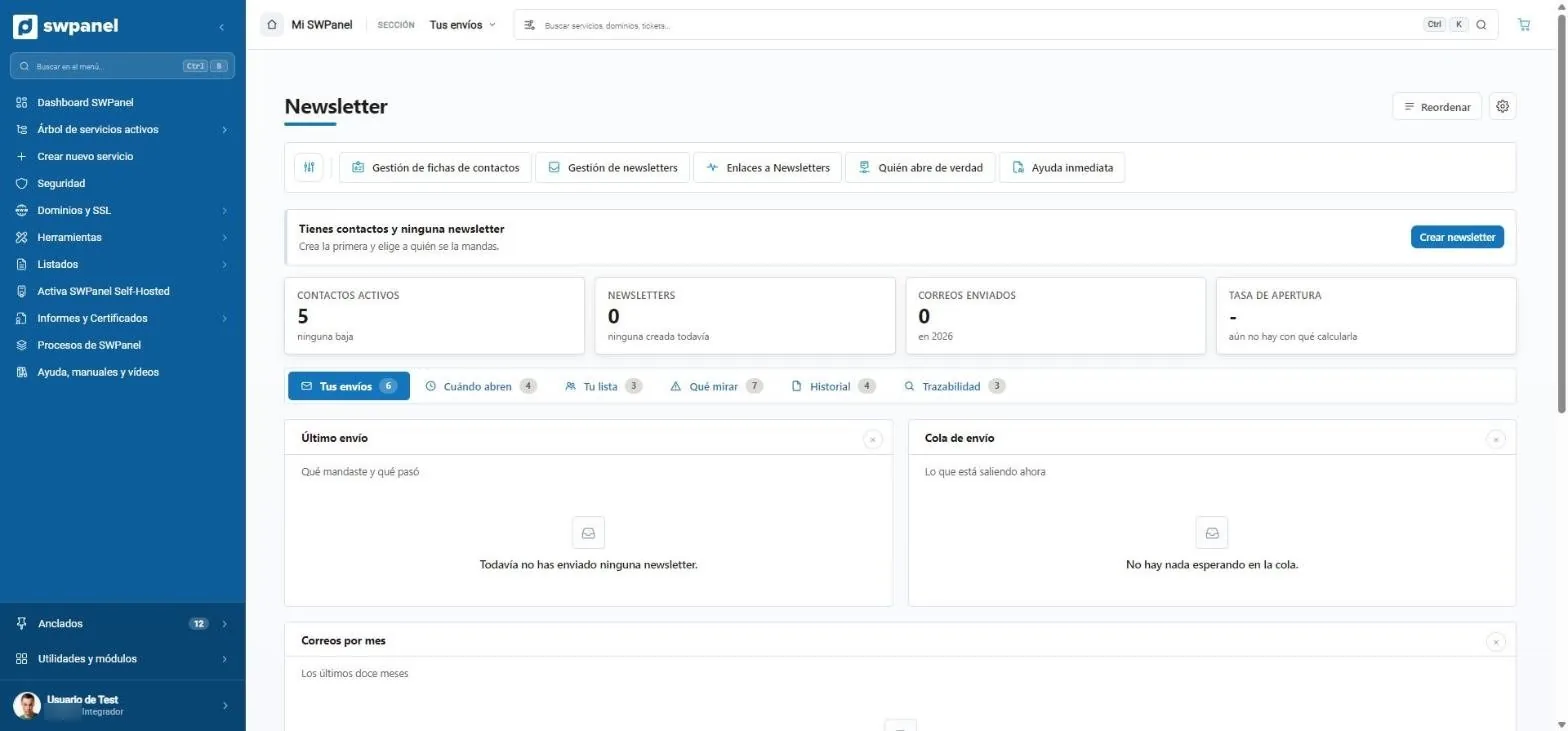
Newsletter
Who really opens
Sends, real opens, list, history and traceability.
- Who really opens: separates opens by people from those by bots.
- Active contacts, newsletters, emails sent and open rate.
- Sends, when they open, your list, what to look at, history and traceability.
- Create newsletter from the notice.
For those who live off hosting
Business and automation
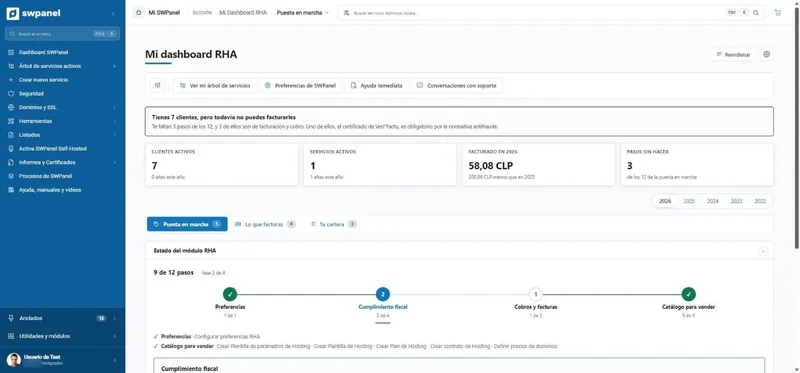
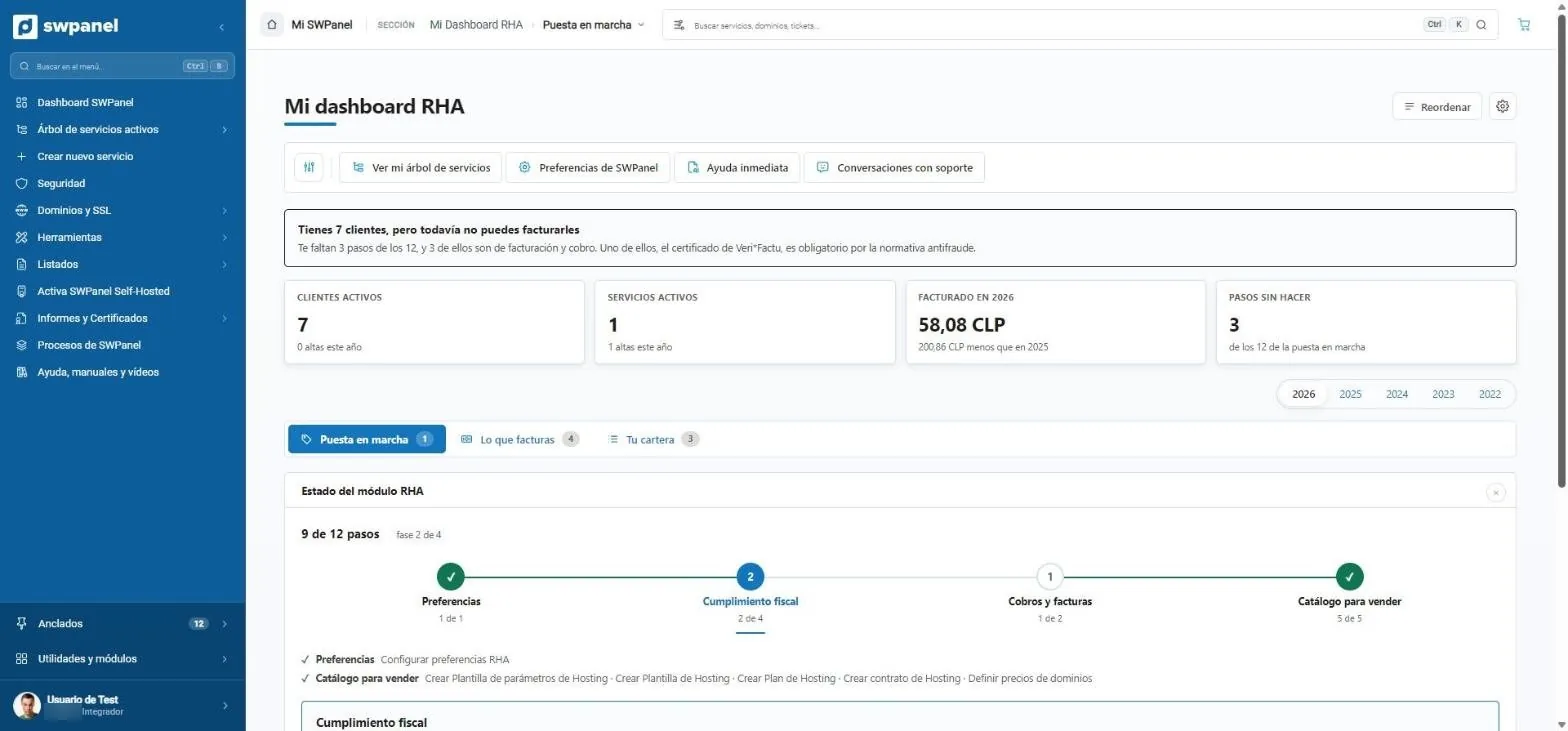
RHA
Invoice under your brand and with Veri*Factu
The setup in 12 steps and four phases, with what's missing to start invoicing.
- What's left to invoice, including the Veri*Factu certificate.
- Customers, services, invoicing and pending steps.
- Setup, what you invoice and your portfolio.
- 12 steps in four phases: preferences, tax compliance, payments and catalog.
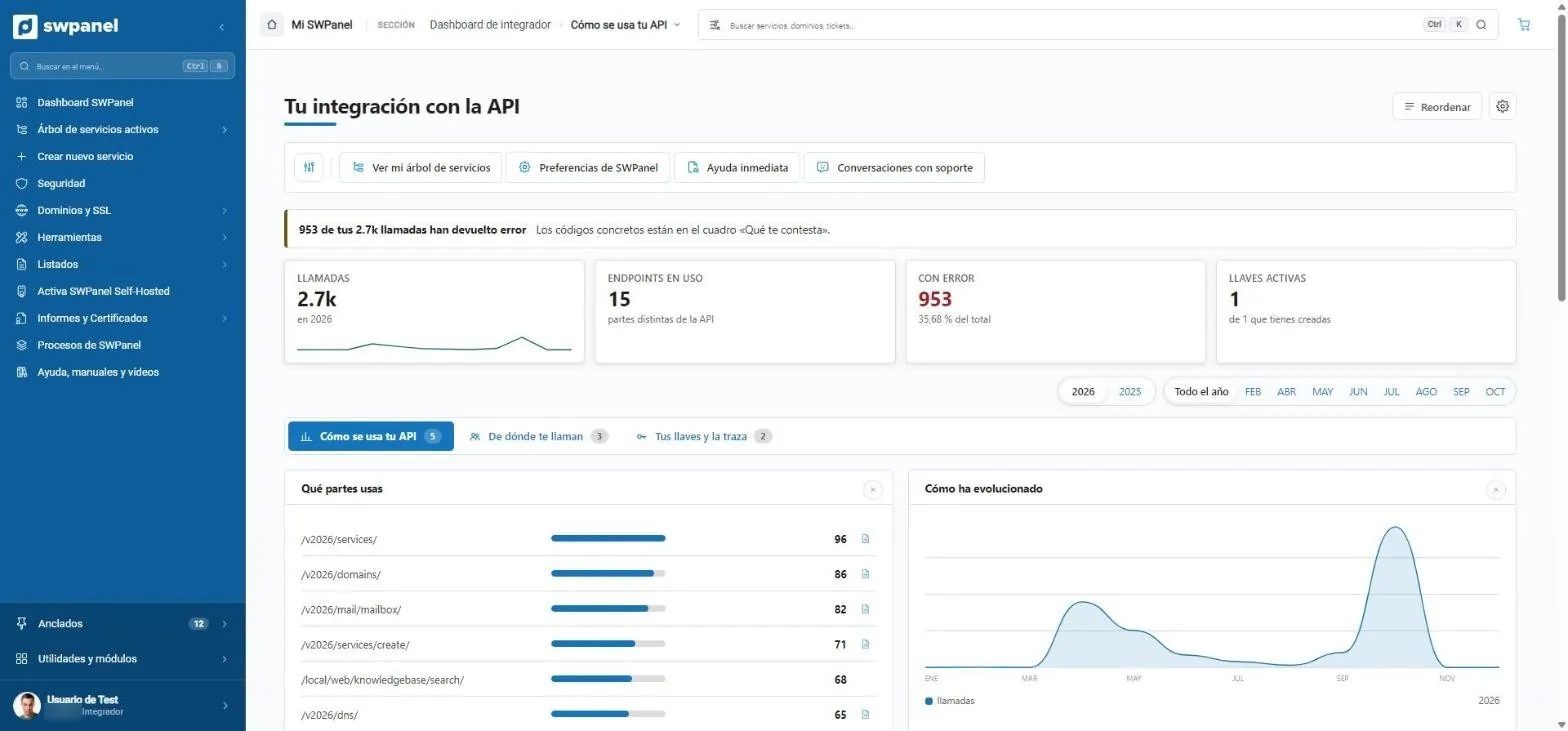
Integrator dashboard
Your API, seen from SWPanel
Calls, endpoints, errors and keys.
- What's worth checking: 953 calls with errors, and where to see the codes.
- Calls, endpoints in use, errors and active keys.
- How your API is used, where calls come from and your keys.
- Which parts of the API you use, with a link to their documentation.
- How usage has evolved over the year.
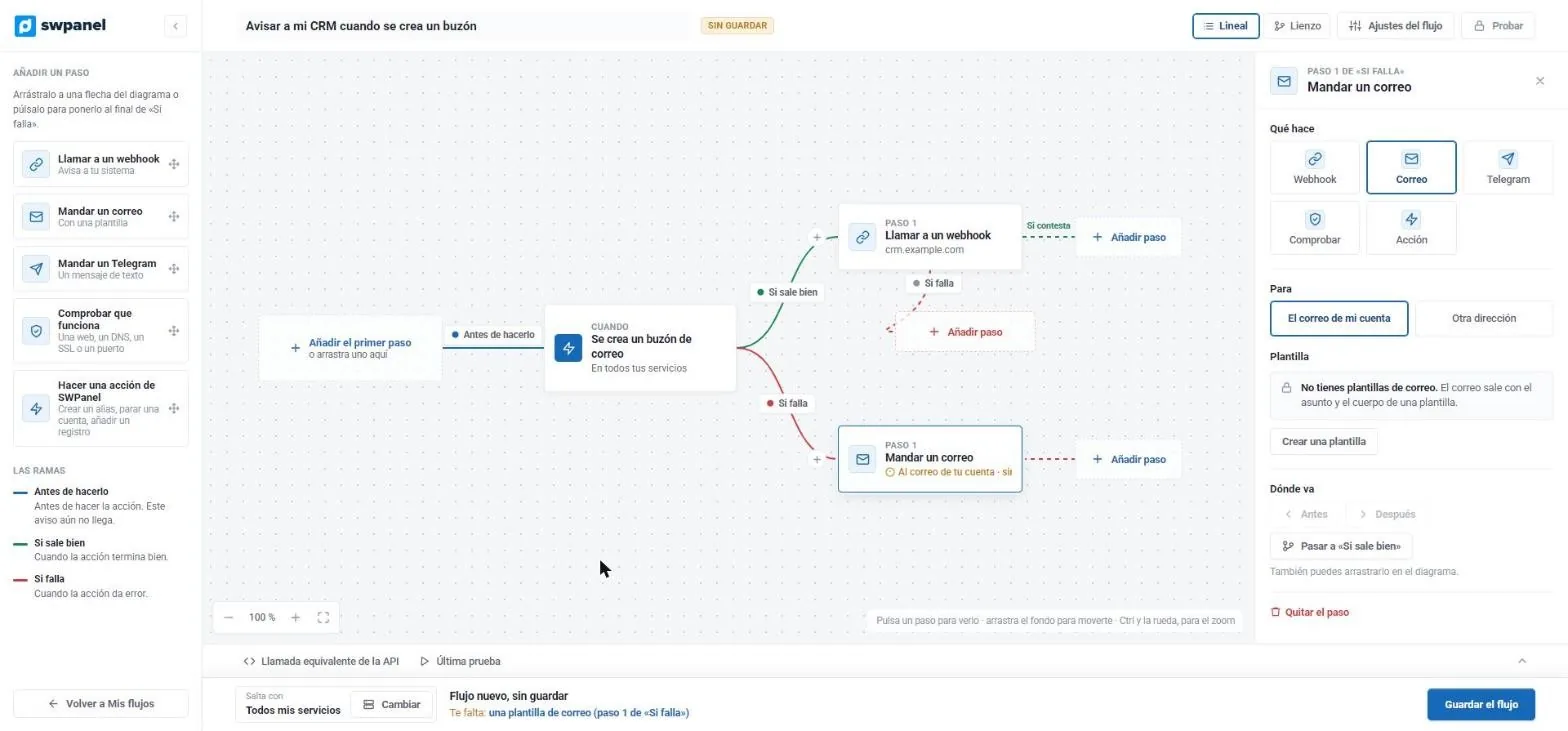
Flows
When something happens, your business reacts
Event, branches and steps: webhook, email, Telegram, check or action.
- The event that triggers it: a mailbox is created.
- If it succeeds, it calls your CRM's webhook.
- If it fails, it sends you an email.
- Each step is configured here: recipient, template, order.
- It warns you of what's missing before saving.
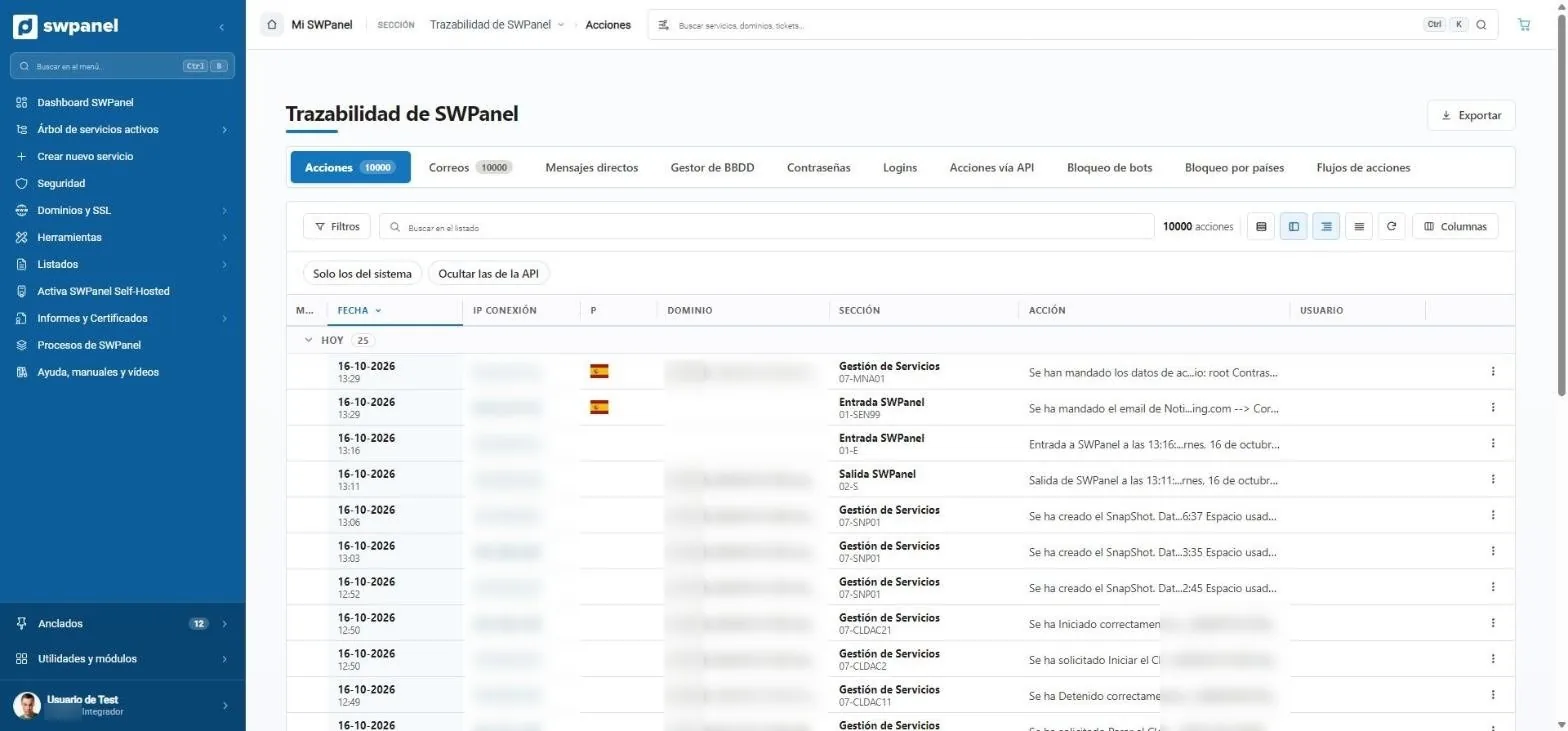
Traceability
Who did what
Ten filterable and exportable logs.
- Ten logs: actions, emails, messages, DBs, passwords, logins, API, bots, countries and flows.
- 10,000 actions in this list.
- Quick filters: only system ones or hide API ones.
- Date, IP, country, domain, section, action and user.
- Export for an audit.
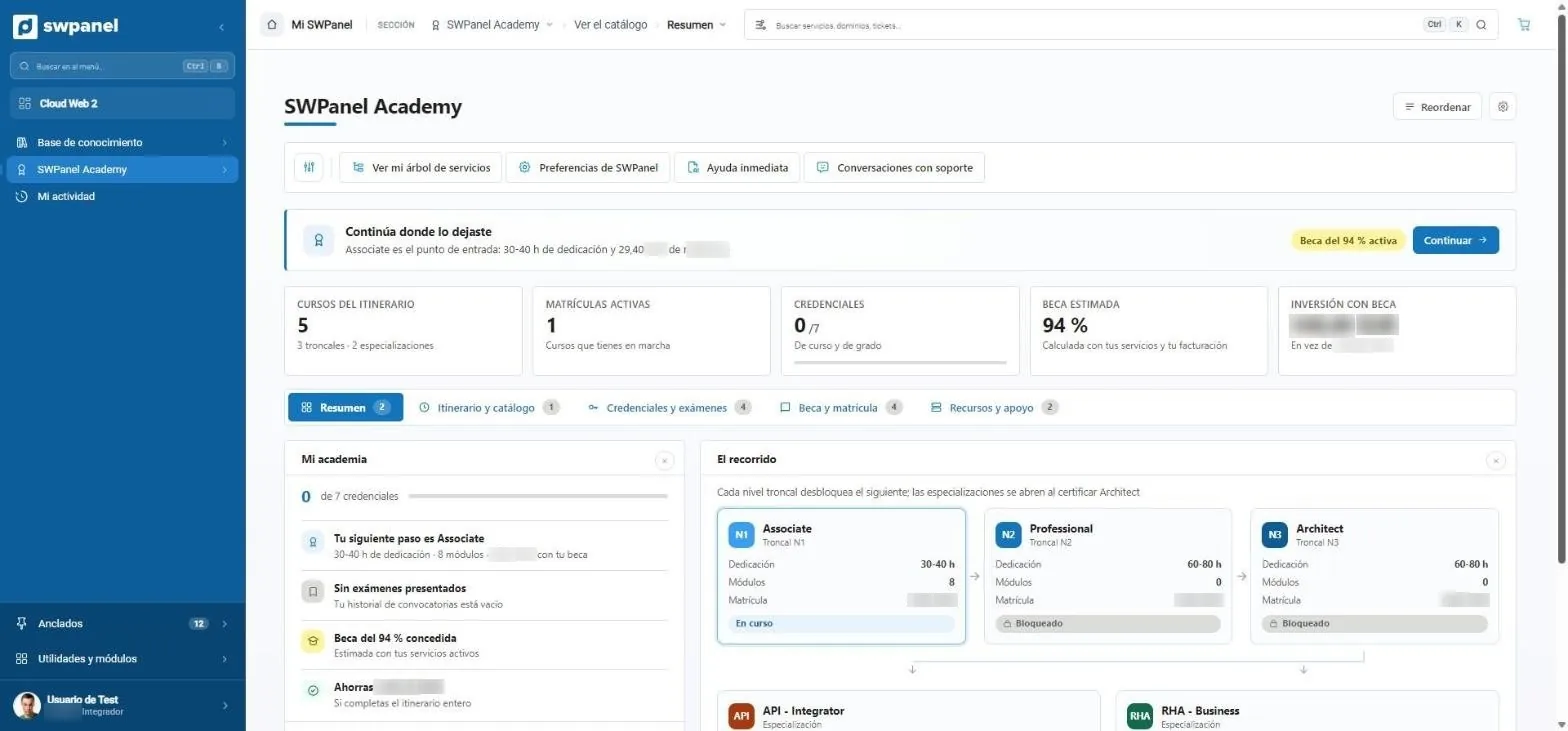
SWPanel Academy
Training with credentials
Path by levels, enrollments, exams and scholarship calculated from your services.
- Pick up where you left off.
- Courses, enrollments, credentials and scholarship calculated from your services.
- Path: Associate, Professional and Architect, and API and RHA specializations.
You've seen it. Now try it with your own.
Create your free account, connect a server or a hosting and see your own services on these same screens.