
AI websites · New in 2027
Describe your business. Your website, published in minutes.
SWPanel creates a complete corporate website from your business details: design, copy, photos, legal pages, SEO and up to three languages. It publishes it on your hosting and then you manage it entirely from SWPanel, without knowing HTML.
- 9 sections in about 95 s
- 40 themes and 30 sections
- Up to 3 languages of 7
The example
A bakery in Girona, created with AI
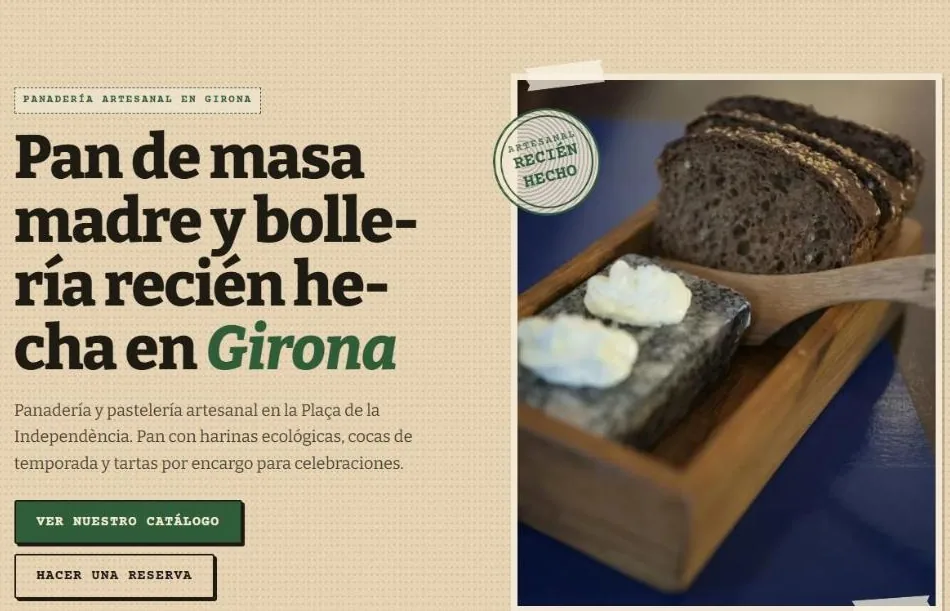
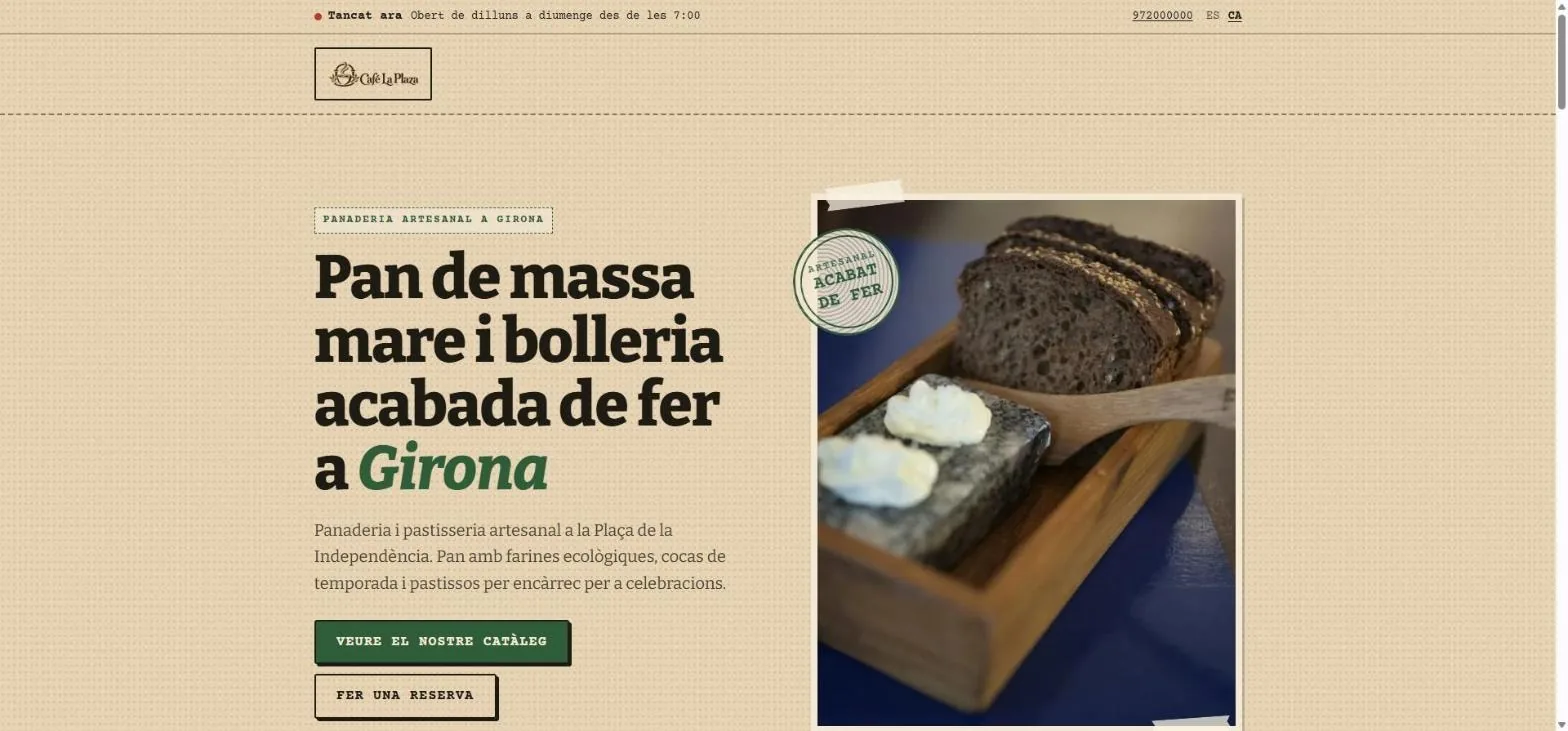
It's swtest.es, a test website created with the tool: copy, photos, structure, legal pages and a Catalan version. These screenshots are from the published website.
Pruebas SWPanel Forn Artisan bakery, in Spanish and Catalan. Open it and browse.
Open swtest.es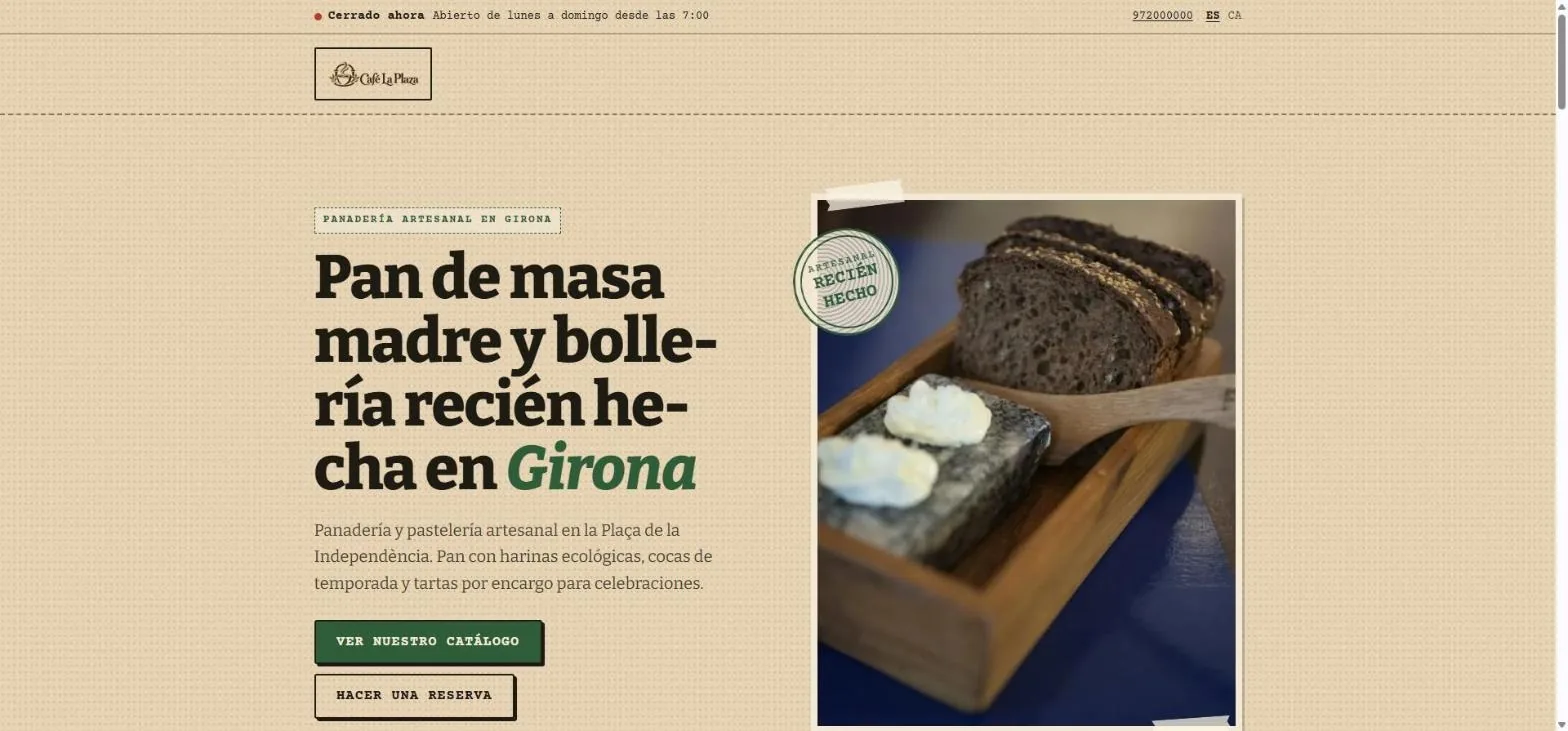
- Open or closed, instantly: calculated from the hours you gave.
- Phone and languages, Spanish and Catalan.
- Headline and intro, written by the AI from the business description.
- Two calls to action: the catalog and booking.
- Real photos in every slot, optimized as WebP.
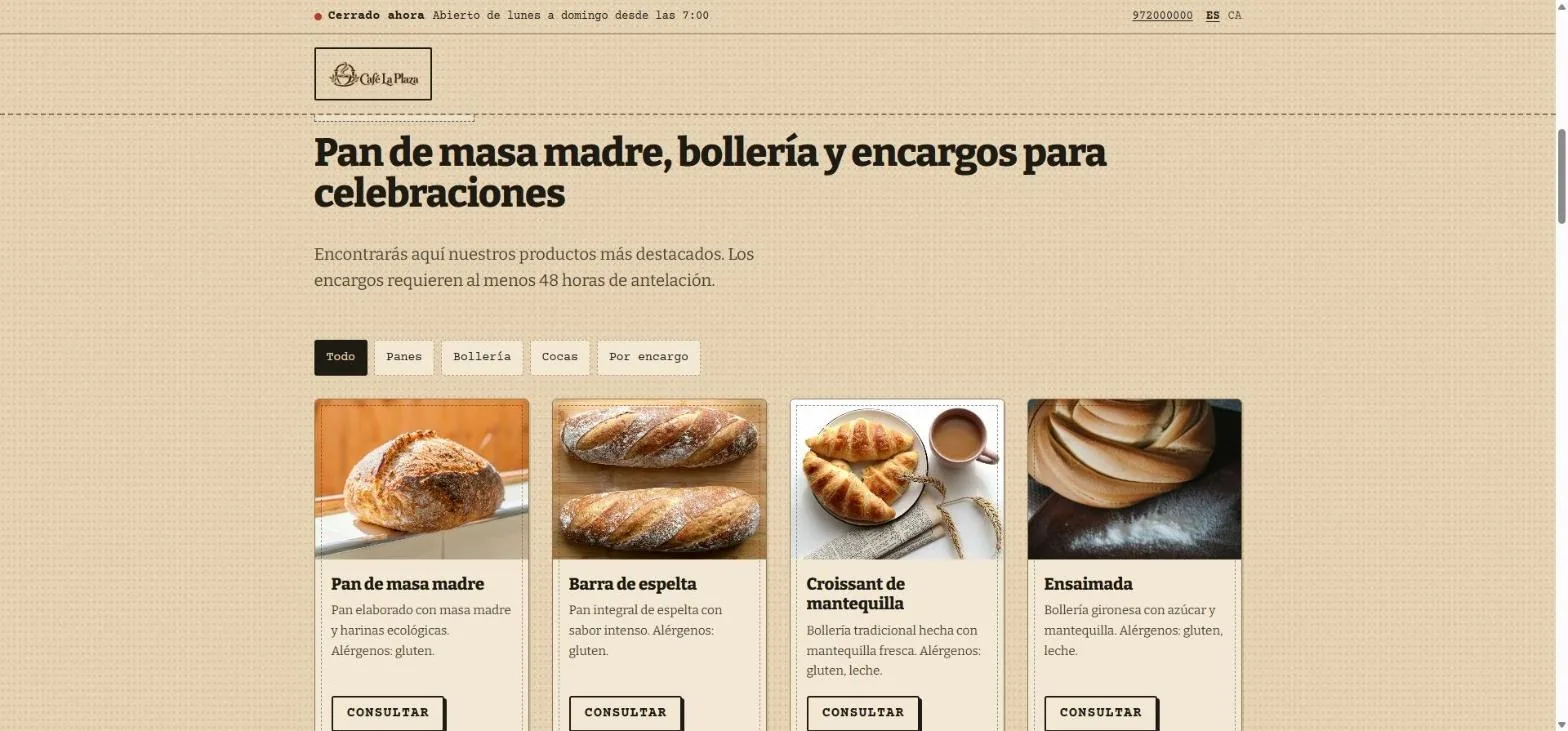
- Filters by type of product.
- Each product with its description, including allergens.
- Enquire, instead of buying: it's a website, not a store.
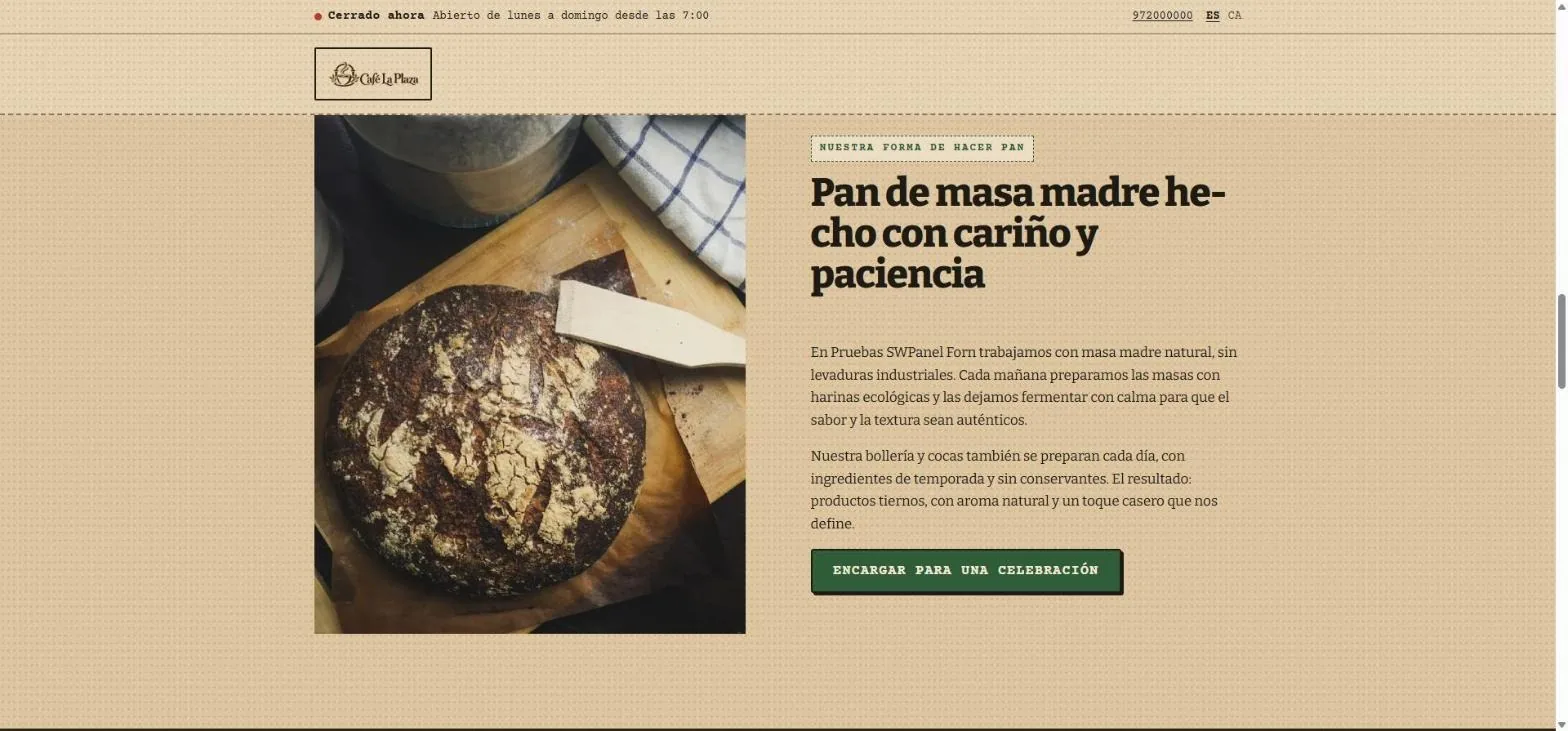
- About us, written from what you tell about your business.
- A call to action towards orders.
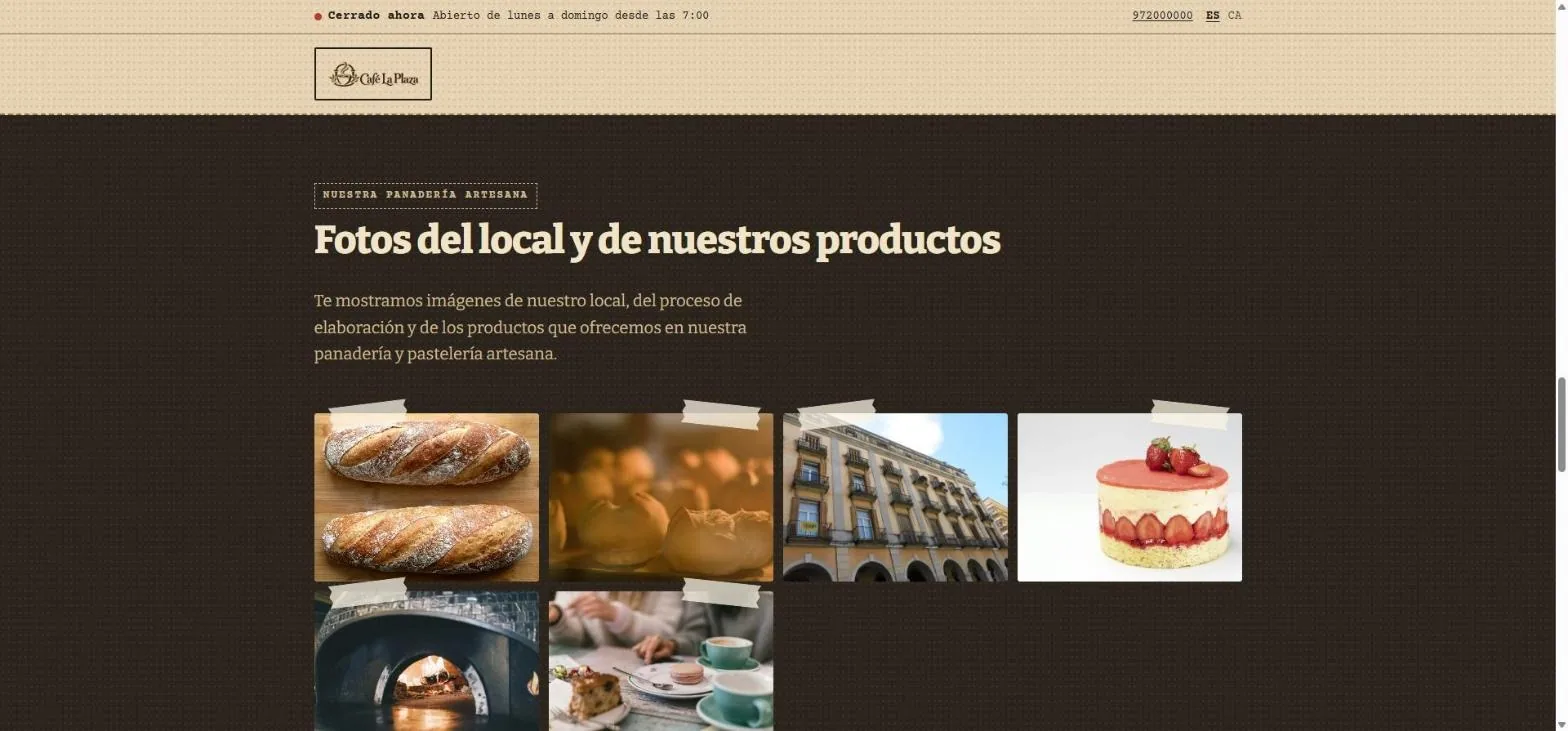
- Gallery with photos of the premises and the products.
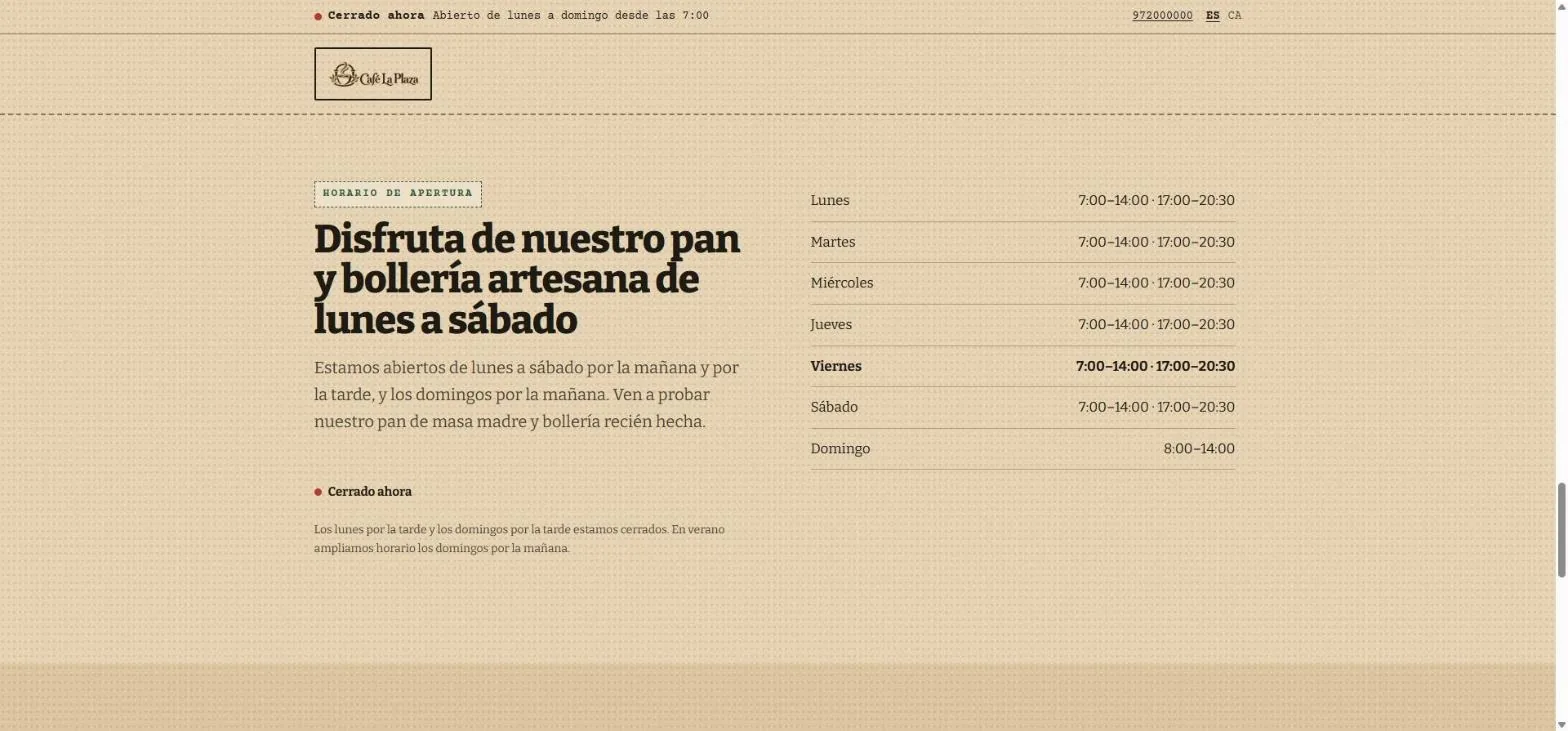
- The hours in a table, and also as structured data for Google.
- Closed now: the status is calculated in the moment.
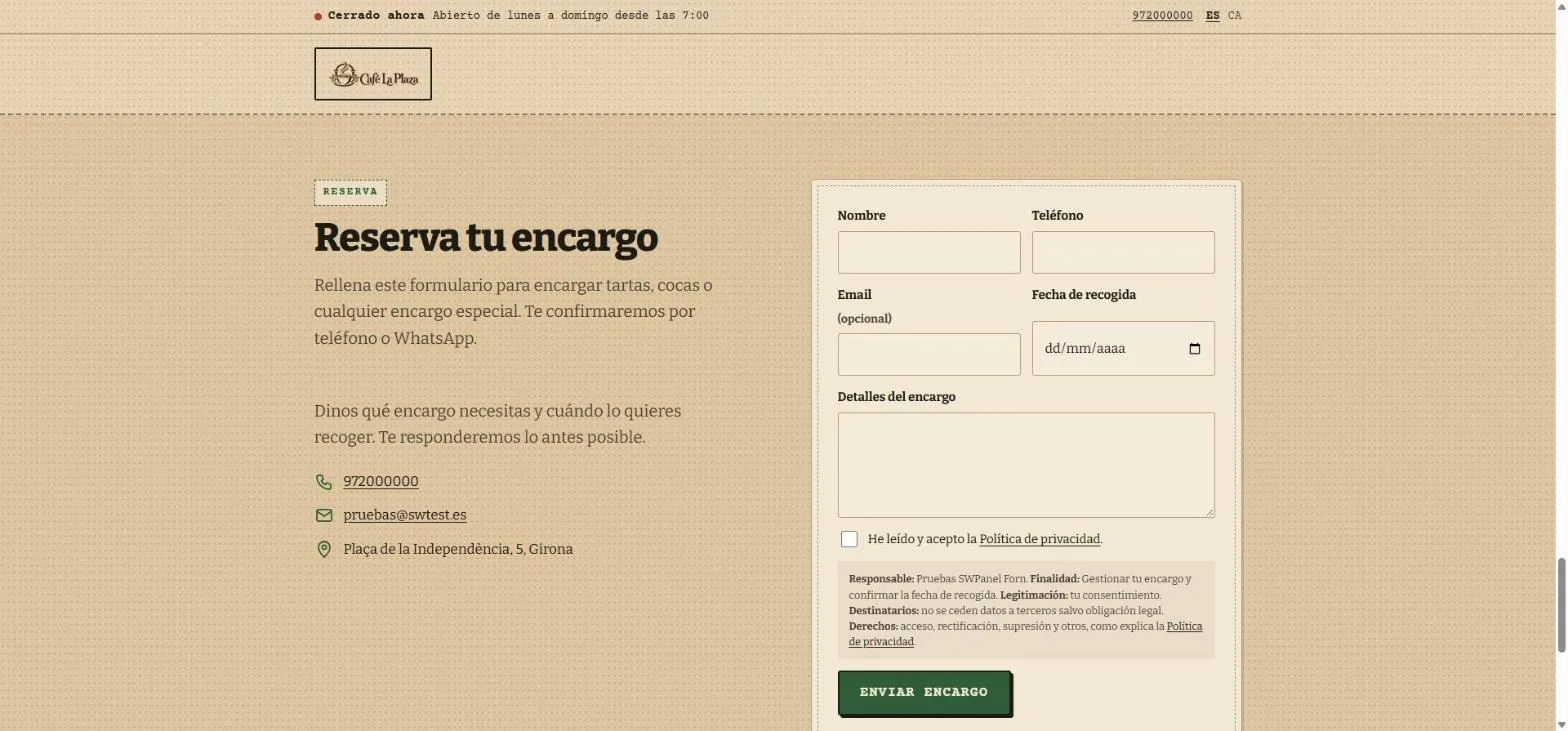
- Order form with pickup date.
- Data protection information next to the form.
- Contact with what you provided: if a detail is missing, it doesn't appear.
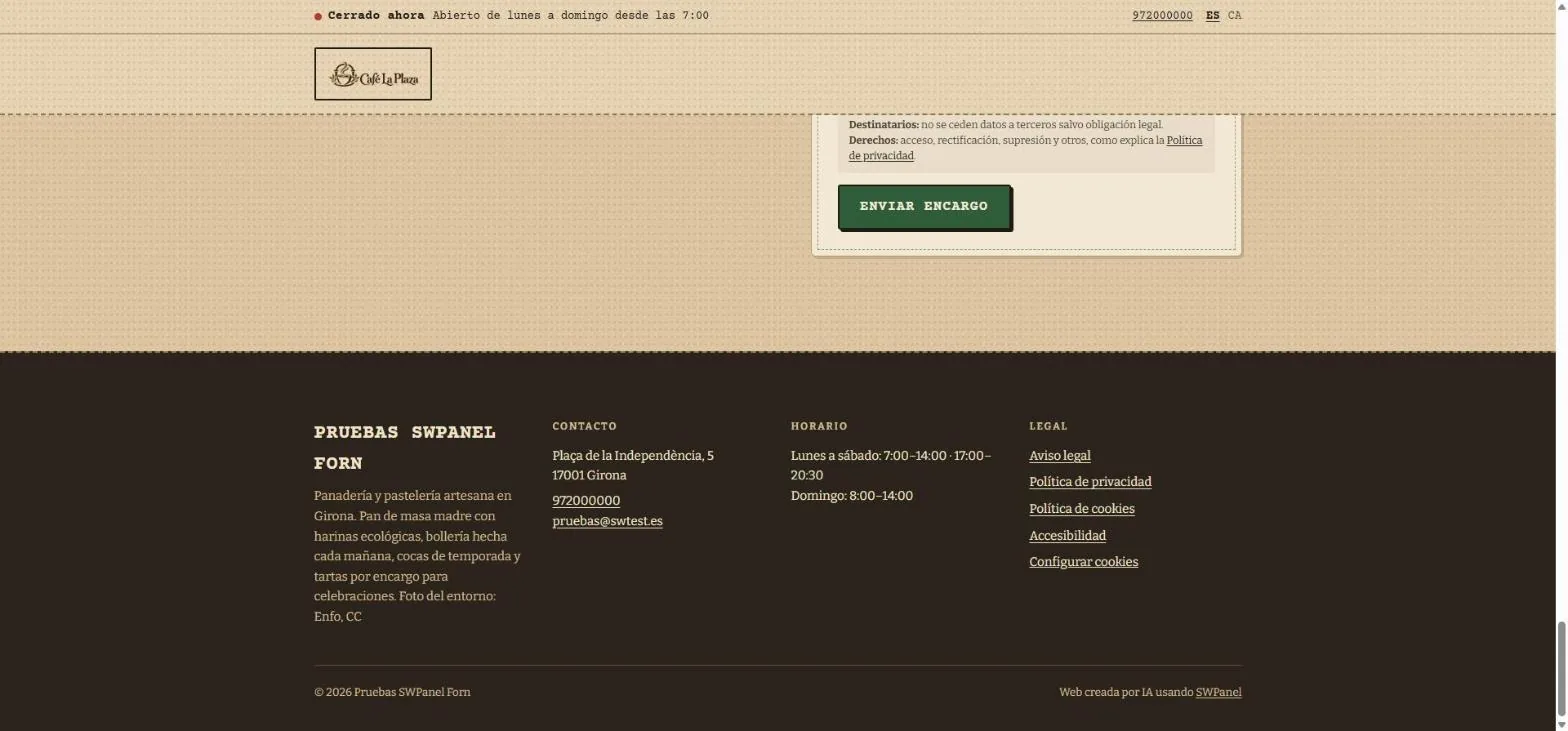
- Legal pages and accessibility, and “Cookie settings”.
- “Website created by AI using SWPanel”, on every website.
- The hours, summarized.
How it's created
Seven screens, and the AI does the rest
It all starts in the hosting service menu, under “Create a website with AI”. These are the real screens of the wizard, with the example website's data.
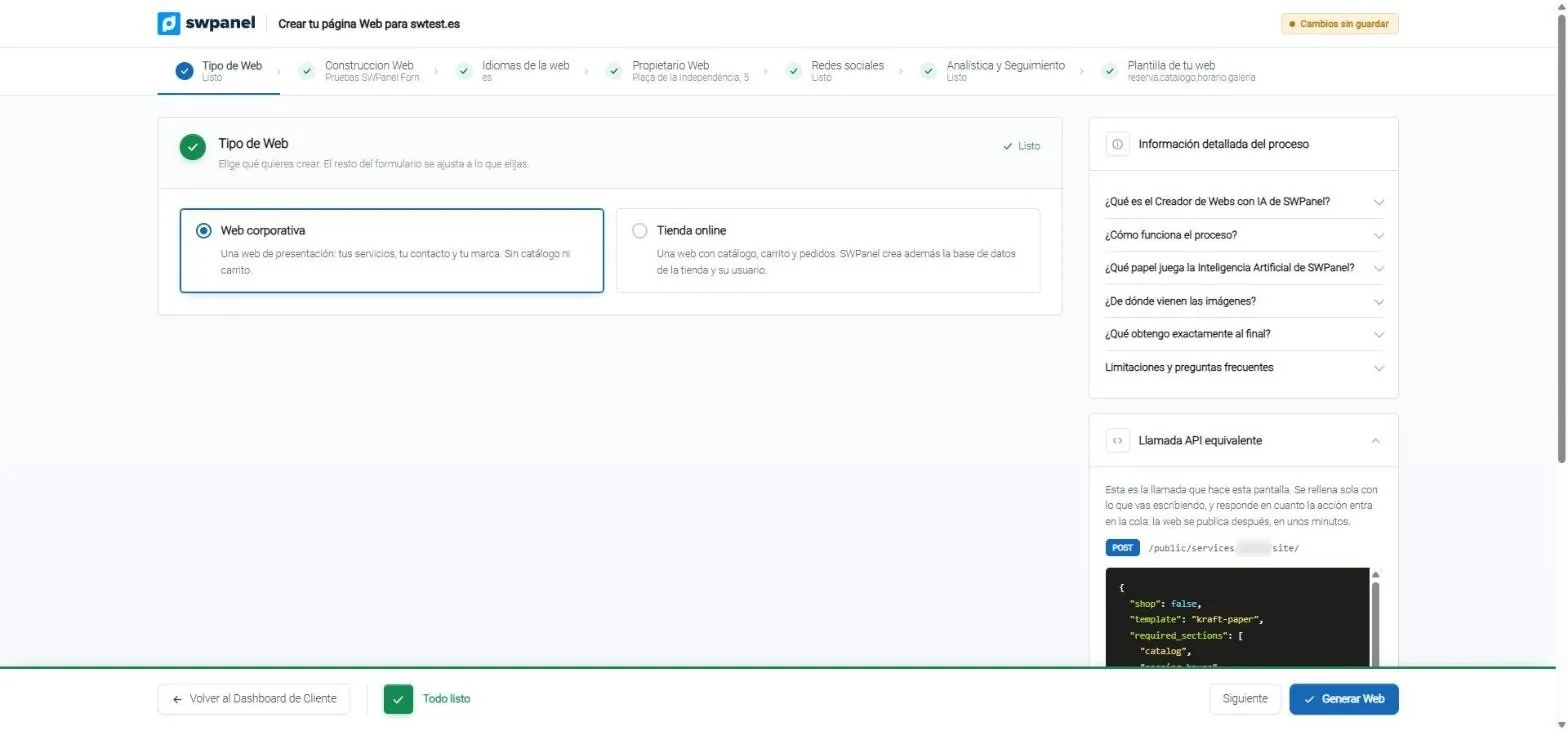
- Corporate website or online store: the same wizard for both.
- Seven steps. Those that are ready are marked green.
- Process information: what the AI does, where the images come from and what you get.
- The equivalent API call, written while you fill in the form.
- Generate Website when everything is ready.
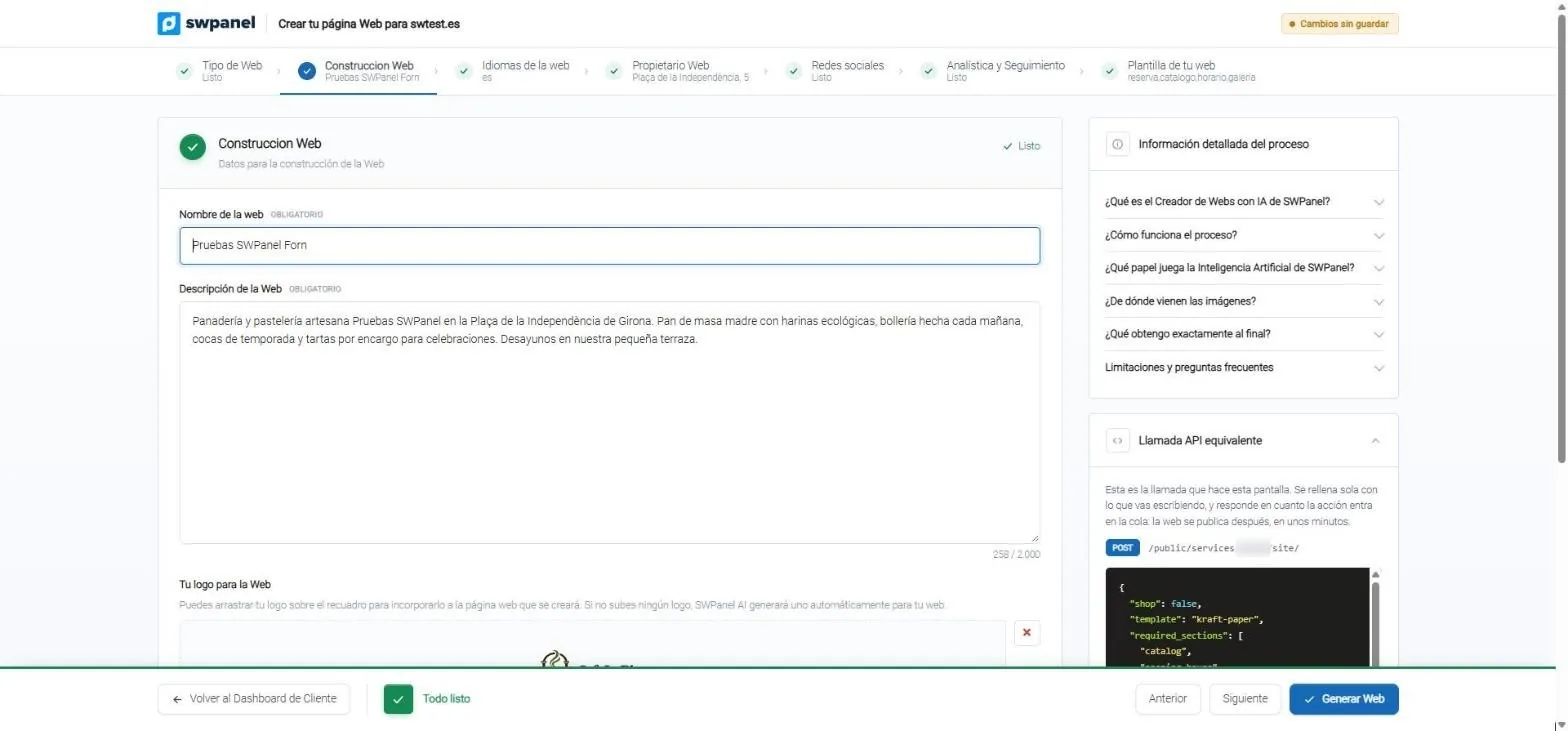
- The website name.
- The business description: the AI writes with it. Up to 2,000 characters.
- Your logo, or a new one: if you don't upload one, the AI generates one.
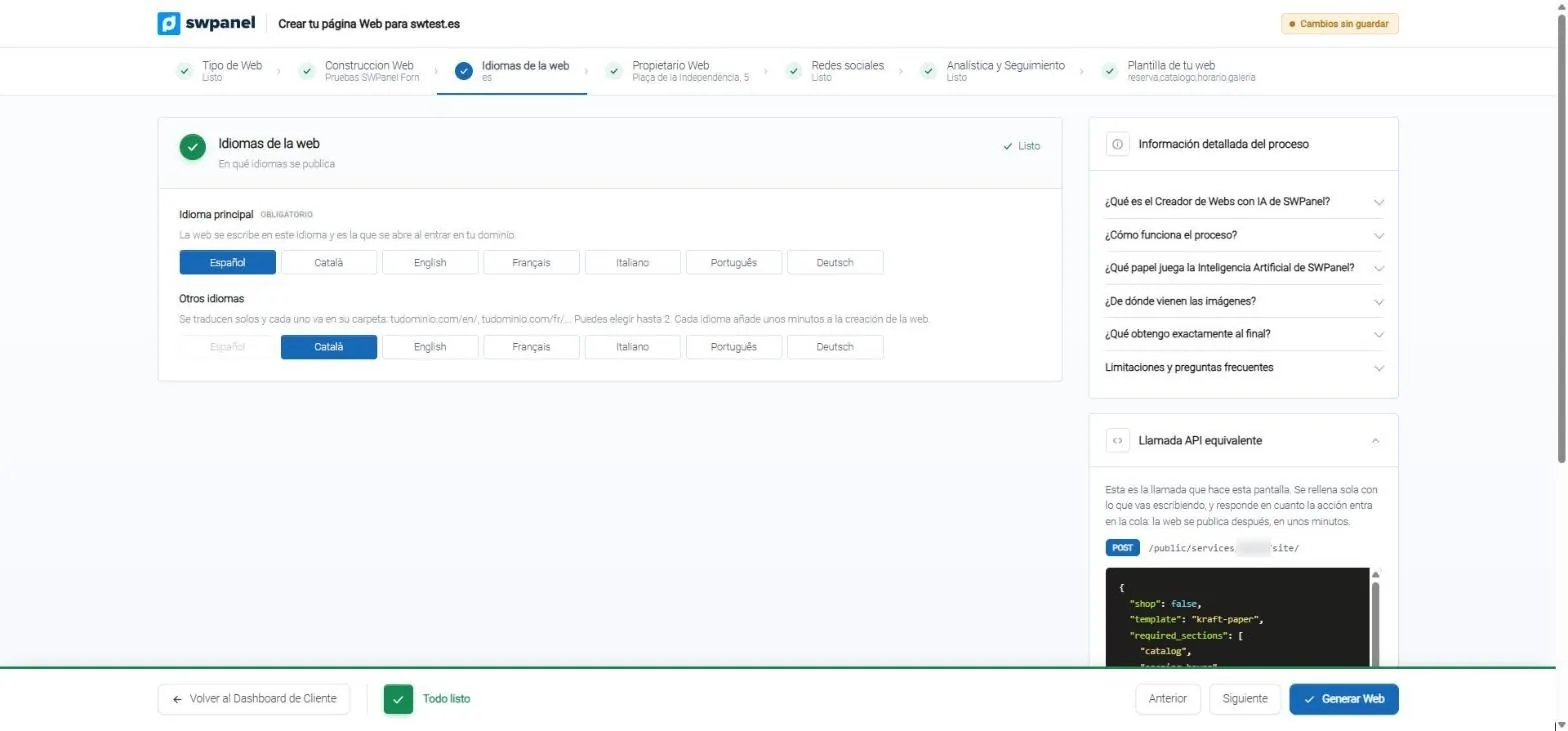
- Main language: the one that opens when entering your domain.
- Up to two more languages, each in its own folder: /en/, /fr/…
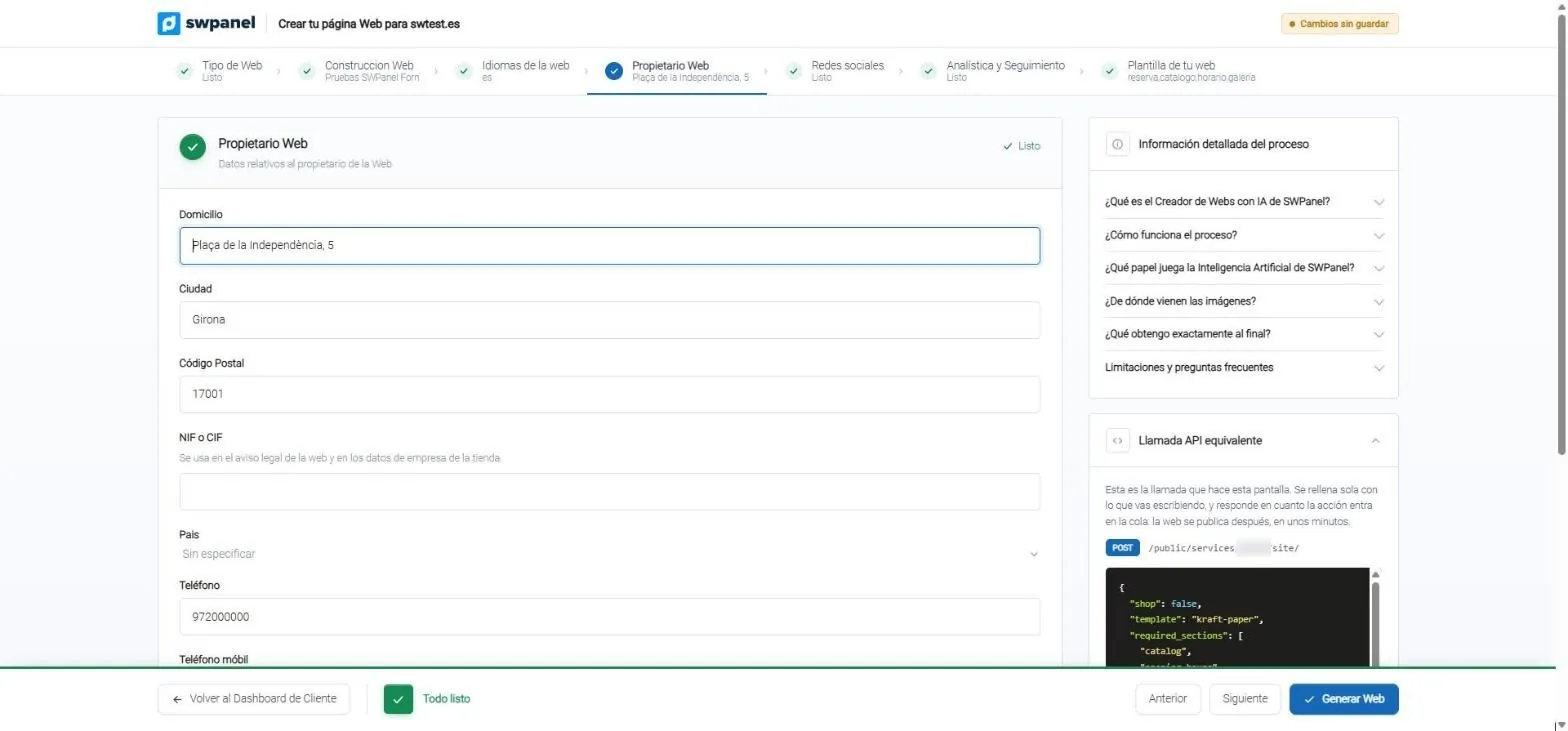
- Address, city and postal code for contact, the map and Google.
- Tax ID (NIF/CIF) for the legal notice.
- Phones: if you don't provide them, they don't appear.
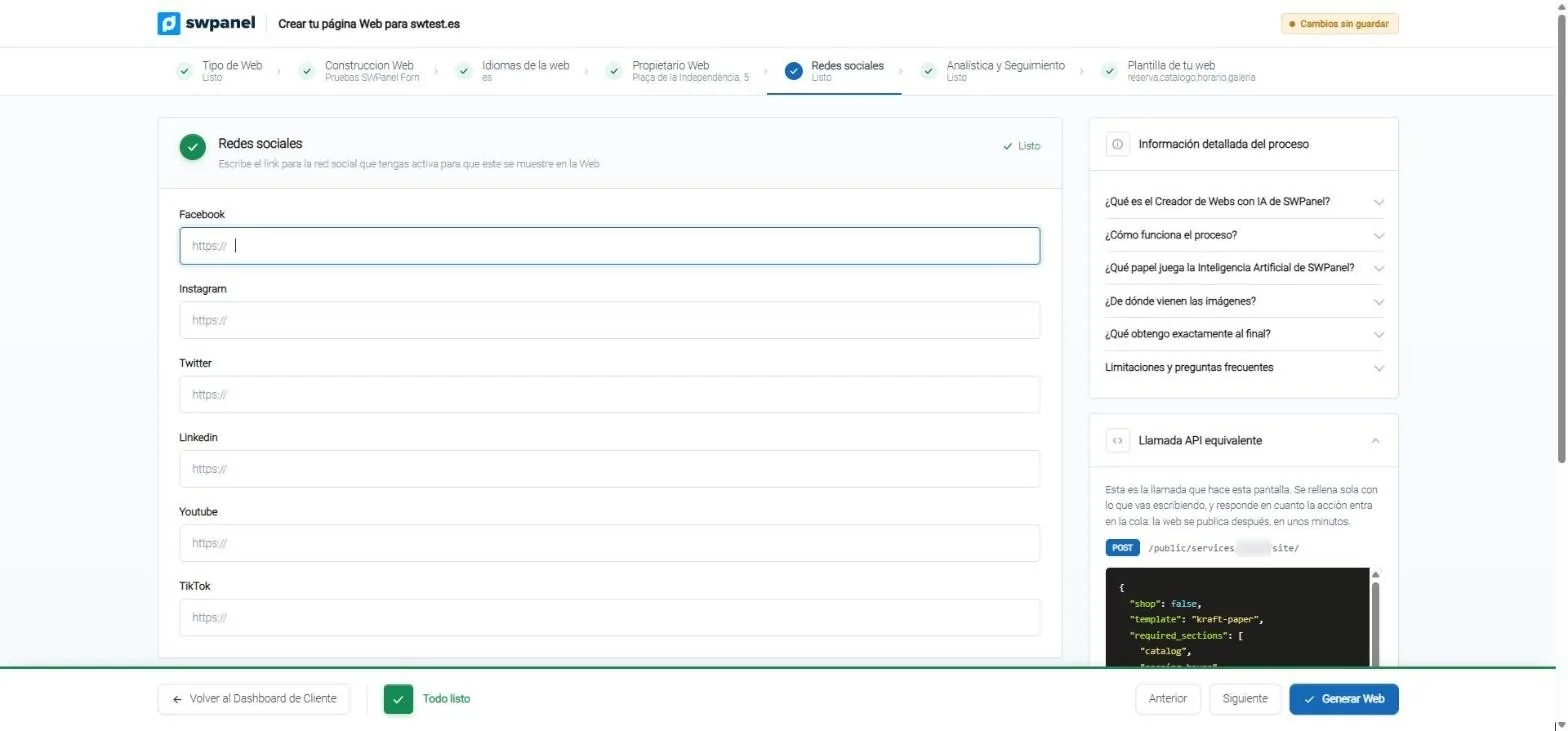
- Only the networks you have active: no sample links.
- Facebook, Instagram, Twitter, LinkedIn, YouTube and TikTok.
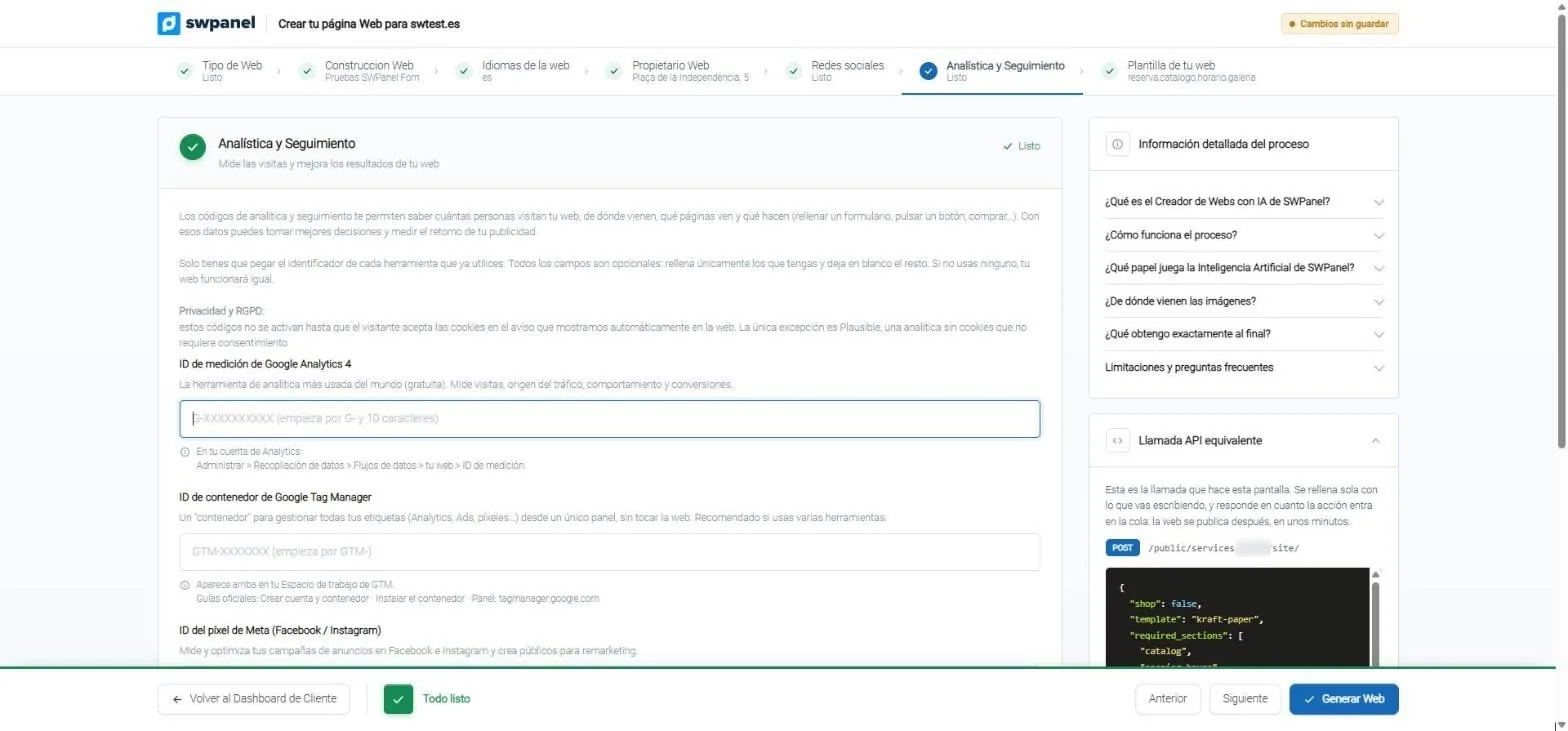
- Privacy and GDPR: the codes wait until the visitor accepts cookies.
- Google Analytics 4, with where to find the ID.
- Tag Manager, Meta Pixel, Clarity and Plausible.
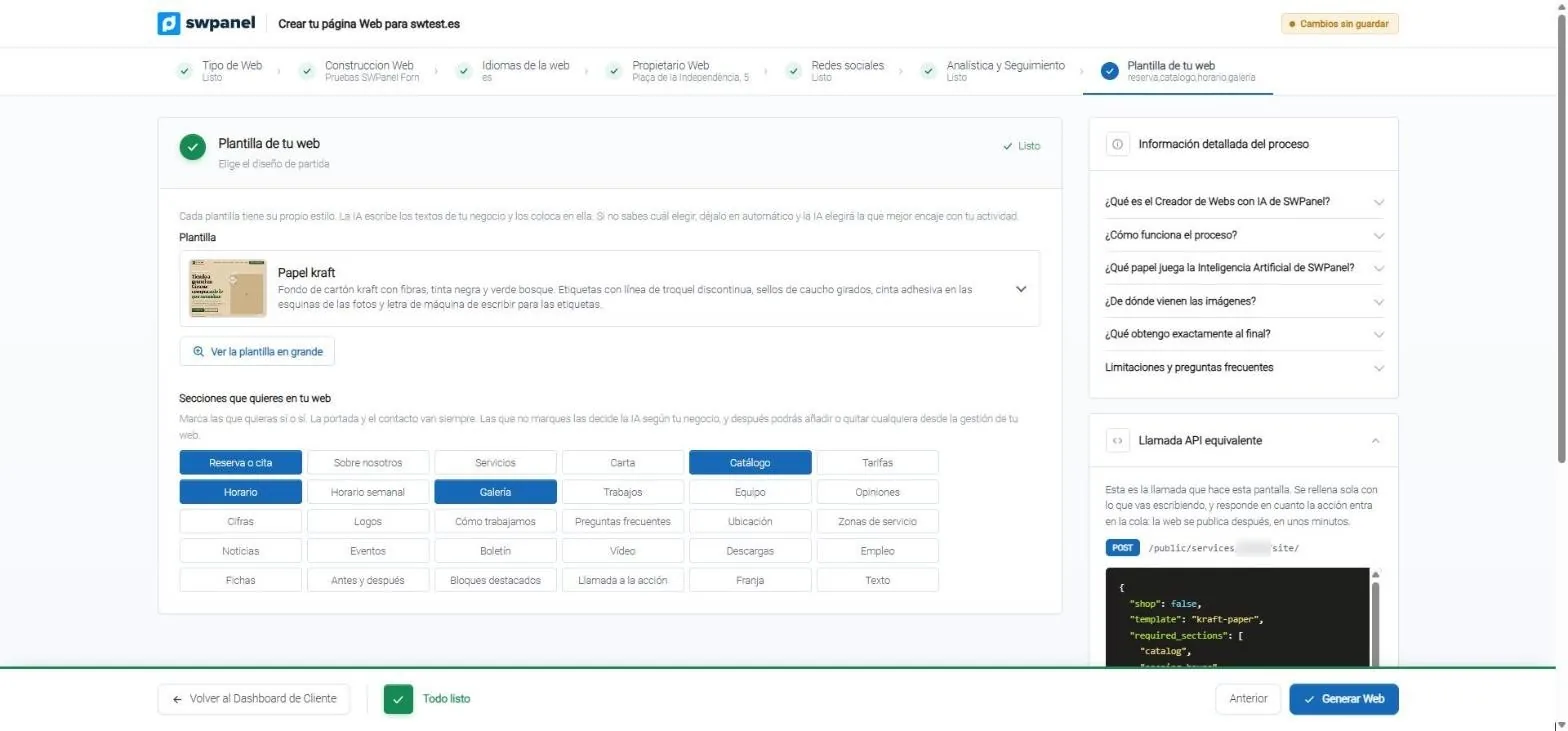
- The starting template, or automatic so the AI picks it.
- See the template large before deciding.
- 30 sections to tick. The home page and contact are always included; the ones you don't tick, the AI decides.
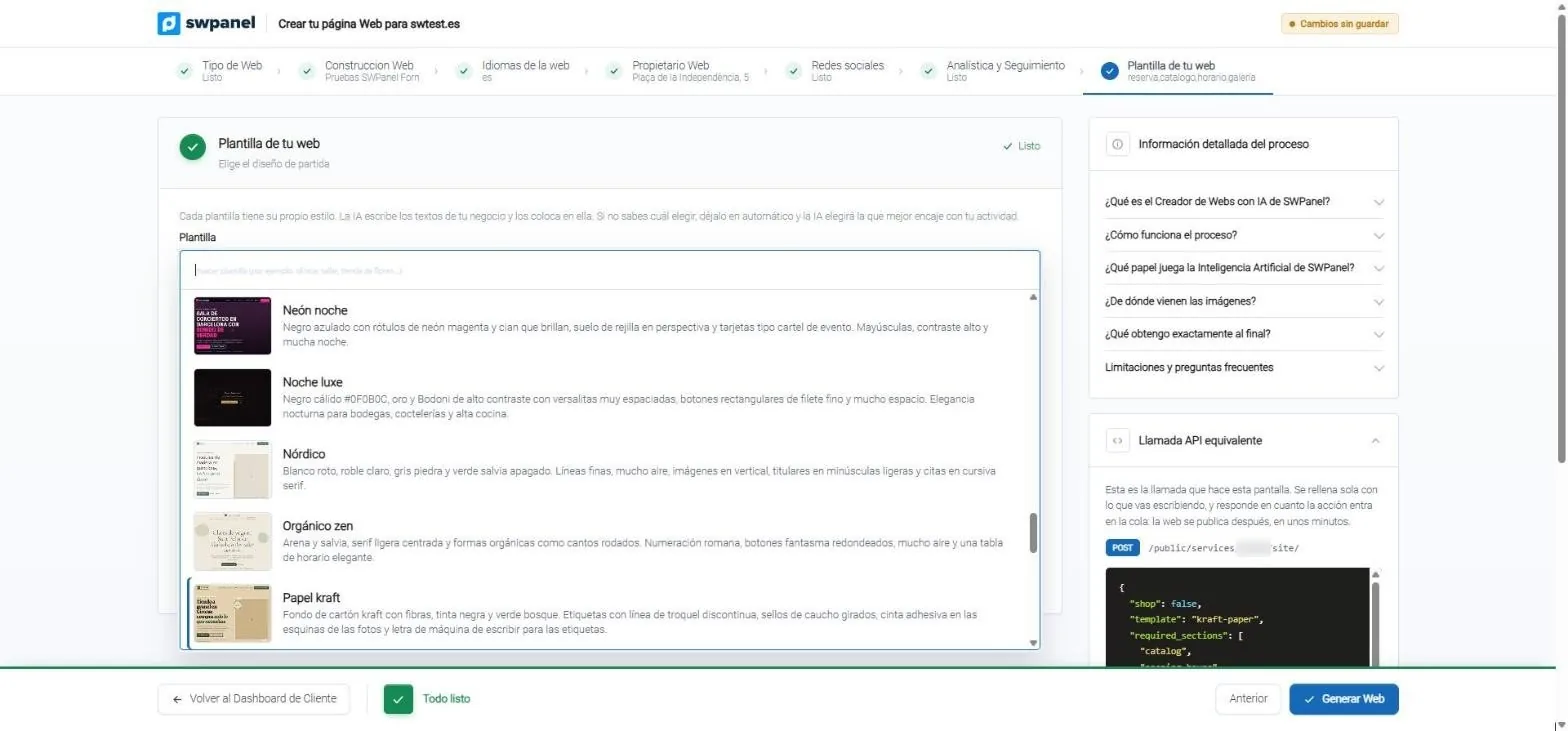
- Search the template by your activity: “clinic”, “workshop”, “flower shop”…
- Each template with its thumbnail and a description of its style.
While you fill in
- Each step turns green when ready, and “All set” appears below
- On the right, the process information: what the AI does, where the images come from, what you get and its limitations
- And the equivalent API call: the same can be done through the API
When you press “Generate Website”
- The action enters the Action queue: “The website is being created with Artificial Intelligence”
- Your domain shows a SWPanel notice, not a half-built website
- It publishes itself and you get an email
- The same wizard, with your data, is later used to redo it: “Update the website with AI”
A second website cannot be ordered at the same time on the same hosting. Plans that already have WordPress or a website under creation cannot be chosen.
What the AI does
The AI writes. SWPanel handles what has to be right.
The creative part is done by the AI; what allows no mistakes, such as business details, legal pages or technical SEO, SWPanel builds in code.
What the AI does
- Decides the structure: at least six sections, none repeated
- Writes each section with what you tell about the business
- Places real photos in every slot, optimized as WebP
- Reviews the result and repairs it if something doesn't fit
What SWPanel provides
- Your details exactly as they are: name, phone, email, address and hours
- SEO header, structured data, sitemap, robots and llms.txt
- Legal notice, privacy, cookies and accessibility
- Cookie banner, form, footer and image credits
The AI invents nothing
Neither your phone, nor your hours, nor a guarantee you don't give.
-
What you don't give doesn't appear
If the phone, email, hours or address are missing, they don't appear anywhere. Without an address there is no map.
-
Questions with answers
The FAQs only include what your description allows answering.
-
No filler data
Sample figures, deadlines and guarantees are emptied. Prices aren't invented: they stay in “Texts to complete” for you to write.
-
Your hours, for real
It's converted into structured data for Google and the website says whether you're open or closed.
- 95 s A website of 9 sections to create it, in a real test
- 150 s Translated into three languages 466 texts
- 40 Topics to choose from and change whenever you want
- 30 Sections to choose from, besides the home page and contact
Languages
Up to three languages, translated automatically
Choose the main one and up to two more among Spanish, Catalan, English, French, Italian, Portuguese and German.
Catalan version
Each language, in its own folder
The main language sits at the domain root and the others in their own folder, with selector, hreflang and sitemap. Your name, email, phone and addresses are not translated.
- When saving a change only what's new is translated, in about 15 seconds
- Text formatting is preserved in translations
- The Catalan version, in its own folder.
- Language selector on every page.
Managing it
Your website, from SWPanel
After creating it, “Your website” brings it all together in five tabs: summary, sections, design, business details and what's left to complete. Without rebuilding it for every change.
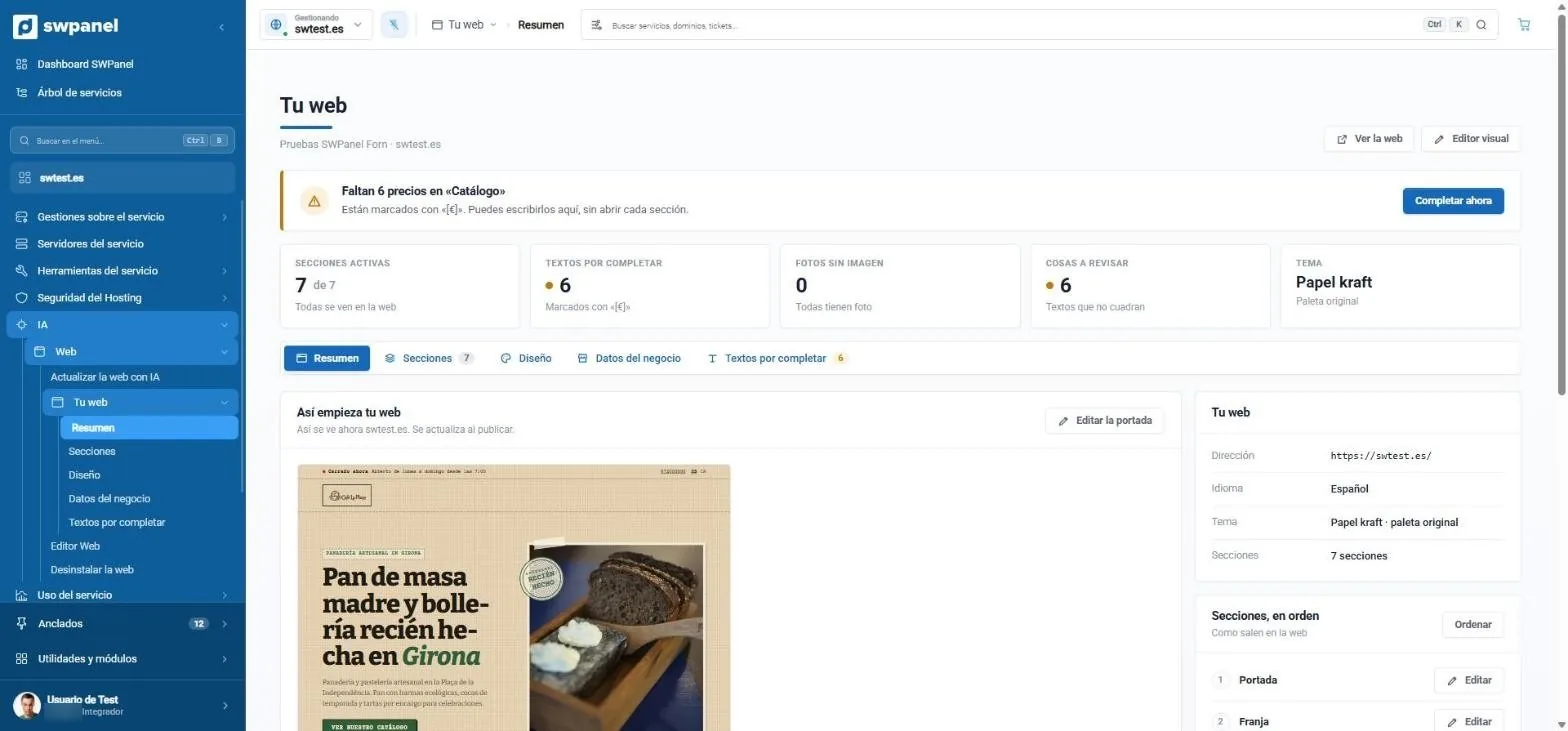
- What's pending, at the top: six catalog prices the AI doesn't invent.
- Active sections, texts to complete, photos without an image and things to review.
- The theme and its palette.
- This is how your website starts, as the visitor sees it.
- Address, language, theme and sections, in order.
- In the hosting menu: Update the website with AI, Your website and the Web Editor.
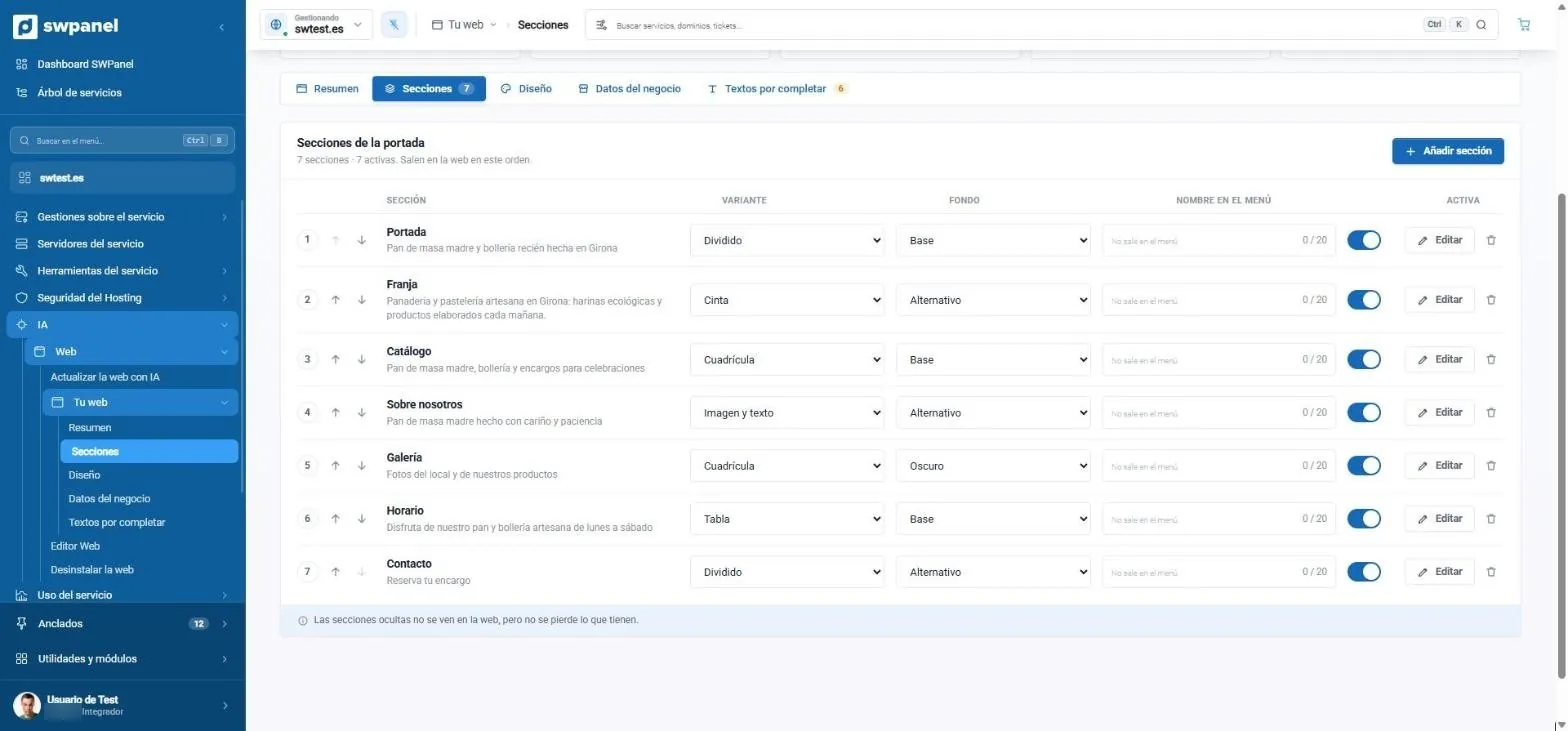
- Order the sections with the arrows.
- Each one's variant: split, ribbon, grid, image and text, table…
- The background: base, alternate or dark.
- Enable or disable it: hidden ones are not lost.
- Add section.
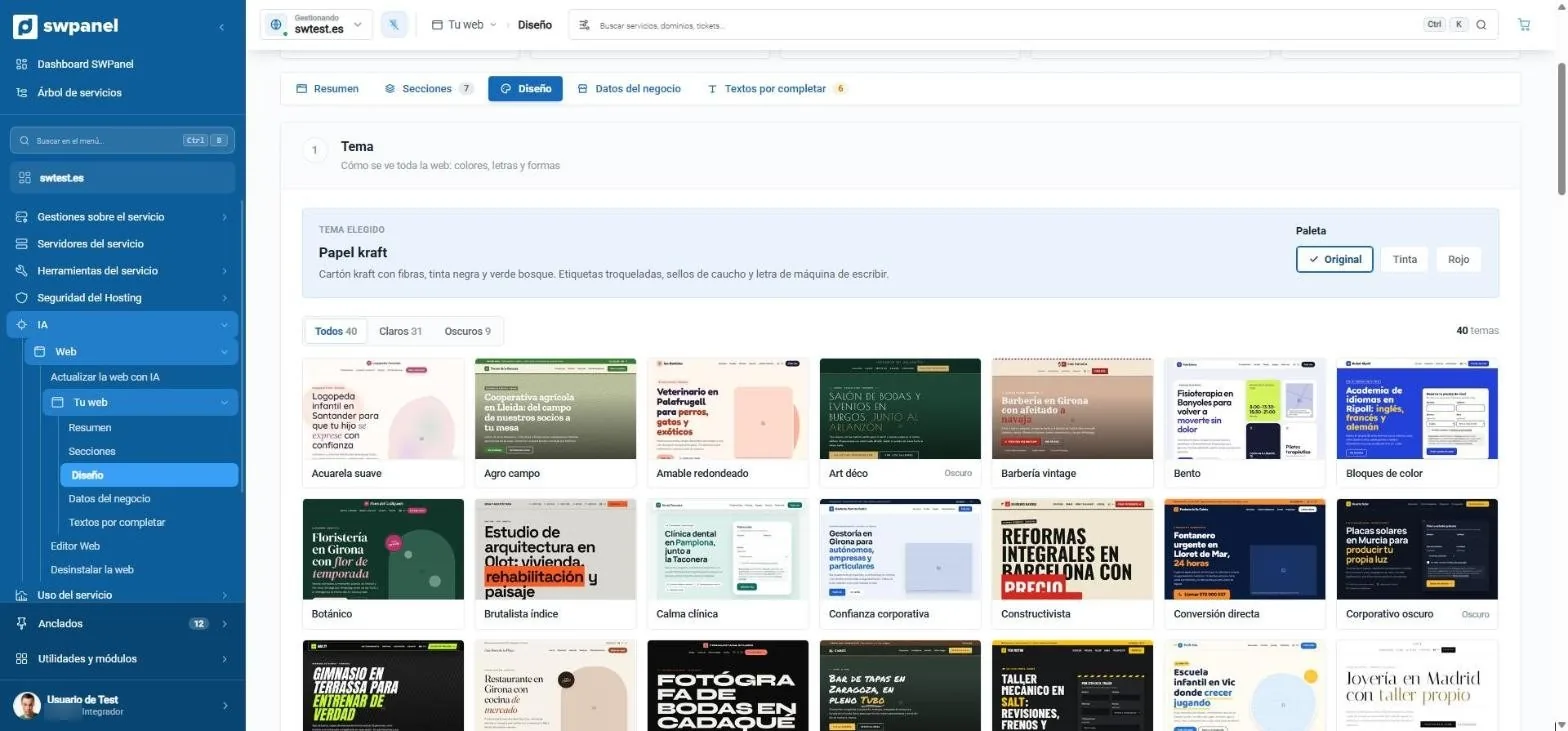
- The chosen theme and its style.
- The theme's palettes: the original and its variants.
- 40 themes: 31 light and 9 dark.
- Change theme with one click and go back to the original whenever you want.
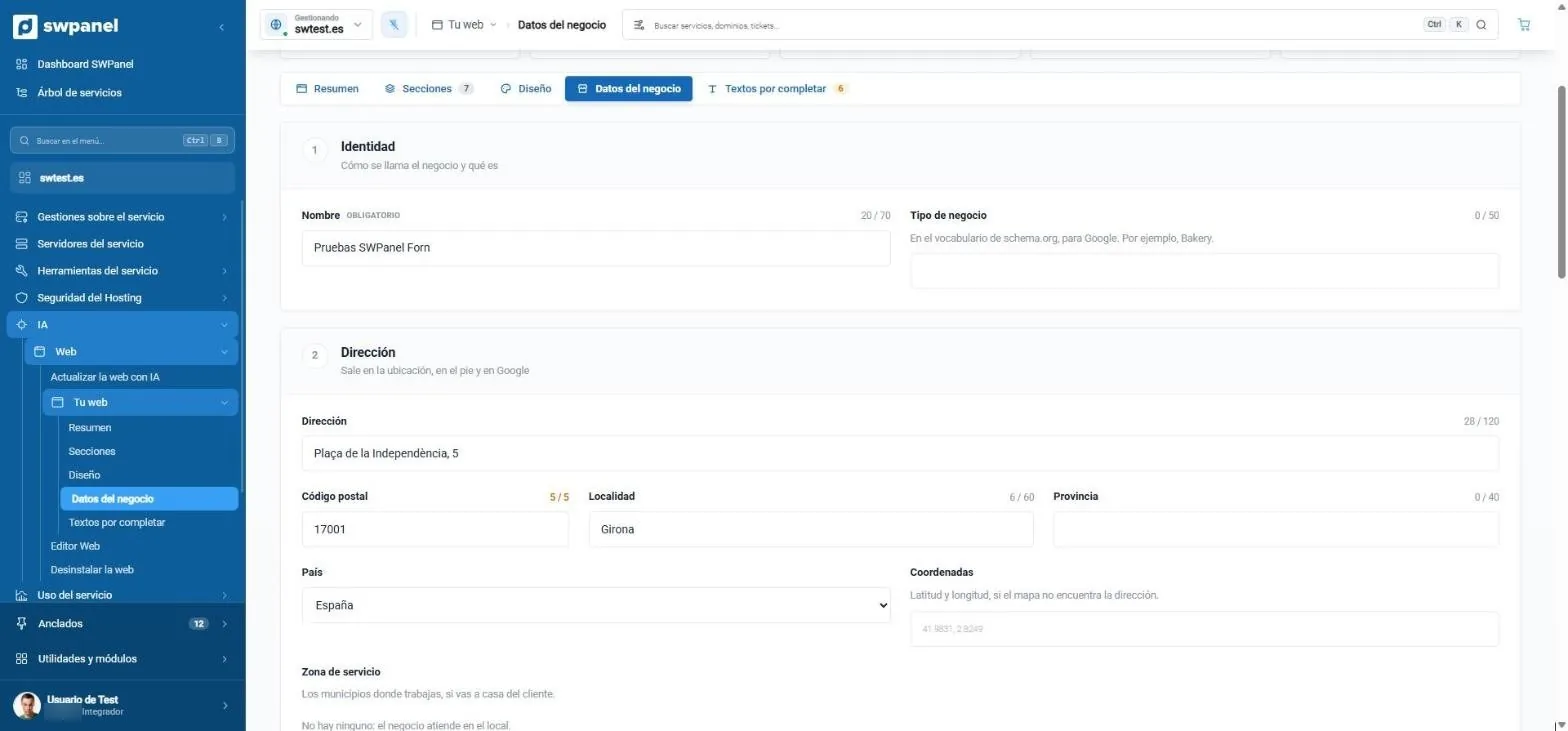
- The business name.
- The business type, in the schema.org vocabulary Google understands.
- The address for the footer, contact and Google.
- Coordinates, if the map can't find the address.
- Service area: the municipalities where you work.
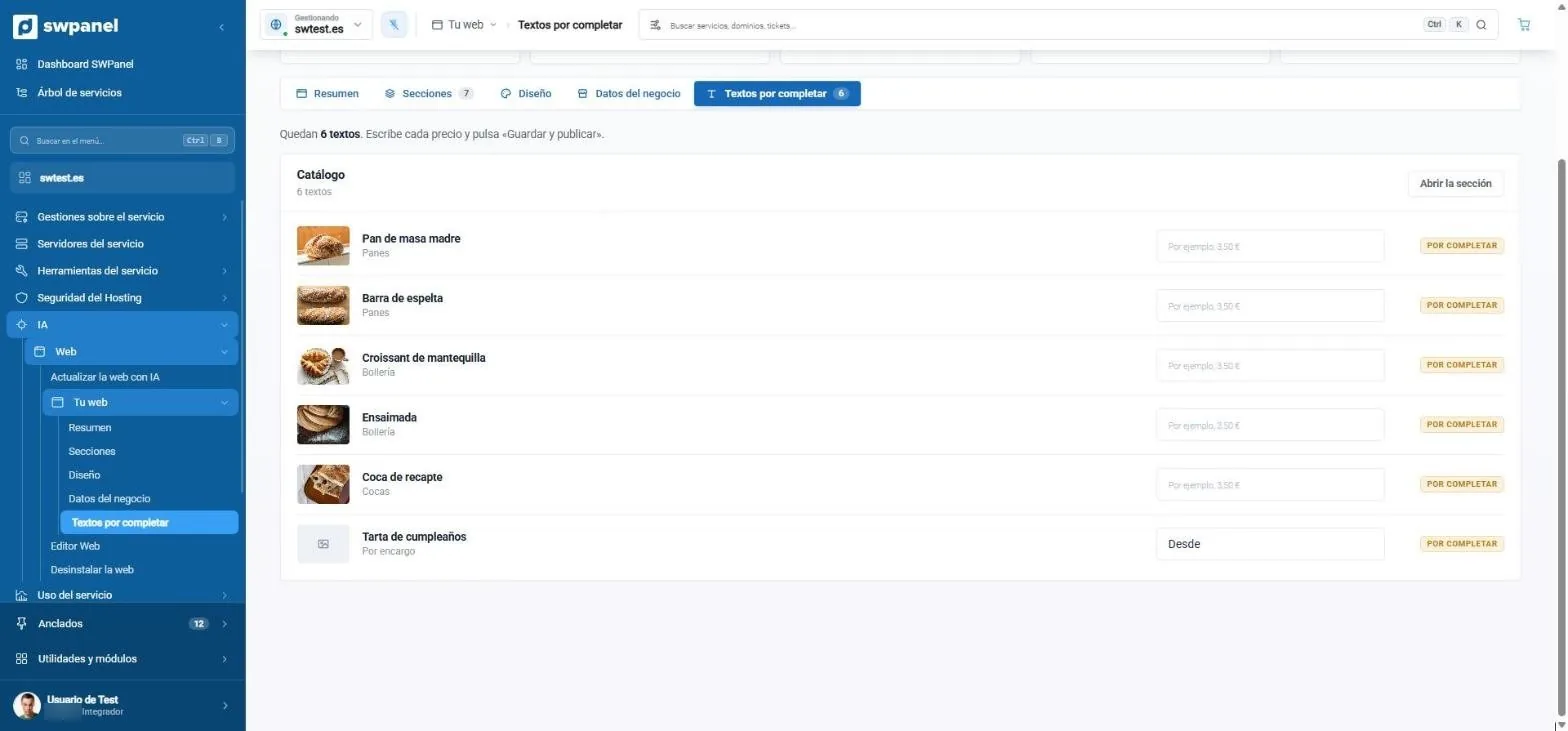
- What the AI can't know, in a list: here, the prices.
- Write each price and press “Save and publish”.
- To complete, until you fill it in.
| Tab | What you do |
|---|---|
| Summary | The website's status: active sections, texts to complete, photos without an image, things to review and the theme. What's pending appears at the top, with a button to complete it. |
| Sections | Reorder them, enable or disable them, choose their variant and background, decide whether they appear in the menu and under what name, and add others. Each section with its lists: add, move up, move down or remove items and photos. |
| Design | Switch to any of the 40 themes, 31 light and 9 dark, choose its palette and go back to the original. |
| Business details | The name, the business type for Google, the address, the coordinates and the service area. |
| Texts to complete | What the AI can't know, such as prices, in a list to fill in without opening each section. |
Changes are published when you press “Save and publish”, in all languages. Until then, “Discard” undoes them.
Visual editor
Click, type and publish
The Web Editor shows your real website inside SWPanel, even if the domain doesn't yet point to the hosting.
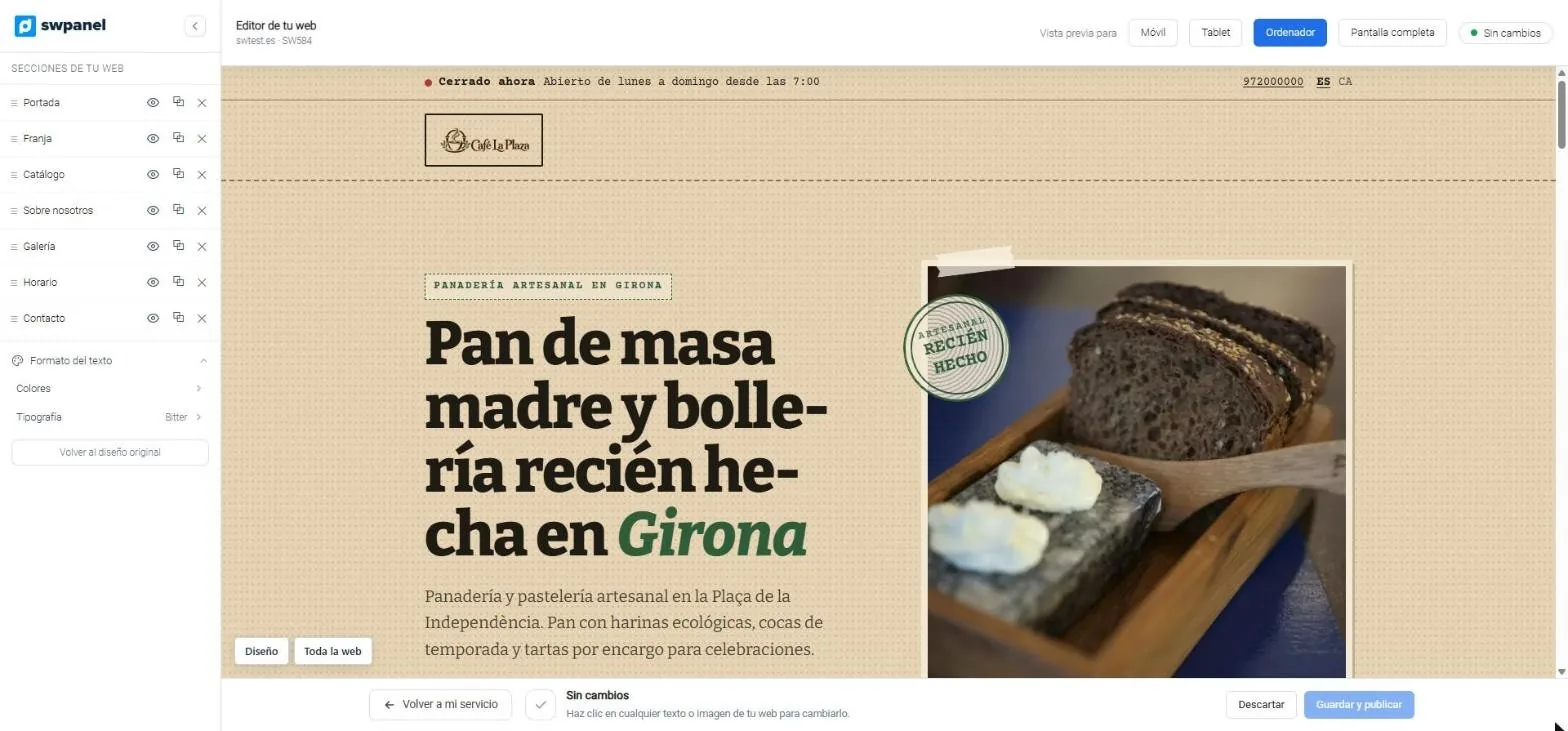
- The sections: reorder, hide, duplicate or remove them.
- Colors and typography for the whole website.
- Mobile, tablet or desktop view, or full screen.
- Your real website, inside SWPanel.
- Save and publish, or discard.
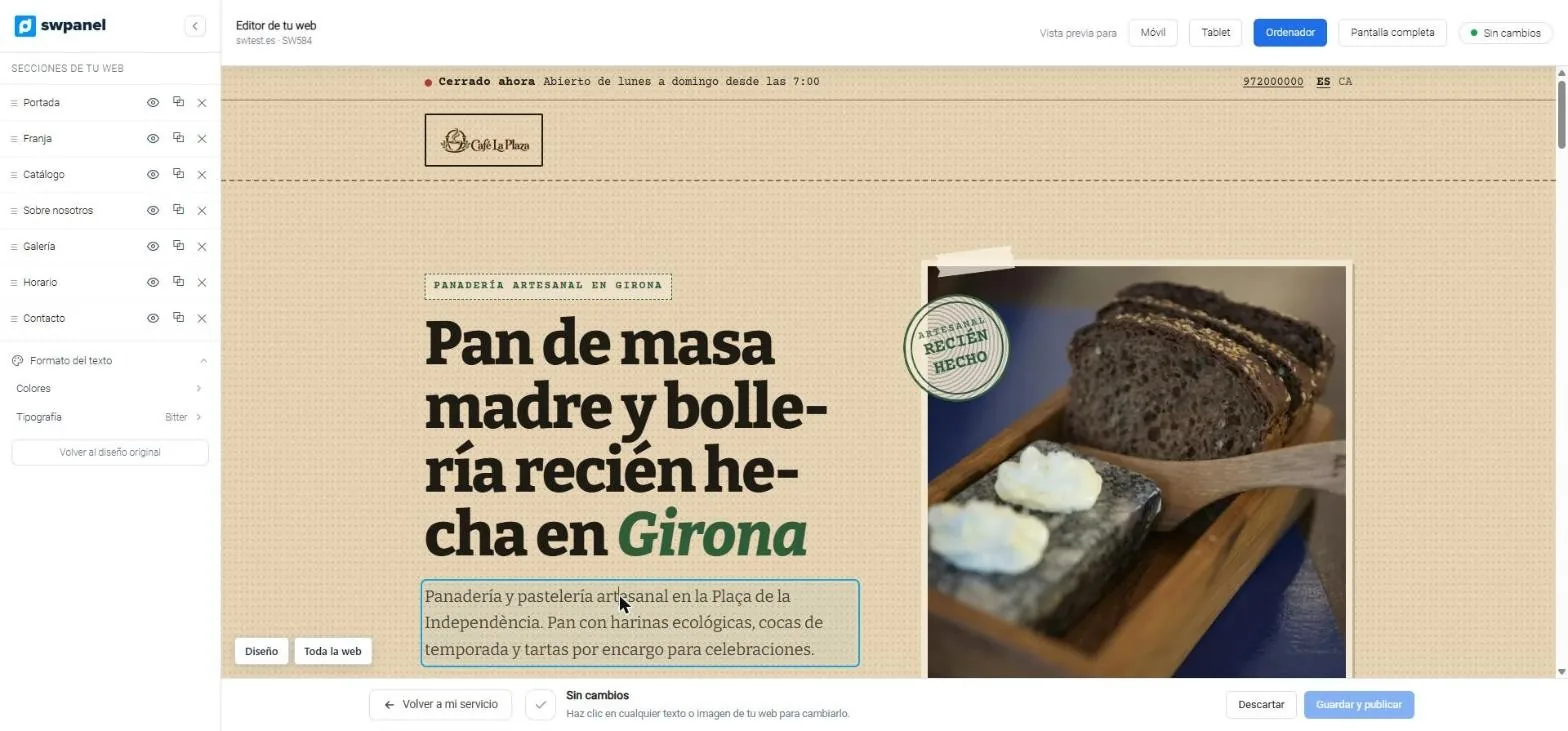
- Click on a text and write it in place.
- Help, always in view: click on any text or image.
- Design and Whole website: the styles of the element or of the entire site.
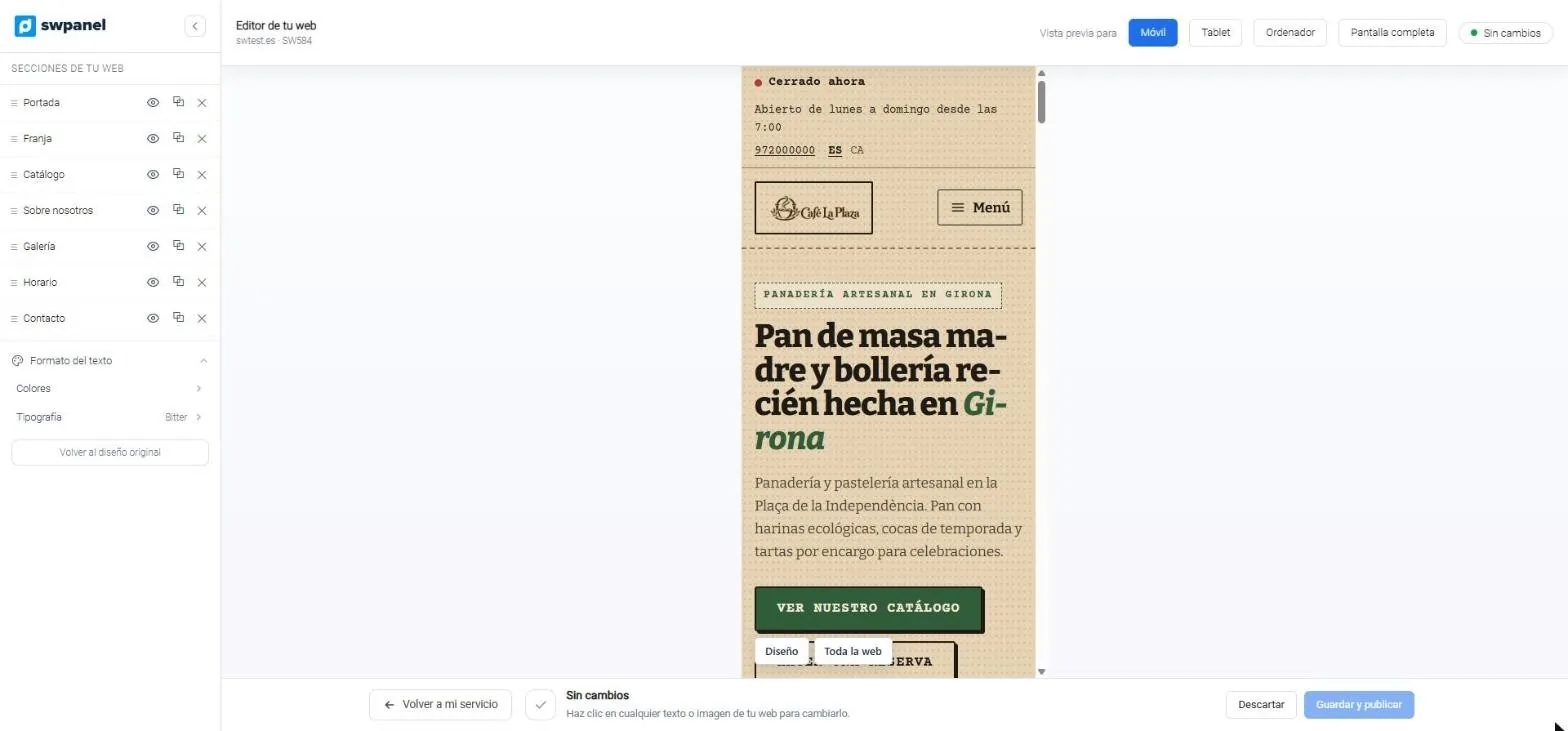
- Mobile view: the menu collapses and the headline adjusts.
- Switch views without leaving the editor.
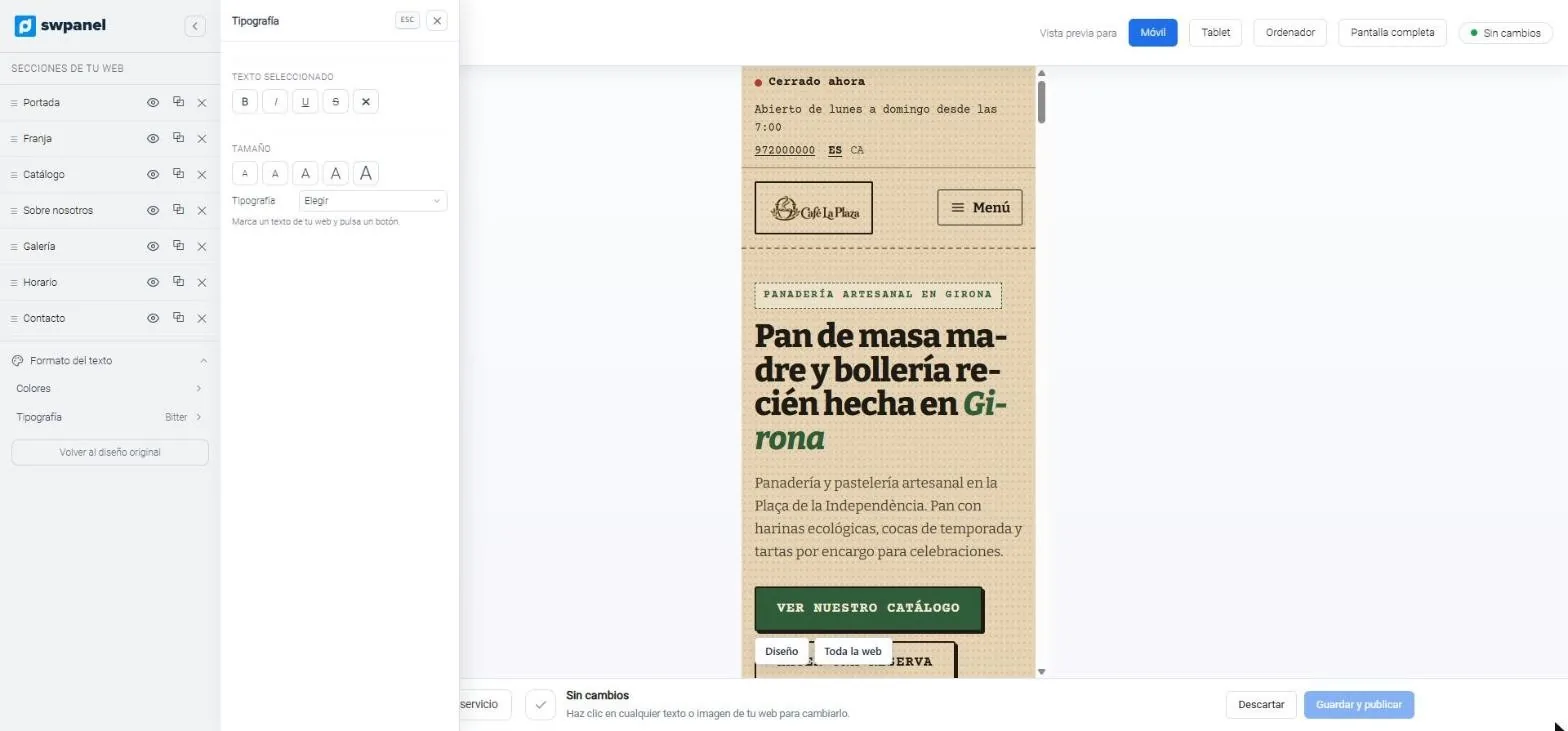
- Bold, italic, underline and strikethrough on the selected text.
- Five sizes and the typography.
- In mobile view while you edit.
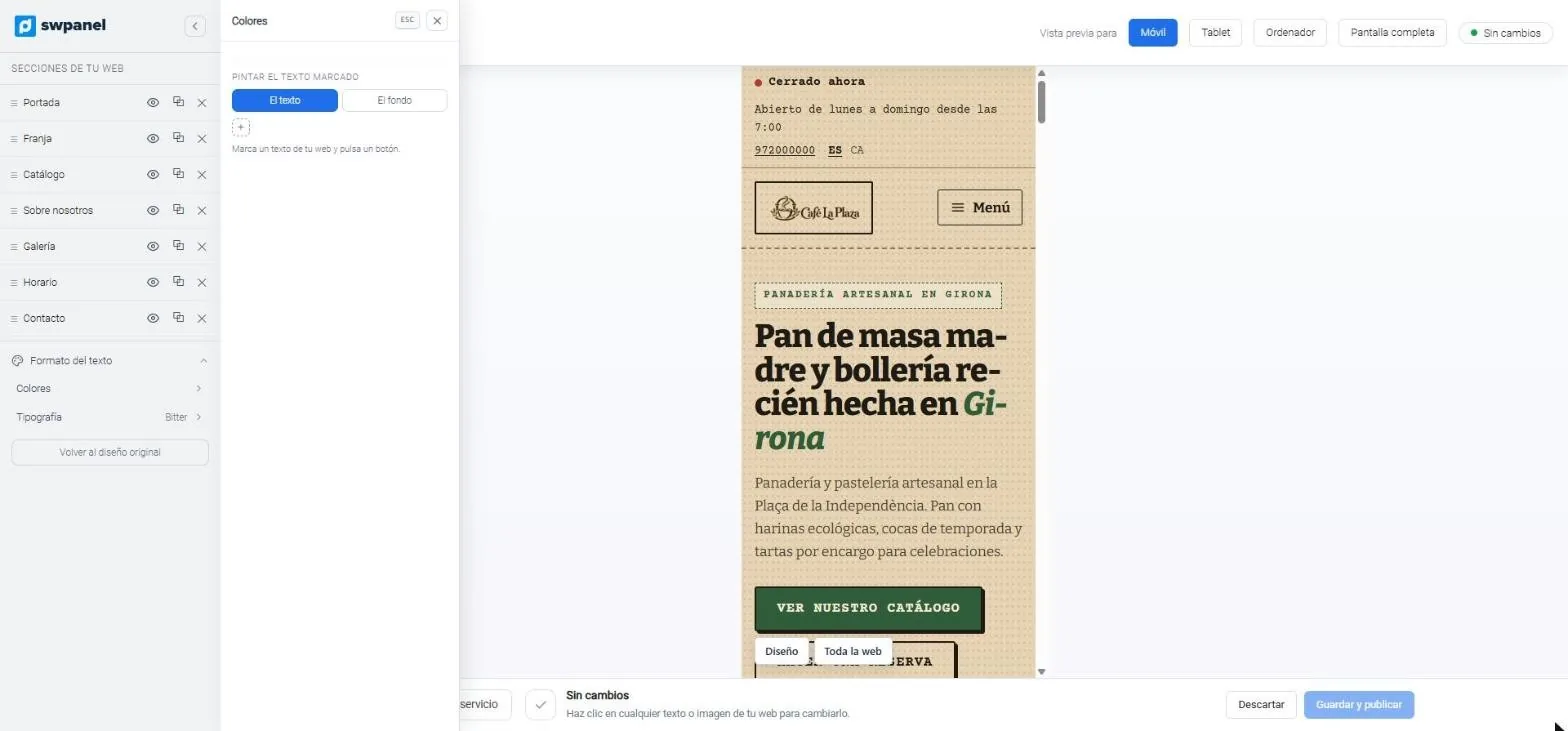
- Color the selected text: its color or its background.
- The change is visible instantly in the preview.
View and edit
- View at 375 px, 768 px and 100%, and full screen
- Click a text to change it in place
- Click an image to upload another
Design of each element
- Select a text, a button, an image or a section; “Container” goes up to the one that contains it
- Font, size, weight, color, line height and spacing
- Color, gradient or image background; margins, border, corners, shadow and opacity
- “Reset” undoes the adjustments
The whole website and the text
- Theme colors, heading and body fonts and corners, for the whole website
- Formatting on individual words: bold, italic, underline, color and size
- Only allowed formatting: no scripts
Legal, SEO and measurement
What nobody sees, done right by default
Legal from day one
Legal notice, privacy, cookies and accessibility statement, with a cookie banner and “Cookie settings” to withdraw consent.
Technical SEO
A single h1, title with the brand, canonical, hreflang, structured data, sitemap, robots and llms.txt, generated on the fly.
Quick
Photos in WebP, a stylesheet with only what the website uses and dependency-free pages.
Analytics with permission
GA4, Tag Manager, Meta Pixel and Clarity wait for the visitor to accept. Plausible, cookie-free.
Forms
Messages from the website arrive in your email. The connection with SWPanel Leads, to save them as contacts, is on its way.
With the rest of SWPanel
It's just another hosting: protect it with Security 360 and position it with the SEO module.
Frequently asked questions
Questions about the AI website
Your website, in the time of a coffee
Create your account, choose a hosting and tell SWPanel what your business does.