
Backups
Your backups, in five places around the world
Every night SWPanel copies your servers to another data center. You choose where: Spain, Germany, the United Kingdom or the United States. You can store them in several at once and, when you need to go back, you choose which one to restore from.
- Five locations
- Multi-copy across several centers
- Restore from the one you choose


Illustration. The five locations are SWPanel's; the active ones are an example.
- Five locations Spain/DC1, Spain/DC2, Saxony/DC3 in Germany, London/DC5 in the United Kingdom and East USA/DC4 in the United States.
- Multi-copy Enable backups in several centers at once. Each with its own retention days.
- Restore from wherever you want You choose the data center, the day and what you recover: everything, a folder or a single file.
- 5 Locations in four countries
- Every night One backup full or changes only
- 7 to 364 Days you keep each backup
- 1 click To restore from the calendar
Where they are stored
Far from your server, in the place you choose
A copy in the same place as the server doesn't save you from a problem at that place. That is why SWPanel backups are stored in another data center, and you choose which.
- Spain/DC1 Spain
- Spain/DC2 Spain
- Sajonia/DC3 Germany
- East USA/DC4 United States
- London/DC5 United Kingdom
Setting it up is easy
Everything in one dashboard, no jargon
You see the status, the location map, the backup calendar, how much is kept and how much space it takes. And from there you change it.
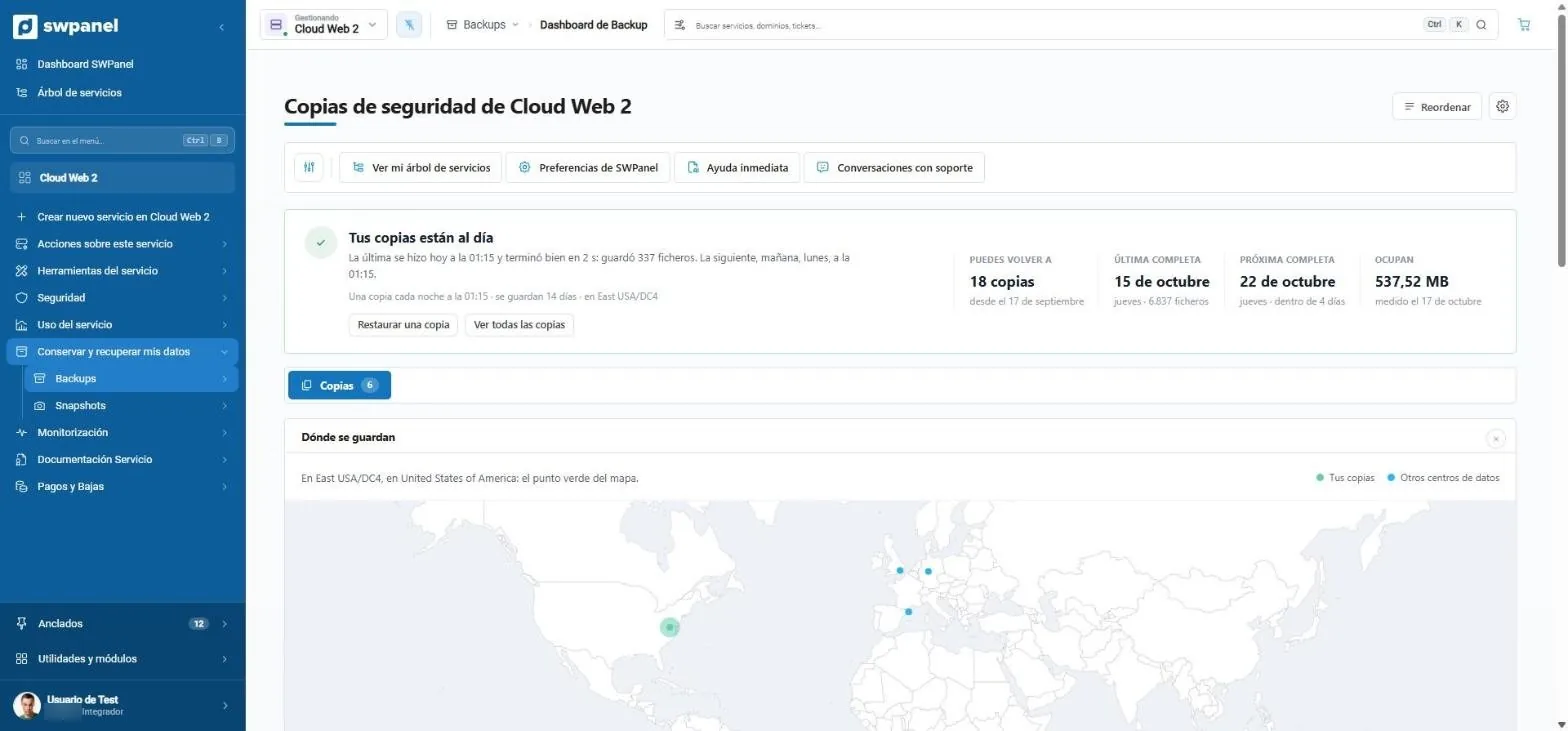
- The status in one sentence: when the last backup was made, whether it finished well and when the next is due.
- How and where they are made: every night, how many days are kept and in which data center.
- How many backups you can go back to, the last and the next full one, and what they take up.
- Restore or see all backups, one click away.
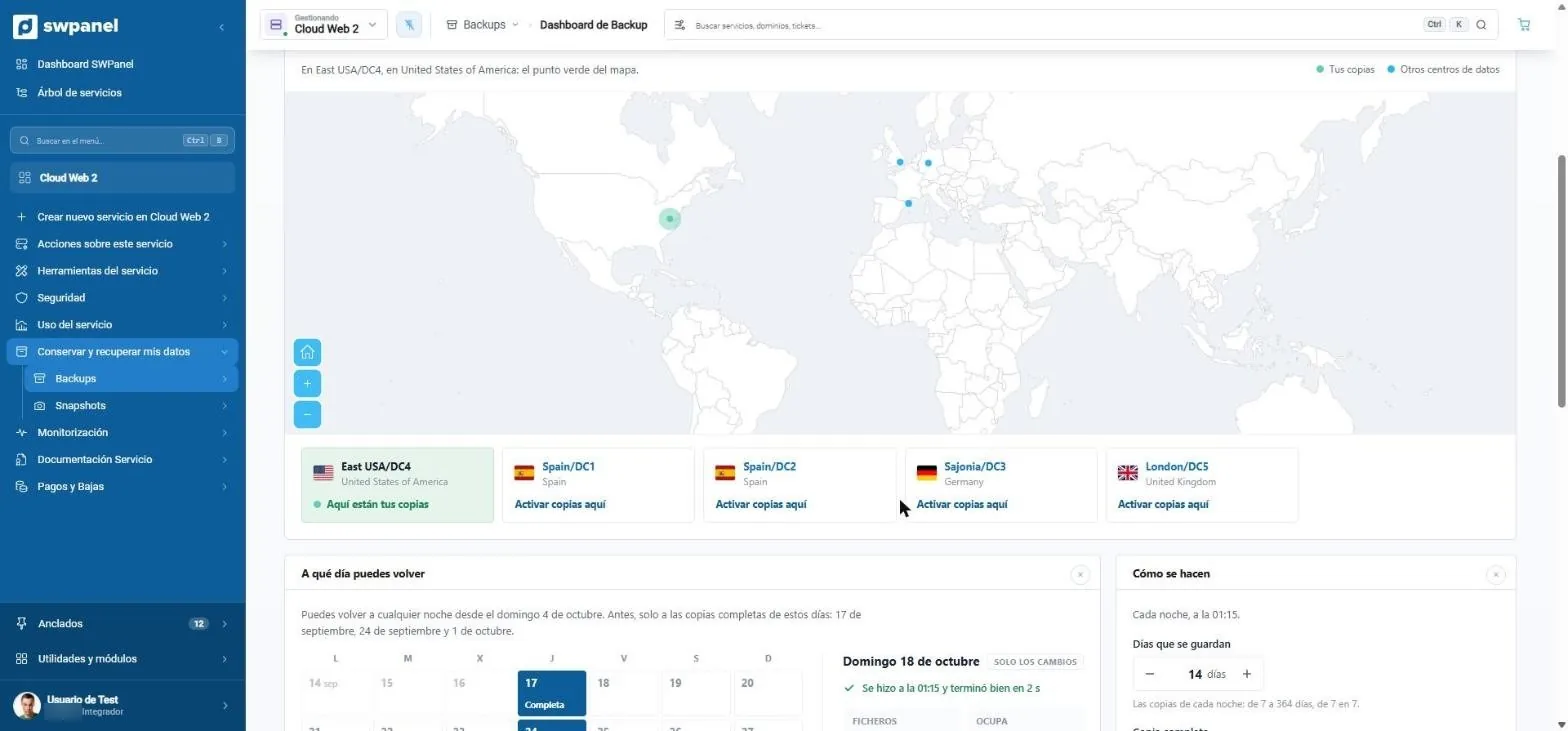
- Where your backups are today: the green dot.
- The other data centers, in blue, ready to enable.
- Here are your backups: East USA/DC4, in the United States.
- Enabling backups here adds another location without touching the one you already have.
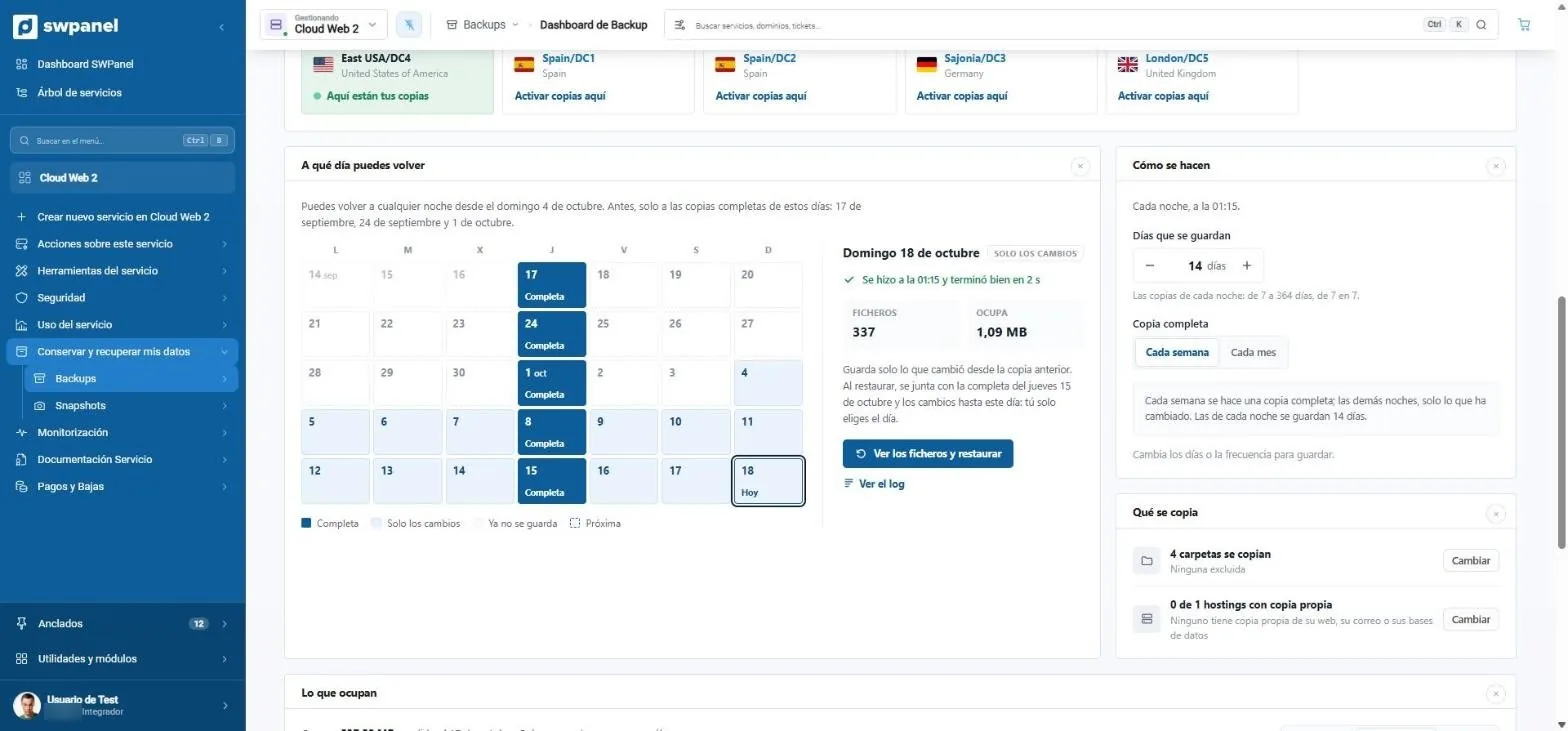
- Which day you can go back to: any recent night and, before that, the full backups.
- Full and changes only: one full backup per week or per month and, on the other nights, what changed.
- You pick the day and restore. SWPanel combines the full backup and the changes for you.
- How many days are kept: from 7 to 364, in steps of 7.
- Full backup every week or every month.
- What is backed up: server folders and, per hosting, its website, its email and its databases.
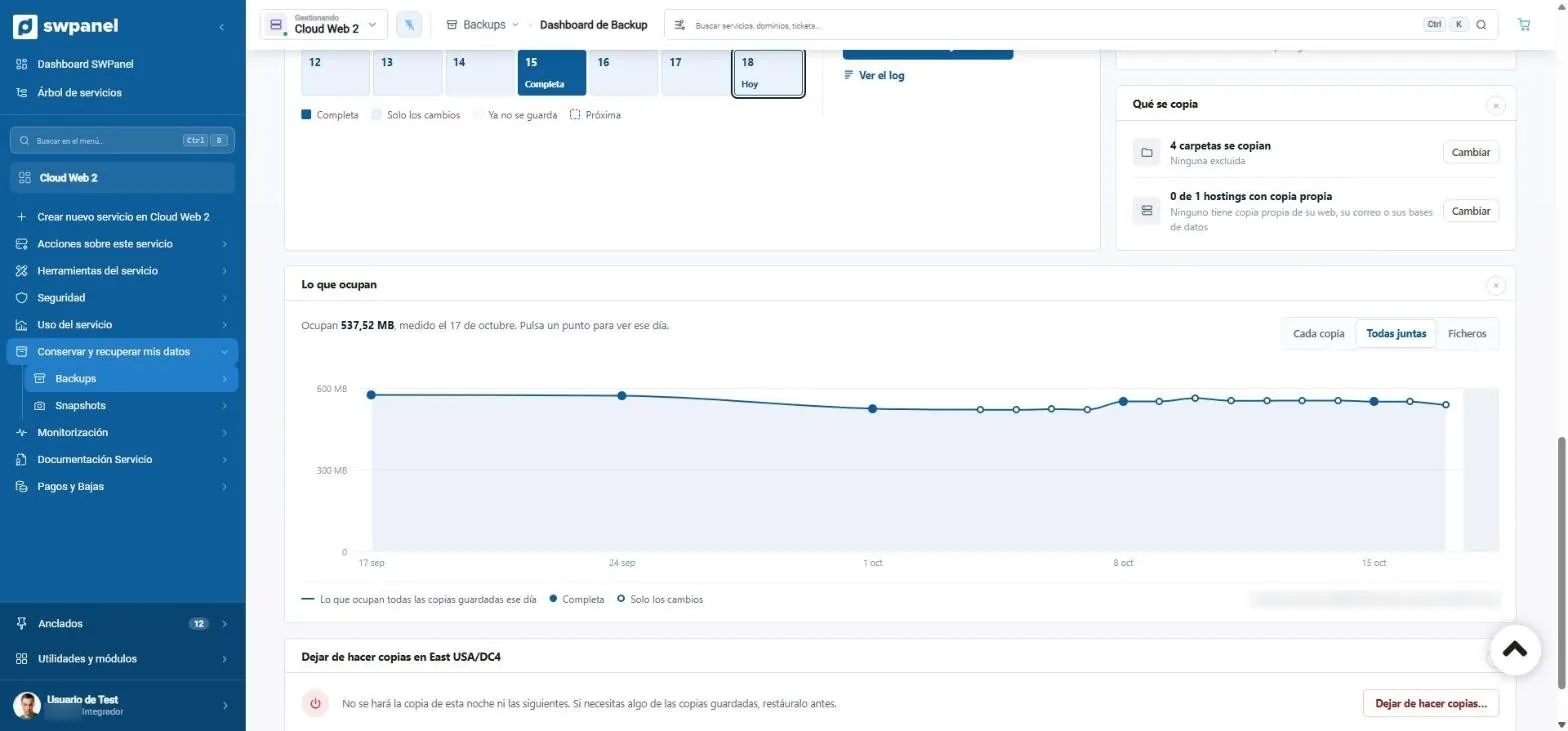
- What your backups take up, day by day.
- Per backup, all together or by file.
- Estimated cost per day and per month.
- Stop backing up in a location, with a notice of what gets deleted.
Multi-copy
Several locations at once
Enable backups in another data center and they add to the ones you already have, with the same definition of what is backed up. Each location keeps its own days and you can stop backing up in one without touching the others.
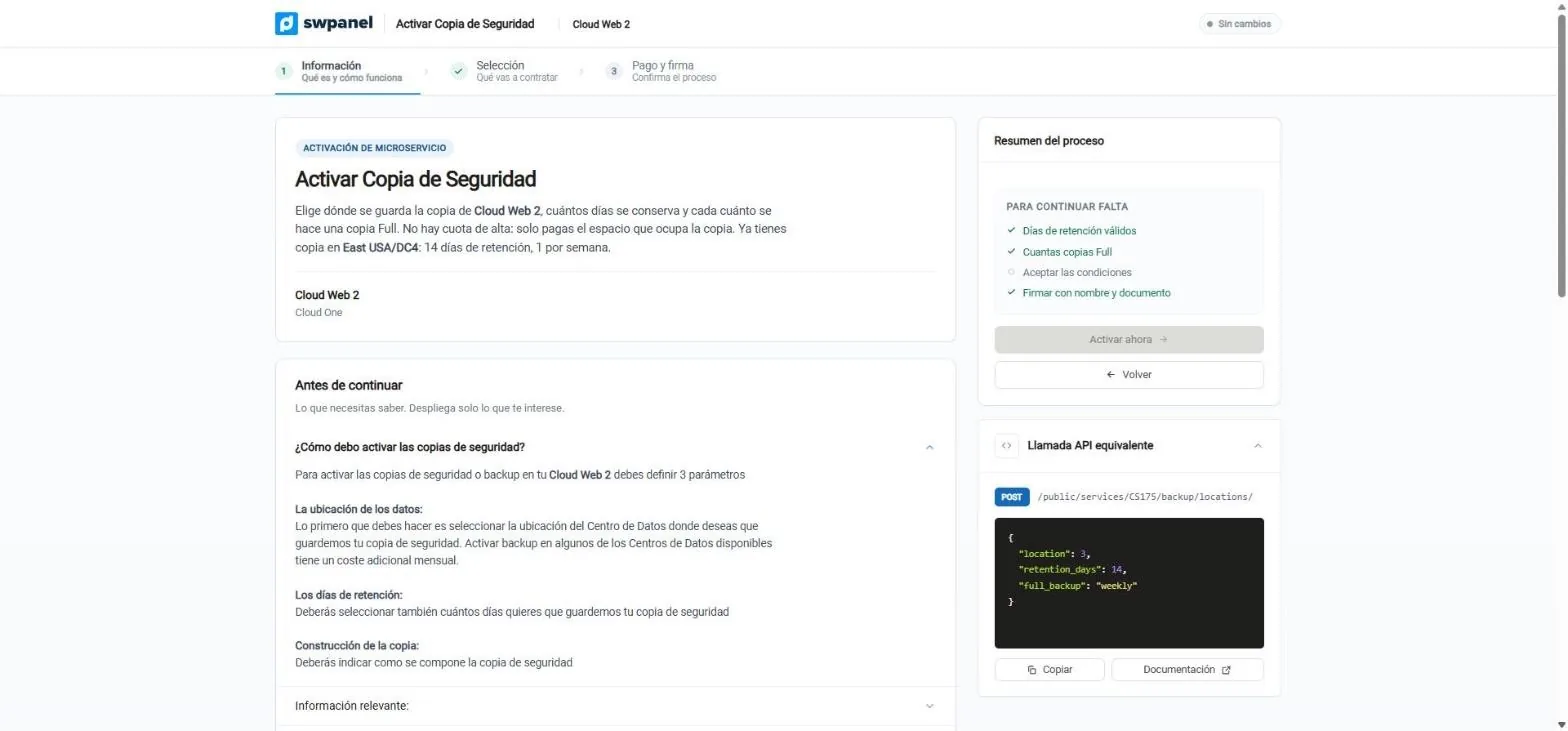
- One more location: “You already have a backup in East USA/DC4”.
- Three steps: information, selection and signature.
- What is left to finish, point by point.
- Explained before enabling: location, days and how the backup is composed.
- The equivalent API call, to automate it.
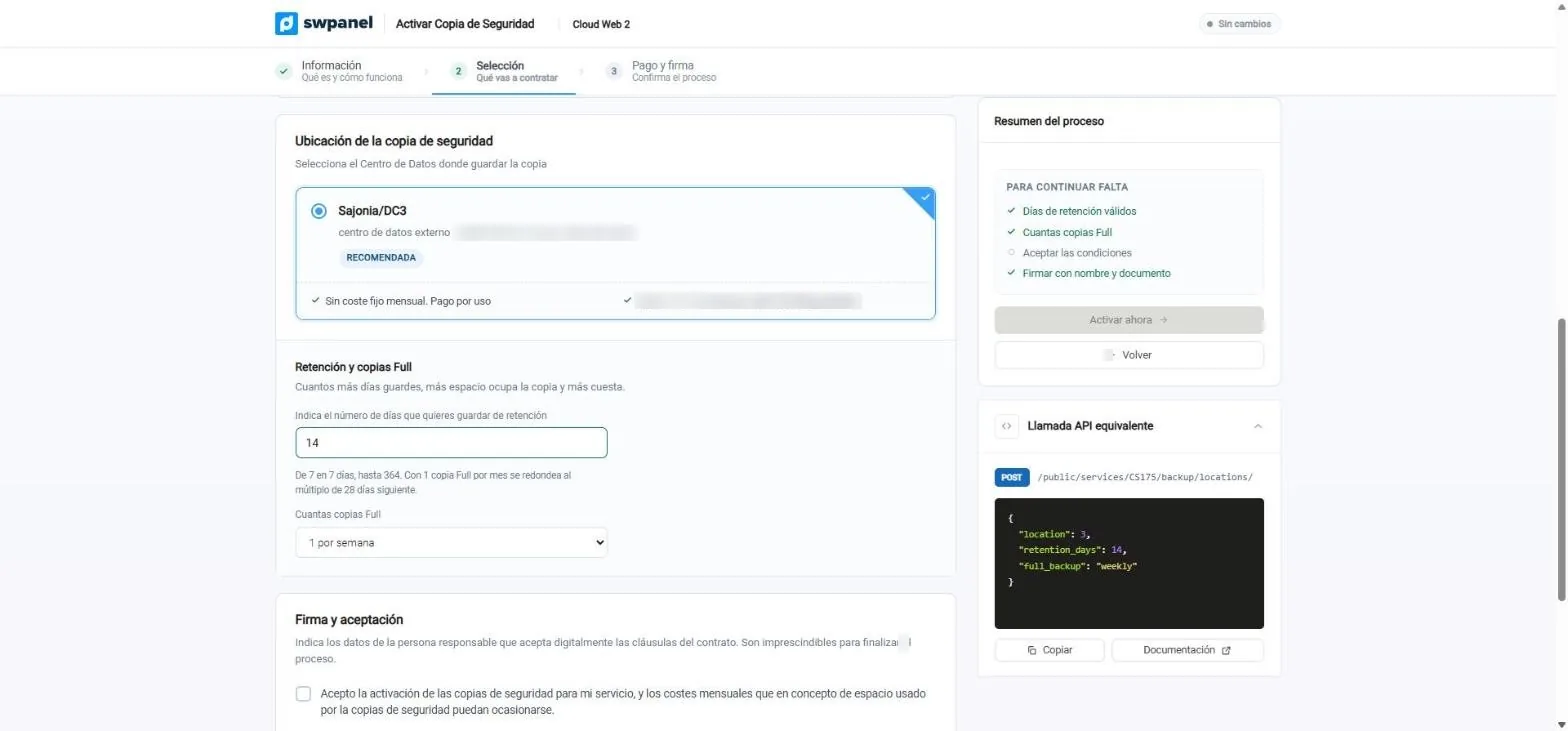
- The data center for this backup. Here, Saxony, in Germany.
- No fixed fee: you pay for the space it takes.
- Days kept, from 7 to 364.
- How often a full one: one per week or one per month.
- You sign and accept, and it is enabled in that location.
What is backed up
Per hosting or per directory
Two visual wizards: in one you mark, for each hosting, whether its website, email and databases are included; in the other you pick the server folders in a tree.
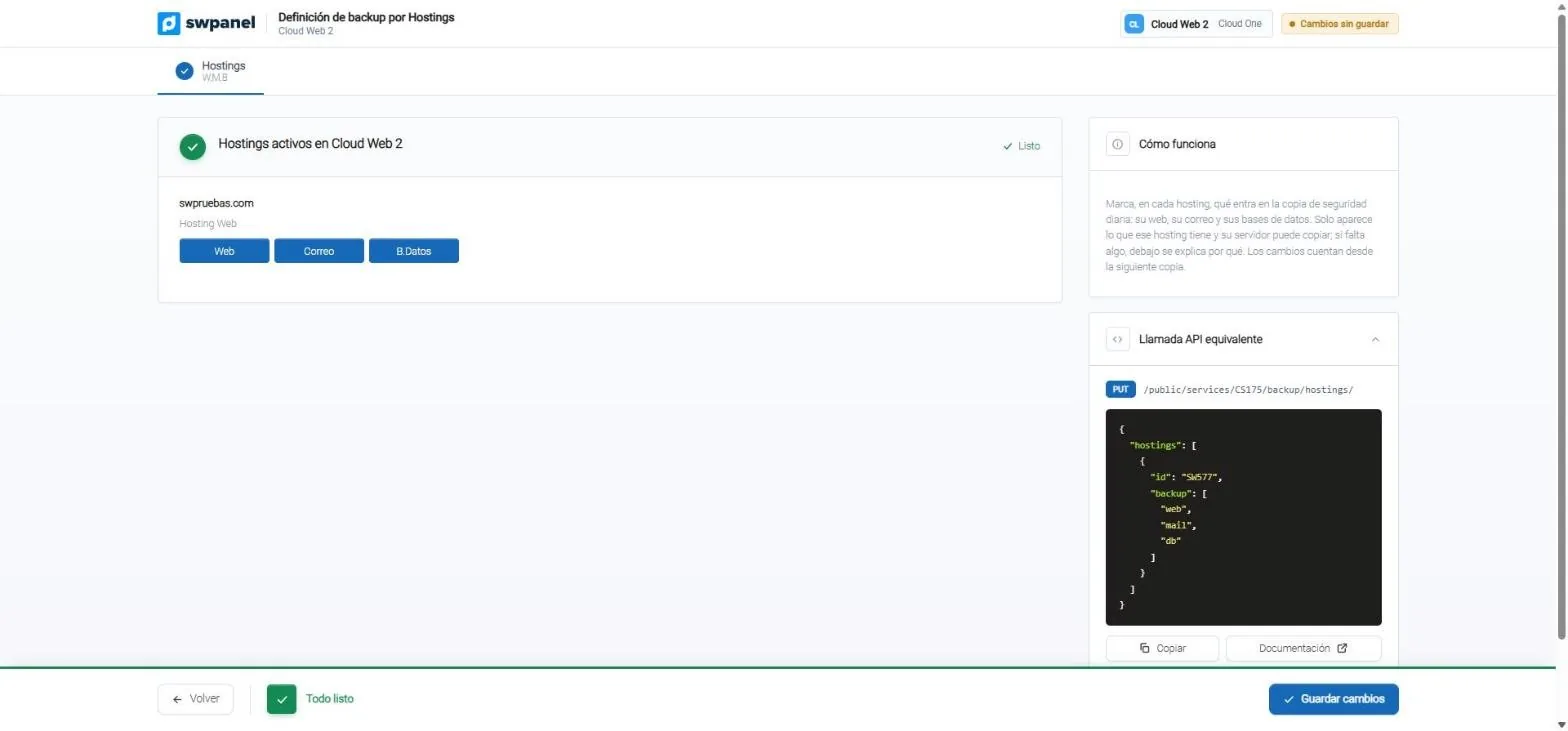
- For each hosting: its website, its email and its databases, each from its own server.
- Only what that hosting has appears and its server can back up.
- The same definition, via API.
- Counts from the next backup.
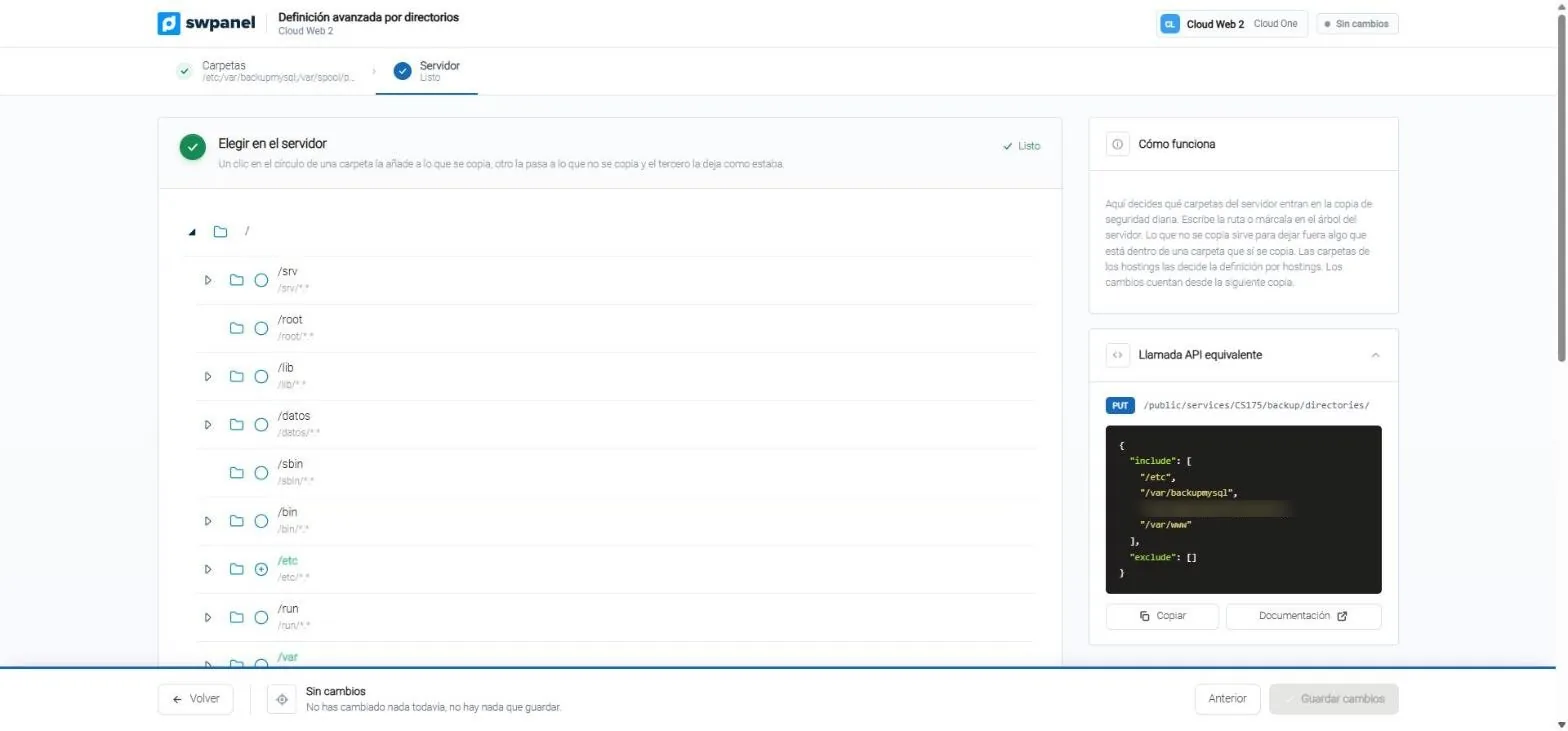
- You choose in the server tree: one click includes the folder, another excludes it and the third leaves it as it was.
- In green, what is backed up.
- Or type the paths in “Folders”: what is backed up and what isn't.
- With its API call, to apply it to many servers.
Restore
You choose the data center, the day and what you recover
From the calendar or with “Restore a backup”. First, from which location; then, the day and what you recover: a folder, a file or, per hosting, its website, email and databases. On a Cloud it is recovered into a new folder with the date, without overwriting what you have.
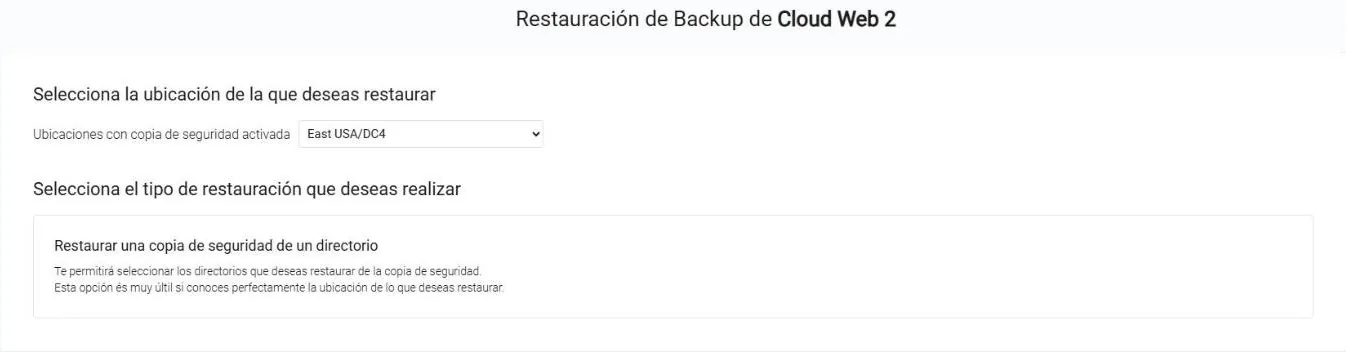
- From which data center you restore, among those that have a backup.
- What you restore: a directory or a file; per hosting, its website, email and databases.
To automate
Every wizard, with its API call
What you do on screen can also be done via API: enable backups in a location, define the folders or hostings included. Each wizard shows you the equivalent call.
Enable a location
POST /backup/locations/ with the location, the retention days and the frequency of the full backup.
Define folders
PUT /backup/directories/ with what is backed up and what isn't.
Define hostings
PUT /backup/hostings/ with what is included from each hosting: website, email and databases.
See moreFrequently asked questions
Questions about backups
Your backups, wherever you decide
Create your free account, enable backups and choose in which data centers they are stored.