SWPanel

Security 360

Your websites' security, monitored every day

A package per service that brings together all of SWPanel's protections and adds two you won't find standalone: a SOC that analyzes your service daily and a WAF that learns from the attacks you receive. No DNS changes, no plugins, and with any technology.

  • 6 protections in hosting
  • 12 in Cloud and server
  • No plugins or DNS changes
Cloud Web 2 › Incoming traffic · last 30 days Real screenshot
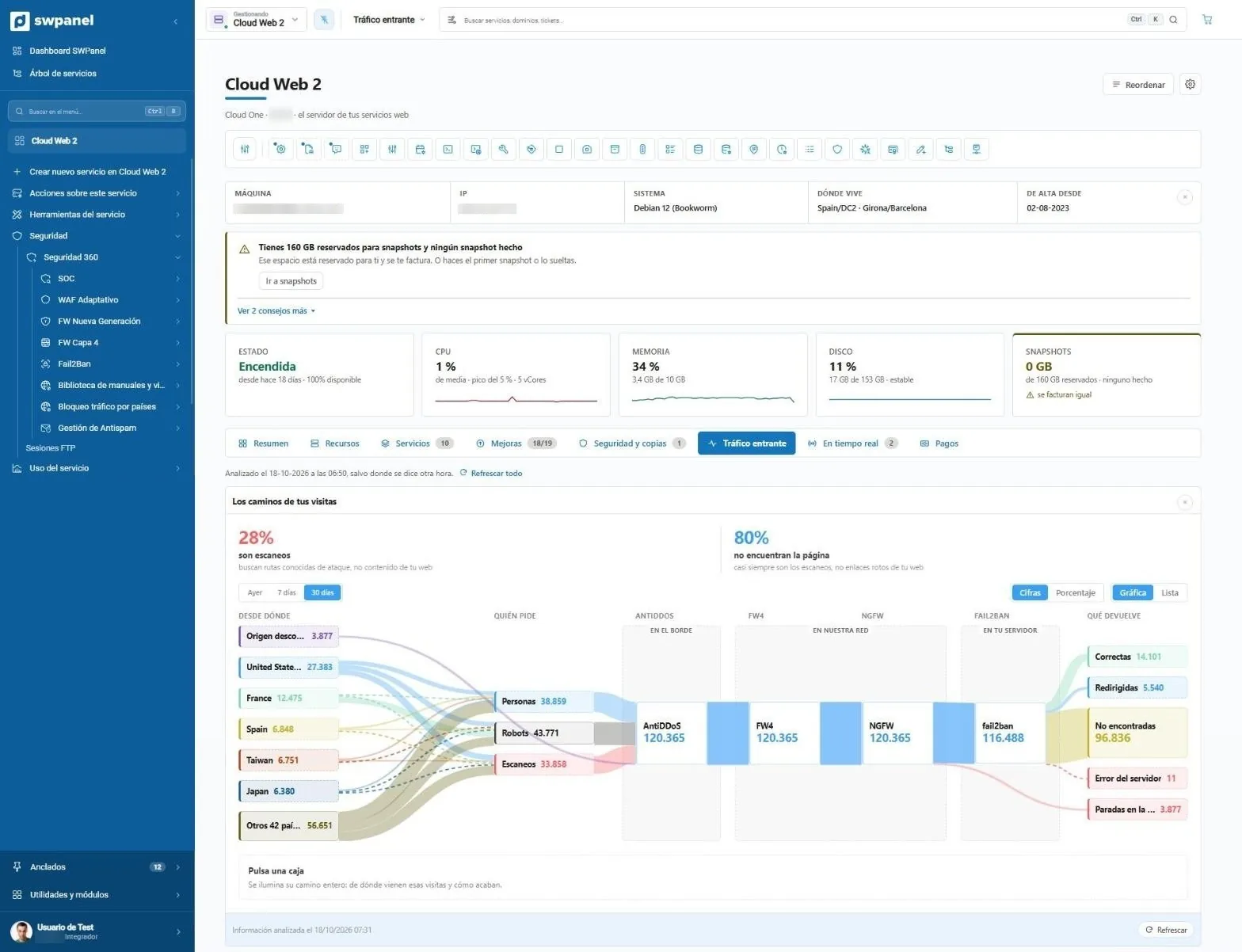
Cloud Web 2 page with the Security 360 menu open and “Your visitors' paths”: 120,365 requests from people, robots and scans cross AntiDDoS, FW4, NGFW and Fail2Ban
  • Each layer, in its place AntiDDoS at the edge, FW4 and NGFW on our network and Fail2Ban on your server: where each request passes and where it stops.
  • Who's knocking at your door People, robots and scans, and which country they come from. In this Cloud, 28 % of the 30-day traffic was scans.
  • All of Security 360, in the menu SOC, adaptive WAF, firewalls, Fail2Ban, country blocking and antispam, in the service's own menu.

What it looks like, no mockups

Every request, where it comes from and where it stops

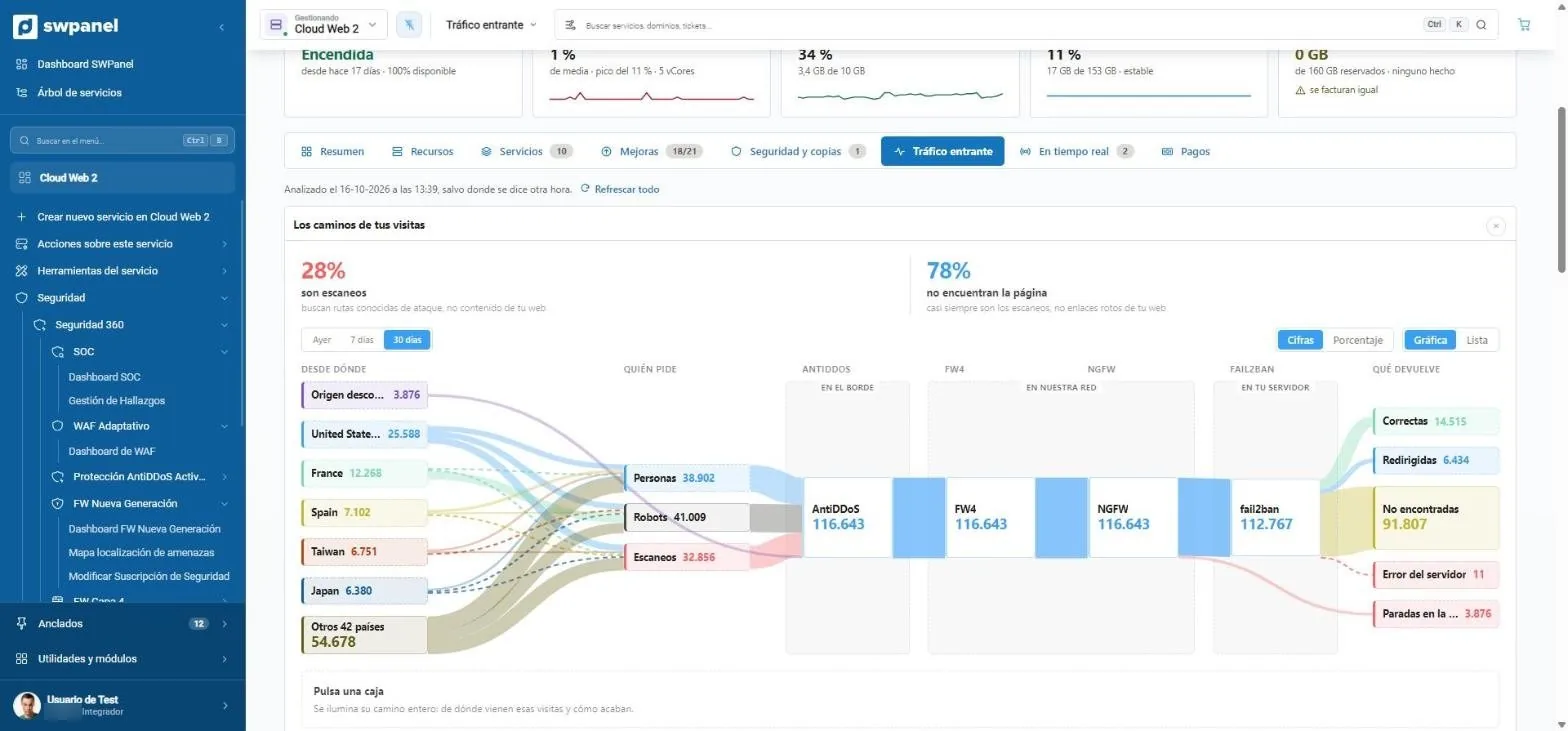
This is the “Incoming traffic” tab of a real Cloud with Security 360, over the last 30 days. 116,643 requests: 28 % were scans looking for open doors and 78 % asked for pages that don't exist. No classic panel shows you this on one screen.

Cloud Web 2 › Incoming traffic Real screenshot
Cloud Web 2 › Incoming traffic
  1. How much is scanning. Here, 28 % of traffic looks for known attack paths, not your content.
  2. Which countries visits come from, sorted by volume.
  3. Who's asking: people, robots or scanners. Each group with its own color.
  4. The layers each request goes through: AntiDDoS at the edge, FW4 and NGFW in our network and Fail2Ban on your server.
  5. How each visit ends: successful, redirected, not found, error or stopped at a layer.

A tour of the layers

Ten screens of the same service, all real

Click each layer to see its screen. They're SWPanel 2027 screenshots with a test Cloud: we've only blurred IPs and machine names.

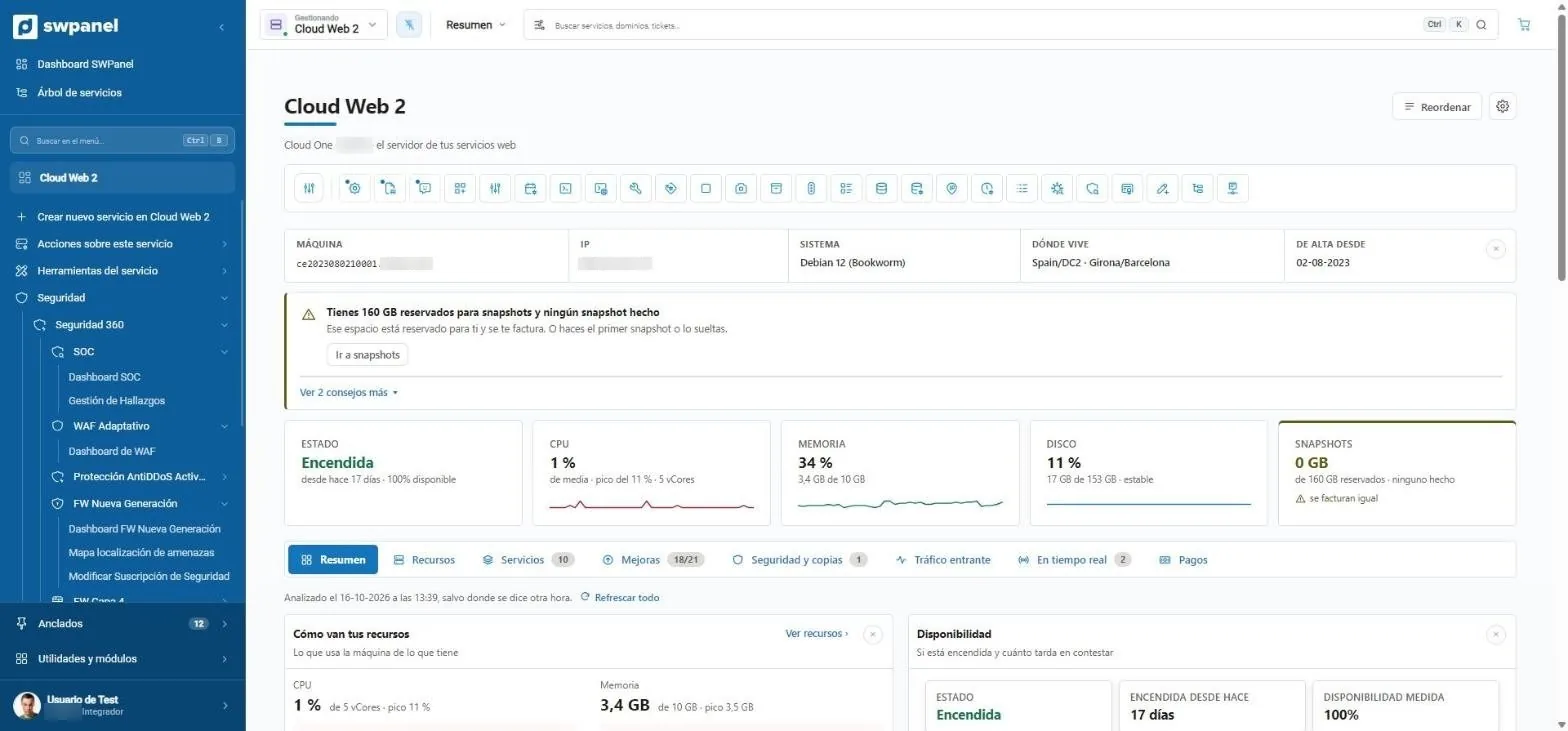
Cloud Web 2 › Summary Real screenshot
Cloud Web 2 › Summary
  1. Security 360 in the service menu, with each layer and its dashboard.
  2. Notices with action. Here: 160 GB reserved for snapshots and none taken.
  3. Status, CPU, memory, disk and snapshots at a glance.
  4. One tab per topic: resources, services, upgrades, security, traffic, real time and payments.
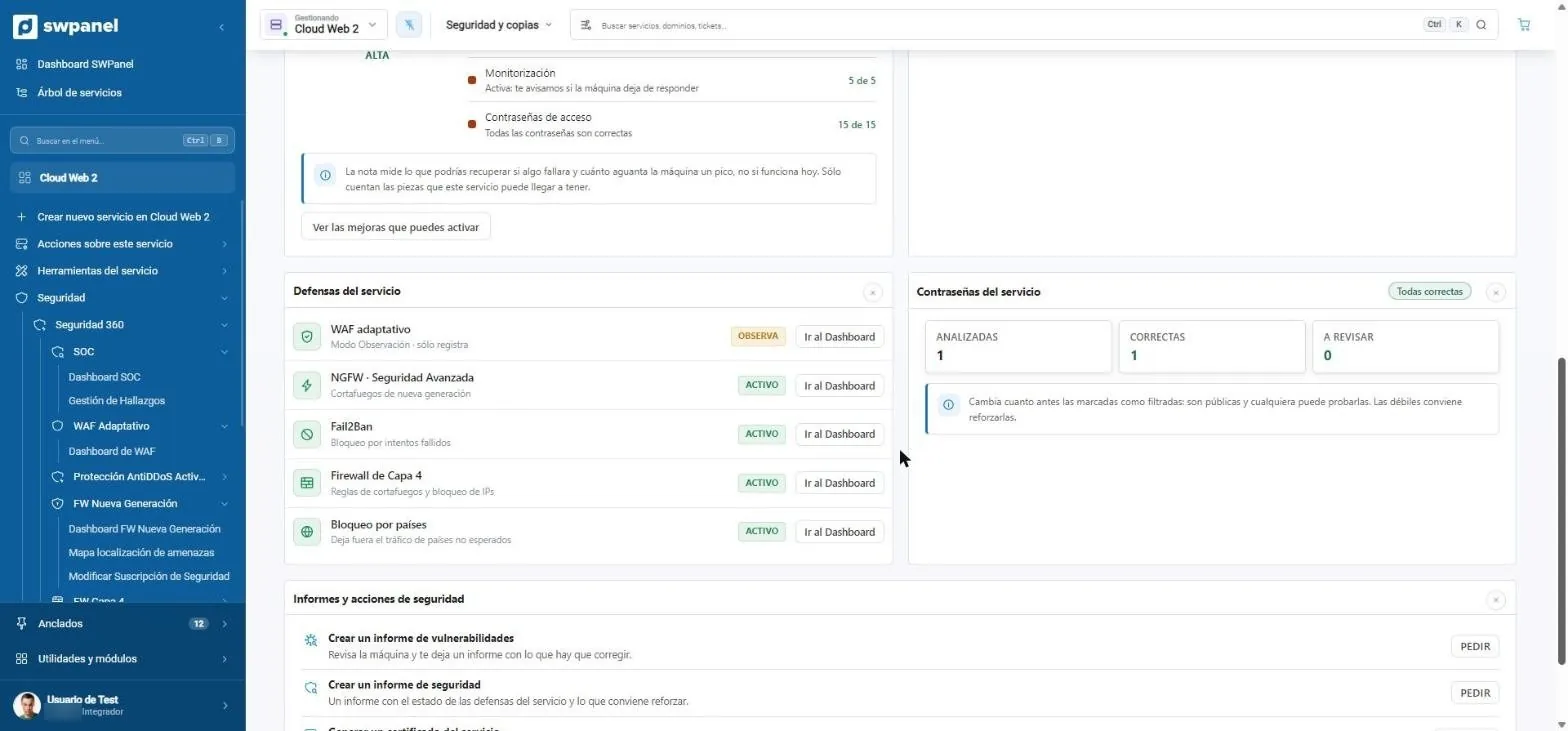
Cloud Web 2 › Security and backups Real screenshot
Cloud Web 2 › Security and backups
  1. Each defense with its status. The WAF is in observation: it logs without blocking while it learns.
  2. One click to the dashboard of each layer.
  3. Service passwords checked against public leaks.
  4. Security and vulnerability reports on demand.
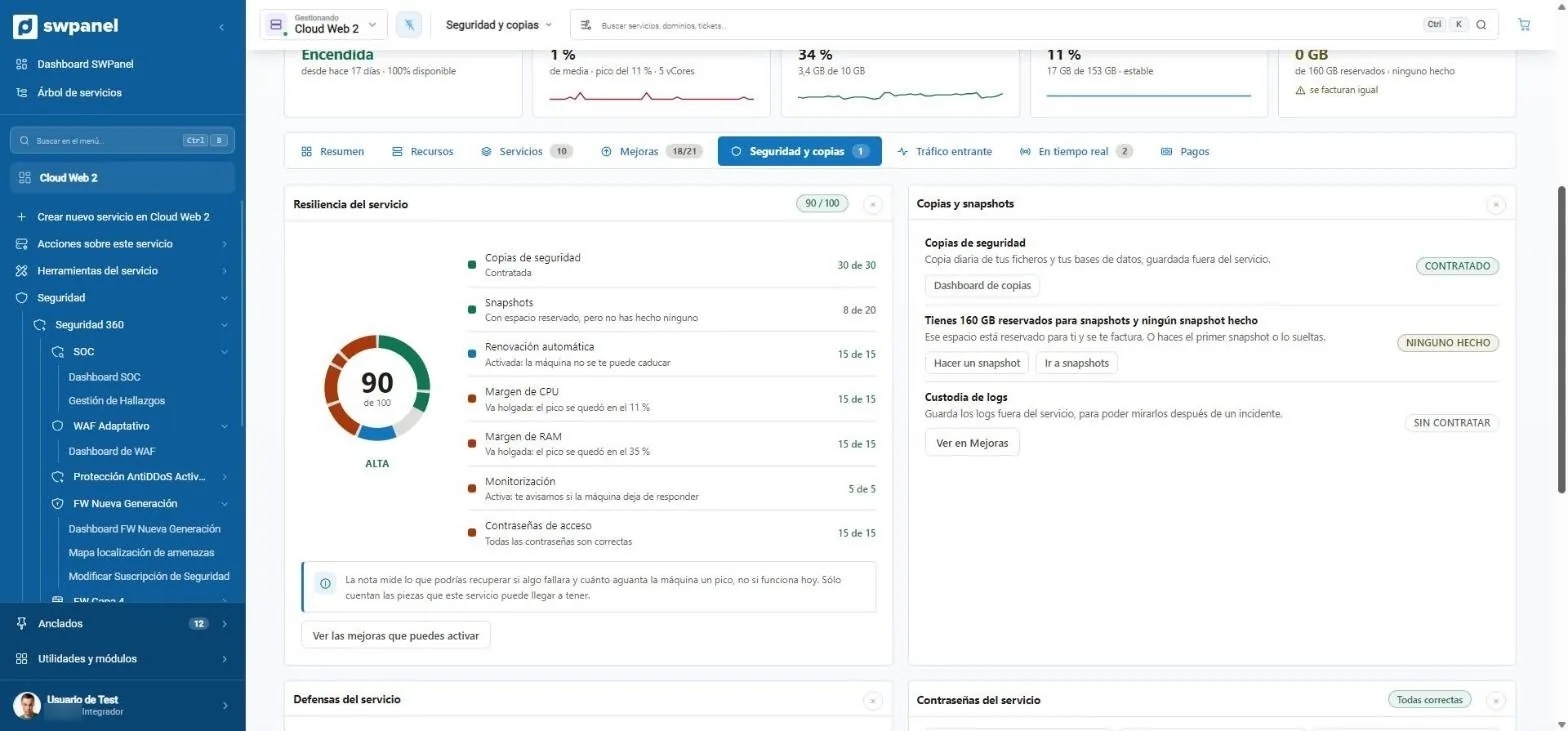
Cloud Web 2 › Security and backups Real screenshot
Cloud Web 2 › Security and backups
  1. Resilience score out of 100: what you could recover if something failed.
  2. What adds and what subtracts: backups, snapshots, renewal, CPU and RAM headroom, monitoring and passwords.
  3. Backups and snapshots with what you've ordered, what's missing and the button to do it.
  4. The improvements that raise the score, one click away.
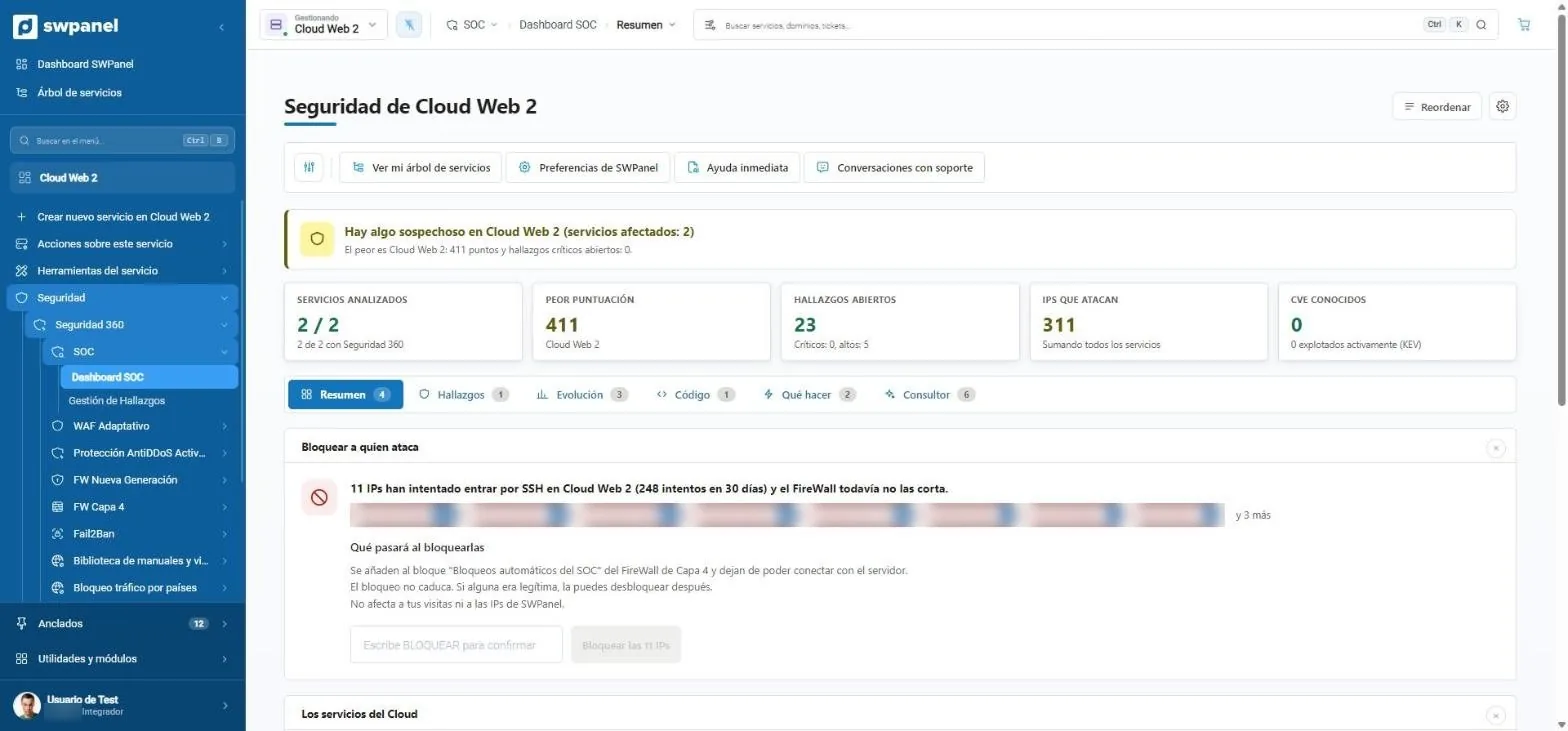
Cloud Web 2 › SOC › SOC dashboard › Summary Real screenshot
Cloud Web 2 › SOC › SOC dashboard › Summary
  1. A notice that summarizes the status: in order, suspicious or compromised.
  2. Five figures: services analyzed, worst score, findings, attacking IPs and CVEs.
  3. Six tabs: summary, findings, trends, code, what to do and consultant.
  4. Block whoever attacks: 11 IPs try to get in via SSH and the SOC proposes cutting them off.
  5. To act you type BLOCK. Nothing is applied by an absent-minded click.
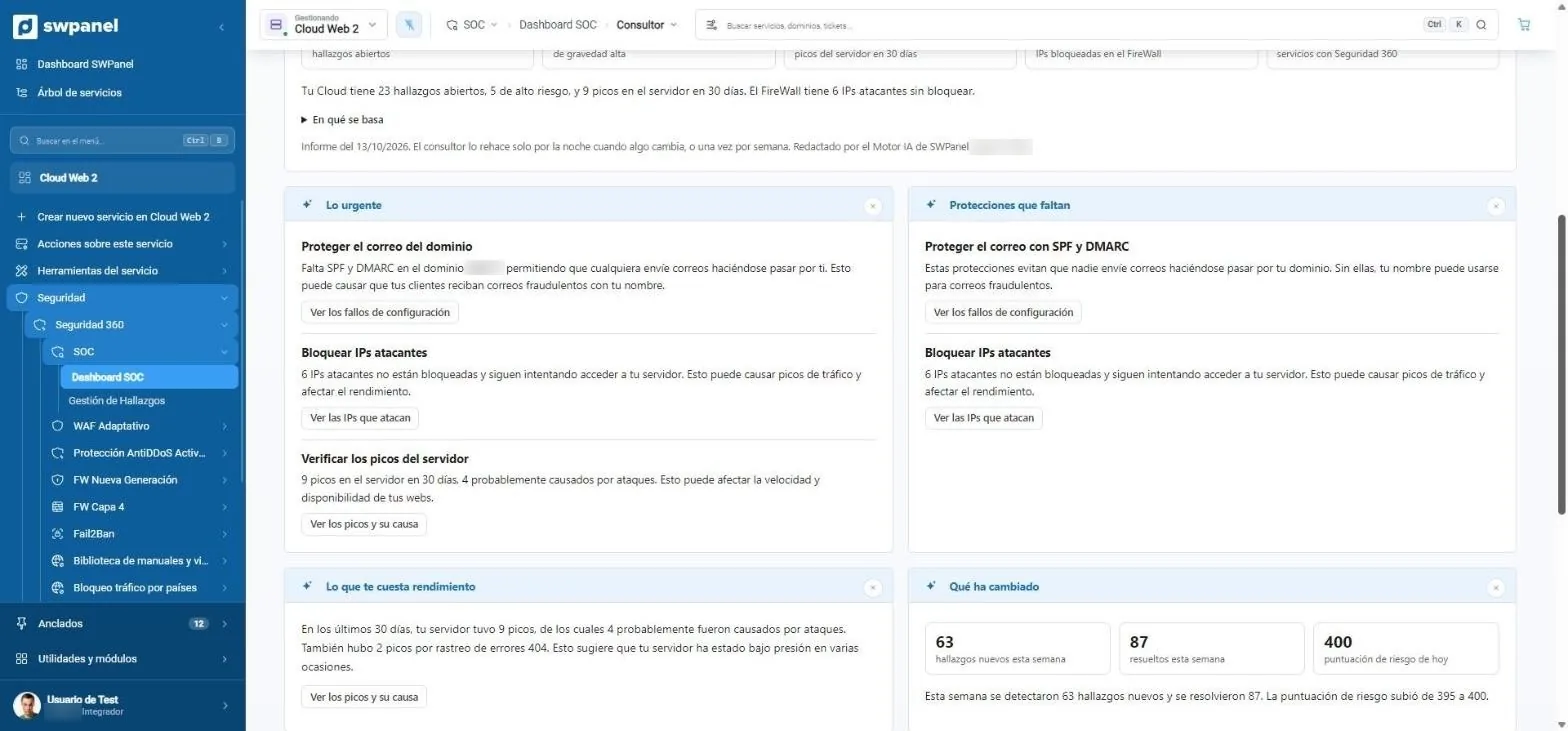
Cloud Web 2 › SOC › Consultant Real screenshot
Cloud Web 2 › SOC › Consultant
  1. What's urgent: what's happening, why it matters and what happens if it isn't fixed.
  2. Missing protections in your services.
  3. Each item with its button to go straight to fixing it.
  4. What costs you performance: server spikes caused by attacks.
  5. What has changed since the last report.
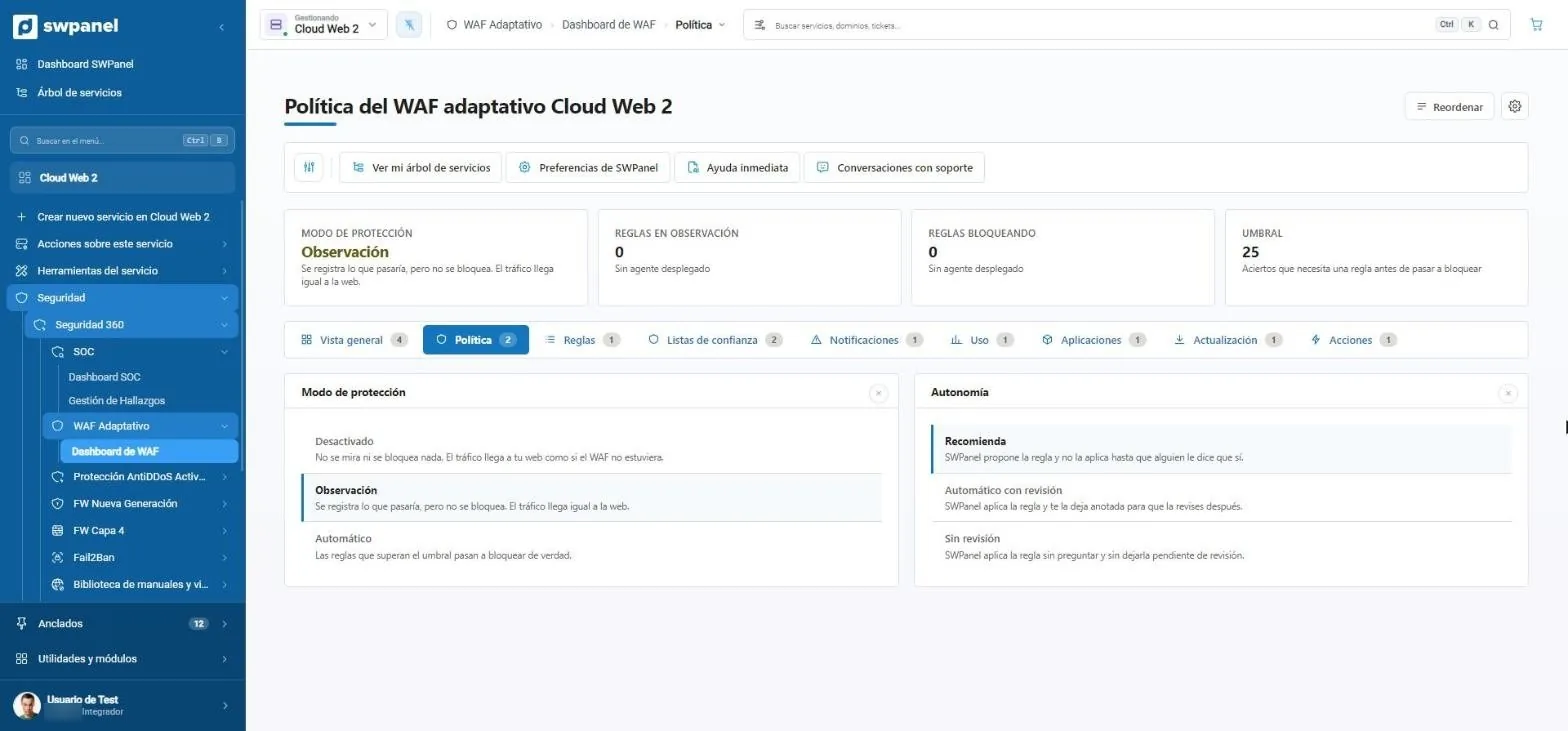
Cloud Web 2 › Adaptive WAF › Policy Real screenshot
Cloud Web 2 › Adaptive WAF › Policy
  1. Protection mode: here, in observation.
  2. Threshold: the hits a rule needs before blocking.
  3. Three modes: off, observation or automatic.
  4. Three levels of autonomy: only recommends, applies with review or applies without review.
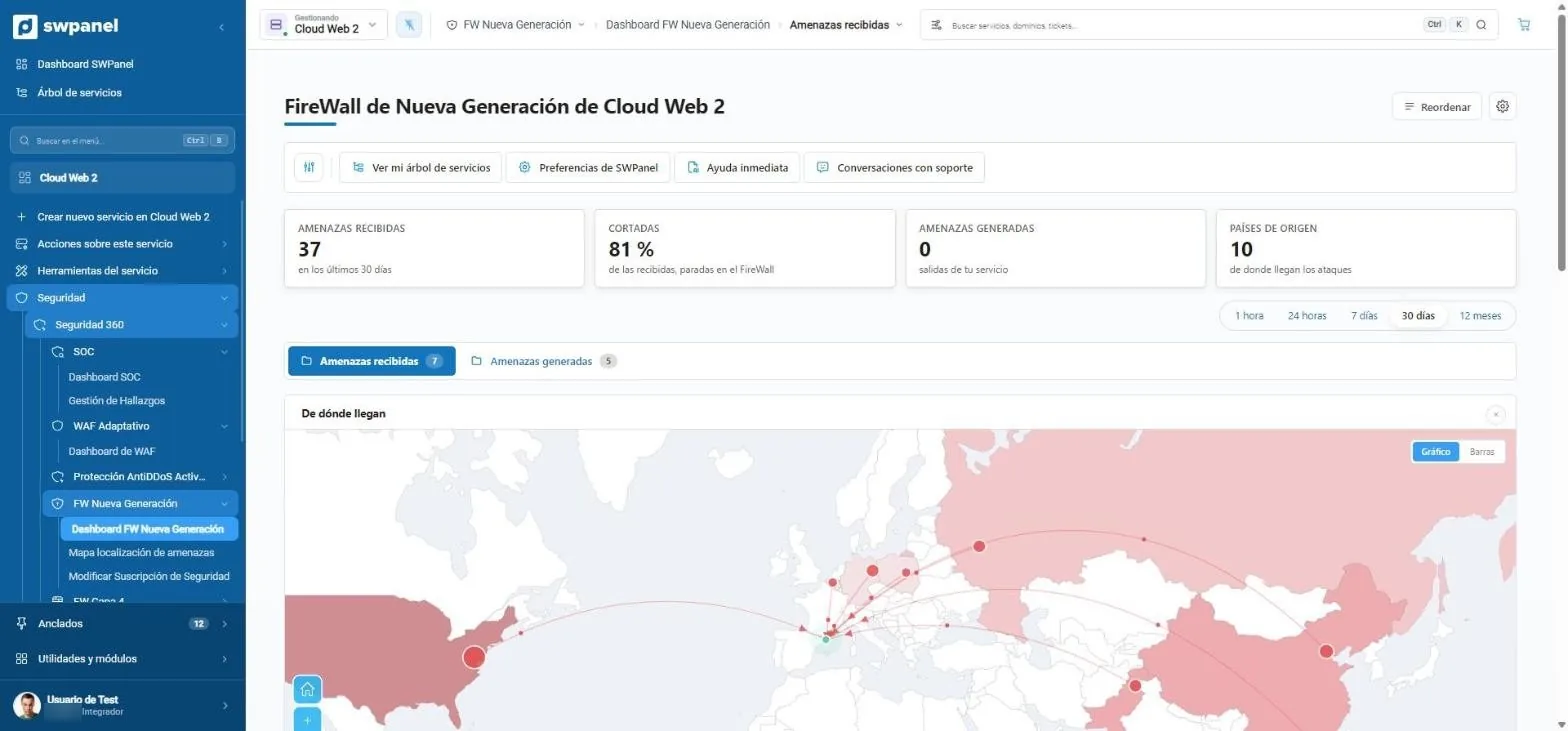
Cloud Web 2 › Next-Gen FW › Threats received Real screenshot
Cloud Web 2 › Next-Gen FW › Threats received
  1. 37 threats in 30 days; 81 % of those detected, with a block action.
  2. Period: from one hour to one year, or custom.
  3. Where they come from: each IP's country, on the map.
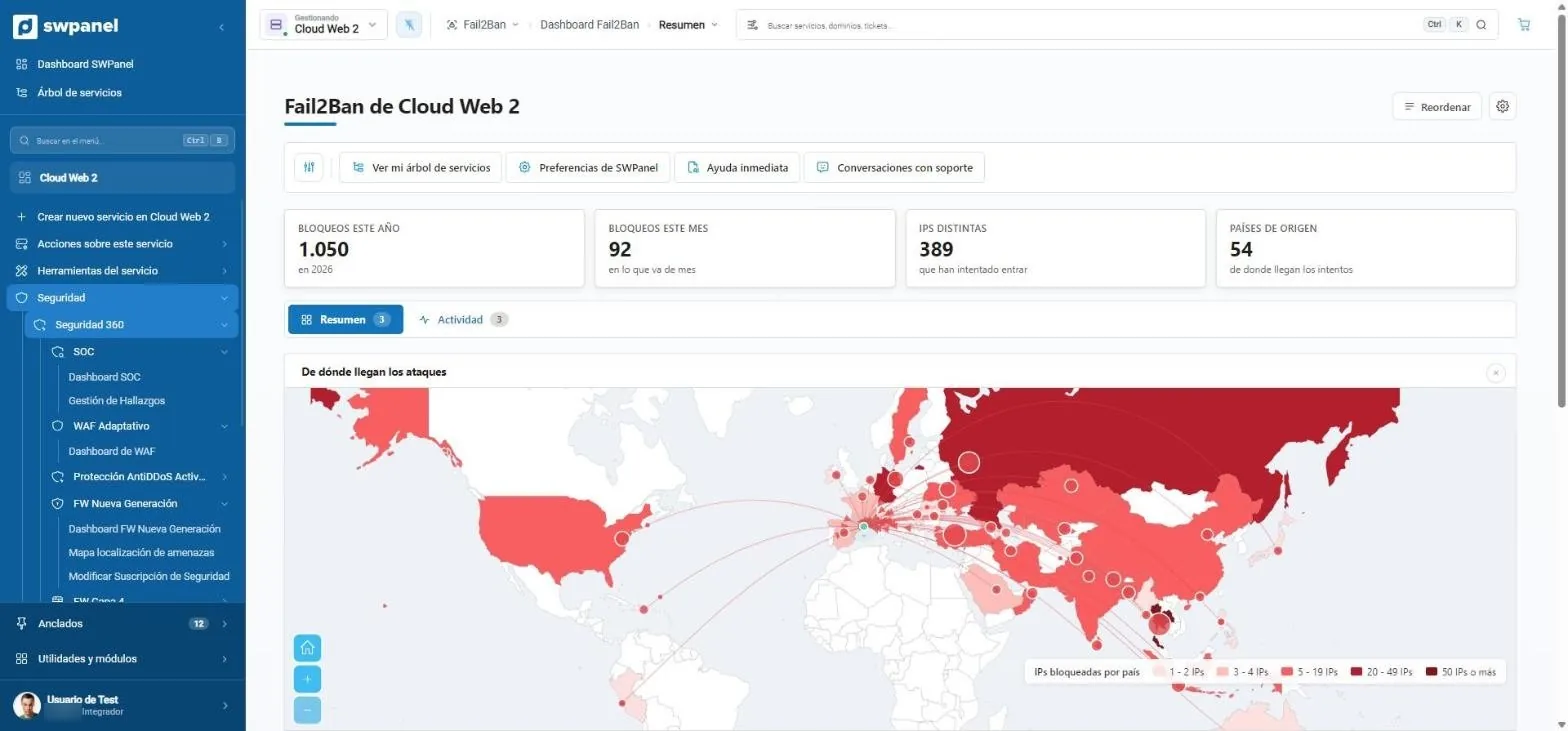
Cloud Web 2 › Fail2Ban › Summary Real screenshot
Cloud Web 2 › Fail2Ban › Summary
  1. 1,050 blocks this year, 389 distinct IPs and 54 countries.
  2. The attack map by number of blocked IPs.
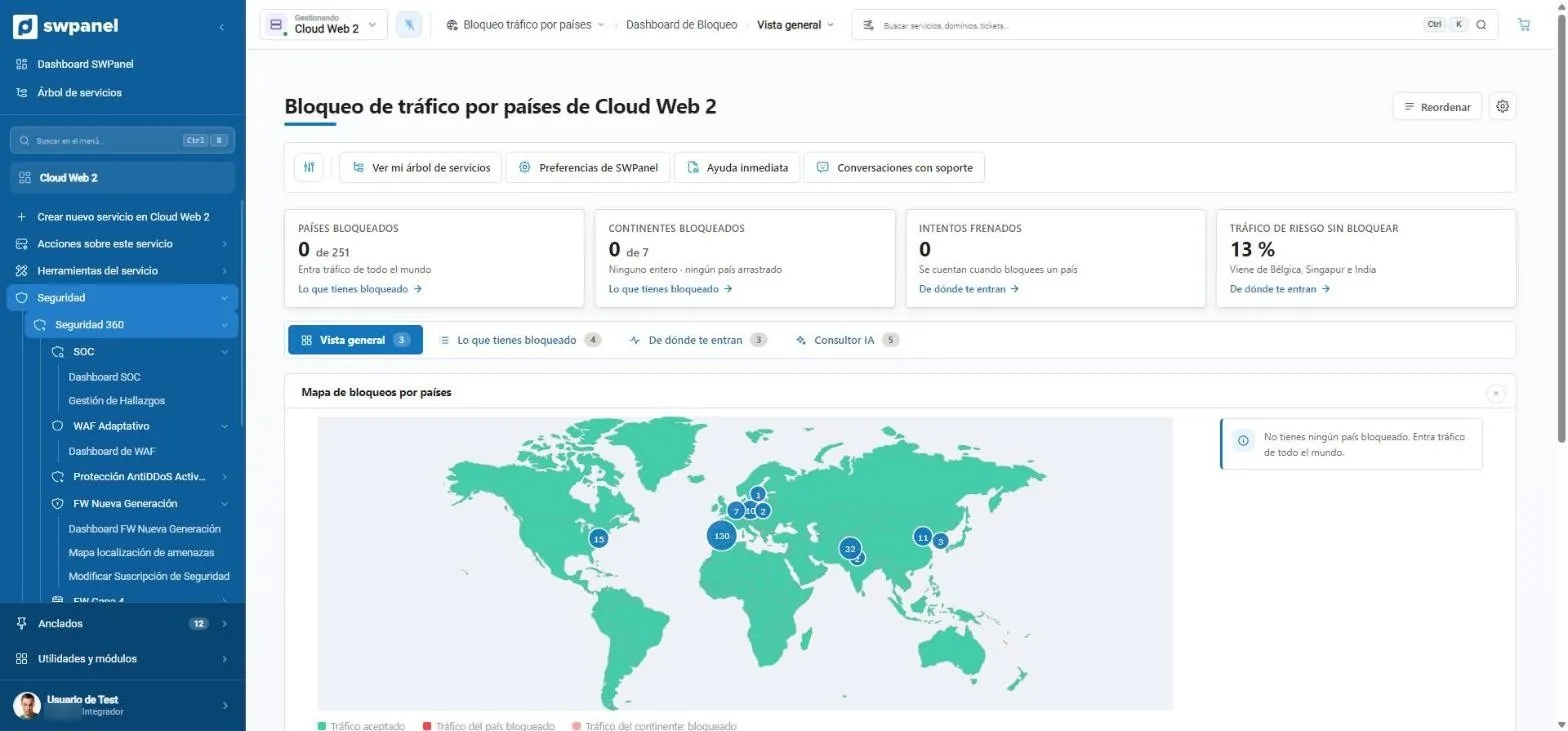
Cloud Web 2 › Country blocking › Overview Real screenshot
Cloud Web 2 › Country blocking › Overview
  1. Blocked countries and continents out of 251 and 7.
  2. Unblocked risky traffic: here, 13 %, from Belgium, Singapore and India.
  3. The traffic map, country by country.
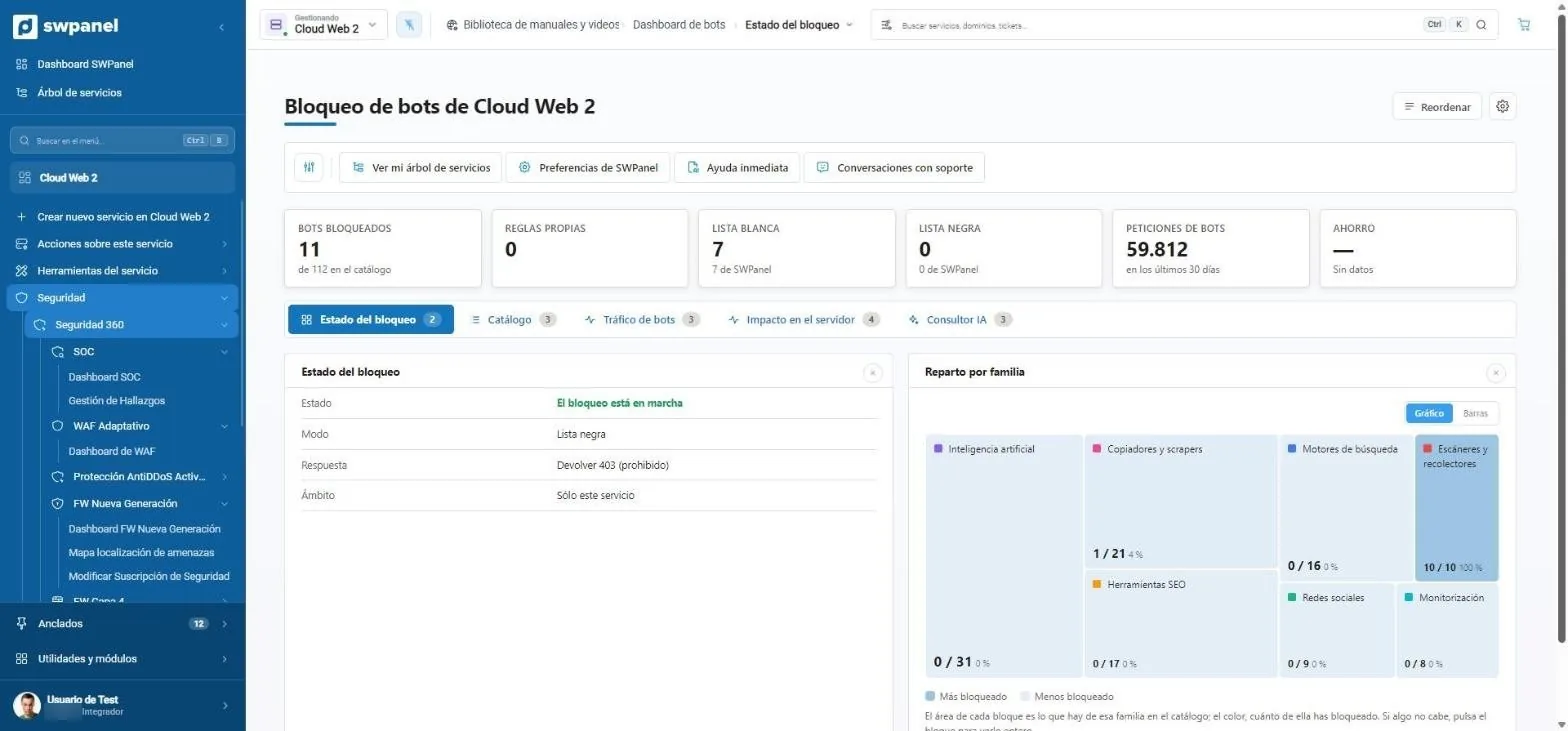
Cloud Web 2 › Bot blocking › Blocking status Real screenshot
Cloud Web 2 › Bot blocking › Blocking status
  1. 11 bots blocked out of 112 in the catalog.
  2. 59,812 bot requests in 30 days.
  3. Status, catalog, traffic, server impact and AI consultant.
  4. Mode and response: blacklist and 403 error for blocked ones.
  5. Breakdown by family: AI, copiers, search engines, scanners, SEO, social networks and monitoring.

Watch it in motion

Two security tasks, from start to finish

Short videos made with real SWPanel screenshots. No voice-over: the text of each step explains what's happening.

From the SOC to the action plan 0:20
From the SOC to the action plan How you go from “something looks off” to knowing what to do, in five real screens.
  1. SOC overview
  2. Findings by severity
  3. AI consultant diagnosis
  4. What's urgent
  5. What to do, step by step
Block countries without losing customers 0:16
Block countries without losing customers The consultant analyzes your real traffic, asks what it doesn't know and suggests three scenarios.
  1. Traffic map
  2. Consultant report
  3. The question
  4. Three scenarios

Versus a classic panel

What changes when security explains itself

The usual in cPanel or Plesk

  • Each protection on its own screen, with its own language and configuration.
  • Advanced features as another vendor's extension with a separate license.
  • Raw logs: interpreting what's going on is your job.
  • Blocking a country is a yes or a no, without knowing which customers you lose.

In SWPanel with Security 360

  • All layers in one package per service, with one menu and one dashboard.
  • Daily SOC and adaptive WAF built by us, inside SWPanel.
  • An AI consultant that tells you every night what's urgent and what to do.
  • Scenarios by country with what you gain and what you lose before deciding.

Why

Websites get updated little and attacked a lot

Most incidents don't come from a sophisticated attack, but from an outdated plugin, a password tried a thousand times or a robot eating up the server. Security 360 watches all that for you and tells you what to do, in plain language.

A single order

All the service's protections under one package and one dashboard. What you already had separately stops being charged.

Real monitoring, not a sign

A SOC that analyzes the service every day, gives it a risk score and proposes a fix for each finding.

It adapts to your website

The WAF rules are born from the attacks your service receives and don't block until they prove they don't bother your customers.

How it works

Layer by layer, all the way to your service

What comes from the Internet goes through the layers from the outside in, and what one stops never reaches the next. SWPanel's SOC and AI engine review every day what has gone through all of them.

Onion-layer diagram: from the outside in, AntiDDoS, layer 4 firewall and next-generation firewall in the SWPanel Data Centers network; country blocking, bot blocking, adaptive WAF and Fail2Ban on your server; the SOC and the AI engine watch over all layers. At the core, your service. Attack requests stop at the layer that detects them and legitimate ones reach the core. Onion-layer diagram with your service on Self-Hosted: your provider's network and your server's firewall in front; country blocking, bot blocking, adaptive WAF and Fail2Ban on your server; the SOC and the AI engine watch over all layers. At the core, your service.

SWPanel Data Centers network

  1. AntiDDoS Network edge

    It watches volume and absorbs massive attacks before they enter the network. Automatic, nothing to configure.

  2. Layer 4 firewall SWPanel network

    At the perimeter: it looks at IP, port and protocol, and each IP lets through only what its profile allows. Your rules, from SWPanel; your IP blocks are applied on the machine itself.

  3. Next-generation firewall SWPanel network

    It inspects content by signatures and classifies each threat as critical, high, medium or low. It alerts or drops according to policy.

In front of your server

  1. Your provider's network Outside SWPanel

    Its DDoS protection and its firewall, whichever your server has contracted.

  2. Your server's firewall Your server

    The IP blocks you launch from SWPanel are applied on the machine itself.

On your server, with SWPanel

  1. Country blocking Your web server

    It looks at the IP's country. What you block leaves not a single line in the access log.

  2. Bot blocking Your web server

    It looks at who each visit claims to be. The robots you don't want get a 403.

  3. Adaptive WAF Your web server

    It inspects every HTTP request. Its rules are born from your attacks: first they observe, then they block.

  4. Fail2Ban Your server

    It watches failed logins to SSH and other services, and bans the IP that keeps trying.

Over all of them

  1. SOC and AI engine Over all layers

    Every day it analyzes what went through all of them, scores your service and tells you what to do, with a button for each thing.

In red, what stops at each layer; in green, what reaches your service.

With Self-Hosted the network is your provider's. What the next-generation firewall used to stop is slowed here by your server's WAF.

The layers, one by one

A request's journey

Filter at the edge, decide on your server, learn every day

  1. Perimeter AntiDDoS Volumetric attacks
  2. Perimeter Layer 4 IP, port and protocol
  3. Perimeter Next generation Threats by their signature
  4. Server Countries Geographic origin
  5. Server Bots Robots you don't want
  6. Server WAF Application attacks
  7. Server Fail2Ban Brute force on logins
  8. Core Your website and your data Only what has passed everything gets through
The analysis finds Responds in How
An application attack pattern Adaptive WAF Proposes a new rule, which first observes and then blocks.
An IP with a bad reputation Layer 4 firewall Proposes blocking it and, once you confirm, blocks it with an end date if you want.
Robots or countries that only bring noise Bot and country blocking Recommends a profile or the countries to block.
Vulnerable code or files The service itself Proposes the fix and records it in change control, or isolates the file.
Consumption spikes originating in security Service performance Cross-checks performance and security and proposes what to fix.

What's included

6 protections in hosting, 12 in Cloud and server

In Cloud and server the package adds the entire network and machine layer. When you enable it, everything included appears switched on and locked with the label “Included in Security 360”.

Protection Hosting Cloud and server
Only exist inside Security 360
SOC and findings management Included Included
Adaptive WAF Included Included
Application and email
Email antivirus Included Included
AntiSpam Included Included
Country blocking Included Included
Bot blocking Included Included
Network and machine
AntiDDoS protection With the platform Included
Layer 4 and manageable firewall With the platform Included
Next-generation firewall Not included Included
Fail2Ban and manageable Fail2Ban Not included Included

In hosting, country and bot blocking can be enabled on their own and for free. When you order the package, the standalone extras it already includes are removed from the invoice: nothing is paid twice.

Inheritance

Protect the Cloud and you'll protect everything it hosts

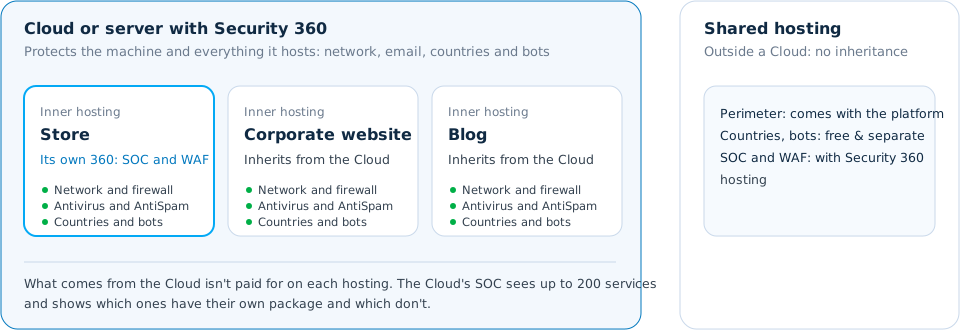
A Cloud with Security 360 brings the network, antivirus, AntiSpam, countries and bots to all its hostings at no added cost. Those that need their own SOC and WAF, like a store, add their hosting package and inherit the Cloud's policy.

Security inheritance in a Cloud

Three modes

Protection grows with what you have ordered

SWPanel works out each service's mode and changes it on its own as soon as you order or cancel something, without losing the configuration.

Standalone (hosting only) With Security 360 Security 360 + AI module
Country blocking World map, blocking by country and continent, profile with each country's risk Plus traffic by country, firewall attacks, recommendations and profile with visits Plus a consultant with three scenarios and questions about your business
Bot blocking Catalog of 112 bots, blocking profiles, block and allow with one click Plus custom rules, uncataloged bots, bot traffic and server impact Plus bot-by-bot consultant and spike analysis
SOC and WAF They don't exist outside the package Daily SOC, findings management and adaptive WAF Plus a security consultant in six blocks
  • 342,000 Scored CVEs with more than 10 sources
  • 251 countries with a risk index by country and continent
  • 96 cataloged bots in 7 families
  • 200 services per Cloud SOC the Cloud and everything it hosts

Compared

What a plugin or a per-site WAF doesn't give you

Versus Sucuri, Wordfence, Cloudflare or Imunify360, Security 360 adds a daily SOC with risk scoring, AI-proposed and validated WAF rules, and protected email. And a Cloud protects everything it hosts. Want a CDN too? SWPanel enables Cloudflare's Free plan on your hosting and you manage it from SWPanel.

Documentation

Take the detail with you

SWPanel 2027 modules guide

What Security 360 includes for each type of service, its layers, the SOC, the WAF and inheritance.

Partner area

Business lines

Managed cybersecurity and a worry-free website: how to sell it under your brand.

Download PDF

The month's report

Security 360, as a PDF

What the eight layers have seen and done in a service, with next month's plan. And the firewall report separately.

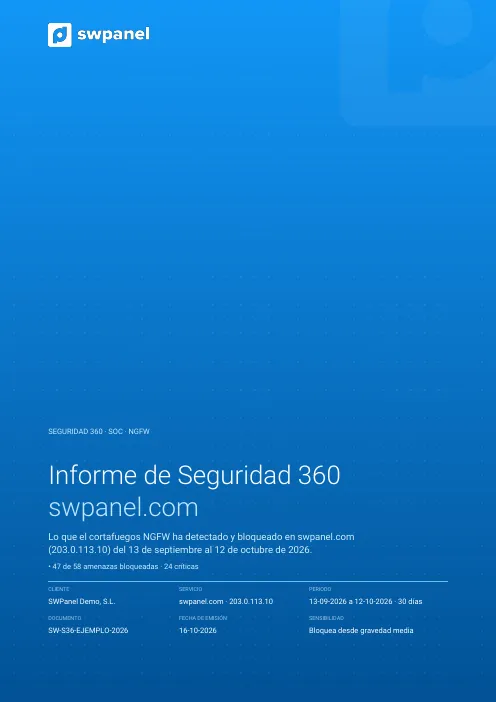
First page of the example: Security 360
Report

Security 360

A service's security month: NGFW threats, SOC findings, blocked countries and bots, code analysis, adaptive WAF, what was done and next month's plan.

SW-S36-… 47 pages

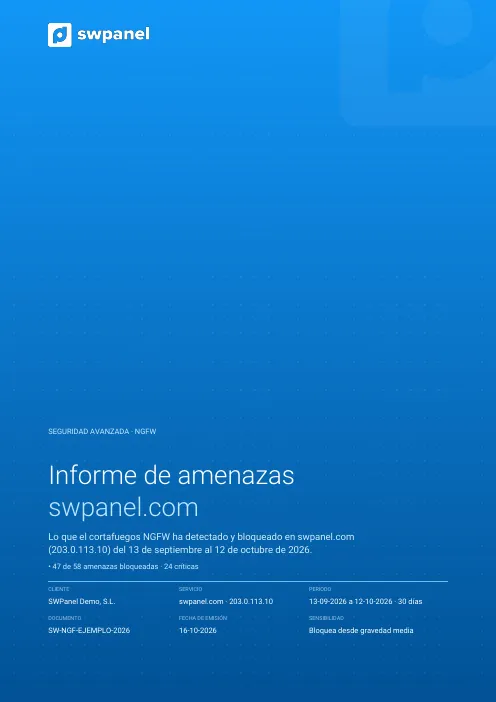
First page of the example: NGFW firewall threats
Report

NGFW firewall threats

What the NGFW detected and blocked in a period: by severity, type and origin, the changes over the last six months and what to do first.

SW-NGF-… 29 pages

Each document carries a unique number and token linking it to the original stored in SWPanel. How it's verified.

Frequently asked questions

Questions about Security 360

The Security module is activated once on the account and opens the door. 360 Security is the package that works every day on each hosting, Cloud or server, and is paid per service.

No. 360 Security works on the server itself: it is activated from SWPanel and works with any technology, not just WordPress.

No. It is an automatic daily scan (light every day and full every week) with a risk score, findings and a button to resolve each one. If you want a human response to incidents, your partner can offer it as a service.

No. 360 Security works without it, and the AI that writes the WAF rules is already included. The AI module adds the security, country and bot consultants.

The package keeps working until the end of the paid period and you keep all your settings in case you come back.

Activating the Security and SEO modules on your account is free. Afterwards you choose which services you protect with 360 Security and which SEO tier each website has.

You activate the Security module once on your account and then subscribe to 360 Security on each service you want to protect: there is one package for hosting and another for Cloud and server. See the pricing page.

Only what is reversible and free, always with an end date and an undo button. Anything that has a cost is proposed and you approve it.

The service goes back to the base mode and you keep all of your configuration, so you can recover it if you activate it again.

Start with one website and see what it finds

Enable Security 360 on a service and get its first analysis that same night.