
Drag and migrate
Drag a website to another server. SWPanel migrates it.
In the service tree you pick up a hosting and drop it on another server. SWPanel moves its website, email and databases, and if the domain is in SWPanel it also makes the DNS changes. The destination can be at another provider, in another Data Center or in another country.
- Between providers, Data Centers and countries
- DNS up to date if the domain is in SWPanel
- Always asks first


Illustration. The providers and countries are examples: the destination is any server you manage with SWPanel.
- You drag You pick up the hosting in the service tree and drop it on the server you want to take it to.
- SWPanel migrates it You review which server will host the website, email and databases, confirm and SWPanel does the move.
- The DNS, too If the domain is in SWPanel, the DNS now points to the new server without you touching the zone.
That easy
Drag, review and done
There's no need to export, upload files or recreate mailboxes. You drop the hosting on its new server and SWPanel opens the change with the destination already chosen. Before moving anything, it always asks for your confirmation.
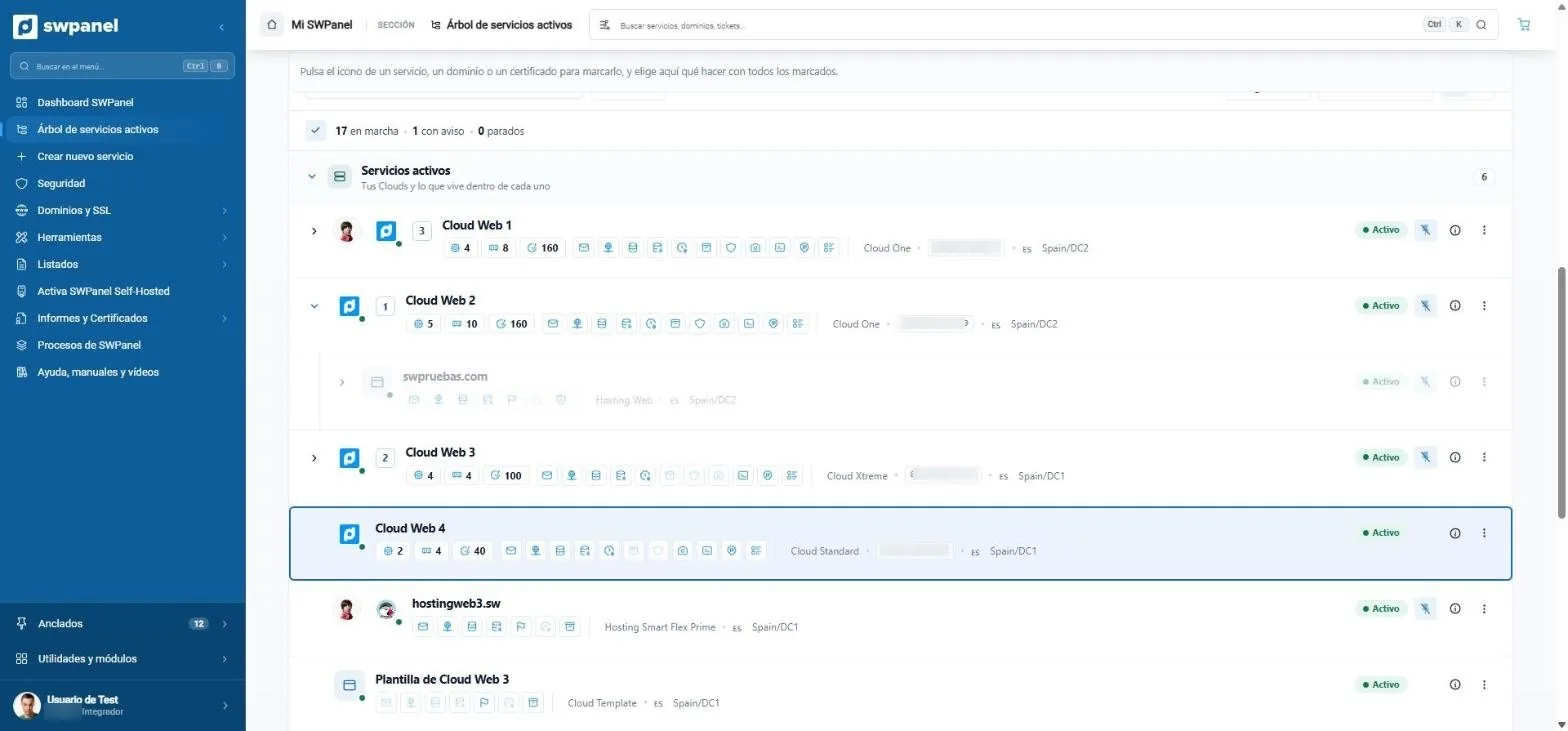
- You pick up the hosting by its row. Here, swpruebas.com, which today lives on Cloud Web 2.
- You drop it on the destination server. The tree shows where it will land before you release it.
- Each server says where it is: its Data Center and its country.
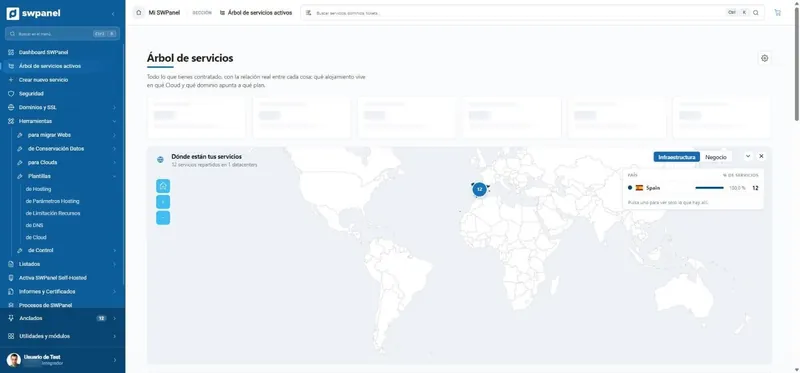
- Your servers and what lives on each one, in a single tree.
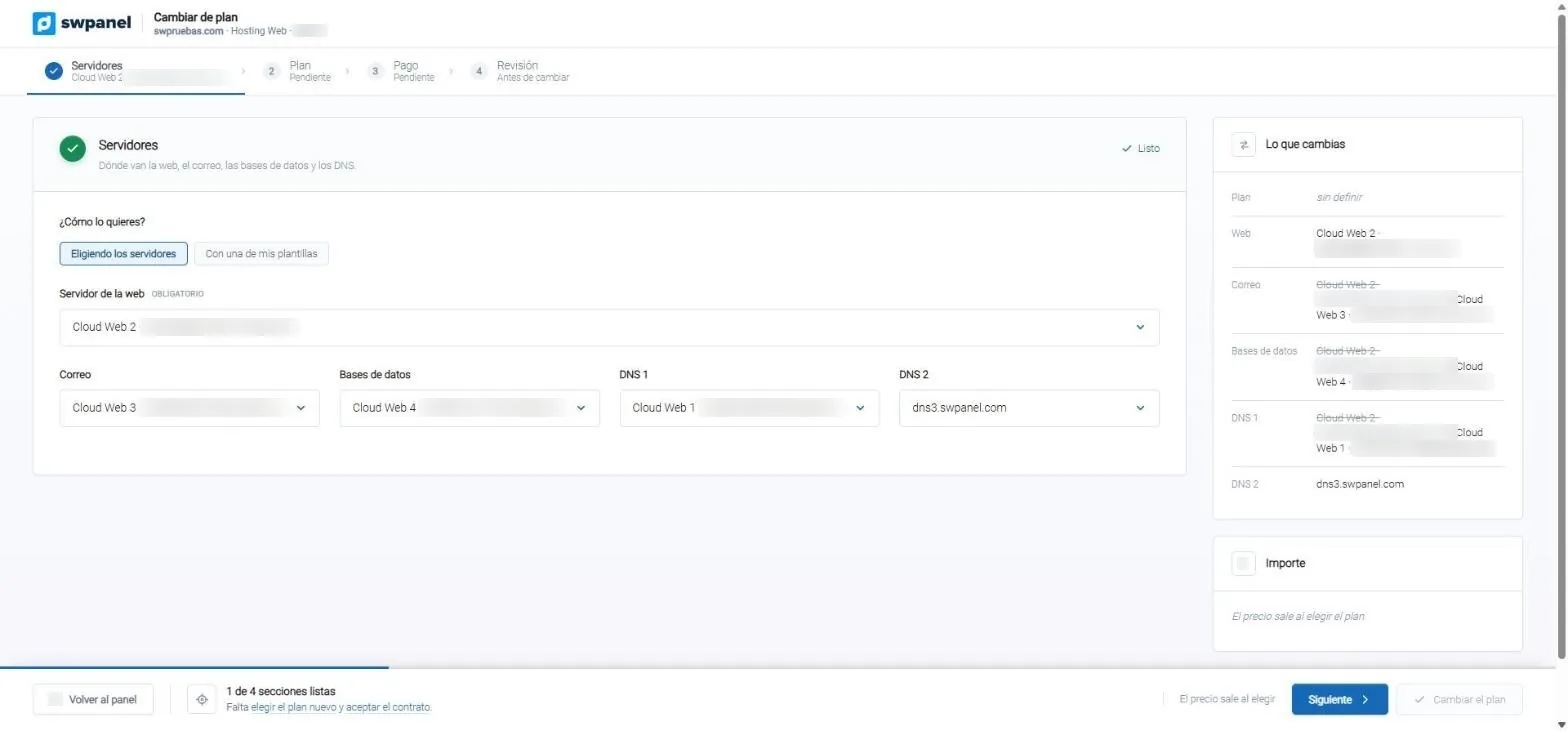
- Where each thing goes: the website, email, databases and DNS.
- Choosing the servers one by one, or with one of your templates.
- The website's server, which is the only required one.
- Email, databases and DNS, each on the server you choose.
- What you change, before you change it: the crossed-out part is where it is today.
- Four steps: servers, plan, payment and review. Nothing changes until the last one.
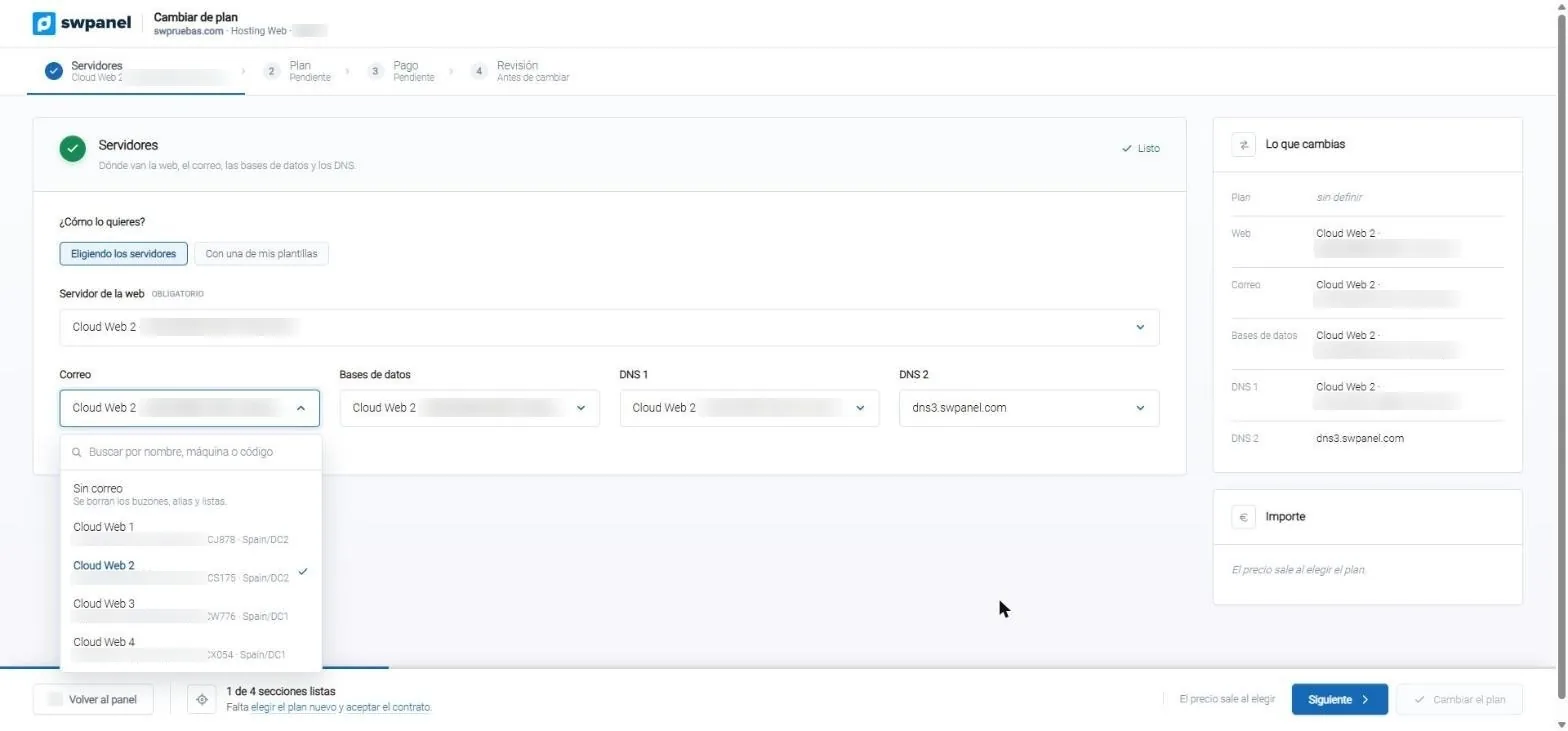
- Search for the server by name, machine or code.
- You can also remove it. SWPanel warns about what gets deleted: mailboxes, aliases and lists.
- Each server, with its Data Center. Here, two in Spain/DC2 and two in Spain/DC1.
- The same for databases and for each DNS.
- The second DNS can be SWPanel's, outside your servers.
Without borders
To another Data Center, another provider, another country
The destination is any server you manage with SWPanel. That's why moving a website stops being a project and becomes a decision: you take it wherever suits you best.
Another Data Center
From one SW Hosting Cloud to another, in the same Data Center or a different one. The service tree tells you where each machine is.
Another provider
To a server at Hetzner, OVHcloud, AWS, DigitalOcean or whichever you use, with SWPanel Self-Hosted installed. You manage it just like the SW Hosting ones.
See moreAnother country
Take the website close to your customers, or their data to the country your customer or your regulations require. Each server shows its country in the tree.
The DNS, too
If the domain is in SWPanel, the move is complete
Moving the hosting without touching the DNS leaves the website on the old server in the eyes of the internet. When the domain is registered in SWPanel, SWPanel makes the DNS changes the move requires: your visitors and your email reach the new server without you having to open the zone.
Before the move
| tienda.com | A | Cloud in Spain |
| www | CNAME | tienda.com |
| tienda.com | MX | Email in Spain |
After, without you touching anything
| tienda.com | A | Server in the United States |
| www | CNAME | tienda.com |
| tienda.com | MX | Email in the United States |
Illustrative example. If the domain is registered in SWPanel, the records pointing to the website and email move to the new server. If it's at another registrar, you make that change there.
No surprises
Convenient, but with a safety net
Always asks
A drag slips more easily than a click. SWPanel asks for confirmation before opening the move.
You see what changes
The change screen shows where each thing is today and where it will be, before launching anything.
You follow the progress
The tree shows the move in progress with its progress bar and updates itself when it finishes.
It's recorded
Who moved it, when and where to, in the service history and the account traceability.
Frequently asked questions
Questions about dragging and migrating
Your next migration, by dragging
Create your account for free, connect your servers and move your websites between them from the service tree.