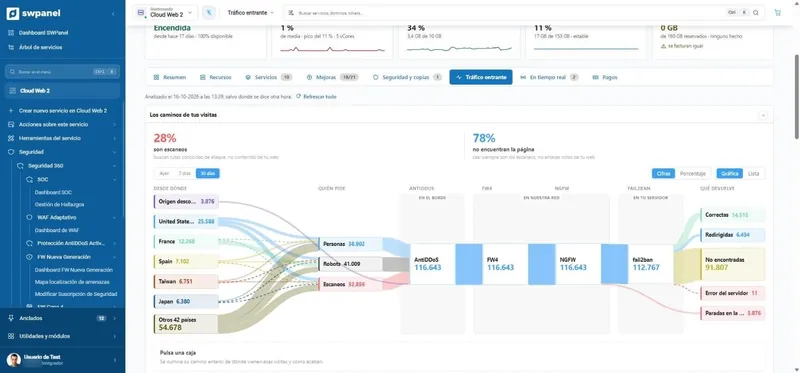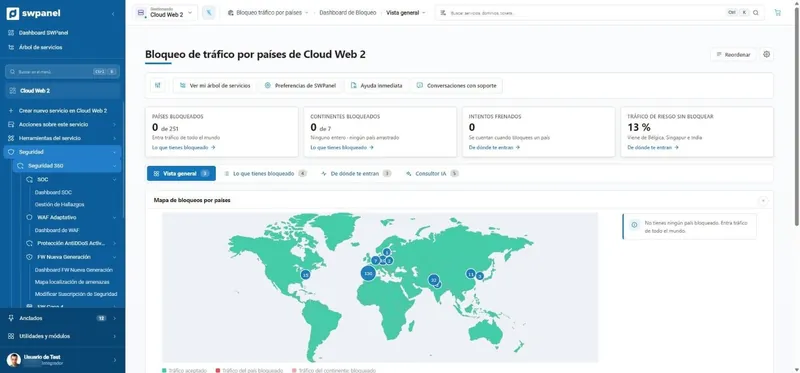
Cloudflare in SWPanel
Free Cloudflare, managed from SWPanel
Enable Cloudflare's Free plan on your hosting with a switch. SWPanel registers the domain with Cloudflare for you, without you opening an account there, and then you manage cache, encryption, WAF, page rules and security from the same SWPanel screens.
- Cloudflare Free plan
- No Cloudflare account
- All from SWPanel
How it's enabled
A switch in your hosting's upgrades
No need to open a Cloudflare account or touch anything on its website: you enable it and manage it from SWPanel.
Three steps, without leaving SWPanel
Cloudflare is one more hosting upgrade, like the SSL certificate or Security 360. It's switched on and off from the same place.
- Open your hosting and go to “Plan and upgrades”. Under “What you can add”, Cloudflare is in “Web acceleration and CDN”.
- Switch on Cloudflare and choose the Free plan. Before confirming you see the summary with the cost.
- SWPanel does the rest. It registers the domain with Cloudflare and prepares it. When the DNS propagates, your website is already served from Cloudflare's network.
All you need: the hosting's domain must be in your SWPanel account. If it's registered or managed elsewhere, activation can't be done from SWPanel.
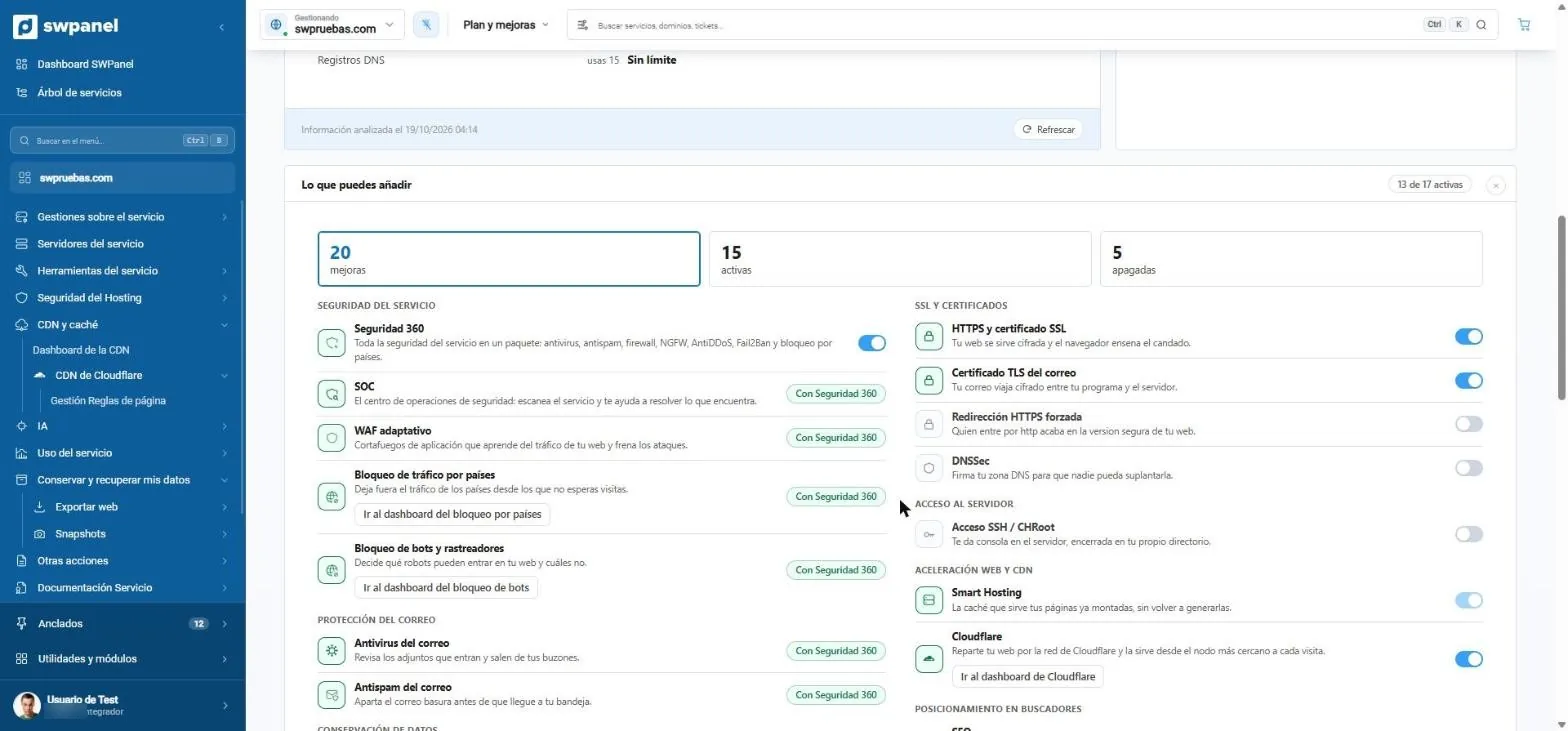
- The Cloudflare switch, in “Web acceleration and CDN”.
- And the direct link to its dashboard.
Cloudflare's CDN
Your website, served from the nearest node
A CDN is a network of servers spread around the world that keep a copy of your website. Each visit gets it from the nearest one, and your server only works when needed.

- The visitor requests your website from the nearest Cloudflare node.
- If the node doesn't have it cached, it asks your server for it.
- It stores it in cache and delivers it to the visitor.
- Following visits get it from the node, instantly: your server doesn't even notice.
- When it expires or you purge it from SWPanel, the node asks your server for it again.
Faster, even far away
Images, styles and scripts reach each visitor from the nearest node, not from your server.
Less load on your server
What the cache serves never reaches your server. In the dashboard you see how much traffic you've saved.
Online if your server fails
With Always Online, Cloudflare serves a copy of your website if your server doesn't respond.
Encrypted all the way to your server
HTTPS on Cloudflare's network and the SSL/TLS mode you choose for the stretch to your server.
What the cache stores. By default, Cloudflare stores files that don't change: images, stylesheets, scripts and fonts. Pages that change on every visit, like a cart or a customer area, it keeps requesting from your server. With page rules you decide the exceptions, and if you change the website, you purge the cache from SWPanel.
On video
This is how the CDN is managed from SWPanel
Made with real SWPanel 2027 screenshots, on a test account. Each step comes with its on-screen explanation.
On video · 45 seconds
The CDN, from start to finish
From switching on Cloudflare in the hosting upgrades to page rules, via the dashboard, cache, encryption and purge.
- Enable in “Plan and upgrades”
- CDN dashboard
- Your audience
- Cache level and TTL
- Developer mode and Always Online
- SSL/TLS encryption
- Purge the cache
- Page rules
Screen by screen
All of Cloudflare, without leaving SWPanel
Real SWPanel 2027 screenshots with a test account. Hover over the list or click to switch screens; the numbers explain each part.
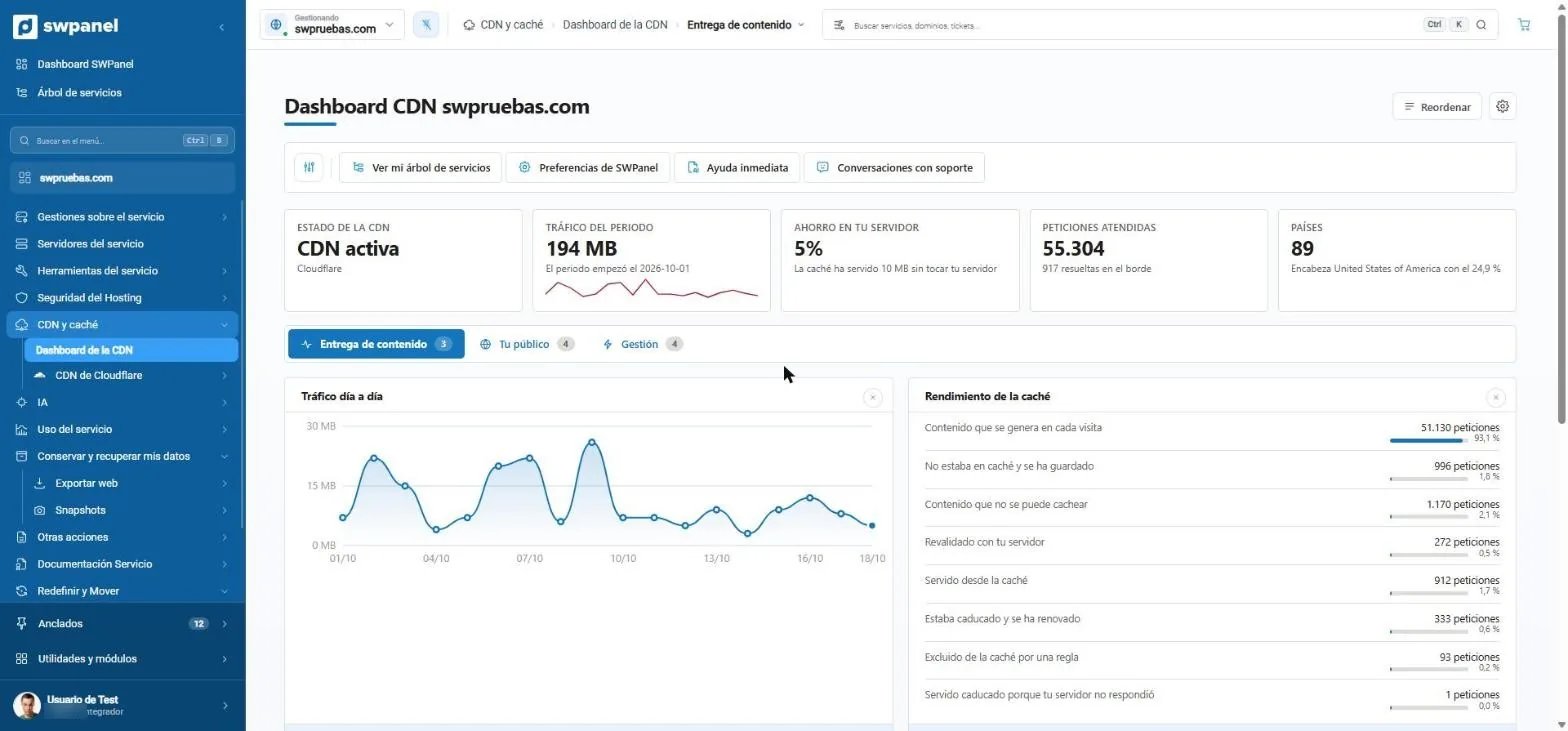
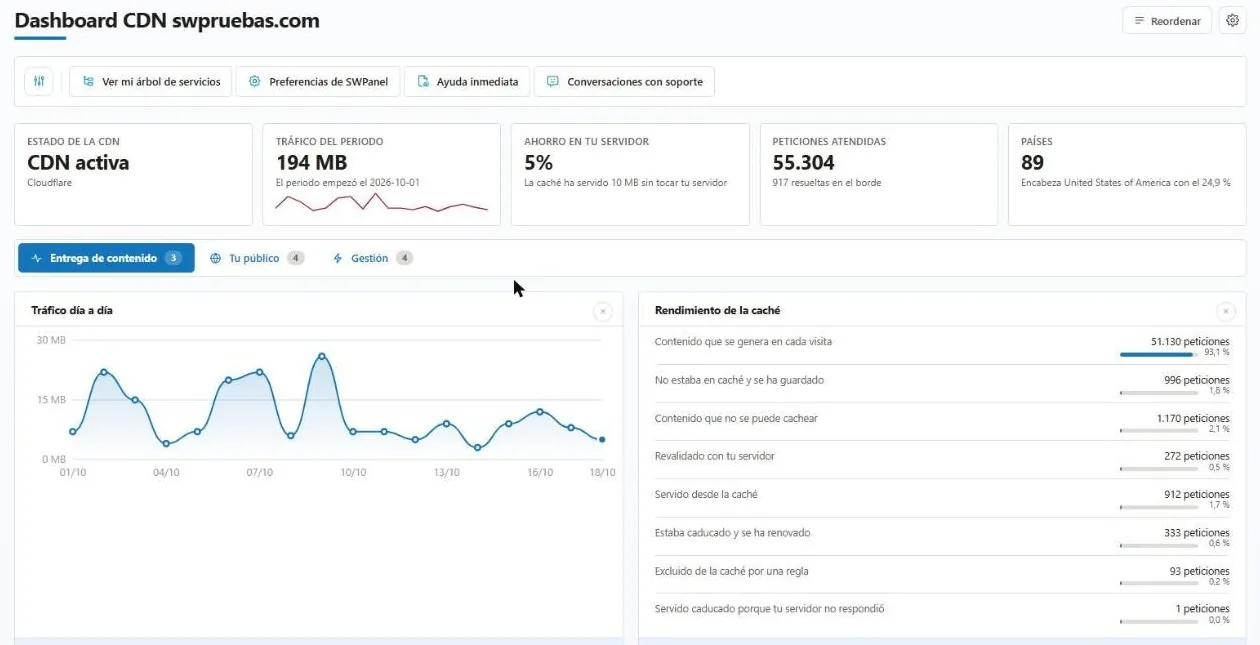
- CDN status: active and served by Cloudflare.
- Savings on your server: what the cache has already served.
- Three tabs: content delivery, your audience and management.
- Day-by-day traffic for the period.
- Cache performance: what comes from the cache and what your server has to generate.
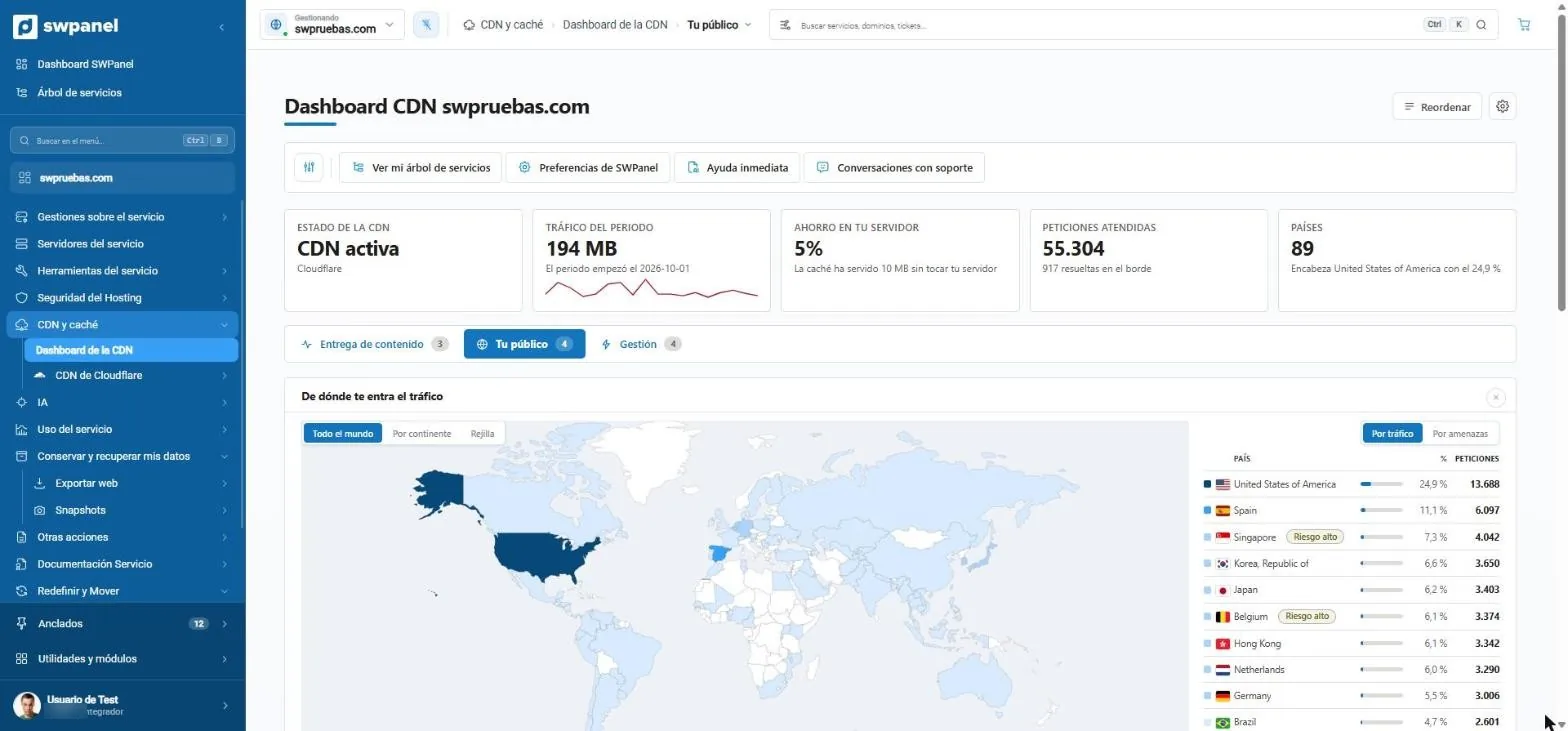
- Your audience: where your traffic comes from.
- The world map, with each country's traffic.
- By traffic or by threats.
- High-risk countries, marked.
- Percentage and requests for each country.
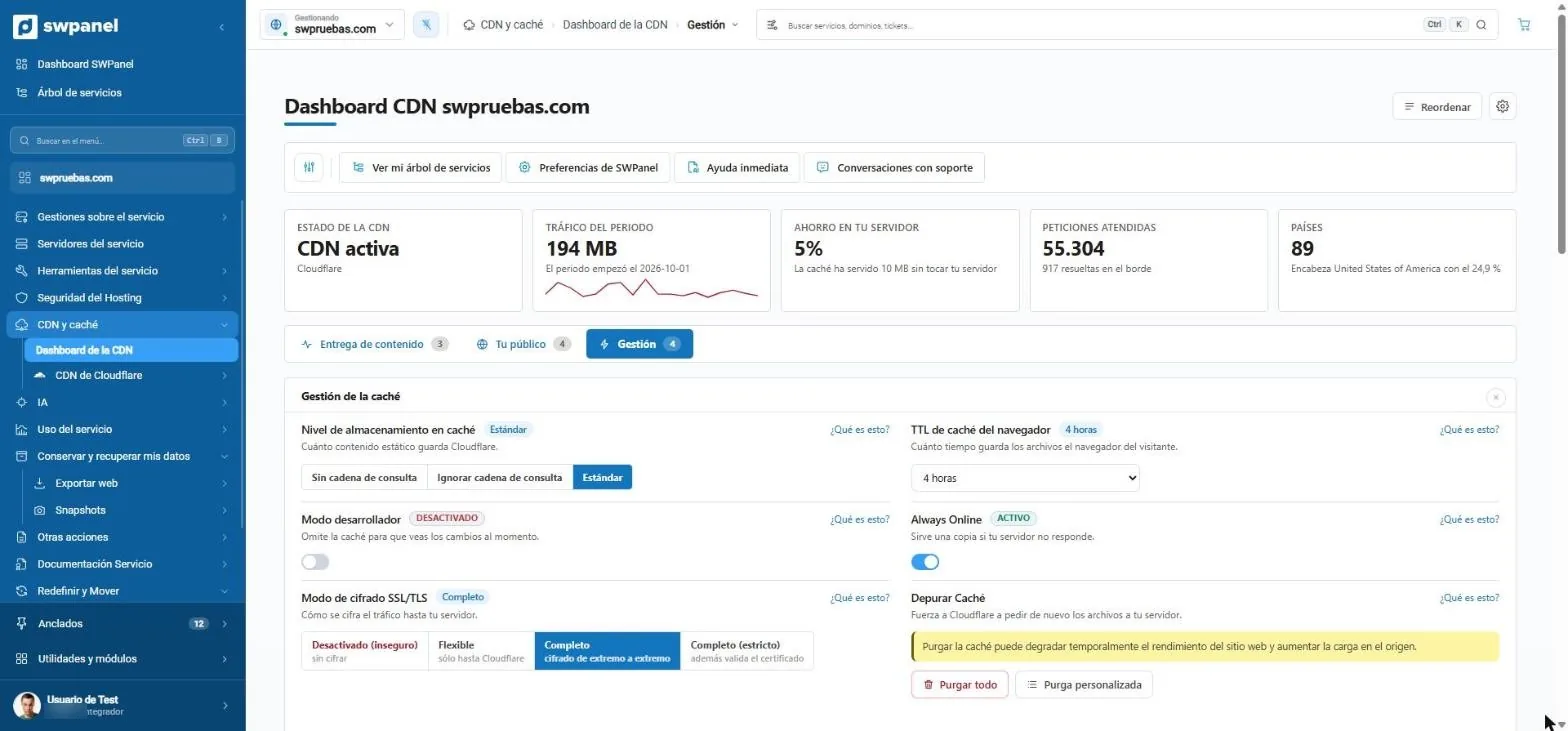
- Cache level: how much static content Cloudflare stores.
- Browser TTL: how long the visitor's browser keeps each file.
- Developer mode: bypasses the cache while you change the website.
- Always Online: serves a copy if your server doesn't respond.
- SSL/TLS encryption mode up to your server.
- Purge everything or only what you specify.
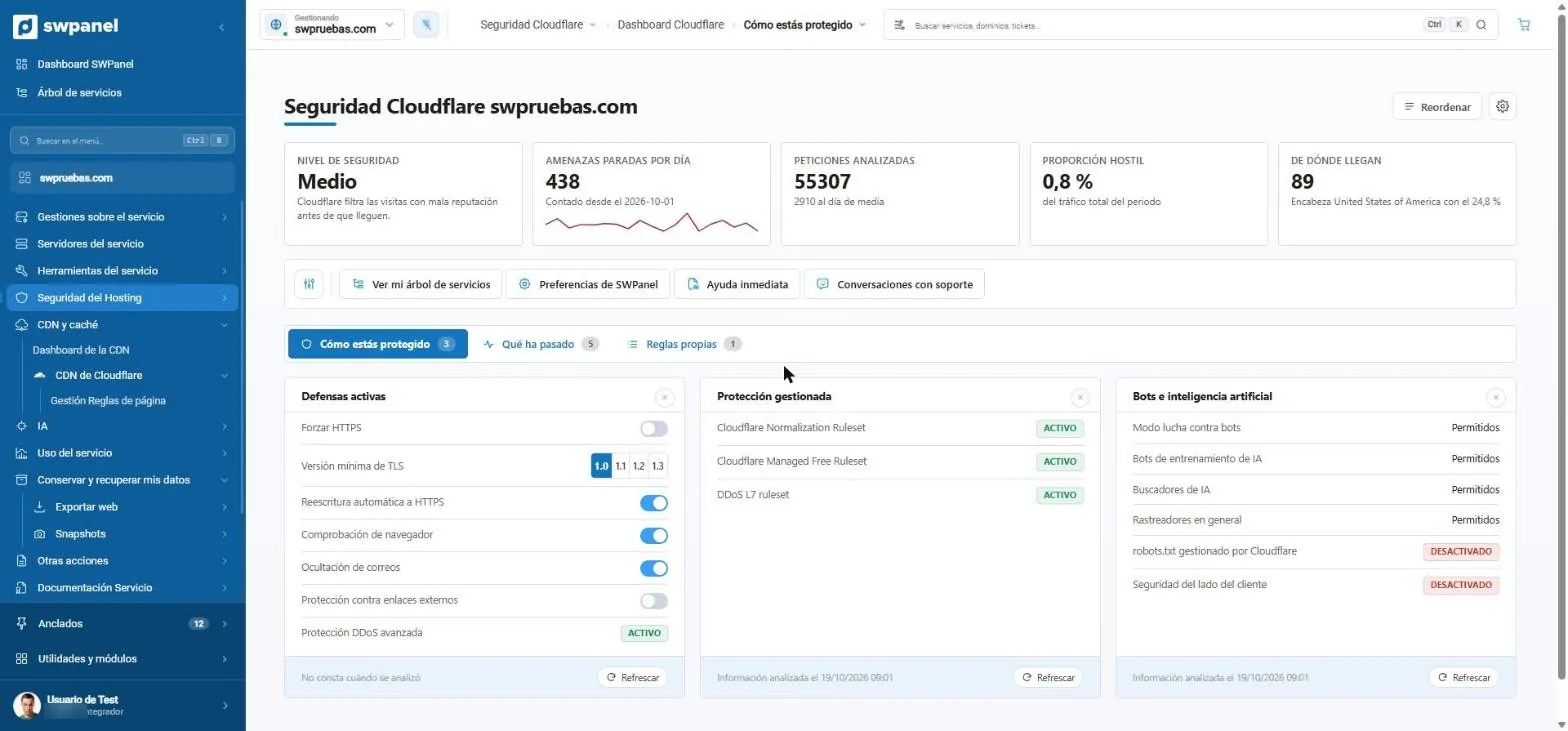
- Security level: Cloudflare filters visits with a bad reputation.
- Threats stopped per day.
- Active defenses: HTTPS, minimum TLS version, browser check…
- Managed protection: Cloudflare rules and layer 7 DDoS.
- Bots and artificial intelligence: who can crawl your website.
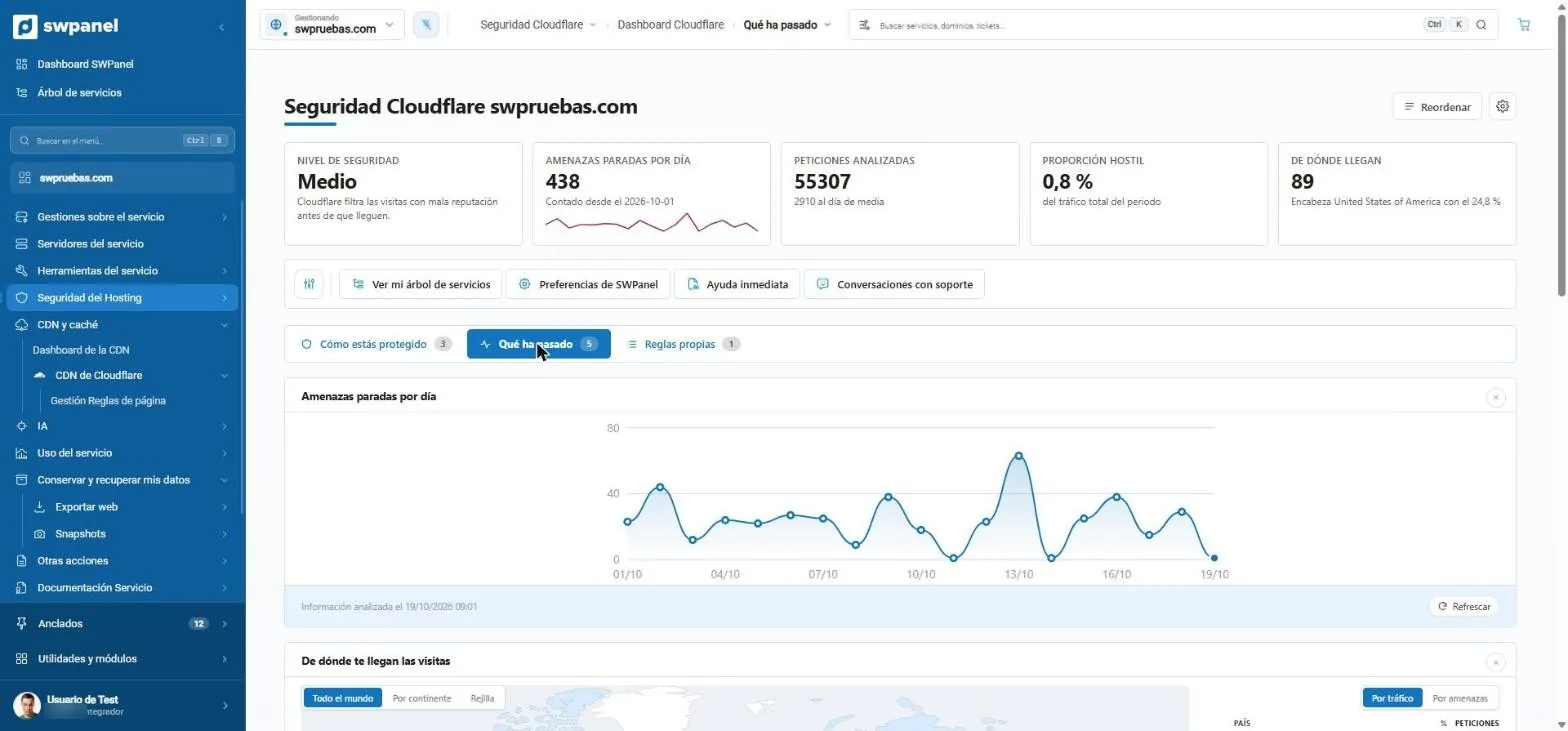
- What happened: the period's activity.
- The threats stopped, day by day.
- Where visits come from, by traffic or by threats.
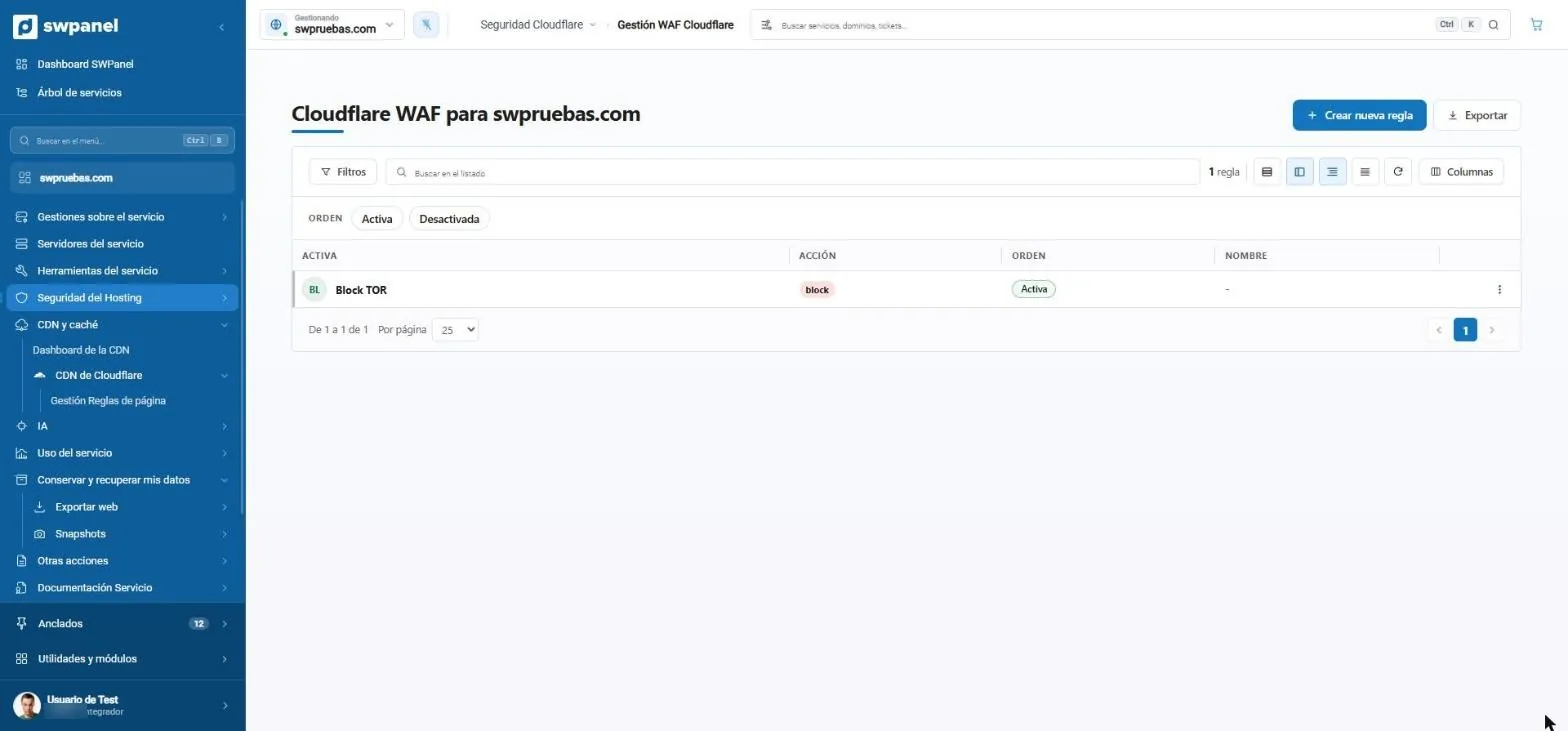
- Create a rule with the wizard.
- Each rule, with its name.
- The action: block, verify or allow.
- Its status: enabled or disabled, and its order.
- Export your rules.
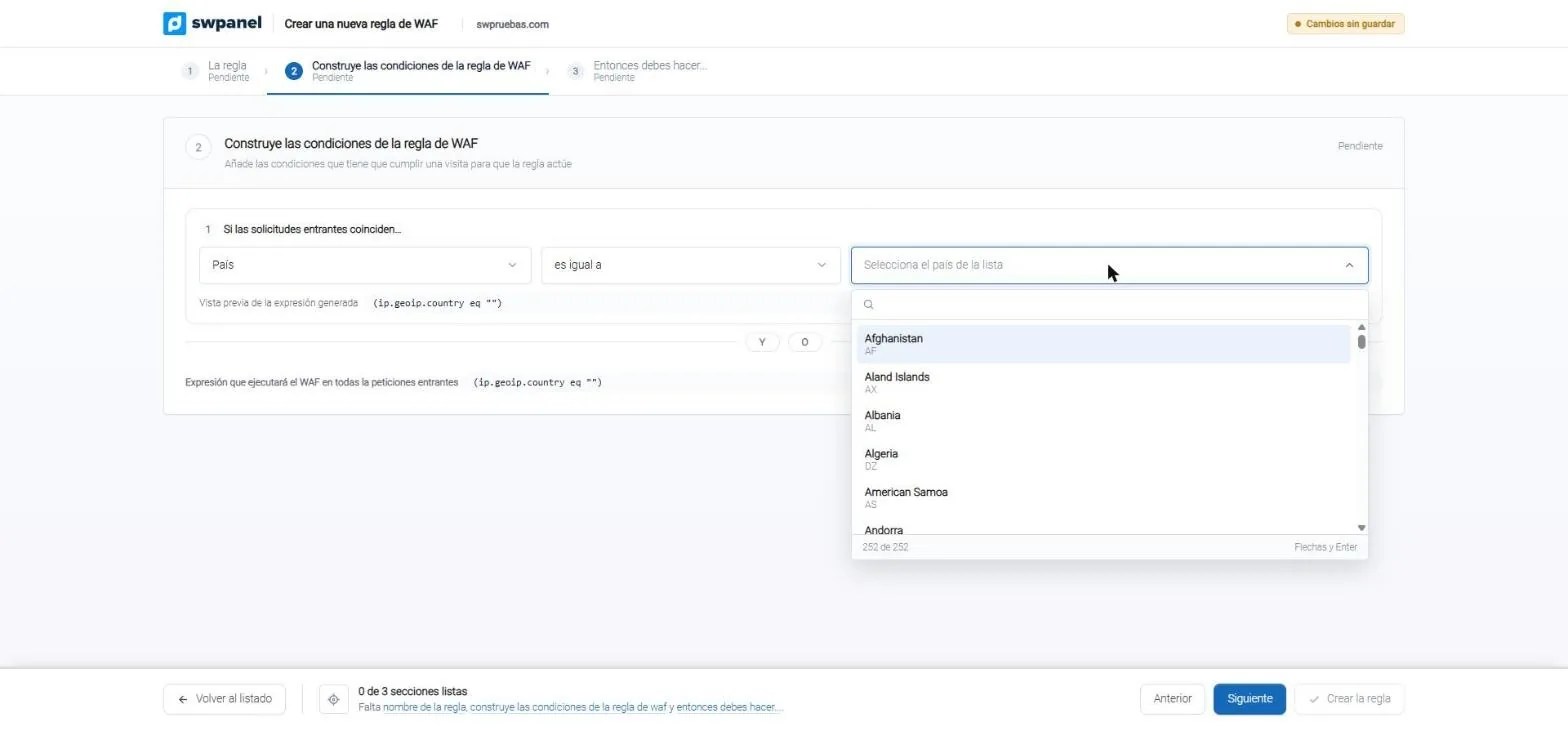
- Three steps: the rule, the conditions and the action.
- The field: country, continent, ASN, IP, cookie or method.
- The operator, like “equals”.
- The value, chosen from a list.
- The Cloudflare expression, written by SWPanel.
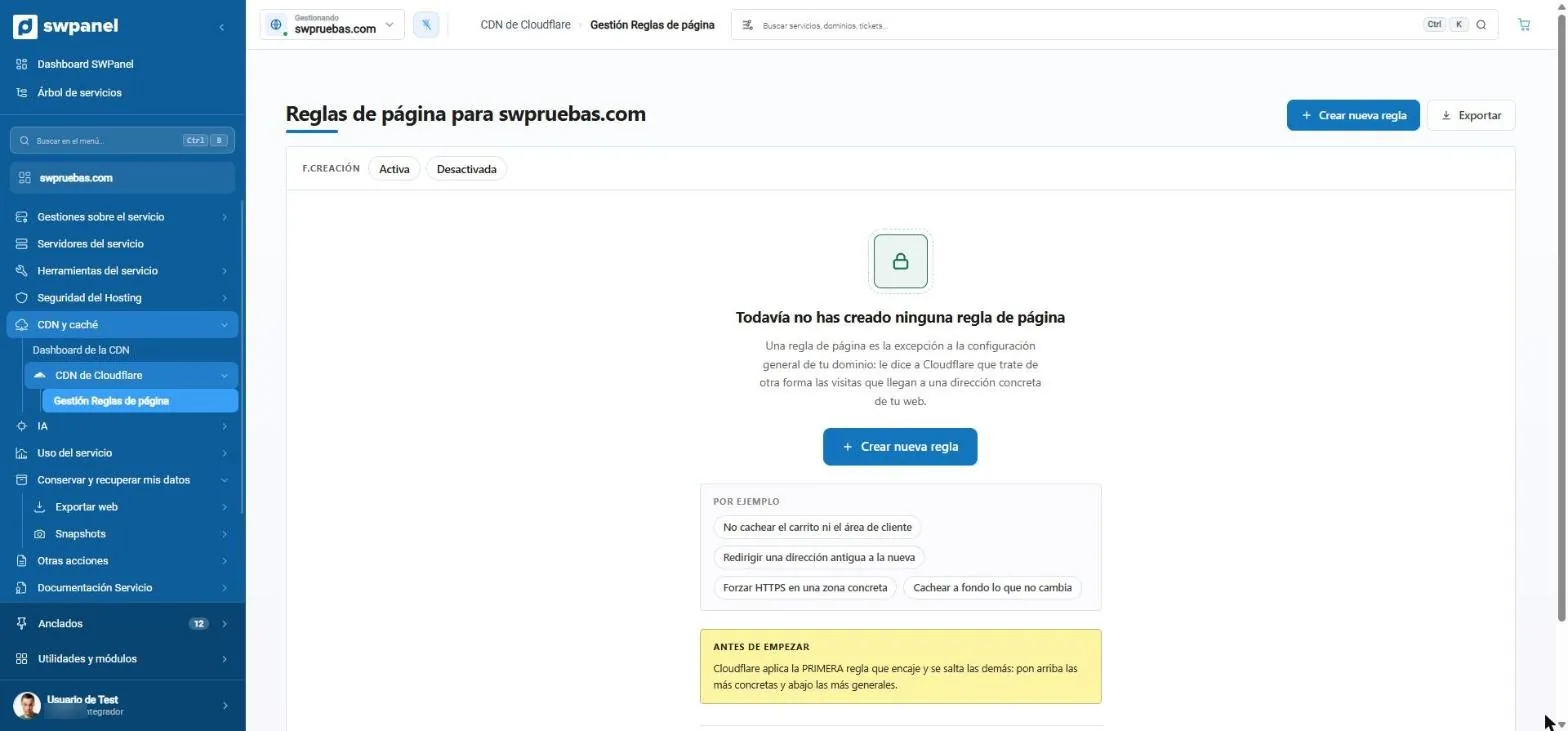
- Create a page rule.
- What a page rule is, explained on the screen itself.
- Examples to get started: don't cache the cart, redirect or force HTTPS.
- Cloudflare applies the first rule that matches: order matters.
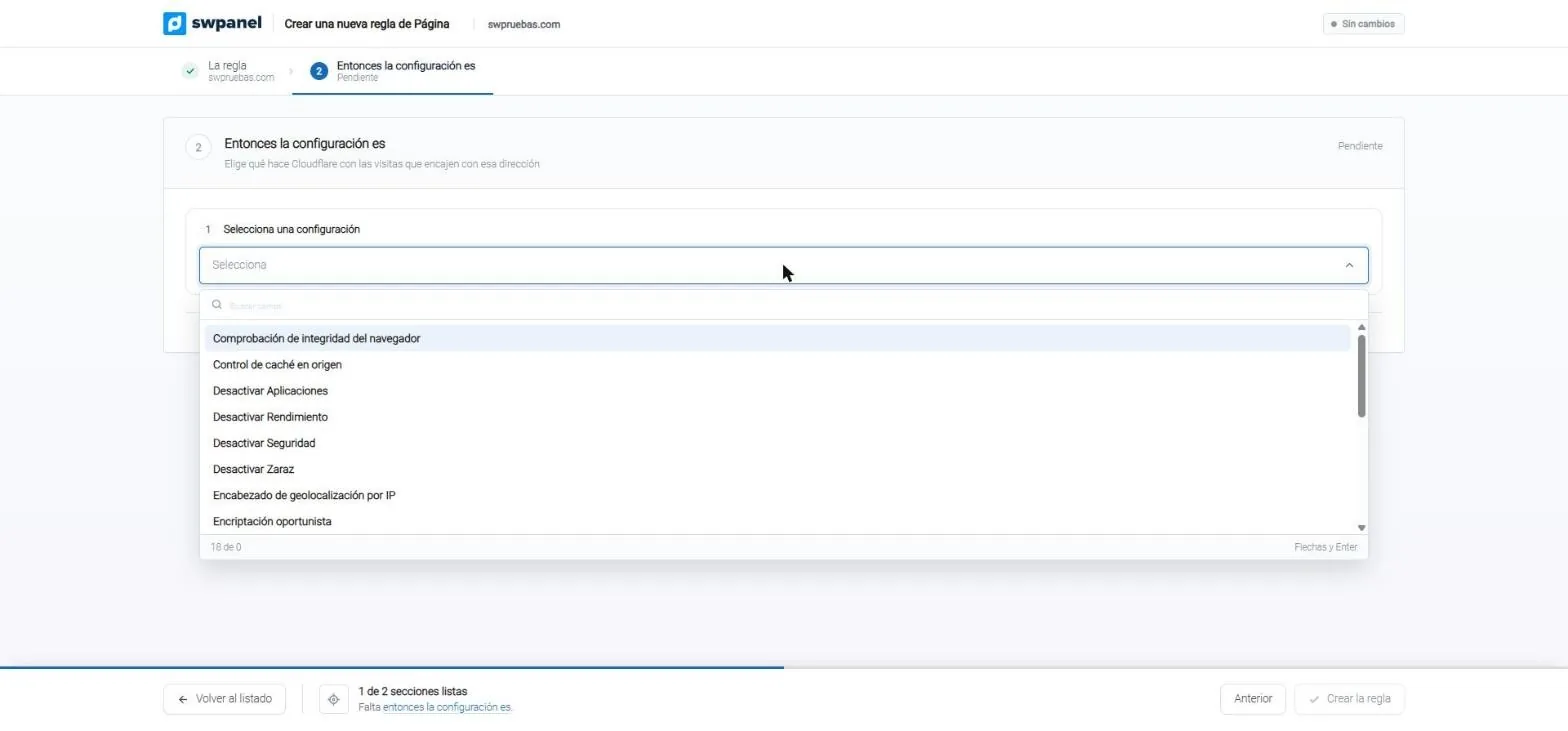
- Two steps: the address and the setting.
- What Cloudflare does at that address.
- The possible settings, with search.
What you manage
Six Cloudflare things you'll no longer do in Cloudflare
Cache
So the website is fast and up to date.
- Purge everything or only what you specify
- Storage level and browser TTL
- Always Online and developer mode
SSL/TLS encryption
How traffic travels to your server.
- Flexible, Full or Full (strict)
- Minimum TLS version
- Force HTTPS and automatic rewriting
Cloudflare WAF
Rules with dropdowns, no code writing.
- Country, continent, ASN, IP, cookie or method
- Block, JS challenge or allow
- Save it without enabling it to test it
Page rules
The exception for a specific address.
- Don't cache the cart or the customer area
- Redirect an old address
- Force HTTPS in one area
Bots and AI
Who can crawl your website.
- Bot fight mode
- Training bots and AI search engines
- robots.txt managed by Cloudflare
Analytics
What Cloudflare does for your website, in numbers.
- Traffic and savings on your server
- Cache performance and countries
- Threats stopped per day
Cloudflare's WAF
Your security rules, without writing code
Cloudflare's WAF checks every visit on its network, before it reaches your server. From SWPanel you see what it has stopped and create your rules with a dropdown wizard.
On video · 39 seconds
The WAF, rule by rule
The security dashboard, the threats stopped and the wizard for creating a rule: the conditions, the expression SWPanel writes and the action.
- How you're protected
- What happened
- Your WAF rules
- Create a new rule
- Conditions: field, operator and value
- The expression, written by SWPanel
- The action
- Save it without enabling
Each in its own layer
Cloudflare and Security 360 add up
Cloudflare filters on its network, before the visit arrives. What it lets through still reaches your server, and there Security 360 checks everything, including what comes in without going through Cloudflare.

- Cloudflare filters on its network what it recognizes as bad: known robots, massive attacks and your rules.
- What passes the filter still reaches your server. There Security 360 checks it again with rules born from attacks on your website.
- Anyone who knows your server's IP can bypass Cloudflare and go direct.
- Security 360 is on the server: it filters everything that arrives, whether via Cloudflare or direct.
- The SOC analyzes it every day and tells you what happened and what to do.
Cloudflare, Free plan
It sits in front of your website: it brings content closer to each visitor and stops bad traffic before it arrives.
- CDN and cache on its network
- Cloudflare WAF and page rules
- Layer 7 DDoS protection and managed rules
- Bots and AI, with a switch
Security 360
It works where your service lives: it checks every request that arrives, the code and the email.
- Adaptive WAF with rules born from your attacks
- SOC with daily analysis and a button per problem
- Email antivirus and AntiSpam
- Country and bot blocking, with advice for each
The shortcut Cloudflare doesn't see
If someone knows your server's IP, they bypass Cloudflare
Cloudflare only protects what goes through its network. Anyone who calls your server's IP directly arrives without going through its WAF or DDoS protection. No sophisticated attack is needed: the IP can be discovered in several ways.
-
Old DNS records
Before enabling Cloudflare, your domain pointed to the server's IP, and some services keep that history.
-
Subdomains that don't go through Cloudflare
Email, FTP or a panel usually point directly to the server and share its IP.
-
Emails your website sends
An email's header can carry the IP of the server that sent it.
-
Internet scans
Some robots crawl every IP and note which website responds on each one, for instance by its certificate.
And here Security 360 comes in
It works on your server, so it sees everything
- Adaptive WAF: checks every request reaching the server, whether via Cloudflare or direct, with rules born from attacks on your website.
- Country and bot blocking: applied on the server, so it also stops what arrives via the IP.
- SOC with daily analysis: reads what has arrived and tells you what happened and what to do, with a button per problem.
What comes in through Cloudflare arrives from its nodes: SWPanel doesn't attribute attacks to their IPs or propose blocking them. Learn about Security 360
New · Security 360 add-on module · Spain
Match Mode: your website stays visible even on match day
During LaLiga matches, Spanish operators block Cloudflare IP addresses by court order against piracy. Thousands of websites that have nothing to do with football share those IPs and stop being visible in Spain while the block lasts. Match Mode detects it and, if you want, serves your website from your server for as long as it lasts.
- Every 5 minutes It checks the 5 major operators from 1 h before to 1 h after each match
- Spain only Designed for the blocks by Spanish operators
- With Security 360 in front Your server stays protected while Cloudflare is off

- A normal day: your visits go through Cloudflare and reach your website.
- The match starts: operators block Cloudflare IPs and, if your website shares one, it stops being visible in Spain.
- SWPanel detects the block on your domains.
- It enables Match Mode: it turns off Cloudflare on your domain and the DNS points directly to your server.
- Your visits get in again, now straight to your server, with Security 360 in front.
- The block is lifted: Cloudflare goes back in front of your website.
Why everything has to be in SWPanel
Match Mode moves three pieces at once. If one is missing, it can't be enabled.
-
The domain, in SWPanel
SWPanel manages Cloudflare on your domain, so it can turn it off and on again.
-
The DNS, in SWPanel
It changes the records instantly so visits go straight to your server.
-
The hosting, in SWPanel
It knows which server to send visits to and protects it with Security 360 while Cloudflare is off.
While it's active, all your visits go straight to your server, including those from outside Spain, and Cloudflare's CDN doesn't act. Security 360 keeps filtering: adaptive WAF, countries and bots, and the SOC.
The blocks during matches have been documented since 2025, for example at Euronews and Xataka.
Match Mode
Your hosting, on guard at every match
Each hosting with Cloudflare has its Match Mode tab on the dashboard: who sees your website now, the next match, what SWPanel will do if they block and everything it has already done.
- Watches From 1 h before to 1 h after each match, every 5 minutes.
- Detects If an operator blocks Cloudflare, it sees it in each operator's measurement.
- Checks SSL certificate, access to your DNS and that the website responds from the server.
- Redirects It changes only the records that go through Cloudflare and notifies you.
- Returns When it has gone the time you choose without blocks, or when you say so.
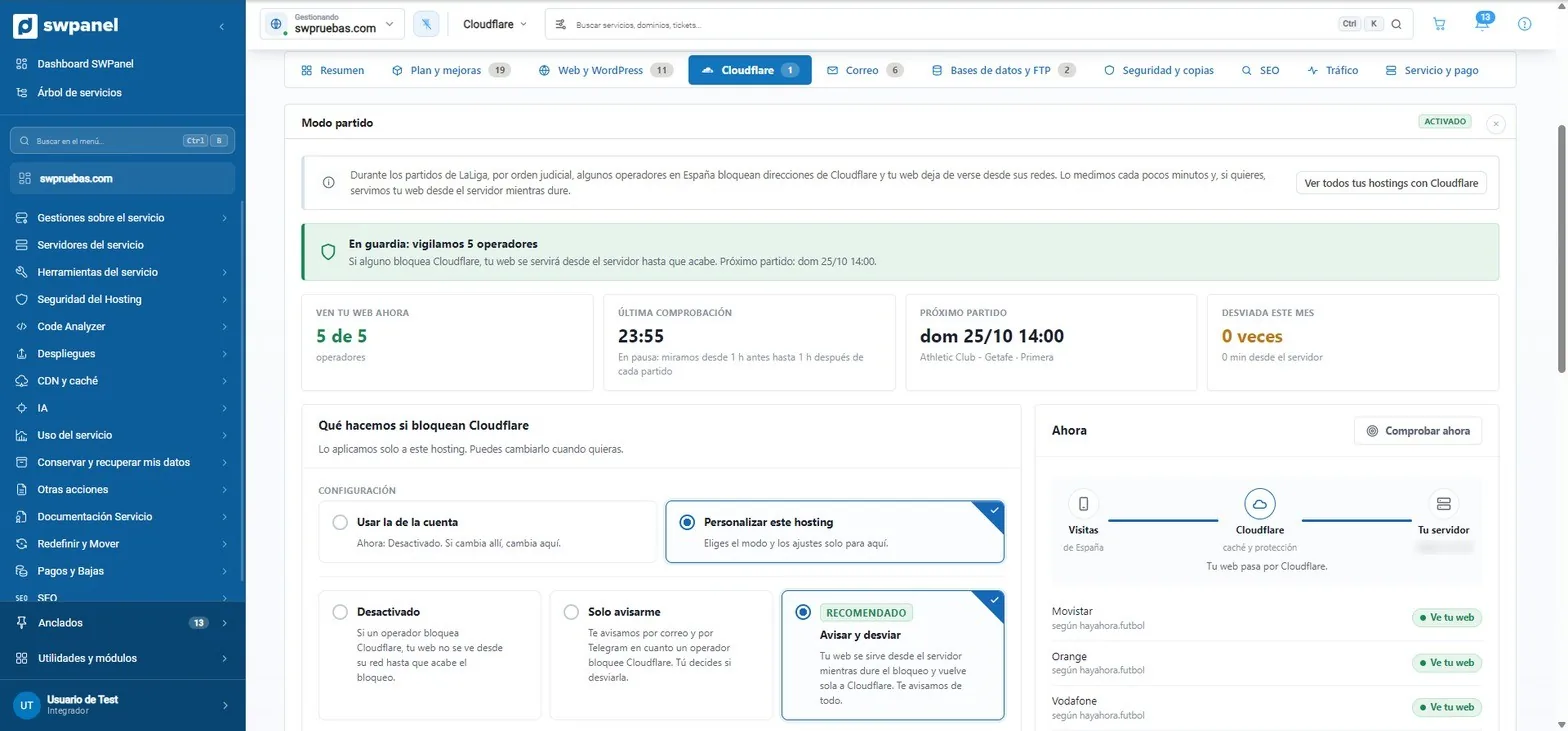
- On guard: it watches the 5 operators and tells you the next match.
- How many operators see your website right now.
- The last check. Outside matches, paused.
- The next LaLiga match.
- The times it has been redirected this month, and for how long.
- The account configuration, or a custom one for this hosting.
- Notify and redirect, the recommended one.
- Now: whether each operator sees your website.
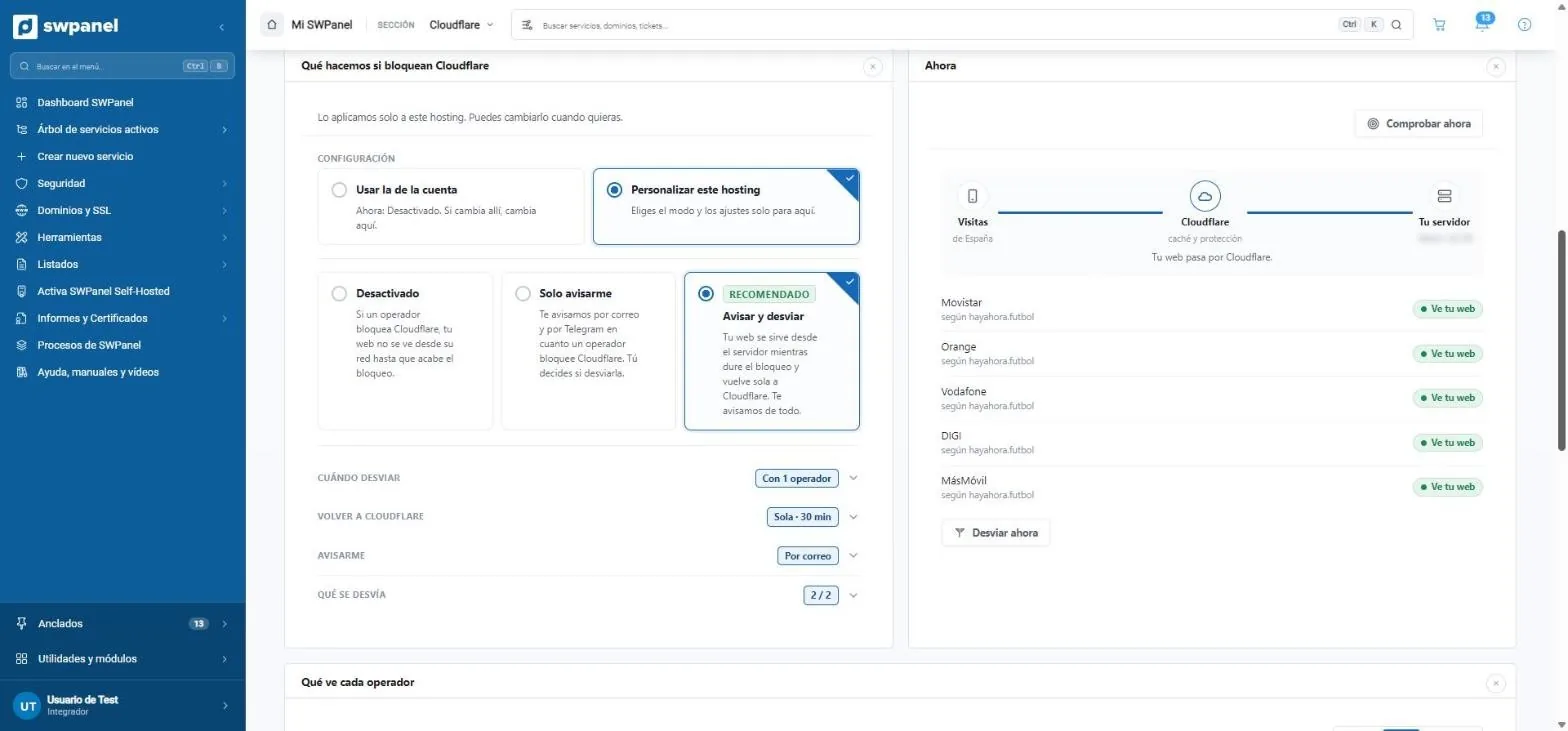
- Three modes: do nothing, only notify you or notify and redirect.
- When to redirect: with 1, 2, 3 or more operators.
- Return to Cloudflare: on its own, after the time you choose without blocks.
- Notify me: by email, by Telegram or both.
- What gets redirected: only the records that go through Cloudflare.
- Check now, without waiting for the next measurement.
- The 5 operators, according to hayahora.futbol.
- Redirect now, if you don't want to wait.
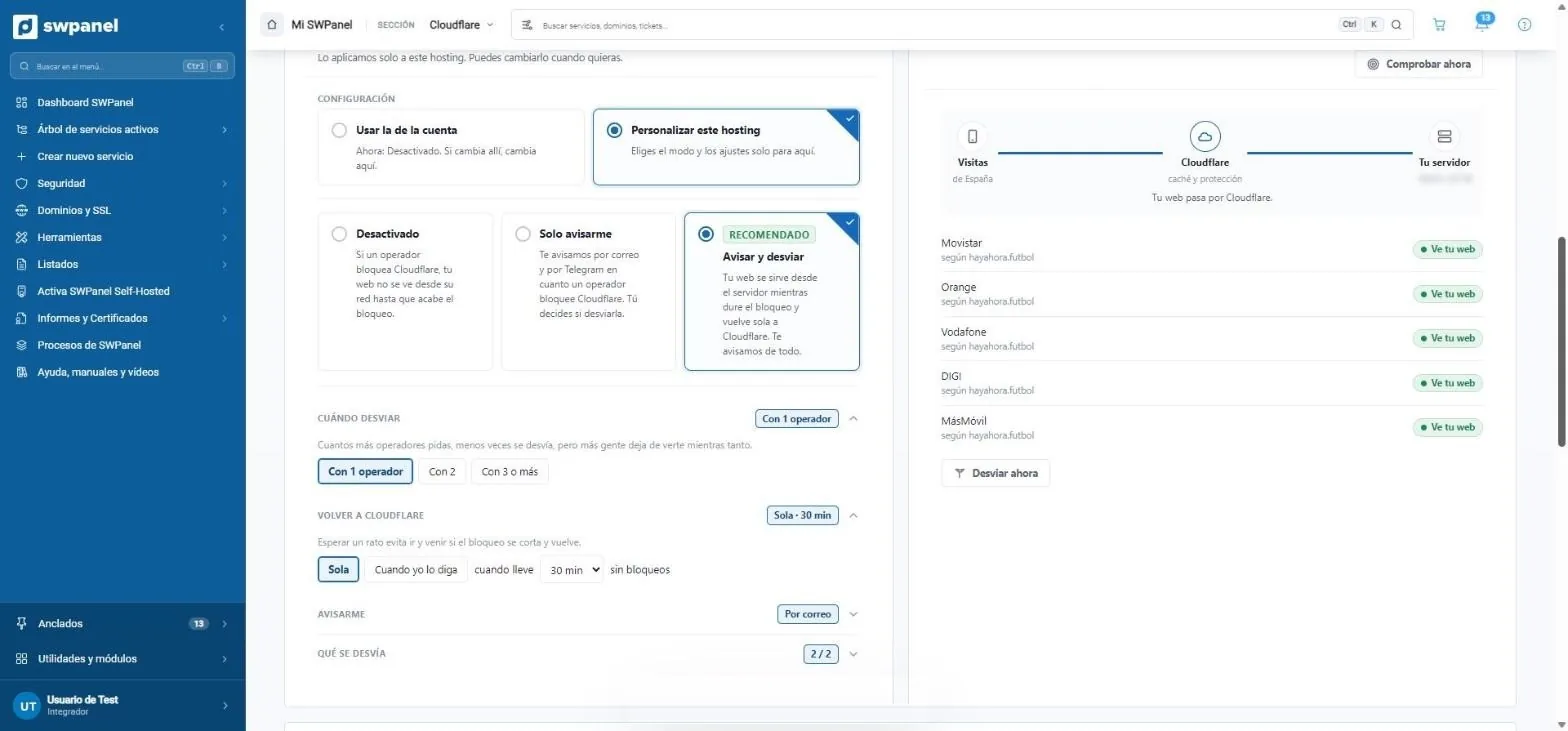
- With 1, with 2 or with 3 or more operators. The more you require, the less often it redirects, but the more people stop seeing you in the meantime.
- On its own, after 5, 15, 30 or 60 minutes without blocks, or when you say so.
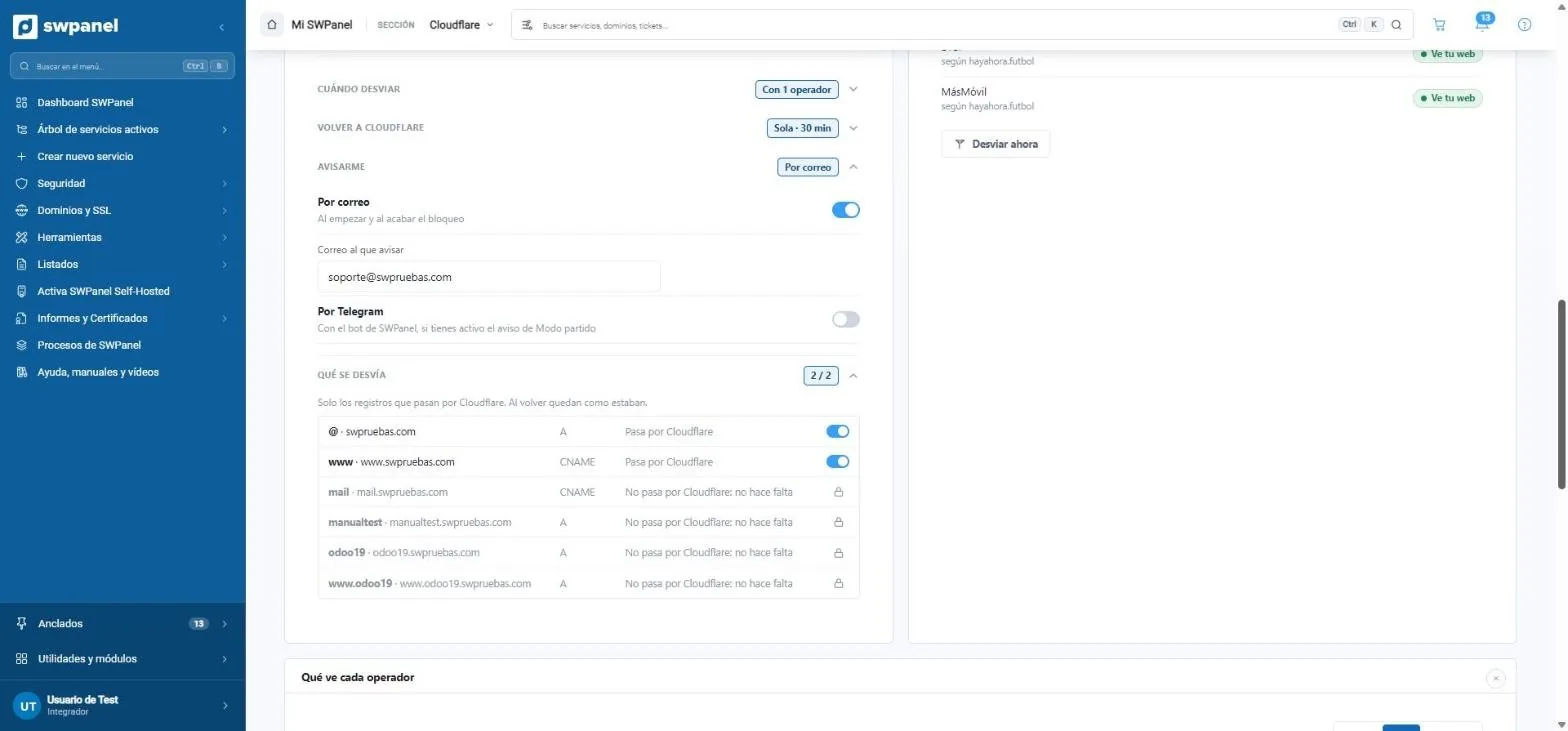
- By email, when the block starts and ends.
- The email address to notify.
- By Telegram, with the SWPanel bot.
- Only the records that go through Cloudflare are redirected. When it returns, they stay as they were.
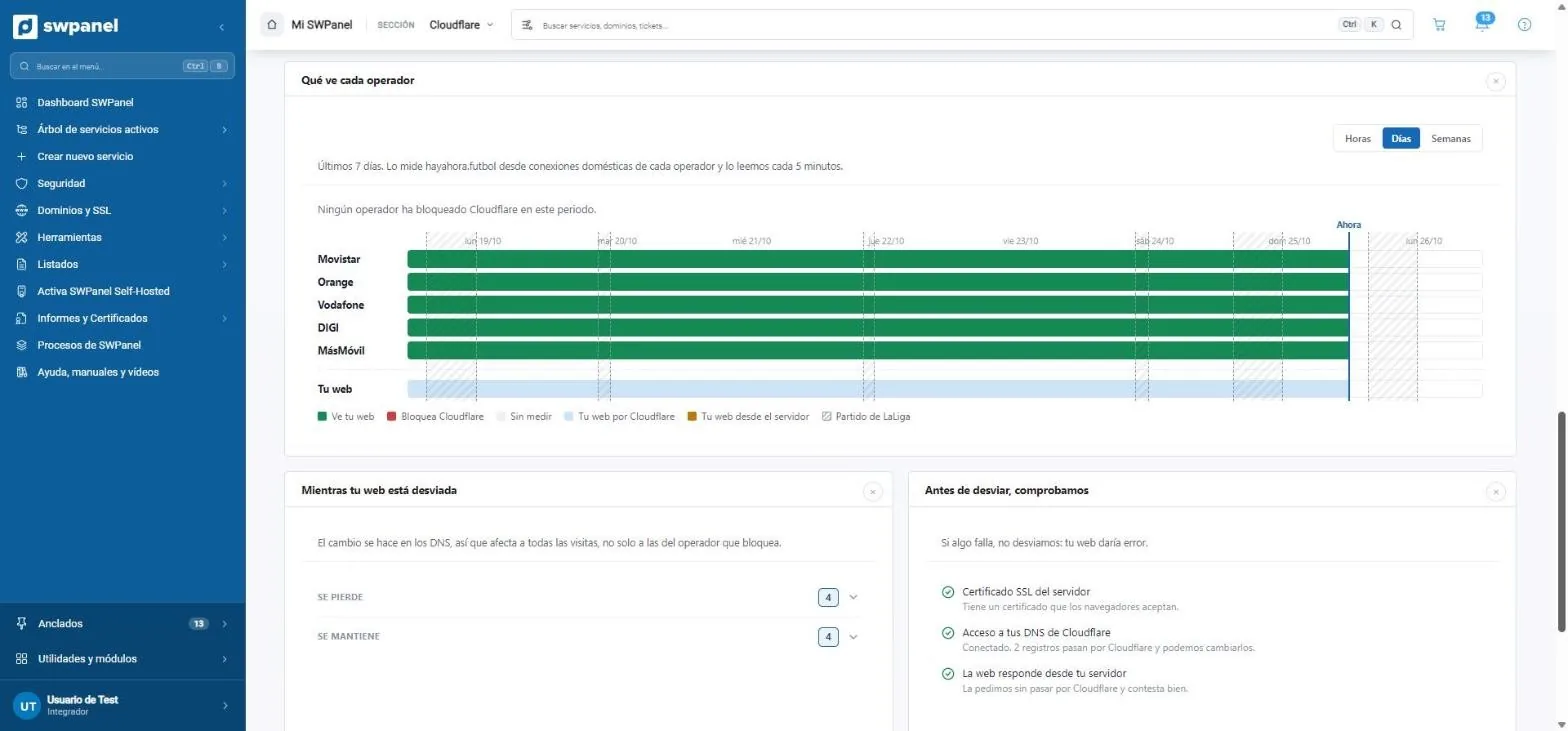
- By hours, days or weeks.
- hayahora.futbol measures it from home connections of each operator, and SWPanel reads it every 5 minutes.
- The period summary.
- LaLiga matches, hatched.
- Your website: whether it went through Cloudflare or was served from the server.
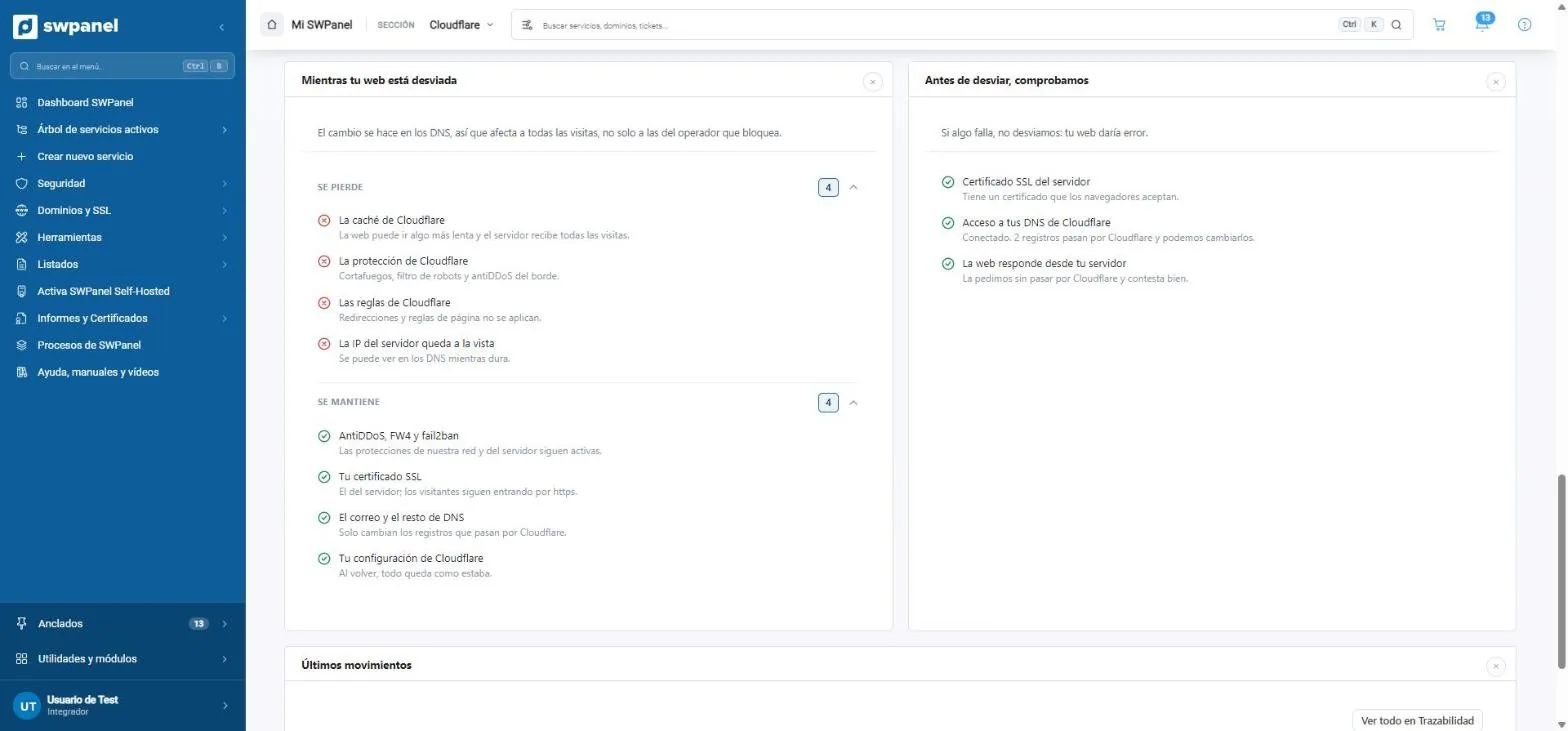
- The change is in the DNS, so it affects all visits.
- What is lost while it lasts: what Cloudflare does.
- What is kept: the network and server protections, the SSL certificate, email and your configuration.
- Three checks before redirecting. If one fails, it doesn't redirect.
- What it has done, and all the detail in Traceability.
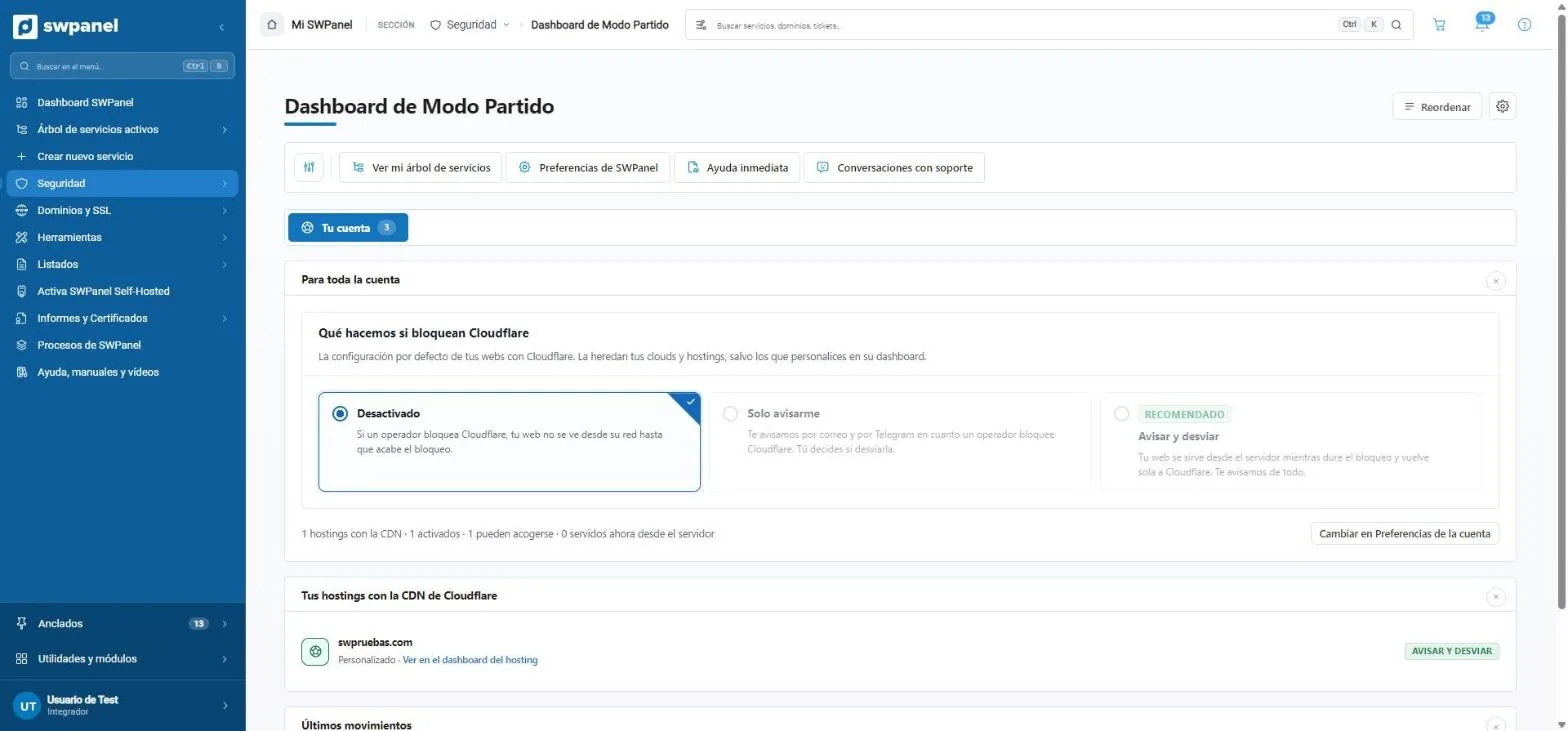
- For the whole account: what your clouds and hostings inherit, except those you customize.
- Off, Only notify me or Notify and redirect.
- The summary: your hostings with the CDN, how many can use it and how many are now served from the server.
- The details, in the account preferences.
- Each hosting with its mode, and the link to its dashboard.
- Off If an operator blocks Cloudflare, your website isn't visible from its network until the block ends.
- Only notify me It notifies you by email and Telegram as soon as an operator blocks Cloudflare. You decide whether to redirect it.
- Notify and redirect The recommended one: your website is served from the server while the block lasts and returns to Cloudflare on its own.
On video · 38 seconds
Match Mode, at a glance
The Match Mode tab of a hosting: how it is now, what to do if Cloudflare is blocked, what each operator sees and what SWPanel checks before redirecting.
- On guard: who sees your website now
- Account configuration or only for this hosting
- Off, Only notify me or Notify and redirect
- When to redirect and when to return
- How it notifies you
- What each operator sees
- What is checked before redirecting
The notices
It notifies you when it starts and when it ends
By email, by Telegram or both. With what happened, what SWPanel did and how your website stands.
- From
- SWPanel
- To
- [email protected]
Match mode: Movistar blocks Cloudflare and swpruebas.com isn't visible from its network
Your hosting is set to “Only notify me”, so we haven't touched anything. If you want your website to be visible while the block lasts, redirect it from the hosting's Match Mode tab.
- Operators that see your website: 4 of 5
- It will be visible on Movistar again when the block ends
Match mode: the block has ended
Movistar shows Cloudflare's addresses again. swpruebas.com is visible again from all 5 operators.
Movistar blocks Cloudflare. swpruebas.com wasn't visible from its network.
We've checked the server's SSL certificate, your Cloudflare DNS and that the website responds, and we're serving it from your server.
The 2 records that go through Cloudflare have been changed. Email and the rest of the DNS stay the same.
The block has ended. After 30 minutes without blocks, swpruebas.com goes through Cloudflare again. Your records are back as they were.
Example notice: the data is for testing and the exact text of each notice may change. What SWPanel does is also recorded in “Latest movements” and in Traceability.
Good to know
What to know before switching it on
DNS takes time to propagate
When you enable it, the domain starts resolving through Cloudflare. During that time, some visitors see the website served by Cloudflare and others don't yet. That's normal.
“I changed the website and don't see it”
It's the cache. Try an incognito window, purge from “Management” or turn on developer mode while you work on the website.
Your subdomains
When the domain goes through Cloudflare, a subdomain with its own zone needs a delegation. If the subdomain is a service in your SWPanel, SWPanel can create it by itself.
A WAF fails silently
A rule that blocks your customers doesn't block you. Save it without enabling it, review it and switch it on when you're sure. Removing it is one click.
Manuals
Step by step, in the Library
Six manuals from the SWPanel Library on Cloudflare, from the first click to the finest rules.
- Enable Cloudflare CDN on your Hosting service from SWPanel What changes, requirements and the three steps
- Adjust the cache and Cloudflare CDN settings from SWPanel Purge, cache level, TTL, Always Online and developer mode
- How to create and manage Cloudflare WAF security rules from SWPanel Conditions, actions and how to try out a rule
- Cloudflare page rules: what they are and how to create them from SWPanel Redirects, HTTPS and cache exceptions
- Manage a subdomain when the main domain goes through Cloudflare Zone delegation, step by step
- How to block access to your website from certain countries with Cloudflare A WAF rule per country
Frequently asked questions
Cloudflare in SWPanel, no doubts
Enable Cloudflare on your hosting
Create your free account, bring your domain and switch on Cloudflare from your hosting upgrades.