
Migrate to SWPanel
Bring your websites, wherever they come from
WordPress, Plesk, cPanel, DirectAdmin, any hosting with FTP or SSH, or another SWPanel account. You choose the source and the wizard asks only for the data for that path.
- Six sources in one wizard
- Without copying anything by hand
- We notify you when it finishes
Choose your source
Six paths, one wizard
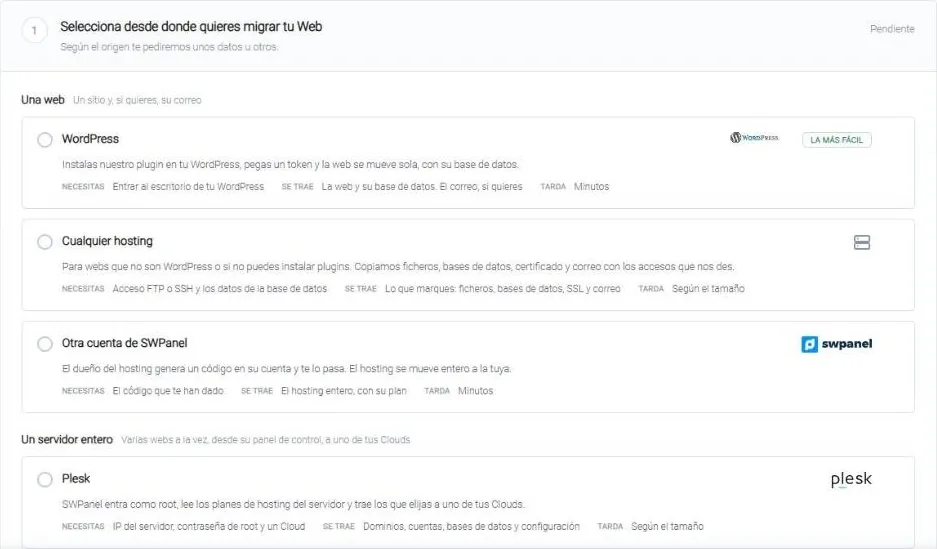
A single website or an entire server: each path asks only for what it needs. Click yours to see the step by step with real screenshots.
-

A WordPress website
You install the official plugin on your WordPress, paste a token and the website moves on its own, with its database. It's the easiest path.
You need: Access to your WordPress dashboard See how -
FTP or SSH
Any hosting
For websites that aren't WordPress or if you can't install plugins: files, databases, certificate and email.
You need: FTP or SSH access and the database details See how -

Another SWPanel account
The hosting owner generates a code in their account and passes it to you. The hosting moves entirely to yours.
You need: The code you've been given See how -

A Plesk server
SWPanel logs in as root, reads the server's hosting plans and brings the ones you choose to one of your Clouds.
You need: Server IP, root password and a Cloud See how -

A cPanel server
Domains, accounts, databases and configuration of the hosting plans you select.
You need: Server IP, root password and a Cloud See how -

A DirectAdmin server
It reads the server, you choose which hosting plans to bring and it migrates them to your Cloud.
You need: Server IP, root password and a Cloud See how
cPanel, Plesk, DirectAdmin and WordPress are trademarks of their respective owners. They are named only to indicate where you can migrate from.
From any hosting
The website, the database and the email
For a hosting without root access or with a panel that isn't on the list. First you choose the destination: a new hosting, purchased in the same step, or one you already have that is empty.
Step 1
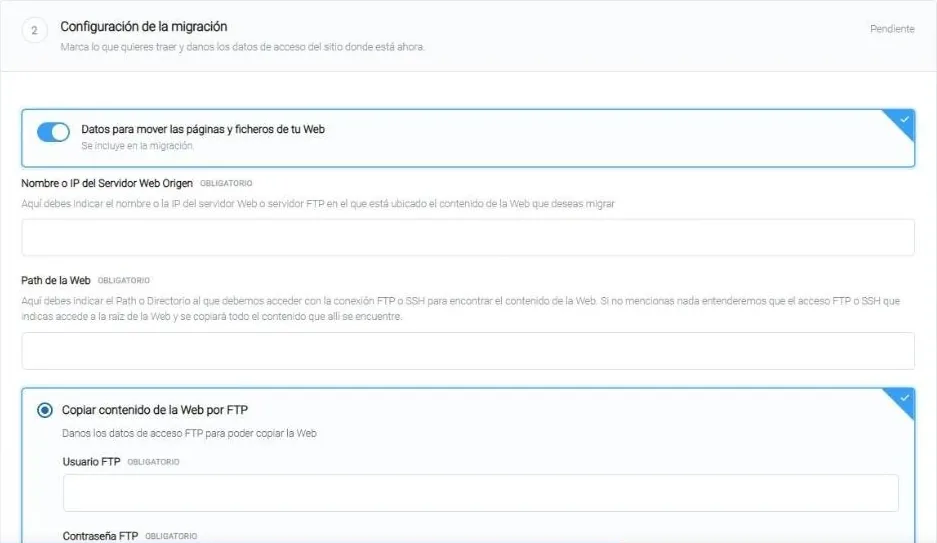
The website, via FTP or SSH
The source server, the website folder and the FTP or SSH user. If you don't specify a folder, whatever is in the access root is copied. In cPanel the website is usually in /public_html; in Plesk, in /httpdocs.
- You can also create the FTP account at the destination
Step 2
The SSL, the database and the mailboxes
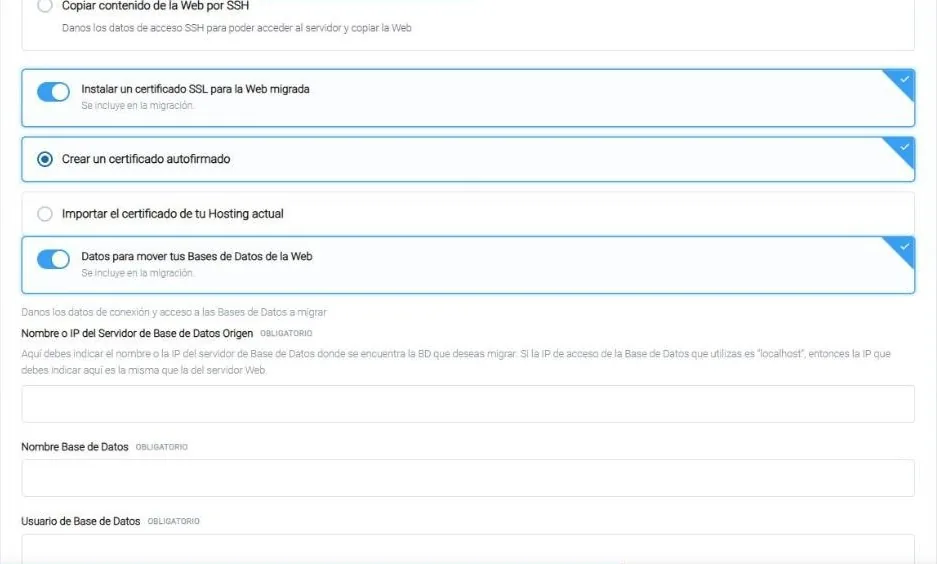
A self-signed certificate or the one from your current hosting. For the database, its server, name, user and password: if it uses “localhost”, you enter the web server's IP. And, if you want, the mailboxes one by one.
- The database needs remote access and port 3306 open for SWPanel
- If you can't open it, you import it yourself afterwards with phpMyAdmin or HeidiSQL
According to the SWPanel migration tool manual, migration is free of charge. If you choose a new hosting, you pay for that hosting.
Between SWPanel accounts
A hosting plan, from one account to another
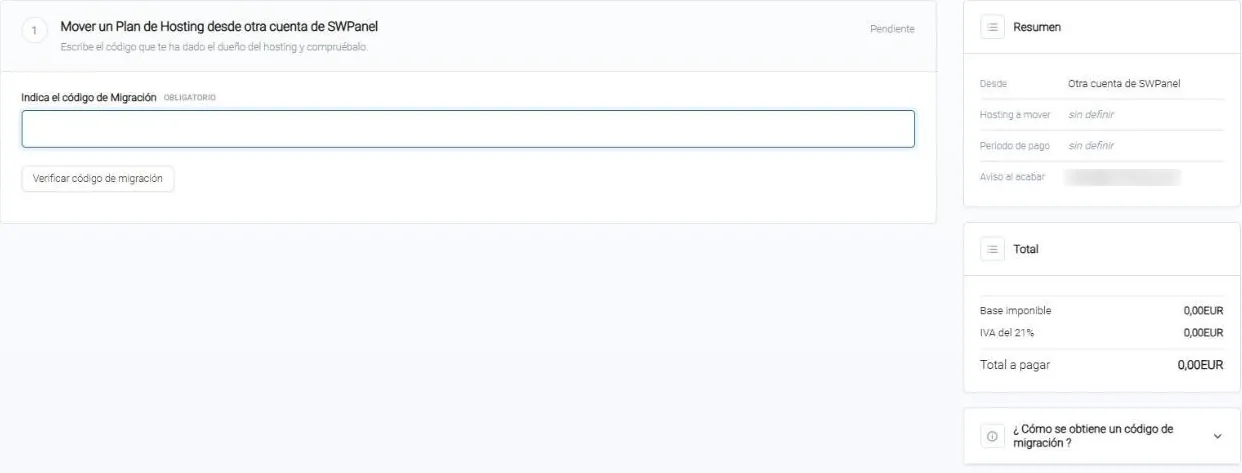
The hosting owner generates a migration code from their account and passes it to you. You enter it, verify it, choose the payment period and review everything before starting.
Step 1
Enter the migration code
The hosting owner generates it from their SWPanel account. It expires on a date and may have a maximum number of uses.
While it migrates and after
From migration to DNS
-
Follow it in SWPanel
In Tools › to migrate Websites › Manage migrations you see each migration and what stage it's at. It takes more or less time depending on the size of what you're bringing.
-
We'll notify you when it finishes
To the email you put in “Notify when finished”. You don't need to leave the screen open.
-
Test it before touching the DNS
Nothing is deleted from the source. Point the domain to the new IP only on your computer, using the “hosts” file, and review the website in SWPanel while your visitors stay on the usual server.
-
Change the DNS when it's right
When everything works, you point the domain to SWPanel. Afterwards, remove the line from the “hosts” file.
If something doesn't work as on the source server, check that the PHP and web server of the hosting in SWPanel have the same version and configuration as there. That's what the wizard itself advises, in “While migrating”.
WordPress
Two official plugins for your WordPress
Migrate from the WordPress dashboard itself, or create the website with SWPanel's AI inside the editor.
Frequently asked questions
About migrations
Your websites, in SWPanel
Create your account for free, choose where you're coming from and let the wizard do the rest.