
When activating log custody on your Cloud server, an FTP account is automatically created, where only the password to be used for this FTP account needs to be specified. If you do not remember the password, we provide the steps below so that you can reset it.
First, you must access your SWPanel and, in the top search window, enter the name of the Cloud service for which you wish to modify the log custody access. Once the service is located, you can click on its name to access its Dashboard.
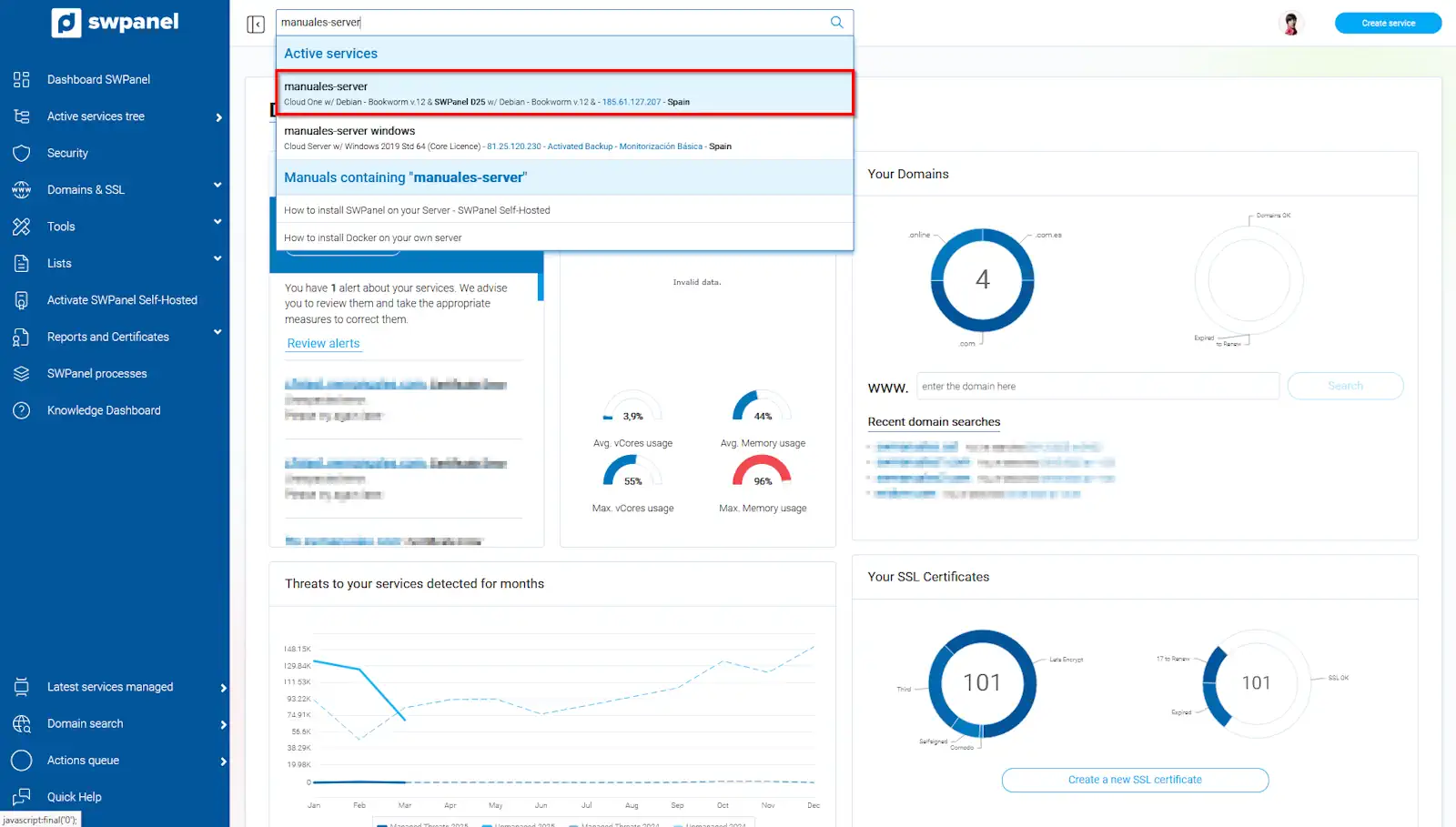
The screenshot is for guidance purposes. It was taken using version 2025.02.0002 dated 17/03/2025. It may differ from what the current version of SWPanel shows.
Once you are in your Cloud Dashboard, you should locate the icon situated next to the log custody activation/deactivation checkbox and click on it.
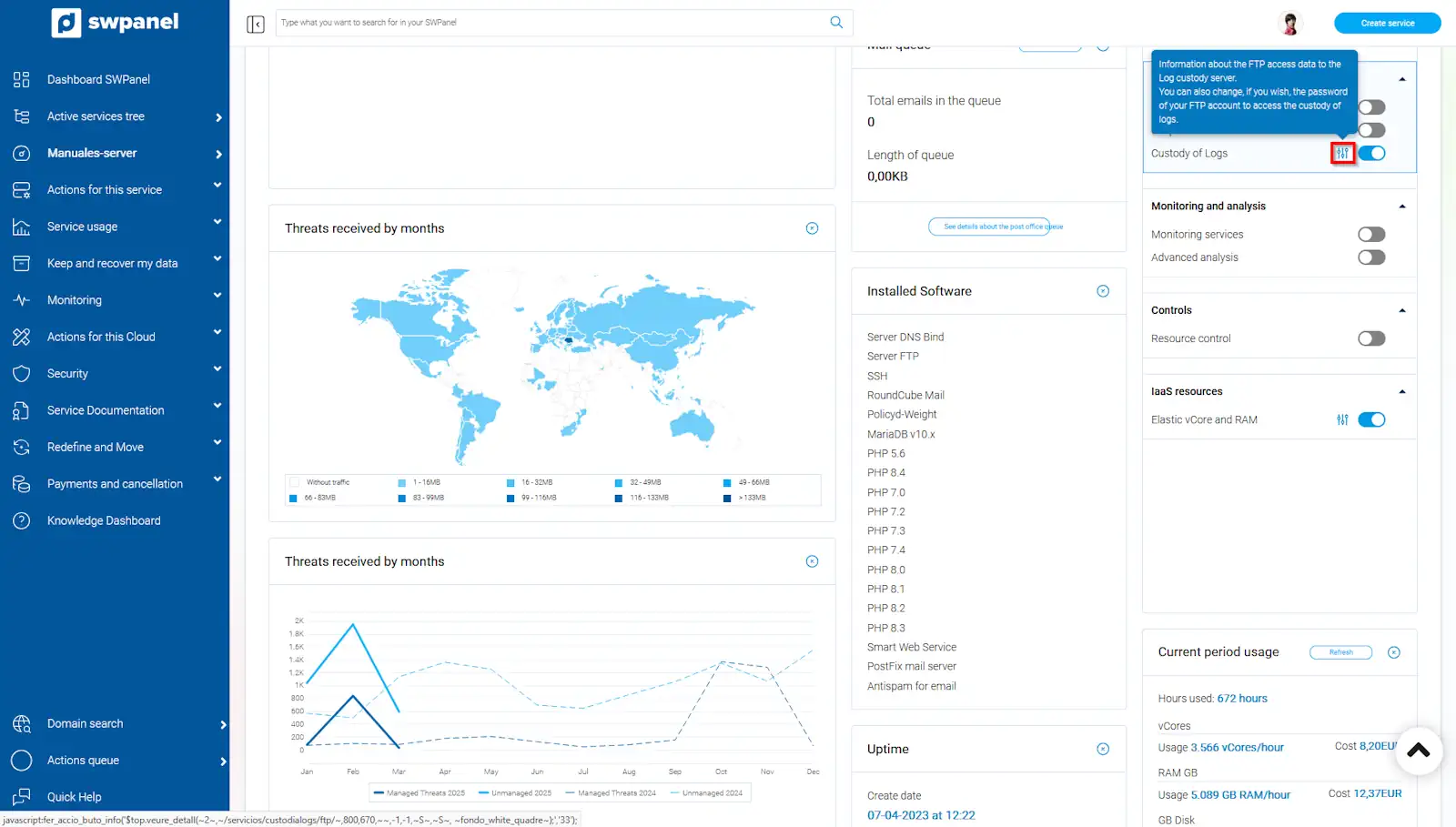
The screenshot is for guidance purposes. It was taken using version 2025.02.0002 dated 17/03/2025. It may differ from what the current version of SWPanel shows.
Next, in addition to viewing the FTP access data for the stored logs, you can modify the FTP password.
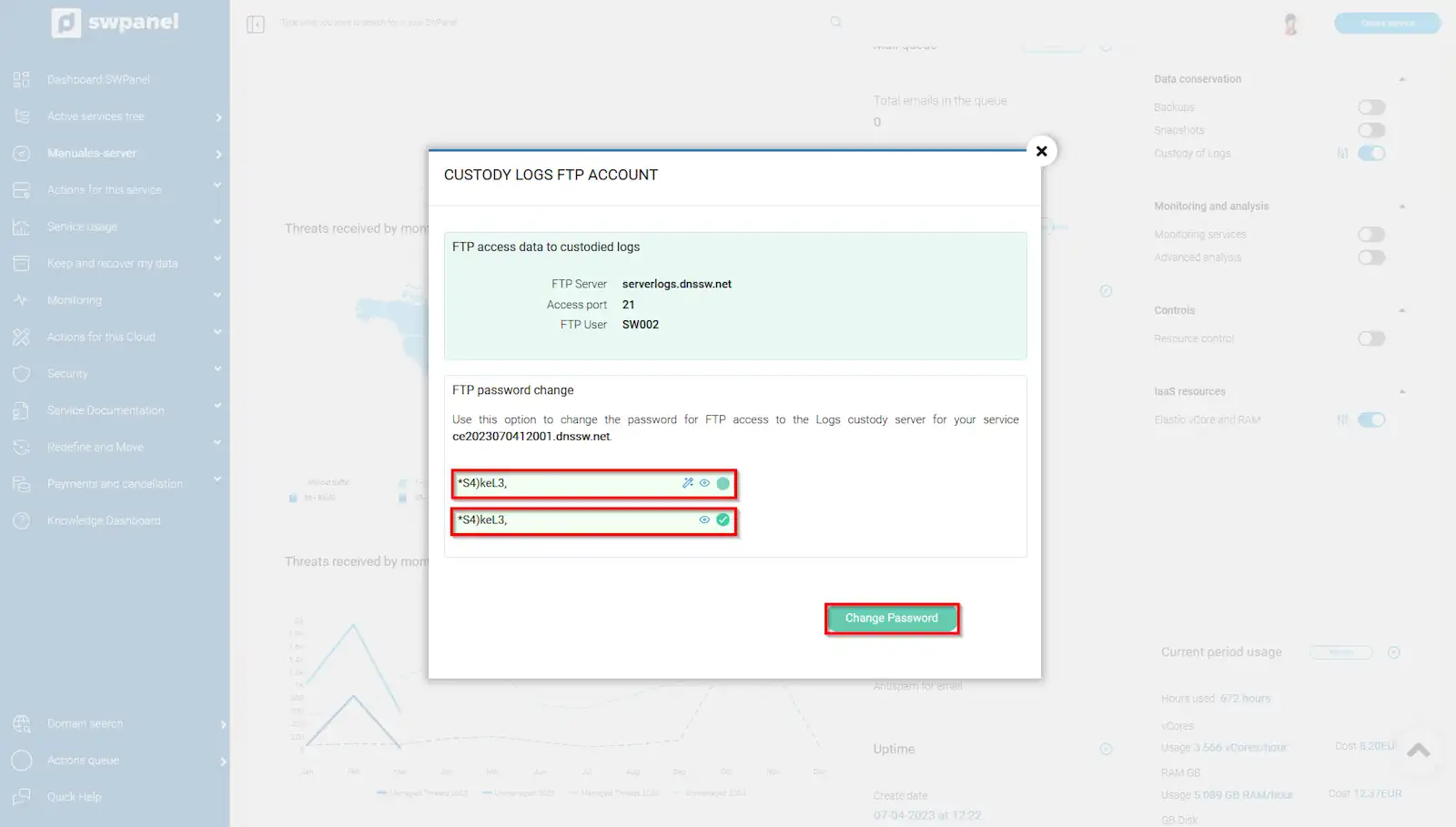
The screenshot is for guidance purposes. It was taken using version 2025.02.0002 dated 17/03/2025. It may differ from what the current version of SWPanel shows.