
To activate Dark Mode in SWPanel, go to the upper right corner of your SWPanel, hover the cursor over your profile, click on “My SWPanel” and select the option “My SWPanel Preferences”.
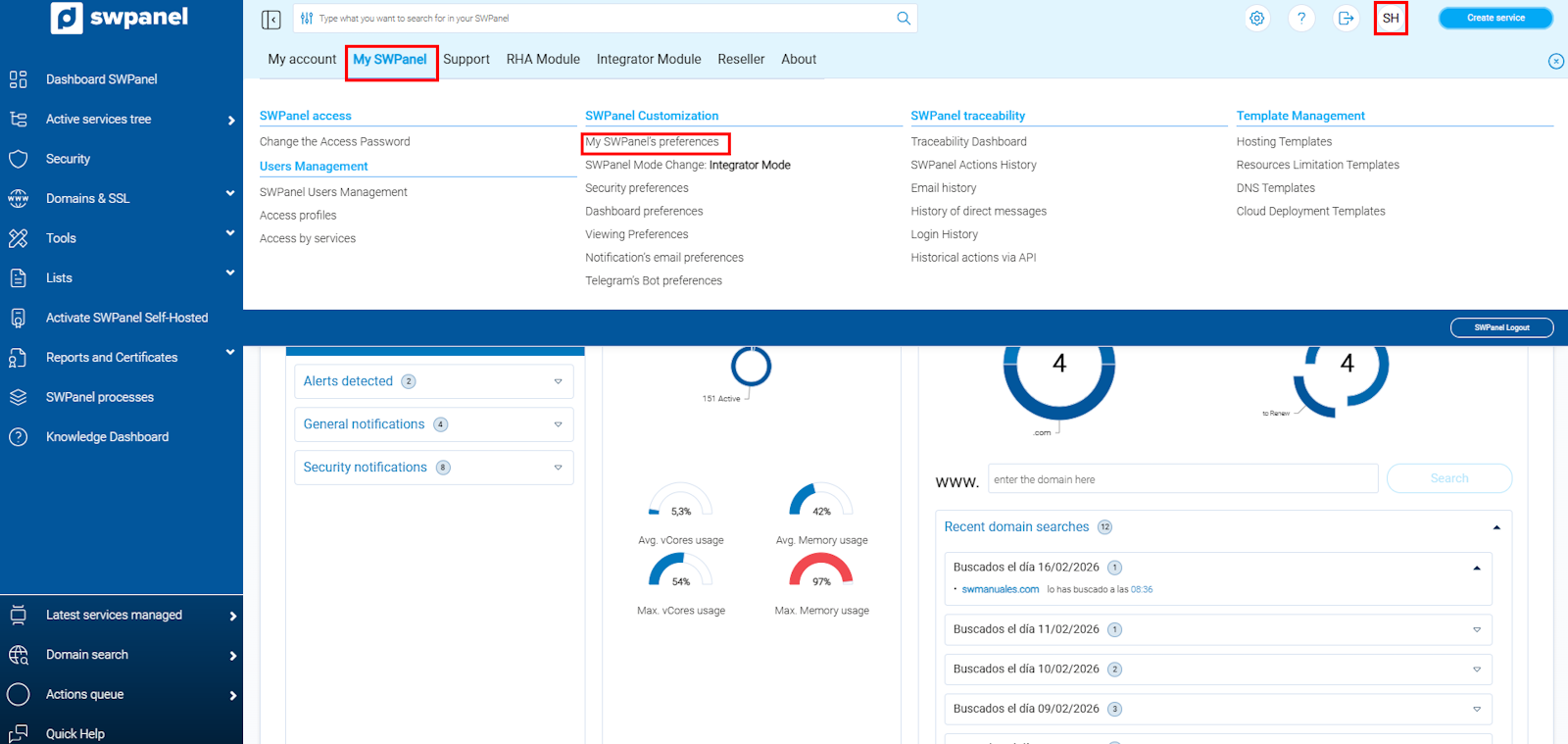
Note: The capture is for guidance purposes, taken from version 2026.000.0001 dated 07/03/2026. It may differ from the current version of SWPanel.
Once inside the “My SWPanel Preferences” section, go to the “Colors” tab and then click the “Activate Dark Mode” button.
Finally, click on “Save preferences” to apply the changes.
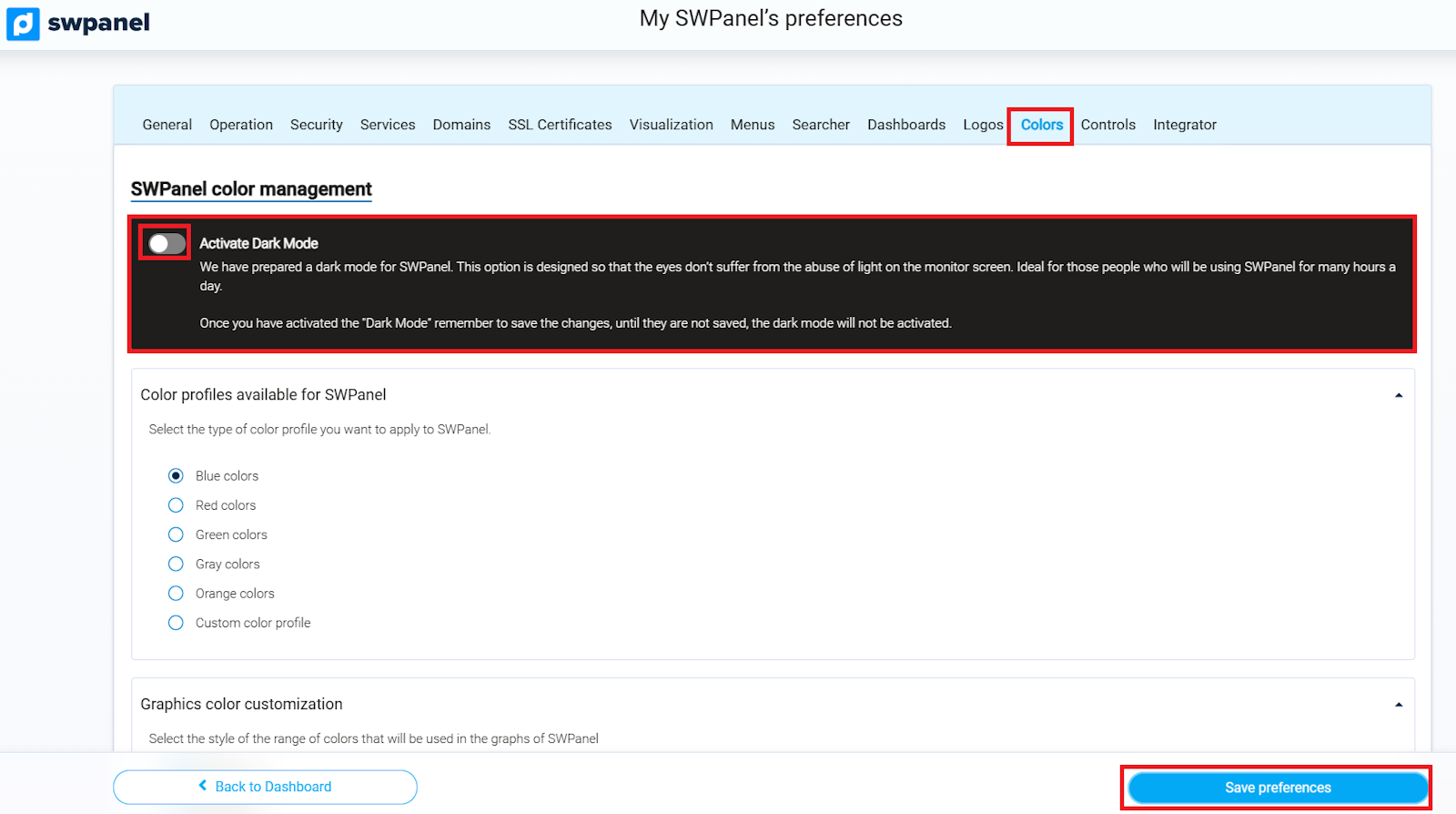
Note: The capture is for guidance purposes, taken from version 2026.000.0001 dated 07/03/2026. It may differ from the current version of SWPanel.
With this, Dark Mode will be activated in your SWPanel.
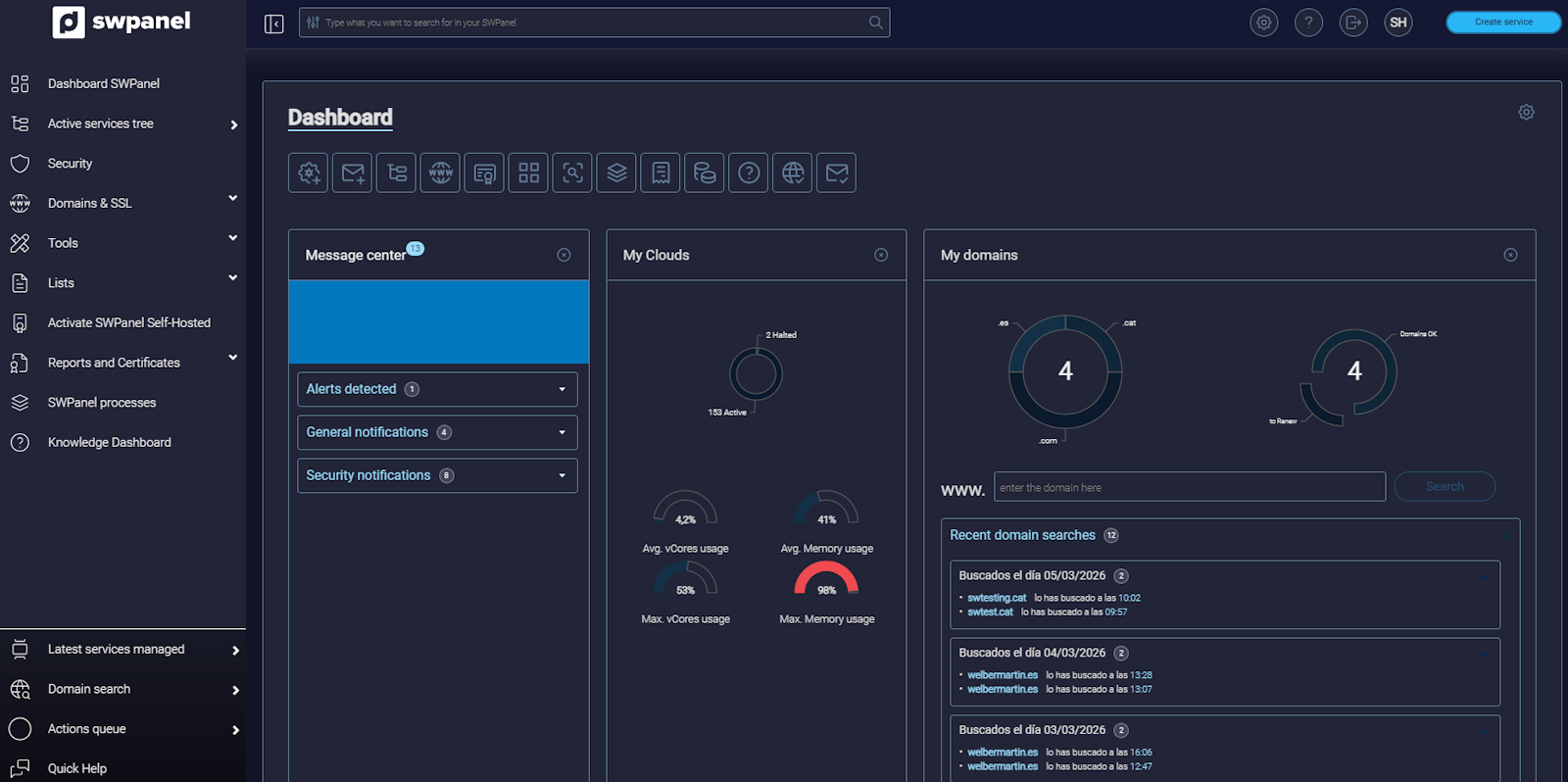
Note: The capture is for guidance purposes, taken from version 2026.000.0001 dated 07/03/2026. It may differ from the current version of SWPanel.