
Migrate from Plesk
From Plesk to SWPanel, in five steps
You give SWPanel your Plesk server's IP and the root password. It logs in, shows you the hosting plans there and brings the ones you select, with their domains, accounts, databases and configuration. Without you having to copy anything by hand.
- The IP and the root password
- You choose which plans to bring
- Nothing is launched until the end
Before you start
What you need and what is brought over
That's how the wizard itself explains it: “SWPanel logs in as root, reads the server's hosting plans and brings the ones you choose to one of your Clouds.”
What you need
- The Plesk server's IP.
- The root user's password. The wizard always logs in as root.
- A SWPanel Cloud to put the services on: you choose it in the first step.
- Port 3306 open on the Plesk server and remote access to the databases enabled, to copy them.
- That the destination Cloud doesn't already have a service with the same name as one of those you're bringing.
What is brought over
- The hosting plans you select, one by one or all at once.
- Their domains and accounts.
- Their databases.
- Their configuration.
More detail in the How to migrate my Plesk server to SWPanel manual.
Step by step
This is how you migrate from Plesk, in five steps
Real screenshots of the SWPanel 2027 wizard. We have blurred the Clouds' IPs and the email.
Step 1
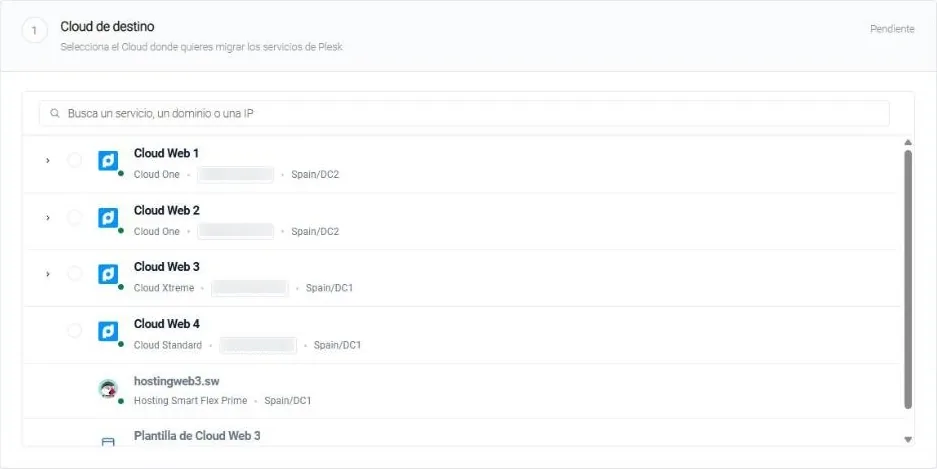
Choose the destination Cloud
All your SWPanel Clouds in a list, with their plan and data center. You mark which one you want to put what comes from Plesk on. At the top, a search by name, domain or IP.
Step 2
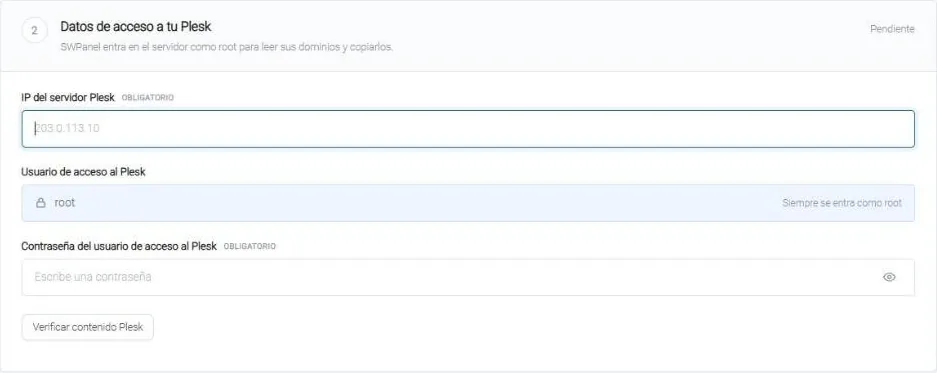
Enter the access details for your Plesk
The server's IP and the root password. With “Verify Plesk content”, SWPanel logs in to the server to read its domains.
- The user is always root
Step 3
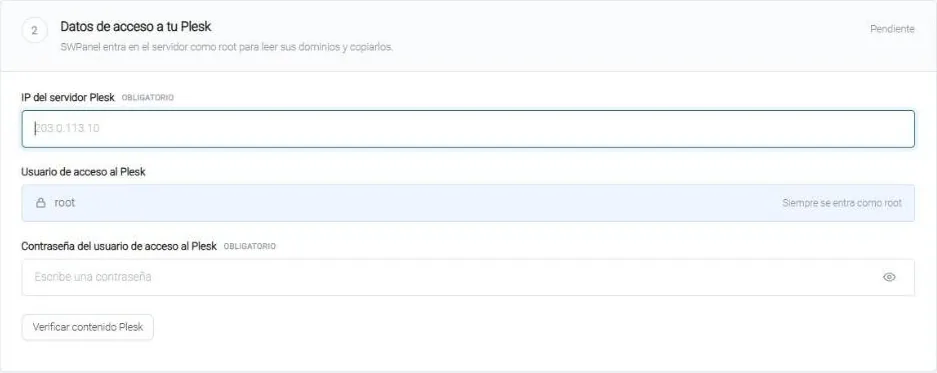
Select the hosting plans you want to bring
Once SWPanel has read the server, the hosting plans you have created in Plesk appear here. You select the ones you want to migrate, or all of them.

Step 4
Tell us where to notify you
The email we write to when it finishes or if the migration stops. It comes pre-filled with your account's: change it if you want the notice to go to someone else.

Step 5
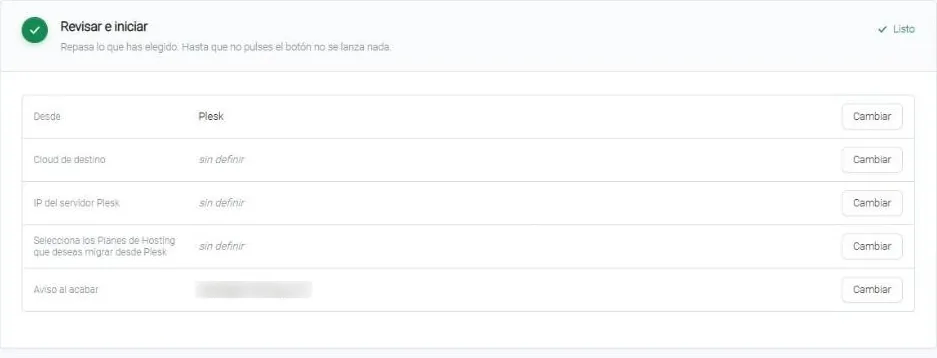
Review and start
Everything you've chosen in a list, each line with its “Change”. Nothing is launched until you click “Start migration”.
- You see at a glance what's missing
- Nothing is deleted from the source
While it migrates and after
From migration to DNS
-
Follow it in SWPanel
In Tools › to migrate Websites › Manage migrations you see each migration and what stage it's at. It takes more or less time depending on the size of what you're bringing.
-
We'll notify you when it finishes
To the email you put in “Notify when finished”. You don't need to leave the screen open.
-
Test it before touching the DNS
Nothing is deleted from the source. Point the domain to the new IP only on your computer, using the “hosts” file, and review the website in SWPanel while your visitors stay on the usual server.
-
Change the DNS when it's right
When everything works, you point the domain to SWPanel. Afterwards, remove the line from the “hosts” file.
If something doesn't work as on the source server, check that the PHP and web server of the hosting in SWPanel have the same version and configuration as there. That's what the wizard itself advises, in “While migrating”.
Don't have the root password?
Use the migration from “Any hosting”: with the website's FTP or SSH (in Plesk it's usually in /httpdocs), its database details and, if you want, the mailboxes.
Frequently asked questions
About migrating from Plesk
Your Plesk websites, in SWPanel
Create your account, choose the destination Cloud and let the wizard do the rest.